CentOS 7 System Password Recovery
Password recovery can be categorized into two situations: one is within the system interface, and the other is outside the system interface.
Today, we will discuss the topic of system password recovery.
1. Why do we need to recover a password? –> Of course, it is because the password has been forgotten; we need to reset the password.
2. However, the premise of this password recovery is that you need access to the server; for example, in my work;
-
In the server room, there are many servers, all of which are hardware;
-
If the Linux system is installed, then the password can be recovered using the following methods;
Password Recovery Tutorial (CentOS 7)
-
This method is generally applicable; many systems are quite similar, give or take a few.
-
However, the prerequisite is that you need access to the server;
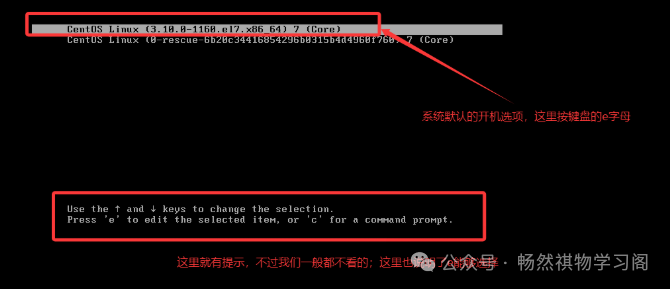
Step 1:Power on the server; when you see the following page, press ‘e’
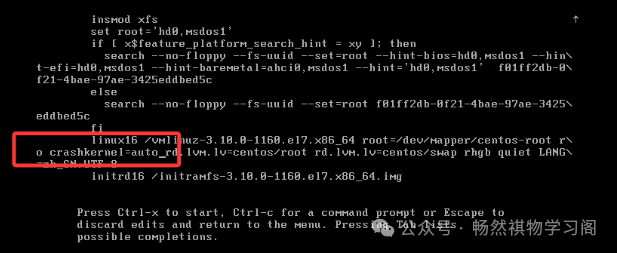
Step 2:After pressing ‘e’, you will see a string of English text;
-
Anyway, it is not understandable, find the line for Linux and use the up and down arrows to navigate;
-
Remember to find the line for Linux
-
Then changero crashkernel=auto to: rw init=/sysroot/bin/bash
The original looked like this:
After modification, it looks like this
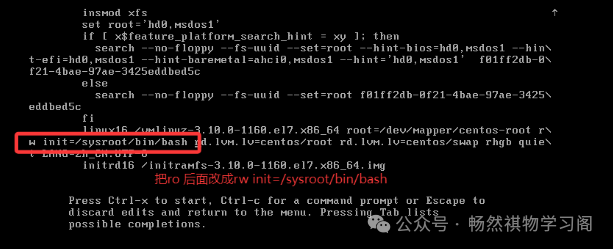
Step 3:Then press ctrl + x to enter single-user mode
-
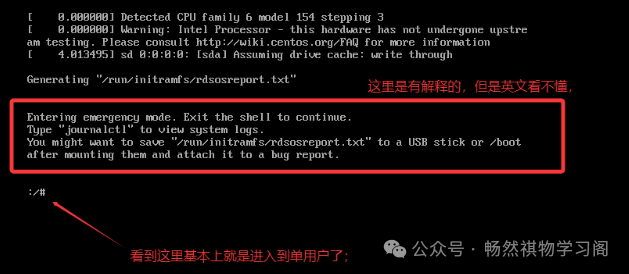
After the above modification, press ctrl + x to let the system enter single-user mode
-
Then you will see the following page:
Step 4:Execute the command to change the password
-
The command is as follows, along with an explanation;
-
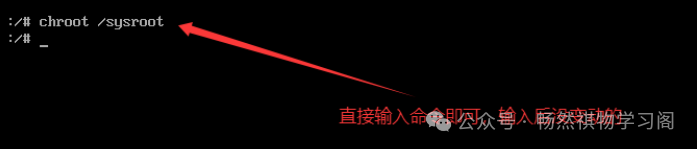
Input command: chroot /sysroot –> switch to access the system
-
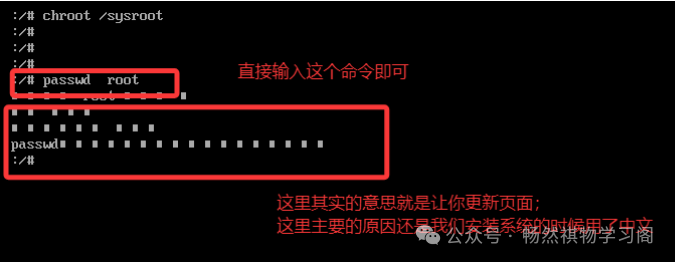
Then input the command to change the system password
-
passwd root
-
Then enter the new password twice (this is the new password);
-
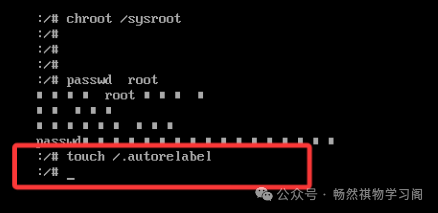
Then input the command: update system information
-
touch /.autorelabel input command
-
Create a .autorelabel file in the / directory,
-
If this file exists, the system will relabel the entire file system upon reboot
-
This can be understood as controlling and marking the underlying permissions of the files,
-
IfseLinux is in a disabled state, then this command does not need to be executed
Step 5:Finally, reboot the system
-
exit to exit the current mode
-
Input command reboot

Up to this point, the entire process of recovering the system password has been fully demonstrated;

This tutorial is also widely available online; as long as you understand, you can easily learn it by searching;
Learning up to this point; actually, we are just scratching the surface of system learning, but a tall building starts from the ground;
Learning step by step; I have learned it once, then made my own notes, and organized it once;
Then I shared it again; it is equivalent to me learning it three times, not for anything else but to solidify these knowledge points step by step; becoming an architect is just around the corner, after all, there must be hope, and living is exciting;~!