Do you often encounter the situation where your phone shows “no storage space” or “insufficient memory”, even though you haven’t installed many apps and your SD card has plenty of space? This can often lead to slow internet browsing on your phone!
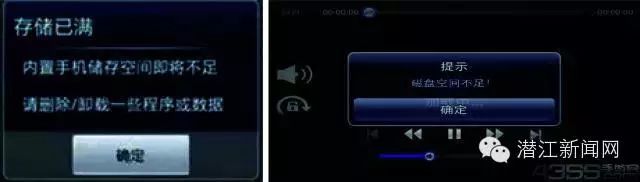 Why does this happen? Today I will explain!
The “Room Structure” of Your Phone
First, let’s understand the three aspects of phone memory.
Today’s smartphones are like computers; they have memory and storage, just like a computer has RAM and hard drive. If we compare the memory inside the phone to a room, this room consists of three parts:
RAM: Random Access Memory (equivalent to the computer’s memory module)
ROM: Read-Only Memory (the phone’s storage space, equivalent to the computer’s hard drive)
SD Card: External expanded storage space (equivalent to an external hard drive)
 Why Does Your Phone Show “Insufficient Memory”?
The memory is the space that the phone system comes with by default. Since the operating system and other default programs are pre-installed at the factory, there isn’t much space left. Additionally, when you download apps, they are typically stored in the phone’s internal memory rather than the SD card, which many users may overlook!

Moreover, many users mistakenly consider the capacity of the SD card as the memory capacity. You might think you have plenty of memory left, but in reality, memory and storage are different, so be careful not to confuse them.
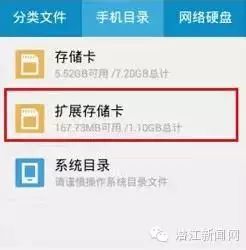
When the “room” of phone memory becomes too crowded, there won’t be enough space left for the phone’s brain—the CPU—to operate various processes, which can lead to sluggish performance, errors in some applications, slow internet speeds, and more.
How to Solve the “Insufficient Memory” Problem?
Regularly Manage Background Programs
If too many programs are running simultaneously on your phone, the memory “room” can become overcrowded. Note that some programs may continue to run in the background even after you exit them, consuming space. You can use phone management software to regularly clear caches and background programs to lighten the load on your phone.
Use a Relatively Simple Desktop Theme
Many users prefer vibrant dynamic desktop themes, but be aware that these themes take up significant space and are stored in the phone’s internal memory. Using smaller, simpler themes can effectively reduce memory usage.
Transfer Apps to the SD Card
Install apps on the SD card instead of the phone’s internal memory to save space. You can move already installed apps from internal memory to the SD card via the phone’s app management settings. Additionally, try to store large files like photos and videos on the SD card.
Use RE File Explorer
If you’re technically inclined, you can download RE File Explorer. The /data/dalvik-cache folder contains system cache files and leftover junk from uninstalled custom programs, which you can safely delete to noticeably improve system memory.
Restore to Factory Settings
If your phone consistently shows insufficient memory upon startup, and uninstalling or transferring apps doesn’t solve the issue, it may be infected with rogue software and need a complete reset. You can back up your contacts, messages, and some applications, then restore the phone to factory settings to completely resolve the issue.