Background: A colleague brought me a router and asked if I could help him flash it into a soft router because he saw many people online saying that soft routers are particularly good. So he consulted me and asked for my help to flash it! I took a look at his router, oh!!! It turns out to be the Redmi AX6000, one of the easiest routers to flash, so I decided to help him out!What I flashed for him isOpenWRT, along with some other things, which I won’t introduce here!Here, I will share with you how I did it!!Step 1: First, initialize the router, then connect to the router’s LAN port wirelessly to log into the backend. The Xiaomi router backend address is usually 192.168.31.1, so we enter this in the browser.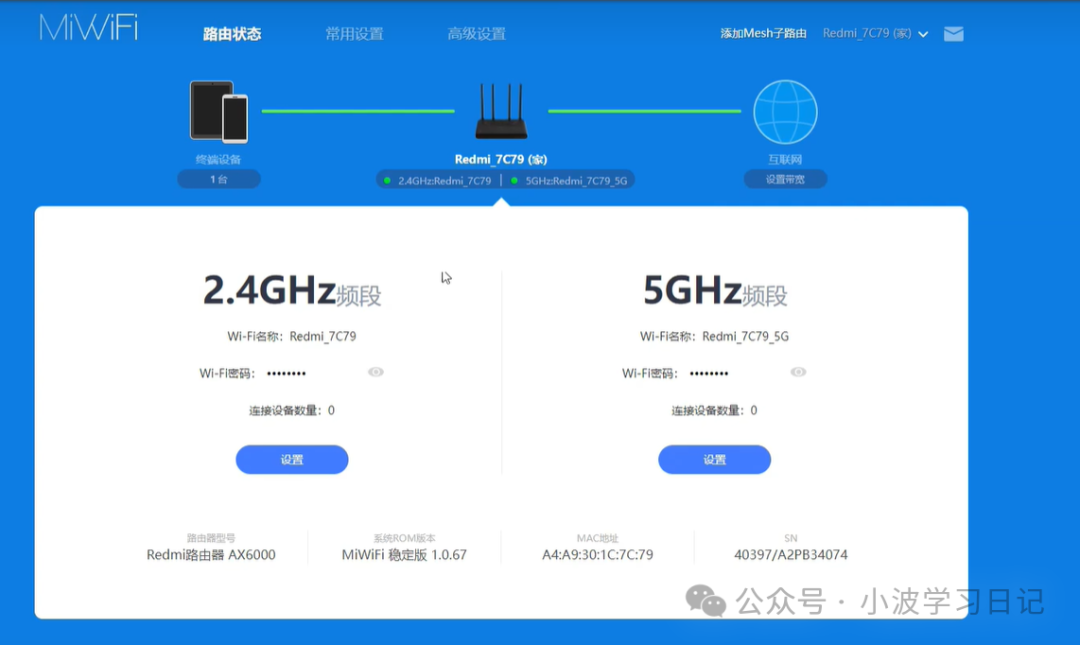 Here we can see that the router’s system version is 1.0.67, which is not acceptable, so we need to flash this system version to 1.0.60. Open the toolkit.
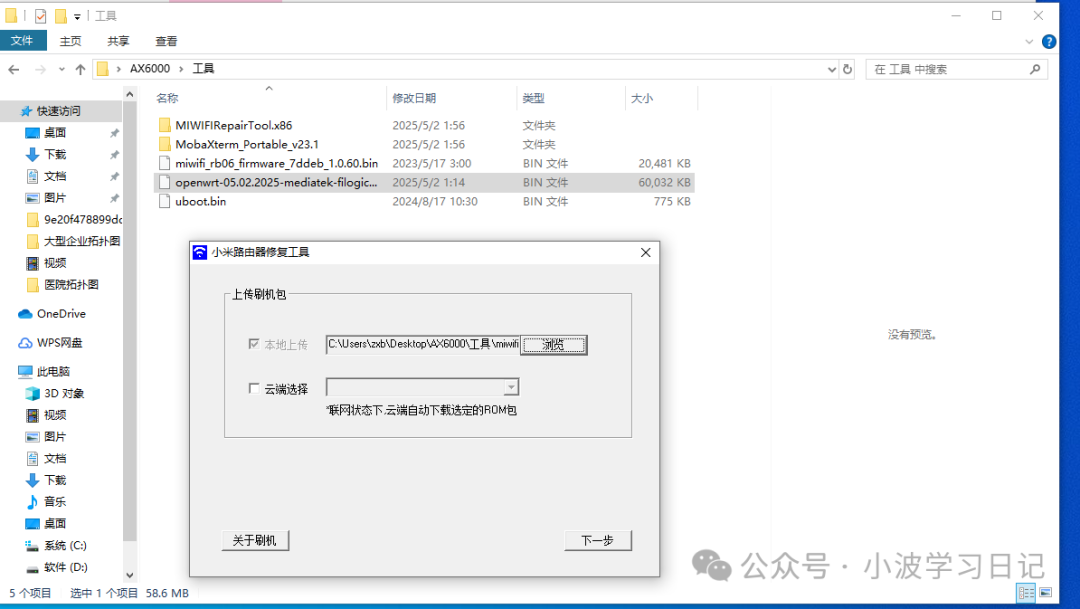 Then click next, and follow the prompts from the tool!
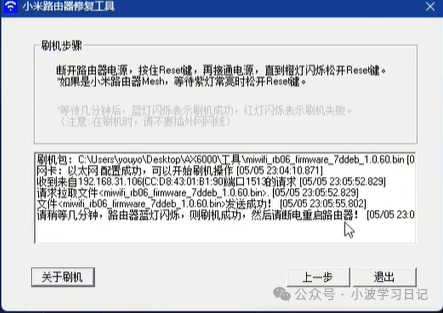 Then restart the router:
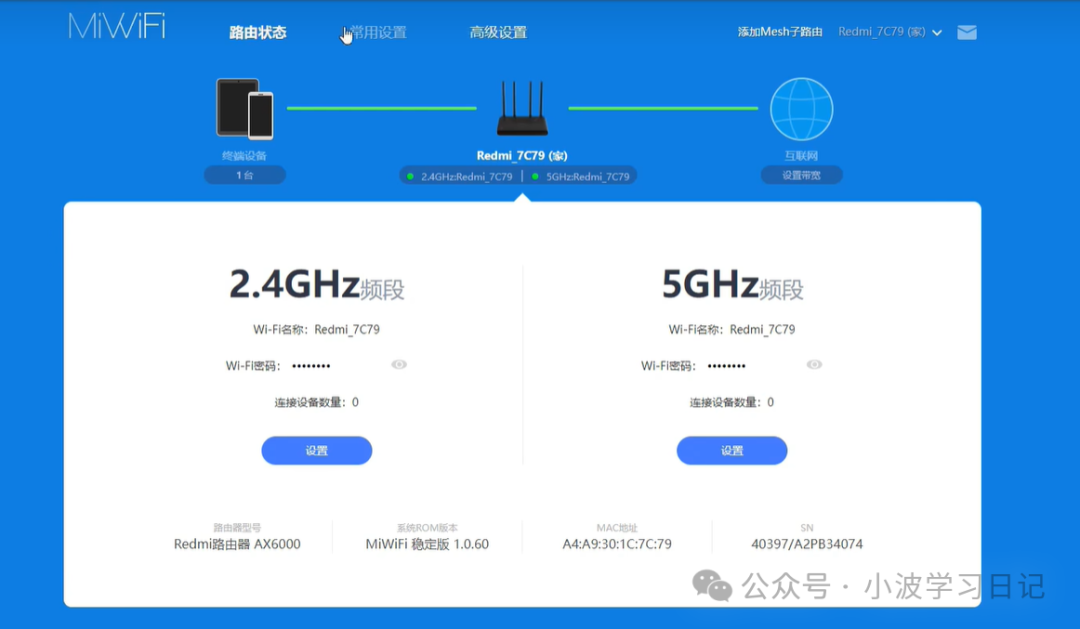 Then we can see that the router has been flashed to version 1.0.60,then find /web……. in the URL, delete it and replace it with
/api/misystem/set_sys_time?timezone=%20%27%20%3B%20zz%3D%24%28dd%20if%3D%2Fdev%2Fzero%20bs%3D1%20count%3D2%202%3E%2Fdev%2Fnull%29%20%3B%20printf%20%27%A5%5A%25c%25c%27%20%24zz%20%24zz%20%7C%20mtd%20write%20-%20crash%20%3B%20Then press the enter key, and if this interface appears, it means your operation is correct.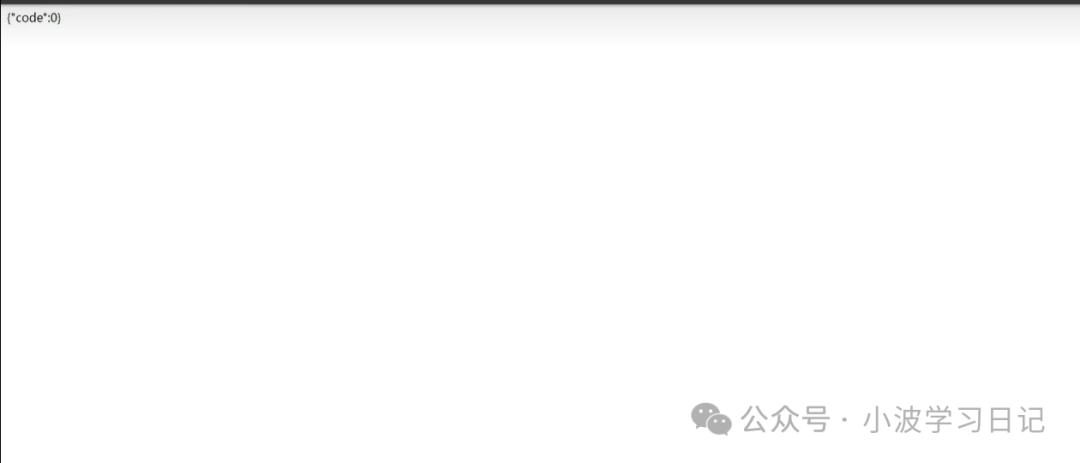 Then find /api…… in the URL, delete it and replace it with
/api/misystem/set_sys_time?timezone=%20%27%20%3b%20reboot%20%3b%20Then press the enter key,if this interface appears, it means your operation is correct.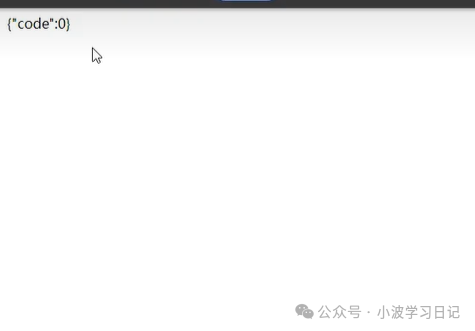 Then the router will automatically restart, wait a few minutes!Then reopen the router backend! Find /web….. in the URL, delete it and enter the following address
/api/misystem/set_sys_time?timezone=%20%27%20%3B%20bdata%20set%20telnet_en%3D1%20%3B%20bdata%20set%20ssh_en%3D1%20%3B%20bdata%20set%20uart_en%3D1%20%3B%20bdata%20commit%20%3B%20Then continue to press the enter key.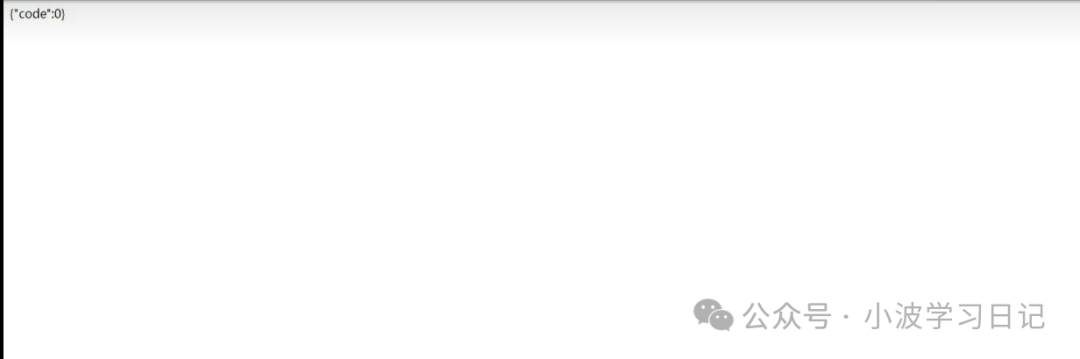 Then find /api…. in the URL, delete it and enter the following address
/api/misystem/set_sys_time?timezone=%20%27%20%3b%20reboot%20%3b%20Then continue to press the enter key, and if it shows code 0, it means success! The router will restart again, and we wait for it to reboot! This step is toenable the router’stelnet!Then find the software MobaXterm_Personal_23.1 in the tools, open it, click new, find telnet, and enter the router address 192.168.31.1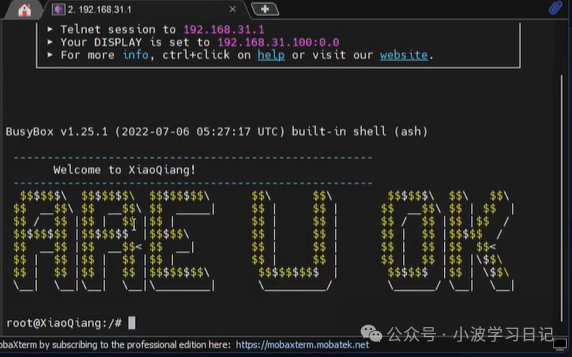 Press the enter key to enter.
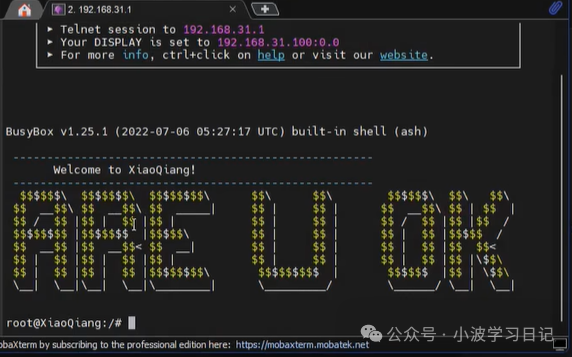 Then copy and paste
bdata set boot_wait=on
bdata commit
nvram set ssh_en=1
nvram set telnet_en=1
nvram set uart_en=1
nvram set boot_wait=on
nvram commit
sed -i 's/channel=.*/channel="debug"/g' /etc/init.d/dropbear
/etc/init.d/dropbear restart
echo -e 'admin\nadmin' | passwd root
these commands into the interface!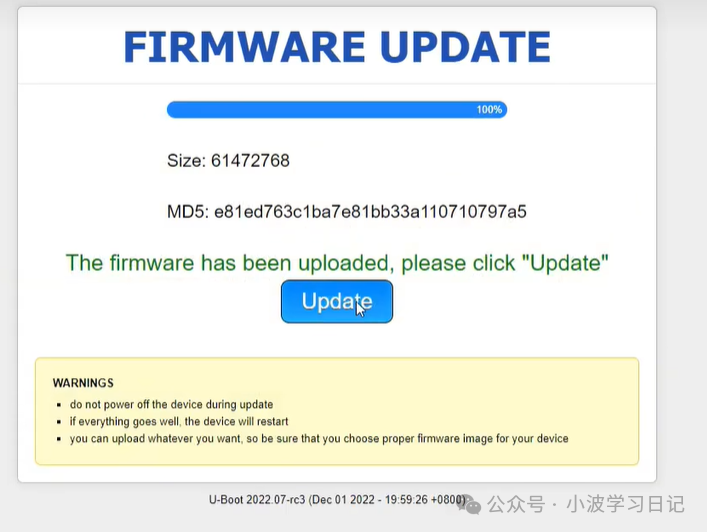 Then press the enter key!Then you can close this, and then clicknew, find SSH, and enter the router address
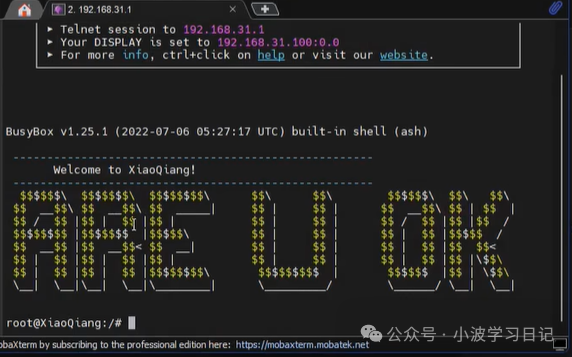 Then enter, and it will prompt you to enter the username and password, the username is: root, and the password is: admin
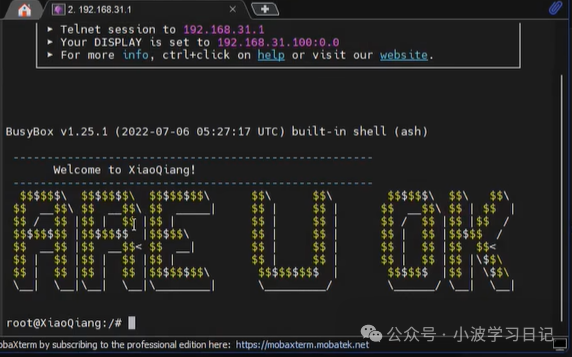 Then find the tmp folder on the left, double-click to enter, and upload theuboot.bin firmware from our toolkit into this folder!Then enter the command line
cat /proc/cmdline Then check if this firmware shows 0 or 1If firmware=0, enter
nvram set boot_wait=on
nvram set uart_en=1
nvram set flag_boot_rootfs=1
nvram set flag_last_success=1
nvram set flag_boot_success=1
nvram set flag_try_sys1_failed=0
nvram set flag_try_sys2_failed=0
nvram commit
If firmware=1, enter
nvram set boot_wait=on
nvram set uart_en=1
nvram set flag_boot_rootfs=0
nvram set flag_last_success=0
nvram set flag_boot_success=1
nvram set flag_try_sys1_failed=0
nvram set flag_try_sys2_failed=0
nvram commit
Then enter: flash the firmware
mtd write /tmp/uboot.bin FIPThen wait a moment, about 5 minutes! Then enter the command
rebootto restart the router!Then unplug the router’s power, hold the reset button while plugging the power back in, wait about 5-7 seconds, then release the reset button, and enter 192.168.31.1 in the browser, remembering that our computer’s network cable is still plugged into the router’s LAN port.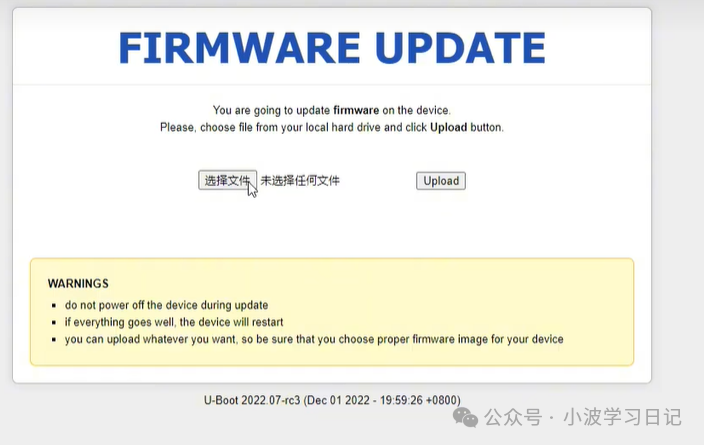 Successfully entered the update interface, then click to select the file, choose theopenwrt.bin file from the toolkit, and then click upload.
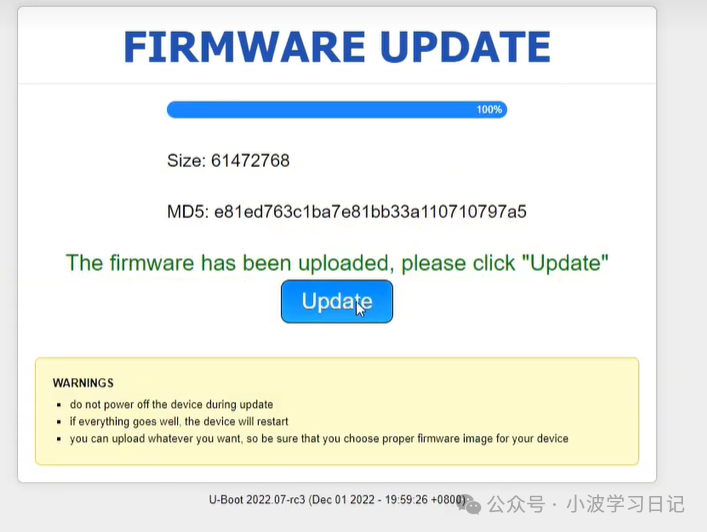 Then click update.
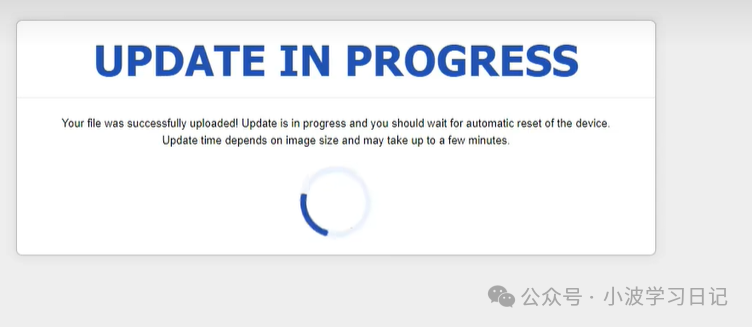 Here you need to wait about 10 minutes!Then we can enter the backend, at this time the router address is no longer 192.168.31.1 but 192.168.5.1, enter 192.168.5.1 in the browser.
 At this point, you have successfully entered, the username is root, and the password is: password
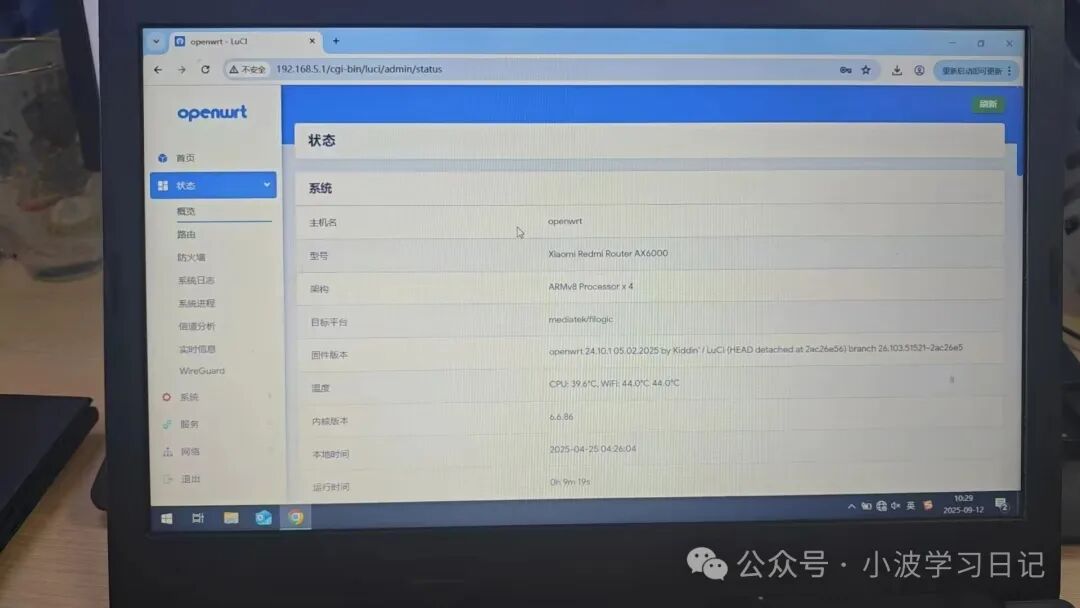 At this point, you can see that the flashing was successful, what functions and plugins are inside can only be experienced personally, it is indeed quite powerful! Those who love tinkering can give it a try! The toolkit I have placed below for you to take!PS: Actually, I didn’t want to do this for the client! But there was no choice! I dare not offend the files shared through the cloud: AX6000.zip Link: https://pan.baidu.com/s/1kR-b69WoTPpKcE2IgcbjGw?pwd=p9u2 Extraction code: p9u2 Copy this content and open the Baidu Cloud App for easier operation.