
The Zed editor has officially launched on Windows, providing a fast, GPU-accelerated Rust experience. It supports multiple buffers, multiple cursors, and Claude AI. Although there are some initial minor issues, it is expected to become an important auxiliary editor in the future.
Translated from:Fast, Rust-Based Zed Code Editor Finally Arrives on Windows[1]
Author: David Eastman
Zed[2], the “next-generation” code editor created by the developers of Atom and Tree-sitter, has finally arrived on the Windows platform. Zed is a fast, Rust-based, GPU-accelerated general-purpose code editor. When I first reviewed it two years ago[3], it was only available on macOS.
When I first reviewed Zed, I wondered when it would come to Windows. As a fundamental programming tool, a code editor must support multiple systems as much as possible. Software developers cannot always choose their work or target platform, so they need reliable tools and to be confident that these tools will cover all platforms.
Zed was initially reluctant to build a version for Windows, reflecting the size and experience of its team rather than their dedication. Therefore, while this review mentions some negatives, I believe they will adapt to the Windows development environment and resolve all issues.
I use Zed as my “backup” editor—an editor for handling files within and around my main projects. For me, it cannot replace Visual Studio / Visual Code for handling C# files, but it is already good enough for JSON files, Ruby support scripts, etc. I certainly hope it can replace the aging Sublime Text.
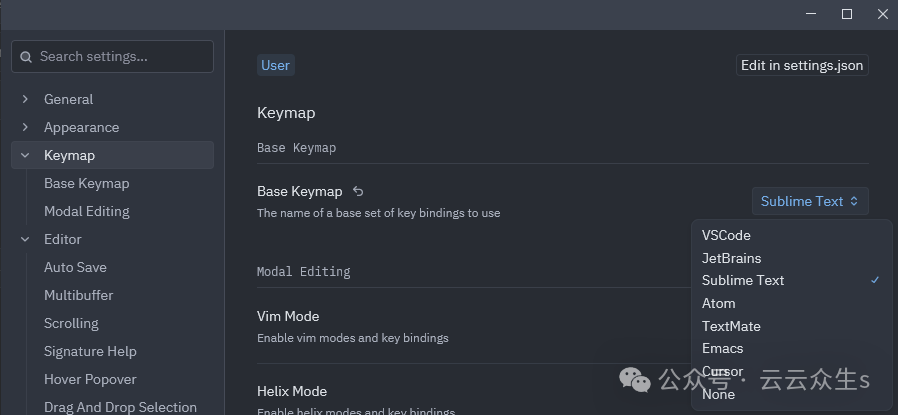
Zed always supports efficient keyboard operations, and there is almost always a way to bind actions to the keyboard. However, in 2025, most people will indeed use a mouse, and this is also well supported.
[4]
First Impressions and Initial Setup on Windows
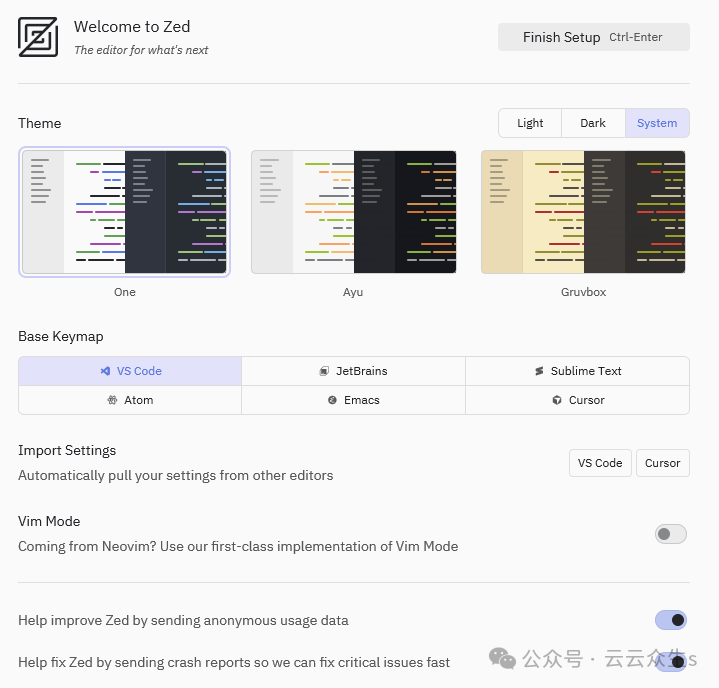
I will test it on my old Windows 10 machine, which handles the Windows part of my development work. I feel like I have been using Sublime on this machine for a long time, so it is great to finally install Zed:
[5]
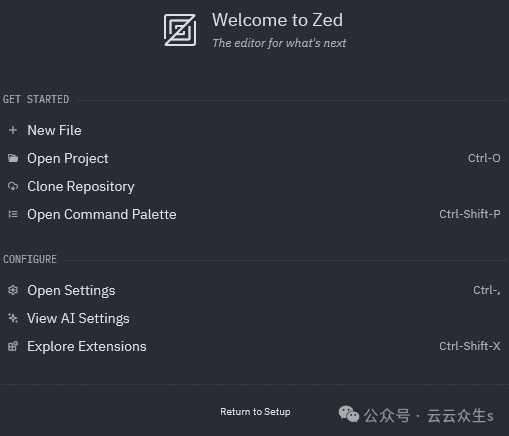
It starts with this beautiful setup page, and you will notice that I can import my Sublime bindings. After completing the setup, it opened this welcome page:
[6]
I was very interested in the “Clone Repository” option, so I entered a repository URL, specified a target folder, and received the following response:

[7]
No further explanation. After the update, this option no longer appeared on the startup screen. So I guess we should temporarily forget about this and assume it will be fixed in the background. As I said, this is a cutting-edge product.
Language Support and File Encoding Issues
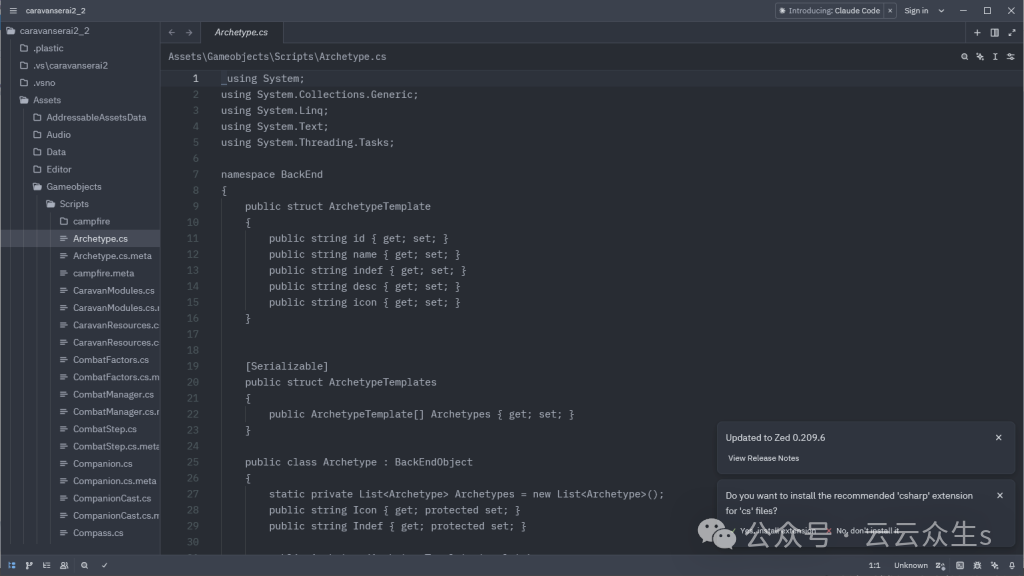
After opening a project, Zed detects the language of the code files and invites you to load the correct language server. (It can detect any language that is not more obscure than C#.)
[8]
Then we immediately got the expected ordered coloring.
If you look closely at the screenshot above, you will see that the first character of the file is an underscore, which the file seems to ignore, but deleting it causes issues. This is because the file is saved in UTF-8 with BOM (Byte Order Mark), which Zed cannot recognize. As mentioned earlier, as they synchronize with the more common issues on Windows, Zed will pay more attention to this.
I also found that the refresh diagnostics feature does not run particularly smoothly, but this also seems to be a minor issue. Let’s dive into multi-buffer and multi-cursor.
Understanding Multi-Buffer and Multi-Cursor
Multi-buffer acts as windows for different files, but all windows are on one page. For example, I can search for references to a method. In VS Code, these would be listed in another pane. But in Zed, we can see them all together:
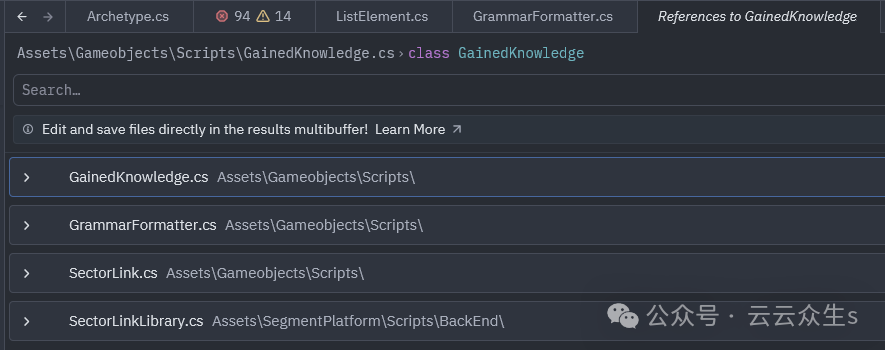
[9]
When expanded, these are windows for related files, each with a few lines of context above and below:
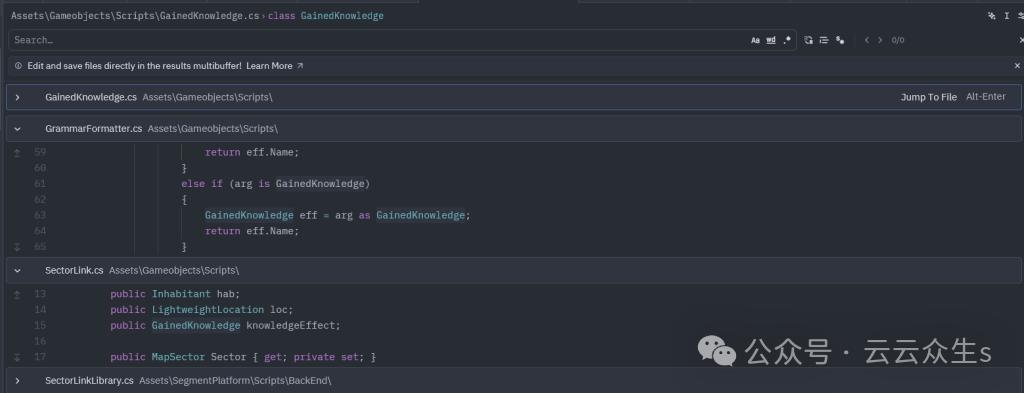
[10]
I can enter any buffer and edit it directly. You can also see that I can jump to the source file. Additionally, I can make global changes. In multi-buffer, multiple cursors can be used to edit each file simultaneously. Below, I selected instances of the class term <span>GainedKnowledge</span> and expanded all these instances at once:
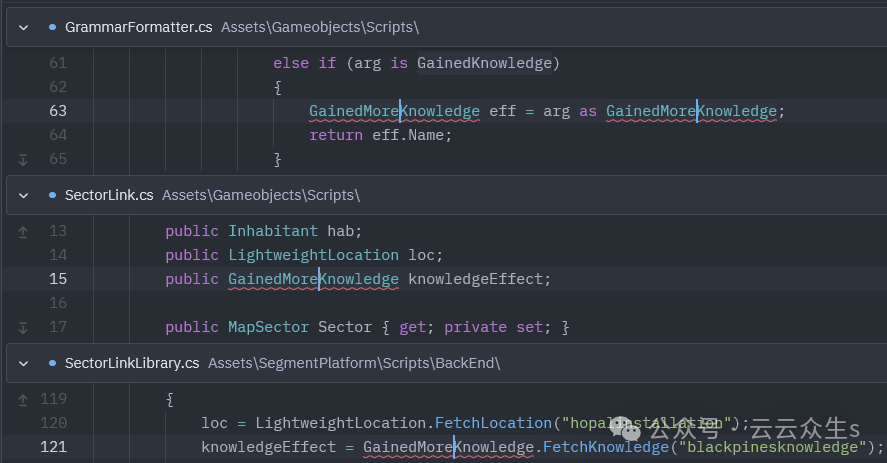
[11]
This is more versatile than the similar but more specific “Change Symbol” feature.
Anthropic’s Claude Integrated AI
One convenient feature is <span>control-+</span>, which allows you to zoom in on the file text content, and the operation is very quick.
When I first reviewed Zed, the “login” seemed like a strange and even controversial requirement for the editor, although it was mainly for using collaborative features. Of course, nowadays, people log in to their AI providers anyway. Speaking of which, Zed chose Anthropic’s Claude as its default built-in large language model (LLM) agent, although it can also work with any provider:
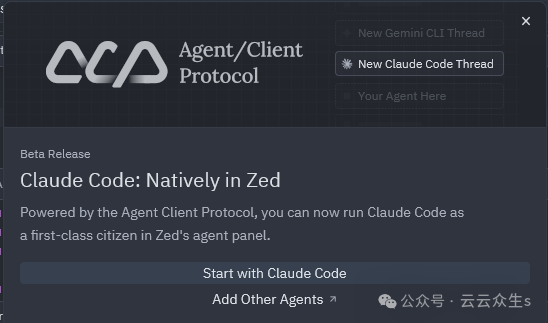
[12]
I wasn’t planning to look at the AI part, as it would obviously run well like before[13]. However, it did help me introduce the terminal.
Using the Integrated Terminal
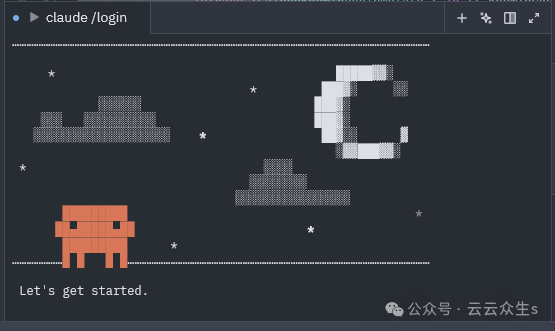
When validating Claude, it defaulted to showing a lovely terminal login interface:
[14]
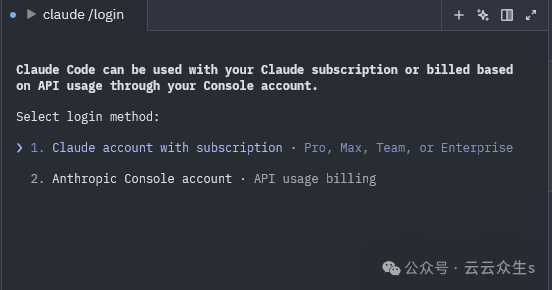
After selecting options, this allows Zed to separate well from Anthropic’s billing authentication while also addressing payment issues:
[15]
Although it does require jumping to a webpage to complete, after I finished operating on the webpage, the terminal disappeared—which is a great detail.
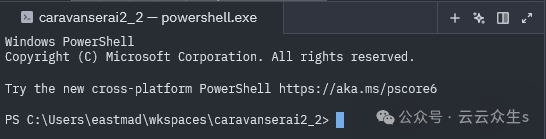
I brought up the terminal again using the command panel <span>ctrl-shift-p</span>, which binds commands to the keyboard. When the request to refresh the terminal returned, I noticed it was using Powershell:
[16]
Of course, in Windows, what “terminal” is can vary based on your needs. Warp for Windows has also found this out[17]. For me, it is git bash[18], but others use WSL[19]. I believe these options will improve over time.
Finally, the costs are now primarily focused on AI usage. However, as before, most people may not pay initially.

[20]
Conclusion: The Future of Zed on Windows
Zed has enough reason to claim it has a fully supported editor on every major system, which elevates it to a lofty status. The longer it can withstand Windows-specific bug reports in its Discord channel, the faster the product will mature.
Zed still differs slightly from the developer community as it focuses on speed and AI. However, I expect it to gain increasing attention as everyone’s “backup” editor.
Reference Links
<span>[1]</span> Fast, Rust-Based Zed Code Editor Finally Arrives on Windows:https://thenewstack.io/fast-rust-based-zed-code-editor-finally-arrives-on-windows/<span>[2]</span>Zed:https://zed.dev/<span>[3]</span>When I first reviewed it two years ago:https://thenewstack.io/zed-a-new-multiplayer-code-editor-from-the-creators-of-atom/<span>[4]</span>:https://cdn.thenewstack.io/media/2025/10/ce6e7d6d-image.png<span>[5]</span>:https://cdn.thenewstack.io/media/2025/10/7c24e849-image-1.png<span>[6]</span>:https://cdn.thenewstack.io/media/2025/10/9d96f54f-image-2.png<span>[7]</span>:https://cdn.thenewstack.io/media/2025/10/3c4a42ce-image-3.png<span>[8]</span>:https://cdn.thenewstack.io/media/2025/10/41f60bf7-image-4-1024×576.png<span>[9]</span>:https://cdn.thenewstack.io/media/2025/10/e3cff681-image-5.png<span>[10]</span>:https://cdn.thenewstack.io/media/2025/10/2caa0991-image-6-1024×393.png<span>[11]</span>:https://cdn.thenewstack.io/media/2025/10/5d15d754-image-7.png<span>[12]</span>:https://cdn.thenewstack.io/media/2025/10/4577b2b6-image-8.png<span>[13]</span>As before:https://thenewstack.io/an-introduction-to-zed-ai-and-how-it-compares-to-cursor-ai/https://thenewstack.io/how-rust-based-zed-built-worlds-fastest-ai-code-editor/<span>[14]</span>:https://cdn.thenewstack.io/media/2025/10/7aa6b62f-image-9.png<span>[15]</span>:https://cdn.thenewstack.io/media/2025/10/bddef958-image-10.png<span>[16]</span>:https://cdn.thenewstack.io/media/2025/10/1322daed-image-11.png<span>[17]</span>Warp for Windows has also found this out:https://thenewstack.io/developer-review-of-warp-for-windows-an-ai-terminal-app/<span>[18]</span>git bash:https://gitforwindows.org/<span>[19]</span>WSL:https://learn.microsoft.com/en-us/windows/wsl/<span>[20]</span>:https://cdn.thenewstack.io/media/2025/10/cadcb82d-image-12.png