
Click the Blue Text
Follow Us
1. Introduction
1. Concept
Zigbee is a wireless communication protocol widely used for connecting Internet of Things (IoT) devices. It is based on the IEEE 802.15.4 standard and uses low-power digital radio to create Personal Area Networks (PAN). Zigbee networks are characterized by low data rates, low power consumption, and short range, making them ideal for applications such as home automation, smart lighting, and industrial control systems. Zigbee supports mesh networking, allowing devices to transmit data through relay nodes, thereby increasing network reliability and coverage.
2. Features
-
Low Power Consumption:Zigbee devices are very energy-efficient, suitable for battery-powered devices that can last for years without battery replacement.
-
Low Data Rate:Suitable for applications that transmit small data packets, such as sensor data and control commands, with data rates typically between 20kbps and 250kbps.
-
Short Range Communication:The typical communication range is between 10 to 100 meters, suitable for home or small office environments.
-
Mesh Networking:Supports mesh network topology, allowing devices to relay data from other devices, thus extending network coverage and enhancing reliability.
-
High Security:Uses 128-bit AES encryption to ensure the security and privacy of data transmission.
-
Self-Organizing Capability:Devices can automatically join and configure the network, greatly simplifying deployment and expansion.
-
Low Cost:Hardware and implementation costs are low, making it suitable for large-scale deployment.
-
Interoperability:The Zigbee Alliance has established a unified standard to ensure that devices from different manufacturers can interoperate.
-
Multiple Operating Frequency Bands:Mainly operates in the 2.4GHz band, but also supports 868MHz (Europe) and 915MHz (North America) bands to accommodate spectrum requirements in different regions.
3. Advantages and Disadvantages
Advantages:
① Low power consumption
② Wide coverage
③ High security
④ Flexibility and scalability
⑤ Low cost
Disadvantages:
① Low data rate
② Short range communication
③ Interference issues
④ Complex network management
⑤ High latency
⑥ Poor compatibility
4. Applications
① Home automation
② Industrial automation
③ Energy management
④ Smart buildings
⑤ Smart logistics
5. Important Concepts
① Communication Channel (Channel): ZigBee can select from 16 physical channels, namely CH11~CH26.
② PAN ID (Personal Area Network ID): An identifier used to determine the network to which it belongs. Nodes that can communicate with each other must have the same PAN ID, and the PAN IDs of adjacent networks in the same working area must be different.
③ Physical Address (MAC): The MAC address of the module, which is 64 bits long and is also called the IEEE address, a globally unique identifier that cannot be modified.
④ Local Network Address (16-bit network address): Used to distinguish between the various nodes in the network. Under the same PAN ID, the local network address must be unique, and the purpose of introducing a short address is to improve the communication efficiency of ZigBee.
⑤ Target Network Address (16-bit network address): The current communication target address (useful only in unicast).
⑥ Sending Mode: Unicast mode is communication between a single sender and a single receiver; broadcast mode is communication between one sender and multiple receivers.
2. Zigbee Module
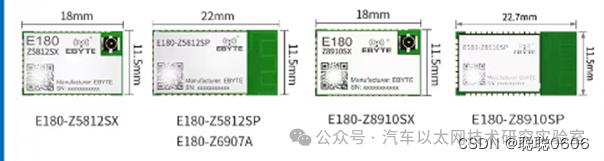
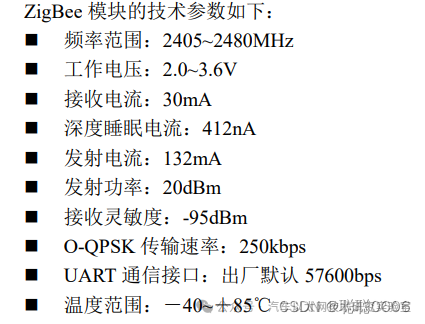
The E180-Z5812SX is a small-sized, low-power, highly reliable Zigbee module designed and produced by Chengdu Yibait based on the TELINK TLSR8258 wireless SoC. The chip comes with a high-performance 32-bit MCU running at up to 48MHz, with a maximum transmission power of 12dBm and a minimum cycle sleep current of 2uA. GPIO control: Local/remote GPIO level control, with 2 selectable IO ports. Its parameters are shown in the figure below.
The standard ZigBee network protocol includes coordinators, routers, and terminal nodes. To establish a ZigBee network, in addition to needing a coordinator, only routers or terminal nodes are required.
Before starting standard ZigBee Pro network communication, if there is no routing table established to store jump paths, nodes cannot communicate, so it is necessary to send network messages to find nodes and establish the routing table. When there is no data transmission between nodes, it is also necessary to periodically send network messages to check whether the nodes are abnormal. Thus, ZigBee Pro not only has a slow startup speed but also requires a lot of bandwidth for periodically sending network messages. The ZigBee module used has developed the FastZigBee transparent transmission peer-to-peer network protocol based on the ZigBee protocol stack, and its hybrid network is consistent with the standard ZigBee network. Its network topology is shown in the figure below.
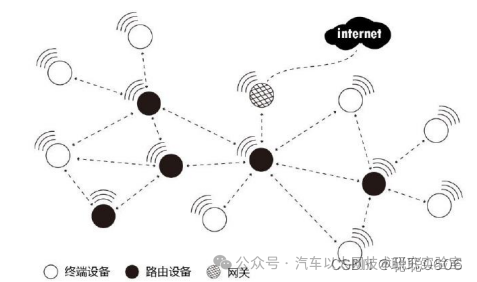
FastZigBee Node Types: FastZigBee devices are divided into terminal devices (Target) and routing devices (Router), and the network can be connected to the Internet through a ZigBee gateway (ZigBee to Wi-Fi). (Compared to the standard ZigBee protocol, the coordinator is omitted).
3. Configuration Method
1. Method to Restore Factory Configuration
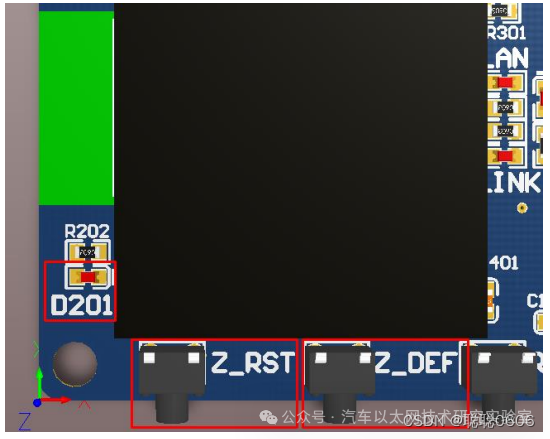
Before using ZigBee, first restore it to factory settings. After connecting the communication module to the power supply, when it is working normally, the D201 light (blue) flashes (500ms cycle). Press and hold the Z_DEF button, then press the Z_RST button (at this point, D201 (blue) goes out), release Z_RST first, and then D201 (blue) flashes quickly once, then flashes with a 500ms cycle. Finally, release the Z_DEF button to complete the factory reset. As shown in the figure below.
2. Configure Using Configuration Software
First, install the configuration software, WirelessCfg_V1.3.8.01208, as shown in the figure:

Select the installation path and click next to complete the installation. The process is simple, so I won’t provide images here. After installation, a shortcut will be created on the desktop, as shown in the figure below.
4. Transparent Transmission Experiment
Steps to Prepare
1. Hardware connection and settings: Connect and set the toggle switch. Note that the Micro USB cable should connect the main control USB_SWD interface to the computer USB port. Restore the ZigBee module to factory settings before use.
2. Program Preparation: Flash the ZigBee_Test.hex file into the development board. Note that the baud rate for serial port 1 is 57600bps, and the baud rate for serial port 2 is also 57600bps.
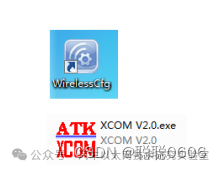
3. Debugging Software Preparation: Prepare the debugging assistant, which consists of two software programs: one is the ZigBee configuration software installed in this chapter, and the other is the serial port debugging assistant that we have used in the serial port experiment, as shown in the figure below.
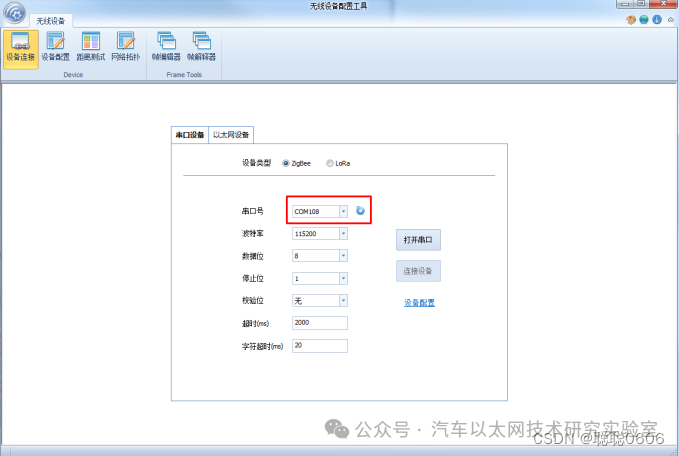
① Open the WirelessCfg software; the initial interface is shown in the figure below. The red box indicates the serial port number connected to the author’s computer, and users should select the corresponding port number based on their hardware.
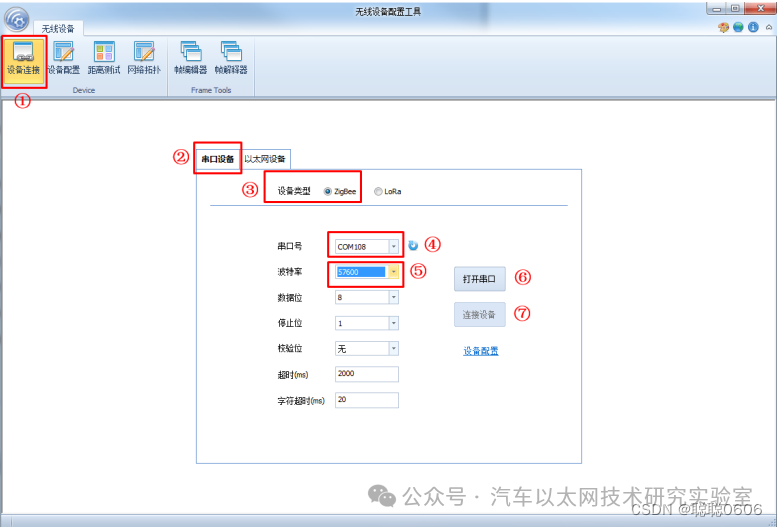
② Next, I will introduce how to use this configuration software.
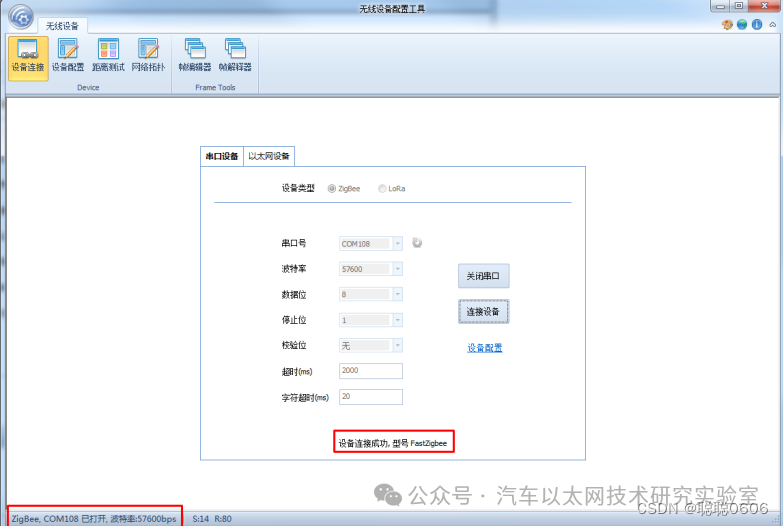
1. First, select the “Device Connection” tab, which is the default tab.
2. Select the “Serial Device” tab, which is the default tab.
3. Select the “Device Type” tab, which is the default tab.
4. Choose the serial port number based on the device connection; note that it is the virtual serial port number of ST-LINK.
5. Select the baud rate and change it to 57600, which is defaulted to 115200; remember!!!
6. Open the serial port.
7. Connect the device.
Make sure to follow these steps in order, as shown in the figure below. Note that the numbers in the image indicate the order of steps.
The correct connection and the prompt for reading device information are shown in the figure below.
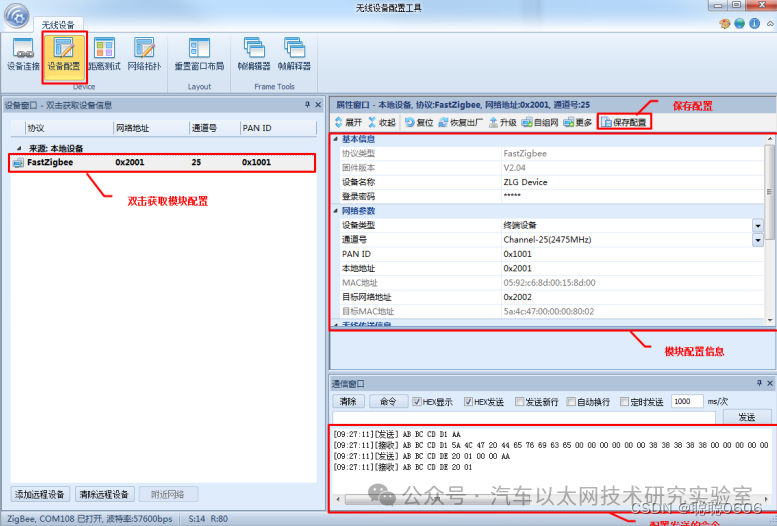
When correctly connected and the device type is read, select the “Device Configuration” tab to view the device’s configuration information. By double-clicking on the “Local Device” list on the left, you can re-fetch the module’s configuration information. After modifying the module’s parameters according to actual applications, click “Save Configuration” to complete the module configuration, as shown in the figure below.
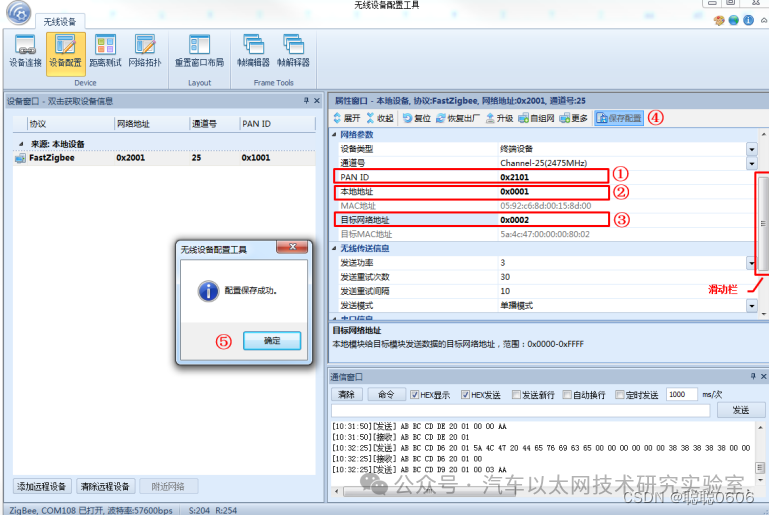
Note that as mentioned earlier, if two ZigBee modules are to communicate, at least ensure that the PAN ID is consistent and the communication channel is the same. Only then can they communicate within the same network. If it is unicast communication, the target address needs to be set to the local address of the other party. Adjust the sliding bar on the right side of the module information box to find the items that need to be modified.
1. Modify PAN ID
2. Modify local address
3. Modify target network address
4. Click save configuration
5. A prompt will automatically pop up indicating successful configuration saving; click OK, and the configuration information will refresh automatically.
As shown in the figure below. Note that you must save the configuration for it to take effect.
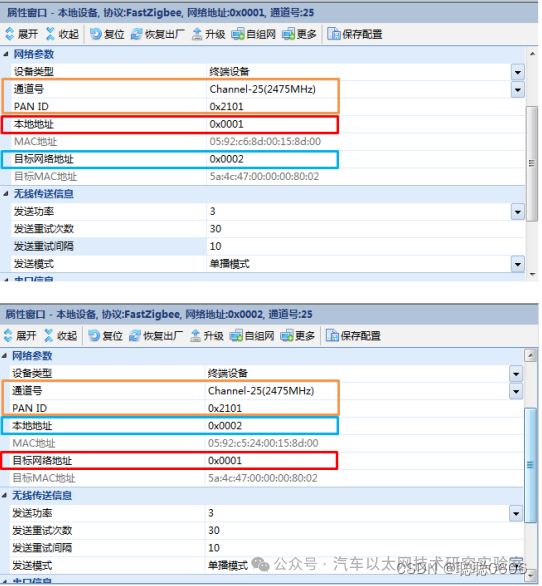
According to the methods mentioned above, we will configure the two modules for unicast communication. The local network address and target network address should be cross-set, while keeping other parameters the same, as shown in the figure below.
In this way, these two modules can communicate. Open the serial port debugging assistant on the computers connected to the development board (two), set the baud rate to 57600, and press the reset button on the development board. The ZigBee_Test firmware downloaded on the development board will automatically print information, as shown in the figure below.
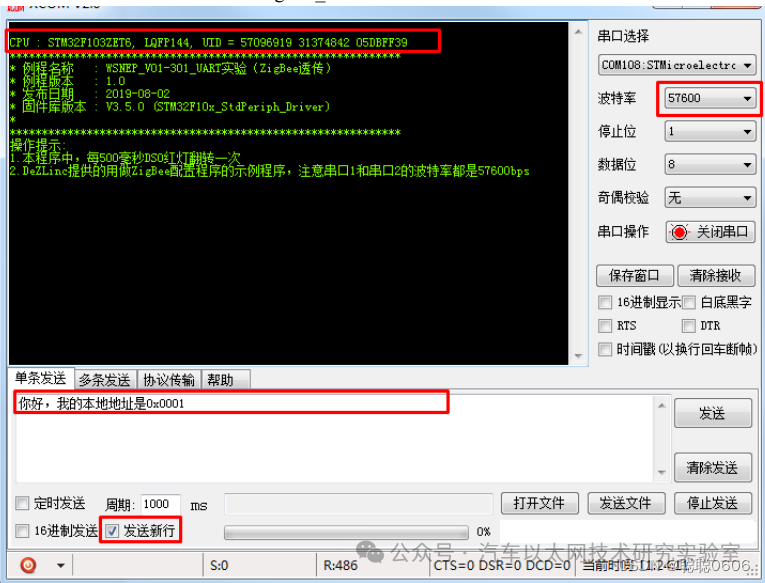
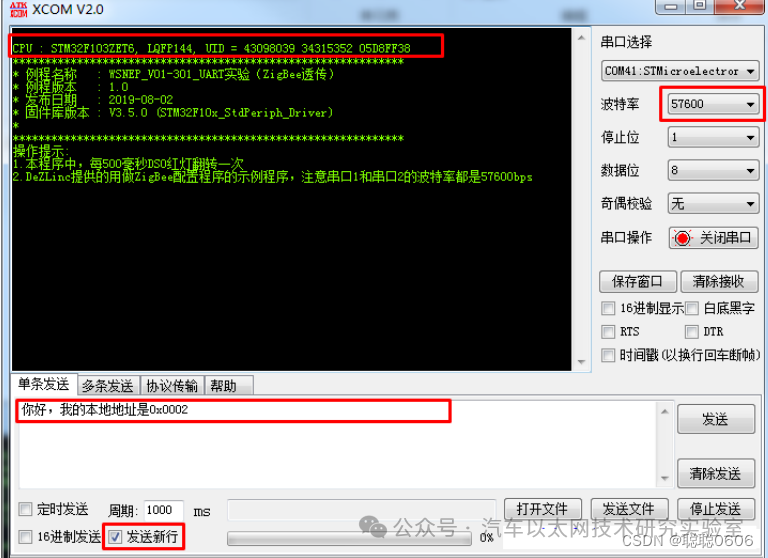
In the image above, make sure to write the corresponding module’s local address in the sending box. Clicking send on the serial port debugging assistant will show the sent information in the receiving box of the other party, as shown in the figure below.
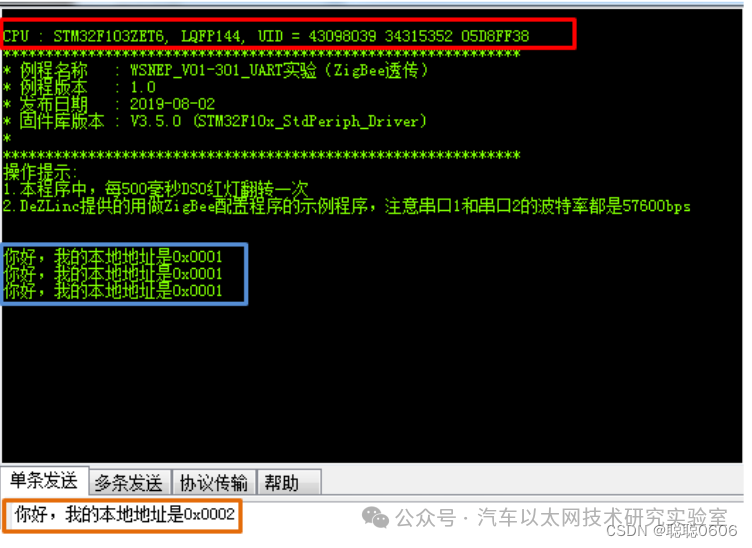
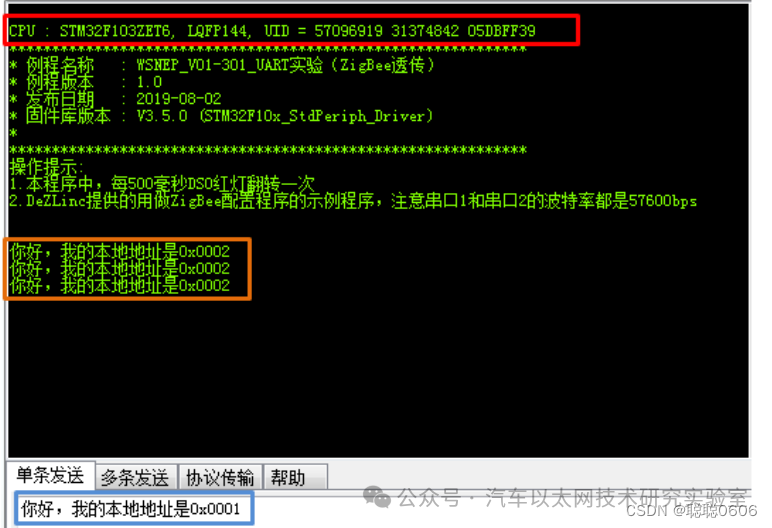
This completes the ZigBee unicast communication between the two development boards.


*Disclaimer: This article is original or forwarded by the author. If it inadvertently infringes upon any party’s intellectual property rights, please inform us for deletion. The above images and text are sourced from the internet; if there is any infringement, please contact us in a timely manner, and we will delete it within 24 hours. The content of the article represents the author’s personal views, and the Automotive Ethernet Technology Research Laboratory reposts it only to convey a different perspective, not representing the Automotive Ethernet Technology Research Laboratory’s endorsement or support of this viewpoint. If there are any objections, please feel free to contact the Automotive Ethernet Technology Research Laboratory.
Original link:
https://blog.csdn.net/2201_75342985/article/details/139960451