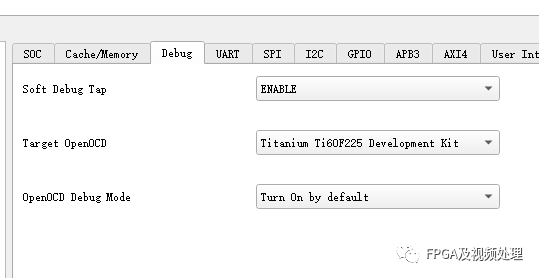
Due to current software limitations, the RISCV logic cannot share JTAG simultaneously. Therefore, if you want to debug both the logic and RISCV at the same time, you can achieve this through the RISCV’s soft JTAG. Soft JTAG is a software implementation of JTAG using GPIO. Here, we will demonstrate this using the TI60F225 DEMO.
When using soft JTAG, the first step is to select the debugging option for the RISCV IP as soft, which means enabling Soft Debug Tap.
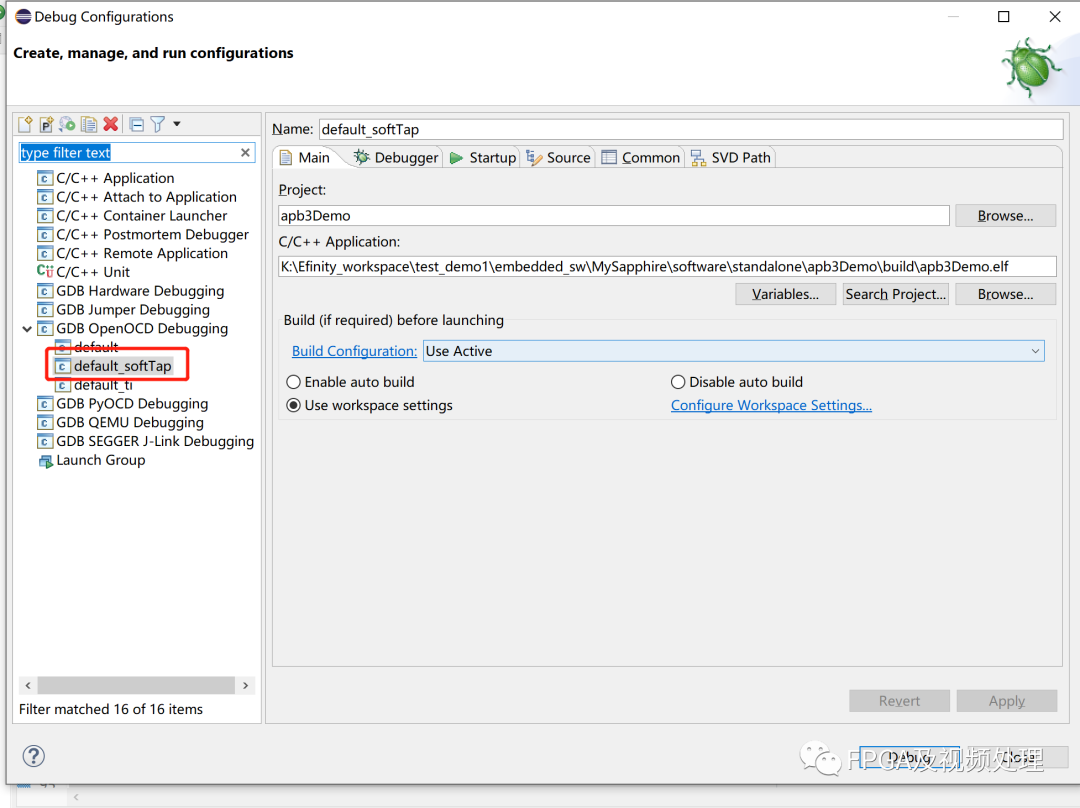
Secondly, when configuring soft JTAG through openOCD, you need to select default_softTap, which corresponds to the default_softTap.launch file located under “embedded_sw\sapphire_soc\config”.
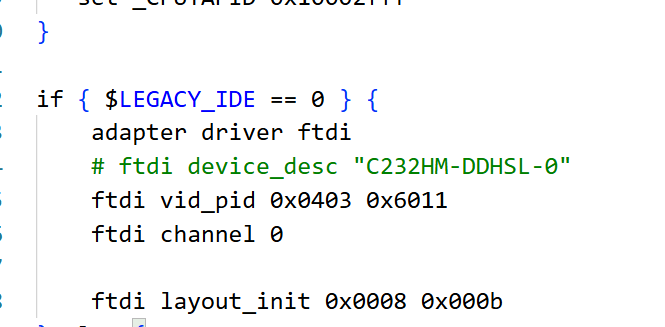
The third point to note is the name of the device. If you are using Hard JTAG, it will match the device names in ftdi_ti.cfg with the device names below. However, the file corresponding to soft JTAG is not ftdi_ti.cfg and does not have a corresponding soft.cfg; instead, it corresponds to c232hm_ddhsl_0.cfg, so you need to match the device names in c232hm_ddhsl_0.cfg with the downloader.
Opening the default_softTap.launch file under “embedded_sw\sapphire_soc\config” also shows that the path to the called file points to c232hm_ddhsl_0.cfg
<stringAttribute key=”ilg.gnumcueclipse.debug.gdbjtag.openocd.gdbServerOther” value=”-f ${workspace_loc}\bsp\efinix\EfxSapphireSoc\openocd\c232hm_ddhsl_0.cfg -c ‘set CPU0_YAML ${workspace_loc}\cpu0.yaml’ -f ${workspace_loc}\bsp\efinix\EfxSapphireSoc\openocd\debug_softTap.cfg”/>
Opening the default_ti.launch file under “embedded_sw\sapphire_soc\config” also shows that the path to the called file points to ftdi_ti.cfg
<stringAttribute key=”ilg.gnumcueclipse.debug.gdbjtag.openocd.gdbServerOther” value=”-f ${workspace_loc}\bsp\efinix\EfxSapphireSoc\openocd\ftdi_ti.cfg -c ‘set CPU0_YAML ${workspace_loc}\cpu0.yaml’ -f ${workspace_loc}\bsp\efinix\EfxSapphireSoc\openocd\debug_ti.cfg”/>
In version 2023.1 of RISCV, the file c232hm_ddhsl_0.cfg no longer exists. Instead, there is a new external.cfg file.
Fourth, if you are using the EasyLogic downloader, make sure to connect VREF and confirm the IO voltage; it is crucial to verify the IO voltage.
Fifth, using soft JTAG may lead to unstable connections. Here are some suggestions from Bruce and Wayne:
Modify the GPIO settings corresponding to JTAG softTAP in the Interface Designer:
1. Enable internal weak pull-up for TMS and TDO;
2. Enable IO Register for TMS, TDO, TCK, and TDI GPIO and drive them with the RISCV system main clock;
3. If SoftTAP is bound to regular GPIO, enable the Schmitt trigger and Slow Slew;
4. Modify the output drive current of TDO on the FPGA to the maximum;
Below is an example of the settings for TMS and TDO.
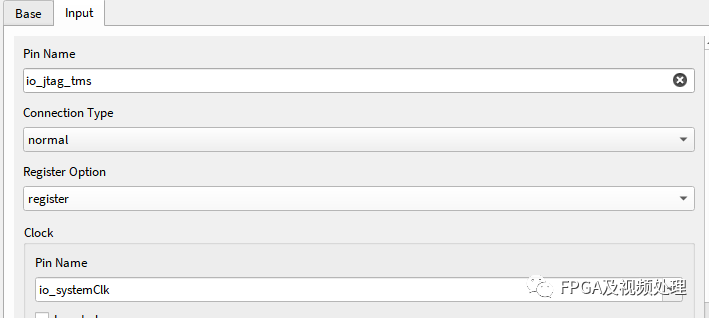

TMS parameter settings
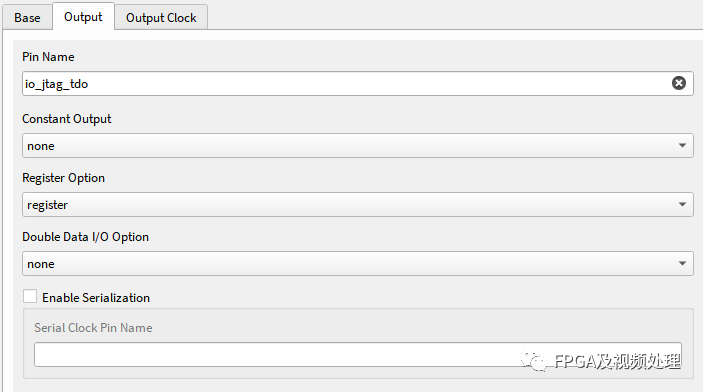
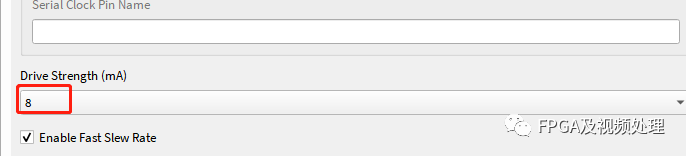
TDO parameter settings
Update notes: Supplement the device name explanation after version 2023.1.
Error message
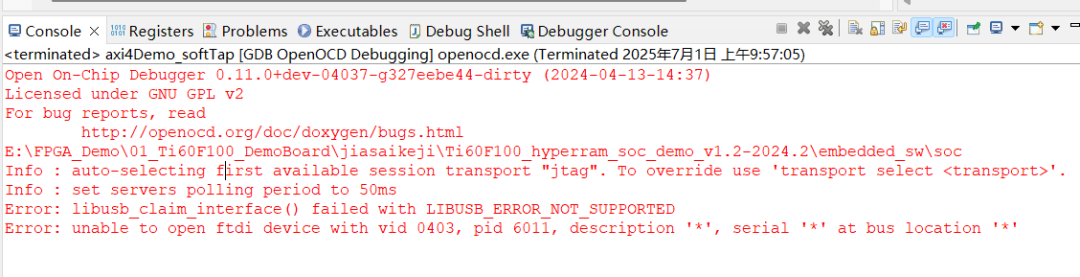
The main reason for this error is that you need to modify external.cfg. However, another reason could be that the corresponding driver is not installed. For example, if we are using the FT4232 solution, interface 0 must be used for soft JTAG, and in this case, the driver for interface 0 must be installed.