In the workplace, handling large amounts of data is inevitable. If it is just data processing within a workbook, many problems can actually be solved using macros (VB). However, there are now too many files to process at work, which requires using Python for operations. With domestic AI models like DeepSeek, Kimi, Qianwen, and Doubao, conventional code basically does not need to be written by humans anymore; you just need to tell the AI your requirements.
Next, I will discuss the installation and usage of Python and VSCode, along with cloud storage attachments, all for free, a benefit for beginners.
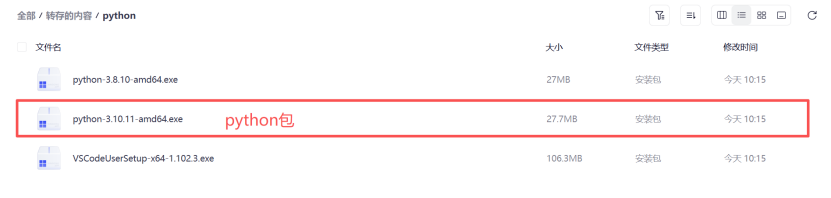
1. Download the Python file and install it
1) Open the link:
Link: https://pan.quark.cn/s/9e42ec2cd51e
Extraction code: YbEU
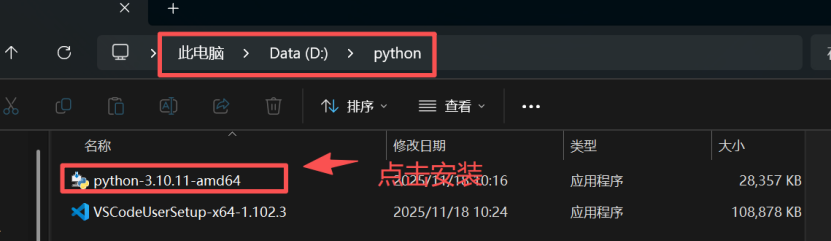
1) Create a new folder named Python on the D drive and store Python and VSCode in it.
2) Click to install.
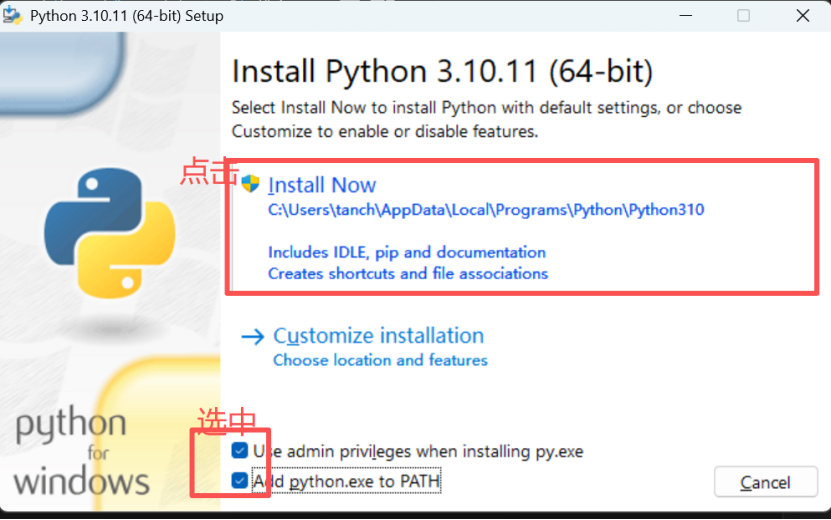
3) Select the checkbox and then click INSTALL NOW.
4) Click “Yes” to proceed with the installation.
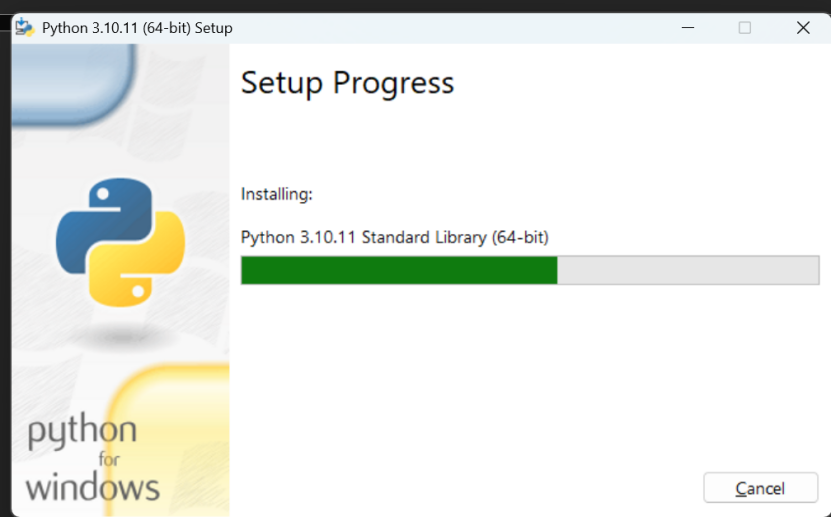
5) Click close, installation successful.
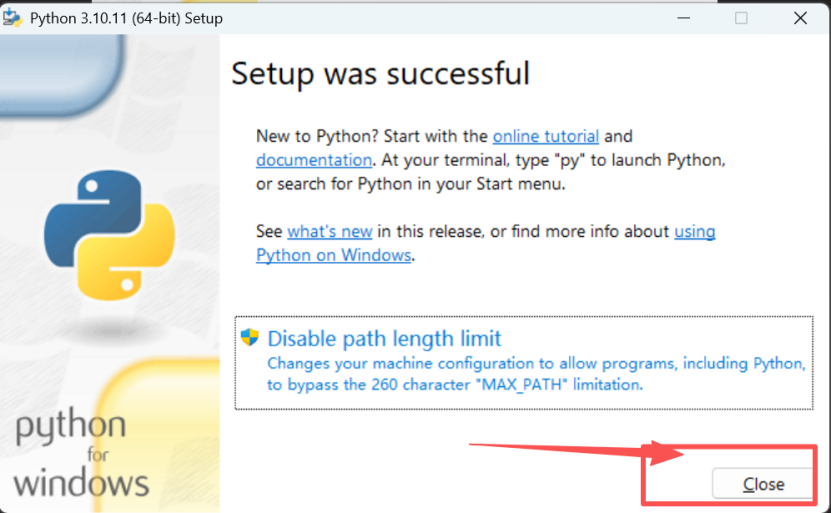
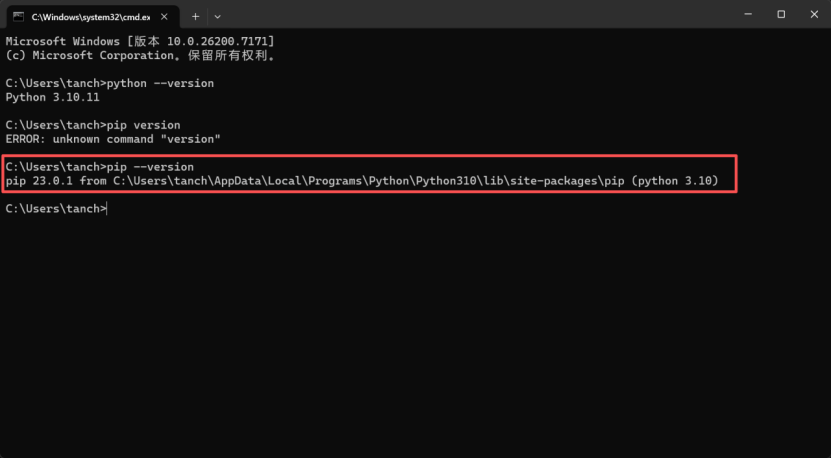
6) Verify if the installation was successful.
Press Win + R, type cmd, and hit enter;
Type: python –version
Type: pip –version
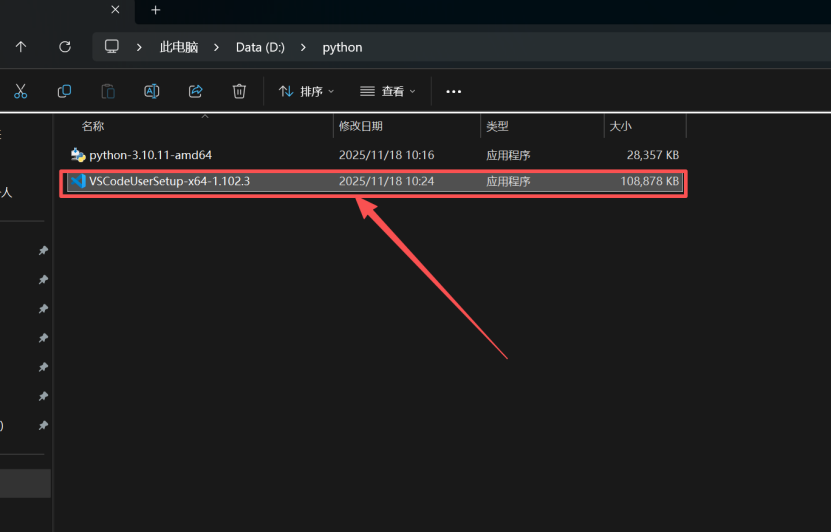
2. Download VSCode and install it
1) Double-click.
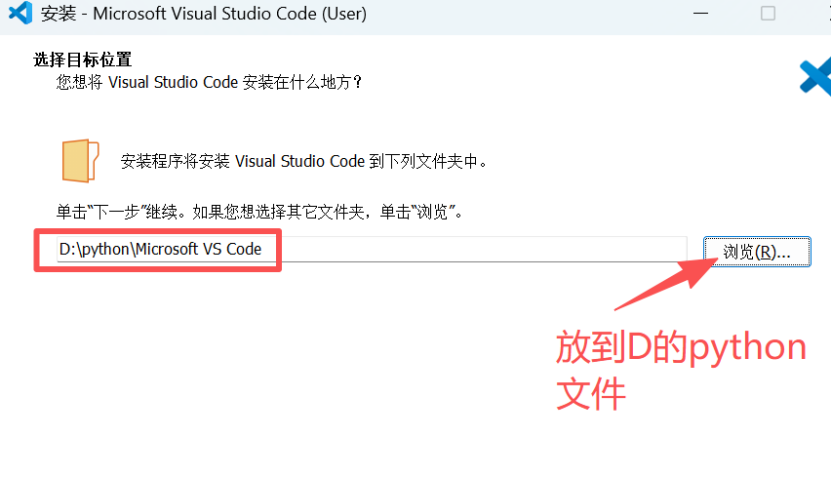
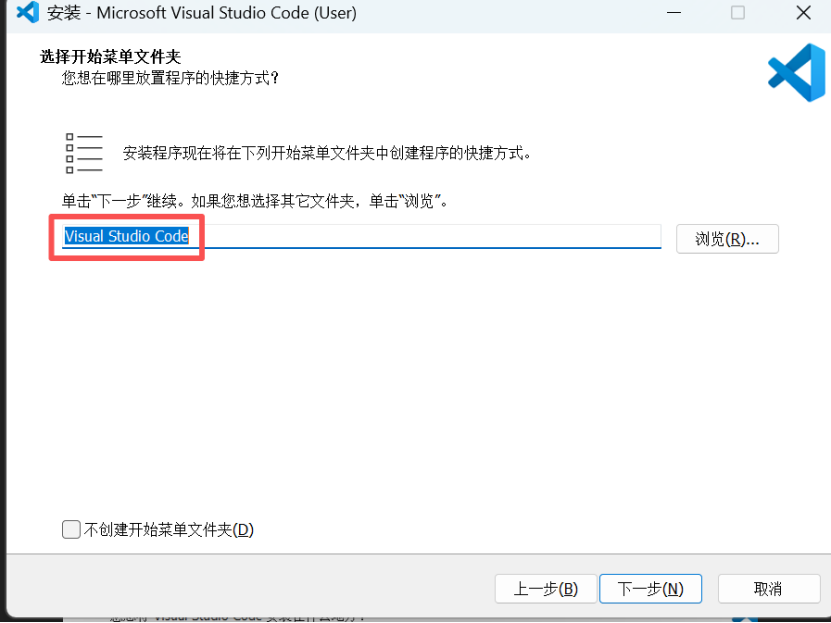
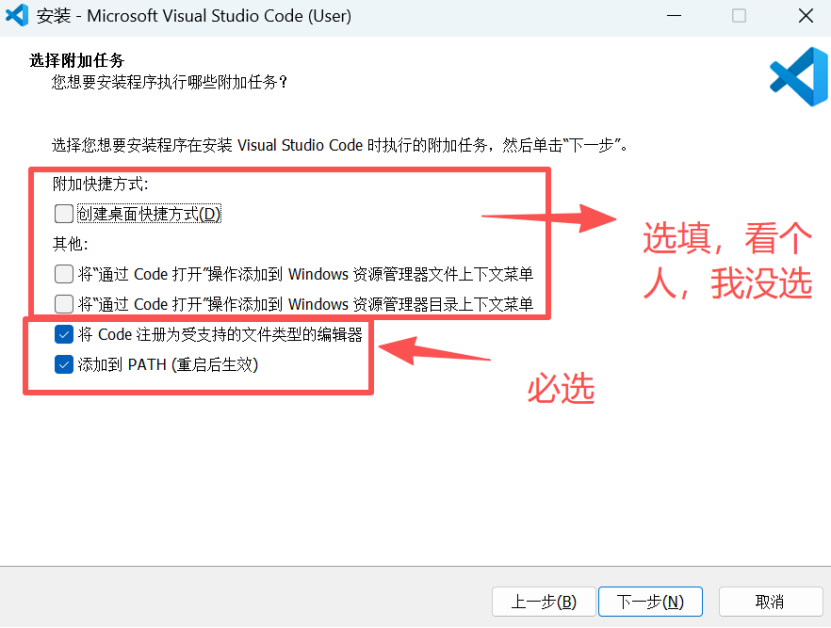
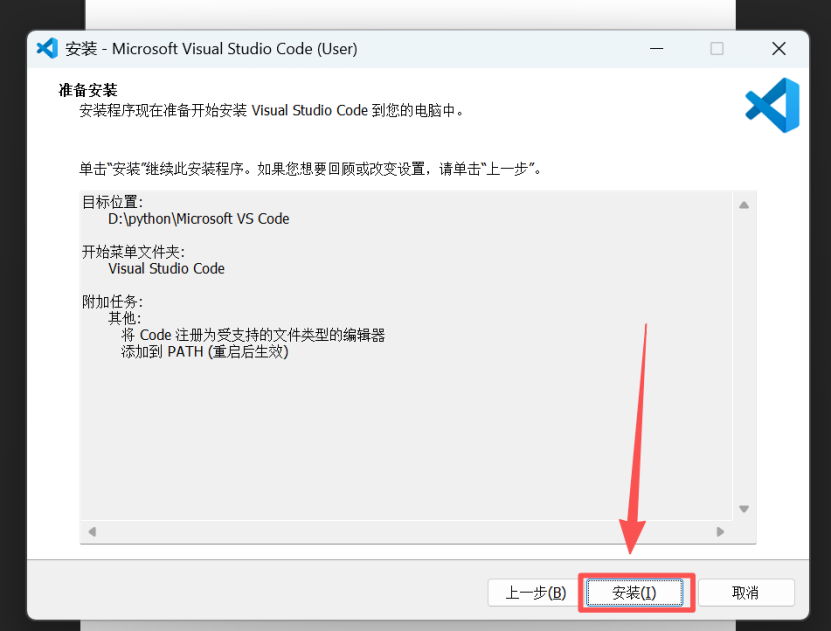
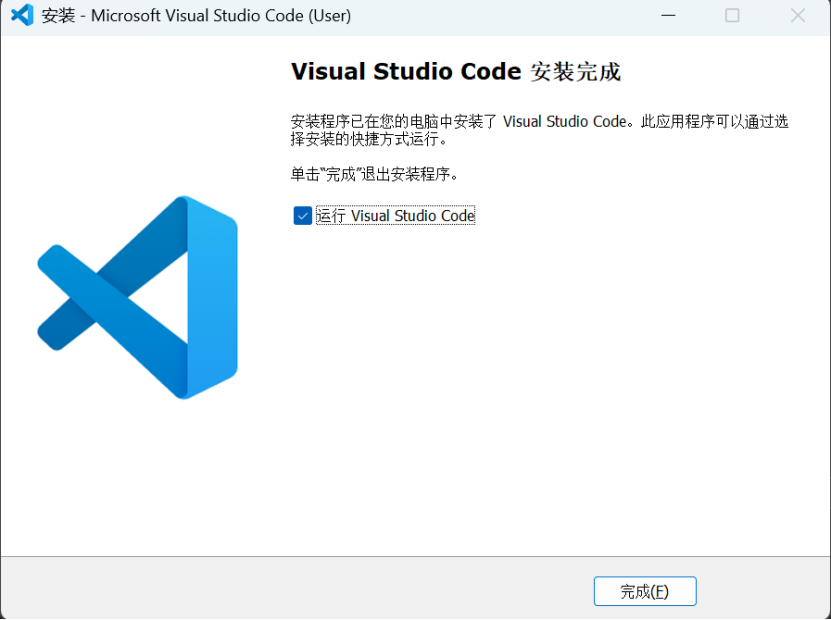
2) Check the box and proceed to the next step.
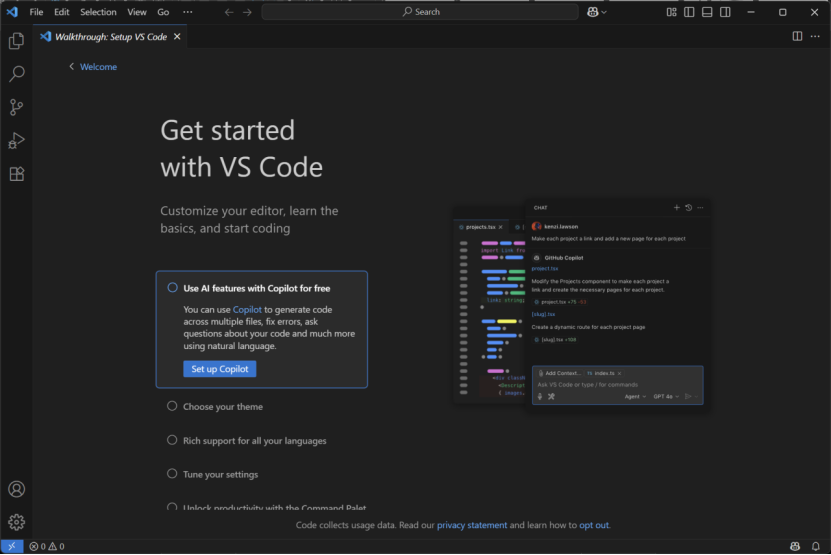
3. Call Python in VSCode and run “hello, world”
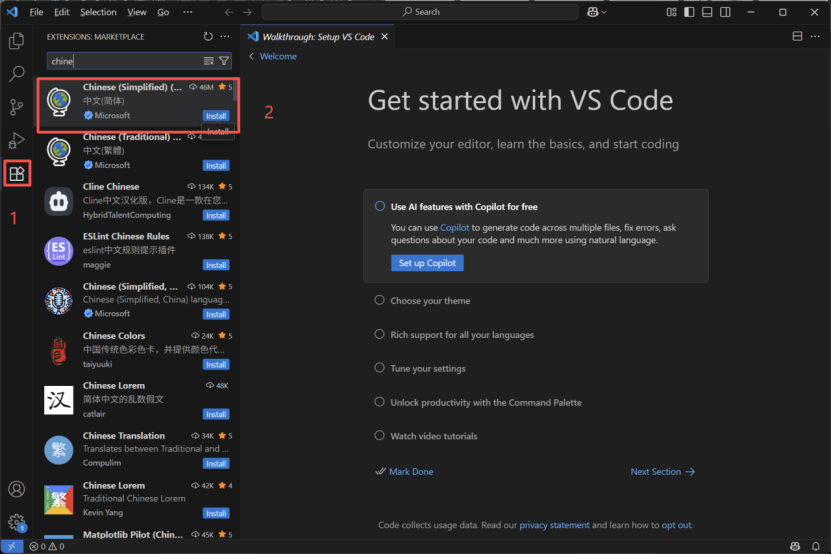
1) Install the Chinese language pack.
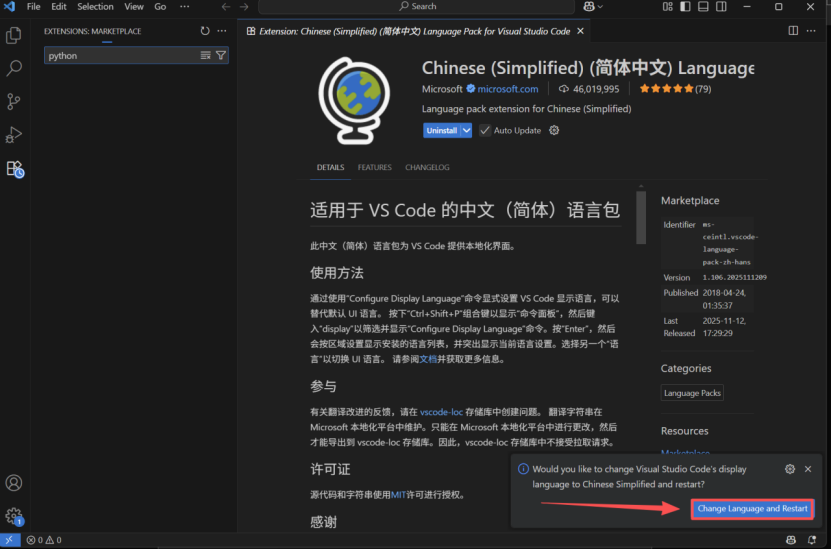
2) Select change language and restart.
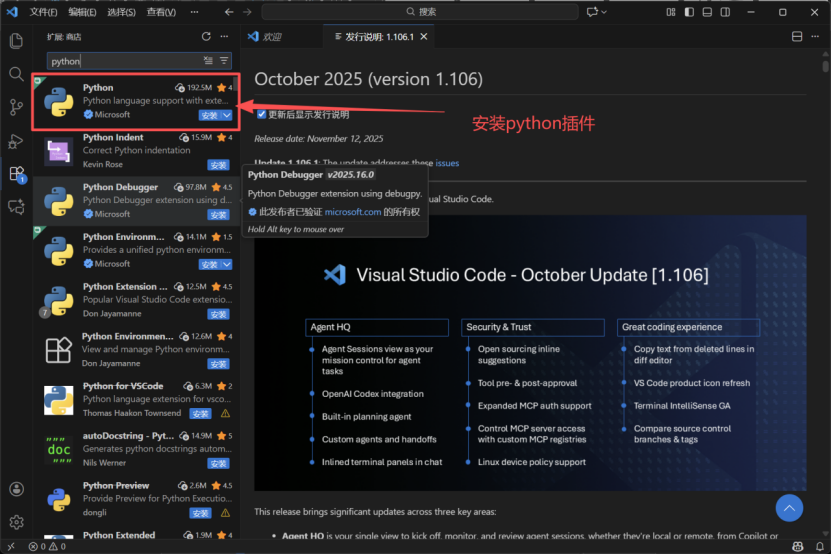
3) Install the Python extension.
4) Create a folder to store your code.
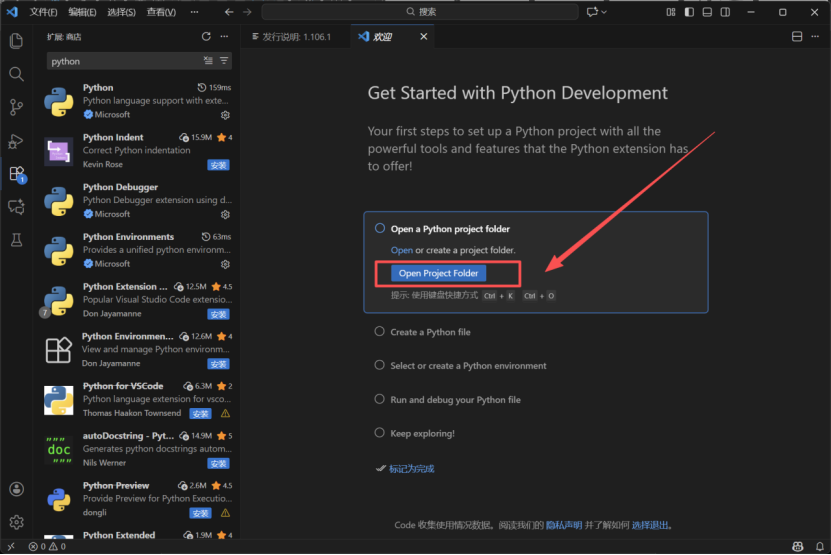
5) Name it demo.
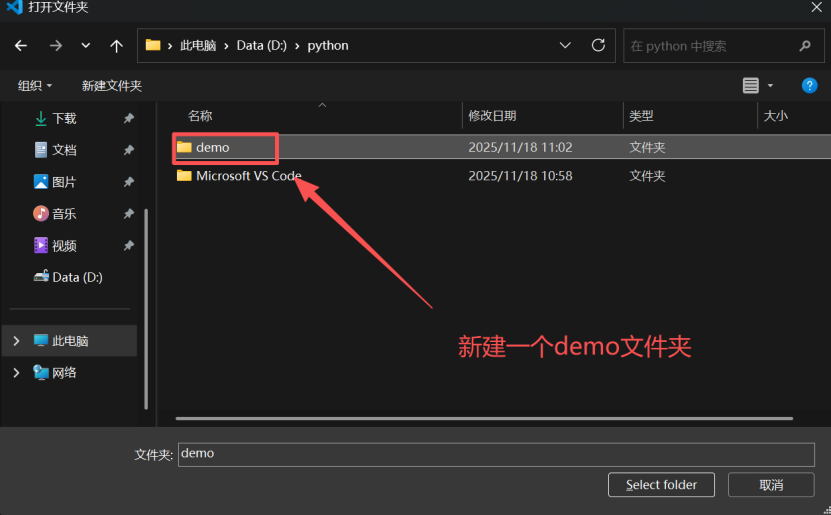
6) Select trust all.
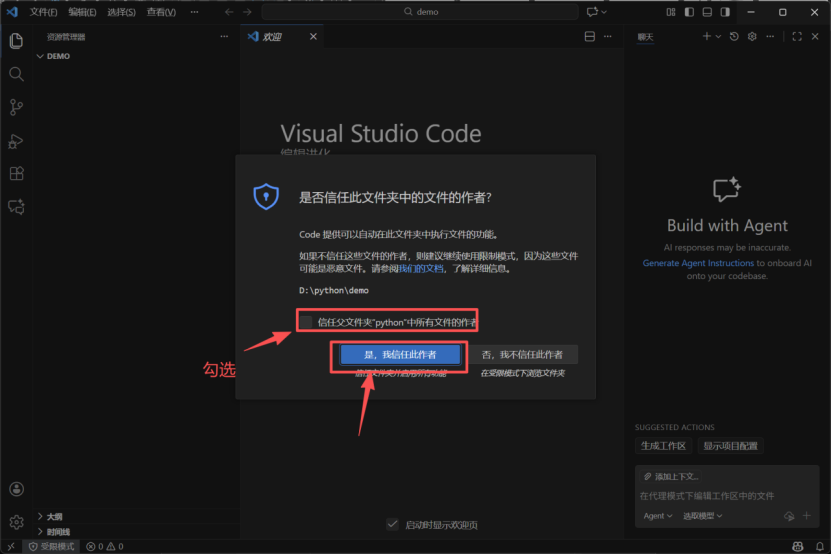
7) Create a Python file.
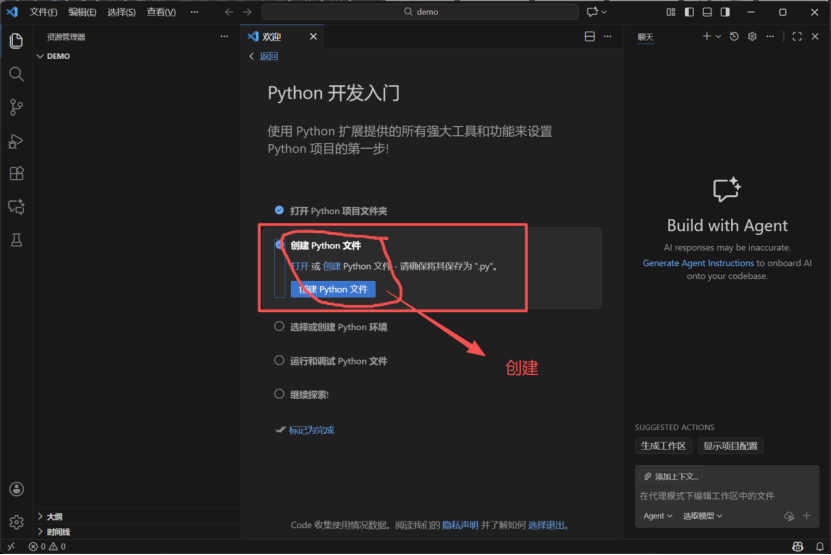
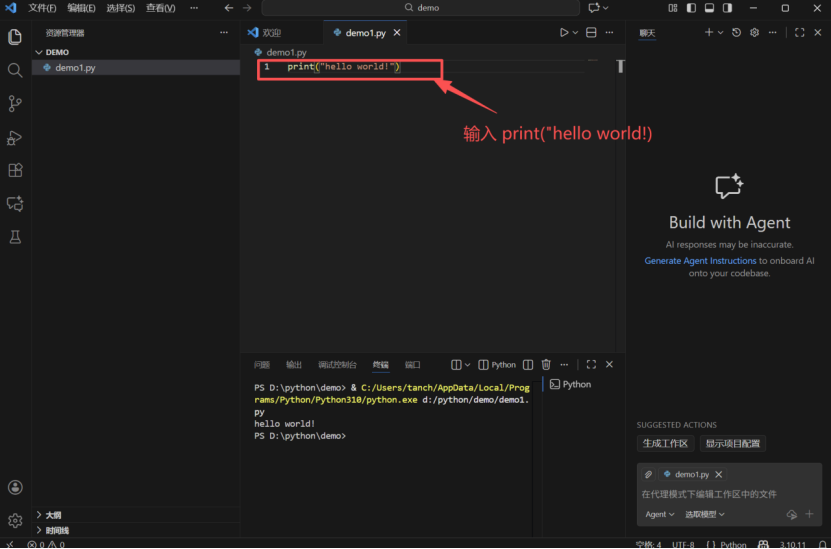
8) Enter print(“hello, world!”).
9) Save the file and run it.
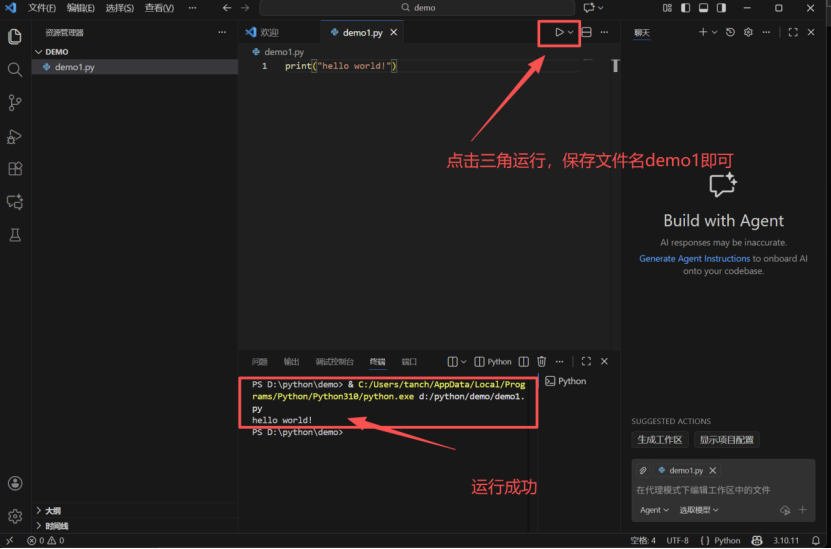
Ok, start your Python journey.