Clearing or Resetting GRUB Passwords
Editing GRUB Kernel
When we want to edit the boot kernel options, press the letter e on the keyboard at the kernel loading screen as shown in the image below.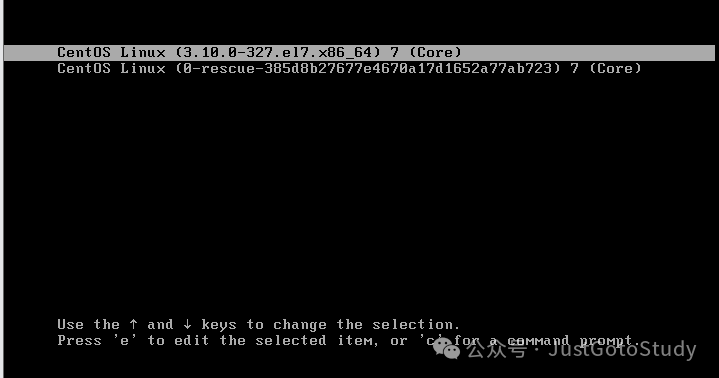 Generally, if not encrypted, it will enter the kernel editing page as shown below.
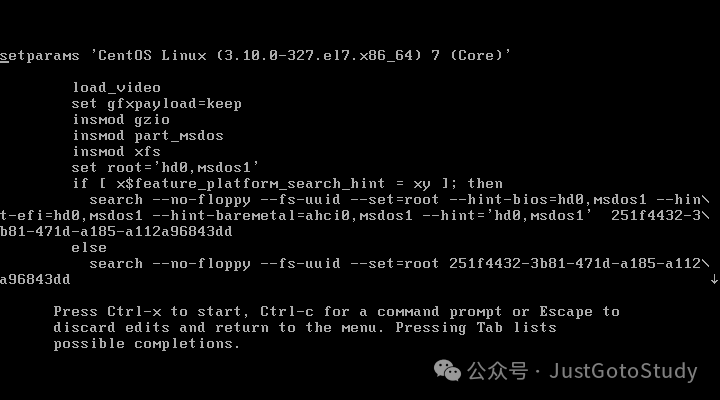
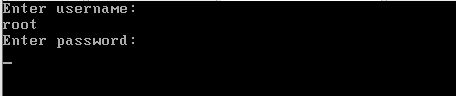
If encrypted, it will prompt for a username, and after entering the username, it will prompt for a password.
Clearing or Resetting GRUB Password
1. Boot from CD to Enter Rescue Mode
This demonstration is still in a virtual machine environment, as shown in the image below:
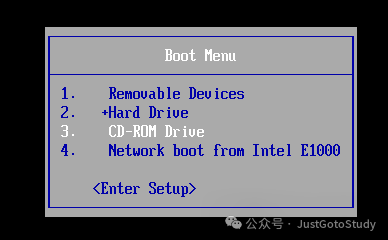
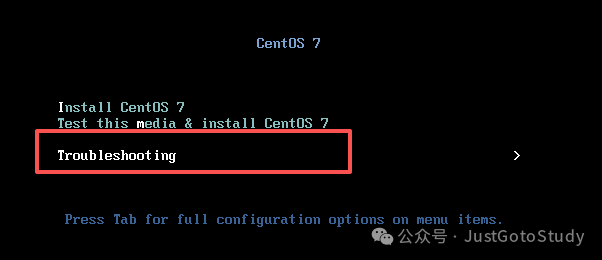
After booting from the CD, select Troubleshooting, as shown in the image below.
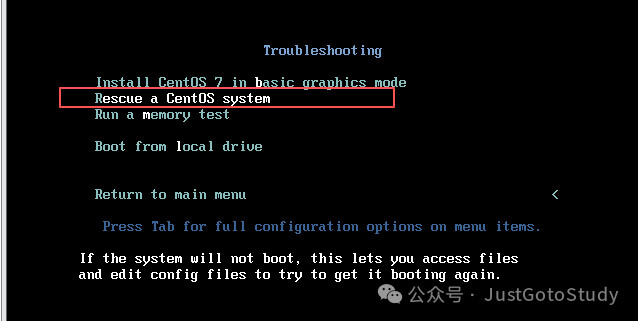
Enter rescue mode (Rescue a CentOS system).
Press any key to load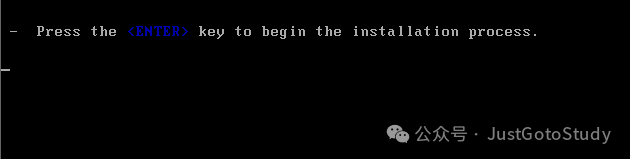
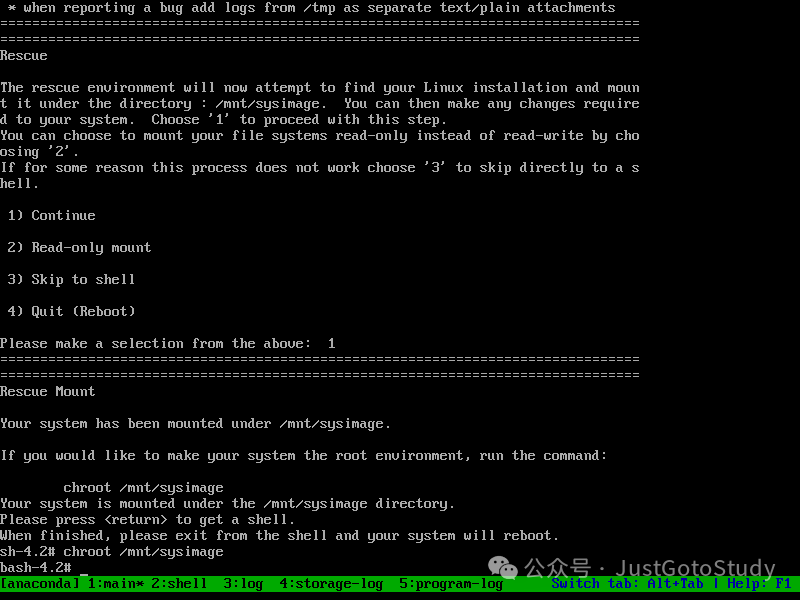
Enter the rescue options; options 1-3 are all acceptable, with slight configuration differences, generally select option 1.
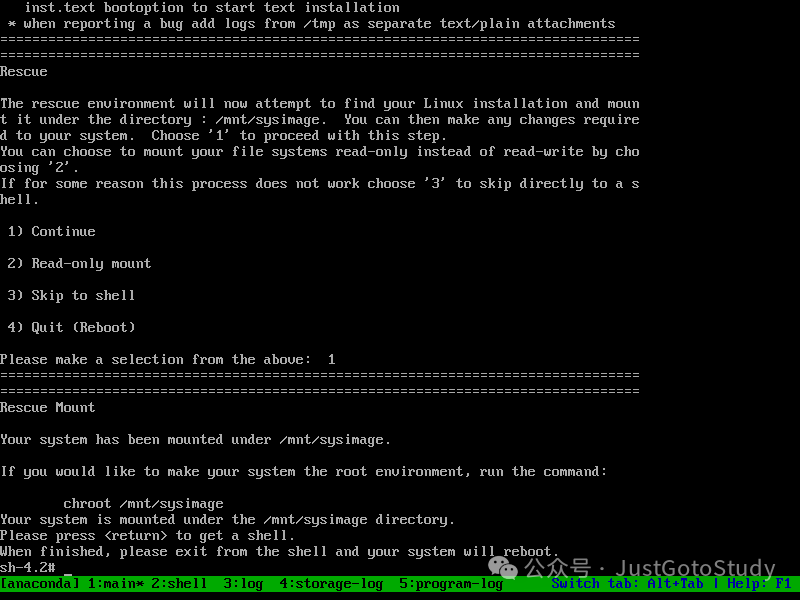
Option Descriptions:
1 – Enter rescue mode, the actual Linux system will be mounted to the /mnt/sysimage directory (rw, can view and edit).
2 – Enter rescue mode, the actual Linux system will be mounted to the /mnt/sysimage directory (ro, can only view, cannot edit).
3 – Enter rescue mode without mounting the actual Linux system, directly to the shell interface.
Select option 1, then follow the prompt to enter chroot /mnt/sysimage to switch to the actual Linux system.
2. Reset or Clear GRUB Password
Resetting GRUB Password
Resetting the password is the same as encryption; use the grub2-mkpasswd-pbkdf2 command to generate an encrypted password, then replace the previous encrypted password.
Execute grub2-mkconfig -o /boot/grub2/grub.cfg to make the configuration effective, then reboot.
Clearing GRUB Password
Find the encrypted configuration and delete it.
Execute grub2-mkconfig -o /boot/grub2/grub.cfg to make the configuration effective.

Password clearing operation completed.
Note: You can choose either the steps to clear the GRUB password or the steps to reset the GRUB password; generally, it is recommended to reset the GRUB password, as the system was encrypted during the initial setup, indicating security considerations.