Common Linux Commands
White: Regular files
Blue: Directories
Red: Compressed files
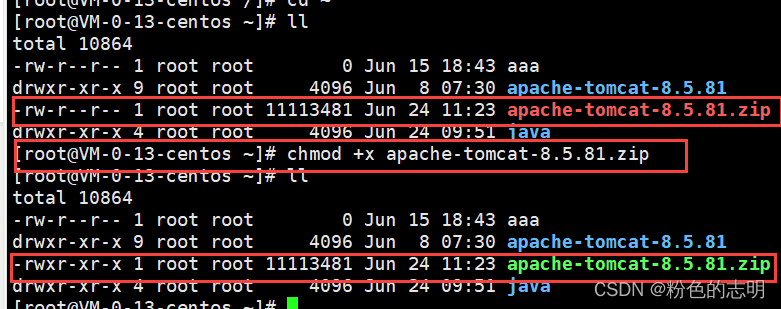
Green: Executable files
Copy: ctrl + insert
Paste: shift + insert
Clear screen: ctrl + l
Cancel current command and re-enter: ctrl + c
1. ls
Syntax: ls [options] [directory or file]
Function: For directories, this command lists all subdirectories and files within the directory. For files, it lists the filenames and other information.

Remember, it is a lowercase L, which indicates listing the contents of the directory in list format. The command ls -l is commonly used and can generally be replaced with ll.

ls lists the files and directories contained in the current directory, similar to double-clicking a directory in Windows to see what is inside.

ls [path]


The / here is a special directory in Linux, referred to as the “root directory”, which is equivalent to “This PC” in Windows. The directories here are equivalent to “system files”.
Common options:
-a List all files in the directory, including hidden files that start with a dot.
-d Display the directory as a file, rather than showing its contents. For example: ls -d specified directory.
-k Display file sizes in kilobytes. ls -alk specified file.
-l List detailed information about the files.
-r Reverse sort the directory.
-t Sort by time.
-R List files in all subdirectories (recursive).
2. pwd
Syntax: pwd
Function: Displays the current directory the user is in.
This tells us which directory we are currently in, as sometimes the directory structure can be complex, making it easy to forget where we are (getting lost).

It shows the absolute path corresponding to the current directory. In Windows, this is the absolute path starting with a drive letter, while in Linux, it starts with / (root directory) indicating an absolute path.
3. cd
In Linux systems, files and directories on the disk form a directory tree, where each node is a directory or file.
Syntax: cd directory_name
Function: Changes the working directory, moving the current working directory to the specified directory.
The cd command must be followed by a path, which can be either an absolute or relative path. cd is equivalent to double-clicking a directory with the mouse to switch.
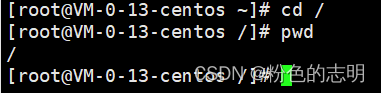
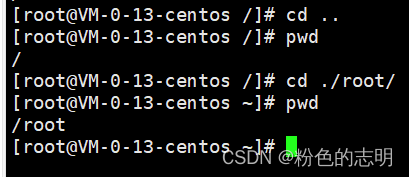
Of course, cd ./root can also be abbreviated to cd root.
Additionally:
cd .. : Return to the parent directory.
cd ~: Enter the user’s home directory.
cd -: Return to the most recently accessed directory.
4. touch
Syntax: touch [options]… file…
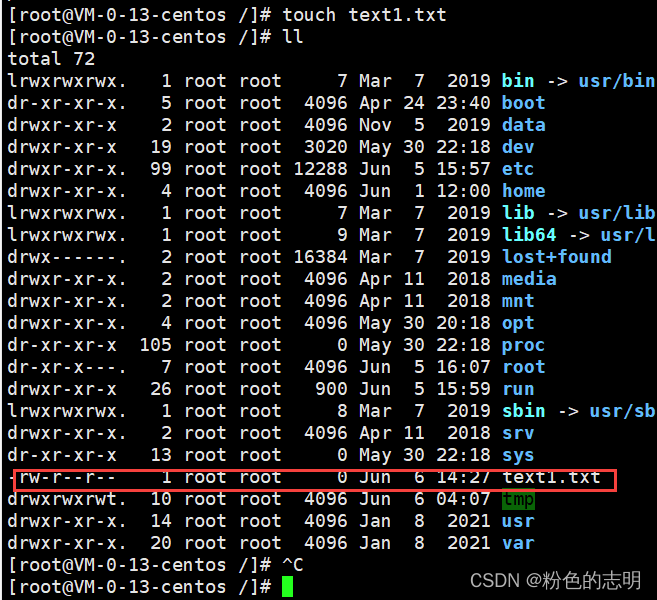
Function: The touch command can change the date and time of a document or directory, including access time and modification time, or create a new file if it does not exist.
5. cat
Syntax: cat [options] [file]
Function: View the contents of the target file.
-n can number all output lines.

6. echo
Syntax: echo [content] > [filename]
Function: Print content to the console, can also be used to write to files.
7. mkdir
Syntax: mkdir [options] dirname..
Function: Create a directory named “dirname” in the current directory.

Common options:
-p, –parents can be a path name, and if some directories in the path do not exist, adding this option will create those non-existent directories automatically, allowing multiple levels of directories to be created at once.
After creating multiple directories, it can be confusing; you can use the tree command to clarify.
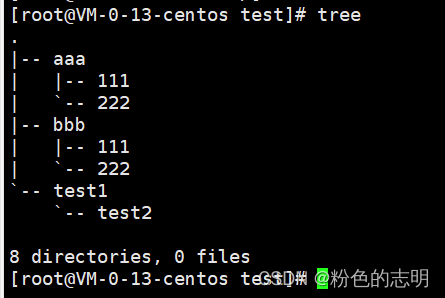
It is possible that the first time you type tree it will throw an error, indicating that the command cannot be found. The commands we discussed earlier are built-in, while tree is a third-party command that needs to be installed separately. The command needed is: yum install tree.
This yum is like an “app store”, referred to as a “package manager”.
8. rm
Syntax: rm [-f -i -r -v] [dirName/dir]
Function: Delete files or directories.
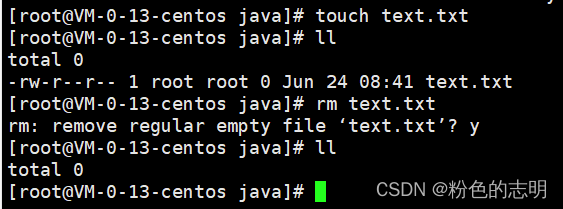
Common options:
-f even if the file attribute is read-only (i.e., write-protected), delete directly.
-i ask for confirmation before deleting each file.
-r delete the directory and all its files.
Delete operations are very dangerous; be very cautious!!! Especially the command rm -rf / which directly deletes all files on your disk, including system files (the files needed to boot). Therefore, be very careful when deleting!!! (Similar to deleting a database, once deleted, it is gone).
In Linux, deletion is permanent; the file cannot be restored, unlike Windows where you can recover deleted files from the recycle bin.
(Actually, it is not completely unrecoverable after deletion; there are remedies, but they are not something we can handle. You can seek help from the corresponding hard disk manufacturer… The best way to completely delete is to destroy it directly).
9. mv
Syntax: mv [options] source_file or directory target_file or directory
Function: The first indicates the file/directory to be moved, the second indicates the target location for the move; both parameters can be absolute or relative paths.
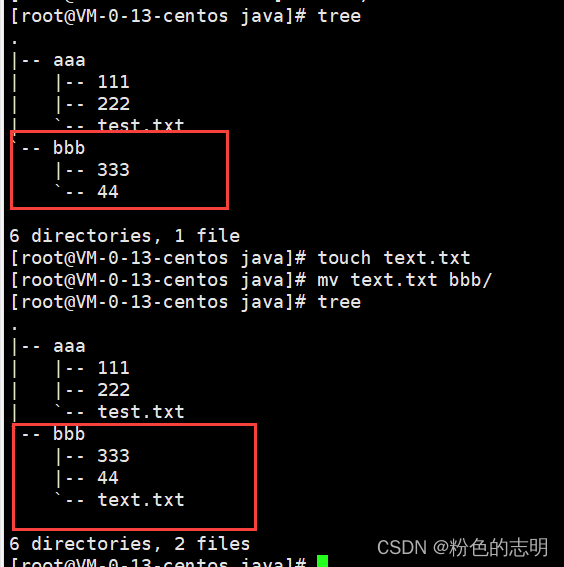
Common options:
-f: force, if the target file already exists, it will overwrite without asking.
-i: if the target file already exists, it will ask whether to overwrite!
Note that mv can also rename files.
10. cp
Syntax: cp [options] source_file or directory target_file or directory
Function: Copy files or directories.
Note that cp can only copy files directly; to copy directories, the -r option must be added.
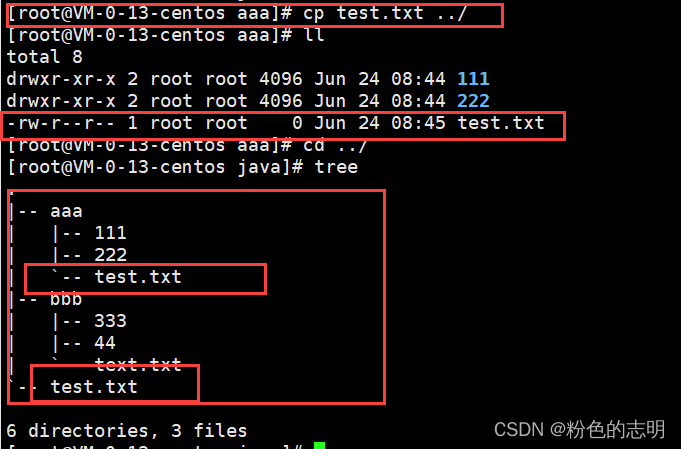
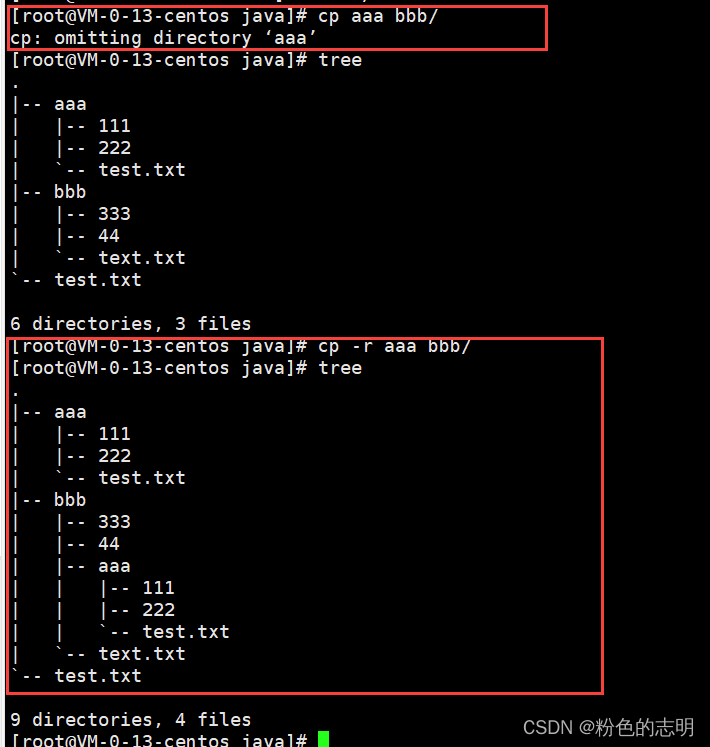
Common options:
-f or –force forcefully copy files or directories, regardless of whether the destination file or directory already exists.
-i or –interactive ask the user before overwriting files.
-r recursively process, handling files and subdirectories within the specified directory. If the source file or directory is not a directory or symbolic link, it will be treated as a regular file.
-R or –recursive recursively process, handling files and subdirectories within the specified directory.
11. man
Syntax: man [options] command
Function: View the help manual for other commands.
View <span>man ls</span>
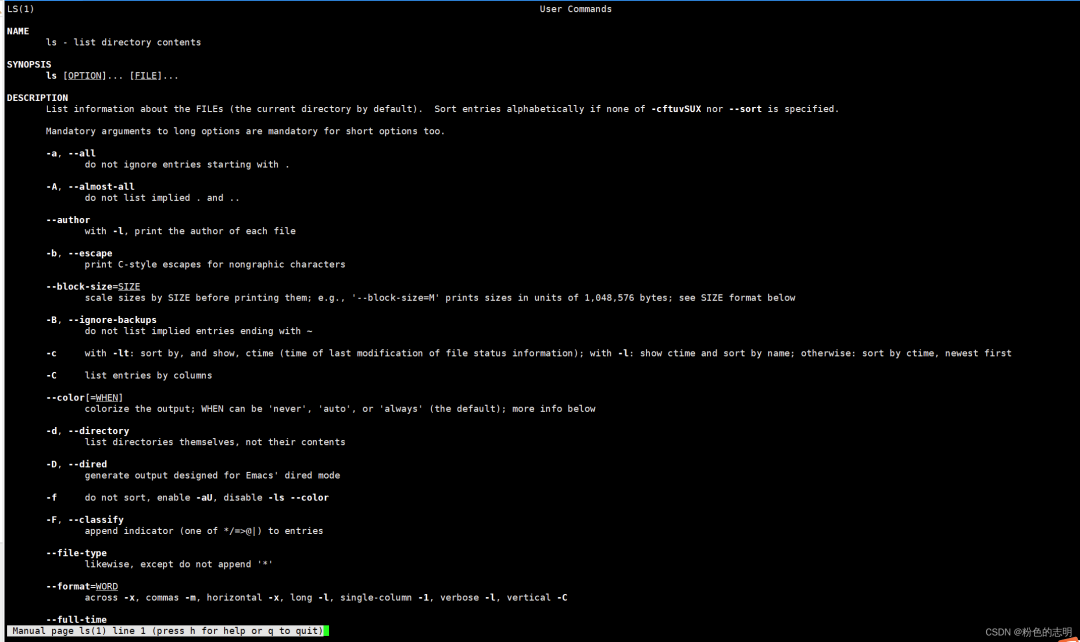
Press q to exit.
Common options:
-k search online help by keyword.
num only find in chapter num.
man man can see several chapters and their meanings in the man manual.
To view man ls and exit, just press q.
Of course, you can also quickly search with Baidu now…
12. less
Syntax: less [parameters] file
Function: View file content. It does not immediately load all file content into memory. It can also be searched.

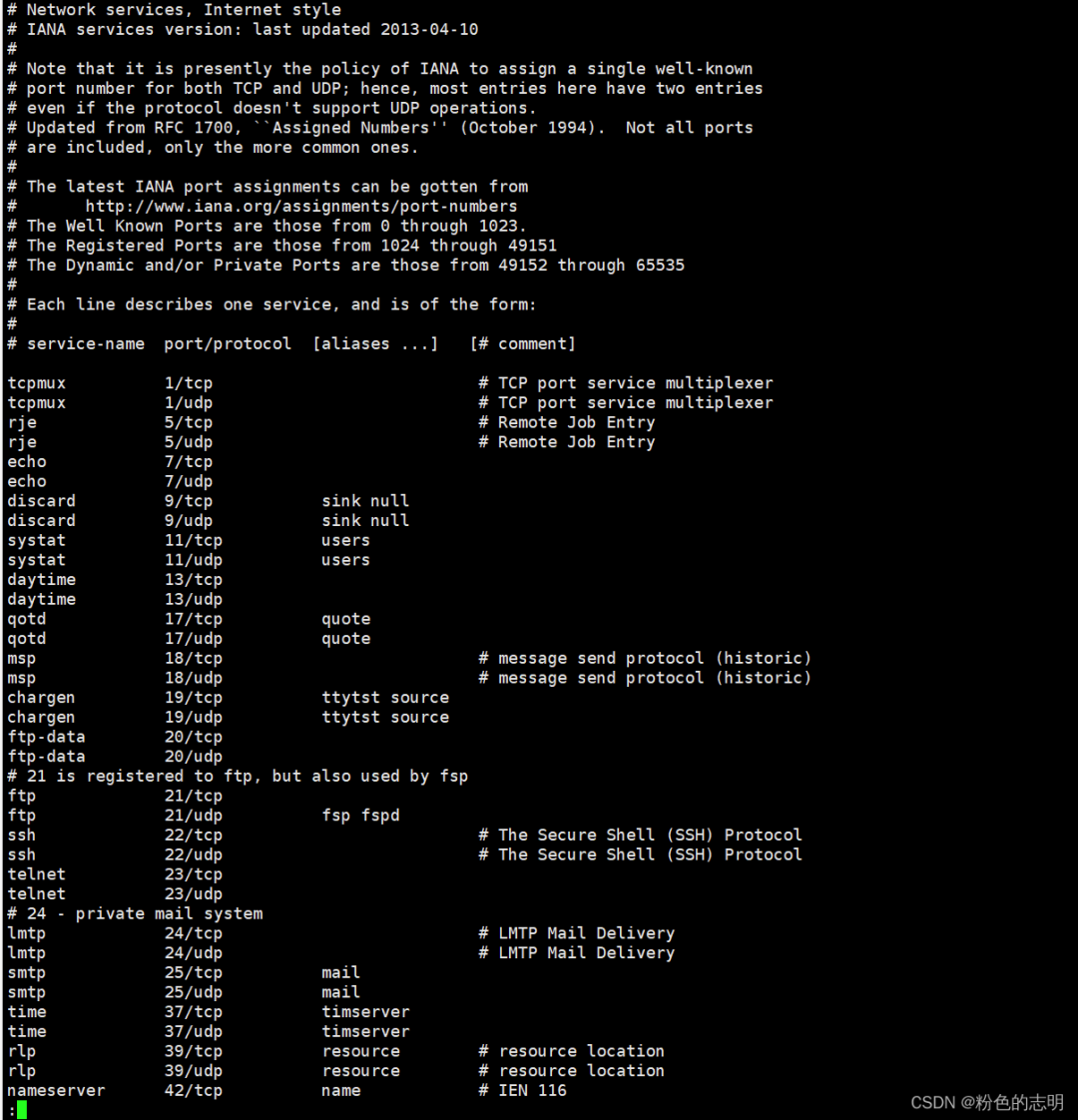
Common options:
j k / arrow keys: scroll up and down the screen.
-N display line numbers.
/string: search down for the “string”.
n: repeat the previous search (related to / or ?).
q: exit.
Opening a large file will not load everything at once; it allows for manual paging.
The greatest advantage is that large files can open instantly, making it convenient for us to view them, as we often need to check server logs during development.
13. head
Syntax: head [parameters]… [file]…
Function: head is used to display the beginning of a file to standard output; by default, the head command prints the first 10 lines of the corresponding file.
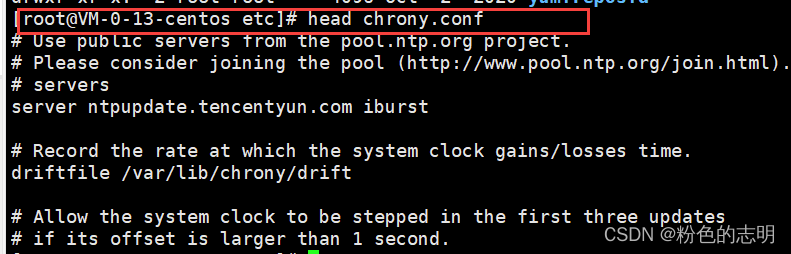
Common options:
-n display the specified number of lines.
14. tail
Syntax: tail [required parameters] [optional parameters] [file]
Function: Used to display the end content of a specified file; if no file is specified, it processes input information. Commonly used to view log files.
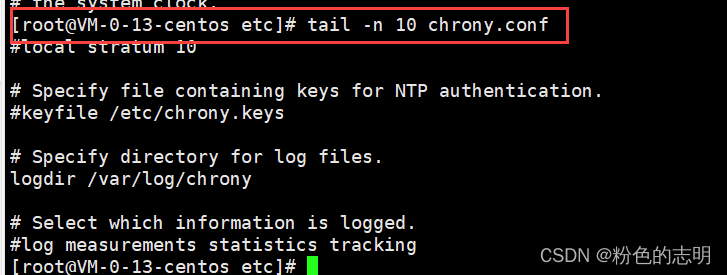
Common options:
-f read in a loop.
-n display the specified number of lines.
15. vim
vim is a well-known text editor. The previous commands like cat, less, head, tail, etc., can only view text but not edit it. Using vim allows for editing (but mastering it requires a lot of practice). Here we only introduce simple vim operations.
1: Create or open a file: vim [filename] If the file exists, it opens it; if not, it automatically creates one.
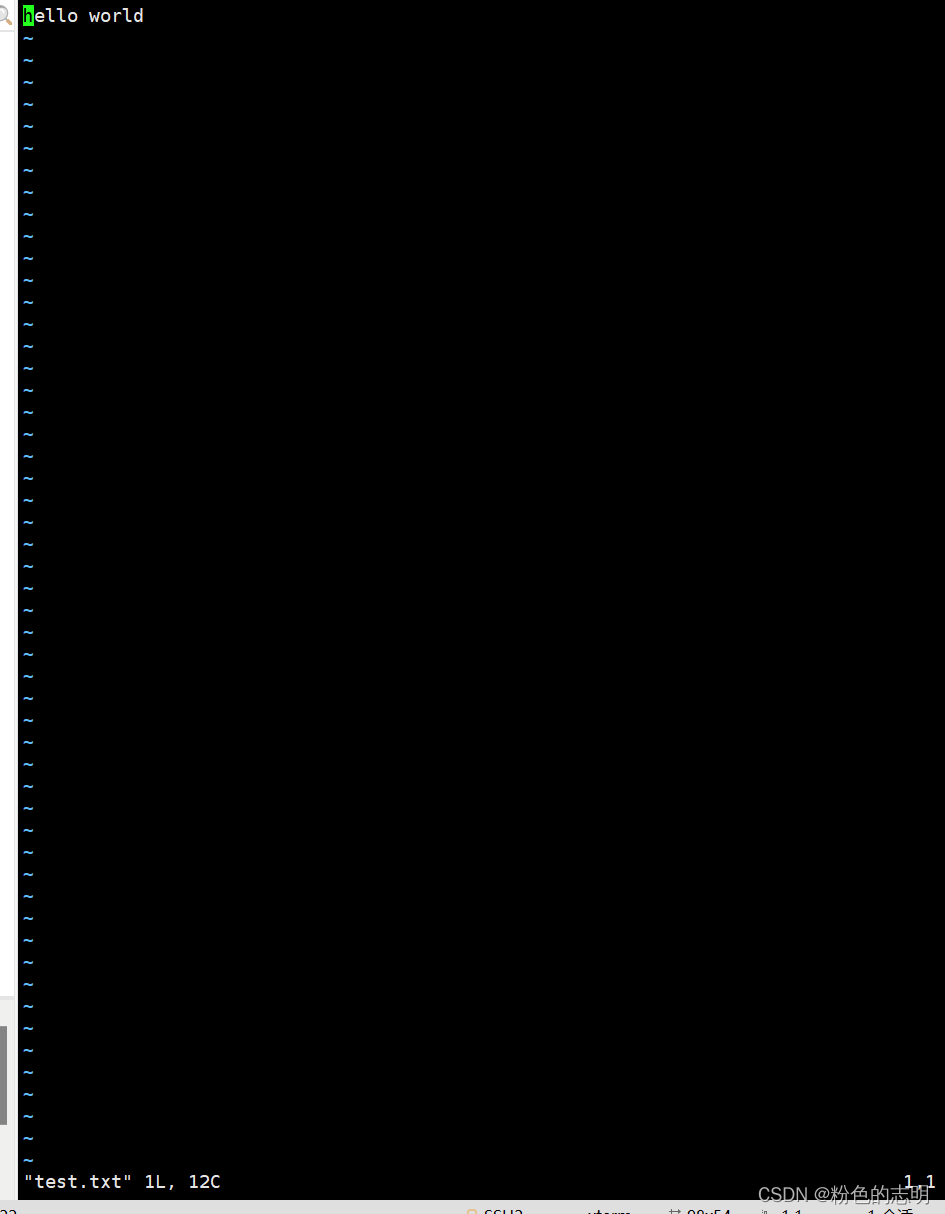
2: Use vim to edit file content.
Upon entering, you will find that pressing keys does not yield any input, as we are in “normal mode” by default. In normal mode, keystrokes do not represent input content but rather special shortcut keys. To enter content, you must switch to “insert mode” by pressing the lowercase letter i key.
At this point, the left bottom corner will display INSERT, indicating that you have entered insert mode and can now input content.
3: Save and exit using vim.
If you want to save and exit, you may not find any x to close the editor. Do not press randomly; if you press ctrl + s to save, that will not work. In vim, ctrl + s does not save; it is a shortcut in xshell that freezes the screen (to prevent too fast typing; to unfreeze, press ctrl + q).
1) First, switch from insert mode back to normal mode by pressing esc.
2) Type :wq and press enter to save and exit (w => write (save), q => quit (exit)).
Note: If the file has not changed, :q can exit directly; if the file has changed, :q will give an error and not allow you to exit; :q! is the forced exit (without saving), and 😡 has the same effect as :wq.
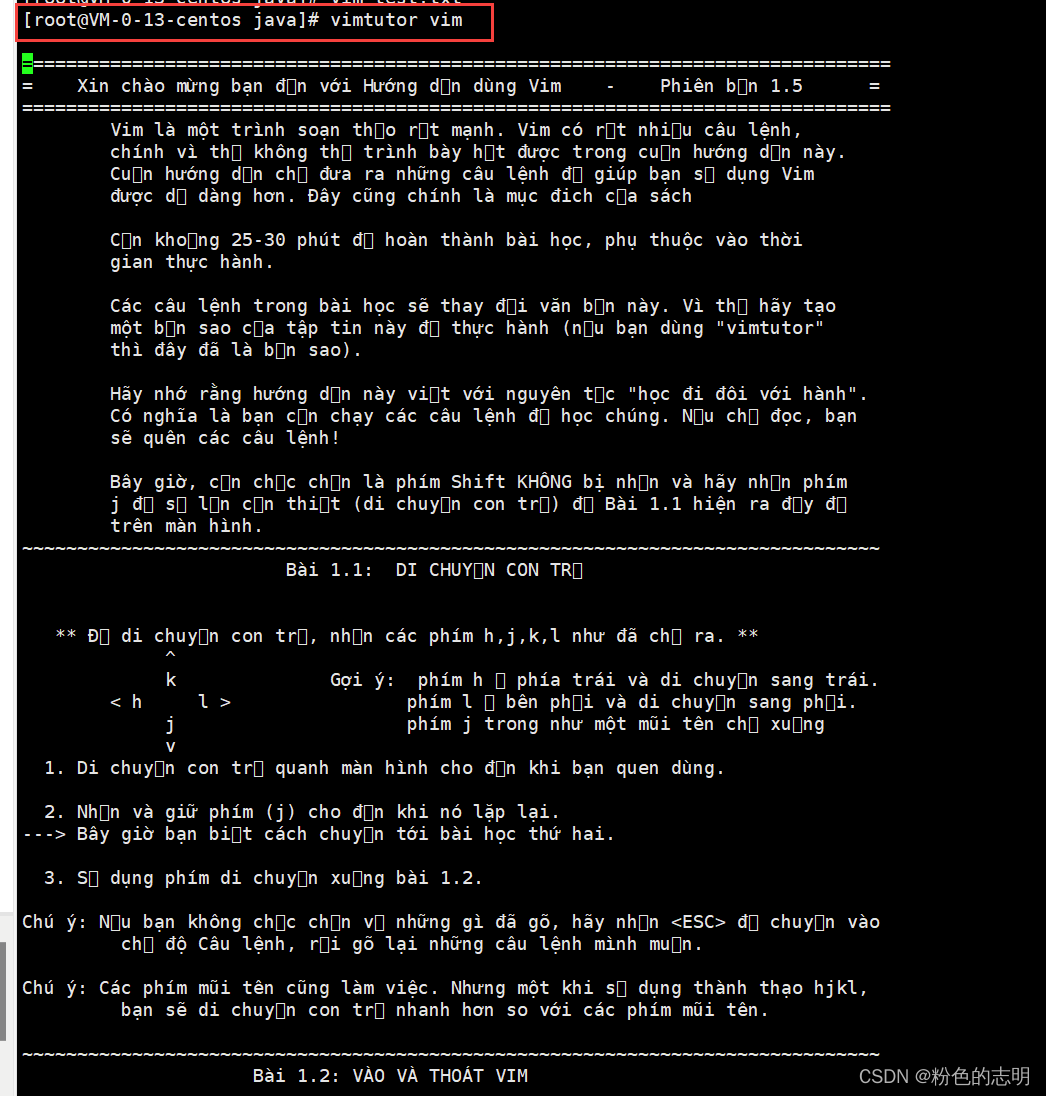
16. grep
Syntax: grep [parameters]... [file]... Function: Used to check whether a specified string is included in a file, displaying the corresponding lines.-
1
-
2

Common options:
-n display the specified number of lines.
-w full word matching. Requires the entire word to be exactly the same to match, not just part of a word.
-r recursive search. Can search all files in multiple directories.
–color highlight the found results.
–include specify certain files to search.
–exclude specify certain files to exclude.
17. ps
Syntax: ps [parameters]... Function: Used to view the processes running on the current system.-
1
-
2
<span>For example:</span>ps aux # display all processes on the system ps aux | grep “process_name” ps aux | grep “process_id”
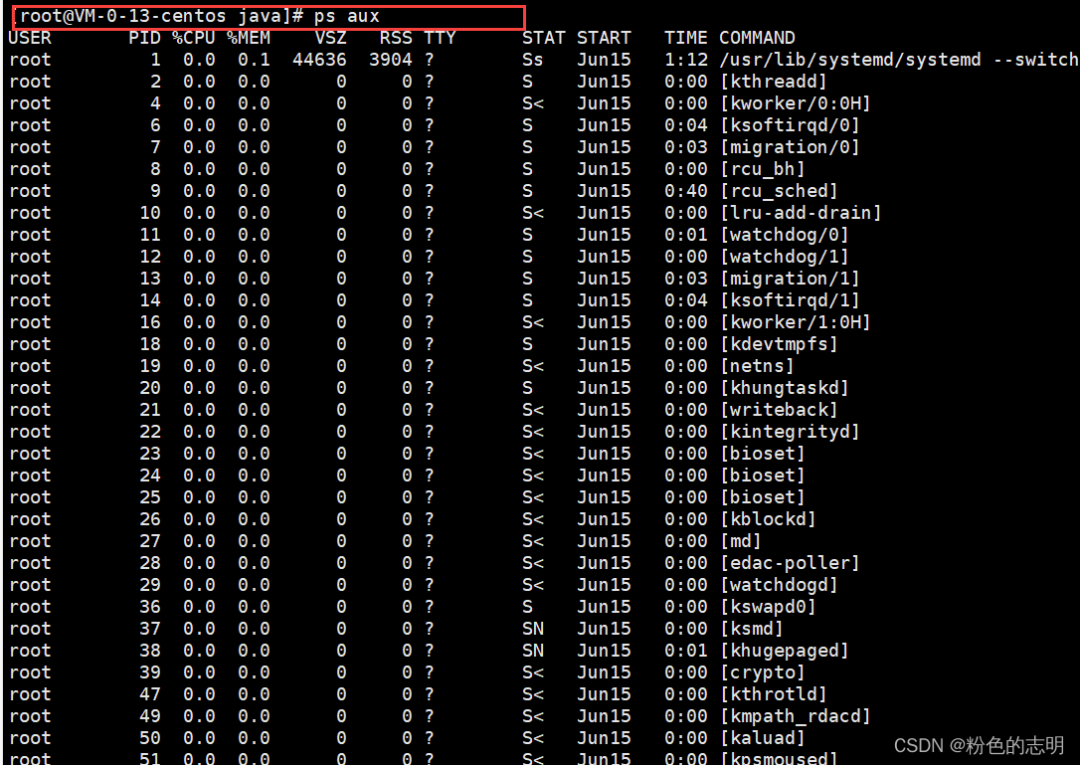
Common options:
a display all processes for a terminal.
u display program status in a user-oriented format.
x display all programs without distinguishing based on the terminal.
18. netstat
Syntax: netstat [parameters]…
Function: View the network status on the system.
1
2
For example:
netstat -anp
netstat -anp | grep “process_name”
netstat -anp | grep “port_number”
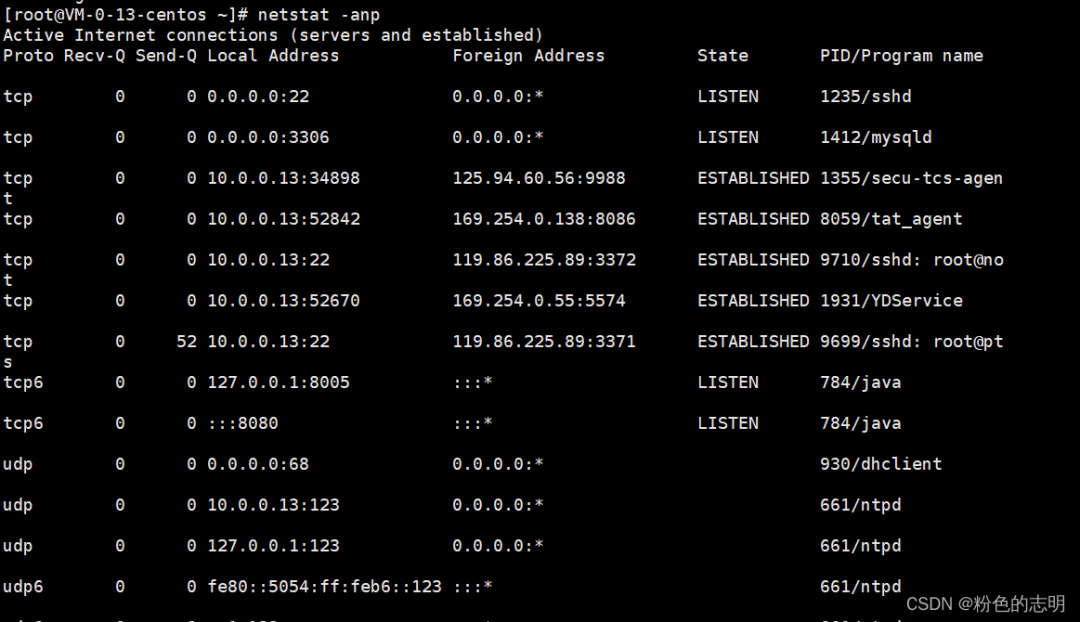
Common options:<span>-a</span> show all sockets, whether listening or not.<span>-n</span> display addresses in numeric format instead of resolving to hostnames, ports, or usernames.<span>-p</span> display the PID and name of the process that owns the socket.
Modify File Permissions
Function: Set file access permissions Format: chmod [parameters] permissions file_name-
1
-
2
————————————————
Copyright statement: This article is an original work by CSDN blogger “Pink Zhimin”, following the CC 4.0 BY-SA copyright agreement. Please include the original source link and this statement when reprinting.
Original link: https://blog.csdn.net/chenbaifan/article/details/125140751
Authorized: Power Node JAVA Training