Follow 👆 the public account and reply with 'python' to receive a beginner's tutorial! Source from the internet, please delete if infringed.Claim at the end of the article!!!
Table of Contents
1. Python Official Website
2. In the Downloads section of the official website, choose the corresponding operating system
3. Go to the Windows page and select the Python version
(1) Select the stable release version of Python
(2) Download the Python installer for Windows
4. Run the Python installer for Windows
(1) Choose custom installation
(2) Optional Features Settings
(3) Advanced Options Settings
(4) Installation
5. Python Development Environment Tools
6. Application Fields of Python
Latest Detailed Tutorial for Installing Python in 2023
1. Python Official Website
The Python official website mainly includes About, Downloads, Documentation, etc.
Python official website address
Python official website link: https://www.python.org/
2. In the Downloads section of the official website, choose the corresponding operating system
Open the Python official website link as shown in the image below, hover over the Downloads section of the webpage, and select the Windows operating system.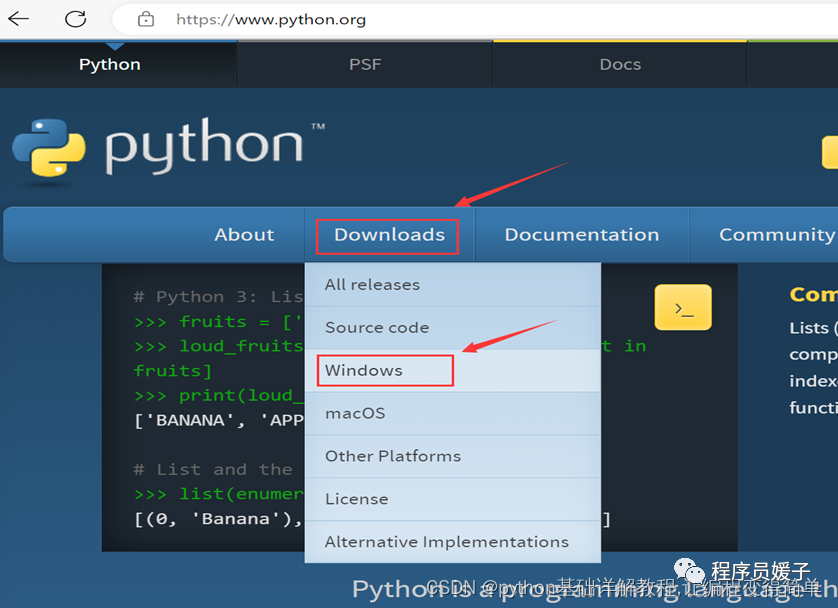
3. Go to the Windows page and select the Python version
1. Select the stable release version of Python
Click to enter the corresponding Windows page, showing the Python installation versions suitable for Windows.
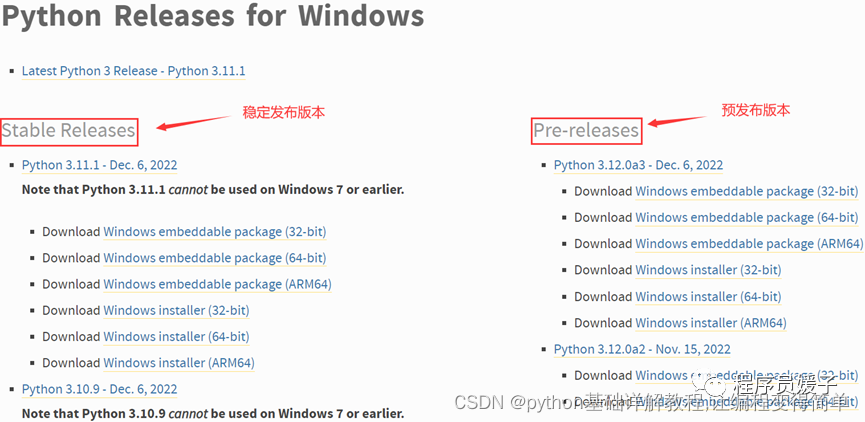
On the left is the stable release version, and on the right is the pre-release version. The former has been tested and is relatively complete and stable, while the latter is still under testing and may not be perfect. Therefore, we download the stable release version on the left.
2. Download the Python installer for Windows
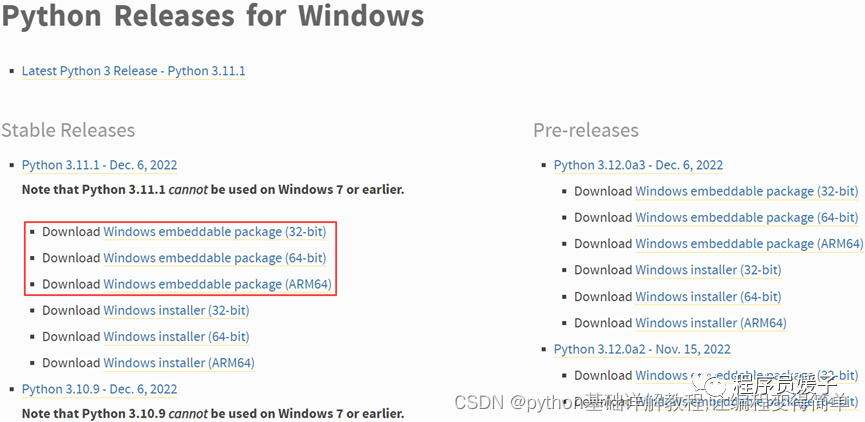
The red box in the image shows the Windows embeddable package, which is a minimal Python runtime environment and does not include doc, IDLE, pip, etc. This version is mainly used for embedding in other programs.
The 32-bit refers to the 32-bit operating system, and the downloaded package is suitable for 32-bit operating systems based on 32-bit processors. ARM64 is the processor architecture in AArch64 status, and the downloaded package is suitable for ARM64 processors based on 64-bit processors.
The 64-bit refers to the 64-bit operating system, and the downloaded package is suitable for 64-bit operating systems based on 64-bit processors. Right-click on My Computer and left-click on Properties in the menu to check your computer’s hardware configuration, as shown in the red box in the image below.
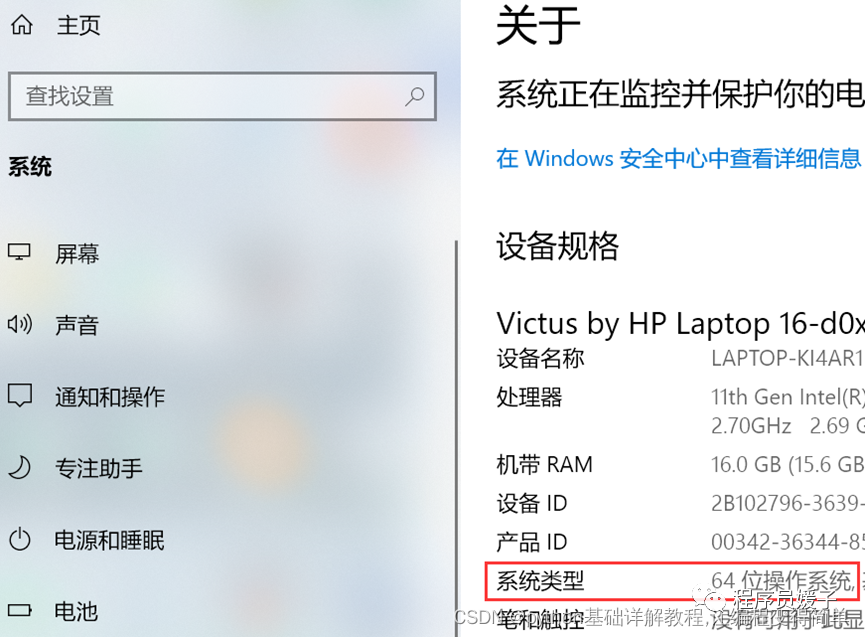
Image showing the computer specifications
Since the Windows embeddable package is a simplified version of Python, mainly used for embedding in other applications, we need to download the Windows Installer to have a more complete Python development environment. The installer for Python’s Windows Installer is shown in the red box in the image below.
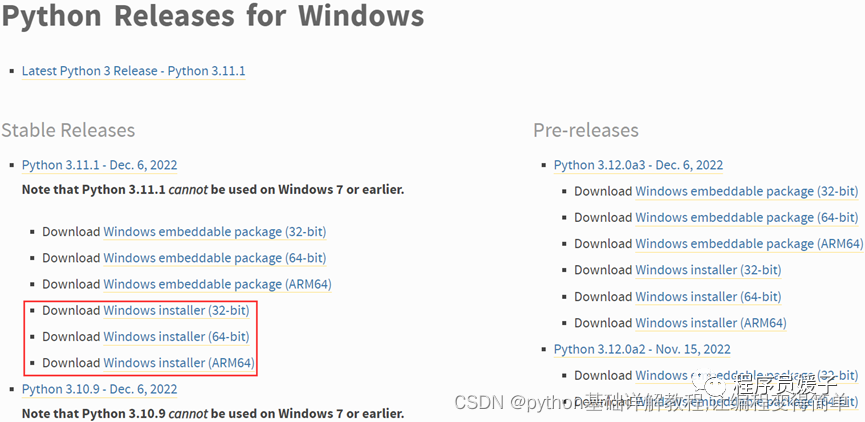
Image showing the Python installer for Windows
Based on the bitness of your computer’s operating system, choose to download the corresponding Python installer from the red box in the image above. Generally, 64-bit operating systems are used, so download the Windows installer (64-bit) from the red box.
4. Run the Python installer for Windows
1. Choose custom installation
The Windows operating system allows multiple user accounts, each with its own permissions. The default installation is for the current account, with default installation paths and contents.
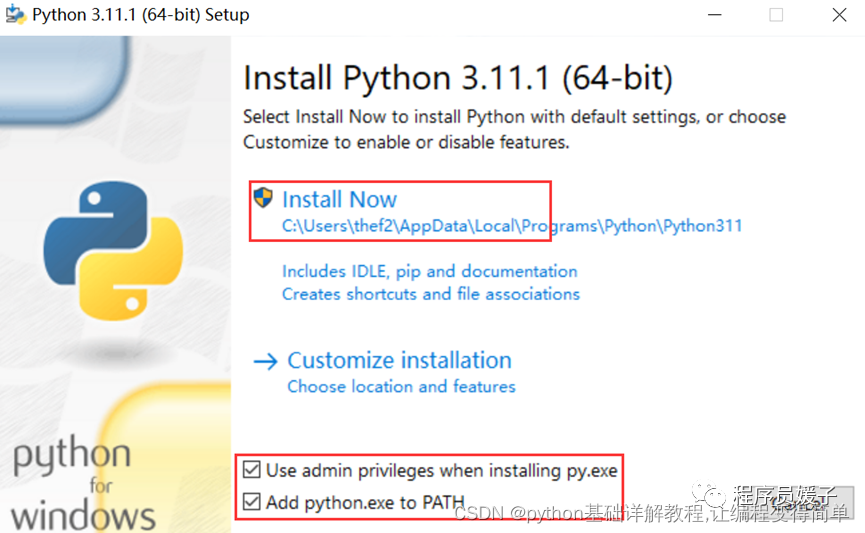
Image showing the default installation of Python
Use admin privileges when installing py.exe
In Windows, the administrator account has the highest access privileges and can access other accounts, while personal accounts do not have mutual access privileges.
This option is checked to install the Python executable with administrator privileges. By installing Python with administrator privileges, other Windows user accounts can use Python after logging into the system.
If this option is not checked and the current account is a personal account, after installing Python, other non-administrator accounts will not be able to use the Python installed by this account.
Add python.exe to PATH
This option is checked to add Python to the Windows system path for easy recognition by the operating system.
The default installation will also automatically install IDLE, pip, documentation, create shortcuts, and file associations. The default installation provides basic functionality for Python development. If you want to reduce or increase functionality or specify installation paths, you can choose custom installation.
Typically, we choose custom installation to add more features. The red box in the image below shows the Customize installation for custom installation.
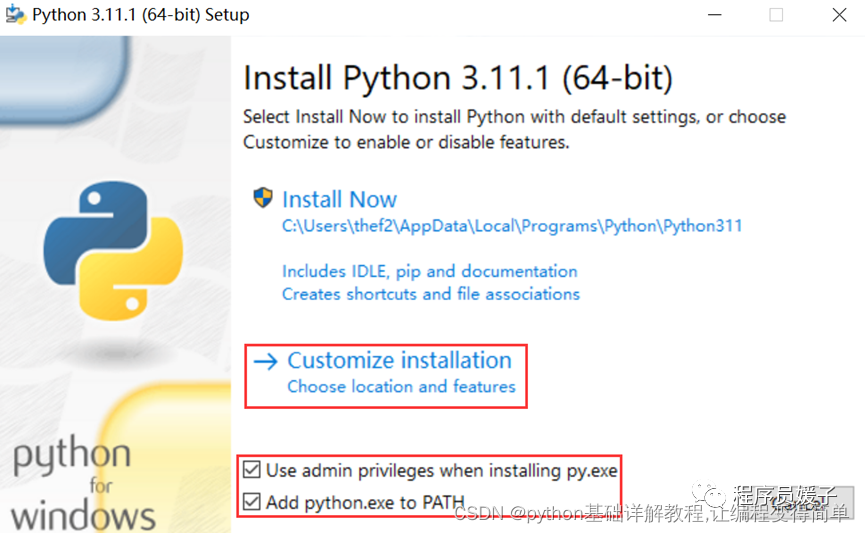
Image showing the custom installation of Python
Check Use admin privileges when installing py.exe and Add python.exe to PATH, then click Customize installation to enter the optional features settings interface as shown in the image below.
2. Optional Features Settings
Documentation
This option installs the offline documentation files for Python, generally the user guide for Python. This option is optional.
pip
This option installs pip, which can be used in the cmd command window to install external libraries for Python. After installation, you can press Win+R to start the Run window, type cmd, and in the cmd window, type pip install to automatically download and install this library. To uninstall a library, type pip uninstall . Libraries are generally installed in the Lib→site-packages folder under the Python path, and uninstallation also occurs in the same folder.
tcl/tk and IDLE
This option installs tkinter and IDLE development environment. Whether to check this option depends on your needs. The Tkinter module is the standard Tk GUI toolkit interface for Python, which can create GUI applications. IDLE is the Integrated Development and Learning Environment for Python, a visual shell command line, and a simple command running window. After installation, an IDLE shortcut will be generated in the Windows start menu (lower left corner of the desktop).
Python test suite
This option installs the standard library test suite for Python, which can be used to execute written test cases to test whether the classes and methods meet expectations. Whether to check this option depends on your needs.
py launcher
The launcher is a Python launcher for Windows that helps us locate and execute different Python versions. This option should be checked.
for all users (requires admin privileges)
This option makes the launcher available for all Windows accounts. Whether to check this option depends on your needs.
All options in the image can be checked. Click next to enter the advanced options settings interface as shown in the image below.
3. Advanced Options Settings
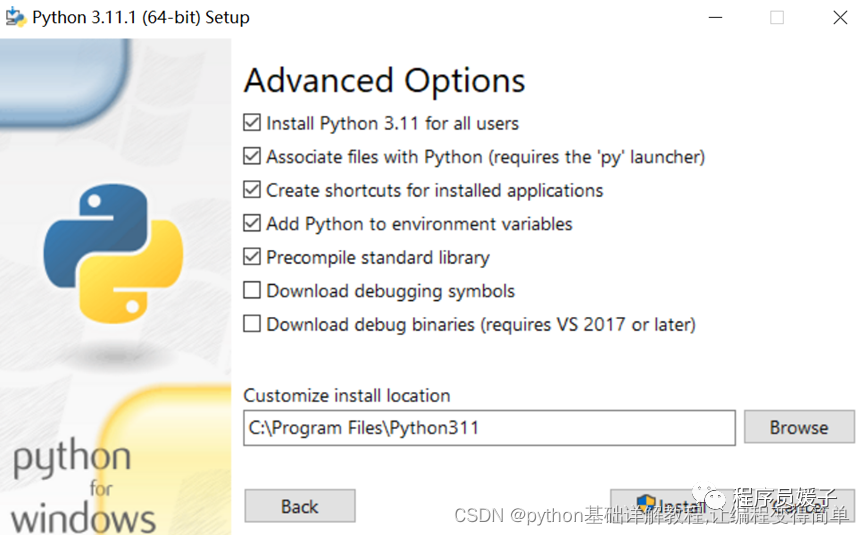
Install Python 3.11 for all users
This option makes Python available for all Windows accounts. Whether to check this option depends on your needs.
Associate files with Python (requires the ‘py’ launcher)
This option associates .py files with Python (requires the installation of the Python launcher). This option should be checked.
Create shortcuts for installed applications
This option creates shortcuts for installed applications, which will be displayed in the start menu. This option should be checked.
Add Python to environment variables
This option adds Python to the system’s environment variables. This option should be checked. After checking Add python.exe to PATH earlier, this option will be automatically checked.
Environment variables are objects in the operating system with specific names that contain information used by one or more applications. When the system is asked to run a program without specifying the complete path, it will look for the program in the current directory and also in the paths specified in the environment variable.
System variables in environment variables are valid for all users, while user variables are valid for the currently logged-in Windows account. If the system variables cannot be found, it will look in the current user variables. Additionally, the environment variable names are case-insensitive, for example, PATH and path are the same.
Precompile standard library
Python program code files (.py) must be compiled into bytecode before being executed in the virtual machine.
The standard library is the built-in library that comes with Python installation. Precompiling the standard library means compiling the standard library’s .py files into .pyc bytecode files during installation, which saves compilation time during future runs. This option can be checked.
Download debugging symbols
This option downloads debugging symbols, which can help debug programs by recording the relationship between variables, functions, and memory locations. Whether to check this option depends on your needs.
Download debug binaries (requires VS 2017 or later)
This option downloads debugging binaries (requires the installation of VS 2017, which is a powerful development tool released by Microsoft). Whether to check this option depends on your needs.
Customize install location
This option allows you to specify the installation path for Python.
In the image, you can check the first five options according to your needs, specify the installation path, and then click Install to enter the Python installation progress interface as shown in the image below.
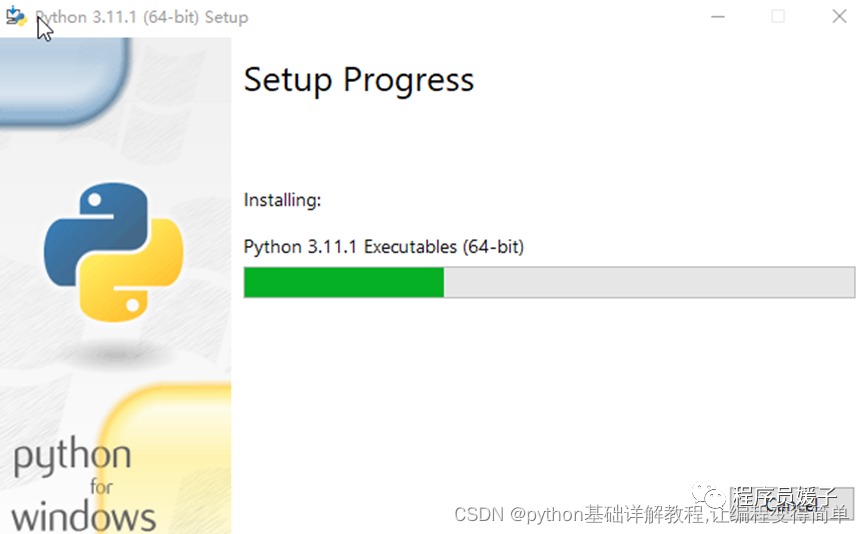
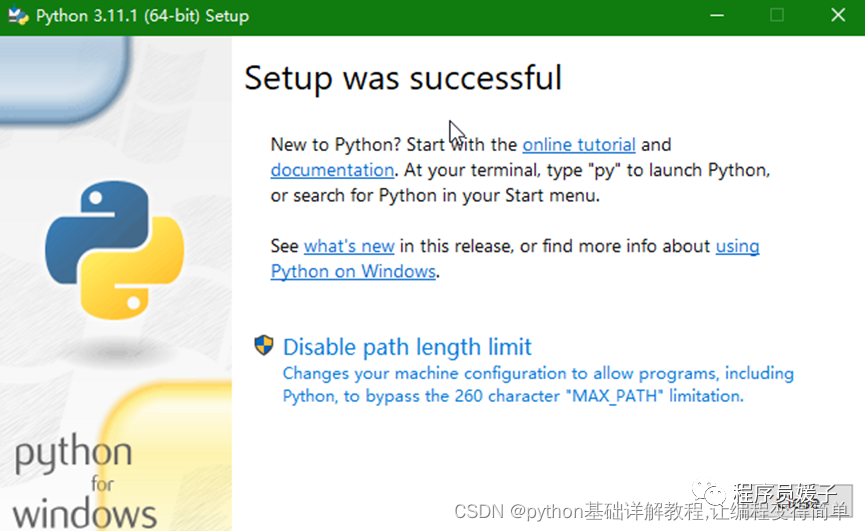
Image showing the completion of Python installation
The image indicates that Python installation is complete. Click Close, and Python is ready for use on the computer.
5. Python Development Environment Tools
After installing Python, there will be a python.exe file in the installation directory. This file is the Python interpreter, which converts Python code into bytecode and executes it. If we want to program in Python, we need a development tool.
In the Python installation path, there is an idle.pyw file in the …\Lib\idlelib folder, which is the integrated development learning environment for Python, commonly referred to as IDLE (Integrated Development and Learning Environment). The IDLE shortcut will be generated in the Windows start menu after installation.
We can use IDLE for Python development, but it is more suitable for running and debugging simple small programs and not for project development.
To improve project development and management efficiency, we can use PyCharm for Python language development. PyCharm is a Python IDE (Integrated Development Environment) that comes with a full set of tools to help improve Python development efficiency. PyCharm provides features such as code editing, debugging, syntax highlighting, project management, code navigation, smart suggestions, and auto-completion to help us write Python code (i.e., Python project development) more efficiently.
Therefore, we can install PyCharm for Python development. For detailed installation tutorials, refer to the latest PyCharm installation tutorial and PyCharm configuration.
Additionally, we can install the VS Code (Visual Studio Code) code editor for Python development. For detailed installation tutorials, refer to the latest VS Code installation tutorial and VS Code configuration.
Similar development environment tools include Sublime Text, Eclipse + PyDev, etc.
Moreover, you can refer to more detailed discussions on the relationship between programming languages and their development environments in the Compiler and C/C++ Compiler Installation tutorial.
6. Application Fields of Python
Companies like Google, YouTube, Dropbox, and domestic companies like Baidu, Sina, Sohu, Tencent, Alibaba, NetEase, Taobao, Zhihu, Douban, etc., use Python in various fields.
1. Web Application Development
With the maturity of Python’s web development frameworks (such as Django, Flask, Tornado, Web2py, etc.), programmers can more easily develop and manage complex web applications.
2. Automated Operations
Automated operations refer to associating events with IT processes based on a structured framework. If the monitoring system detects performance exceeding limits or downtime, it triggers related events and predefined processes to automatically initiate fault response and recovery mechanisms.
Using open-source automation tools like Ansible (developed in Python) can help operations engineers solve repetitive tasks.
3. Machine Learning
Python can be used for research in artificial intelligence, language recognition, image recognition, natural language processing, etc.
4. Computing and Data Analysis
Python has a well-established and excellent library for data analysis and visualization, such as NumPy, SciPy, Matplotlib, and pandas, which can meet the needs of Python programmers for writing scientific computing programs.
5. Web Crawling
Python provides many tools for writing web crawlers, such as urllib, Selenium, and BeautifulSoup, and also offers a web crawling framework called Scrapy.
6. Game Development
Notable games like Sid Meier’s Civilization and EVE (EVE Online) were developed using Python.
7. Cloud Computing
The open-source cloud computing solution OpenStack is developed in Python.
Suggestions for Learning Python:
1. Set clear learning goals and customize a learning path based on your direction.
2. Divide knowledge modules and set learning time and goals.
3. Persist! Persist! Persist!
Regarding Python technical reserves
Mastering Python is beneficial for both employment and side income, but learning Python requires a learning plan. Lastly, I will share a complete set of Python learning materials to help those who want to learn Python!
1. Learning Path for All Directions of Python
This organizes the technical points of all directions of Python, forming a summary of knowledge points in various fields. You can find corresponding learning resources based on the knowledge points above to ensure comprehensive learning. (Get it at the end of the article!)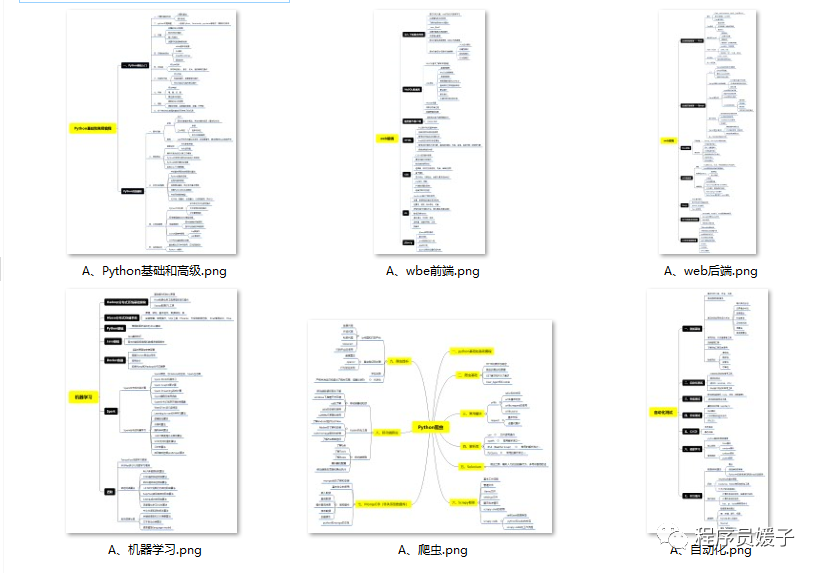 Warm reminder: Due to limited space, the packaged folder can be obtained as noted at the end of the article!!!
2. Essential Development Tools for Python
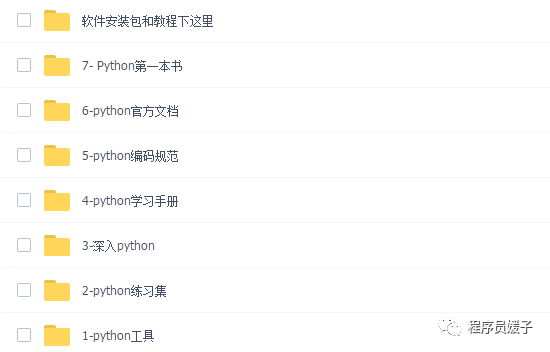
With the development of artificial intelligence, Python has even become the preferred language in the AI field. It also has common applications in data analysis, front-end development, machine learning, web scraping, etc., and can lead to development in any field.
Since Python is so good, what about the employment prospects?
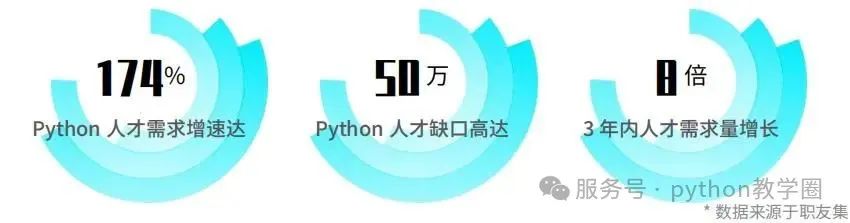
First, there is a significant talent gap, with demand growth reaching 174%.
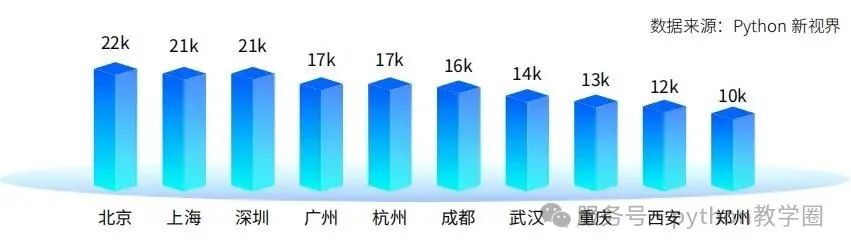
Additionally, Python positions offer high compensation! The average monthly salary is over 15K, and in first-tier cities like Beijing and Shanghai, it can reach over 20K.
Whether you believe it or not, Python is the present continuous tense
But as the saying goes, “To forge iron, one must be strong oneself.” While industry advantages are important, personal effort is the key. Opportunities are always left for those who are prepared.

Sign up now for discounts
Current price: 0 yuan
Original price: 99 yuan
Newcomer special offer
Limited to 100 copies
Learn from top instructors
Achieve 100%
Enhance your value
Get trial lessons from famous teachers
One-on-one online tutoring
Expert answers to your questions
Gain an additional skill
Have more security against risks
Come and claim it now!!
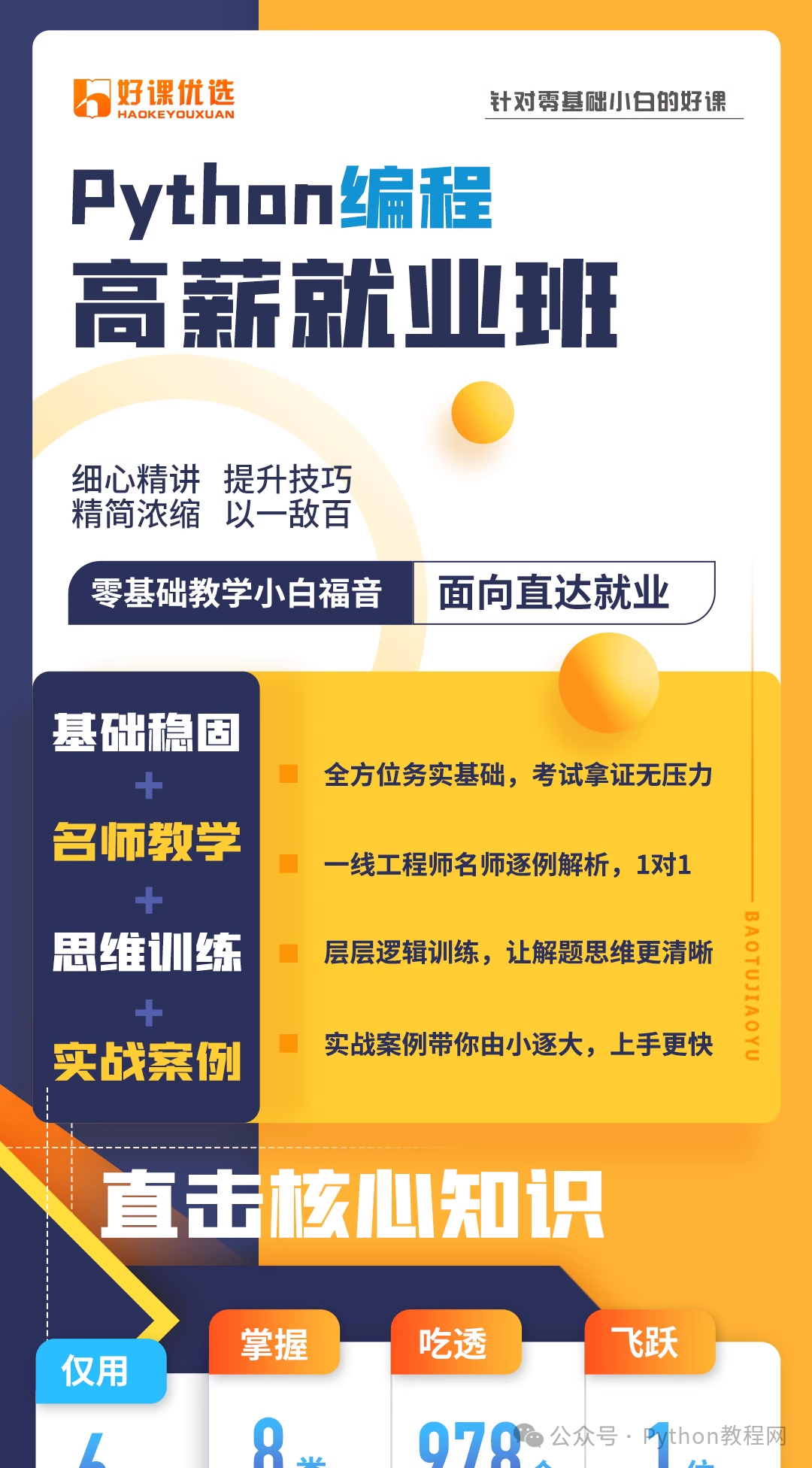
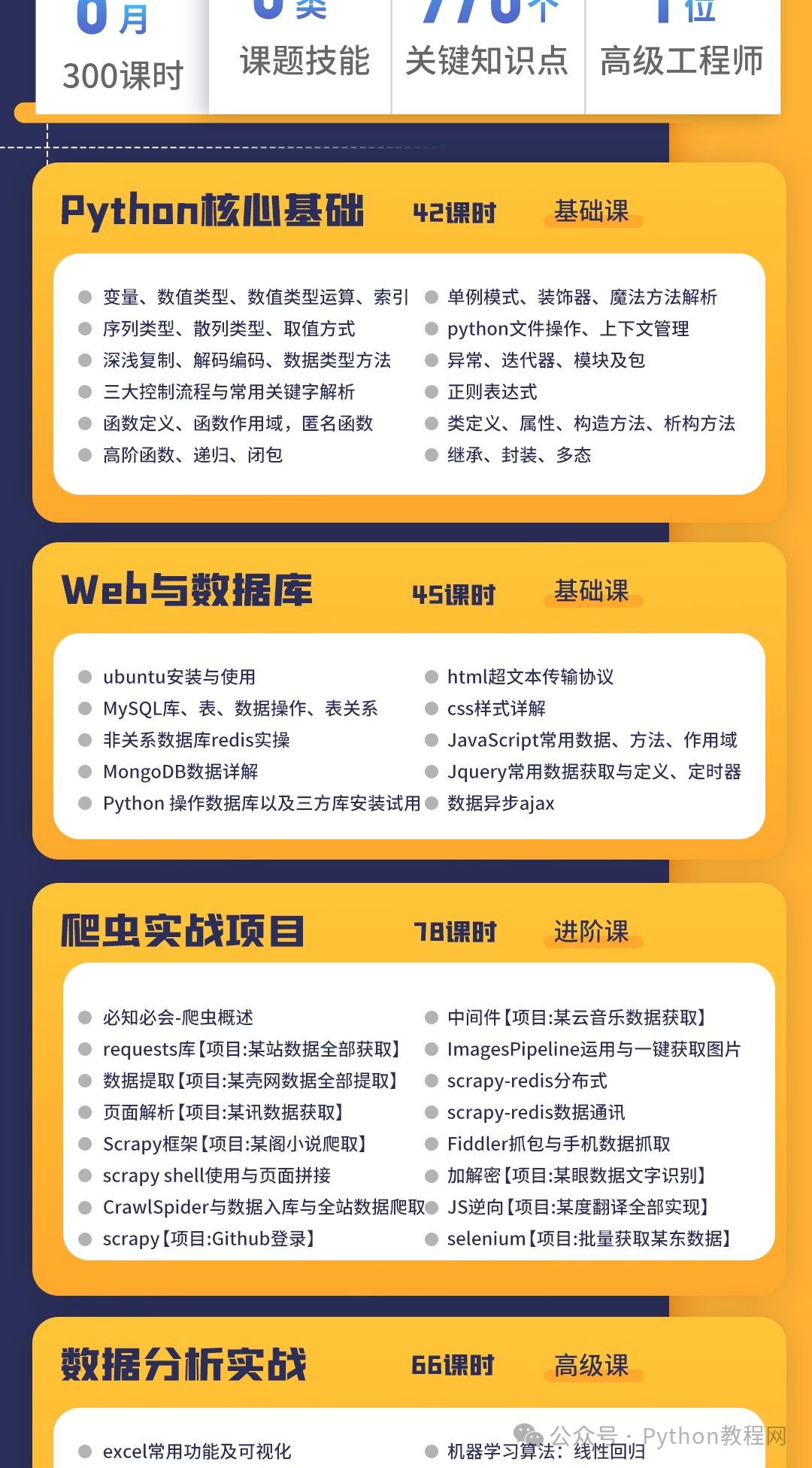
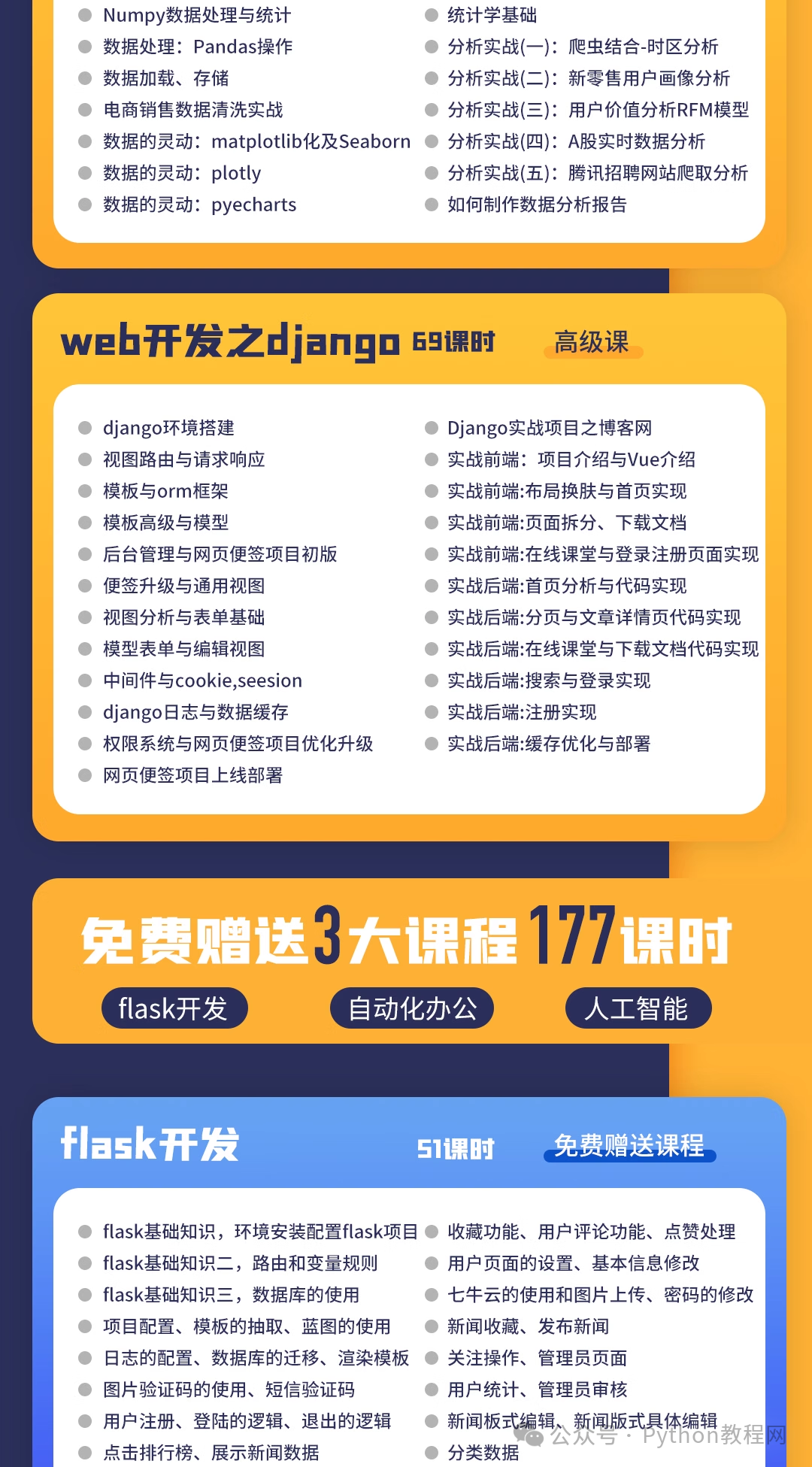
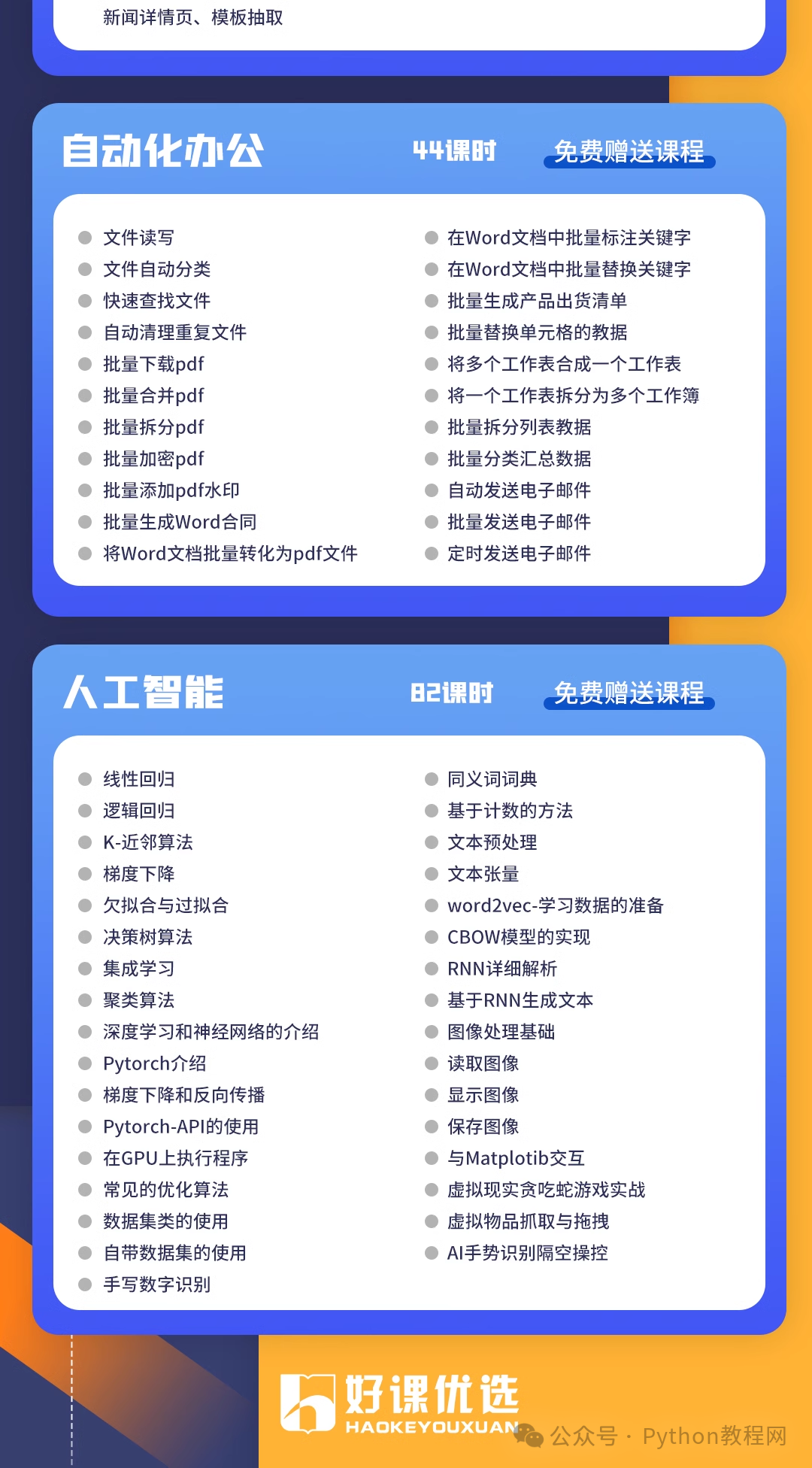
Based on the learning progress of the students, arrange corresponding Python boot camps. Spending eight hours a week with me learning Python can enhance your skills.
How to claim:
-
Like + See Again
-
Reply in the public account:“python”
Claim the latest Python zero-based learning materials for 2025,reply in the background:Python