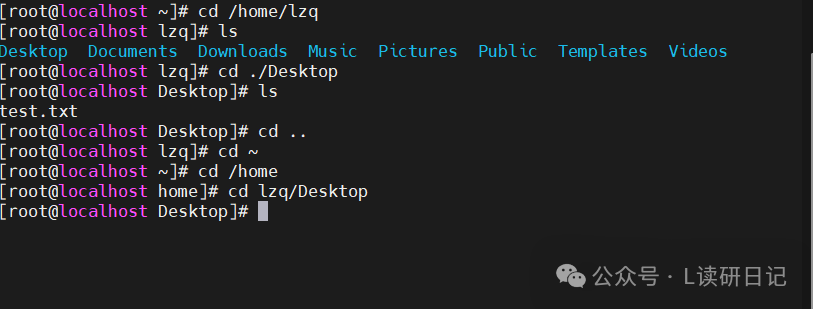
ls Command
Function: Lists information about directories.Syntax:
ls [-l -h -a] [options]- Options: The directory to be viewed; if no options are provided, it displays the current working directory.
- -l, view in list format
- -h, used with -l, displays file sizes in a more human-readable format
- -a, shows hidden files
Hidden Files and Directories
- In Linux, files and directories that start with a dot (.) are hidden.
- They are not displayed by default and require the -a option to be viewed.
The image below is a test.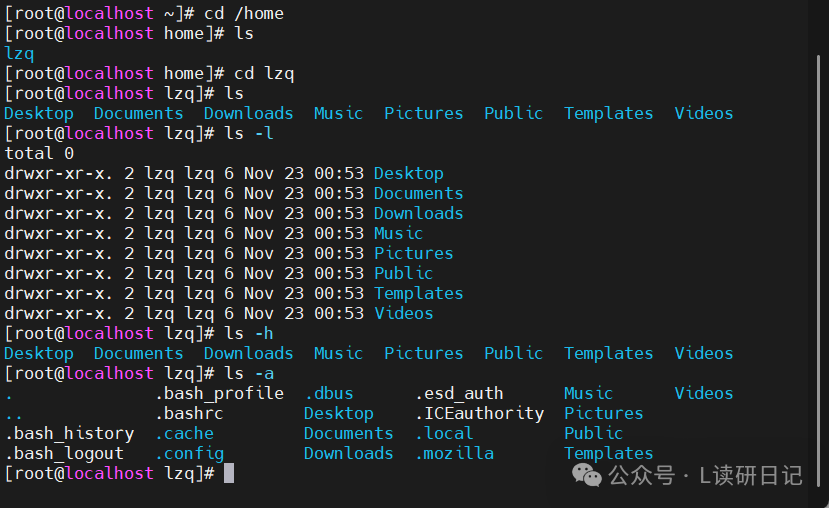
pwd Command
Function: Displays the current working directorySyntax:
pwdView demonstration.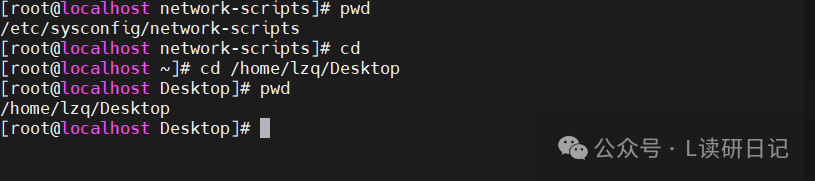
cd Command
Function: Changes the working directorySyntax:
cd [target_directory]- Options: Target directory, the location to switch to; if not provided, it defaults to the current user’s HOME directory.
Relative and Absolute Paths
- A relative path does not start with a /.
- A relative path describes the path starting from the current directory, e.g., test/a.txt indicates the a.txt file in the test folder within the current working directory.
- An absolute path starts with a /.
- An absolute path describes the path starting from the root.
Special Path Symbols
- ., represents the current directory, e.g., ./a.txt indicates the a.txt file in the current folder.
- .., represents the parent directory, e.g., ../ indicates the parent directory, ../../ indicates the grandparent directory.
- ~, represents the user’s HOME directory, e.g., cd ~ will switch back to the user’s HOME directory.
The image below is a demonstration.