Today, I bring you a highly practical tutorial:How to install Dev-C++ and configure the C++ graphics library (EasyX), making it easy for you to get started with C++ graphics programming!
🔧 Step 1: Install Dev-C++
Dev-C++ is a lightweight C/C++ integrated development environment (IDE) suitable for beginners to quickly get started. Here are the installation steps:
1. Download the installation package
Search for dev c++ 6.3 in your browser or download the Dev-C++ installer from the following URL: https://sourceforge.net/projects/embarcadero-devcpp/files/v6.3/.

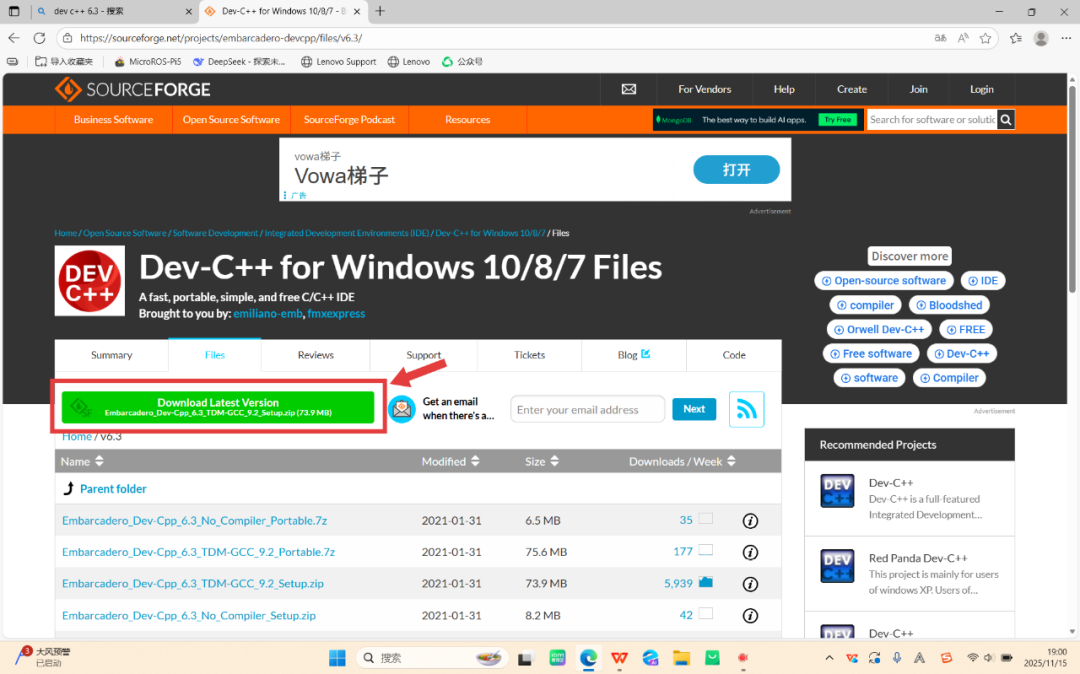
2. Run the installation wizard:
-
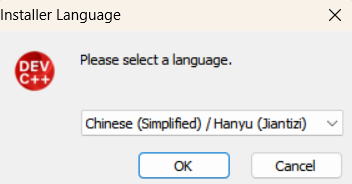
· After extracting, double-click the installation package, select the language (e.g., Chinese), and click “OK”.
-
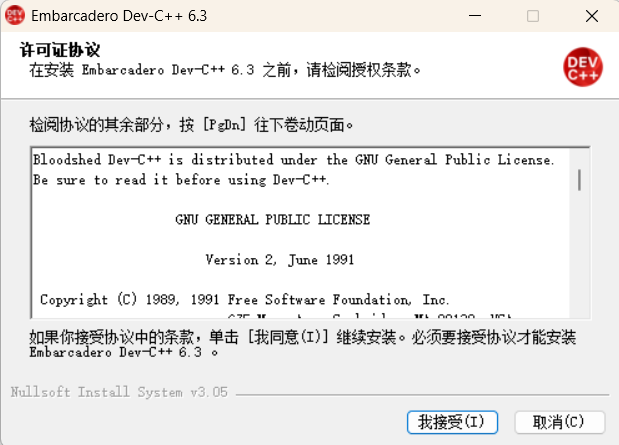
· Read the license agreement and check “I accept”.
· Select components (default is all selected) and click “Next”.
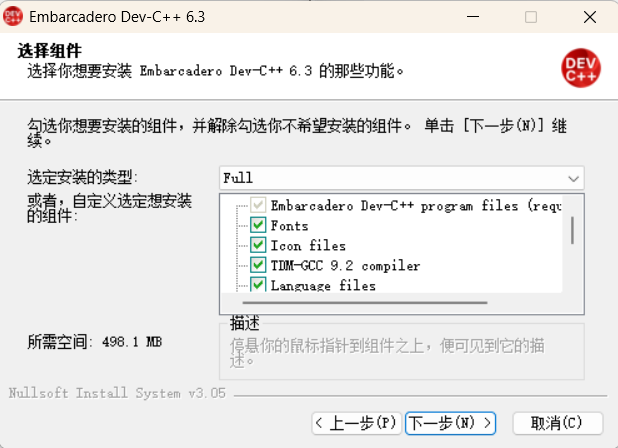
-
· Choose the installation path and click “Install”.
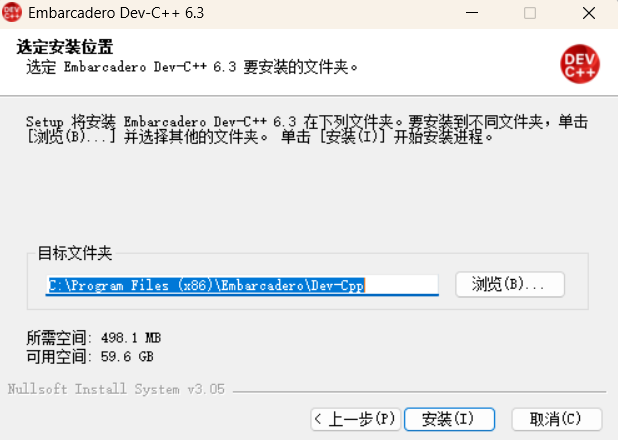
-
· Wait for the installation to complete, then click “Finish” to start Dev-C++.
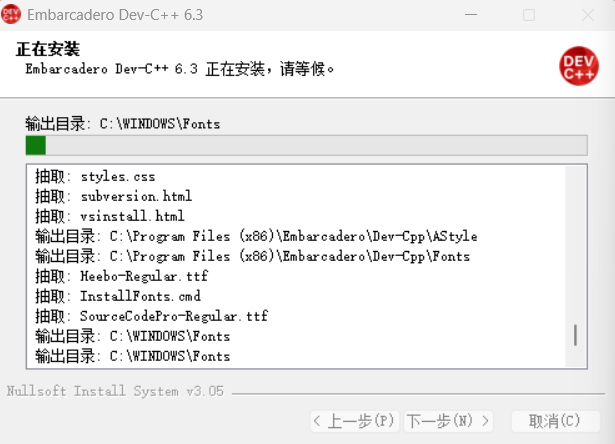
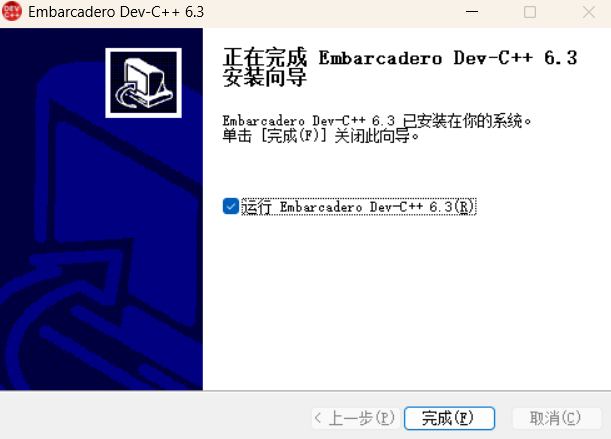
🎨 Step 2: Configure the C++ Graphics Library (Using EasyX as an Example)
EasyX is a lightweight C++ graphics library for Windows, suitable for drawing windows, lines, graphics, etc., and is friendly for beginners.
1. Download the EasyX library
Download the corresponding library files for Dev-C++ from the EasyX official website ( https://easyx.cn/ ), such as
the download link for easyx4mingw25.9.10 is https://codebus.cn/bestans/easyx-for-mingw .

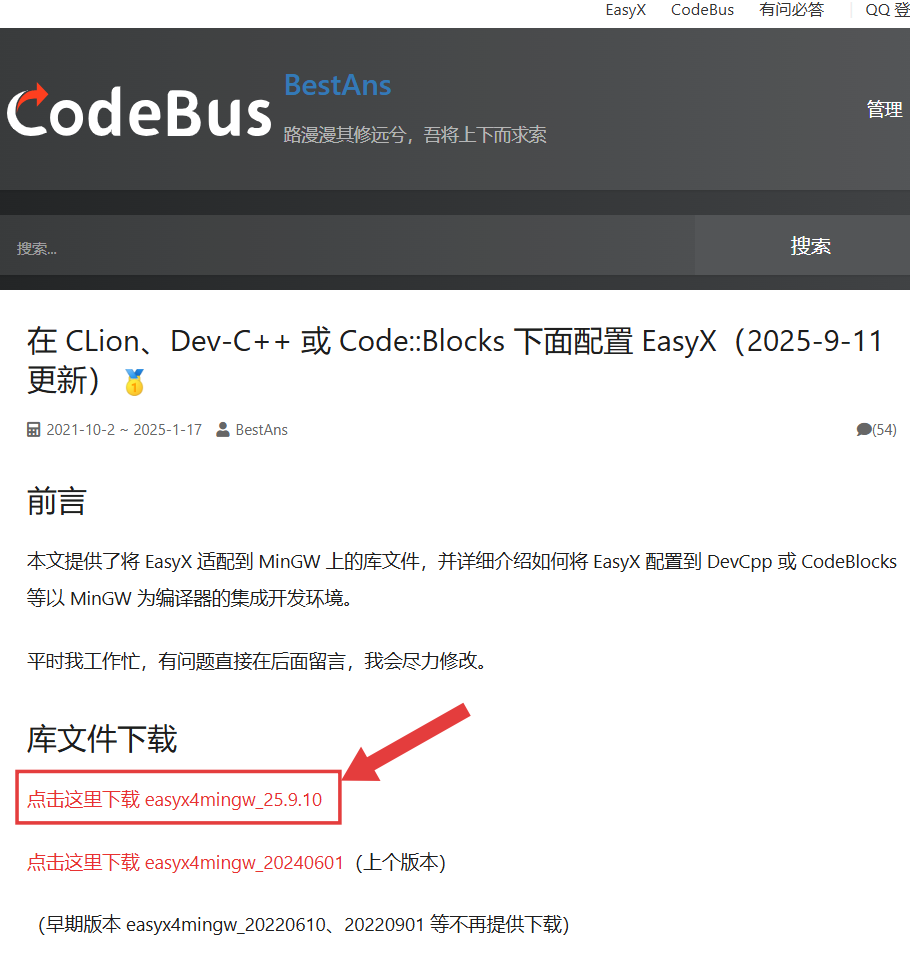
2. Extract and configure the library files
· Extract the library files: Unzip the downloaded ZIP package to any directory
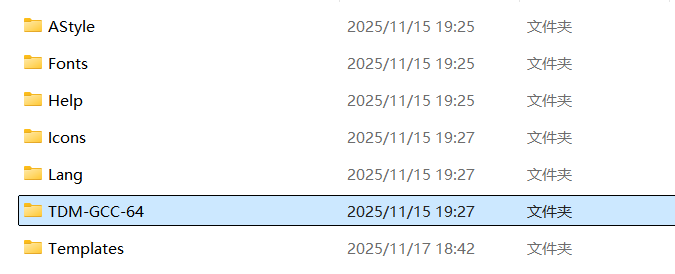
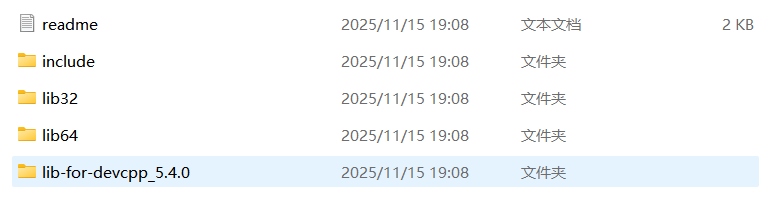 · Configure the files: Locate the Dev installation folder
 · Enter TDM-GCC-64
 · Find the x86_64-w64-mingw32 folder
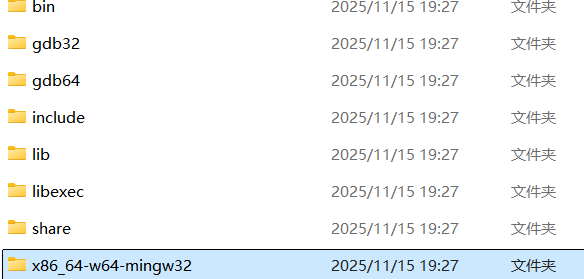 · Copy the extracted EasyX library files into the corresponding dev installation folder
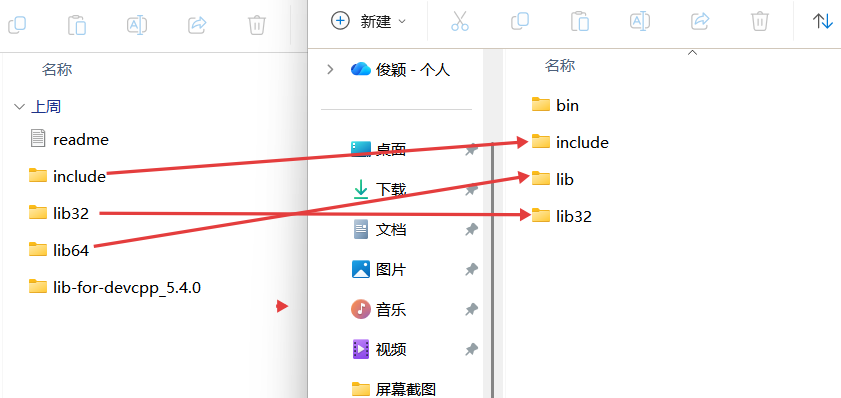 Step 3: Test the graphics library1. Open the Dev-C++ software and create a new project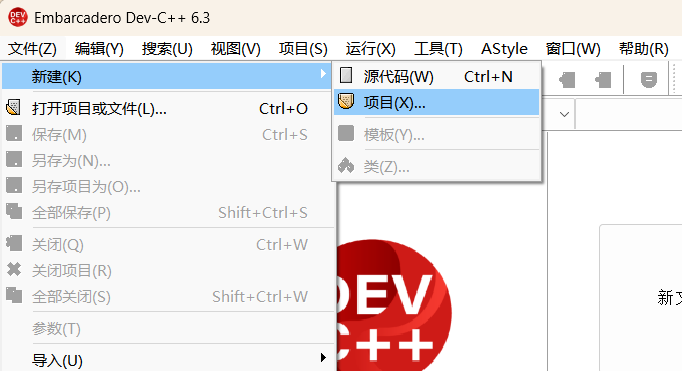
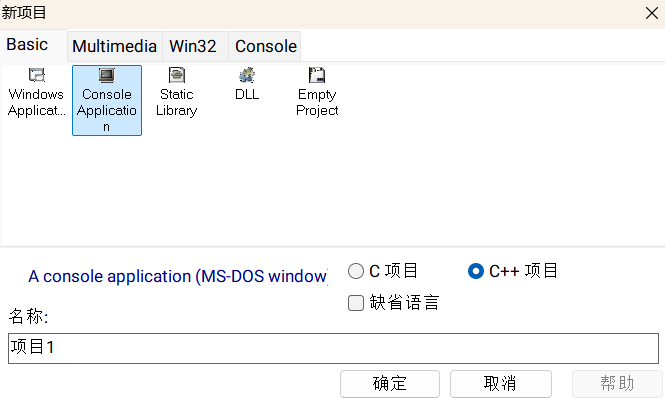 2. Test the graphics library: Write a simple test program
#include <graphics.h>  // EasyX core header file#include <conio.h>     // For waiting for a key press
int main() {    // Initialize the graphics window (width 640, height 480)    initgraph(640, 480);
    // Set background color to black, clear the screen    setbkcolor(BLACK);      cleardevice();
    // Draw a red rectangle    setlinecolor(RED);      rectangle(100, 100, 300, 300);
    // Wait for a key press before closing the window    getch();      closegraph();
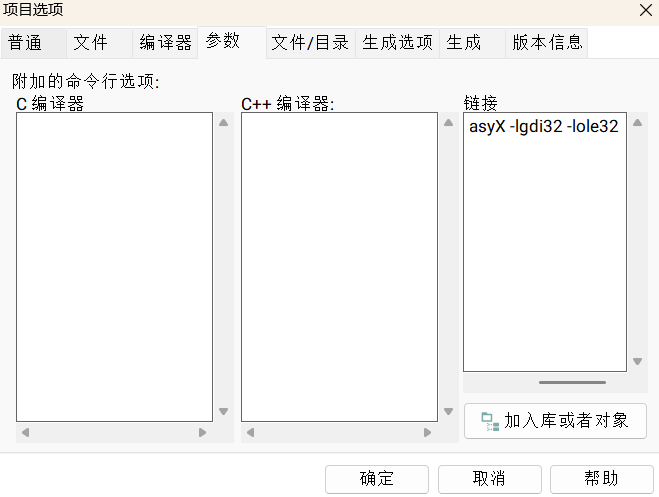
return 0;}3.Set the link library: Open Project—Project Properties—Parameters, and enter the following in the linker: -static-libgcc -lEasyX -lgdi32 -lole32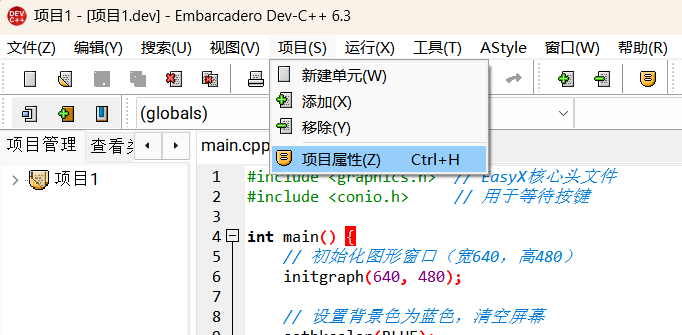
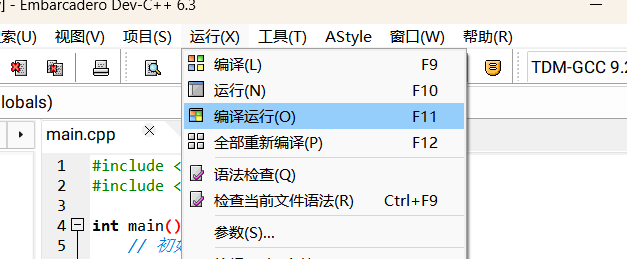
 4. Compile and run
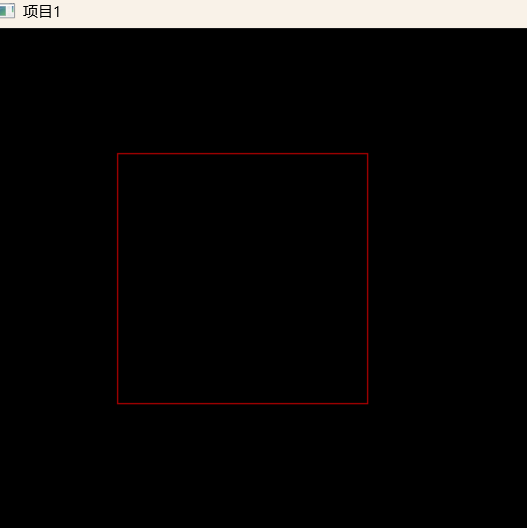
 If a window appears with a black background and a red rectangle, it means the configuration was successful!