For friends engaged in embedded Android development, it is highly likely that you have encountered such a “confusing scenario”:WiFi / Bluetooth dual-mode module (such as the common AP6XXX series), where Bluetooth connects normally, but WiFi just won’t turn on —— Clicking on “Turn on WiFi” has no response, and there are a bunch of errors in the logs. Recently, while debugging the RK3576+Android14+AP6256 module, I fell into this pit and found out that it was due to selecting the wrong “communication channel” causing the issue. Today, I will use this case to help everyone understand the working logic of WiFi / Bluetooth, debugging methods, and development precautions, so that next time you encounter similar issues, you can quickly resolve them.
1. Debugging Case:AP6256 ’s “Two Extremes”
First, let’s clarify the debugging environment:
•Main Control:RK3576 (Rockchip mid-range processor, commonly used in IoT and industrial devices)
•System:Android 14
•Module:AP6256 (Broadcom ’s WiFi / Bluetooth dual-mode module, supporting 2.4G WiFi + Bluetooth 5.0)
1. Phenomenon: Bluetooth Works, WiFi “Fails”
•Bluetooth: Can search for devices, pair and connect normally, no errors in the log;
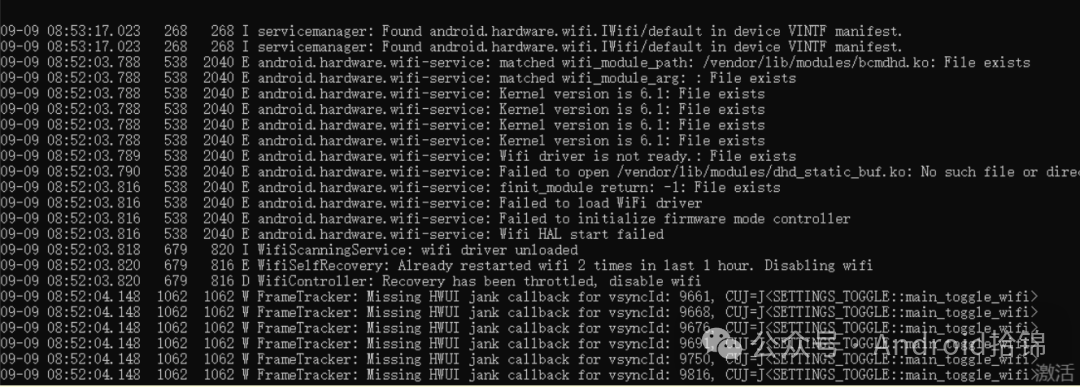
•WiFi: Clicking on “Turn on WiFi” button, the progress bar completes but then automatically closes, and the upper log shows errors:
|
E [email protected]: maybe there is no usb wifi or sdio or pcie wifi, set default wifi module Broadcom APXXX: Permission denied |
•Kernel log is even more critical, directly exposing the channel issue:
|
[dhd] ======== Card detection to detect PCIE card! ======== [dhd] No Broadcom or Synaptics PCI device enumerated! [dhd] dhd_wifi_platform_load_pcie: dhd_bus_register failed err=-1 [dhd] _dhd_module_init: Failed to load the driver, try cnt 1 |

2. Investigation: Why is WiFi Using the PCIE Channel?
First, check the DTS (Device Tree) configuration, theoretically, AP6256 ’s WiFi should use the SDIO channel (the module manual clearly supports SDIO 3.0, does not support PCIE):
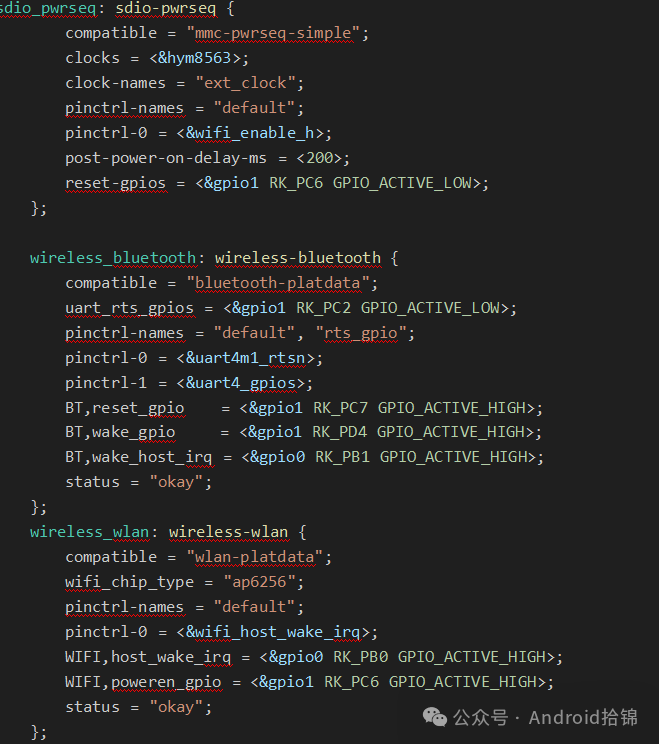 DTS configuration is fine, so where is the problem?
Flipping to BoardConfig.mk (compilation configuration file), I found a line“hidden configuration”:
|
# It turns out that PCIE WiFi configuration is enabled by default, and the driver prioritizes detectingPCIE channel PRODUCT_KERNEL_CONFIG += pcie_wifi.config |
3. Solution: Disable the PCIE Channel, Let WiFi Use SDIO
Simply comment out this configuration line, recompile and flash:
|
# DisablePCIE WiFi configuration to avoid the driver prioritizing unsupported channels # PRODUCT_KERNEL_CONFIG += pcie_wifi.config |
Check the kernel log, WiFi successfully uses the SDIO channel to load:
|
[dhd] dhd_wifi_platform_load: Enter [dhd] wifi_platform_set_power =1, delay: 200 msec // Power enabled [WLAN_RFKILL]: wifi turn on power [GPIO54-1] // Power pin set high [dhd] wifi_platform_bus_enumerate device present 1 // SDIODevice recognized successfully [dhd] [wlan0] wl_android_wifi_on:g_wifi_on=1 // WiFiSuccessfully turned on |
WiFi can finally be turned on normally and connect to the network, problem solved!
2. Basic Knowledge:How do WiFi / Bluetooth modules “communicate” with the main control?
Many people only look at the configuration during debugging, but do not understand the working logic of the module, making it easy to panic when encountering problems. Here, using AP6256 as an example, I will clarify the core communication principles of WiFi / Bluetooth in embedded Android.
1. Dual-mode Module’s “Division of Labor”: Shared Hardware, Independent Channels
The AP6XXX series (such as AP6256, AP6356) is a typical “WiFi + Bluetooth dual-mode module”, which integrates WiFi chips, Bluetooth chips, and power management units internally, but the communication channels with the main control (such as RK3576) are independent:
|
Function |
Communication Channel |
Usage |
Rate |
|
WiFi |
SDIO/PCIE |
Transmitting high-speed data (such as internet access, screen mirroring) |
SDIO 3.0(100Mbps)、PCIE(1Gbps+) |
|
Bluetooth |
UART |
Transmitting low-speed data (such as pairing, file transfer) |
UART 115200bps~1Mbps |
Key Conclusion: The normal operation of Bluetooth indicates that the UART channel configuration is correct, while the failure of WiFi is likely due to issues with the channel (SDIO/PCIE) or power control — this is also the core logic of this case.
2. Module’s “Control Signals”: GPIO is the “Switch”
In addition to the communication channel, the module also requires 3 key GPIO pins to interact with the main control. If these 3 pins are configured incorrectly, the module will not work:
•poweren (Power Enable): The main control supplies power to the module through this pin (high level = power on, low level = power off), and in DTS WIFI,poweren_gpio must match the hardware;
•reset (Reset): When the module is abnormal, the main control resets the module through this pin (usually low level resets, set high after reset), the reset pin of AP6256 is configured insdio_pwrseq;
•wake (Wake): The module actively notifies the main control (such as when WiFi receives data, or Bluetooth is discovered), DTS WIFI,host_wake_irq is this function, and the correct interrupt trigger method must be configured (such as GPIO_ACTIVE_HIGH).
3. Driver’s “Role”: The Translator
The communication between the main control and the module requires a “translator” — the driver:
•WiFi driver: Broadcom module usesdhd driver (such as the bcmdhd driver in this case), Realtek module usesrtl8189ftv etc.;
•Bluetooth driver: Usually bt_uart (UART channel) or bt_hci (HCI channel), responsible for handling the interaction between the Bluetooth protocol stack and the hardware;
•Common reasons for driver loading failure: channel mismatch (such as PCIE driver loading SDIO module), driver version incompatibility (Android14 needs to adapt to the new driver interface).
3. Practical Debugging Methods: Follow These 5 Steps to Locate Issues Without Getting Lost
When encountering WiFi / Bluetooth issues, do not blindly change configurations. Follow the process of “Logs → Channels → GPIO → Drivers → Permissions” to troubleshoot, and 90% of the issues can be resolved.
1. Log Analysis Method: Capture the “Key Information”
Logs are the “eyes” of debugging, but it is important to distinguish between upper-level logs (application / service) and kernel logs (driver / hardware):
•Upper-level Logs: Check for application layer errors (such as permissions, service startup failures)
|
# FilterWiFi and Bluetooth related logs logcat -s “android.hardware.bluetooth” “wifi” “wificond” |
Key errors:Permission denied (permission issue), No such file or directory (device file missing, channel not recognized).
•Kernel Logs: Check for driver / hardware issues (such as channel detection, GPIO status)
|
# FilterWiFi/Bluetooth/Driver Keywords dmesg | grep -E “wifi|dhd|wlan|BT|sdio|pcie” |
Key errors:No PCI device enumerated (PCIE channel not supported), wifi_platform_set_power failed (power pin configuration error).
2. Channel Detection: Confirming if the “Path is Clear”
The communication channel is the “bridge” between the module and the main control, first confirm whether the channel is recognized:
•SDIO Channel: Check if the SDIO device exists (AP6256 ’s WiFi uses SDIO)
|
ls /sys/bus/sdio/devices/ # Normally should display a device similar to“mmc1:0001:1” (mmc1 is the SDIO controller) |
•PCIE Channel: Check for PCIE devices (high-end modules such as AP6398 use PCIE)
|
lspci # or dmesg | grep PCI # No output indicates no PCIE device, the module does not support PCIE |
•UART Channel: Check the corresponding UART device for Bluetooth
|
ls /dev/ttyS* # Bluetooth usually usesttyS4, ttyS5 etc. # Combine with DTS to confirm the UART device is correct |
3. GPIO Status Verification: Confirming if the “Switch” is Set Correctly
GPIO is the module’s “power switch” and “reset button”, if the configuration is correct but the level is wrong, the module will not work. Taking the poweren_gpio (gpio1 RK_PC6) as an example:
1.Calculate the GPIO Number:: The GPIO number formula for RK chips is “Group Number*32 + Pin Number“.
For example, gpio1 RK_PC6::gpio1 is the first group (starting from 0 ), RK_PC6 is the 14th pin in the group (PC0=8, PC1=9…PC6=14), so the number is = 1*32 +14=46?
(Different chip pin numbering rules may vary, refer to the chip manual, for example, RK3576 ’s GPIO1 PC6 corresponds to GPIO54, based on the actual manual).
2.Check the GPIO Level::
|
# Enter the GPIO directory cd /sys/class/gpio/ # ExportGPIO (if not exported) echo 54 > export # Check the level (1=high level, 0=low level, poweren should be 1) cat gpio54/value |
4. Driver Loading Check: Is the “Translator” Present?
If the driver is not loaded, the channel is useless. Check the driver loading status:
•WiFi Driver:: Check for Broadcom module dhd, check for Realtek rtl
|
lsmod | grep dhd # Should normally displaydhd module # If not loaded, check the kernel configuration:CONFIG_BCMDHD=y |
•Bluetooth Driver: Check for bt related modules
|
lsmod | grep bt # Should normally displaybt_uart, bt_hci etc. |
5. Permission Check: Must Check for Android High Versions
Android 10 + defaults to enabling SELinux (enforcing mode), insufficient permissions can cause the module to be unable to access device files:
•Temporarily disable SELinux (to verify if it is a permission issue):
|
setenforce 0 # Switch to permissive mode (permissive) |
•If it works normally after disabling, it indicates a SELinux permission issue, and rules need to be added (such as allowing wifi service to access SDIO devices):
In the device/rockchip/rk3576/sepolicy/vendor/ directory, add a rule file to allowwifi_hal to access /sys/bus/sdio/devices.
4. Development Precautions: Avoiding Pitfalls with These 5 Musts
Debugging is a “remedial action”, doing these 5 points during development can reduce 80% of WiFi / Bluetooth issues.
1. DTS Configuration Must Be “Hardware-Software Aligned”
DTS is a “hardware description file”, every parameter must match the hardware schematic (circuit diagram) completely:
•Module Type::wifi_chip_type = “ap6256” (must not be incorrectly written as ap6255/ap6356, otherwise the driver will load incorrectly);
•GPIO Pins::poweren_gpio, host_wake_irq must be consistent with the schematic (for example, in the schematic, WiFi power connects to gpio1 PC6, DTS must not write gpio2 PC6);
•Power Sequence::sdio_pwrseq’spost-power-on-delay-ms (delay time) must refer to the module manual (AP6256 recommends 200ms, too short and the module is not ready, too long and it starts slowly).
2. Channel Configuration Must “Match Module Characteristics”
First, check the module manual to confirm the supported channels for WiFi (SDIO/PCIE), then disable unsupported channels:
•Low-end modules (such as AP6256, AP6212): Usually only support SDIO, need to disable PCIE configuration (such as commenting out pcie_wifi.config);
•High-end modules (such as AP6398, AP6498): Support PCIE, need to disable SDIO configuration, and add PCIE related nodes in DTS.
3. Drivers Must Be “Version Compatible”
Android version and driver version must match, otherwise there will be interface incompatibility:
•Android 12+: Must use drivers that support “WiFi HAL 1.5” (such as bcmdhd version≥1.367.33);
•Kernel version: The driver must adapt to the kernel version (for example, this case uses Linux 6.1 kernel, the driver must be compiled for the 6.1 version).
4. Hardware Must Be “Pre-Validated”
Many issues are not due to software configuration errors, but rather hardware not being connected correctly:
•Power Voltage::AP6256 requires 3.3V power supply, if connected to 5V it will burn the module, and connecting to 2.5V will result in insufficient power;
•Pin Soldering::SDIO pins (such as DATA0~DATA3, CLK) being poorly soldered can lead to device recognition failure;
•Reset Timing:: The module needs to wait for the reset to complete after powering on (usually 100~200ms), before initializing the channel, otherwise it will fail to recognize.
5. SELinux Must Be “Configured in Advance”
For high versions of Android (10+), SELinux is enabled by default in enforcing mode, and permissions must be added in advance for the module:
•WiFi: Allow wifi_hal to access /sys/bus/sdio/, /dev/wlan0;
•Bluetooth: Allow bluetooth service to access /dev/ttyS* (UART devices);
•Recommended practice: Use setenforce 0 during the early development phase to verify permission issues, and then solidify the rules into the SELinux policy.
5. Conclusion: The Core of Debugging is “Locating the Direction”
This time, debugging the AP6256 did not involve complex code modifications, just commenting out a configuration line, but the key was to “locate the channel issue from the logs” . Many people easily fall into the trap of “blindly changing configurations”, neglecting the basic logic of “first look at the logs to determine the direction, then check the hardware-software matching” .
Finally, here’s a debugging mantra for everyone:
“If Bluetooth works, check WiFi, prioritize checking the logs for channels; distinguish between SDIO/PCIE, remember GPIO levels; don’t ignore driver versions, and don’t be confused by permission issues.”
Next time you encounter WiFi / Bluetooth issues, try following this thought process, and you will likely find the problem quickly. What “peculiar” issues have you encountered during debugging? Feel free to share in the comments, let’s avoid pitfalls together~