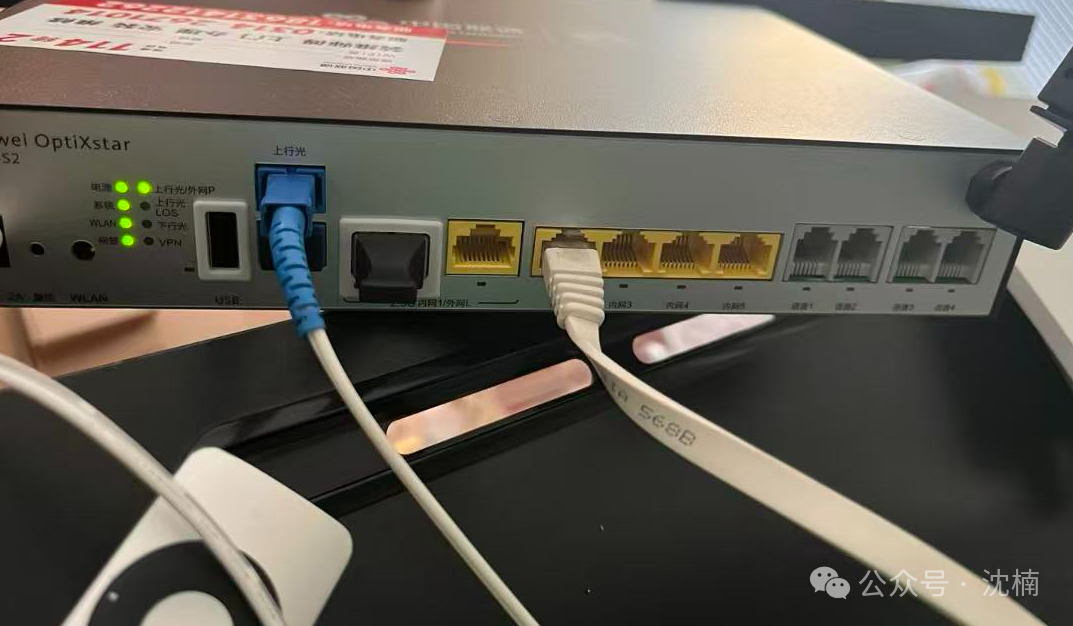
Over the past few days, I have been tweaking my home FTTR network, Wi-Fi, and the wireless performance of various devices.
The reason is simple: my desktop computer’s wireless speed was not improving. The optical modem is a Huawei B866 (FTTR main node) installed by China Unicom, and my home has a gigabit bandwidth, but the desktop’s speed test only showed one or two hundred megabits, which was far below expectations.
1. Problem Arises: Speed Does Not Improve
Since my home was renovated in 2005 with CAT5 or CAT5e cables (it’s been too long, I can’t remember), and there are some issues with the wiring adapters in certain places, achieving a few hundred megabits was already quite good. I didn’t want to go through the hassle of redoing the physical wiring in my home, so I opted for a wireless solution. My laptop and desktop are my productivity tools; the laptop was fine, but the desktop’s built-in wireless card only supported a hundred megabits. Therefore, I connected an external PCI-E wireless card, the Intel AX210, but I couldn’t see the channel width settings in the device manager, and it couldn’t reach 160MHz. I suspected there might be an issue with the wireless card.
Later, I discovered that I hadn’t connected the antennas. *Facepalm*
After connecting the antennas, the speed immediately jumped from 100+ Mbps to 500+ Mbps, but it still didn’t reach the maximum.
2. Suspecting the Optical Modem: Does FTTR Support 160MHz?
I began to suspect that the FTTR main node did not support 160MHz. However, when I tested with my MacBook Pro, it easily reached 1400+ Mbps.
This indicated that the issue was not with the optical modem, but rather the negotiation of channel width between devices was different.
I checked the configuration in the backend, and the FTTR default was set to “Normal Scenario – 20MHz”. This was for compatibility, stability, and coverage—not for speed.
I changed the mode to “High-Density Scenario” to prioritize 5G using 80MHz and 160MHz.
3. Speed Gradually Increases
After making the adjustments, the speeds of all devices suddenly improved:
-
Desktop (AX210) (after fine-tuning frequency, power, and other details of the network card) Speedtest: 1100+ Mbps / 240+ Mbps

-
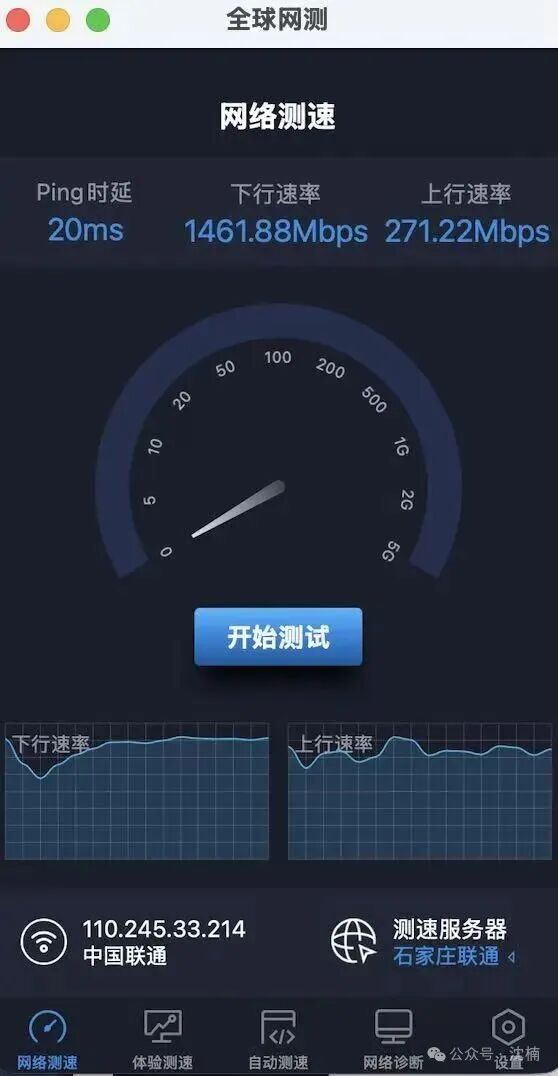
MacBook Pro M4 Max Global Speed Test: 1400+ Mbps
-
iPhone 13 Global Speed Test: 700+ Mbps

-
Huawei Phone Global Speed Test: 1600+ Mbps
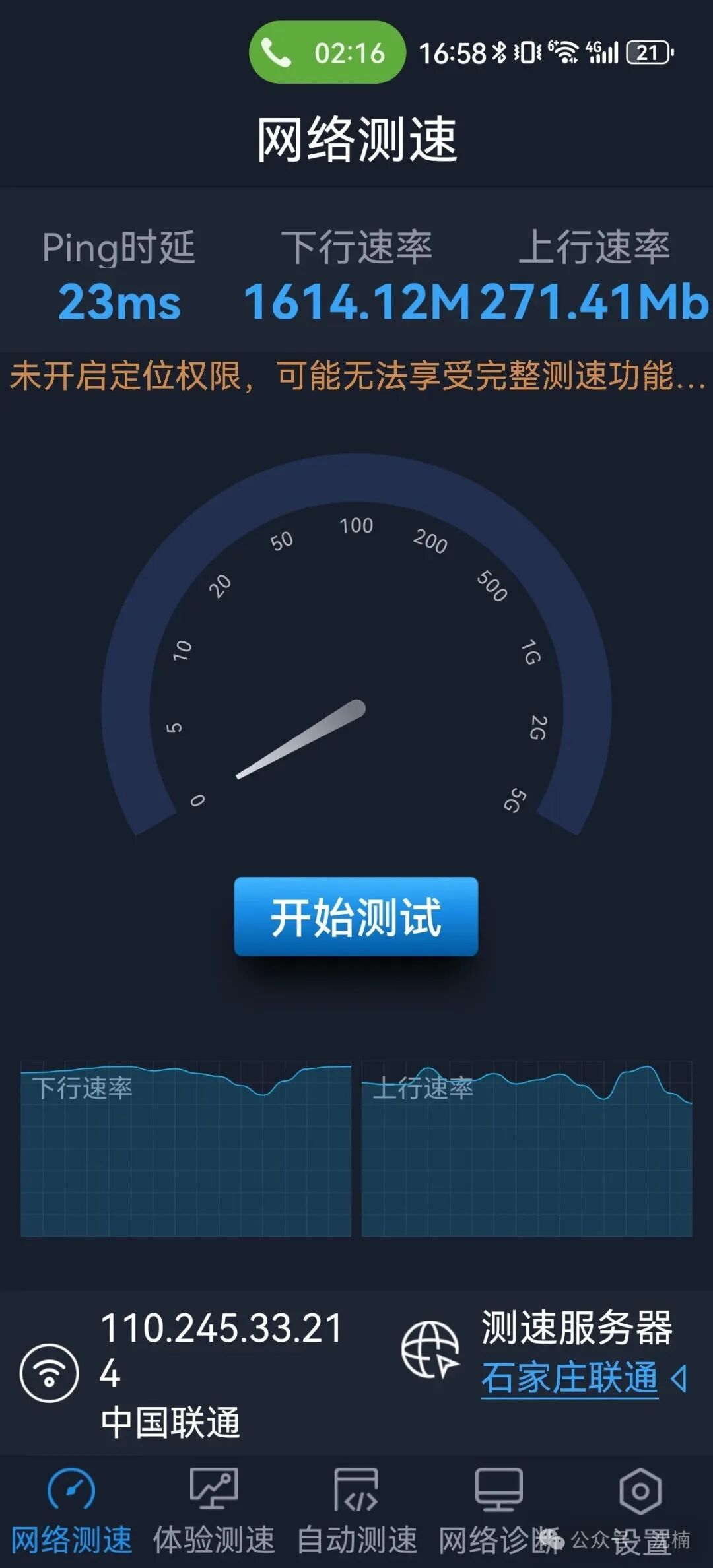
This also illustrates that the RF design, number of antennas, and Wi-Fi protocol support vary significantly among different devices—not all devices can achieve 160MHz, nor can they all reach the same speeds.
4. Final Conclusions
After several days of tweaking, I summarized a few key points:
- The FTTR main node supports high-speed Wi-Fi.
However, the default settings from the operator are somewhat “conservative” and need to be manually switched to a higher performance mode.
- Different devices have huge speed differences.
Apple and Huawei phones have strong Wi-Fi RF designs; older iPhones, old computers, and external wireless cards are often weaker.
- Intel AX210 detail settings are very important.
The default Intel AX210 PCI-E wireless card has many detailed settings. For example: Power (maximum value)
- 802.11a/b/g (dual-band 802.11a/b/g)
- MIMO power-saving mode (no SMPS, do not enable any dynamic, static, or automatic settings, as this affects whether a single antenna can work independently, leading to reduced speeds.)
- 802.11n/ac/ax (802.11ax)
- Mixed protection mode (RTS/CTS)
- Preferred frequency band (5GHz, if confident in the signal, selecting 5GHz + 6GHz is also possible. This prevents the 5 and 6 frequency bands from jumping back and forth.)
- Ultra-high-speed mode (6GHz)
- 2.4GHz, 5GHz, 6GHz; aside from automatic, all frequencies are 20GHz, which is quite awkward. Normally, a Wi-Fi 6 or Wi-Fi 6e network can be formed with one 160GHz or two 80GHz. Now, it is equivalent to using two antennas, each composed of four 20GHz, resulting in a 160GHz bandwidth, which is somewhat overkill. (According to some sources, this is for stability, while others say it is due to regional frequency restrictions; there is currently no conclusion.)
- Speed should not only be judged by speed test websites.
Speedtest, global speed tests, and operator nodes will have differences in values.
5. In Conclusion
Ultimately, my home wireless speed has nearly reached the gigabit bandwidth, improving by almost ten times compared to the initial speed. However, there is still room for improvement, as I have not yet installed the APB671-S2, which is necessary for accessing Wi-Fi 7 and using 80 or 160MHz wideband devices. While I have achieved a certain speed, it is due to good signal conditions and proximity, as well as high-performance terminal devices. If given the opportunity, I still need to install the APB671-S2 to maximize its performance. (But this will require running new cables.)
Tweaking itself is not easy, but understanding the principles and seeing the results is worth documenting.
Frequency adjustment does not equal power adjustment; high speeds are not due to high power but rather the wide bandwidth transmission rate. There is no need to worry about radiation.