Using Telnet for HTTP Interaction
Click the blue text to follow us
Tell me and I forget. Show me and I remember. Involve me and I understand.
1
Experiment Objective
This article will use Telnet to simulate HTTP requests.
This experiment takes “gaia.cs.umass.edu/wireshark-labs/HTTP-wireshark-file1.html” as an example.

2
Experiment Steps
Step One: Open Telnet Service
Control Panel —> Programs and Features —> Turn Windows features on or off —>
Check Telnet Client —> Click OK to enable Telnet service
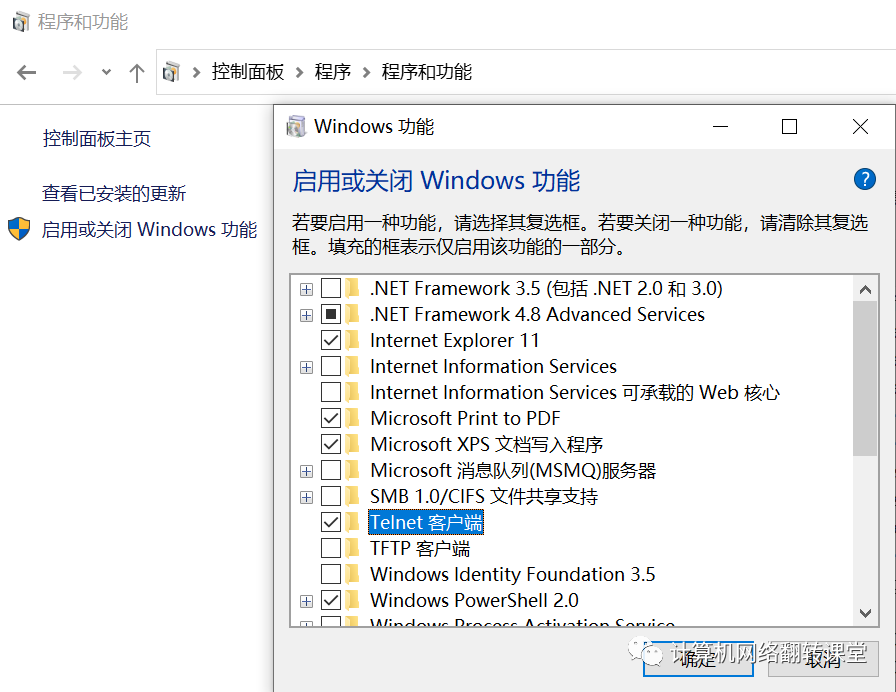
Step Two: Open Command Prompt (type cmd in the start menu or find Command Prompt in the accessories)
Remote connect to the server
Command format: telnet address port
(Example: “telnet gaia.cs.umass.edu 80“)
After pressing Enter, the screen will be all black. Press the shortcut key “Ctrl+](right bracket)” to open the local echo function, and switch to the following interface:
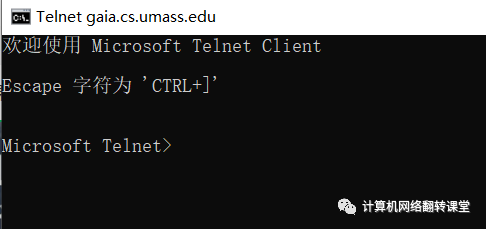
Click Enter to enter editing mode.
The editing mode will be a completely black screen.
(Note: The execution process in this phase and the following processes require short operation times; otherwise, the connection to the host will be disconnected. Some hosts do not support Telnet; you can change the experiment target.)
Step Three: Enter the Request Line and Header Line Content
At this step, you are already connected to the target server, but to access the webpage, you need to send a request to the server and receive the response from the server.
At this point, we need to enter two parts of information: one is the request line content, and the other is the header line content. Request line = method field + URL field + HTTP protocol version, separated by spaces. The method field can take values such as GET, HEAD, POST, PUT, and DELETE.
When filling in the URL field, it is important to keep it concise. Taking gaia.cs.umass.edu/wireshark-labs/HTTP-wireshark-file1.html as an example, its URL field is “/wireshark-labs/HTTP-wireshark-file1.html”, noting that the leading “/” cannot be omitted.
The header line = Host: hostname.
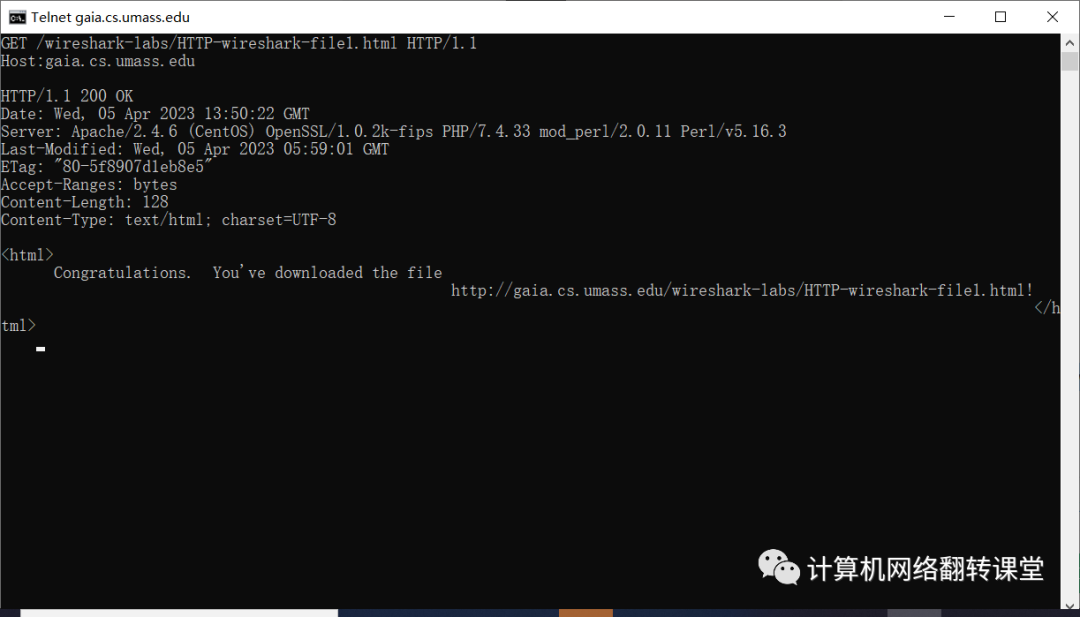
The author used “GET /wireshark-labs/HTTP-wireshark-file1.html HTTP/1.1 Host:gaia.cs.umass.edu” to successfully access this URL.
The “OK” in the fourth line indicates the operation was successful. The content between the two “<html>” tags is the webpage content.
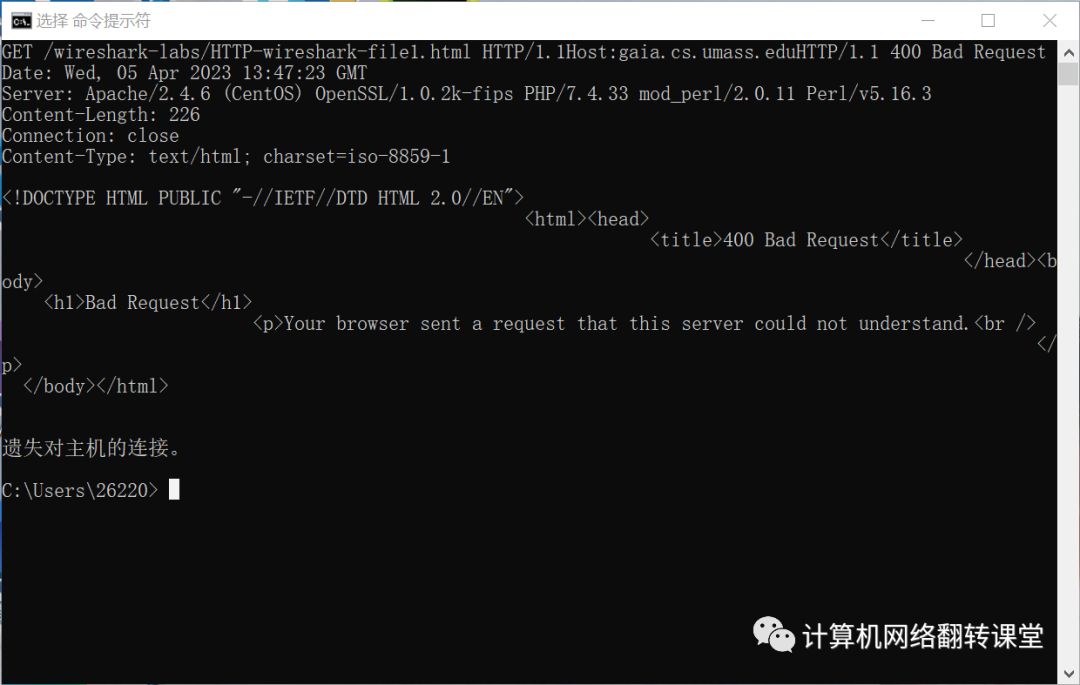
Be cautious when entering content, case sensitivity and symbols must be accurate. (Note: Due to limited input time, you can prepare the GET and Host statements in advance, copy them, and right-click to paste.) A newline is required between the request line and the header line. Below is an example of a failed newline.
After inputting, double-click Enter to send the request.
Step Four: Copy the webpage code to a text editor and save as .html format
Then open it in a browser and observe the results.
Finally, here are a few tips. Choosing .html or .htm as the suffix and ensuring the content is a plain text URL will make the experiment more likely to succeed.
Editor: Niu Chunchun, Li Yufei
Reviewer: Wang Tao
Long press to follow Shaanxi Normal University Computer Network Flipped Classroom

Public Account: Computer Network Flipped Classroom
Website: netresearch.snnu.edu.cn