Continuing from the previous article, this time I explore how to conveniently insert images while writing Markdown content in Vim, as well as how to better browse the content.
Fortunately, there are existing plugins that allow you to directly copy the content of screenshots into Markdown.
Copying and pasting screenshots into documents is an easy task for WYSIWYG Markdown editors like Typora, but for Vim, which leans towards pure text operations, it requires external plugins.
Image Plugin
GitHub: https://github.com/img-paste-devs/img-paste.vim
Plugin: <span><span>img-paste-devs/img-paste.vim</span></span> .
This plugin can copy images from the clipboard and insert the saved images into Markdown documents.
Of course, it still needs to be introduced using the Plug plugin management method.
<span><span>Plug 'img-paste-devs/img-paste.vim'</span></span>
After installing the plugin, some configuration is needed in <span><span>.vimrc</span></span> to facilitate image saving and quick insertion using keyboard shortcuts.
The configuration is as follows

After copying the screenshot to the clipboard, simply press the shortcut key, and Vim will prompt you to enter the file name. After entering the file name and pressing Enter, the image code will be inserted into the document.
1. Take a screenshot in Linux using the Shift + PrintScreen key, copying it to the system clipboard.
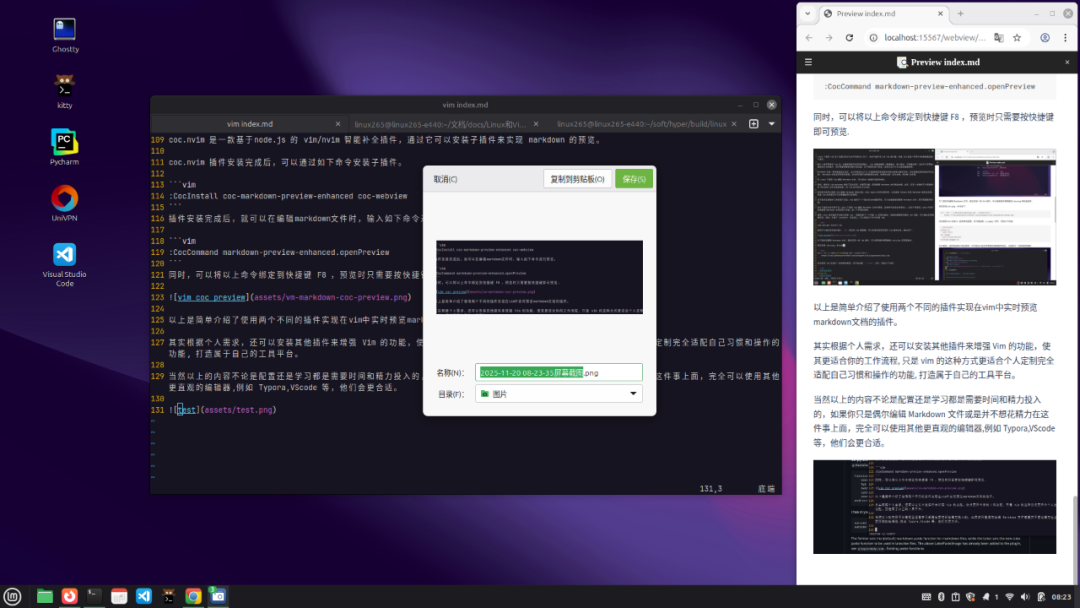
2. At this point, press the mapped shortcut key in Vim <span><span><leader>+i</span></span>, where <span><span><leader></span></span> is set to <span><span>,</span></span> in Vim. You will see a prompt to enter the name for saving the screenshot.
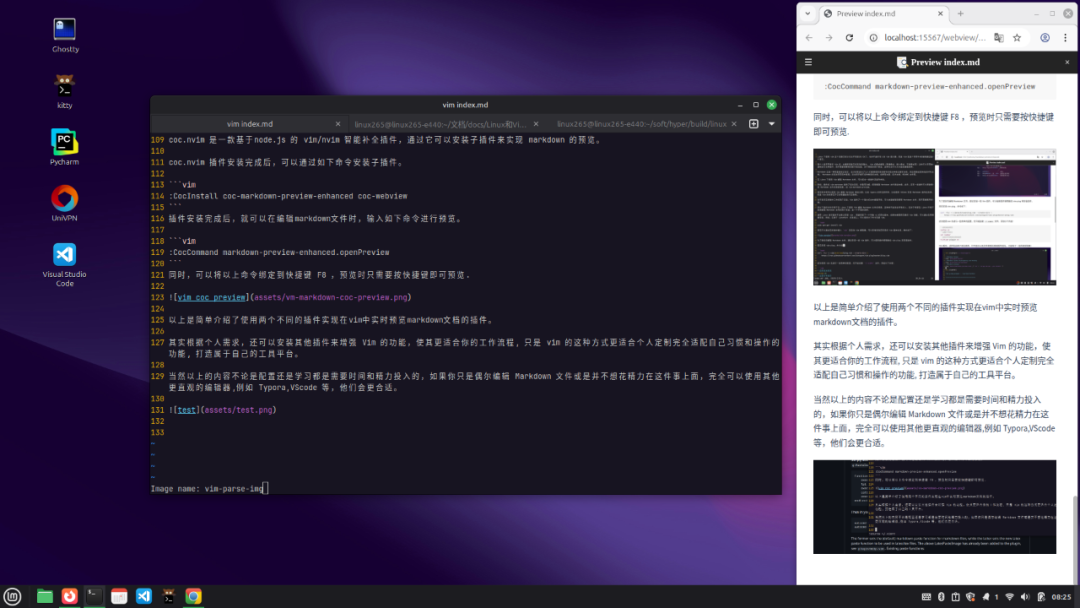
3. After entering the name, press Enter, and the image code will be automatically inserted into the document.
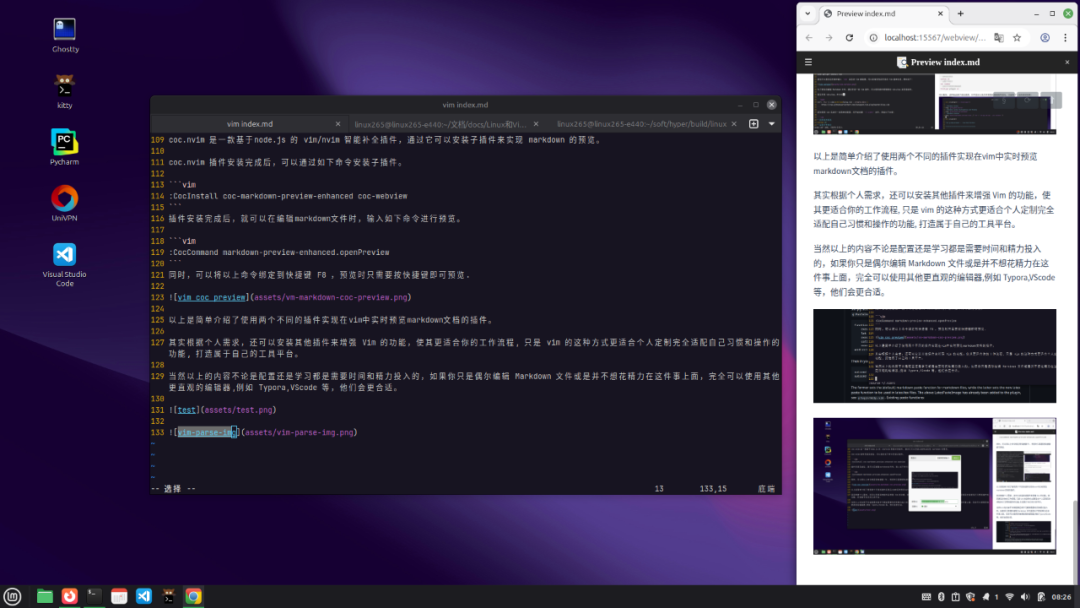
At this point, the default file description is selected by default and can be modified.
Thus, using the <span><span>img-paste.vim</span></span> plugin, you can conveniently insert screenshots while writing Markdown in Vim.
Live Preview
In practice, we can open a terminal and a browser side by side for live preview of the document writing effect. However, it would be better if the terminal could browse as well. Currently, I have not found any open-source terminal software in Linux that supports an embedded browser application.
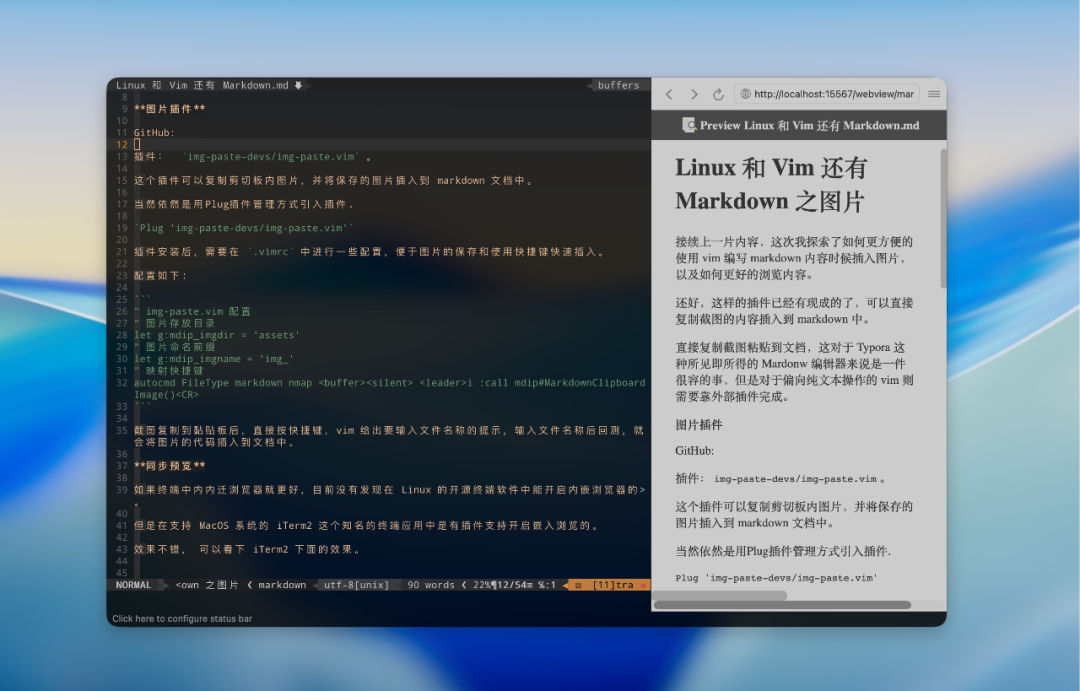
However, in the well-known terminal application iTerm2, which supports MacOS, there is a plugin that allows for embedded browsing.
The effect is good; you can check the results in iTerm2.
Although I have not found a terminal app in Linux that directly supports embedded browsing, I discovered that someone has modified the Hyper terminal to achieve this functionality.
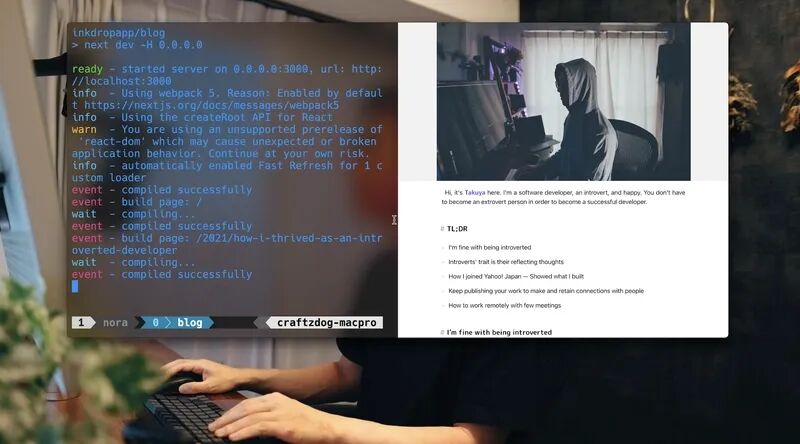
GitHub: https://dev.to/craftzdog/getting-side-by-side-preview-in-a-terminal-app-hyper-20ii
I have not successfully tried it, but those interested can download and explore it.
 Linux and Vim with MarkdownLinux can perhaps start with beautification!Some people say that installing a Chinese input method on Linux is difficult!The beginning of Linux is installation!Linux is only suitable for those who need it!Old friend, remember to 🌟star it, so it’s easier to find me next time!