1. Background
Many frontline teachers struggle with teaching the information technology IoT module due to limited resources, lacking hardware such as control boards, Arduino, and other devices, which makes it difficult to conduct effective IoT classes. In this article, I will share how to implement MQTT and IoT platform applications without hardware, based on my teaching practice and references from online resources.
2. Software Download
This section introduces how to use Mind+ and SIoT_V2 to achieve communication between IoT devices. The required version for Mind+ is 1.8 or higher, and the SIoT version is V2.
Here are the download links for Mind+ and SIoT V2:
Mind+ download: https://mindplus.cc/download.html
SIoT V2 version:
Download link:
Weiyun download (recommended): https://share.weiyun.com/6SFhgLQj
Baidu Cloud download: https://pan.baidu.com/s/17clVjJXWTZh02FteKy3mcA?pwd=mind Extraction code: mind
Aliyun download: https://www.aliyundrive.com/s/tCqwJwGtZzL Extraction code: 3h4x
3. Usage Instructions
(1) SIoT V2
Run SIoT V2
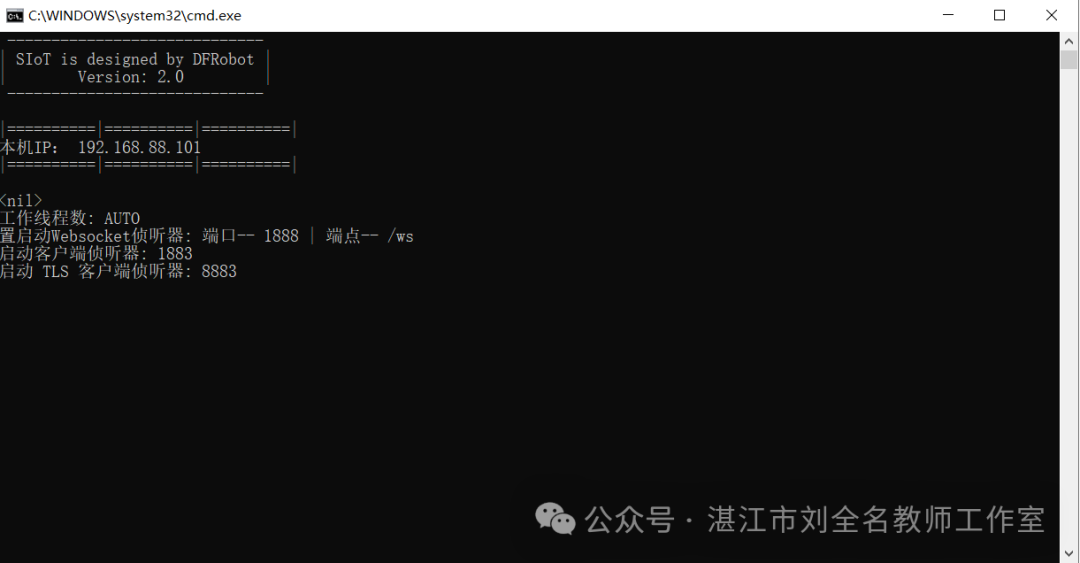
1. Download the Windows version of SIoT_V2, unzip it, and double-click start SIoT.bat to launch the new version of SIoT. A small black window will pop up to start the server.
Note:
(1) Run start SIoT.bat instead of main.exe.
(2) During startup, SIoT needs to be added to the allowed applications through the firewall, checking both private and public networks; otherwise, external devices may not be able to access it. (You can also directly disable the computer’s firewall.)
(3) Do not close the small black window that pops up; closing it will shut down the SIoT server.
The black window is shown in the image below:
2. Enter 127.0.0.1:8080 in the browser to open the web port (8080 is the port number, which can actually be modified to another one). The default login account is siot, and the password is dfrobot (both account and password are in lowercase).
3. Create a new Topic or view messages. As shown in the video below:
(2) Testing the IoT platform without control boards or other hardware
-
Open Mind+ 1.8.0, and you will see the entry for the visual panel in the top menu bar; click it to pop up a new window.
-
Click to create a new project, select to create a blank project, enter the project name and description, and click confirm to create a new project.
-
Connect to the SIoT V2 server
After entering the page, a prompt will pop up to select the data source. If SIOT V2 is started locally on the computer, the IP is 127.0.0.1. If you want to connect to another SIoT server, you can fill in the IP address of that server.
-
Interface Description
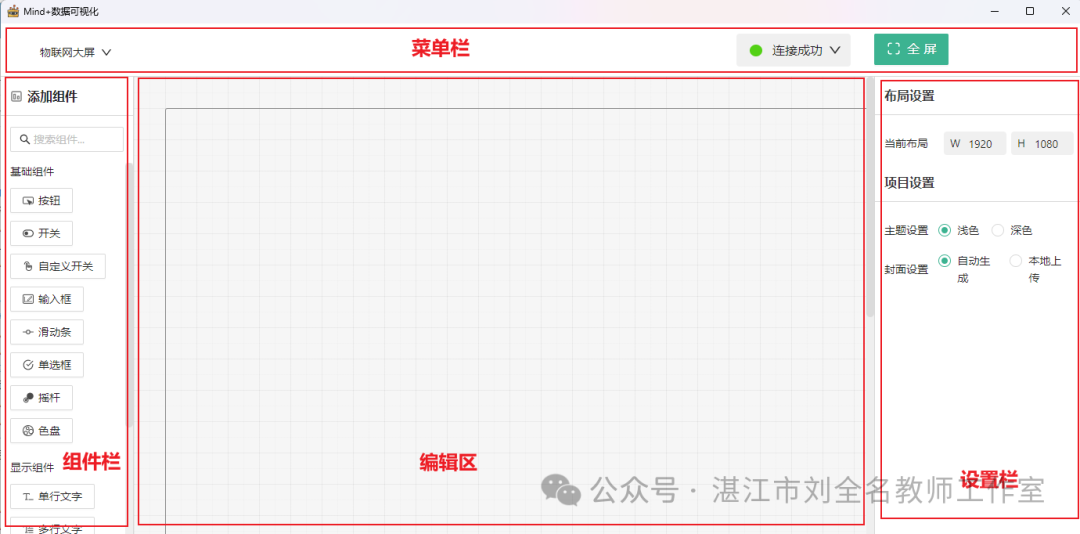
Basic Operations:
Drag components from the component bar to the editing area to add components, and drag components back to the component bar to delete them.
Right-click in the blank area of the editing area to drag the canvas.
Click on the editing area or component, and you can set the corresponding properties in the settings bar on the right.
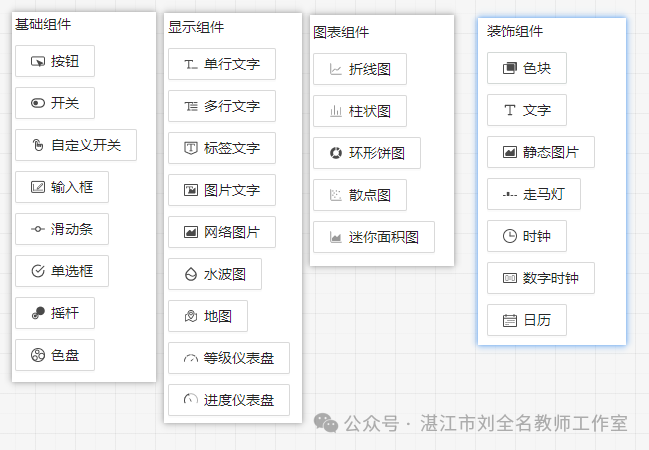
Components are divided into four main categories:
Basic components: Include commonly used interactive components that send/receive MQTT data.
Display components: Mainly for various display effects, receiving data sent via MQTT.
Chart components: Mainly for various types of charts, pulling a segment of data from the database and displaying it. Note that the messages sent via MQTT need to be saved to the database (QOS1) to be displayed by the chart components.
Decoration components: Have no data sending/receiving functions, mainly for static decoration purposes, used to assist in interface design. For example, a static image component can be used to insert a designed background image to make the entire interface more aesthetically pleasing.
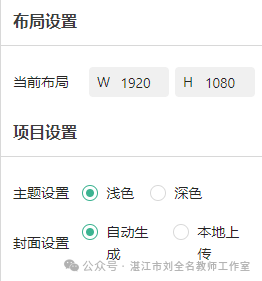
When no component is selected, the settings bar on the right is for global settings.
Layout settings: Control the canvas size; in full screen, only components within the canvas are displayed.
Project settings:
Theme settings: You can set the canvas to light or dark mode, and all components will switch to light or dark mode accordingly.
4. The specific operation video is shown below
5. Solving the issue of SIoT being unable to create, delete, modify, or view users and passwords
SIoT V2 only has the default account and password; accounts cannot be created directly on the platform (as the database data cannot be modified on the platform). Therefore, I found a small tool to manage SIoT’s account passwords.
The file directory is shown below:
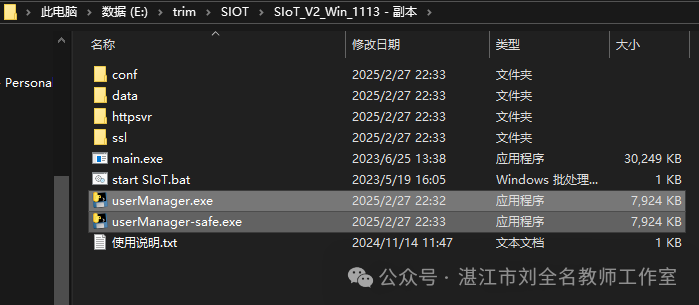
Explanation:
Among them, userManager.exe is the normal version, which can be used for direct management of SIoT V2 administrators. userManager-safe.exe includes some security measures, requiring password verification when modifying passwords or deleting users.
After opening, it is a command line interface.
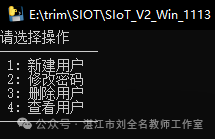
Since SIoT V2 itself does not have user-related operations, bugs may exist when using this tool. Therefore, please log out of all devices of the target user before performing user deletion operations!
Other bugs may also exist, but have not been discovered yet. Please back up data before using this tool.
The above article references the following links:
https://mindplus.dfrobot.com.cn/dashboard#2-%E8%BD%AF%E4%BB%B6%E4%B8%8B%E8%BD%BD
https://mc.dfrobot.com.cn/thread-324380-1-1.html
6. Related Resource Downloads:
Files shared via cloud storage: SIoT_V2_Win.zip (contains tools for managing users)
Link:
https://pan.baidu.com/s/1-HlZhAnvovgPQzr1eLyqRQ?pwd=etqx
Extraction code: etqx
 Please follow this public account for more resource sharing. Thank you for your support!