One of the most important tasks in Linux system administration is process management, which involves several operations such as monitoring processes, sending signals to processes, and setting process priorities on the system.
There are many Linux tools/utilities for monitoring and handling processes, such as top, ps, pgrep, kill, killall, nice, etc.
This article will explore how to use a powerful and resource-rich Linux utility – <span>fuser</span> to find processes.
1. What is fuser in Linux?
<span>fuser</span> is a simple yet powerful command-line utility designed to locate processes based on the specific files, directories, or sockets they are accessing. In short, it helps system users identify which processes are using specific files or sockets.
The basic syntax for using <span>fuser</span> is:
fuser [options] [file|socket]
fuser [options] -signal [file|socket]
fuser -l
2. Finding which process is accessing a directory
Running <span>fuser</span> without any options will display the PIDs of the processes currently accessing your working directory.
[root@oracledb ~]# fuser .
/root:                3187c  3196c  3197c  3239c  3243c  3248c  3344c  3349c  3351c  3381c  3441c  3445c  3447c  3449c  3461c  3466c  3475c  3480c  3482c  3485c  3494c  3500c  3508c  3513c  3522c  3530c  3532c  3533c  3534c  3535c  3536c  3541c  3544c  3546c  3550c  3567c  3569c  3571c  3573c  3575c  3576c  3577c  3580c  3597c  3639c  3642c  3650c  3656c  3657c  3660c  3666c  3668c  3670c  3672c  3690c  3734c  3741c  3748c  3755c  3767c  3796c  3859c  3883c 17098c
[root@oracledb ~]#

Alternatively
[root@oracledb ~]# fuser /home/oracle
/home/oracle:         4618c
[root@oracledb ~]#
3. Finding running processes in a directory – Detailed output
To obtain more detailed and clearer output, enable the <span>-v</span> or <span>--verbose</span> option, as shown below. In the output, <span>fuser</span> will print the name of the current directory followed by columns for process owner (USER), process ID (PID), access type (ACCESS), and command (COMMAND), as shown in the figure below.
[root@oracledb ~]# fuser -v .
                     用户     进程号 权限   命令
/root:               root       3187 ..c.. gnome-session-b
                     root       3196 ..c.. dbus-launch
                     root       3197 ..c.. dbus-daemon
                     root       3239 ..c.. imsettings-daem
                     root       3243 ..c.. gvfsd
                     root       3248 ..c.. gvfsd-fuse
                     root       3344 ..c.. at-spi-bus-laun
                     root       3349 ..c.. dbus-daemon
                     root       3351 ..c.. at-spi2-registr
                     root       3381 ..c.. gnome-shell
                     root       3441 ..c.. ibus-daemon
                     root       3445 ..c.. ibus-dconf
                     root       3447 ..c.. ibus-x11
                     root       3449 ..c.. ibus-portal
                     root       3461 ..c.. xdg-permission-
                     root       3466 ..c.. gnome-shell-cal
                     root       3475 ..c.. evolution-sourc
                     root       3480 ..c.. mission-control
                     root       3482 ..c.. gvfs-udisks2-vo
                     root       3485 ..c.. goa-daemon
……
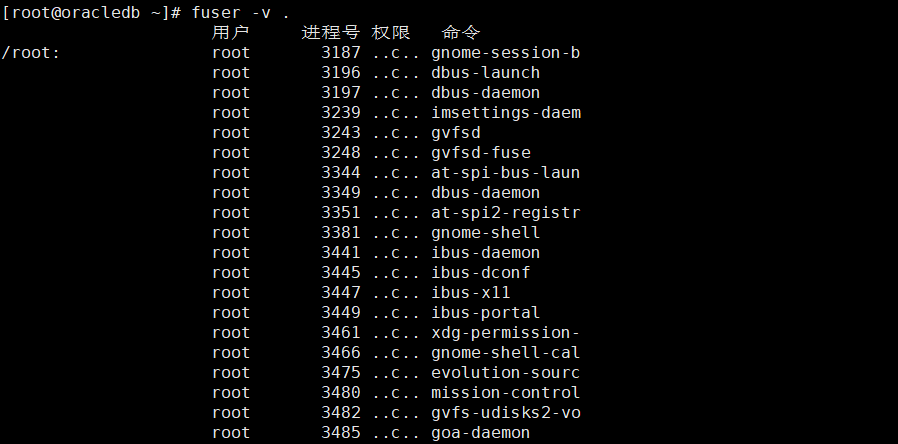
In the access type column, you will see the access types represented by the following letters:
- c – Current directory.
- e – Executable file currently running.
- f – Open file, but in the output
<span><span>f</span></span>is omitted. - F – File opened for writing,
<span><span>F</span></span>is also omitted in the output. - r – Root directory.
- m – Memory-mapped file or shared library.
4. Finding which process is accessing a file or filesystem
To determine which processes are accessing your <span>~/.bashrc</span> file, run:
fuser -v -m .bashrc
[root@oracledb ~]# fuser -v -m .bashrc
                     用户     进程号 权限   命令
/root/.bashrc:       root     kernel mount /
                     root          1 .rce. systemd
                     root          2 .rc.. kthreadd
                     root          4 .rc.. kworker/0:0H
                     root          6 .rc.. ksoftirqd/0
                     root          7 .rc.. migration/0
                     root          8 .rc.. rcu_bh
                     root          9 .rc.. rcu_sched
                     root         10 .rc.. lru-add-drain
                     root         11 .rc.. watchdog/0
                     root         12 .rc.. watchdog/1
                     root         13 .rc.. migration/1
                     root         14 .rc.. ksoftirqd/1
                     root         16 .rc.. kworker/1:0H
                     root         17 .rc.. watchdog/2
                     root         18 .rc.. migration/2
                     root         19 .rc.. ksoftirqd/2
                     root         21 .rc.. kworker/2:0H
                     root         22 .rc.. watchdog/3
                     root         23 .rc.. migration/3
                     root         24 .rc.. ksoftirqd/3
                     root         26 .rc.. kworker/3:0H
                     root         27 .rc.. watchdog/4
                     root         28 .rc.. migration/4
……
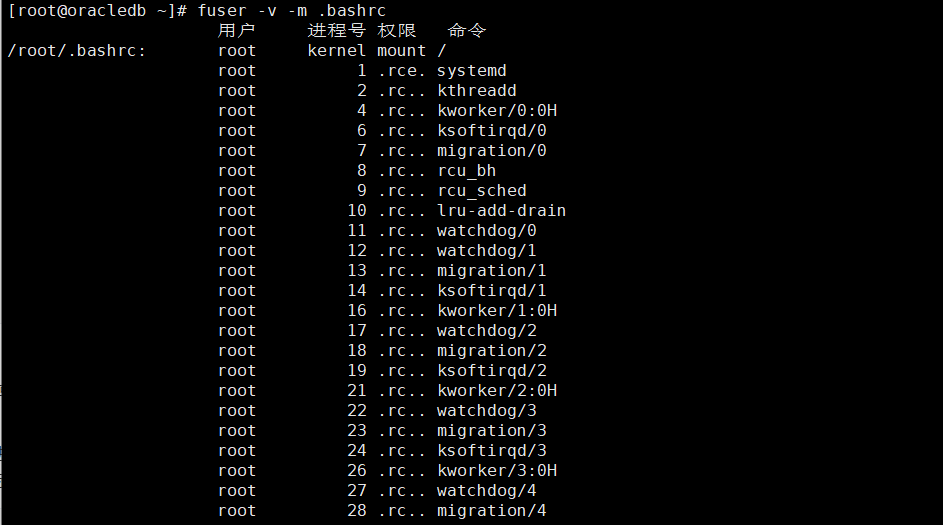
<span>-m NAME</span> or <span>--mount NAME</span> option shows all processes accessing the given file or directory. If a directory is passed as NAME, it automatically appends a <span>/</span> to reference the filesystem mounted on that directory.
5. Finding which process is using a specific port
Another practical use case is identifying which process is using a specific network port, which is particularly useful for debugging service conflicts.
fuser 1539/tcp
Or
fuser -v 1539/tcp
[root@oracledb ~]# fuser 1539/tcp
1539/tcp:             4618
[root@oracledb ~]# fuser -v 1539/tcp
                     用户     进程号 权限   命令
1539/tcp:            oracle     4618 F.... tnslsnr
[root@oracledb ~]#

As can be seen, it displays the PID of the process using TCP port 1539, and adding <span>-v</span> provides detailed output.
6. How to use fuser to terminate and send signals to processes
To terminate all processes accessing a file or socket, use the <span>-k</span> or <span>--kill</span> option.
fuser -k .
To interactively terminate processes (the system will ask you to confirm whether to terminate the processes accessing the file or socket), use the <span>-i</span> or <span>--interactive</span> option.
fuser -ki .

Both of the above commands will terminate all processes accessing the current directory; unless the <span>-signal</span> option is used, the default signal sent to the processes is SIGKILL.
7. Listing all available signals in Linux
We can list all signals using the <span>-l</span> or <span>--list-signals</span> option, as shown below.
fuser --list-signals
[root@oracledb ~]# fuser --list-signals
HUP INT QUIT ILL TRAP ABRT IOT BUS FPE KILL USR1 SEGV USR2 PIPE ALRM TERM
STKFLT CHLD CONT STOP TSTP TTIN TTOU URG XCPU XFSZ VTALRM PROF WINCH IO PWR SYS
UNUSED
[root@oracledb ~]#

8. Sending specific signals to processes
Thus, you can send signals to processes as shown in the next command, where SIGNAL is any of the output signals listed above.
fuser -k -SIGNAL
For example, to send a HUP (hang up) signal to the process accessing <span>/boot</span>:
fuser -k -HUP /boot
9. fuser Manual Page
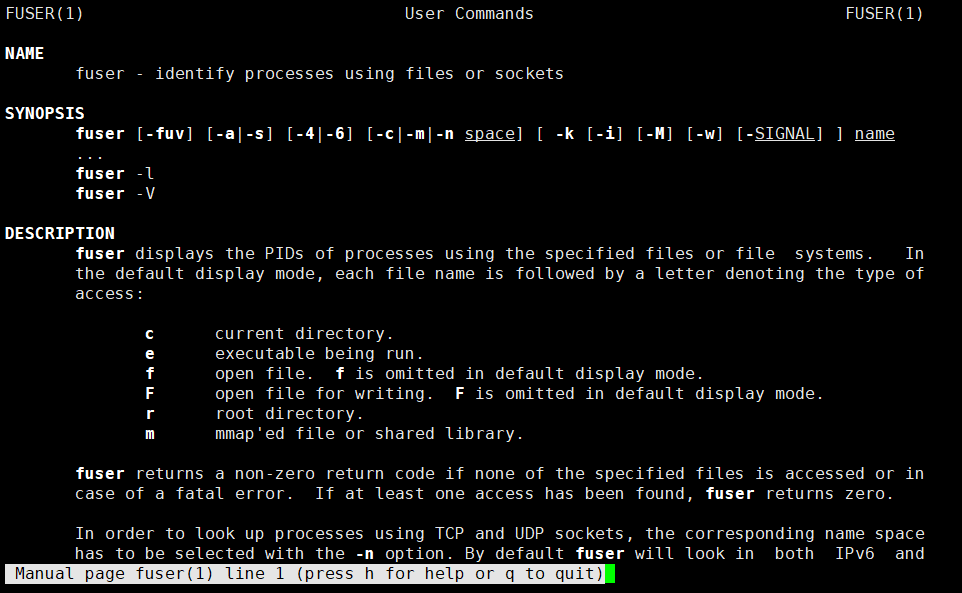
For advanced usage and more details, refer to the <span>fuser</span> manual page.
man fuser
<span>fuser</span> command may not be the first tool that comes to mind for process management, but it is a hidden gem for any Linux user or system administrator. It is excellent for finding which processes are using specific files, directories, or ports – and gives us the power to deal with them directly.