❝
Source: https://zsjie.blog.csdn.net/article/details/142900851
Recommended: https://chencoding.top:8090
❞
Introduction
In the Linux operating system, to check the permissions we have on files, we can type <span>ls -l</span> or <span>ll</span> in the terminal. The terminal will output the file information in the current path, such as file name, permission information, file owner, and group information.
For example:
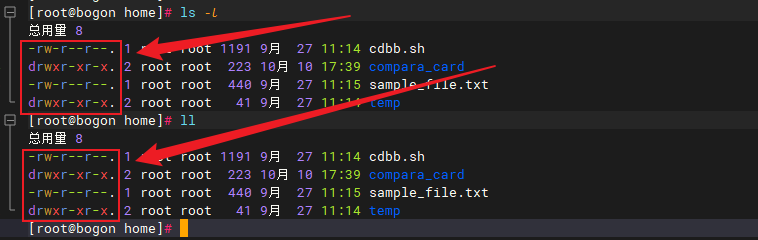
The string similar to <span>-rw-r--r--</span> clearly displays the permission information for the corresponding file, including read, write, and execute permissions for the user, group, and others.
Therefore, by understanding the meaning of these permissions and how to manage them, we can ensure the security and integrity of data by controlling file access permissions.
Linux File Permission Model
File permissions in Linux systems are mainly divided into three types: Read (Read), Write (Write), Execute (Execute).
Each file has an owner, referred to as the User, who has specific permissions on their files and can decide who can access or modify these files; users can also be organized into groups, and members within the group can share specific file access permissions. Each user can belong to one or more Groups.
Each type of user has three file permissions: read (r), write (w), and execute (x). The file owner is the user who created the file or directory and has full control; the file group is a collection of users sharing the same permissions; other users are all users in the system except for the file owner and group members.
❝
Follow the WeChat public account: 【Java Chen Programmer】 to get “Open source project sharing, AI side job sharing, over 200 classic computer e-books, etc.”
❞
Viewing File Permissions
We can use <span>ls -l</span> or <span>ll</span> to view detailed information about files and directories, including file permissions:
- View detailed information for a specific file
<span>file.txt</span>:
ls -l file.txt
- Use
<span>ls -l</span>to view information for all files in the current directory:
ls -l
- Use
<span>ll</span>to view information for all files in the current directory:
ll
Permission Information Analysis
In Linux systems, the three permissions of read, write, and execute are represented by <span>r</span>, <span>w</span>, and <span>x</span> respectively:
| Permission Type | Symbol Representation | Description |
|---|---|---|
| Read | <span>r</span> |
Allows the user to view file contents or list files in a directory |
| Write | <span>w</span> |
Allows the user to modify file contents or add/delete files in a directory |
| Execute | <span>x</span> |
Allows the user to execute a file (if it is an executable program) or access a directory |
Linux uses a 10-character string to represent file permission information:
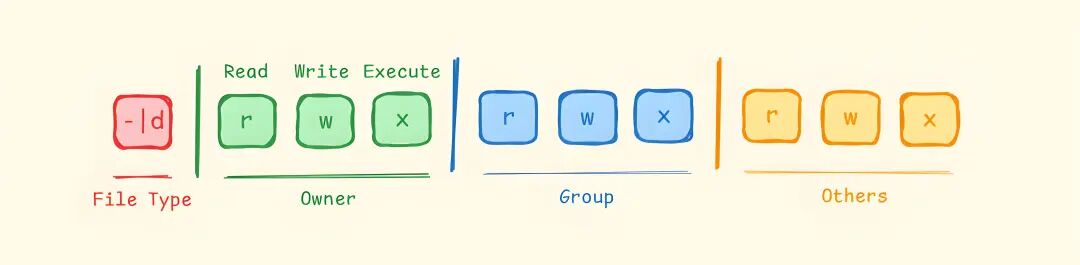
The first character is used to identify the file type (e.g., regular file, directory); the next 9 characters represent file permissions, divided into three groups, each group of three characters corresponds to the permissions of the owner, group, and others for the file from left to right.
The detailed analysis is as follows:
| Index | Meaning | Value | Description |
|---|---|---|---|
| 1 | File Type | <span>-</span> | <span>d</span> | <span>l</span> |
File type (<span>-</span>: regular file, <span>d</span>: directory, <span>l</span>: symbolic link) |
| 2 | Owner Permissions | <span>r</span> | <span>-</span> |
<span>r</span>: owner has read permission; <span>-</span>: owner does not have read permission |
| 3 | Owner Permissions | <span>w</span> | <span>-</span> |
<span>w</span>: owner has write permission; <span>-</span>: owner does not have write permission |
| 4 | Owner Permissions | <span>x</span> | <span>-</span> |
<span>x</span>: owner has execute permission; <span>-</span>: owner does not have execute permission |
| 5 | Group User Permissions | <span>r</span> | <span>-</span> |
<span>r</span>: group user has read permission; <span>-</span>: group user does not have read permission |
| 6 | Group User Permissions | <span>w</span> | <span>-</span> |
<span>w</span>: group user has write permission; <span>-</span>: group user does not have write permission |
| 7 | Group User Permissions | <span>x</span> | <span>-</span> |
<span>x</span>: group user has execute permission; <span>-</span>: group user does not have execute permission |
| 8 | Other User Permissions | <span>r</span> | <span>-</span> |
<span>r</span>: other users have read permission; <span>-</span>: other users do not have read permission |
| 9 | Other User Permissions | <span>w</span> | <span>-</span> |
<span>w</span>: other users have write permission; <span>-</span>: other users do not have write permission |
| 10 | Other User Permissions | <span>x</span> | <span>-</span> |
<span>x</span>: other users have execute permission; <span>-</span>: other users do not have execute permission |
After executing the <span>ll</span> command, the output format in the terminal is usually as follows:

From left to right, this line of information can be broken down into the following parts:
| Attribute | Value | Description |
|---|---|---|
| File Type and Permissions | <span>-rw-rw-rw-</span> |
This indicates that this is a regular file with read, write, and execute permissions |
| Hard Link Count | <span>1</span> |
This indicates that there is 1 hard link to this file |
| File Owner | <span>root</span> |
This indicates that the creator or owner of the file is the root user |
| File Group | <span>root</span> |
This indicates that the user group associated with this file is the root group |
| File Size | <span>664</span> |
Displays the size of the file in bytes |
| Last Modified Time | <span>Oct 8 14:06</span> |
This indicates the date and time when the file was last modified |
| File Name | <span>compara_card.sh</span> |
This indicates that the name of the file is <span>compara_card.sh</span> |
The meaning of <span>-rw-rw-rw-</span> in the above example is as follows:
- The first character
<span>-</span>indicates that this is a regular file (if it is<span>d</span>, it indicates a directory) - The next three characters
<span>rw-</span>indicate the permissions of the file owner:<span>r</span>indicates readable,<span>w</span>indicates writable, and<span>-</span>indicates no execute permission - The middle three characters
<span>rw-</span>indicate the permissions of group users, which are the same as the owner - The last three characters
<span>rw-</span>indicate the permissions of other users, which also indicate readable and writable, but no execute permission
This means that the file allows all users to read and write, but does not allow execution.
Modifying File Permissions
To modify the permissions of files and directories in Linux, the <span>chmod</span> command is used, and there are two ways to set permissions: Symbolic Mode and Octal Numeric Mode.
Symbolic Mode
Symbolic mode uses user types (u, g, o, a) and permissions (r, w, x) to modify file and directory permissions, formatted as:
chmod [ugoa][+-=][rwx] file
- [ugoa]: User Category
| User Type | Symbol Representation | Description |
|---|---|---|
| Owner | <span>u</span> |
The creator of the file |
| Group User | <span>g</span> |
Users in the same group as the file owner |
| Other Users | <span>o</span> |
All other users not belonging to the file owner or group users |
| All Users | <span>a</span> |
A combination of u, g, o, i.e., all users in the system |
- [±=]: Operator
| Operator | Description |
|---|---|
<span>+</span> |
Add permission |
<span>-</span> |
Remove permission |
<span>=</span> |
Set permission (only specified permissions are effective) |
- [rwx]: Permission Type
| Symbol Representation | Description |
|---|---|
<span>r</span> |
Read permission |
<span>w</span> |
Write permission |
<span>x</span> |
Execute permission |
Examples of modifying user permissions are as follows:
1. Add execute permission for the file owner:
chmod u+x file
2. Remove write permission from group users:
chmod g-w file
3. Set other users’ permissions to read-only:
chmod o=r file
Octal Numeric Mode
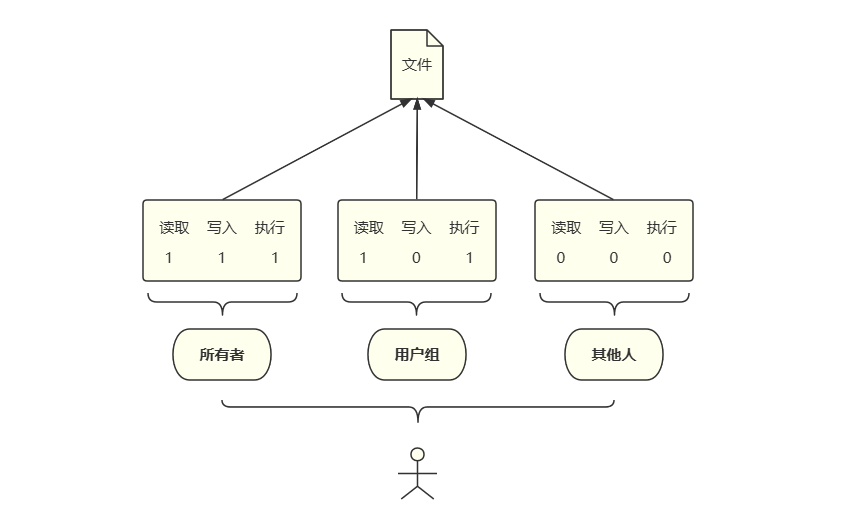
The octal numeric mode consists of three octal digits, each representing different user categories. That is:
- First Digit: Permissions for the file owner
- Second Digit: Permissions for group users
- Third Digit: Permissions for other users
Each octal digit is further split into three binary digits representing the corresponding permissions (r, w, x), and three binary digits can represent different permission combinations:
| Permission Combination | Binary | Octal | Permission Description |
|---|---|---|---|
| No Permission | 000 | 0 | No operations allowed |
| Execute Only (x) | 001 | 1 | Only execute allowed |
| Write Only (w) | 010 | 2 | Only modification allowed |
| Write + Execute (wx) | 011 | 3 | Modification and execution allowed |
| Read Only (r) | 100 | 4 | Only reading allowed |
| Read + Execute (rx) | 101 | 5 | Reading and execution allowed |
| Read + Write (rw) | 110 | 6 | Reading and modification allowed |
| Read + Write + Execute (rwx) | 111 | 7 | Allows reading, modification, and execution |
For example, running the following command sets the permissions to <span>754</span>:
chmod 754 example.txt
- First Digit
<span>7</span>(binary<span>111</span>): The file owner has read, write, and execute permissions - Second Digit
<span>5</span>(binary<span>101</span>): Group users have read and execute permissions - Third Digit
<span>4</span>(binary<span>100</span>): Other users have read permission
Previous Recommendations
Cook like a local chicken!
Private job tool! A lightweight Java rapid development platform!
Live recording tool! A multi-platform live stream automatic recording client!