First, let me ask a question: How can we check what Name Server records a domain has?
Linux provides a number of network-related commands. Since these network commands are quite scattered, I have organized the commonly used network commands from the following perspectives:
-
Remote operations;
-
Check local network status;
-
Network testing;
-
DNS queries;
-
HTTP.
This knowledge belongs to the system of Linux commands and is also related to computer networking knowledge, such as TCP/IP protocol, UDP protocol, etc.
1. Remote Operation Commands
The most commonly used remote operation command is ssh. The ssh command allows remote login to a target computer for remote operations and management. Another commonly used remote command is scp, which helps us transfer files remotely.
ssh (Secure Shell)
In a scenario where we need to remotely log into a Linux system, we use the ssh command. For example, if you want to remotely log into a machine, you can use the command ssh root@ip, as shown in the figure below:
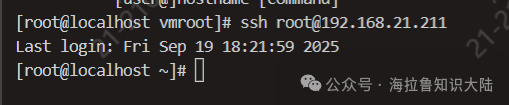
Using the ssh command to log into another virtual machine 192.168.21.211 from the current machine.
scp
Another scenario is when I need to copy a file to a remote location, in which case I can use the scp command.
To copy the file a.txt from the home directory of machine u1 to u2, where the home directory can be abbreviated as ~. The specific command is as follows:
scp ~/a.txt root@u2:/home/a.txtAfter entering the scp command, a prompt will appear asking for a password. Once the system verifies it, the file will be copied.
2. Checking Local Network Status
If you want to understand the local network status, the commonly used network commands are ifconfig and netstat.
ifconfig
When you want to know the local IP and what network interfaces are available, you can use the ifconfig command. You can think of a network interface as a network card. Sometimes virtual machines will install virtual network cards, which are software-simulated network cards.
For example, VMware creates a virtual network card for each virtual machine, connecting to a virtual network. Of course, physical machines can also connect to virtual networks, sending information to the virtual network card of the virtual machine.
Below is the network interface information viewed using ifconfig on my virtual machine.
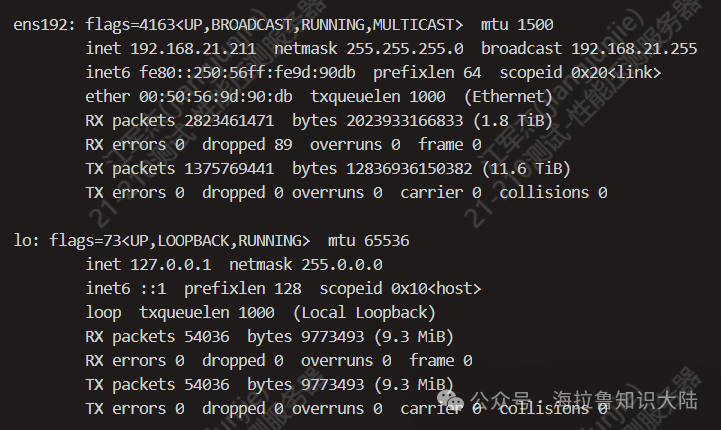
We can see that my virtual machine has a total of 2 network cards, ens192 and lo. lo is the local loopback, sending to lo is equivalent to sending to the local machine.ens192 is a virtual network card connected to the real network.
netstat
The other scenario for checking network status is to see the current network usage on the local machine, which can be done using netstat.
Default Behavior
Running netstat without any parameters helps query all local sockets. The following figure shows the result of netstat | less.
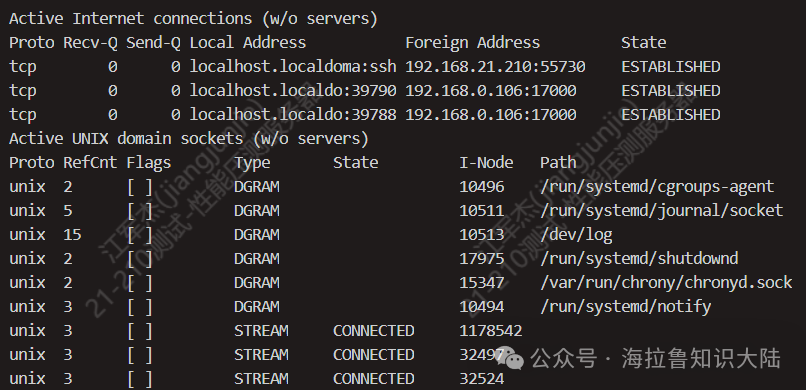
As we can see, these are socket files. A socket is an abstraction of a network slot into a file, responsible for sending and receiving data between clients and servers. When a client and server connect, each generates a socket file to manage that connection. Here, we can use wc -l to count how many sockets there are.
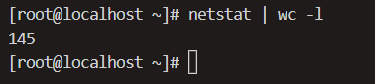
We can see there are a total of 145 socket files, as many sockets are solving inter-process communication. One process can be thought of as a client and the other as a server. There are not actually 145 connections requesting the internet. This relates to our performance bottleneck; how many sockets can a machine connect to at most, what is the default number of sockets, and is there a situation where it is insufficient?
Checking TCP Connections
If you want to see what TCP connections are available, you can use netstat -t. For example, I checked the network status of the TCP protocol using netstat -t:
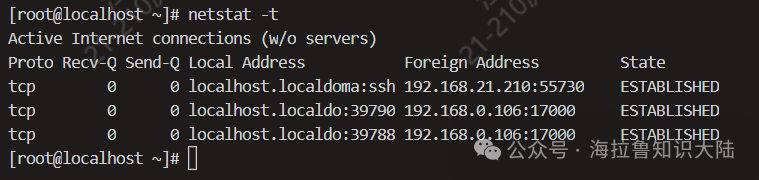
As shown in the figure above, we can see there are 3 TCP connections.
Checking Port Usage
Another very common situation is when we want to know which application is using a certain port. As shown in the figure below:

Here we see that port 22 is occupied by sshd, which is the remote login module.
-
-n displays some special port numbers in numeric form,
-
-t indicates to look at the TCP protocol,
-
-l only shows connections that are in the listening state,
-
-p displays the program name.
3. Network Testing
When we need to test network latency or check if a service is available, we might use the ping and telnet commands.
ping
If you want to know the network latency from your machine to a certain website, you can use the ping command. As shown in the figure below:
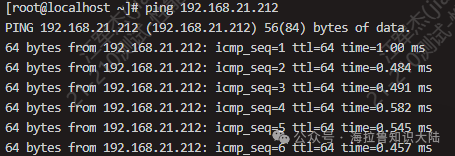
The ping command requires the use of the ICMP protocol. Therefore, you can see the ICMP sequence number in the figure above. The time shown is the round-trip time. ttl stands for time to live, which is the lifespan of a packet. This means that once a packet is sent, it starts a countdown; if it exceeds 128ms on the way, the packet will be discarded. If the packet is discarded, it will be counted in the packet loss rate.
Additionally, ping can also help us see the IP address of a domain name. The process of obtaining an IP address from a URL is called DNS Lookup. The ping command utilizes DNS queries but does not display all DNS query results.
telnet
Sometimes we want to know if the network from our machine to a certain IP and port is smooth, that is, whether the server on the other side is providing services on that port. In this case, we can use the telnet command. As shown in the figure below:
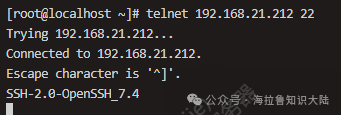
After executing telnet, it will enter an interactive interface where you can send HTTP requests, etc.
4. DNS Queries
When we troubleshoot network issues and want to perform a DNS Lookup to understand the DNS resolution process of a URL, there are several commands we can use.
host
The host command is a DNS query tool. For example, we can query the DNS of baidu as follows:
host www.baidu.comIf you want to trace a specific type of record, you can use host -t. For example, in the figure below, we trace the AAAA record of baidu.
host -t AAAA www.baidu.comdig
The dig command is also used for DNS queries. However, the dig command displays more detailed content. You can try it out.
dig www.baidu.com5. HTTP Related
Finally, let’s talk about commands related to the HTTP protocol.
curl
If you want to request a webpage or an interface from the command line, you can use the curl command. curl supports many protocols, such as LDAP, SMTP, FTP, HTTP, etc.
We can directly use curl to request a URL and obtain resources. For example, I used curl to directly fetch the homepage of Baidu, as shown in the figure below:
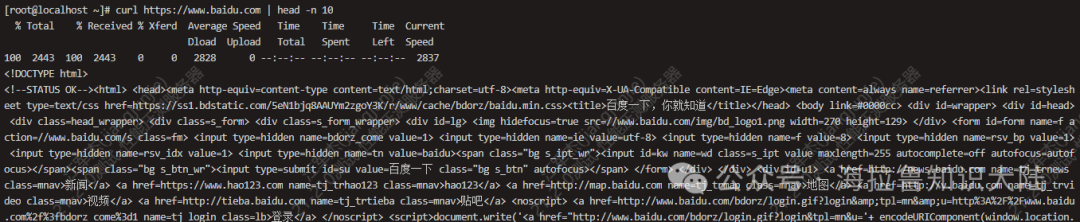
If you only want to see the HTTP response headers, you can use curl -I.
Additionally, curl can also perform POST requests, such as the following command:
curl -d '{"x" : 1}' -H "Content-Type: application/json" -X POST http://localhost:3000/apicurl sends a POST request to localhost:3000. The -d option is followed by the data to be sent, -X specifies the HTTP method used, and -H specifies a custom request header.
6. Summary
Let’s review the commands we covered today:
-
The ssh command for remote login;
-
The scp command for remote file copying;
-
The ifconfig command for checking network interfaces;
-
The netstat command for checking network status;
-
The ping command for testing network latency;
-
The telnet command for interactive debugging and server communication;
-
The two DNS query commands host and dig;
-
The curl command for sending various requests, including HTTPS.
How can we check what NS records a domain has?
Answer: The host command provides a -t parameter to specify the type of record to look for. We can use host -t ns {domain}. Additionally, dig also provides the same capability. If you are interested, you can use man to operate on the system.