Click the blue text Follow us
Shell is a scripting language written in C, serving as a bridge between the user and Linux. The user inputs commands to the Shell, which then passes the corresponding operations to the kernel (Kernel), and the kernel outputs the results back to the user.
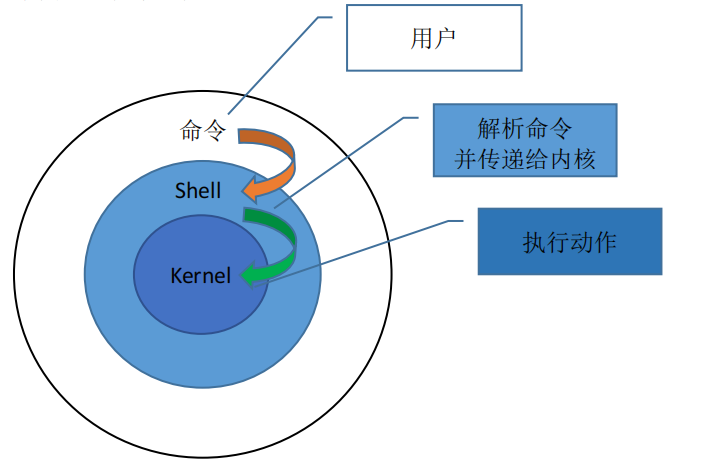
Shell is generally divided into two main categories
-
Graphical User Interface Shell (GUI Shell)
-
GUI constructs a fully functional, easy-to-use, and user-friendly desktop environment for Unix or Unix-like operating systems. Popular desktop environments include KDE, Gnome, etc.
-
Command Line Interface Shell (CLI Shell)
-
CLI is an interface where executable commands are typed at the user prompt. Users input commands via the keyboard to complete a series of operations. The mainstream CLI implementation on Linux systems is Bash, which is the default Shell for many Linux distributions. There are also many Shells on Unix, such as tcsh, csh, ash, bsh, ksh, etc.
Uses of Shell Scripts
-
Combining simple commands to complete complex tasks, automating command execution to improve work efficiency
-
Reducing the repetitive input of manual commands, thereby minimizing human errors
-
Standardizing the installation and configuration of software or applications
-
Used for routine, repetitive operational tasks, such as file packaging, compression, backups, monitoring system status, and implementing alerts, etc.
Shell scripting is based on procedural, interpreted languages
The basic structure of programming languages includes:
-
Combinations of various system commands
-
Data storage: variables, arrays
-
Expressions: a + b
-
Control statements: if
Shell scripts: text files that contain some commands or declarations and conform to a specific format
Format requirements: the first line must follow the shebang mechanism
#!/bin/bash
#!/usr/bin/python
#!/usr/bin/perl
Writing a script
~]# vi test.sh
#!/bin/bash
echo “Hello world!”
The first line specifies the interpreter, and the second line prints Hello world!
There are three methods to execute Shell scripts:
1. Directly use the bash interpreter to execute, a new child bash will be created in the current terminal to run the script.
~]# bash test.sh
Hello world!
2. Add executable permissions; this method defaults to handling according to the interpreter specified in the first line of the script. If not specified, it will be executed with the current default Shell interpreter.
~]# chmod +x test.sh
~]# ./test.sh # ./ in the current directory
Hello world!
3. Execute with the source command, using the current default Shell interpreter.
~]# source test.sh
Hello world!
Shell Variables
What is a variable?
-
A variable is a simpler string used to replace certain settings and data with special significance.
-
By calling a variable, certain settings and data with special significance can be referenced.
Variable name definition specifications
When defining a variable, do not add a dollar sign to the variable name.
your_name=”runoob.com”
Note, there should be no spaces between the variable name and the equal sign.
Also, the naming of the variable must follow these rules:
-
Only letters, numbers, and underscores can be used; the first character cannot be a number.
-
Spaces are not allowed; underscores _ can be used.
-
Punctuation marks cannot be used.
-
Cannot use keywords in bash (use the help command to view reserved keywords).
Variable Data Types
-
Character
-
Numeric: integer, floating-point (bash does not support floating-point arithmetic)
Variable Types
-
Local variables: Local variables are defined in scripts or commands and are only valid in the current shell instance; other programs started by the shell cannot access local variables.
-
Environment variables: All programs, including those started by the shell, can access environment variables. Some programs require environment variables to function correctly, and when necessary, shell scripts can also define environment variables.
-
Shell variables: Shell variables are special variables set by the shell program; some of these are environment variables, and some are local variables, ensuring the normal operation of the shell.
Environment variables and local variables can be displayed using the env environment and set commands.
Different variables store different types of data, which determine the following:
-
Data storage method
-
Participating operations
-
Data range represented
Variable Definition and Reference
Local variable definition: VAR=value
Temporary environment variable definition: export VAR=value
Variable reference: $VAR
Differences between local variables and environment variables, example:
~]# ps axjf | grep pts
1080 1337 1337 1337 ? -1 Ss 0 0:00 \_ sshd: root@pts/0
1337 1341 1341 1341 pts/0 9191 Ss 0 0:00 \_ -bash
1341 9191 9191 1341 pts/0 9191 R+ 0 0:00 \_ ps axjf
1341 9192 9191 1341 pts/0 9191 S+ 0 0:00 \_ grep –color=auto pts
~]# echo $$
1341
~]# danyu=edu
~]# echo $danyu
edu
~]# bash
~]# echo $$
9193
~]# ps axjf | grep pts
1080 1337 1337 1337 ? -1 Ss 0 0:00 \_ sshd: root@pts/0
1337 1341 1341 1341 pts/0 9202 Ss 0 0:00 \_ -bash
1341 9193 9193 1341 pts/0 9202 S 0 0:00 \_ bash
9193 9202 9202 1341 pts/0 9202 R+ 0 0:00 \_ ps axjf
9193 9203 9202 1341 pts/0 9202 S+ 0 0:00 \_ grep –color=auto pts
~]# echo $danyu
~]# exit
exit
~]# echo $danyu
edu
~]# export danyu
~]# bash
~]# echo $$
9205
~]# ps axjf | grep pts
1080 1337 1337 1337 ? -1 Ss 0 0:00 \_ sshd: root@pts/0
1337 1341 1341 1341 pts/0 9214 Ss 0 0:00 \_ -bash
1341 9205 9205 1341 pts/0 9214 S 0 0:00 \_ bash
9205 9214 9214 1341 pts/0 9214 R+ 0 0:00 \_ ps axjf
9205 9215 9214 1341 pts/0 9214 S+ 0 0:00 \_ grep –color=auto pts
~]# echo $danyu
edu
~]#
The first column of the output from ps axjf is PPID (Parent Process ID), and the second column is PID (Child Process ID). When an SSH connection is made to the Shell, the current terminal’s PPID (-bash) is the PID of the sshd daemon (root@pts/0), so all processes under the current terminal have PPIDs of -bash’s PID, such as executing commands and running scripts.
Therefore, variables set under -bash are only valid in the -bash process, and are invalid in child processes of -bash unless exported.
Further explanation: reconnect via SSH and test the previously defined variable.
~]# ps axjf | grep pts
1080 1337 1337 1337 ? -1 Ss 0 0:00 \_ sshd: root@pts/0
1337 1341 1341 1341 pts/0 9219 Ss 0 0:00 \_ -bash
1341 9219 9219 1341 pts/0 9219 R+ 0 0:00 \_ ps axjf
1341 9220 9219 1341 pts/0 9219 S+ 0 0:00 \_ grep –color=auto pts
~]# echo $$
1341
~]# test=danyu
~]# cat danyu.sh
#!/bin/bash
ps -axjf | grep pts
echo $$
echo $test
~]# bash danyu.sh
1080 1337 1337 1337 ? -1 Ss 0 0:00 \_ sshd: root@pts/0
1337 1341 1341 1341 pts/0 9222 Ss 0 0:00 \_ -bash
1341 9222 9222 1341 pts/0 9222 S+ 0 0:00 \_ bash danyu.sh
9222 9223 9222 1341 pts/0 9222 R+ 0 0:00 \_ ps -axjf
9222 9224 9222 1341 pts/0 9222 S+ 0 0:00 \_ grep pts
9222
~]# export test
~]# bash danyu.sh
1080 1337 1337 1337 ? -1 Ss 0 0:00 \_ sshd: root@pts/0
1337 1341 1341 1341 pts/0 9225 Ss 0 0:00 \_ -bash
1341 9225 9225 1341 pts/0 9225 S+ 0 0:00 \_ bash danyu.sh
9225 9226 9225 1341 pts/0 9225 R+ 0 0:00 \_ ps -axjf
9225 9227 9225 1341 pts/0 9225 S+ 0 0:00 \_ grep pts
9225
danyu
~]#
In the current shell, variables must be exported to be referenced in scripts. Note that after exiting the terminal, all user-defined variables will be cleared.
Positional Variables
Positional variables refer to the n-th parameter following a function or script.
$1-$n, note that from the 10th onward, braces must be used, e.g., ${10}
Shift can control positional variables, example:
~]#!/bin/bash
echo “1: $1”
shift
echo “2: $2”
shift
echo “3: $3”
~]# bash test.sh a b c
1: a
2: c
3:
Each time the shift command is executed, the number of positional variables decreases, and the variable values shift forward. shift n can be used to move forward n positions.
Read-Only Variables
Read-only variables can only be declared and defined, but cannot be modified or deleted later, i.e., they are constants.
Declare a read-only variable
readonly name
declare -r name
View read-only variables
readonly [-p]
declare -r
Example
~]# readonly danyu=edu
~]# echo $danyu
edu
~]# danyu=edu1
bash: danyu: readonly variable
~]# unset danyu
bash: unset: danyu: cannot unset: readonly variable
Special Variables
$0 script’s own name
$? returns whether the last command was executed successfully, 0 means success, non-0 means failure
$# total number of positional parameters
$* all positional parameters are treated as a single string
$@ each positional parameter is treated as an independent string
$$ current process PID
$! PID of the last background process
Variable Reference
Assignment operator
-
=: variable assignment
-
+=: adds two variables
~]# danyu=edu
~]# echo $danyu
edu
~]# danyu+=123
~]# echo $danyu
edu123
~]#
Sometimes variable names may be adjacent to other strings, causing confusion over the entire variable.
~]# danyu=edu
~]# echo $danyu123
~]# echo ${danyu}123
edu123
~]#
Using Command Results as Variable Values
~]# danyu=`date`
~]# echo $danyu
Sun Jun 19 02:11:21 CST 2022
~]# danyu=$(date)
~]# echo $danyu
Sun Jun 19 02:11:49 CST 2022
~]#
Backticks are equivalent to $(), both are used to execute Shell commands.
Double Quotes and Single Quotes
When assigning values to variables, if the value contains spaces, Shell interprets the string after the space as a command, due to the use of whitespace as a delimiter in our Linux system.
~]# set | grep IFS
IFS=$’ \t\n’
Double or single quotes can be used to treat spaces as characters.
~]# danyu=1 2 3
-bash: 2: command not found
~]# danyu=”1 2 3″
~]# echo $danyu
1 2 3
~]# danyu=’1 2 3′
~]# echo $danyu
1 2 3
~]#
The difference between single and double quotes is that double quotes interpret special symbols while single quotes ignore the original meaning of special symbols.
~]# A1=3
~]# danyu=”1 2 $A1″
~]# echo $danyu
1 2 3
~]# danyu=’1 2 $A1′
~]# echo $danyu
1 2 $A1
~]#
Comments
~]# echo $danyu #hello!!
edu
~]#
Using the # symbol indicates that Shell should ignore the interpretation.

Done