
Click the blue text to follow us
This article summarizes super practical Linux commands, absolutely packed with useful information.
cd command
1. Syntax
cd [target path]
The target path can be an absolute path or a relative path.
2. Function
Switch the current working directory to the specified directory.
3. Common Usage
cd ..Switch to the parent directory.
cd ../projectSwitch to the project directory under the parent directory.
cd -Return to the last working directory.
cd /Return to the root directory.
cd ~These two commands return to the user’s home directory.
ls command
1. Syntax
ls [options] [file/directory]
File/directory: Specify the target to list, default is the current directory.
2. Function
List all subdirectories and files in the target directory.
3. Common Options
-
-a: Show all files and directories, including hidden files and directories that start with “.”.
-
-l: Display detailed information about files or directories in long format, including permissions, owner, size, modification time, etc.
-
-R: Recursively list files in all subdirectories, suitable for viewing the entire directory tree.
-
-t: Sort by modification time, with the most recently modified files listed first, commonly used to find recently updated files.
-
-1: Display one file or directory per line, suitable for long file names or scenarios requiring script processing.
chmod command
1. Syntax
chmod [options] mode myfile.v
2. Function
Modify the access permissions of the file “myfile.v”.
In Linux, each file and directory has three basic permissions, and the permission mode can be represented by numbers. The three numbers represent the permissions for user (user), group (group), and others (others).
-
Read (r): Allows viewing the contents of the file or listing the contents of the directory, corresponding to the number 4.
-
Write (w): Allows modifying the contents of the file or creating/deleting files in the directory, corresponding to the number 2.
-
Execute (x): Allows running the file or entering the directory, corresponding to the number 1.
chmod 755 myfile.vChange the access permissions of the file myfile.v to allow the user read, write, and execute permissions, while the group and others only have read and execute permissions.
3. Common Options
-
-R: Recursively modify the permissions of all files and subdirectories in the specified directory.
chmod -R 755 project/Set the permissions of the project directory and all its subdirectories and files to 755.
-
-v: Make the chmod command output detailed information about the permission changes for each file or directory.
chmod -v 755 myfile.vWill output that the mode of “myfile.v” changed from 0644 to 0755.
mkdir command
1. Syntax
mkdir [options] mydir
2. Function
Create a directory named “mydir” in the current directory.
3. Common Options
-
-p: When creating a directory, if the parent directory in the path does not exist, it will automatically create those parent directories first.
mkdir -p project/src/mainIf the project or src directory does not exist, the above command will create the project, project/src, and project/src/main directories in sequence.
-
-m: Specify the directory permissions directly when creating the directory, without needing to use the chmod command later to modify.
mkdir -m 755 mydirThe mydir directory will have read, write, and execute permissions for the user, while the group and others will only have read and execute permissions.
cp command
1. Syntax
cp [options] source_file/directory target_file/directory
2. Function
Copy files or directories.
cp ./../myfile.v ./myfile.vCopy the myfile.v file from the parent directory to the current directory.
3. Common Options
-
-r/-R: Copy directories and all their contents.
cp -r src_dir/ tar_dirIf tar_dir does not exist, it will create that directory and copy the contents of src_dir into it. If tar_dir already exists, src_dir will be copied as a subdirectory under tar_dir.
-
-i: Interactive confirmation, prompts for confirmation before overwriting existing files to avoid accidental operations.
-
-f: Force overwrite, directly overwrite existing files without prompting for confirmation.
-
-v: Display detailed progress of each file being copied, useful for tracking the copying process of large files or many files.
pwd command
1. Syntax
pwd
2. Function
Display the absolute path of the current shell session’s working directory. If the user does not have read permission for some directories in the path, pwd may display incomplete information or report an error.
rm command
1. Syntax
rm [options] [file/directory]
2. Function
Delete files or directories.
3. Common Options
-
-r/-R: Recursively delete directories and all their contents.
rm -r mydirRecursively delete the mydir directory, including all files and subdirectories.
-
-f: Force delete, ignore nonexistent files, and do not prompt for confirmation.
-
-i: Interactive confirmation, prompts for confirmation before deleting each file to avoid accidental operations.
-
-v: Display detailed information about each delete operation.
mv command
1. Syntax
mv [options] source_file/directory target_file/directory
2. Function
-
Rename the source file/directory to the target name. .
mv mydir1 mydir2Rename mydir1 to mydir2, renaming must be done in the same directory.
-
Move the source file/directory to the target directory.
mv myfile.v ./mydir/myfile.vMove the file myfile.v to the mydir directory.
3. Common Options
-
-i: Interactive confirmation, prompts for confirmation before overwriting existing files to avoid accidental operations.
-
-f: Force overwrite, directly overwrite existing files without prompting for confirmation.
-
-n: Prevent overwrite, do not overwrite existing files, silently skip.
-
-v: Display each file’s move or rename operation.
evince command
1. Syntax
evince [options] myfile.pdf
2. Function
Common document viewer in Linux systems, supports various formats such as PDF, EPUB, PostScript, DVI, etc.. Can open single or multiple files.
3. Common Options
-
–fullscreen: Full screen mode.
evince --fullscreen myfile.pdfOpen the myfile.pdf document in full screen mode.
-
–page-label=PAGE: Open the specified page.
evince --page-label=20 myfile.pdfOpen the 20th page of the myfile.pdf document.
-
–presentation: Open in slideshow mode, specific to PDF format.
evince --presentation myfile.pdfOpen the myfile.pdf document in slideshow mode.
find command
1. Syntax
find [search path] [expression]
-
Search path: Specify the directory to start searching, default is the current directory
-
Expression: Composed of options, test conditions, and actions, used to filter and process files.
2. Function
find is a file search command that can recursively find files and directories based on various conditions such as file name, type, size, time, permissions, etc.
3. Common Usage
-
Search by file name
find /home -name "*readme.v"Search for all “*readme.v” files under home, case-sensitive when matching file names.
find /home -iname "*readme.v"Search for all “*readme.v” files under home, case-insensitive when matching file names.
-
Search by file type
File types include: directory (d), file (f), symbolic link (l), block device (b).
find /home -type dSearch for all directories under home
-
Search by file size
File size units: KB (k), MB (M), GB (G), Byte (c)
find /data -size 50MSearch for files in the data directory that are equal to 50MB in size.
diff command
1. Syntax
diff [options] myfile1.v myfile2.v
2. Function
Display the differences between myfile1.v and myfile2.v files in text form by comparing them line by line.
3. Common Options
-
-r: Recursively compare all files in two directories and their subdirectories.
-
-b: Ignore differences in whitespace and tabs between the two files.
-
-w: Completely ignore whitespace characters.
-
-i: Ignore case differences between the two files.
-
-q: Only show whether the two files are different, without outputting specific differences.
ps command
1. Syntax
ps [options]
2. Function
Used to view information about running processes in the current system, including process ID, CPU/memory usage, startup time, etc.
3. Common Usage
ps -efDisplay detailed information about all processes.
ps -uView memory usage for a specified user.
kill command
1. Syntax
kill [options] [signal] PID
-
Signal: Optional parameter, default is 15.
-
PID: The ID of the target process.
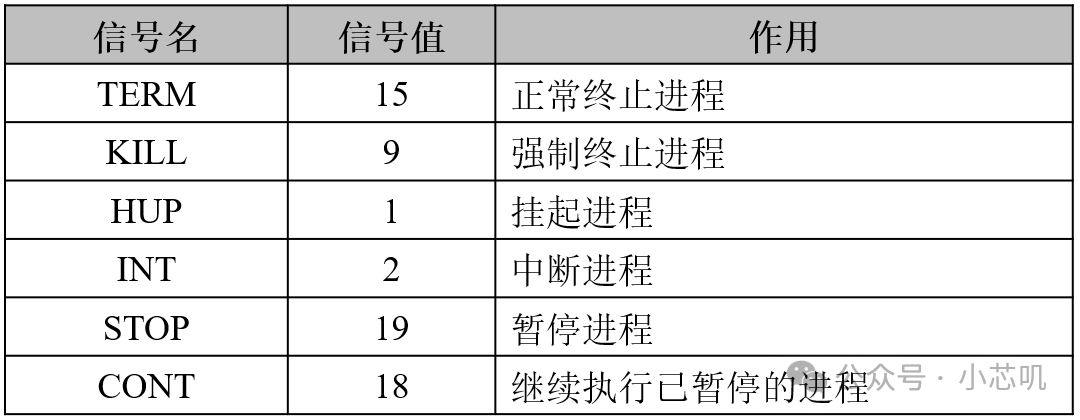
Common signals and their meanings
2. Function
Locate the target by the process ID (PID) and perform different operations (such as terminate, pause, restart, etc.) using different signals.
3. Common Usage
kill -9 23Force terminate the process with PID 23.
tar command
1. Syntax
tar [options] [archive filename] [source file/directory]
2. Function
Used to create and extract archive files, often combined with compression algorithms (such as gzip, bzip2, xz).
3. Common Options
-
-c: Create an archive file.
-
-v: Display detailed progress.
-
-f: Specify the archive filename (must be followed immediately by the filename).
-
-z: Use gzip compression.
-
-x: Extract files from the archive.
-
-t: View the contents of the archive.
4. Common Usage
-
Pack/Unpack
tar -cvf mydir.tar ./mydirPack the mydir directory into mydir.tar.
tar -xvf mydir.tarUnpack mydir.tar.
-
Compress/Decompress
tar -czvf mydir.tar.gz ./mydirCompress the mydir directory into mydir.tar.gz.
tar -xzvf mydir.tar.gzDecompress mydir.tar.gz.
Thank you for reading my article, if you find it useful, give me afollow! Let’s chat again next time.
>/ Author: Xiaoxinji