IntroductionCockpit is an open-source web management tool for Linux servers developed by Red Hat. It simplifies system monitoring and management operations through a visual interface, supporting real-time resource monitoring, service management, container control, and more. Cockpit is designed as a lightweight tool suitable for basic operations and is ideal for single-host usage.Official Website
https://cockpit-project.org/Core Features and Characteristics of Cockpit1. System Monitoring
Real-time viewing of CPU, memory, disk I/O, and network traffic with graphical data representation, hardware information display (such as PCI devices, storage partition details)2. Management Tools
Service Management: Start and stop system services (such as SSH, firewall), view logs<br/>User and Permissions: Manage accounts, SSH key authorization<br/>Storage Configuration: Supports LVM, filesystem mounting, disk space visualization<br/>Network Settings: Configure network interfaces, firewall rules (firewalld integration)3. Extension Support
Container Management: Integrates Podman/Docker (requires installation of the cockpit-docker plugin)<br/>Virtual Machine Management: Manage KVM virtual machines through cockpit-machines<br/>Third-party Plugins: Such as storage management (cockpit-storaged), software package updates (cockpit-packagekit)4. Supported Operating Systems for Cockpit: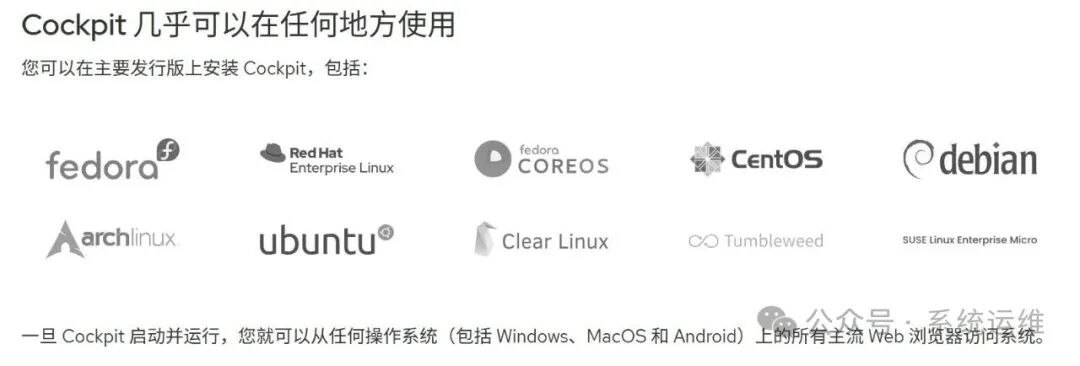 Red Hat Series
CentOS 7 and higher<br/>RHEL (Red Hat Enterprise Linux) 7 and higher<br/>Fedora 21 and higherDebian Series
Debian 10 and higher<br/>Ubuntu 18.04 and higherOther Distributions
openEuler (requires adaptation)<br/>KeyarchOS (Inspur KOS)<br/>UnionTech OS (UOS)<br/>SUSE Linux Enterprise Server (SLES)<br/>Arch Linux (install via AUR)Other Notes: Cockpit can also be manually installed and configured on other Linux distributions. Some domestic operating systems (such as Kylin V10) need to verify compatibility. Cockpit is designed to be lightweight and easy to integrate, thus it has good support for most modern Linux distributions.Specific Installation and Deployment
Operating System: We are using Rocky Linux 10.0Rocky Linux 10.x Installation Configuration Illustrated Tutorial1. Install Cockpit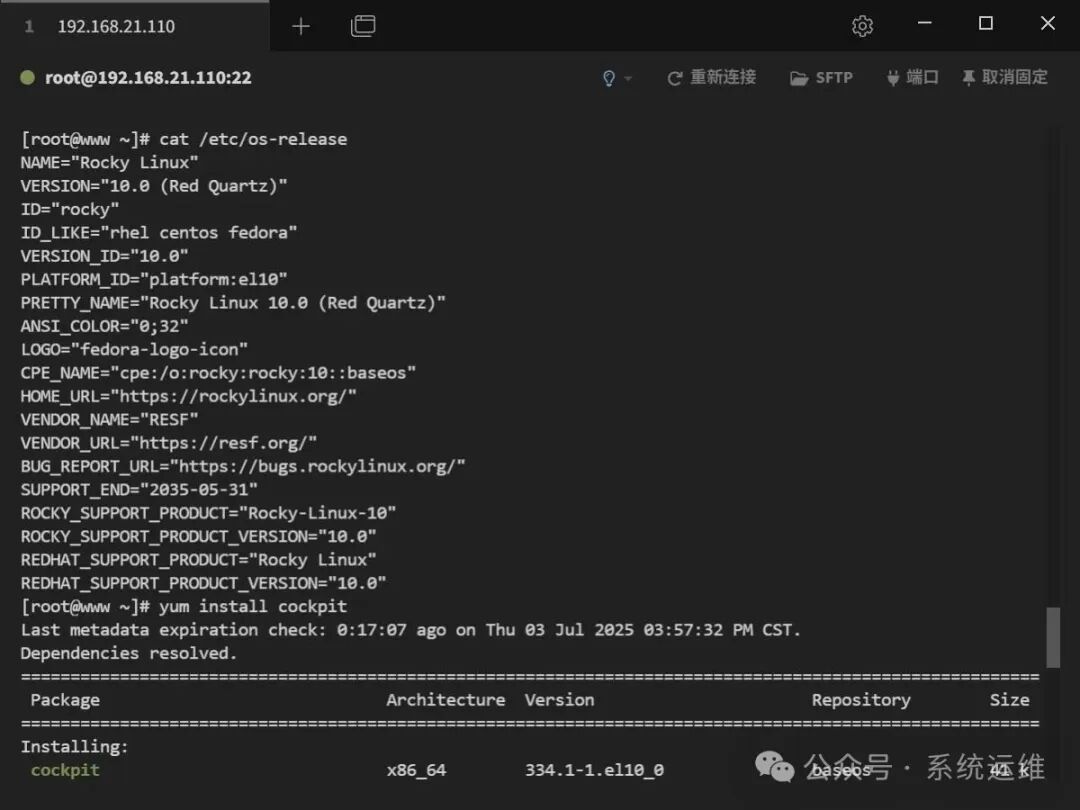
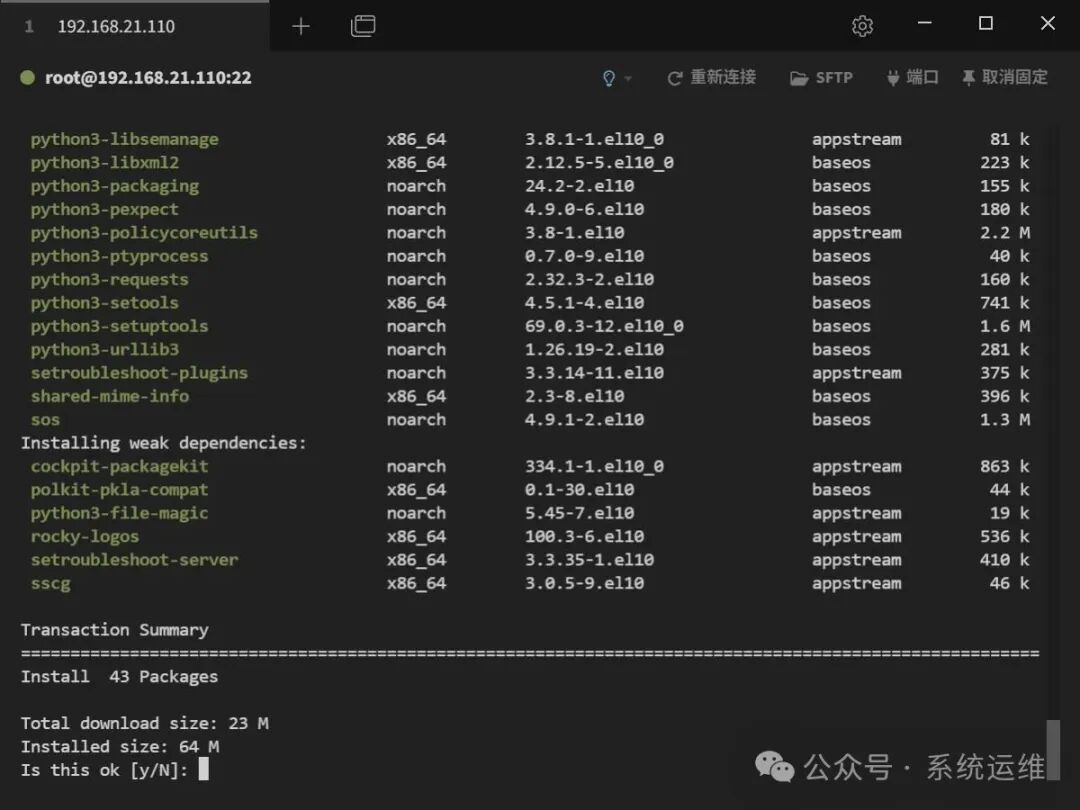
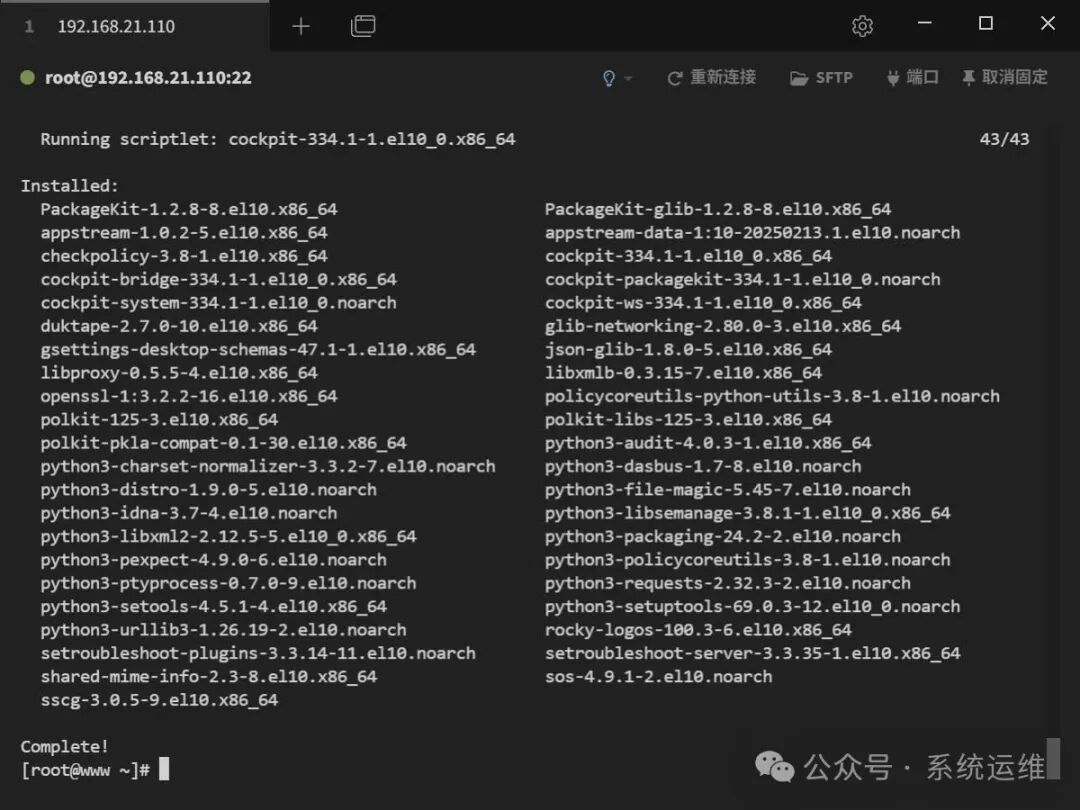
# Install cockpit, core components, providing basic web management interface functionality<br/>yum install cockpit<br/># Enable KVM virtual machine functionality, requires installation of cockpit-machines package<br/># After installing cockpit-machines plugin, you can manage KVM virtual machines directly through the web interface<br/>yum install cockpit-machines<br/># Start cockpit and set it to start on boot<br/>systemctl enable --now cockpit.socket<br/># Verify status should be "active (running)"<br/>systemctl status cockpit.socket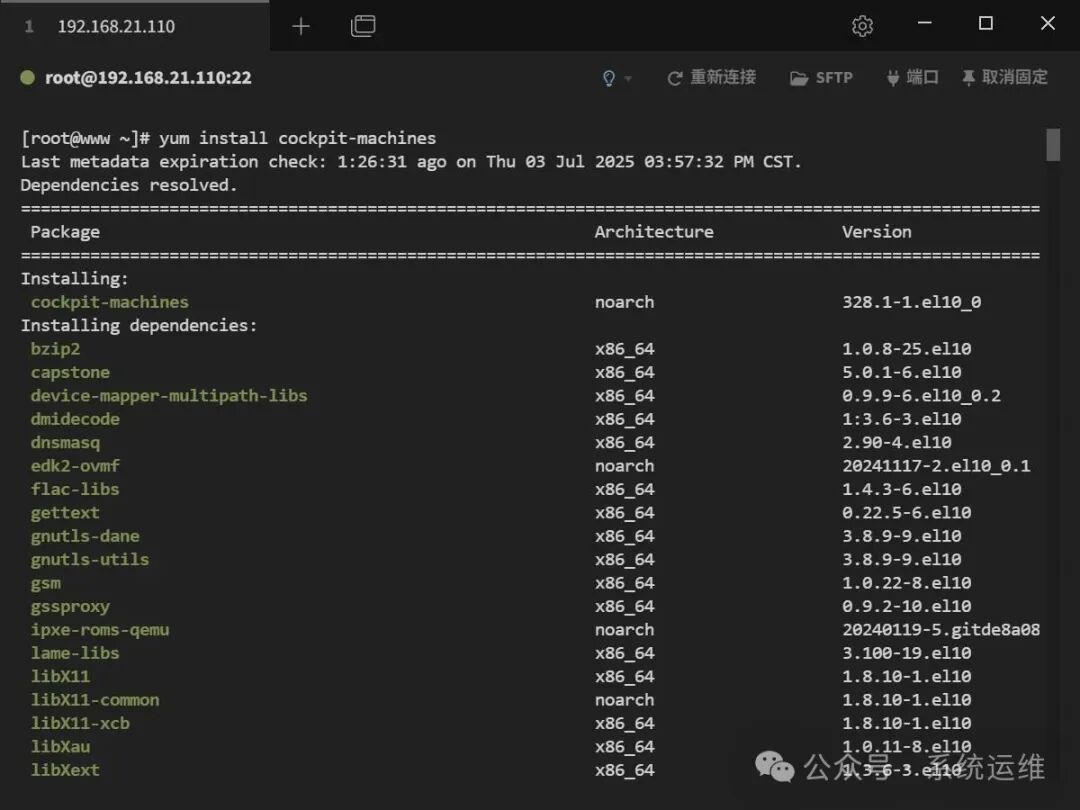
# Firewall Configuration<br/># The cockpit web interface will call the system's default firewalld firewall<br/># The default port is 9090, this port must be allowed or the cockpit service cannot be accessed remotely<br/>firewall-cmd --add-service=cockpit --permanent # Permanently allow the service<br/>firewall-cmd --reload # Reload configuration2. Edit the file to remove root login restrictions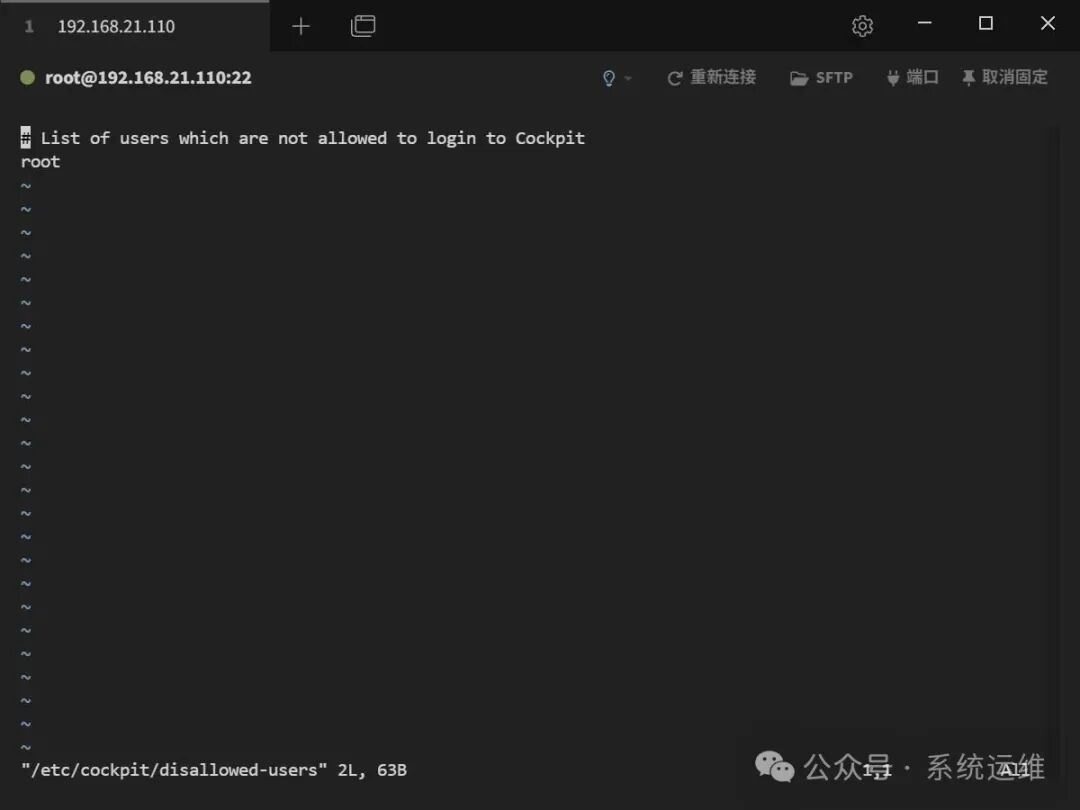

# By default, root login may be prohibited<br/># After modification, restart to take effect<br/>vi /etc/cockpit/disallowed-users # Delete the "root" line<br/>root:wq! # Save and exit<br/>systemctl restart cockpit.socket # Restart the service3. Modify the defaultcockpitservice port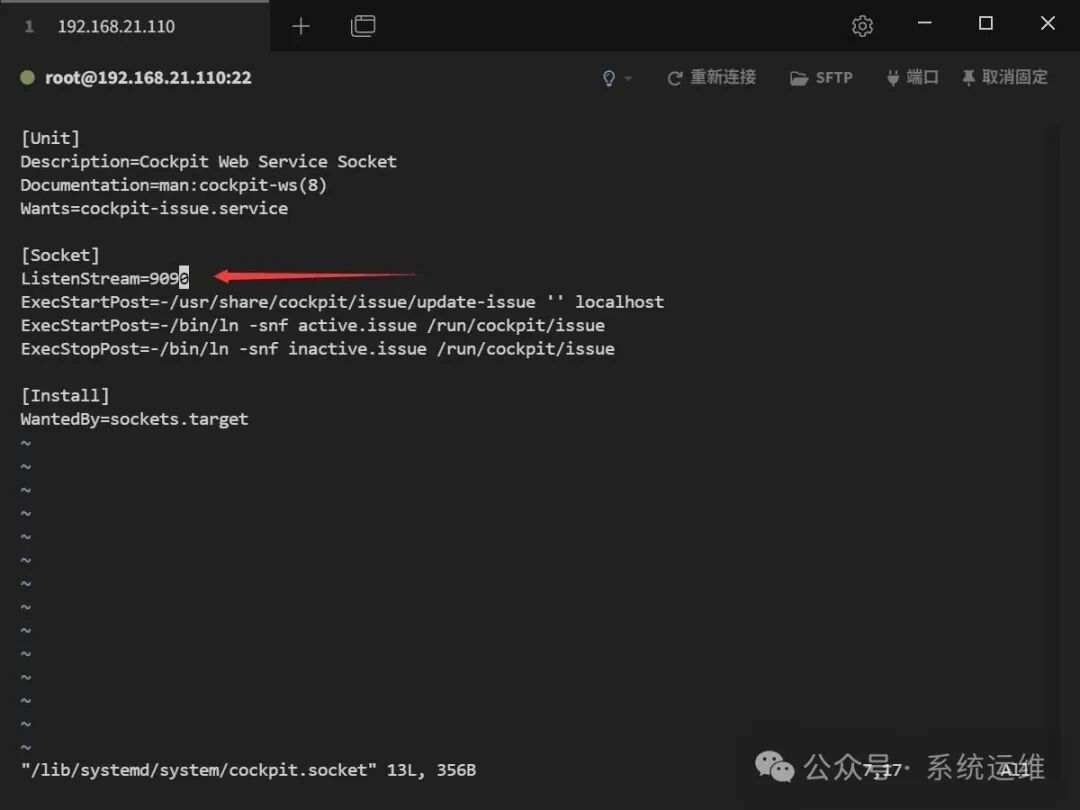
vi /lib/systemd/system/cockpit.socket<br/>ListenStream=9090 # Default is 9090, can be changed to another port<br/>:wq! # Save and exit<br/>systemctl restart cockpit.socket # Restart the service4. Access the web page
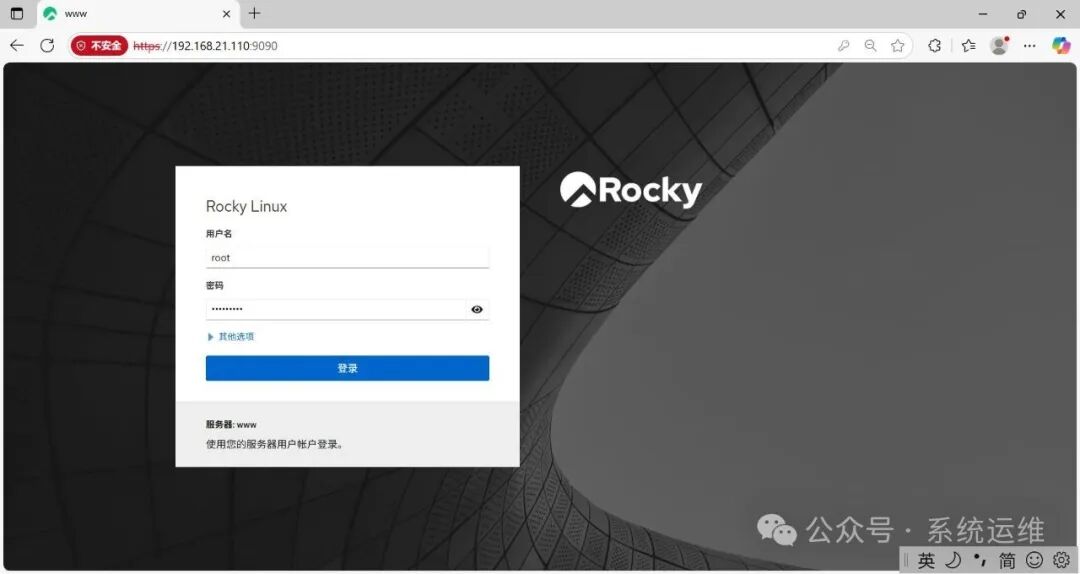
https://192.168.21.110:9090/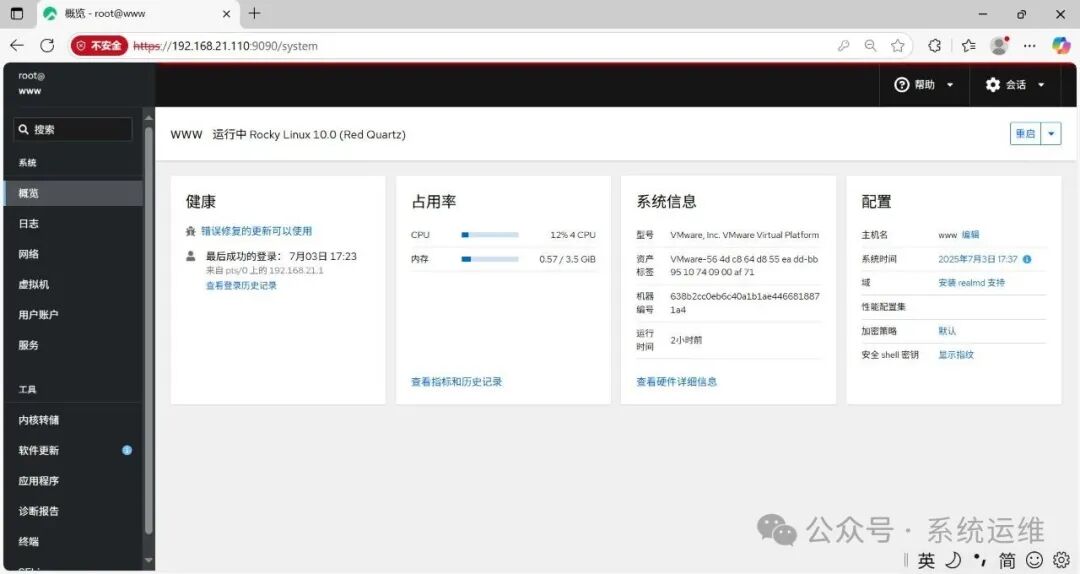
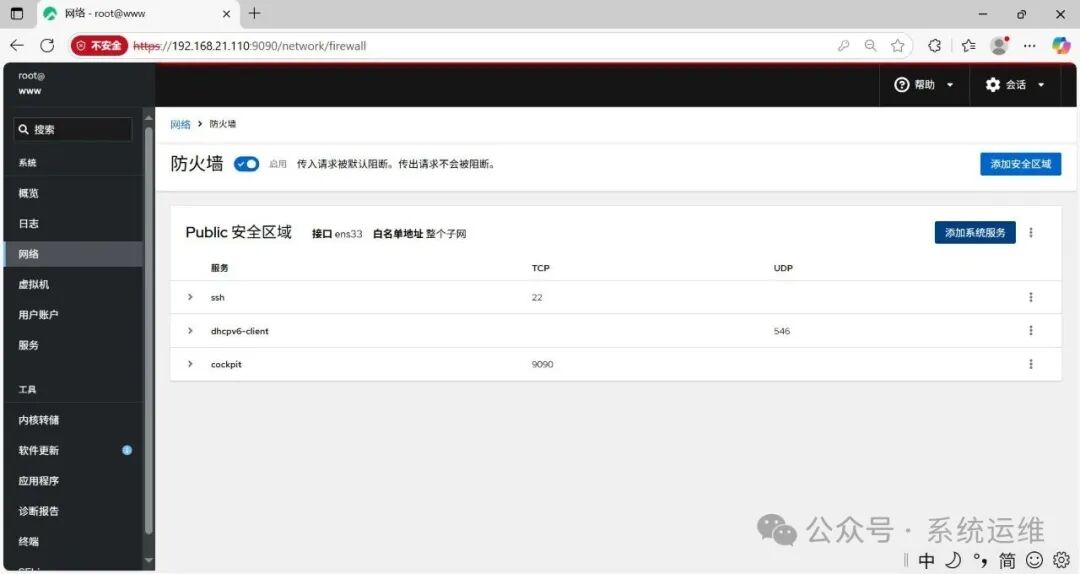
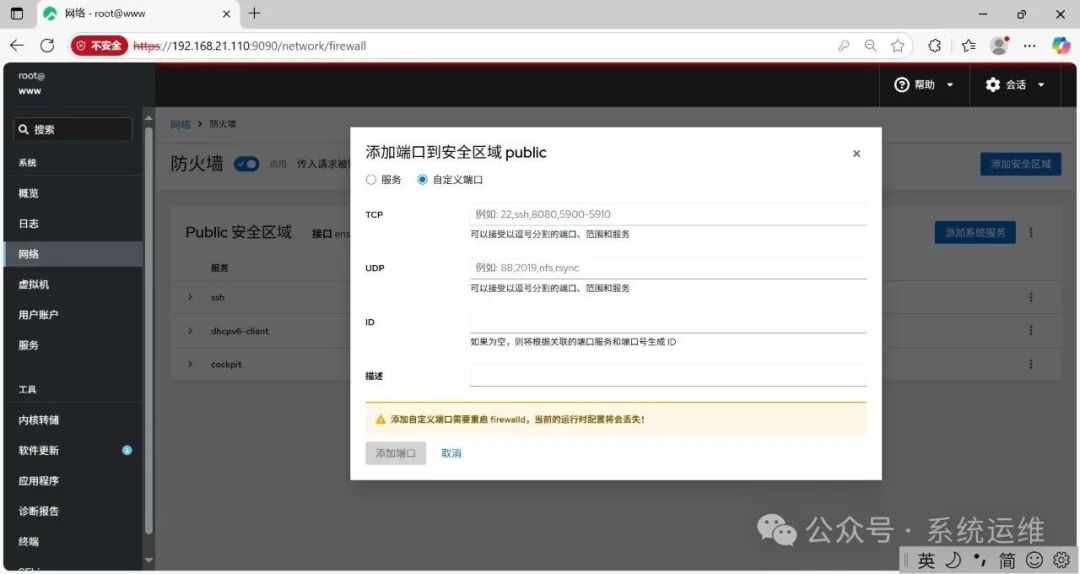 Manage the firewalld firewall system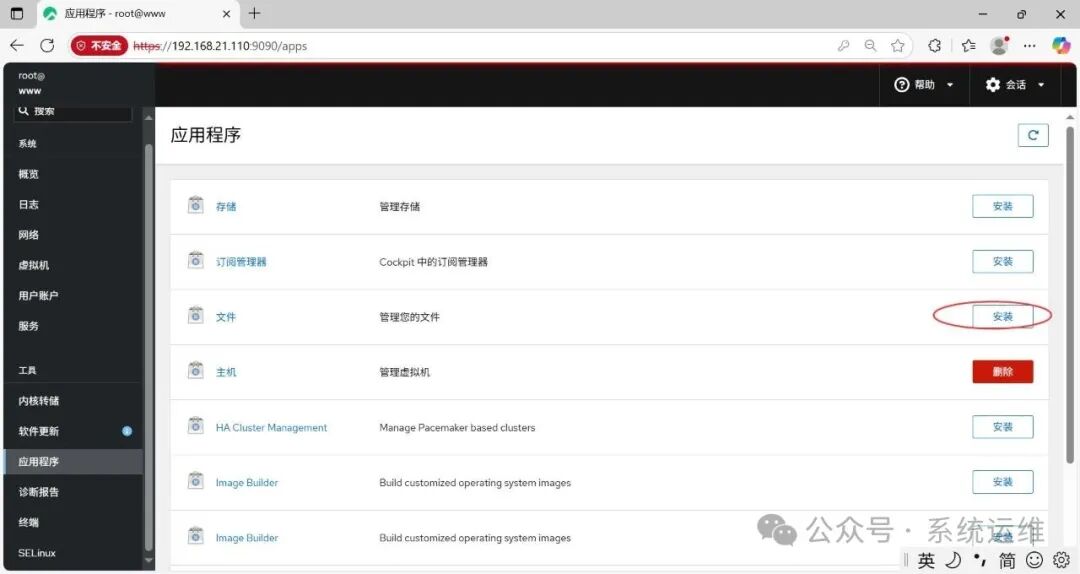
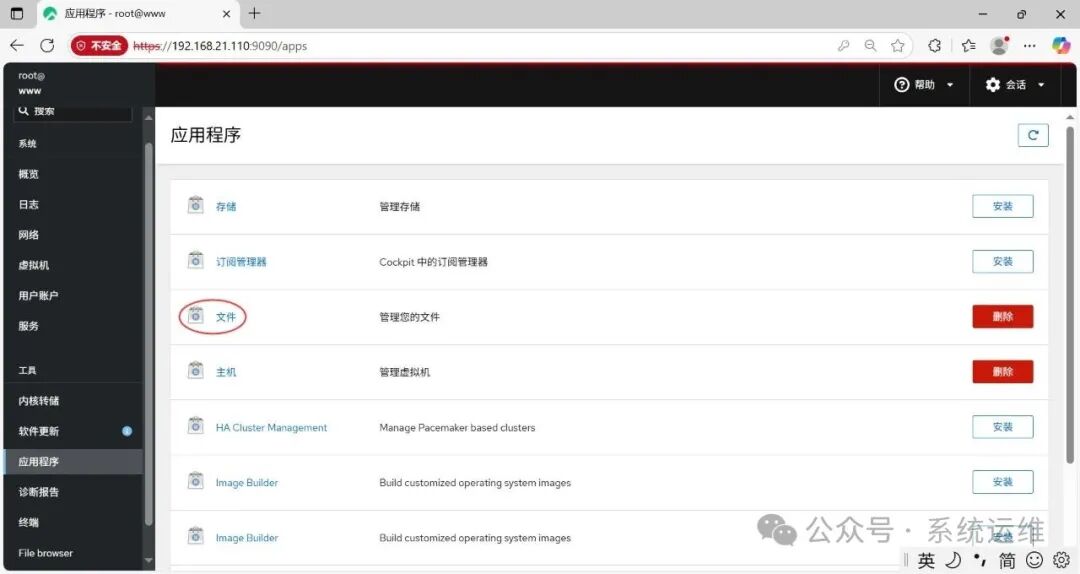 Manage files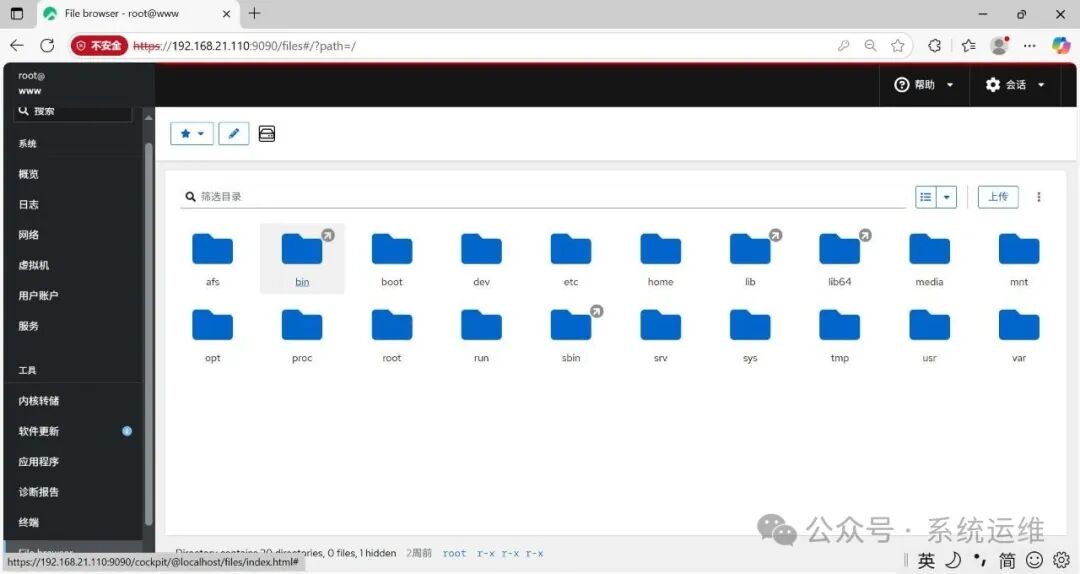
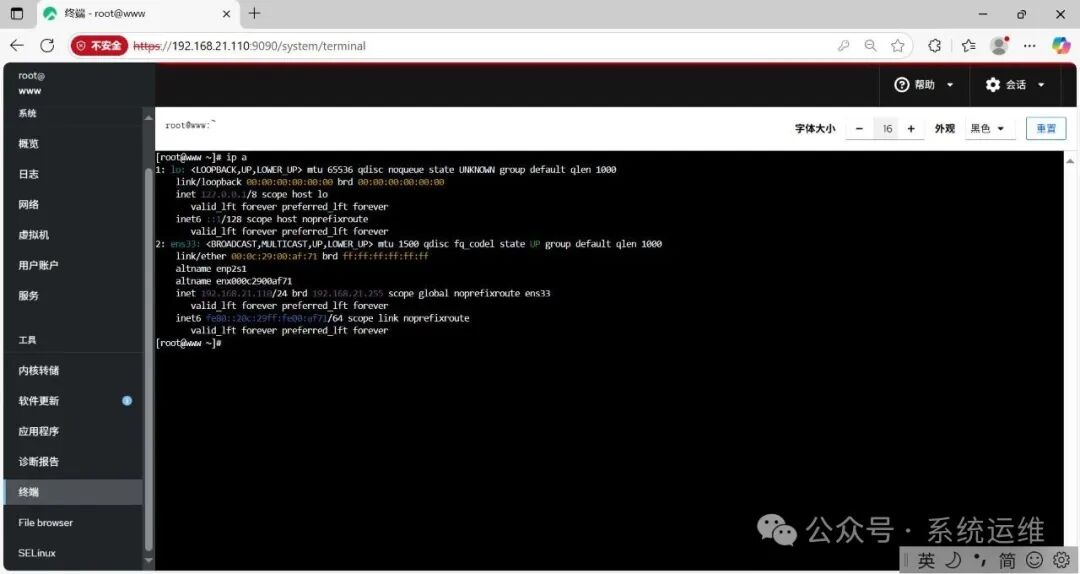 SSH Terminal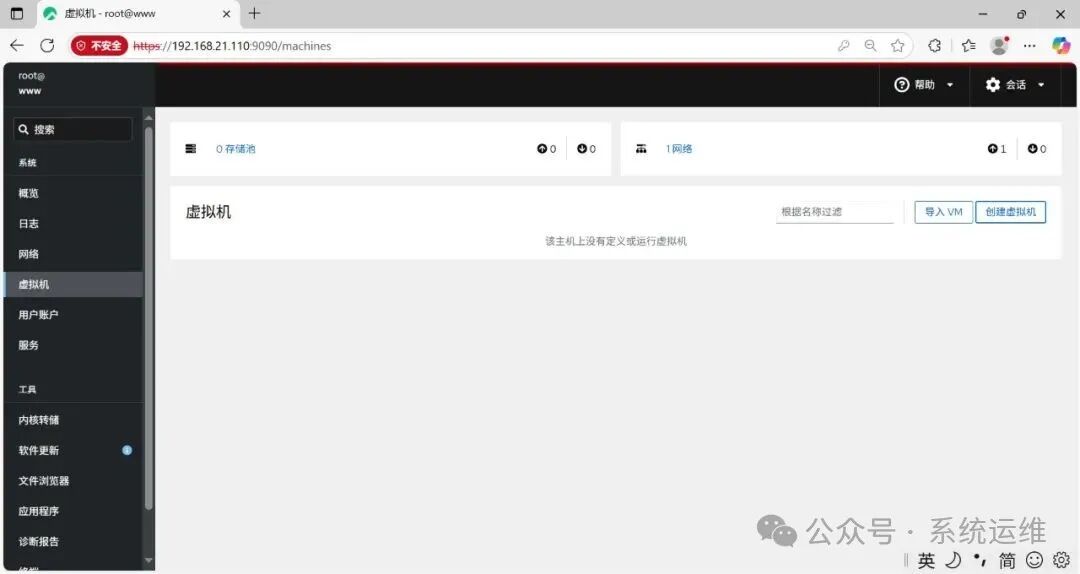
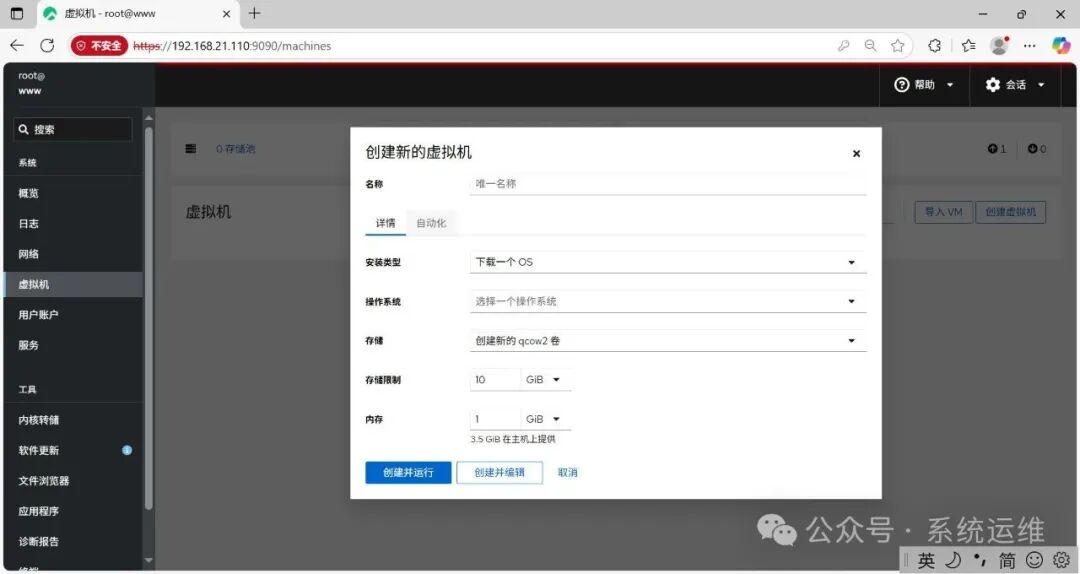 Manage KVM virtual machines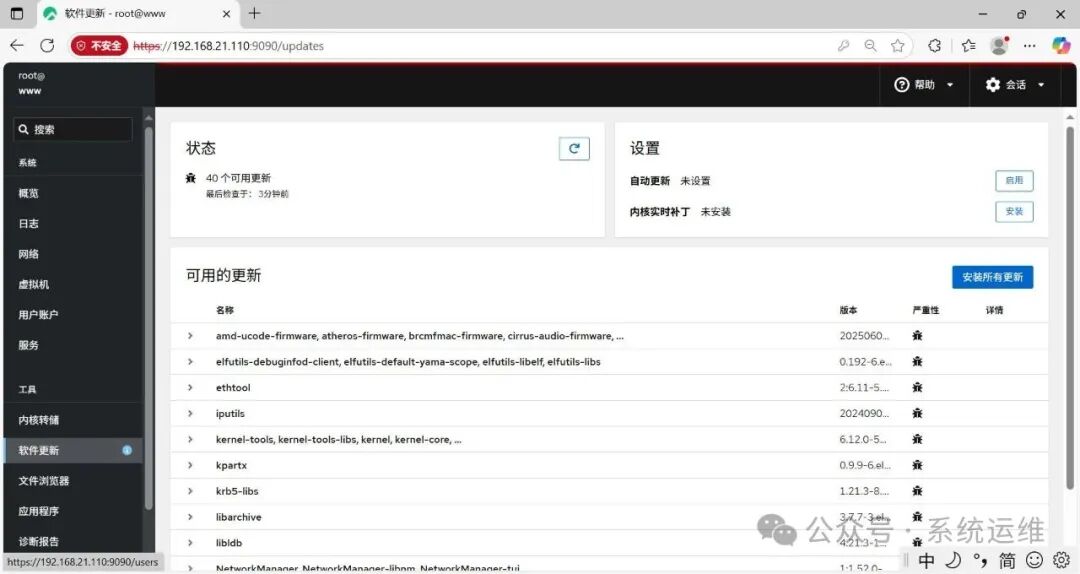
Thus, the tutorial on the installation and usage of the Linux system visualization management tool Cockpit is complete.