Preface:
I’ve been quite busy lately, so updates on the public account have been a bit slow. I hope everyone understands. However, the good news is that I’ve found something fun, so… soon you’ll be able to hear me tell stories again~~~ Below is an article reposted from the internet, which covers some basic configurations for KEIL. It’s well written, so take a look!
This article is reposted from CSDN Blog, author: Hua Li Meng Yu
Link: https://blog.csdn.net/qq_37369201/article/details/82354615
Through learning, we have understood how to create our own projects in MDK5. Next, we will introduce some tips for using the MDK5 software, which will be very useful in code editing and writing.
1. Text Beautification
Text beautification mainly involves setting the colors and fonts of keywords, comments, numbers, etc. MDK provides us with the ability to customize font colors.
1. We can click on the configuration dialog in the toolbar to pop up the interface shown below:
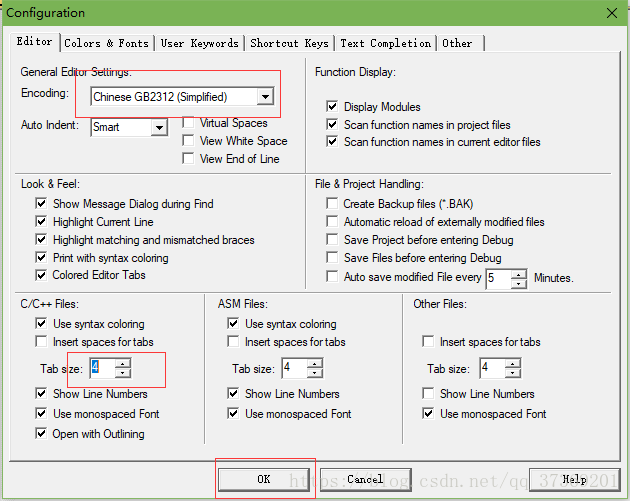
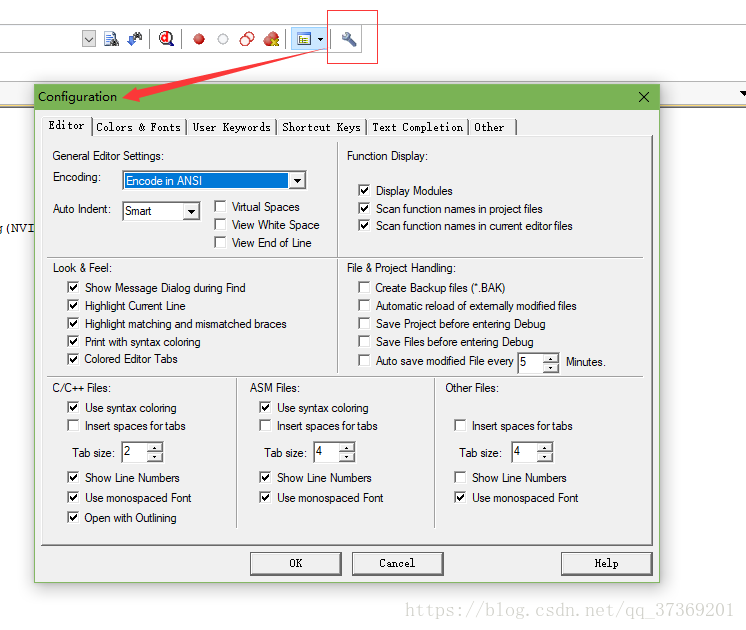 In this dialog, first set Encoding to: Chinese GB2312 (Simplified), then set Tab size to: 4. This better supports Simplified Chinese (otherwise, when copied elsewhere, the Chinese may appear as a bunch of question marks), and the TAB spacing is set to 4 units.
 2. Then, select the Colors & Fonts tab, where we can set our own code’s font and color. Since we are using C language, select: C/C++ Editor Files under Window, and you will see the corresponding elements on the right.
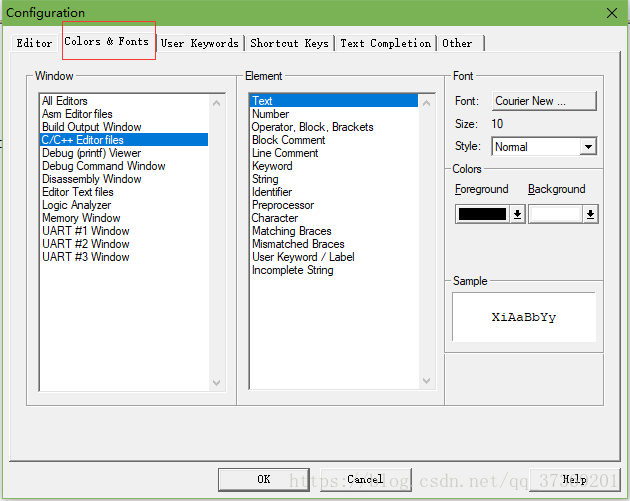 3. Click on each element to change it to your preferred color (note to double-click, and sometimes it may require multiple settings to take effect due to a bug in MDK). You can also set the type and size of your font in the Font section. After setting, click OK, and you will see the modified result on the main interface:
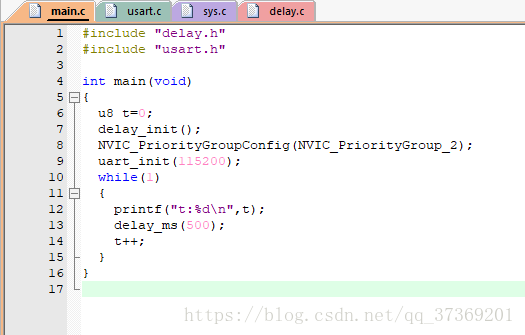 Font size can be adjusted by holding: ctrl + mouse scroll wheel, or you can set the font size in the configuration interface mentioned earlier.
Careful readers may notice that the code above contains a u8, which is still black. This is a user-defined keyword, and why is it not displayed in blue (assuming we have already set the user-defined keyword color to blue)? This goes back to the configuration dialog, but this time we need to select the User Keywords tab, also choose: C/C++ Editor Files, and enter your defined keywords in the User Keywords dialog on the right:
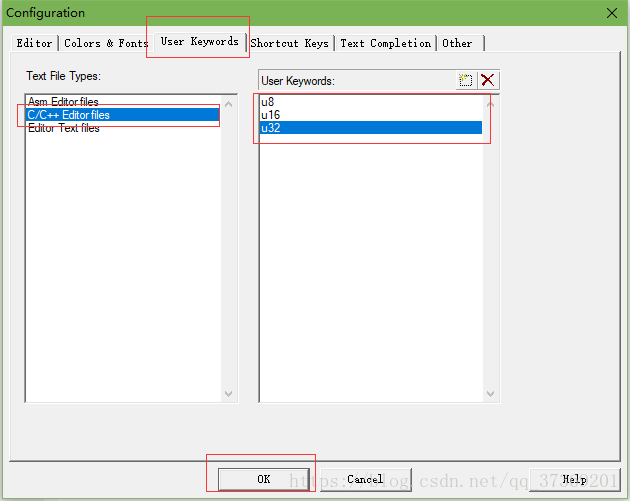 Now, whenever these three keywords appear in future code editing, they will definitely turn blue. Click OK, and return to the main interface to see that u8 has turned purple: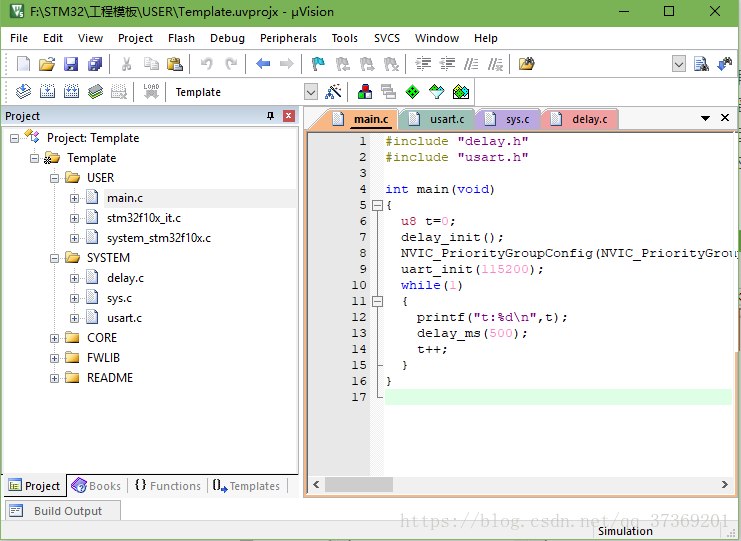
2. Syntax Checking & Code Suggestions
Versions of MDK 4.70 and above have added code suggestions and dynamic syntax checking features, making the MDK editor increasingly user-friendly. Here, we will briefly discuss how to set it up. Again, click on the configuration dialog, open the configuration dialog, and select the Text Completion tab.
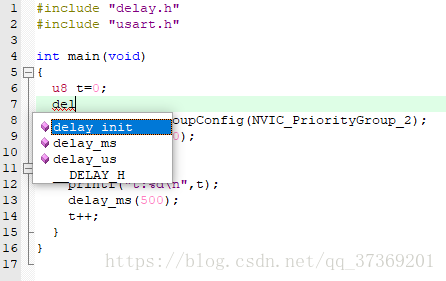
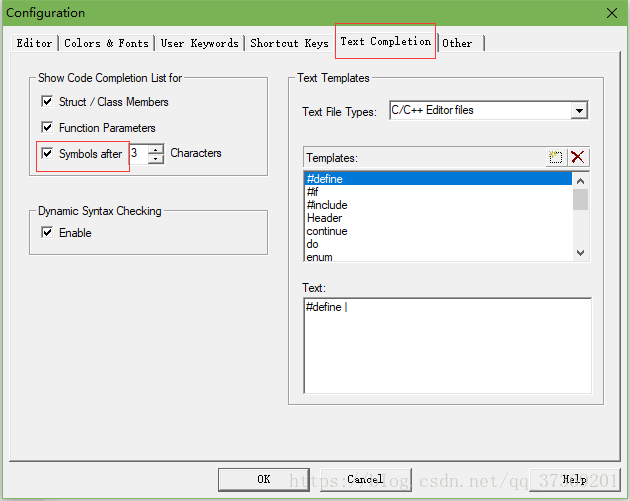 Strut/Class Members is used to enable structure/class member suggestion functionality. Function Parameters is used to enable function parameter suggestion functionality. Symbols after xx characters is used to enable code suggestion functionality, which prompts matching content (such as function names, structure names, variable names, etc.) after entering a certain number of characters. The default setting is to start suggesting after 3 characters.
 Dynamic Syntax Checking is used to enable dynamic syntax checking. For example, when there is a syntax error in the code being written, a “cross” icon will appear in front of the corresponding line. If there is a warning, a “warning” icon will appear. Hovering the mouse cursor over the icon will prompt the reason for the error/warning.
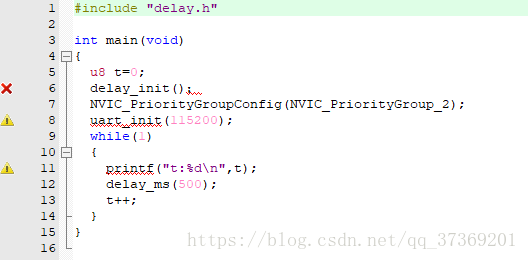 These features are very helpful for writing code, speeding up the coding process and allowing for timely detection of various issues. However, I would like to remind everyone that the dynamic syntax checking feature sometimes produces false positives (for example, in sys.c, there are many false positives). You can ignore them as long as the code compiles successfully (0 errors, 0 warnings); such syntax false positives can generally be ignored.
3. Code Editing Tips
Here are a few commonly used tips that can greatly facilitate our code editing, and I believe they will be helpful for your coding.
1) The Magic of the TAB Key First, let’s introduce the use of the TAB key. This key is used for spacing in many compilers, moving a few spaces with each press. If you often write programs, you are certainly familiar with this key. However, the TAB key in MDK is different from that in general compilers, being similar to that in C++. The TAB key in MDK supports block operations, allowing you to shift a block of code to the right by a fixed number of spaces, or shift it to the left by a fixed number of spaces using SHIFT + TAB.
If our example looks like this:
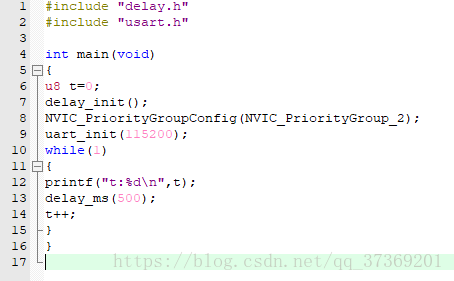 Such code is certainly not preferred. This is just a short piece of code; if your code has thousands of lines, all looking like this, it would be quite frustrating. When seeing such code, we can use the magic of the TAB key to quickly modify it to a more standardized code format.
Select a block and press the TAB key, and you will see the entire block of code shift to the right by a certain distance:
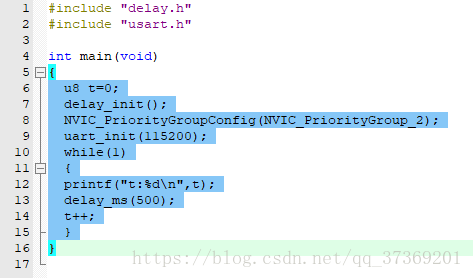 Next, you can press the TAB key multiple times to quickly standardize the code format, resulting in the following effect:
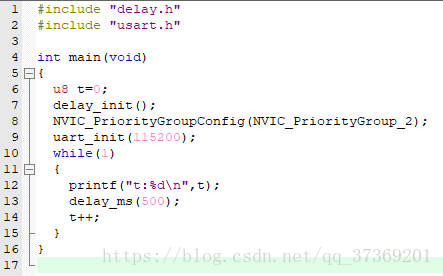 After such organization, the entire code becomes much more organized and looks very comfortable.
2) Quickly Locate the Definition of Functions/Variables When debugging or writing code, you may want to see where a certain function is defined and what its contents are, or you may want to see where a certain variable or array is defined. Especially when debugging code or looking at someone else’s code, if the compiler does not have a quick locate function, you can only search slowly. If the code volume is small, it’s manageable, but if the code volume is large, it can be quite frustrating, sometimes taking a long time to find where the function is defined.
MDK provides such a quick locate function. Just place the cursor over the function/variable (xxx) you want to view (xxx being the name of the function or variable), then right-click to bring up the menu shown below:
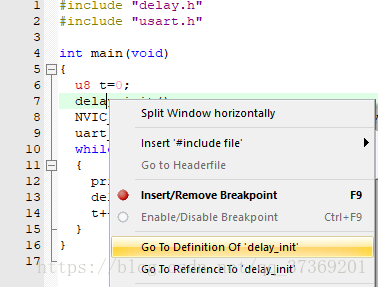 We find Go to Definition Of ‘delay_init’ and click the left mouse button to quickly jump to the definition of the delay_init function (note that you must check the Browse Information option in the Output tab of Options for Target, then compile and locate; otherwise, you cannot locate it!).
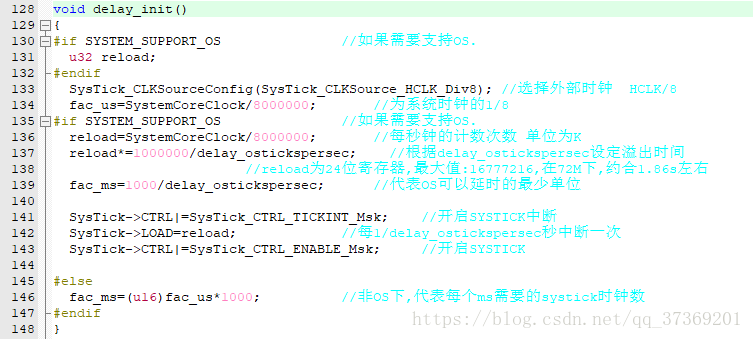 For variables, we can also use this operation to quickly locate where the variable is defined, greatly shortening the time spent searching for code. Careful readers will notice that there is also a similar option, Go to Reference To ‘delay_init’, which quickly jumps to where the function is declared. This is sometimes useful, but not as frequently used as the former.
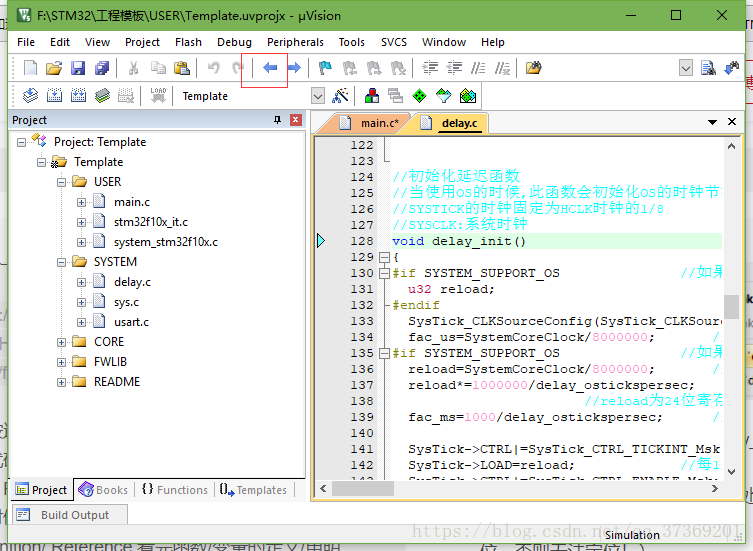
Often, after using Go to Definition/Reference to view the definition/declaration of a function/variable, you may want to return to the previous code to continue viewing. At this time, we can quickly return to the previous position using the “Back to previous position” button on the IDE, which is very useful!
3) Quick Commenting and Uncommenting Next, we will introduce the method of quickly commenting and uncommenting code. When debugging code, you may want to comment out a section of code to see how it executes. MDK provides such a quick commenting/uncommenting feature for block code. This is also done through the right-click menu. This operation is quite simple: first, select the code area you want to comment (let’s assume you select all), then right-click, and choose Advanced -> Comment Selection.
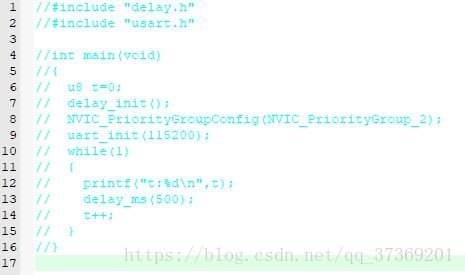
The effect is as follows:
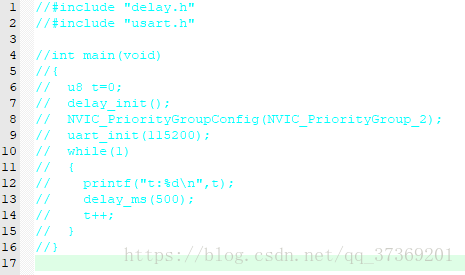 This quickly comments out a section of code, and at times, we may want to quickly uncomment this commented code. MDK also provides this functionality. Similar to commenting, first select the commented area, then right-click -> Advanced, but here select Uncomment Selection.
4. Other Small Tips
In addition to the several commonly used tips mentioned earlier, here are a few other small tips that I hope will enhance your coding experience.
The first small tip is to quickly open header files. Place the cursor over the reference header file you want to open, then right-click and select Open Document “XXX” to quickly open this file: (XXX is the name of the header file you want to open)
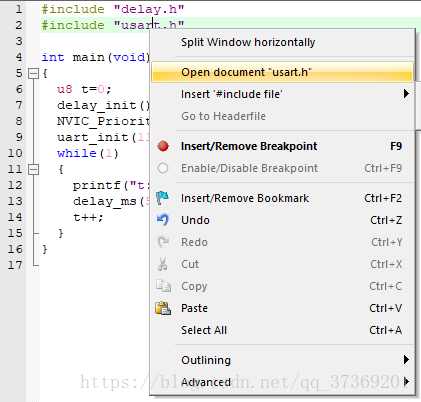
The second small tip is the find and replace function. This is similar to the replace function in WORD and many other document operations. In MDK, the shortcut key for find and replace is “CTRL+H”. Just press this button to bring up the following interface:
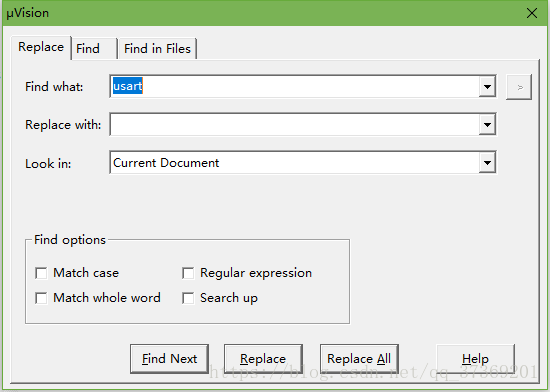
This replace function is very useful at times, and its usage is similar to that of other editing tools or compilers, so I won’t elaborate further.
The third small tip is the cross-file search function. First, double-click the function/variable name you want to find (here we still use the system clock initialization function: delay_init as an example), then follow the steps shown in the image:
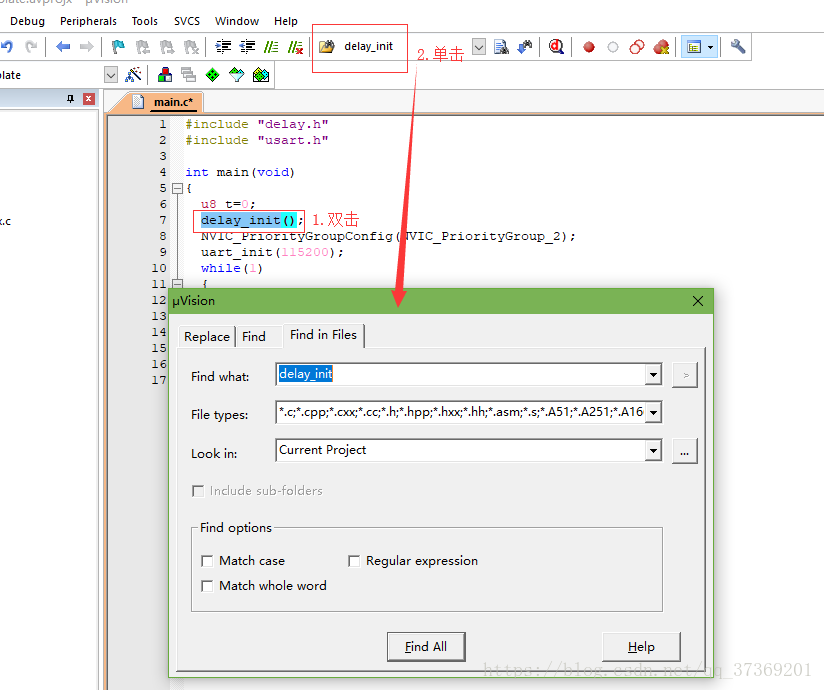
Click Find, and MDK will help you find all files containing the delay_init field and list their locations. This method is very convenient for searching various functions/variables, and you can limit the search range (for example, only search .c files and .h files, etc.), making it a very practical tip.