SoftwareIntroduction
Keil uVision 2 C51 is one of the high-quality software for developing applications on various microcontrollers, supporting all 8051 series derivatives. It integrates editing, compiling, and simulation, supporting both assembly and C language programming. The interface is user-friendly, making it easy to learn and use. Keil C51 is a C language development system for 51 series compatible microcontrollers produced by Keil Software, USA. Compared to assembly language, C language has significant advantages in functionality, structure, readability, and maintainability, making it easier to learn and use. After using assembly language, using C for development provides a deeper understanding. The target code generated by Keil C51 is highly efficient, with most statements generating compact assembly code that is easy to understand. The advantages of high-level languages are more evident when developing large software.
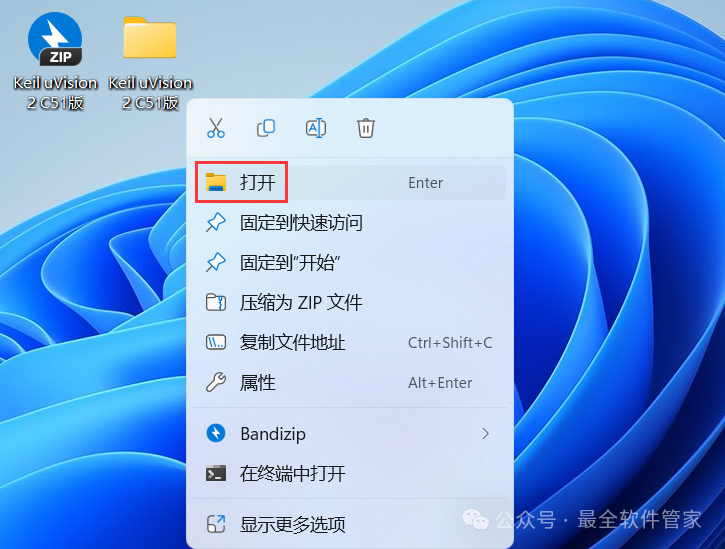
Installation[Software Name]: Keil uVision 2 C51[Software Size]: 11MB[Software Language]: Simplified Chinese[Installation Environment]: Win7 and above[Download Link]: Reply in the public account: KeilC51 Version[Unlimited Speed Download]: Get a free Baidu Cloud unlimited speed download tool.Reply in the public account: Unlimited speed[Notes]: Pleaseturn off the network, antivirus software, and firewall before installation, otherwise, installation may fail.Reply in the public account: 1[Unzip Software]: The unzipping software used by the editor is Bandizip, get the Bandizip software installation package.Reply in the public account: 2InstallationTutorial1. Download the Keil uVision 2 C51 software installation package to your computer, right-click and select [Extract to Keil uVision 2 C51″]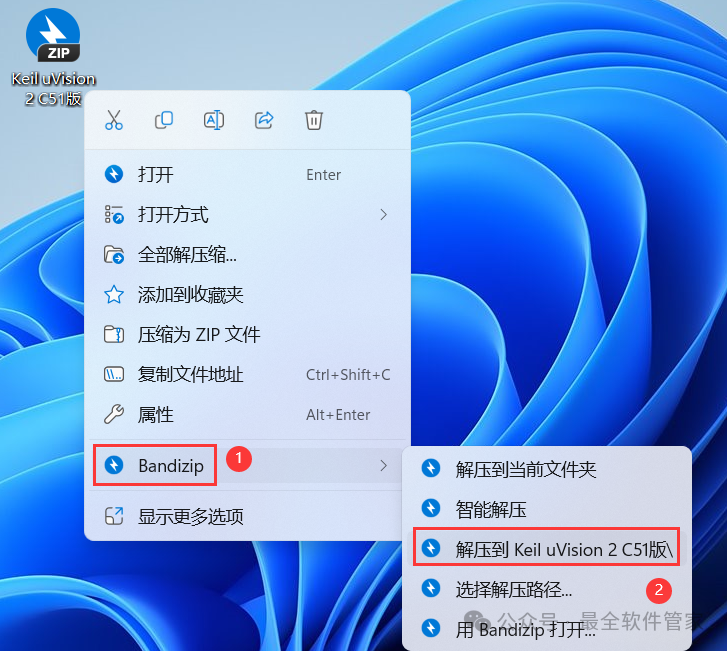 2. Right-click [Open] the extracted folder
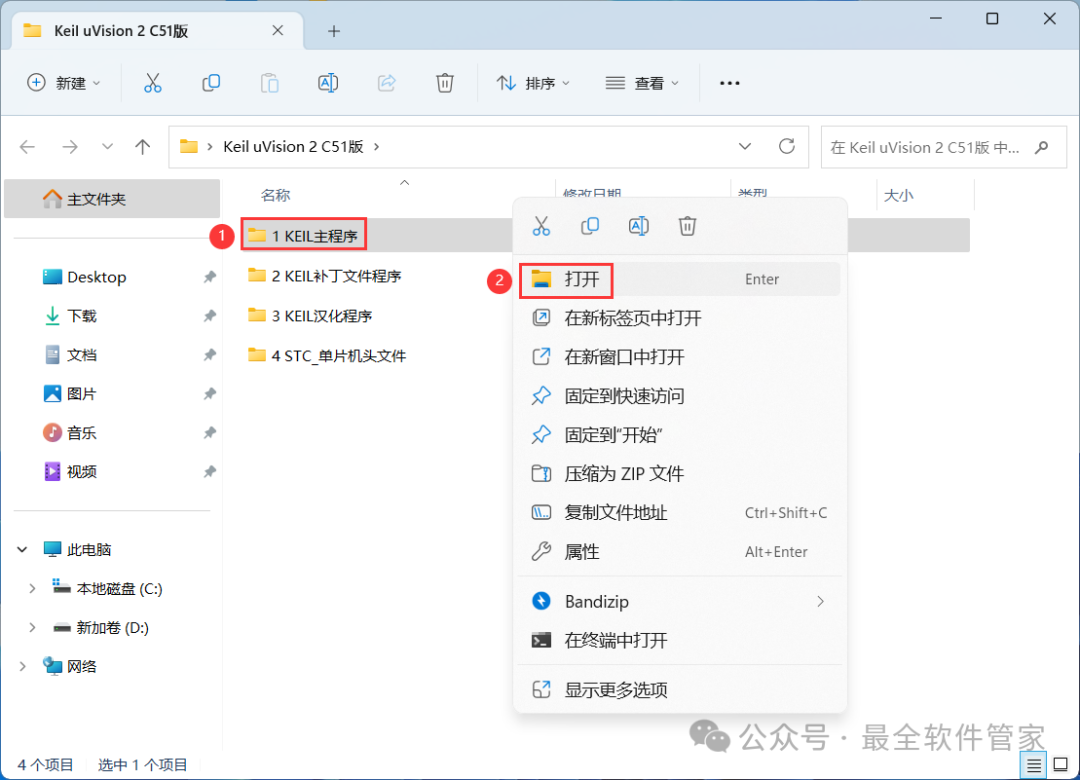
 3. Find the [1 KEIL Main Program] folder, right-click [Open] it
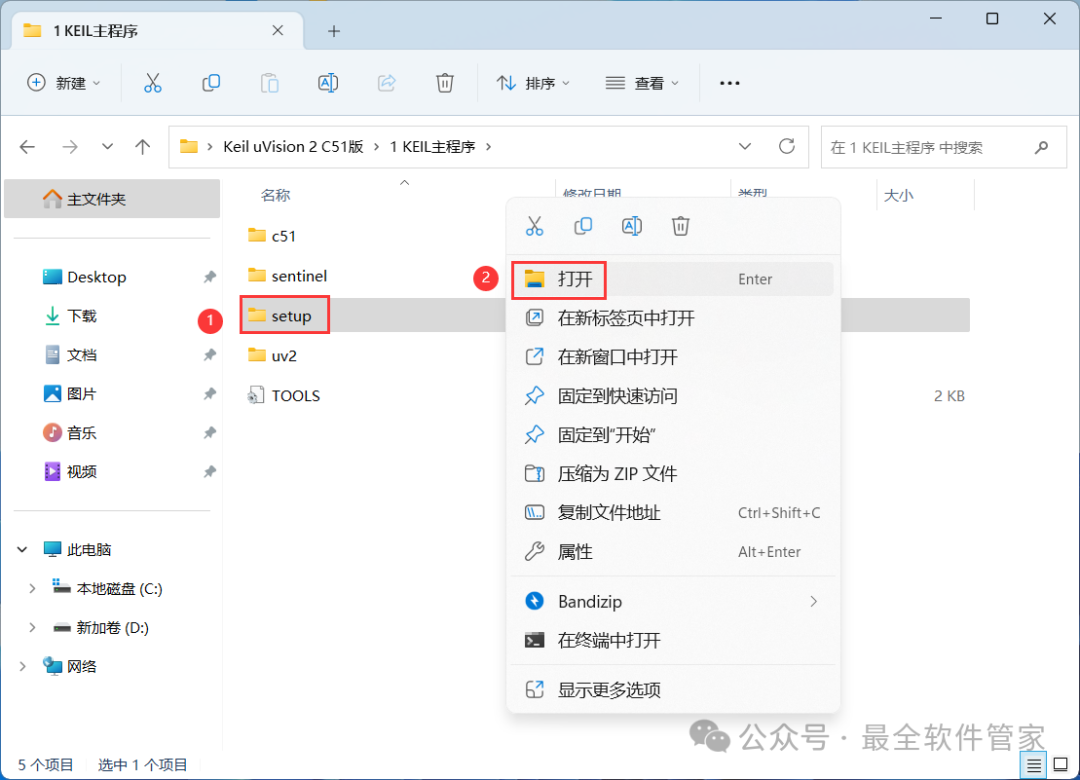
 4. Find the [Setup] folder, right-click [Open] it
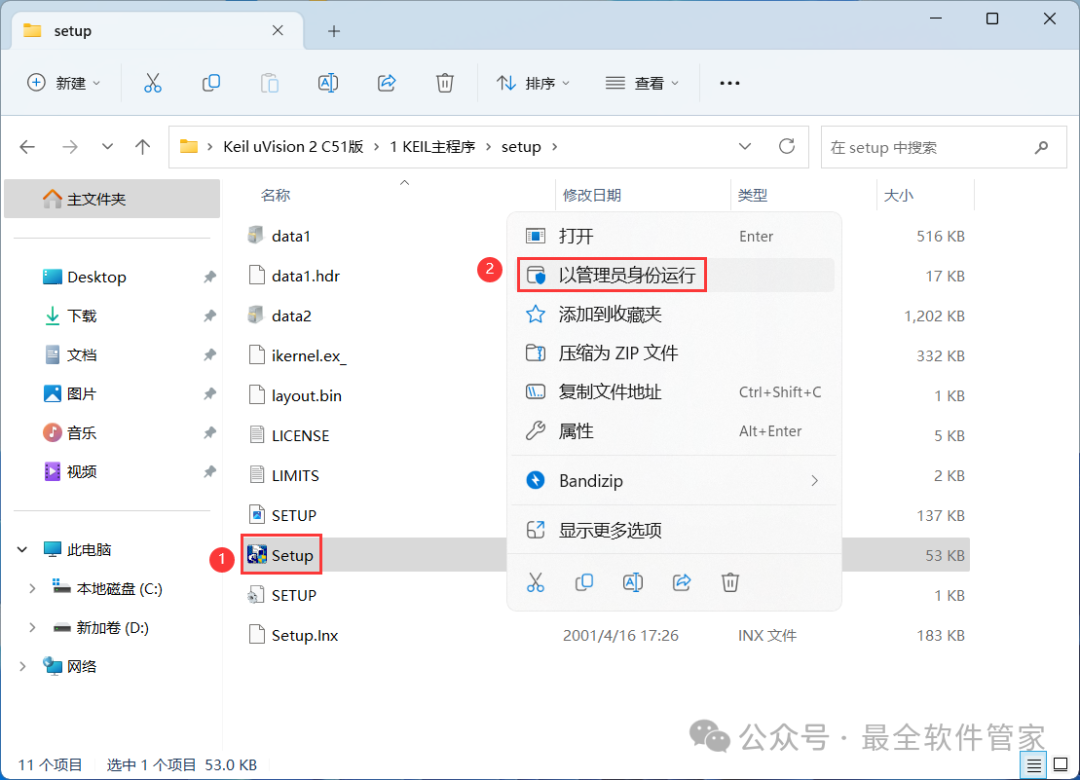
 5. Find the [Setup] application, right-click and select [Run as Administrator]
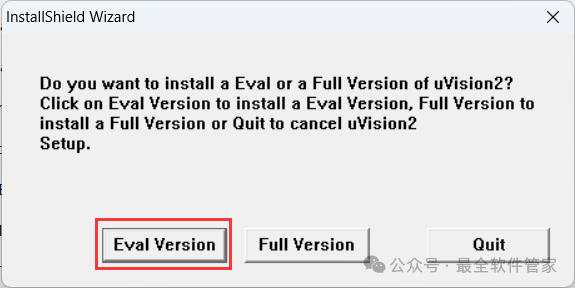
 6. Click [Eval Version]
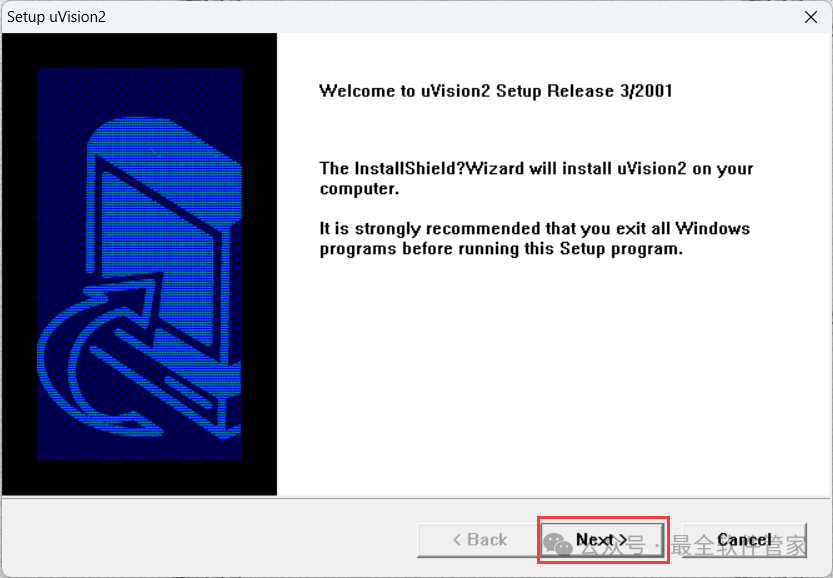
 7. Click [Next]
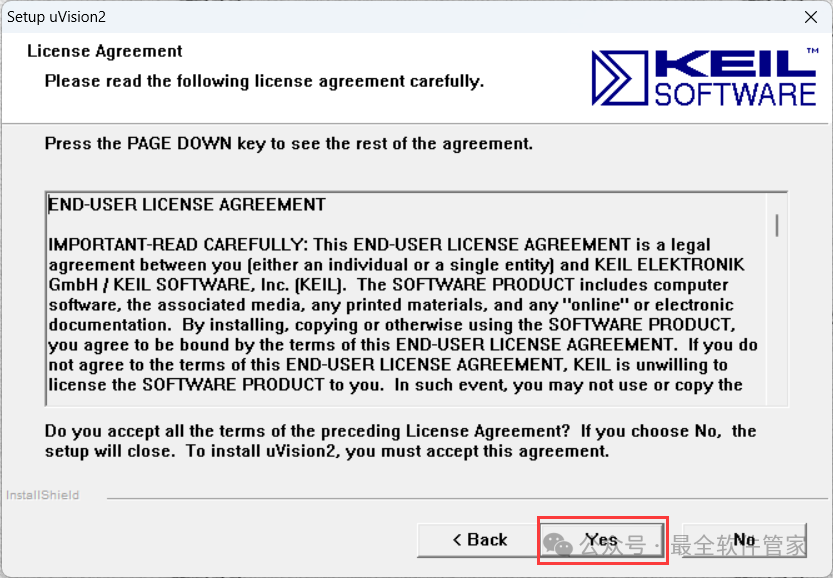
 8. Click [Yes]
 9. Click [Next]
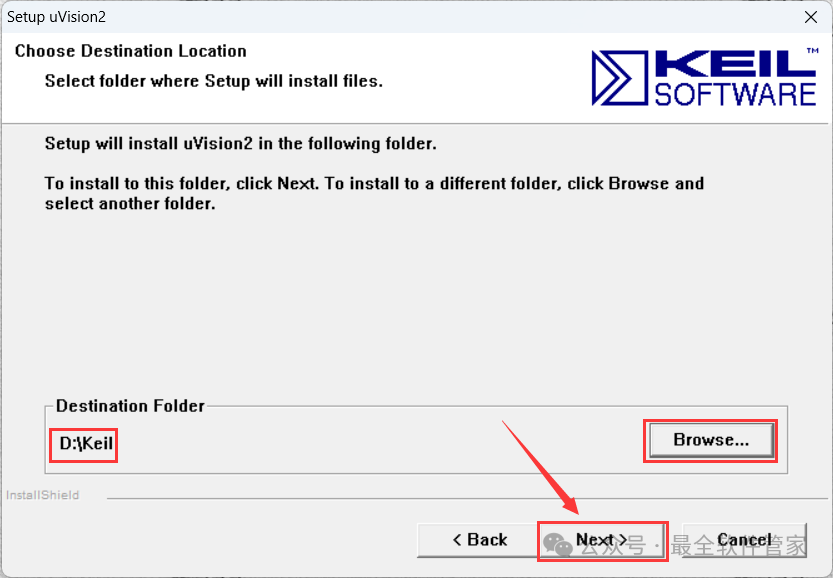
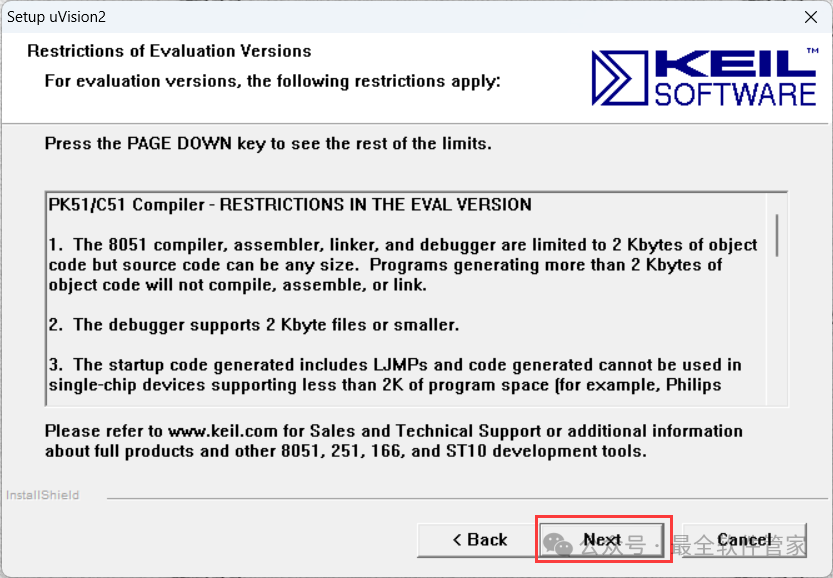 10. The software is installed by default on drive C. You can customize the installation location. Here, the editor chooses to install it on drive D; click [Next]
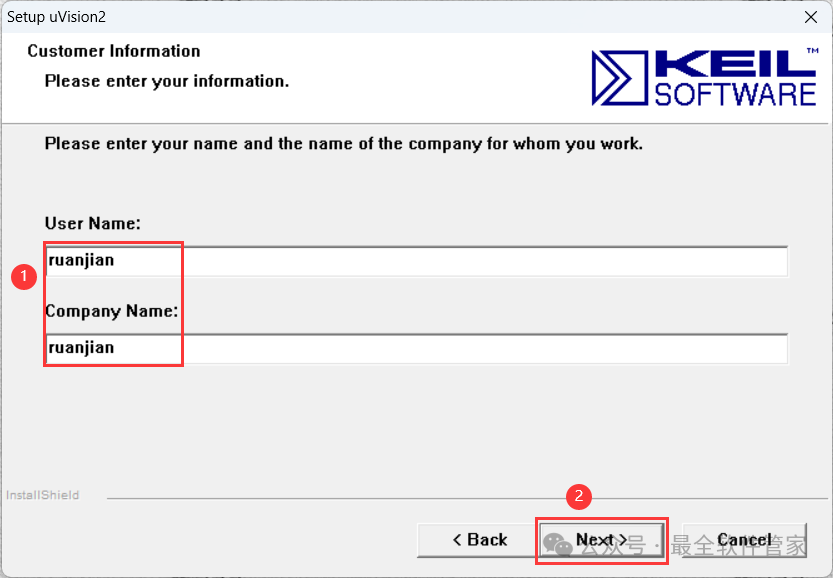
 11. Enter any English text, then click [Next]
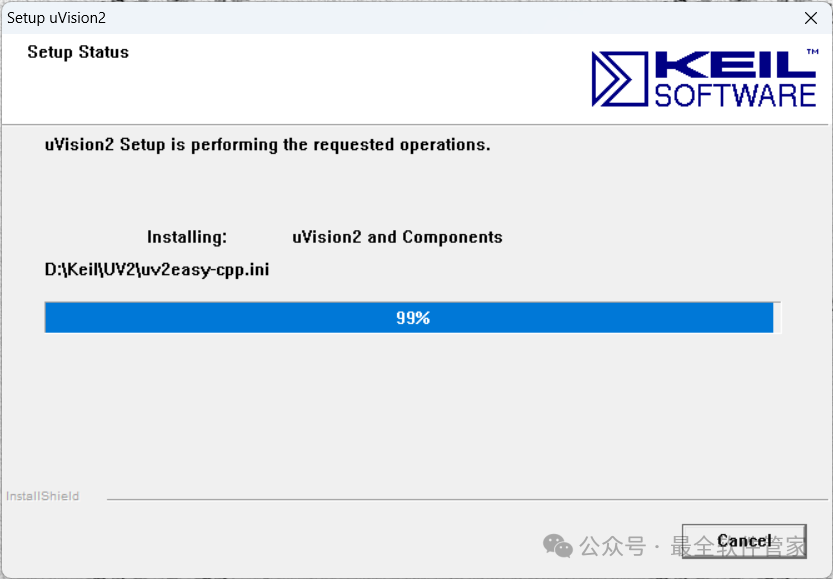
 12. The software is installing, please wait a moment
 13. Uncheck all options, then click [Finish]
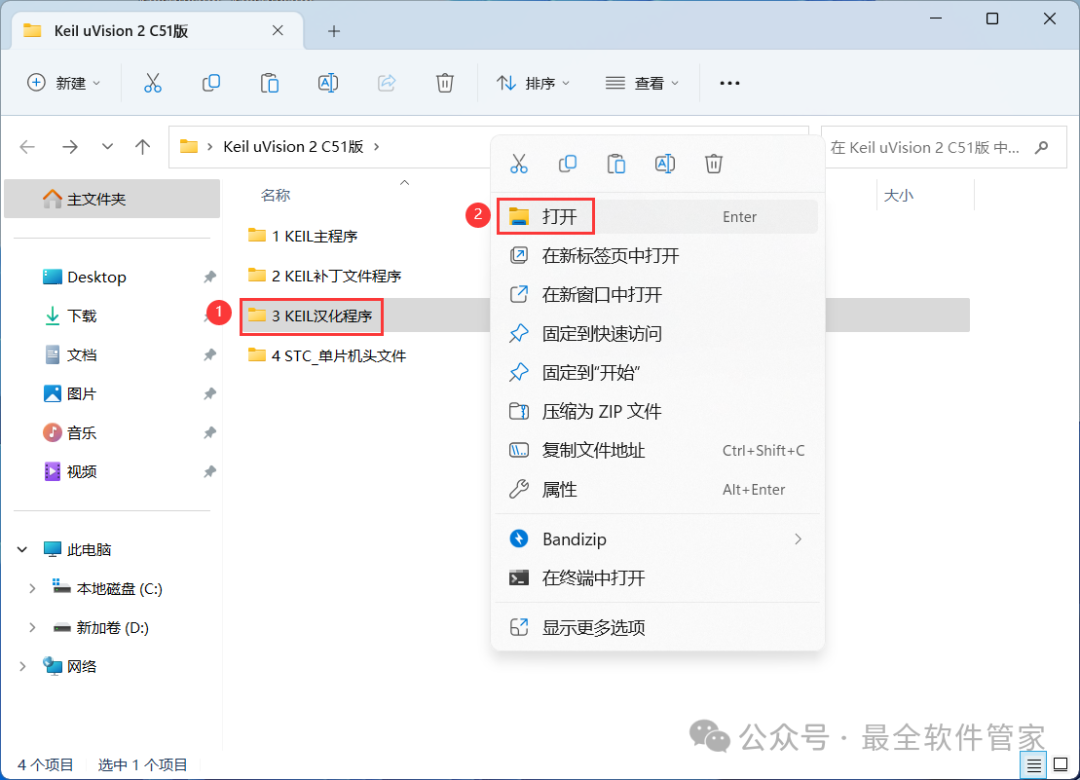
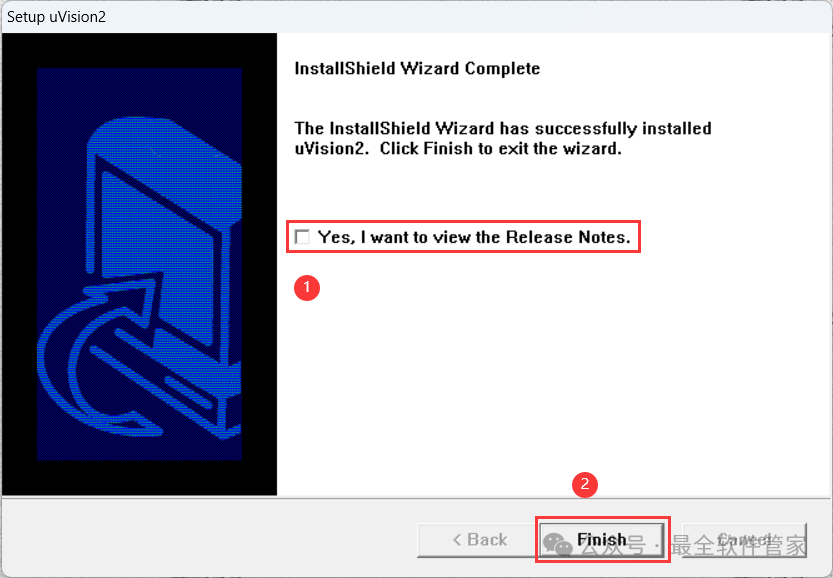 14. Go back to the Keil uVision 2 C51 folder, find the [3 KEIL Chinese Translation Program] folder, right-click [Open] it
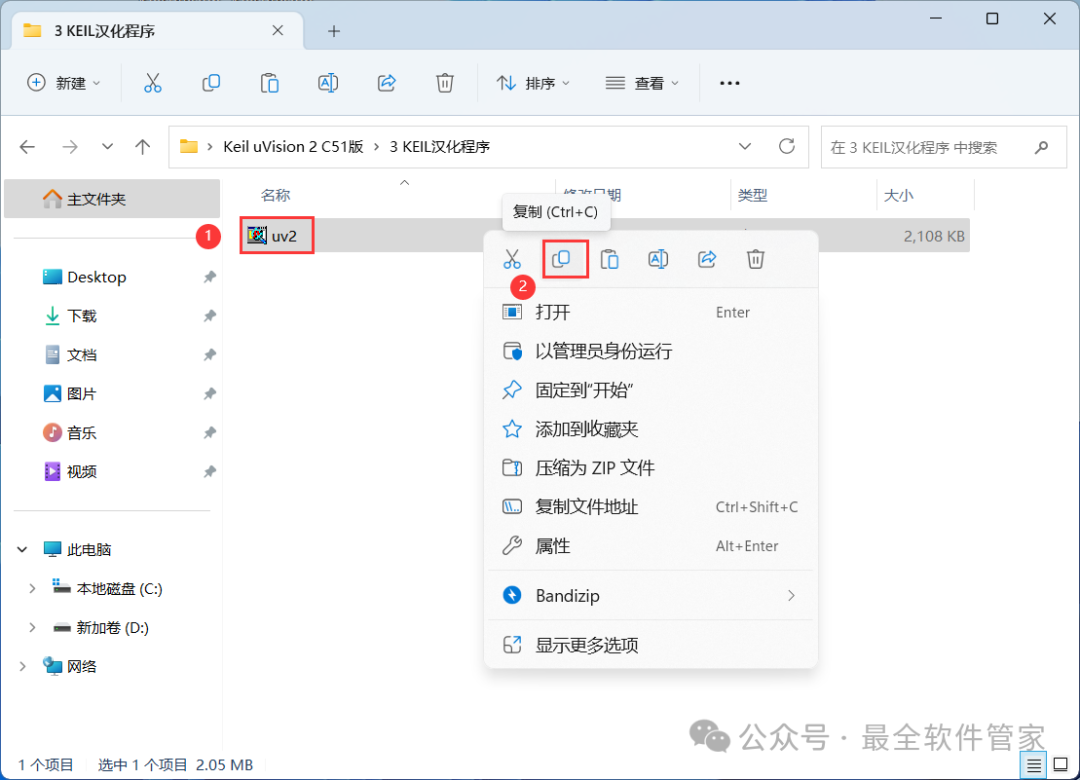
 15. Find and select the [Uv2] file, then right-click and click [Copy]
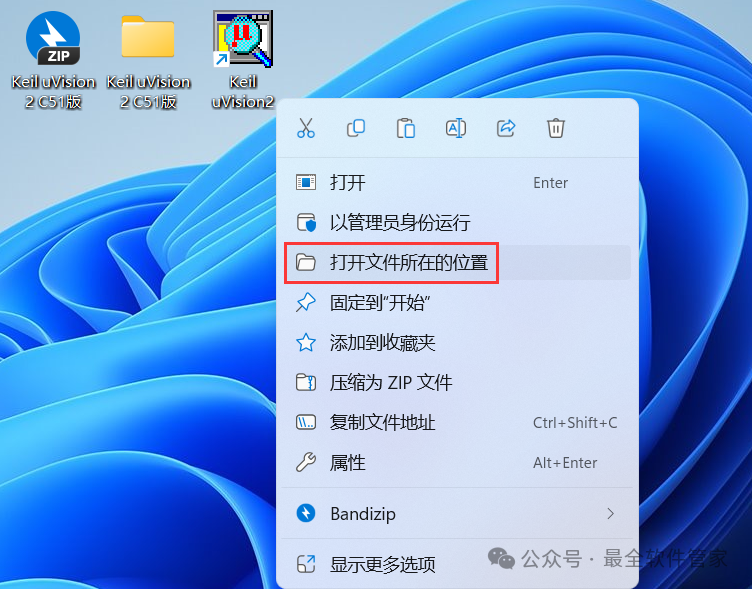
 16. Go back to the desktop, right-click the [Keil uVision2 software icon] on the desktop, and click [Open File Location]
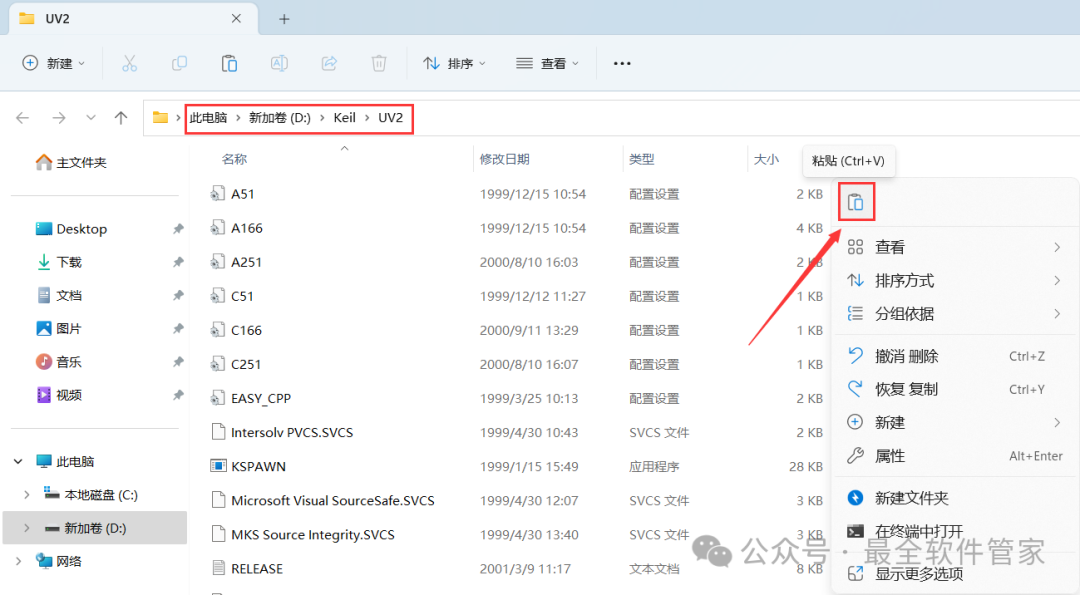
 17. Right-click in the empty space of the folder and click [Paste]
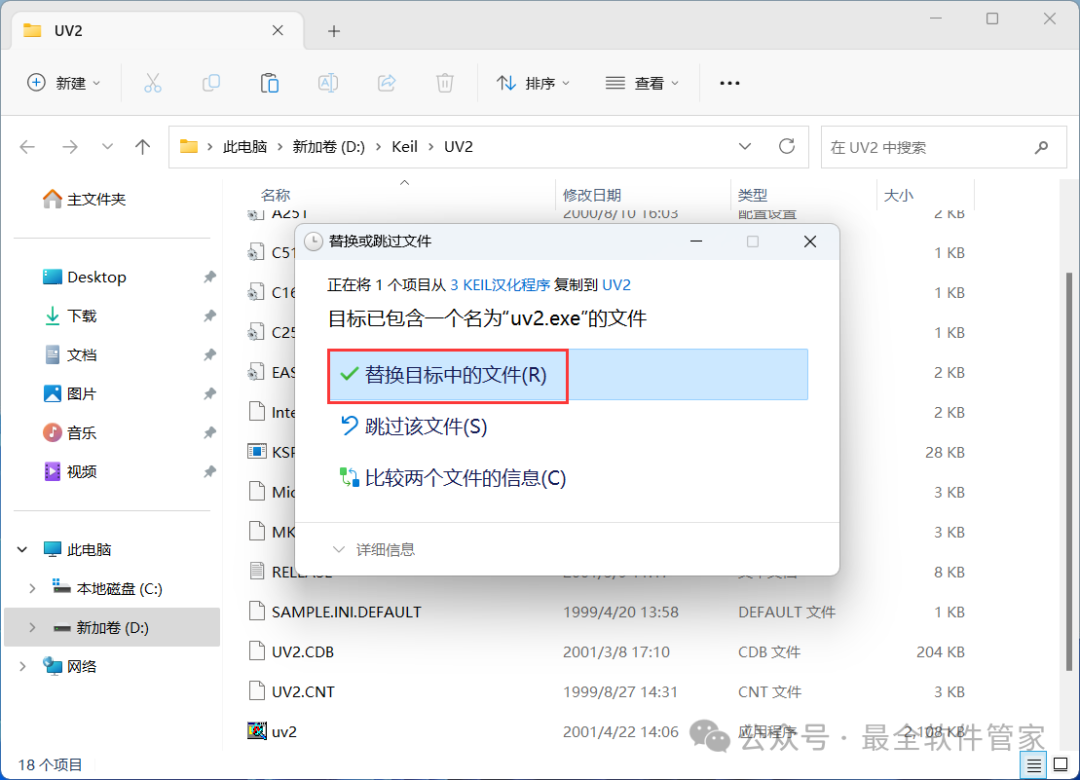
 18. Click [Replace the files in the destination]
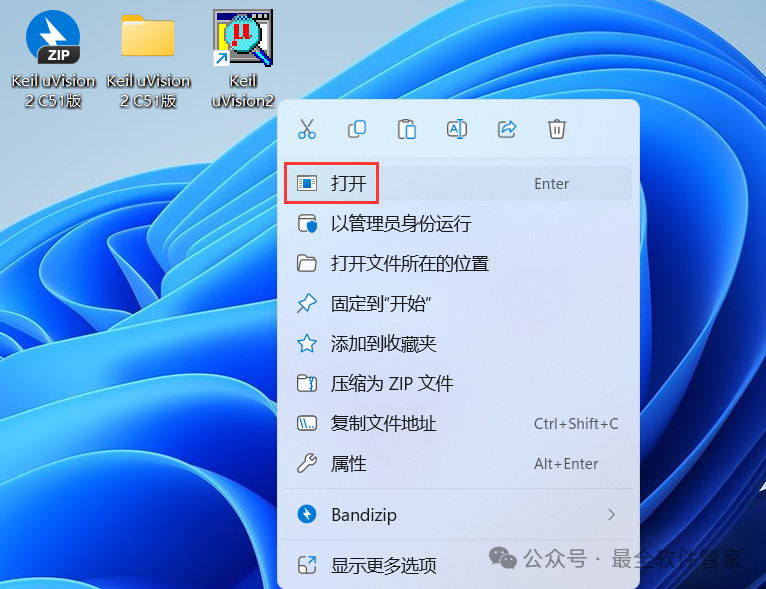
 19. Go back to the desktop, right-click the [Keil uVision2 software icon], and click [Open]
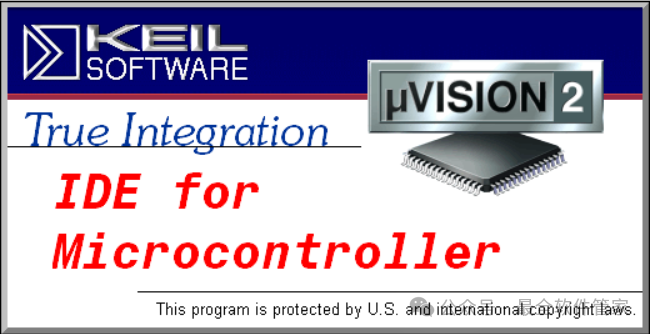
 20. The software is opening, the startup interface is as follows:
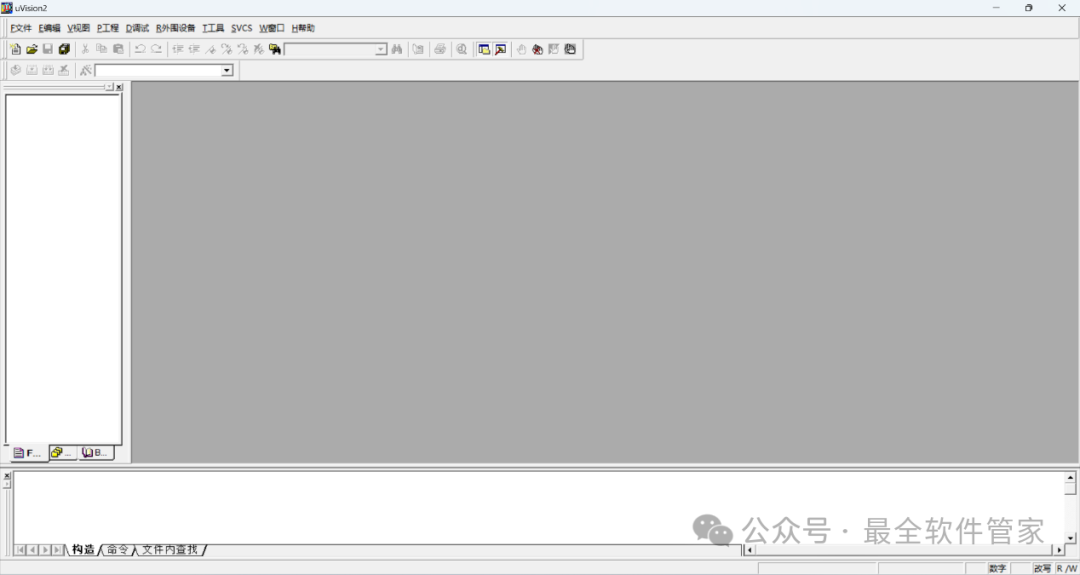
 21. The software opened successfully, the running interface is as follows:
 22. This is the entire process of installing the Keil uVision 2 C51 software. If it was helpful to you, please give the editor a thumbs up!Disclaimer: The software resources are sourced from the internet, intended for user exchange, learning, and research purposes only. Copyright belongs to the original copyright holder. Any copyright disputes are unrelated to this public account, and users are responsible for their own downloads, which should not be used for commercial or illegal purposes. If you access and download this file, you agree to use this software only for reference and learning, not for other purposes. Otherwise, you bear all consequences. Please delete it within 24 hours of downloading, and it is not allowed for commercial use. Otherwise, you will bear the legal consequences. If you like this software, please support the original software by purchasing a license to receive better services.