(Click the public account above to quickly follow)
Author: Dave Neary, Translation: Linux China/toyijiu
linux.cn/article-8711-1.html
If you have good articles to submit, please click → here for details
When you open a Shell terminal in a Linux environment, you will see a Bash prompt that looks something like this:
[user@$host ~]$
Did you know that the command line prompt can actually be customized to include a lot of useful information? In this article, I will teach you how to customize your own Bash command line prompt, so keep reading if you’re interested!
How to Set the Bash Prompt
The Bash prompt is set through the environment variable PS1 (Prompt String 1), which is used for the interactive shell prompt. Of course, if you need more input to complete a Bash command, the PS2 environment variable is used to set the multi-line prompt:
[dneary@dhcp–41–137 ~]$ export PS1=“[Linux Rulez]$ “
[Linux Rulez] export PS2=“… “
[Linux Rulez] if true; then
… echo “Success!”
… fi
Success!
Where to Set the Value of PS1?
PS1 is a regular environment variable, and the default value is set in /etc/bashrc. In my system, the default prompt is set by the following command:
[ “$PS1” = “\s-\v\$ ” ] && PS1=”[\u@\h \W]\$ “
It checks if PS1 is the system’s default value \s-\v$, and if so, sets the value to [\u@\h \W]\$ (Note: the command uses \ for escaping).
However, if you want to customize the prompt, you should not modify /etc/bashrc, but instead add your custom commands to the .bashrc file in your home directory.
What Do the Above Mentioned , , , , and Mean?
You can find descriptions of all special characters related to PS1 and PS2 in the PROMPTING section of man bash. Here are some commonly used ones:
-
\u: Username
-
\h: Short hostname
-
\W: The name of the current directory (basename), ~ represents your home directory
-
\s: Shell name (bash or sh, depending on what your shell is named)
-
\v: Shell version number
What Other Special Strings Can Be Used in the Prompt?
In addition to the above, there are many useful strings that can be used in the prompt:
-
\d: Expands the date to a format like “Tue Jun 27”
-
\D{fmt}: Allows custom date formats – more information can be found in man strftime
-
\D{%c}: Gets the localized date and time
-
\n: New line (see below for multi-line prompts)
-
\w: Displays the full path of the current working directory
-
\H: Full hostname of the current machine
In addition to these, you can find more special characters and their uses in the PROMPTING section of the Bash man page.
Multi-line Prompts
If your prompt is too long (for example, if you want to include \H, \w, or the full date and time), and you want to split the prompt into two lines, you can use \n to break the prompt into two lines. For example, the following multi-line example will display the date, time, and current working directory on the first line, and the username and hostname on the second line:
PS1=”\D{%c} \w\n[\u@\H]$ “
Can It Be More Fun?
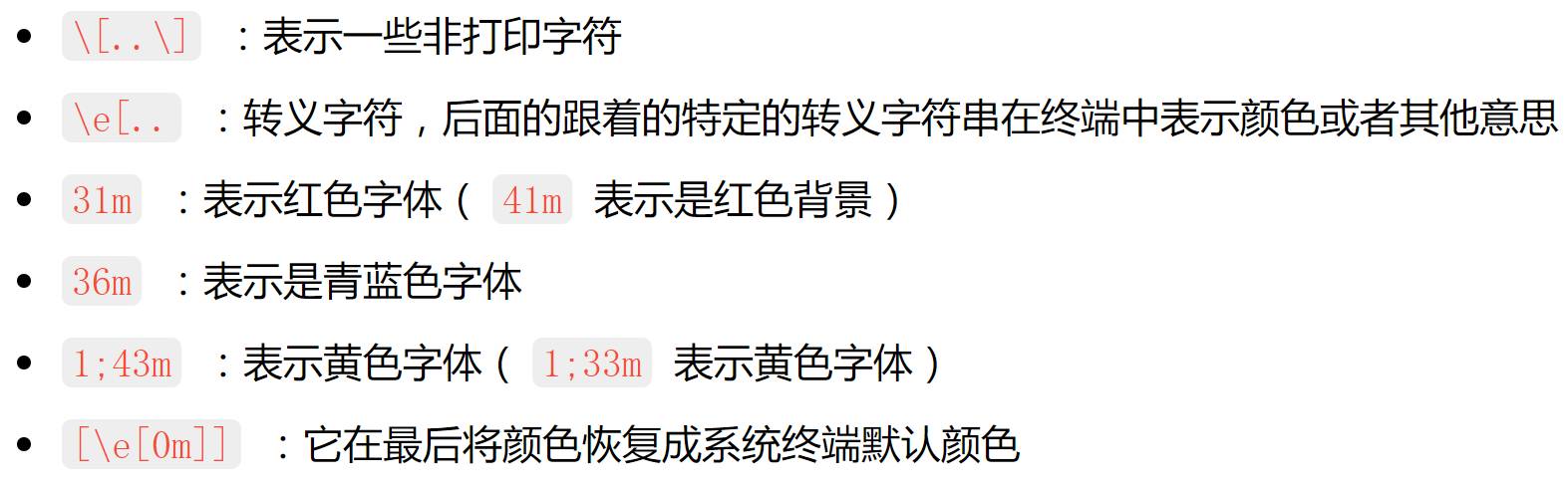
People sometimes want to make the prompt colorful. While I think a colorful prompt can be distracting and annoying, you might like it. If we want to make the date red, the directory cyan, and the username have a yellow background, you can do it like this:
PS1=”\[\e[31m\]\D{%c}\[\e[0m\]”
\[\e[36m\]\w\[\e[0m\]\n[\[\e[1;43m\]\u\[\e[0m\]@\H]$ “
So what does your favorite custom prompt look like? Do you have any custom prompts that drive you crazy? Please let me know in the comments!
Author Bio:
Dave Neary – Dave Neary is a member of the Red Hat Open Source and Standards team, which is crucial to the success of open source projects at Red Hat. Since submitting his first patch for GIMP in 1999, he has worn many different hats while navigating the world of open source.
Did you gain something from this article? Please share it with more people.
Follow ‘Linux Enthusiasts’ to enhance your Linux skills