🚫 Paid Plugin Users Please Skip
🎯 Free Users, Multi-language Warriors, and Unified IDE Faithful, Please Continue
💡 Want to experience the thrill of “learning multiple languages with one IDE”? This guide is your answer!
🙏 Hello everyone! Recently, I’ve been working hard on updating the “Four Language Synchronized Learning” tutorial, and the C/C++ series has been delayed (please be gentle 😅). Today, I specially bring you a practical guide aimed at those who prefer free solutions—
- Today, I will present a practical guide on configuring the C/C++ development environment using JetBrains IDE
<span>External Tools</span>. - This might be the most inconspicuous yet absolutely
<span>free and efficient</span>method, especially suitable for developers in a<span>multi-language learning environment</span>who do not want to frequently switch IDEs! - 🙏 Here comes the
<span>C/C++ External Tools</span>configuration you requested! - After the last
<span>Rust External Tools</span>configuration became popular, many have urged for the C/C++ version - → Complete Tutorial for Rust External Tools Configuration
Today, I will reveal my ultimate C/C++ minimalist development environment configuration!
✅ Why choose free external tool configuration?
- As
<span>Clion</span>has started charging, including the traditional JetBrains IDE plugins, the<span>C/C++ plugin</span>is facing many compatibility issues. I have encountered many pitfalls, and many developers have been forced to switch to<span>VSCode</span>. - But today, I want to tell everyone: there is a third way!
💻 Again, I declare
- Don’t say I’m a JetBrains fanboy! I also use VSCode, DevC++, and even Notepad
🎁 Suitable Audience:
-
✅ Multi-language learners (with low computer configuration and tight memory, do not want to open multiple IDEs)
-
✅ Budget-conscious individuals (if it can be free, I won’t spend money)
-
✅ Efficiency seekers (one tool to handle everything)
-
✅ C/C++ beginners (those who struggle with environment setup)
🔍 Limitations of External Tools (Honest Talk)
❌ Missing Intelligent Features
1. Syntax auto-completion        → Requires manual input
2. Type inference hints          → Requires checking documentation
3. Real-time error detection     → Only known after compilation
4. Code refactoring tools        → Requires manual modification
5. Intelligent import hints      → Requires remembering module paths
🎯 But it’s completely sufficient for daily learning! Plus, it helps you develop hardcore skills in coding with Notepad, making you a force to be reckoned with wherever you go!
Applicable Environment
-
Operating System: Windows 10/11 (my Win10 version is relatively low)
-
C/C++ Toolchain: GCC (version as shown in the screenshot) (this article will not elaborate, I recommend searching for installation tutorials on CSDN)
- GCC 15.1.0 – Latest stable version🏆
- MinGW-W64 – GCC port for Windows platform🥇
- x86_64 – 64-bit architecture🥈
- msvcrt-posix-seh – Runtime library and exception handling mechanism🥉
-
IDE: IntelliJ IDEA
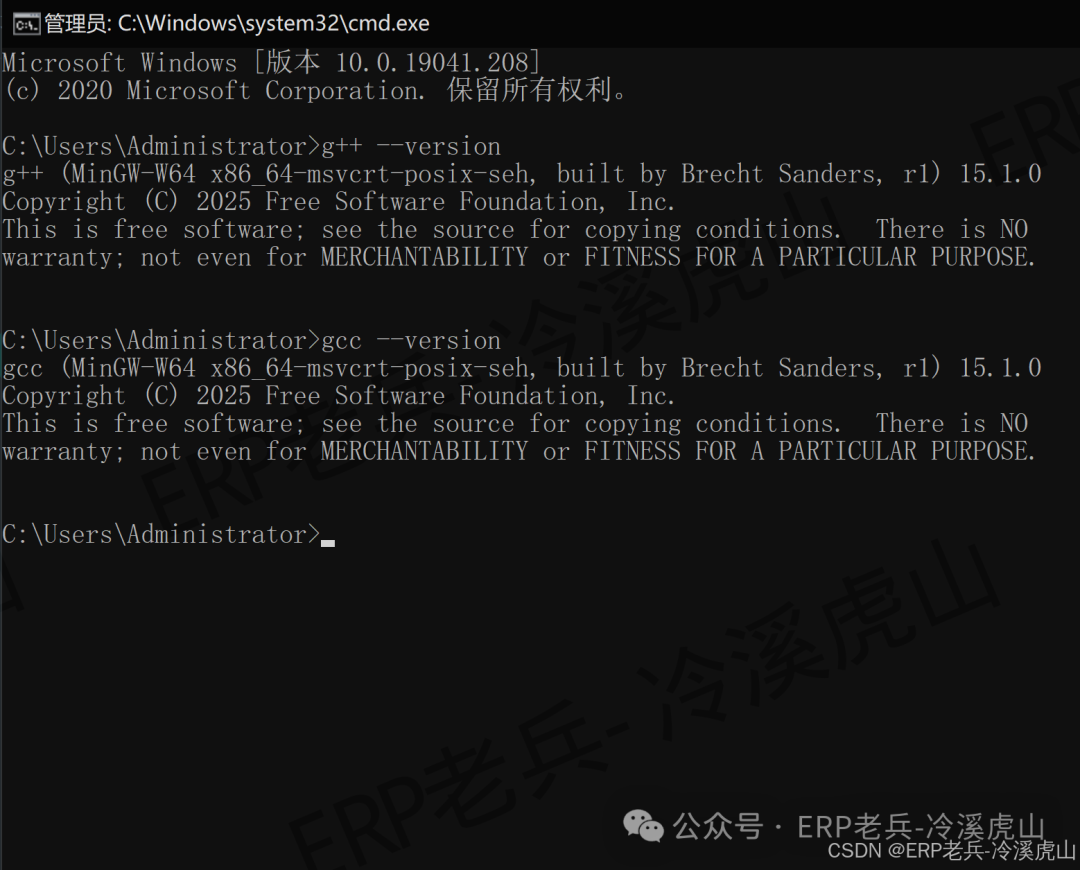
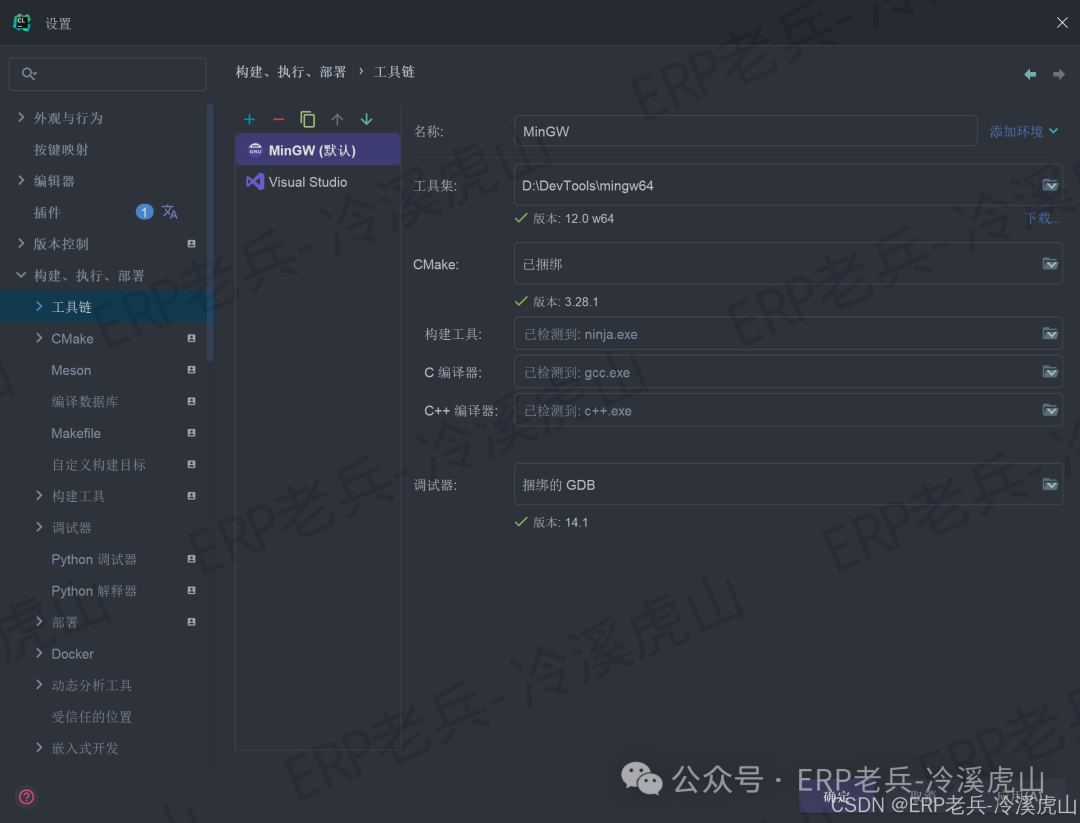
💐 Friendly Reminder: Since this is a step-by-step guide, you can copy and paste to use. There are many screenshots, so please be patient.
The following explanations will be expanded in IDEA (due to the numerous toolchains, this article focuses on GCC; you can explore other toolchains like Clang and MSVC on your own)
🌟 Expansion Notes
This article focuses on configuring the GCC toolchain because it is:
- 🚀 the best choice for beginners to learn
- 📚 the most resource-rich ecosystem
- 🔧 the most compatible cross-platform solution
If you are interested in other toolchains:
- Clang: More user-friendly error messages, suitable for in-depth debugging🥇
- MSVC: Native Windows development, integrated with the VS ecosystem🥈
- Other compilers: Each has its own features, feel free to explore🥉
Remember: Master one first, then explore multiple!
🛠️ C Language External Tool Configuration
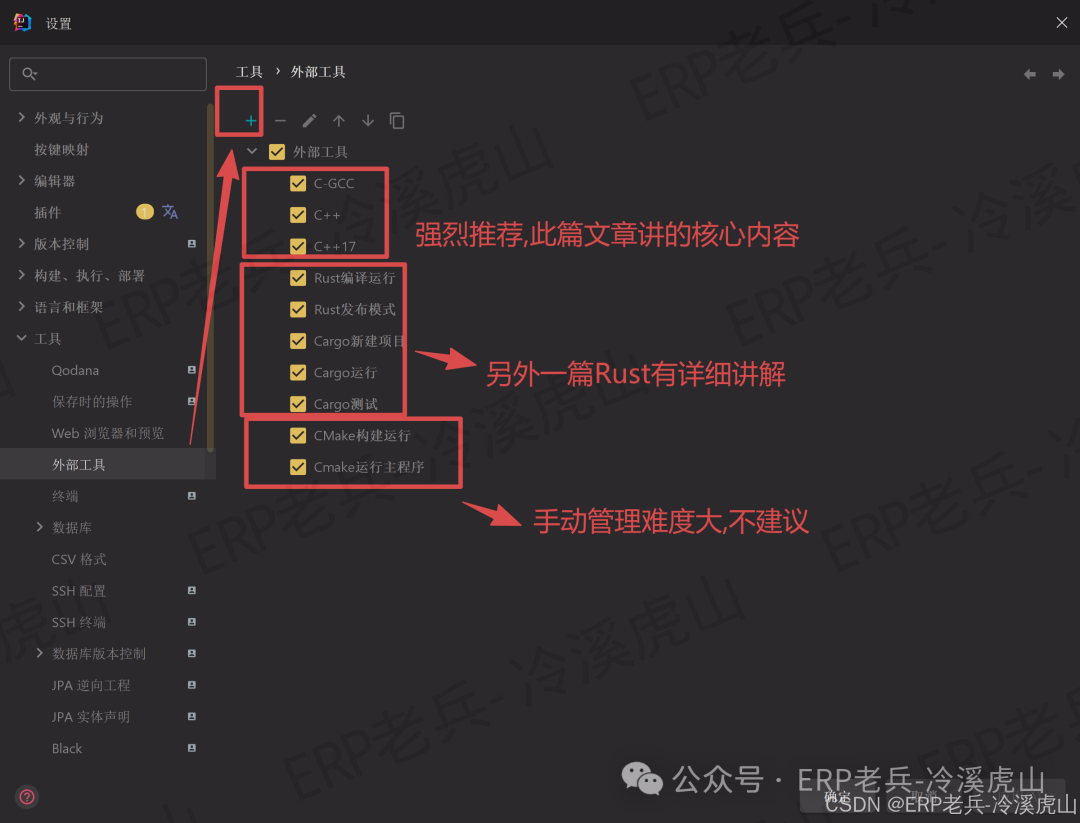
🏆 Single File Compilation and Execution
Option 1: GCC Compile and Run (Recommended, compatible with earlier versions, only one configuration needed)
Name: C Compile and Run
Program: cmd.exe
Parameters: /c "gcc "$FilePath$" -o "$FileDir$\$FileNameWithoutExtension$.exe" && "$FileDir$\$FileNameWithoutExtension$.exe""
Working Directory: $FileDir$
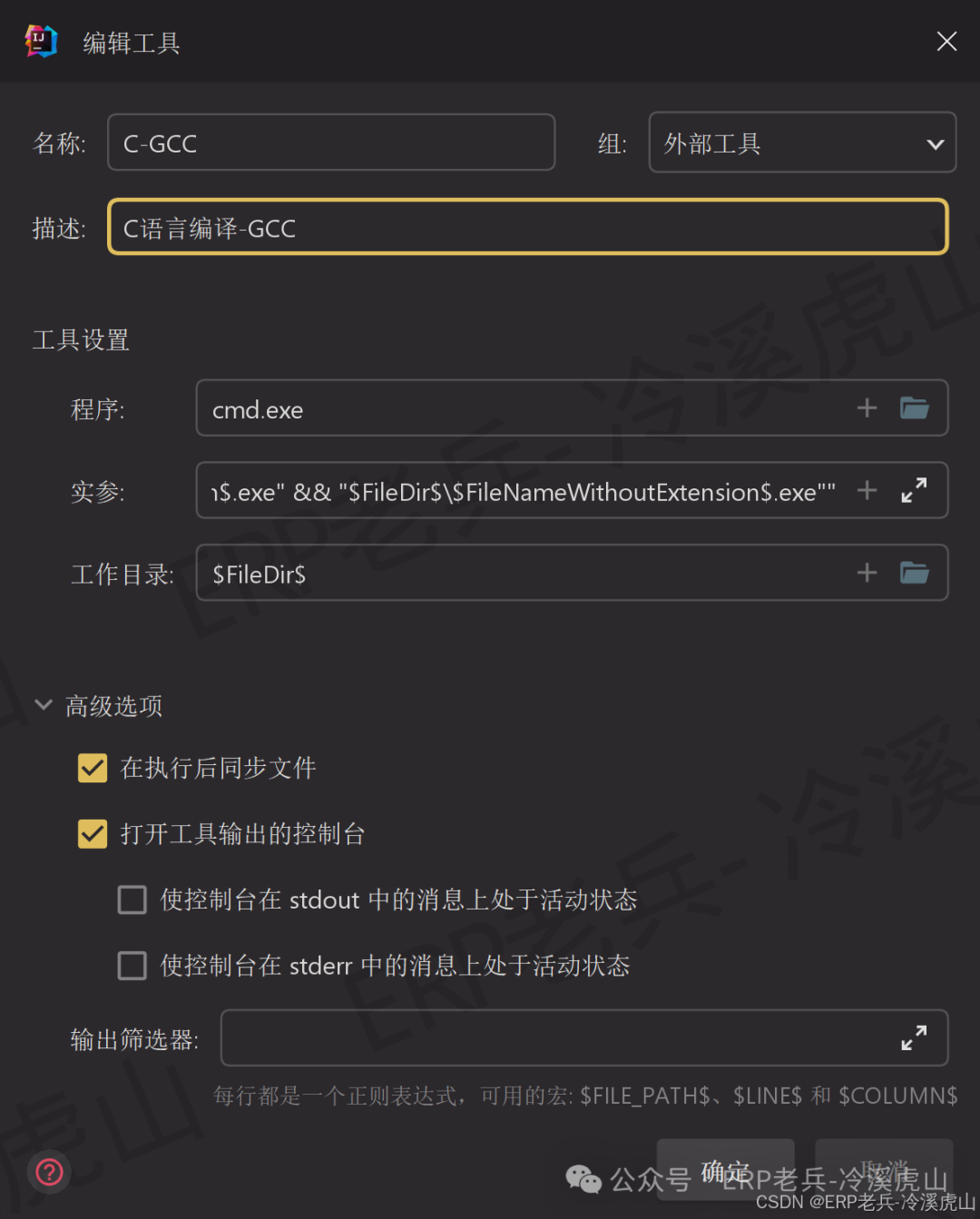
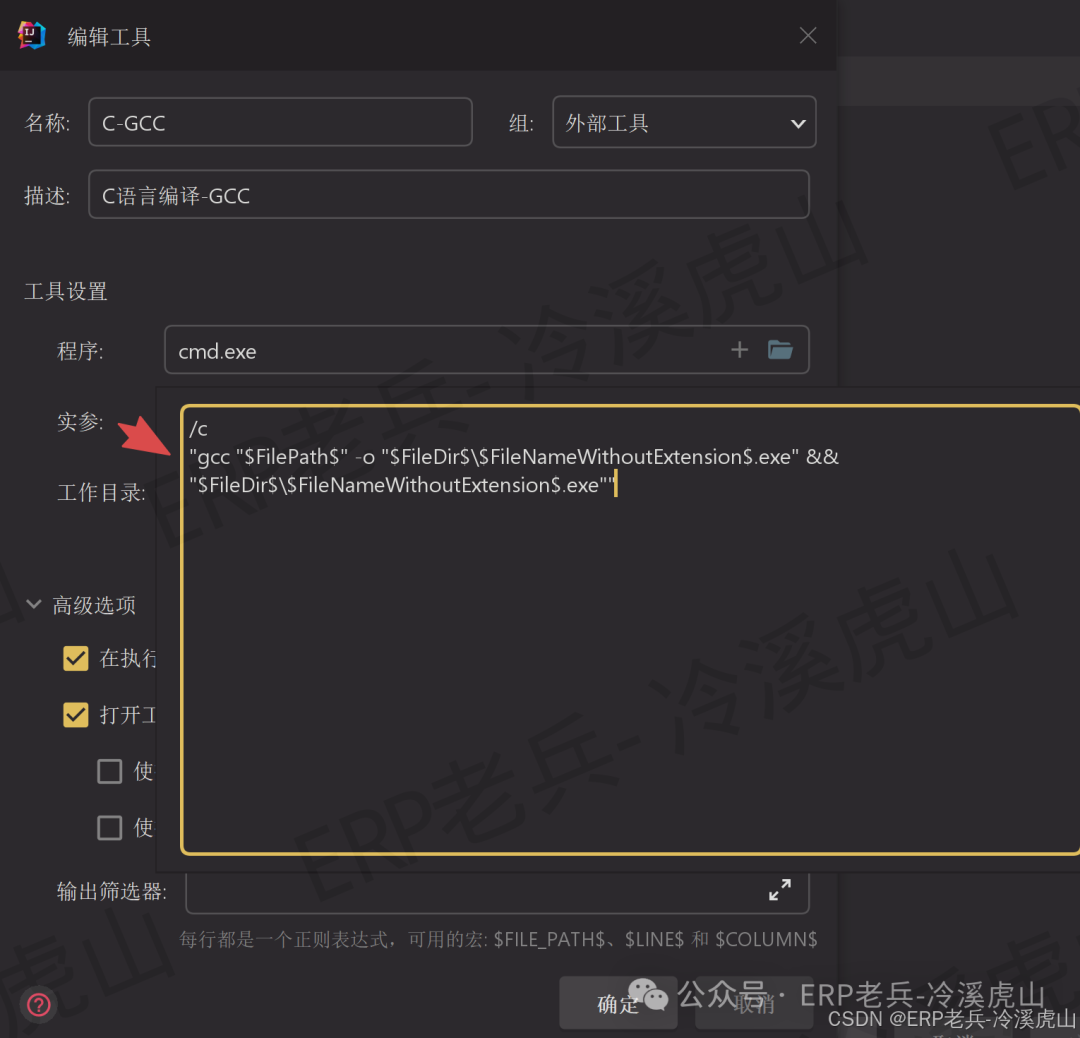
Enlarged screenshot of actual parameters, no separate screenshots will be provided below, please refer directly to the parameter text configuration in the code block ⏫
⚡ C++ External Tool Configuration
🏆 Single File Compilation and Execution (Version differences are significant, GCC default may not be the latest standard, it is recommended to set two parameters)
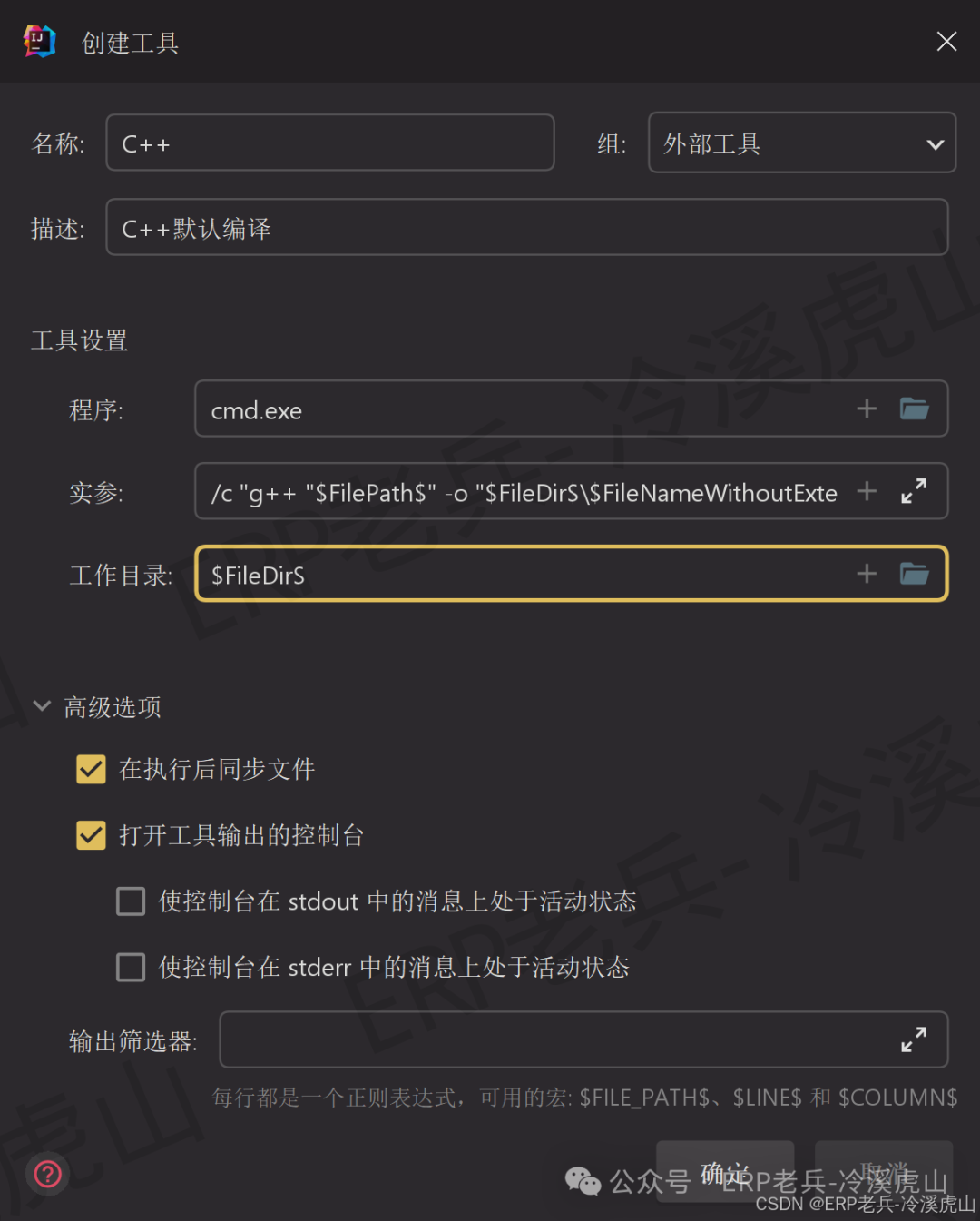
Option 1: Default G++ Compile and Run
Name: C++ Default Compile and Run
Program: cmd.exe
Parameters: /c "g++ "$FilePath$" -o "$FileDir$\$FileNameWithoutExtension$.exe" && "$FileDir$\$FileNameWithoutExtension$.exe""
Working Directory: $FileDir$
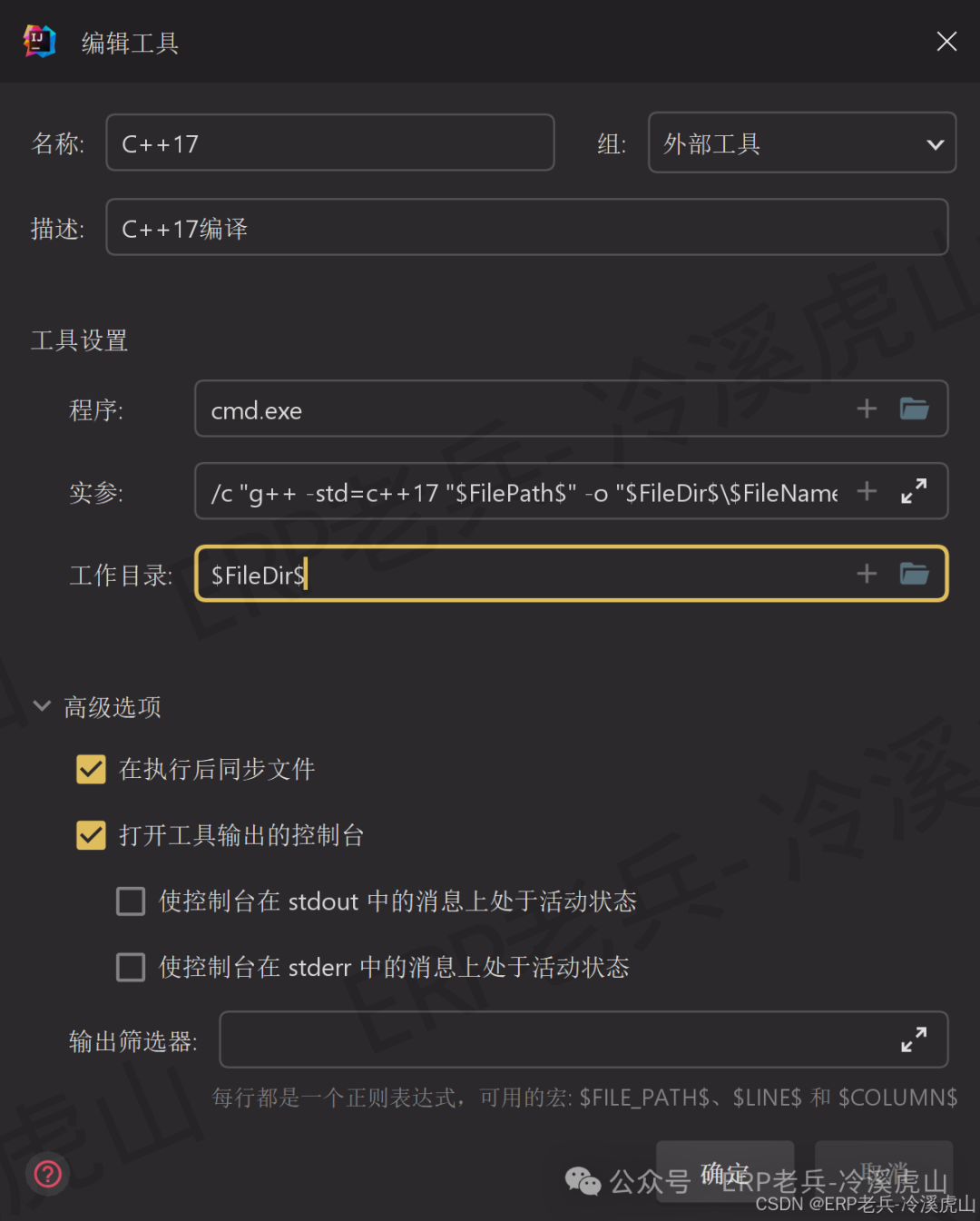
Option 2: C++17 Standard Compile
Name: C++17 Compile
Program: cmd.exe
Parameters: /c "g++ -std=c++17 "$FilePath$" -o "$FileDir$\$FileNameWithoutExtension$.exe" && "$FileDir$\$FileNameWithoutExtension$.exe""
Working Directory: $FileDir$
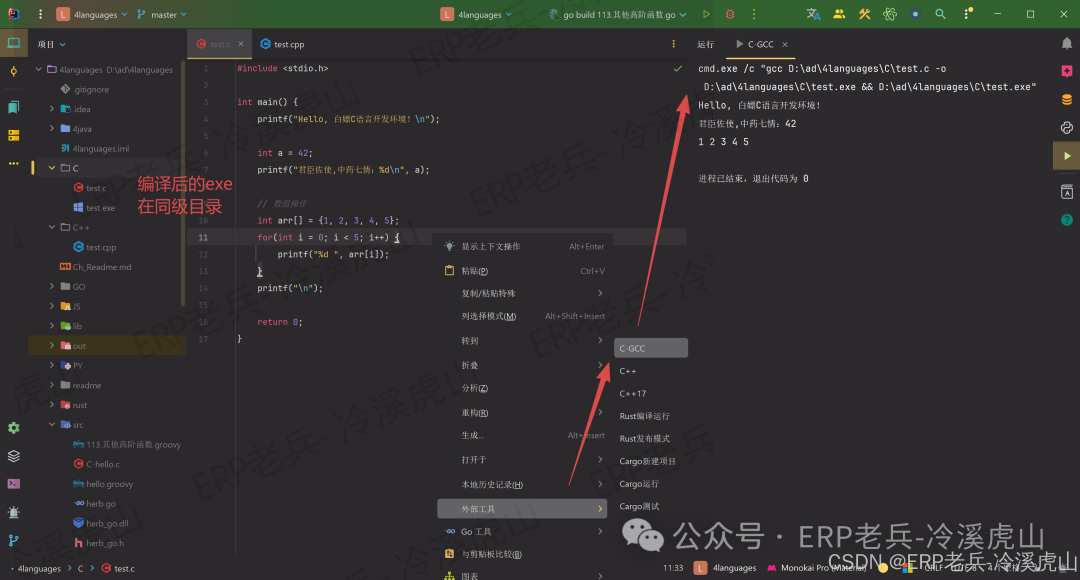
Next, I will demonstrate whether the direct compilation results are normal ⏬
C Language
#include <stdio.h>

int main() {
    printf("Hello, free C language development environment!\n");

    int a = 42;
    printf("君臣佐使,中药七情:%d\n", a);

    // Array operations
    int arr[] = {1, 2, 3, 4, 5};
    for(int i = 0; i < 5; i++) {
        printf("%d ", arr[i]);
    }
    printf("\n");

    return 0;
}
Create a new file test.c -> Copy the code into it -> Right-click External Tools -> C-GCC
C++
#include <iostream>
#include <vector>
#include <string>

using namespace std;

int main() {
    cout << "Hello, modern C++ free environment!" << endl;

    // C++11 feature test
    vector<string> languages = {"Python", "JavaScript", "Go", "Java", "C", "C++", "Rust"};

    for(const auto& lang : languages) {
        cout << "I am learning: " << lang << endl;
    }

    // Automatic type deduction
    auto answer = 42;
    cout << "The answer is still: " << answer << endl;

    return 0;
}
Create a new file test.cpp -> Copy the code into it -> Right-click External Tools -> C++
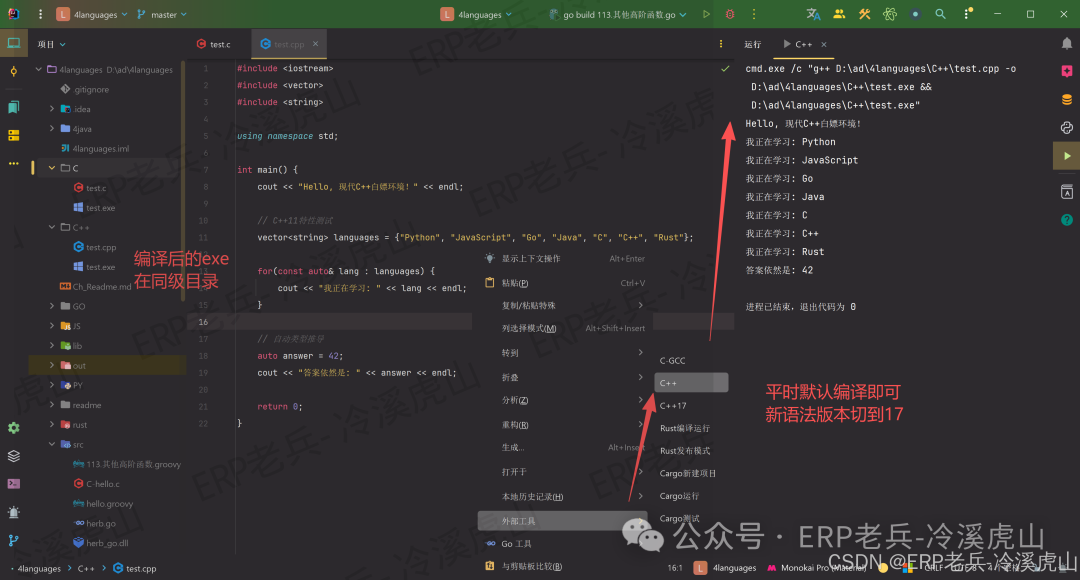
Usually, just compile with the default settings, switch to C++17 for new syntax versions, no separate screenshots will be provided ⏫
💡 Analysis of the Advantages of External Tool Configuration
✅ Core Advantages
-
Zero cost: No paid plugins required
-
Complete functionality: Fully supports C/C++ daily learning and standalone execution
-
Unified management: Perfectly integrates with existing toolchains
-
Multi-language friendly: Manage multiple programming languages within the same IDE
🎯 Applicable Scenarios
-
Multi-language learners
-
Budget-limited developers
-
Efficiency seekers who prefer a unified development environment
-
Scenarios requiring quick code snippet validation
💡 Next, the universality of macro commands
The macro commands used in this article (such as<span>$FilePath$</span> and <span>$FileDir$</span>) are fully universal across the JetBrains family:
- ✅ IntelliJ IDEA
- ✅ PyCharm
- ✅ WebStorm
- ✅ GoLand
- ✅ CLion
- ✅ RustRover
Other IDEs may have similar features, but the syntax may vary slightly.
📋 Complete List of External Tool Macro Parameters
🔧 Basic File Path Macros
| Macro Variable | Function | Example |
|---|---|---|
<span>$FilePath$</span> |
Get the full file path | <span>D:\project\src\main.c</span> |
<span>$FileDir$</span> |
Get the directory of the file | <span>D:\project\src</span> |
<span>$FileName$</span> |
Get the file name with extension | <span>main.c</span> |
<span>$FileNameWithoutExtension$</span> |
Get the file name without extension | <span>main</span> |
<span>$Prompt$</span> |
Pop up a user input dialog | Input project name |
⚙️ Detailed Explanation of Compiler Parameters
| Parameter | Function | Applicable Language |
|---|---|---|
<span>gcc</span> |
C language compiler | C |
<span>g++</span> |
C++ compiler | C++ |
<span>clang</span> |
LLVM C compiler | C |
<span>clang++</span> |
LLVM C++ compiler | C++ |
<span>rustc</span> |
Rust compiler | Rust |
🎯 Detailed Explanation of Compilation Optimization Parameters
| Parameter | Function | Recommended Scenario |
|---|---|---|
<span>-O0</span> |
No optimization (default) | Debugging phase |
<span>-O1</span> |
Basic optimization | Balance between debugging and performance |
<span>-O2</span> |
Standard optimization | Release version |
<span>-O3</span> |
Aggressive optimization | High performance requirements |
<span>-Os</span> |
Optimize for code size | Embedded development |
<span>-g</span> |
Generate debugging information | GDB debugging |
🚀 C++ Standard Selection Parameters
| Parameter | Standard Version | Feature Support |
|---|---|---|
<span>-std=c++11</span> |
C++11 | auto, lambda, smart pointers |
<span>-std=c++14</span> |
C++14 | Generic lambda, binary literals |
<span>-std=c++17</span> |
C++17 | Structured bindings, inline variables |
<span>-std=c++20</span> |
C++20 | Concepts, ranges, coroutines |
💡 CTO of Tiger Mountain’s Recommendation: For new projects, it is recommended to start with C++17, which has modern features and good compatibility!
⚡ Warning Control Parameters
| Parameter | Function | Strictness Level |
|---|---|---|
<span>-Wall</span> |
Enable all common warnings | Recommended |
<span>-Wextra</span> |
Additional warning information | Relatively strict |
<span>-Werror</span> |
Treat warnings as errors | Very strict |
<span>-w</span> |
Disable all warnings | Not recommended |
💡 CTO of Tiger Mountain’s Maxim: Strictly managing warnings is like training soldiers,
<span>-Wall -Wextra</span><span> for daily practice, </span><code><span>-Werror</span><span> for release quality control!</span>
🔗 System Link Parameters
| Parameter | Function | Usage Scenario |
|---|---|---|
<span>-pthread</span> |
Link thread library | Multi-threaded programs |
<span>-lm</span> |
Link math library | Mathematical operations |
<span>-lstdc++</span> |
Link C++ standard library | C++ programs |
<span>-static</span> |
Static linking | Standalone executable files |
💡 CTO of Tiger Mountain’s Insight: Linking is like weaving a net; choosing the right library files is essential for creating a stable program!
🛠️ External Tool Command Parameters
| Parameter Component | Function | Example |
|---|---|---|
<span>/c</span> |
Terminate after executing the command | <span>cmd.exe /c "gcc main.c"</span> |
<span>/k</span> |
Keep the window after executing the command | <span>cmd.exe /k "gcc main.c"</span> |
<span>&&</span> |
Execute the next command if the previous command succeeds | <span>Compile && Run</span> |
<span>||</span> |
Execute the next command if the previous command fails | <span>Compile || Show Error</span> |
💡 CTO of Tiger Mountain’s Tips:
<span>/c</span><span> is suitable for automation scripts, </span><code><span>/k</span><span> is suitable for debugging observation, </span><code><span>&&</span><span> is for build pipelines!</span>
📁 Directory Operation Macros (Advanced)
| Macro Variable | Function | Example |
|---|---|---|
<span>$ModuleFileDir$</span> |
Module file directory | Project root directory |
<span>$ProjectFileDir$</span> |
Project file directory | Solution directory |
<span>$ContentRoot$</span> |
Content root directory | Workspace directory |
💡 CTO of Tiger Mountain’s Insights: Directory macros are the compass for project navigation; precise positioning is essential for efficient development!
🎨 Output Redirection Parameters
| Parameter | Function | Usage Example |
|---|---|---|
<span>> output.txt</span> |
Redirect output to file | <span>program.exe > output.txt</span> |
<span>2> error.txt</span> |
Redirect error output | <span>program.exe 2> error.txt</span> |
<span>&> log.txt</span> |
Redirect all output | <span>program.exe &> log.txt</span> |
💡 CTO of Tiger Mountain’s Practical Advice: Redirection is a debugging tool; separating standard output and error output is key!
🔧 Cross-Platform Compilation Parameters
| Parameter | Function | Target Platform |
|---|---|---|
<span>-m32</span> |
Compile 32-bit program | Windows/Linux 32-bit |
<span>-m64</span> |
Compile 64-bit program | Windows/Linux 64-bit |
<span>-mwindows</span> |
Hide console window | Windows GUI program |
💡 CTO of Tiger Mountain’s Guide: Be clear about the target platform; 32-bit has good compatibility, 64-bit has better performance, and GUI programs should hide the console!
🌈 Next, here is the Clion parameter table (details can be found in the following article which provides a detailed comparison of parameters and a guide to avoid pitfalls)
CLion tuning experts are using this configuration! Sequel: After GoLand ascended, the secrets of C/C++ development IDE performance explosion
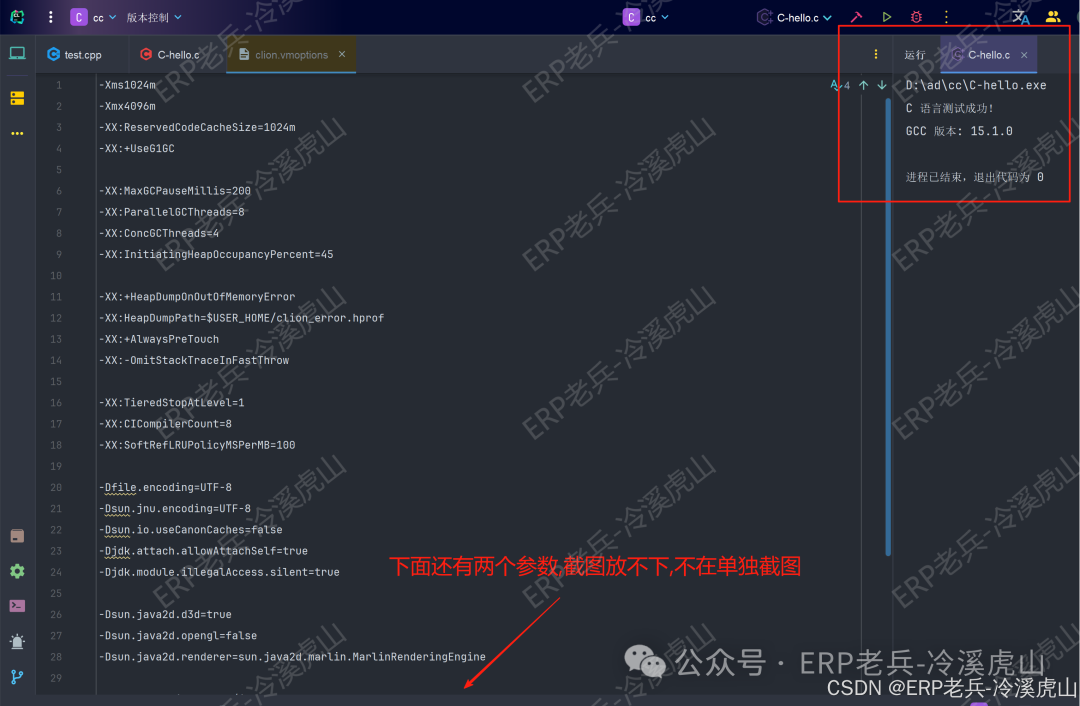
Here are my parameters for clion.vmoptions:
-Xms1024m
-Xmx4096m
-XX:ReservedCodeCacheSize=1024m
-XX:+UseG1GC

-XX:MaxGCPauseMillis=200
-XX:ParallelGCThreads=8
-XX:ConcGCThreads=4
-XX:InitiatingHeapOccupancyPercent=45

-XX:+HeapDumpOnOutOfMemoryError
-XX:HeapDumpPath=$USER_HOME/clion_error.hprof
-XX:+AlwaysPreTouch
-XX:-OmitStackTraceInFastThrow

-XX:TieredStopAtLevel=1
-XX:CICompilerCount=8
-XX:SoftRefLRUPolicyMSPerMB=100

-Dfile.encoding=UTF-8
-Dsun.jnu.encoding=UTF-8
-Dsun.io.useCanonCaches=false
-Djdk.attach.allowAttachSelf=true
-Djdk.module.illegalAccess.silent=true

-Dsun.java2d.d3d=true
-Dsun.java2d.opengl=false
-Dsun.java2d.renderer=sun.java2d.marlin.MarlinRenderingEngine

--add-opens=java.base/java.lang=ALL-UNNAMED
--add-opens=java.base/sun.nio.fs=ALL-UNNAMED
–This line should be your magic, normally it shouldn't be there
⚖️ CMake vs Cargo Design Differences
Advantages of Cargo:
- Automatically recognizes binary targets
- Unified build commands
- Intelligent dependency management
Features of CMake:
- Explicit configuration, high flexibility
- Suitable for complex project structures
- External tools require manual specification of each target, which is very cumbersome
💔 Honest Situation: The Hardships of CMake + External Tools
-
Configuration is cumbersome, lacking dynamic awareness: the parameters of external tools are static and hard-coded.
-
For every new
<span>add_executable(new_app …)</span><span> target added in </span><code><span>CMakeLists.txt</span><span>, a new external tool configuration must be manually created, and the IDE cannot automatically detect and list all runnable targets.</span> -
This is far less smooth than
<span>Clion</span><span>'s native support.</span> -
Directory management is a dilemma: if files are placed in the same directory,
<span>main</span><span> function conflicts will cause errors;</span> -
If split into subdirectories, it requires maintaining independent
<span>CMakeLists.txt</span><span> for each folder, which significantly increases management costs.</span>
😱 The experience for beginners is not friendly: external tools are strongly bound to CMake targets, essentially equivalent to “writing code once, configuring the environment once.” Creating a new program requires reconfiguring everything, making the learning curve very steep.
🎯 Conclusion:
- For serious
<span>CMake</span><span> projects, if conditions allow, we recommend using Clion or VSCode + CMake plugin, as their out-of-the-box experience is several magnitudes better.</span> - The external tool
<span> solution in this tutorial is positioned as the </span><code><span>Swiss Army Knife</span>of the programming world—lightweight, free, and ready to use, suitable for quickly validating ideas…