In this section of the Qt5 C++ beginner’s tutorial, we will discuss events and signals.
Events are a crucial component of any graphical user interface (GUI) program. All GUI applications are event-driven. An application responds to different types of events generated during its lifecycle. Events are primarily generated by the application’s users. However, they can also be generated in other ways, such as through internet connections, window managers, or timers. In the event model, there are three participants:
- Event Source
- Event Object
- Event Target
The event source is the object whose state changes. It generates events. The event object encapsulates the state change from the event source.
The event target is the object that wishes to be notified. The event source delegates the task of handling the event to the event target.
When we call the application’s exec method, the application enters the main loop. The main loop retrieves events and sends them to objects. Qt has a unique signal and slot mechanism. This signal and slot mechanism is an extension of the C++ programming language.
Signals and slots are used for communication between objects. When a specific event occurs, a signal is emitted. A slot is a regular C++ method; when the connected signal is emitted, the slot is called.
Signals and slots(signal and slot) are used for communication between objects. When a specific event occurs, a signal(signal) is emitted. A slot is a regular C++ method; when the connected signal is emitted, the slot is called.
- Qt5 Click Example The first example demonstrates a very simple event handling example. We have a button. By clicking this button, we will terminate the application.
click.h
#pragma once

#include<QWidget>

class Click : public QWidget {

public:
    Click(QWidget *parent = nullptr);
};
click.cpp
#include<QPushButton>
#include<QApplication>
#include<QHBoxLayout>
#include"click.h"

Click::Click(QWidget *parent)
    : QWidget(parent) {

auto *hbox = new QHBoxLayout(this);
  hbox->setSpacing(5);

auto *quitBtn = new QPushButton("Quit", this);
  hbox->addWidget(quitBtn, 0, Qt::AlignLeft | Qt::AlignTop);

  connect(quitBtn, &QPushButton::clicked, qApp, &QApplication::quit);
}
We display a QPushButton on the window.
connect(quitBtn, &QPushButton::clicked, qApp, &QApplication::quit);The connect method connects a signal to a slot. When we click the “Quit” button, the clicked signal is generated. qApp is a global pointer to the application object, defined in the <QApplication> header file. When the clicked signal is emitted, the quit method is called.
main.cpp
#include<QApplication>
#include"click.h"

int main(int argc, char *argv[]){

QApplication app(argc, argv);

  Click window;

  window.resize(250, 150);
  window.setWindowTitle("Click");
  window.show();

return app.exec();
}
Key Press Events in Qt5
- Qt5 Key Press Event In the following example, we will respond to key operations.
keypress.h
#pragma once

#include <QWidget>

class KeyPress : public QWidget {

public:
KeyPress(QWidget *parent = 0);

protected:
    void keyPressEvent(QKeyEvent * e);
};
This is the keypress.h header file.
keypress.cpp
#include<QApplication>
#include<QKeyEvent>
#include"keypress.h"

KeyPress::KeyPress(QWidget *parent)
    : QWidget(parent)
{ }

void KeyPress::keyPressEvent(QKeyEvent *event) {

if (event->key() == Qt::Key_Escape) {
       qApp->quit();
   }
}
When we press the Esc key, the application will terminate.
void KeyPress::keyPressEvent(QKeyEvent *e) {

if (e->key() == Qt::Key_Escape) {
qApp->quit();
   }
}
One way to handle events in Qt5 is to reimplement the event handler. QKeyEvent is an event object that contains relevant information about the event that occurred. In our example, we use this event object to determine which key was actually pressed.
main.cpp
#include<QApplication>
#include"keypress.h"

int main(int argc, char *argv[]){

QApplication app(argc, argv);

  KeyPress window;

  window.resize(250, 150);
  window.setWindowTitle("Key press");
  window.show();

return app.exec();
}
This is the main file.
- QMoveEvent The QMoveEvent class contains the event parameters for move events. Move events are sent to the moved widget.
move.h
#pragma once

#include<QMainWindow>

class Move : public QWidget {

  Q_OBJECT

public:
    Move(QWidget *parent = 0);

protected:
void moveEvent(QMoveEvent *e);
};
This is the move.h header file.
move.cpp
#include<QMoveEvent>
#include"move.h"

Move::Move(QWidget *parent)
    : QWidget(parent)
{ }

void Move::moveEvent(QMoveEvent *e) {

int x = e->pos().x();
int y = e->pos().y();

  QString text = QString::number(x) + "," + QString::number(y);

  setWindowTitle(text);
}
In our code example, we respond to move events. We determine the current x, y coordinates of the top-left corner of the window’s client area and set these values as the window’s title.
int x = e->pos().x();
int y = e->pos().y();
We use the QMoveEvent object to determine the x, y values.
QString text = QString::number(x) + "," + QString::number(y);We convert the integer values to a string.
setWindowTitle(text);The setWindowTitle method sets the text as the window’s title.
main.cpp
#include<QApplication>
#include"move.h"

int main(int argc, char *argv[]){

QApplication app(argc, argv);

  Move window;

  window.resize(250, 150);
  window.setWindowTitle("Move");
  window.show();

return app.exec();
}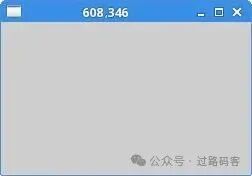
QMoveEvent Event
- Disconnecting Signal Connections You can disconnect signals from slots. The next example shows how we implement this.
disconnect.h
#pragma once

#include<QWidget>
#include<QPushButton>

class Disconnect : public QWidget {

  Q_OBJECT

public:
    Disconnect(QWidget *parent = 0);

private slots:
void onClick();
void onCheck(int);

private:
    QPushButton *clickBtn;
};
In the header file, we declare two slots. Slots are not a C++ keyword; they are an extension of Qt5. These extensions are processed by the preprocessor before the code is compiled. When we use signals and slots in a class, we must provide the Q_OBJECT macro at the beginning of the class definition; otherwise, the preprocessor will throw an error.
disconnect.cpp
#include<QTextStream>
#include<QCheckBox>
#include<QHBoxLayout>
#include"disconnect.h"

Disconnect::Disconnect(QWidget *parent)
    : QWidget(parent) {

  QHBoxLayout *hbox = new QHBoxLayout(this);
  hbox->setSpacing(5);

  clickBtn = new QPushButton("Click", this);
  hbox->addWidget(clickBtn, 0, Qt::AlignLeft | Qt::AlignTop);

  QCheckBox *cb = new QCheckBox("Connect", this);
  cb->setCheckState(Qt::Checked);
  hbox->addWidget(cb, 0, Qt::AlignLeft | Qt::AlignTop);

  connect(clickBtn, &QPushButton::clicked, this, &Disconnect::onClick);
  connect(cb, &QCheckBox::stateChanged, this, &Disconnect::onCheck);
}

void Disconnect::onClick() {

QTextStream out(stdout);
  out << "Button clicked" << endl;
}

void Disconnect::onCheck(int state) {

if (state == Qt::Checked) {
    connect(clickBtn, &QPushButton::clicked, this, &Disconnect::onClick);
  } else {
    disconnect(clickBtn, &QPushButton::clicked, this,
        &Disconnect::onClick);
  }
}
In our example, we have a button and a checkbox. The checkbox is used to connect and disconnect the button’s clicked signal from the slot. This example must be executed from the command line.
connect(clickBtn, &QPushButton::clicked, this, &Disconnect::onClick);
connect(cb, &QCheckBox::stateChanged, this, &Disconnect::onCheck);
Here, we connect the signal to our custom slot.
void Disconnect::onClick() {

QTextStream out(stdout);
  out << "Button clicked" << endl;
}
If we click the “Click” button, the text “Button clicked” will be sent to the terminal window.
void Disconnect::onCheck(int state) {

if (state == Qt::Checked) {
connect(clickBtn, &QPushButton::clicked, this, &Disconnect::onClick);
  } else {
disconnect(clickBtn, &QPushButton::clicked, this, &Disconnect::onClick);
  }
}
In the onCheck slot, we connect or disconnect the onClick slot from the “Click” button’s signal based on the received state.
main.cpp
#include<QApplication>
#include"disconnect.h"

int main(int argc, char *argv[]){

QApplication app(argc, argv);

  Disconnect window;

  window.resize(250, 150);
  window.setWindowTitle("Disconnect");
  window.show();

return app.exec();
}- Timers Timers are used to implement tasks that execute once or repeatedly. A good example of using a timer is a clock; we need to update a label displaying the current time every second.
timer.h
#pragma once

#include <QWidget>
#include <QLabel>

class Timer : public QWidget {

public:
Timer(QWidget *parent = 0);

protected:
    void timerEvent(QTimerEvent *e);

private:
    QLabel *label;
};
timer.cpp
#include "timer.h"
#include <QHBoxLayout>
#include <QTime>

Timer::Timer(QWidget *parent)
    : QWidget(parent) {

  QHBoxLayout *hbox = new QHBoxLayout(this);
  hbox->setSpacing(5);

  label = new QLabel("", this);
  hbox->addWidget(label, 0, Qt::AlignLeft | Qt::AlignTop);

  QTime qtime = QTime::currentTime();
  QString stime = qtime.toString();
  label->setText(stime);

  startTimer(1000);
}

void Timer::timerEvent(QTimerEvent *e) {

  Q_UNUSED(e);

  QTime qtime = QTime::currentTime();
  QString stime = qtime.toString();
  label->setText(stime);
}
In our example, we display the current local time on the window.
label = new QLabel("", this);To display the time, we used a label widget.
QTime qtime = QTime::currentTime();
QString stime = qtime.toString();
label->setText(stime);
Here, we determine the current local time and set it to the label widget.
startTimer(1000);We start the timer. A timer event will be generated every 1000 milliseconds.
void Timer::timerEvent(QTimerEvent *e) {

  Q_UNUSED(e);

  QTime qtime = QTime::currentTime();
  QString stime = qtime.toString();
  label->setText(stime);
}
To handle timer events, we must reimplement the timerEvent method.
main.cpp
#include<QApplication>
#include"timer.h"

int main(int argc, char *argv[]){

QApplication app(argc, argv);

  Timer window;

  window.resize(250, 150);
  window.setWindowTitle("Timer");
  window.show();

return app.exec();
}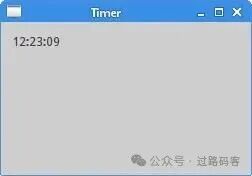
Timer Events