As a long-time digital enthusiast dealing with digital devices and NAS, I often carry two or three mobile phones with me. Every day, I have to switch between my computer, phone, and tablet to log into WeChat. The most frustrating part is that the same WeChat account cannot be logged in on multiple devices simultaneously, leading to fragmented chat records and often missing key information. It becomes even more troublesome when I need to log into a contact’s WeChat to send materials while visiting government offices for business, as scanning someone else’s QR code in public is both awkward and inconvenient.
Until I discovered that deploying wechat-selkies using Jikongjian Docker allows for long-term login to the web version of WeChat, not only solving these pain points but also unexpectedly unlocking the ability to run multiple instances!
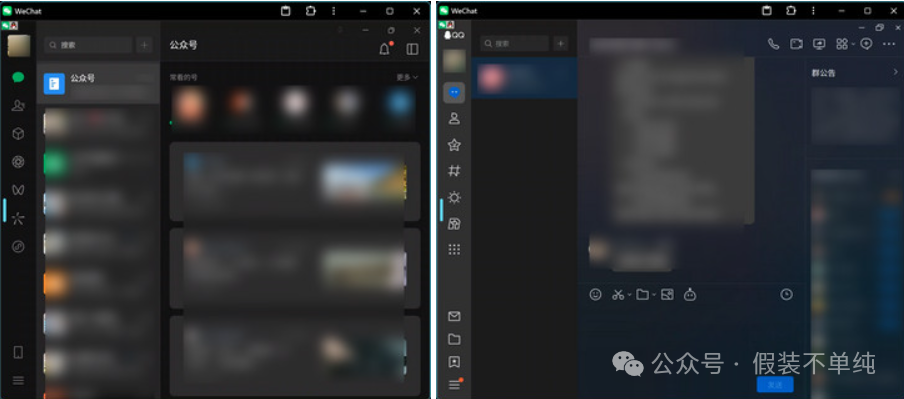
Project Overview
This project is a WeChat/QQ Linux client based on Docker, utilizing Selkies WebRTC technology to provide browser access support, encapsulating the official WeChat/QQ Linux client within a Docker container, allowing direct use of WeChat/QQ in the browser without needing to install the WeChat/QQ client locally. It is suitable for server deployment, remote work, and other scenarios.
Project address: https://github.com/nickrunning/wechat-selkies If possible, please give the author a star to show your support.Project Advantages
-
Seamless Multi-Device Integration: Computers, tablets, and even smart TVs can log in as long as they can open a browser and enter the access address of Jikongjian without repeated QR code verification.
-
More Efficient File Management: Received files are directly saved to the Jikongjian hard drive, eliminating the need to manually save them to the computer, allowing for easy organization and backup without worrying about excessive WeChat data.
-
Enhanced Privacy Security: Using the official Linux version deployed in your own Jikongjian, data only exists on the local hard drive, avoiding privacy risks associated with third-party platform storage, making sensitive work messages more secure.
Installing the Compose Container
-
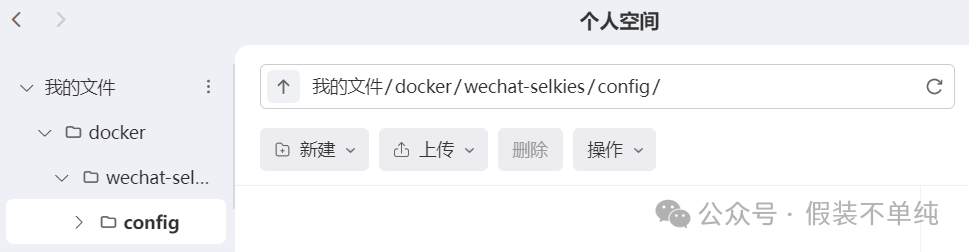
Create a Data Storage Directory: Before installation, create a folder named wechat-selkies in the docker folder, and then create a “config” folder under the wechat-selkies folder for configuration and chat record persistence.
-
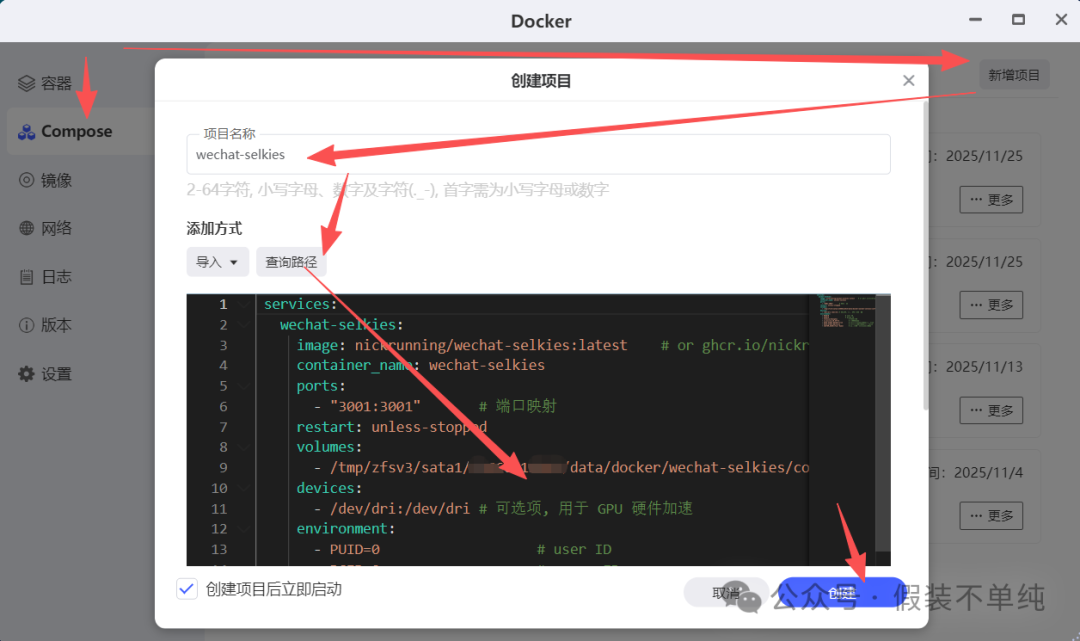
Configure the Compose Code: In the Docker interface, click on [compose] on the left, then [Add Project] on the right. You can fill in any name for [Project Name] that is recognizable, and copy and paste the code below into the code box, making sure to modify the storage path configuration. (If you’re worried about formatting errors, you can also let AI modify it).
services: wechat-selkies: image: nickrunning/wechat-selkies:latest # or ghcr.io/nickrunning/wechat-selkies:latest container_name: wechat-selkies ports: - "3003:3001" # Port mapping restart: unless-stopped volumes: - ./config:/config # Jikongjian needs to change to an absolute path for configuration and chat record storage devices: - /dev/dri:/dev/dri # Optional, for GPU hardware acceleration environment: - PUID=1000 # user ID - PGID=100 # group ID - TZ=Asia/Shanghai # Time zone setting - LC_ALL=zh_CN.UTF-8 # Set default language - AUTO_START_WECHAT=true # Automatically start WeChat, default is true - AUTO_START_QQ=false # Automatically start QQ, default is false - CUSTOM_USER=<Your Name> # It is recommended to set a custom username - PASSWORD=<Your Password> # It is recommended to set a password for Selkies Web UIModification Instructions:
Data Storage Path: Replace “./config” with the actual path. If it is Jikongjian, you need to check the absolute path. There is a [Check Path] button above the compose code paste area. Click it, select your folder, and copy the address from the bottom right corner to paste into the path above;
Host Port: Any port that is not occupied is fine. My 3001 was occupied, so I changed it to 3003.
Account Password: It is recommended to set one, as it involves the privacy of chat records.
-
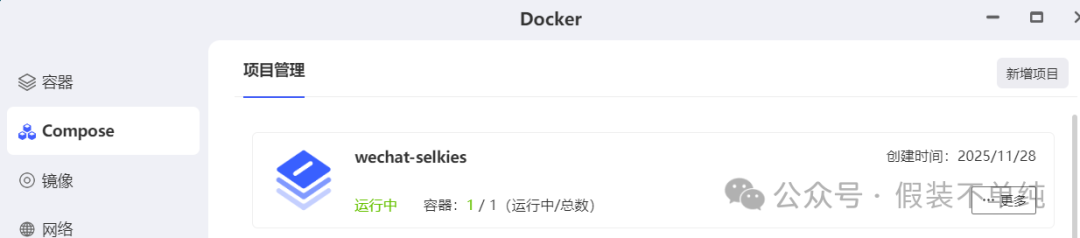
Creation Complete: Click create, and if it shows that the project is [Running], the installation is complete.
Running the Project
-
Enter “https://nas’s ip:3003/“, to access the wechat-selkies project homepage. If you have set an account password, you will need to enter it here to log in, and then the QR code login window will appear;
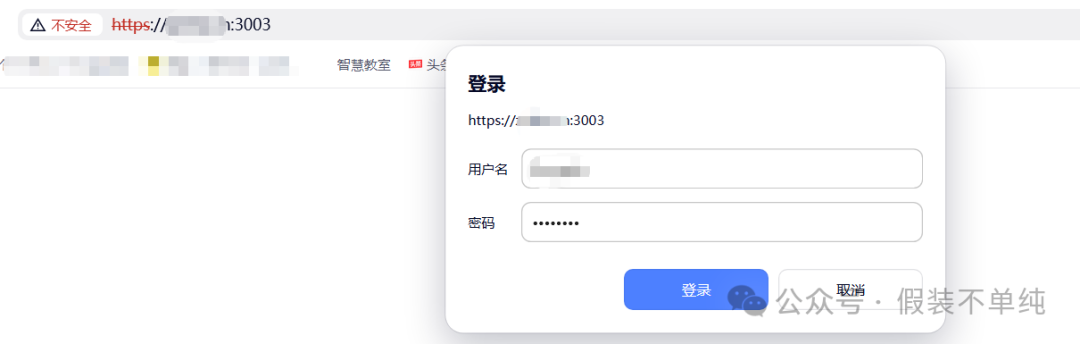
If no password is set, the QR code login window will appear directly.
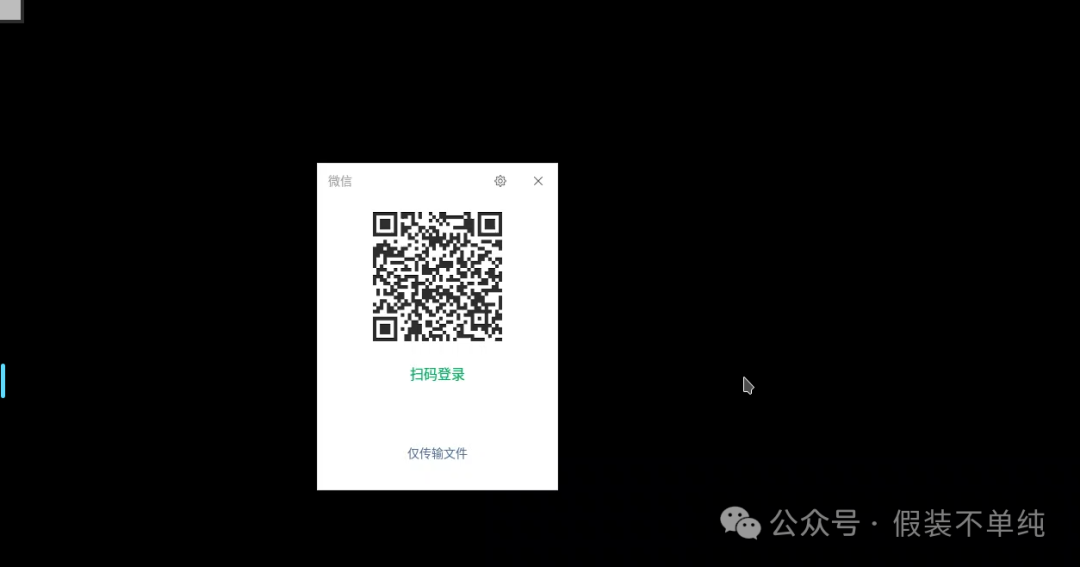
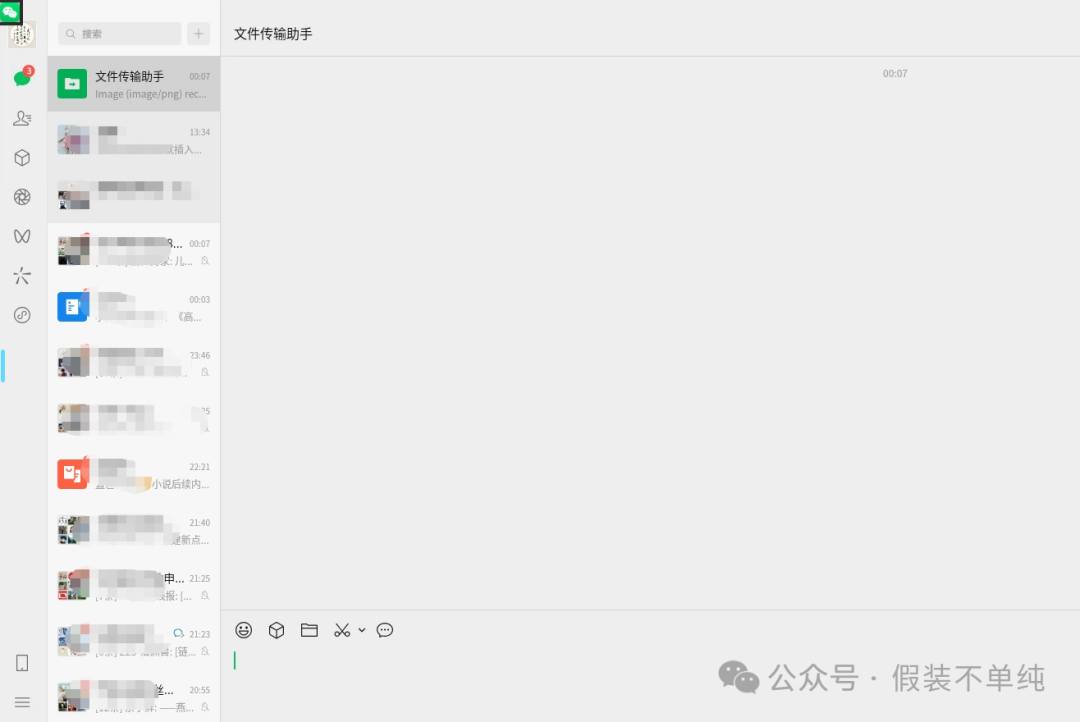
After logging in, since this is a client packaged image, according to Tencent’s rule of only allowing one phone + one tablet + one computer to be logged in simultaneously, my WeChat client on the computer will be automatically logged out.
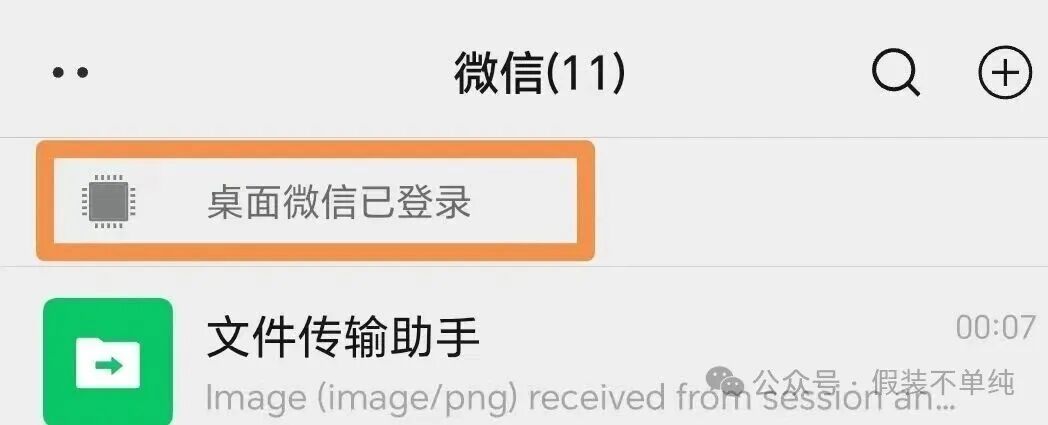
At this point, the phone shows that the desktop client is logging in.
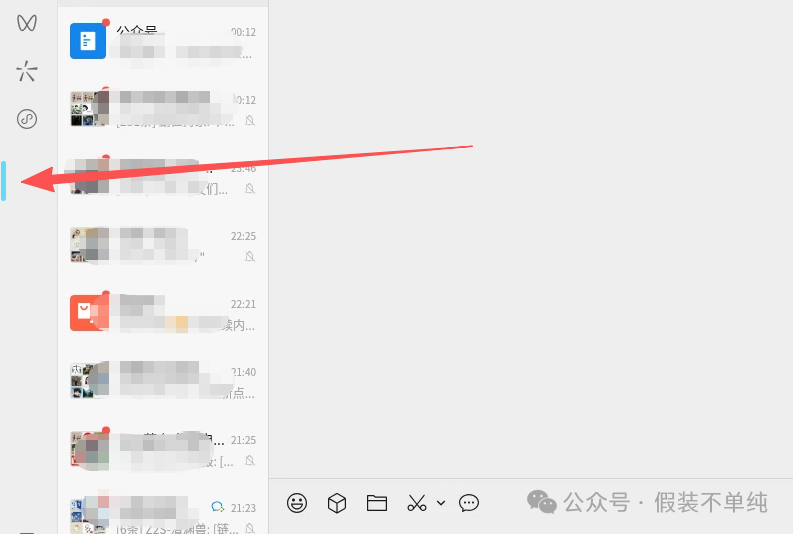
We can click on this blue hidden sidebar to configure Docker.
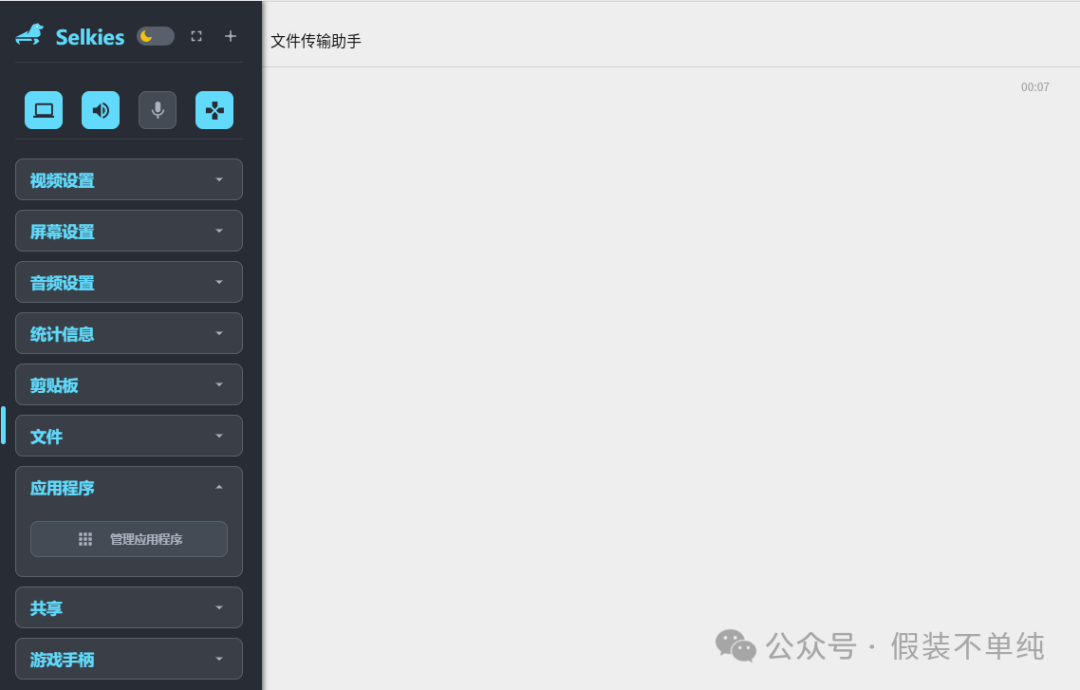
This includes video settings, screen settings, audio settings, clipboard, and file (upload, download).
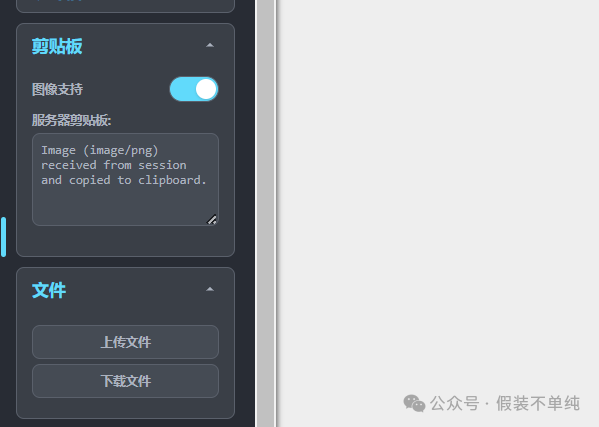
Among them, the most important are clipboard and file upload/download. Since this Docker runs inside the NAS, all data uploads and downloads from the NAS to the local must go through here, which is the only inconvenient part.
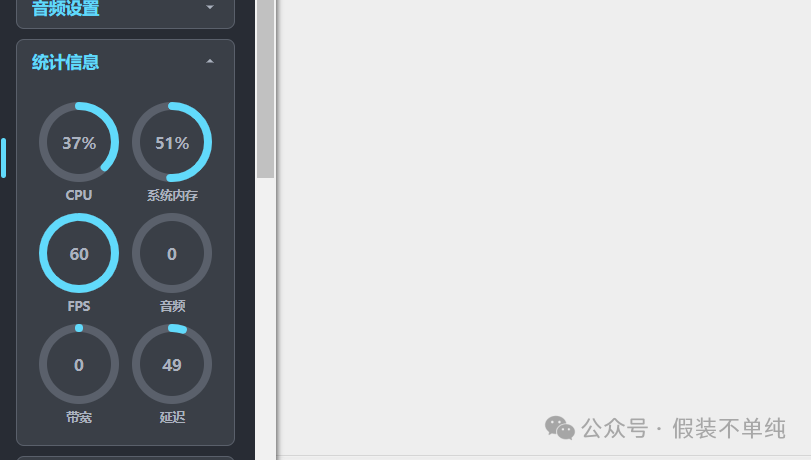
After checking the system memory and CPU usage, I found it consumes quite a bit of memory. I have 16GB of RAM, and the CPU is an N95, which is not weak, but the usage is still a bit high.
Conclusion
Using Docker to deploy wechat-selkies takes less than 10 minutes. I unexpectedly discovered that if I want to run multiple instances of WeChat, I can simply create another Docker container. If I want to run several, I just create several Docker containers, as long as my computer can handle it.
In summary, this tool is extremely easy to operate and can solve multiple pain points such as multi-device login, making it suitable for those who frequently switch between locations and devices for work. However, there are still some inconveniences, such as file sharing, making it a love-hate relationship.