1. Experiment Objectives
(1) Understand the basic principles of the MQTT protocol
(2) Master the use of MQTT clients
2. Experiment Environment
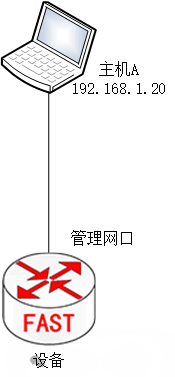
Required equipment for the experiment:
(1) One device
(2) One PC host
(3) One network cable (Connect Host A to the device management network port)
3. Experiment Configuration
(1) Operating System: Host A runs Windows.
(2) Software Configuration: The main software required on Host A includes: vncviewer, MobaXterm.
(3) Network Configuration:
Host A’s network configuration information is as follows:
|
IP |
192.168.1.20 |
|
Netmask |
255.255.255.0 |
|
Gateway |
192.168.1.1 |
To ensure the smooth execution of each experiment case, please strictly follow this document for network configuration of each host.
4. Experiment Principles
1. Basic Concepts
Publisher
The publisher is the source of the message, responsible for generating and sending messages. In an IoT environment, publishers can be various smart devices, such as temperature sensors, humidity sensors, cameras, etc., which periodically or on-demand detect environmental parameters and publish this data as messages. Additionally, specific modules in mobile applications or enterprise software systems can also act as publishers, sending business data or command messages to the MQTT server.
Subscriber
The subscriber is the recipient of the messages, responsible for receiving and processing messages forwarded from the MQTT server. Subscribers can be data storage systems that collect and store sensor data from different devices for subsequent data analysis and mining. At the same time, subscribers can also be other applications or services that trigger corresponding business logic or perform specific operations based on the received messages. For example, in a smart home system, an air conditioning control application can act as a subscriber, automatically adjusting the indoor temperature based on received temperature data.
Topic
A topic is a label used in the MQTT protocol to classify and filter messages. It is a hierarchical string structure, typically using slashes (/) to separate different levels. By specifying a topic for a message, the publisher can conveniently categorize and publish messages to specific topics, while subscribers can receive corresponding messages by subscribing to topics of interest. For example, in a smart home scenario, “home/living_room/temperature” can be a topic representing the temperature data of the living room. Through this method, the MQTT protocol achieves flexible distribution and efficient processing of messages.
2. Workflow
Connection Establishment
In the MQTT protocol, clients (including publishers and subscribers) first need to establish a connection with the MQTT server. This connection is typically based on the TCP/IP protocol to ensure the reliability and order of message transmission. During the connection establishment process, the client sends a connection request to the server, which includes the client identifier (Client ID), connection options (such as whether to enable clean session, heartbeat interval, etc.), and authentication information (such as username and password). After receiving the connection request, the server verifies the request based on configuration and security policies. If the verification passes, the server establishes a persistent connection with the client and allocates the corresponding resources.
Subscribe to Topic
After establishing a connection with the server, the subscriber sends a subscription request to the server, specifying the topics of interest and subscription options (such as Quality of Service (QoS) level). The QoS level determines the reliability and guarantee of message delivery, with three levels available:
QoS 0: At most once delivery. In this mode, there is no guarantee that the message will be received by the recipient after sending. It is suitable for scenarios where message loss is not critical, such as some non-critical environmental monitoring data.
QoS 1: At least once delivery. The server ensures that the message is received by the recipient at least once. If the message is not acknowledged after sending, the server will continuously resend the message until acknowledgment is received. This mode is suitable for scenarios with high integrity requirements for messages, such as device status update messages.
QoS 2: Exactly once delivery. This is the highest level of service quality guarantee, ensuring that the message is received by the recipient exactly once. This guarantee is achieved through a series of complex handshake processes, suitable for scenarios with extremely high accuracy requirements for messages, such as financial transaction messages.
For example, a weather forecast application wanting to receive temperature data would subscribe to the “weather/temperature” topic and specify a QoS level of 1 to ensure that no important temperature update messages are missed.
Publish Message
After establishing a connection with the server, the publisher can start publishing messages. Messages consist of two parts: the topic and the message content. The topic is used to specify the category or type of the message, while the message content is the actual data or instructions. The publisher sends the message to the server, which forwards the message to all subscribers subscribed to that topic.
For example, an air quality monitoring device publishing data would set the topic to “environment/air_quality”, and the message content might include concentration data for PM2.5, PM10, sulfur dioxide, etc. When the server receives this message, it will look for all subscribers subscribed to the “environment/air_quality” topic and forward the message to them based on the QoS level.
Message Delivery and Disconnection
During message delivery, the server processes messages based on the QoS level and the status of the subscribers. For QoS 0 messages, the server directly forwards them to subscribers without guaranteeing delivery and acknowledgment. For QoS 1 and QoS 2 messages, the server ensures that the message is received by the recipient at least once (QoS 1) or exactly once (QoS 2). If a subscriber is offline or unable to receive messages, the server will save the messages based on configuration until the subscriber comes back online to send them.
When a client (publisher or subscriber) completes its message transmission tasks, it can send a disconnection request to the server to end the session normally. After receiving the disconnection request, the server will clean up resources related to that client and release the connection. Before disconnecting, the client can also choose whether to retain the session state (i.e., clean session option). If the session state is retained, the client can restore previous subscription relationships and unacknowledged messages when reconnecting; if the session state is not retained, the client will need to resubscribe to topics and receive new messages upon reconnection.
5. Experiment Steps
The following operation steps log in to the device via SSH, or remote login can also be done through VLC.
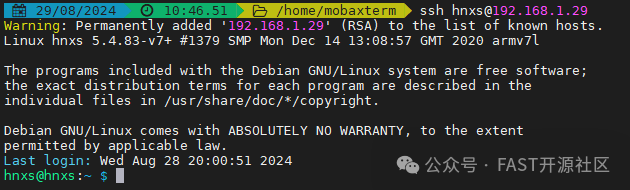
(1) Log in to the device via SSH, enter the username and password to access the system.
|
Username: hnxs Password: 123123 |
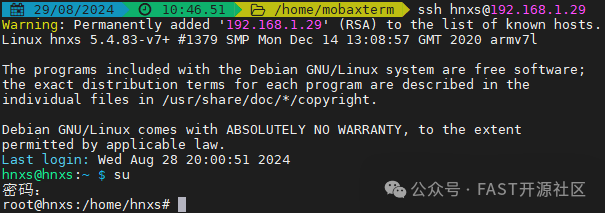
(2) Switch the current user to the root user, root user password is “123123”.
|
su |
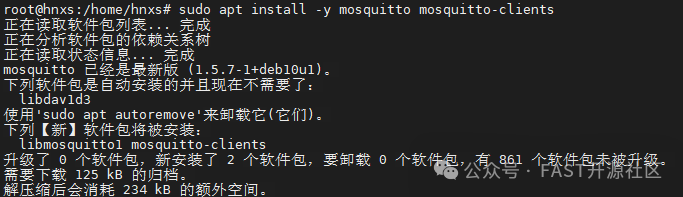
(3) Install the MQTT server software using the “apt-get” command
|
Note: apt-get install -y software_name Install the software package using the apt install command |
|
apt-get install -y mosquitto mosquitto-clients |
(4) Add a mosquitto service user, set username and password
|
mosquitto_passwd -c /etc/mosquitto/passwd test |

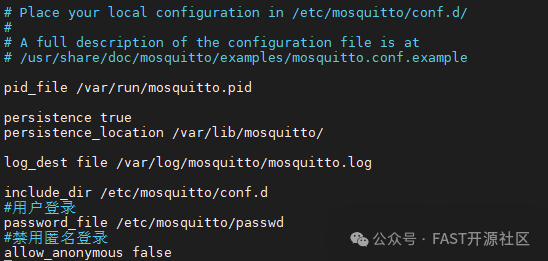
(5) Edit the MQTT server configuration file, set login issues and log information, etc.
|
nano /etc/mosquitto/mosquitto.conf |
(6) Disable anonymous login and enable user login
|
# User Login password_file /etc/mosquitto/passwd # Disable Anonymous Login allow_anonymous false |
(7) Restart the mosquitto service
|
systemctl restart mosquitto |
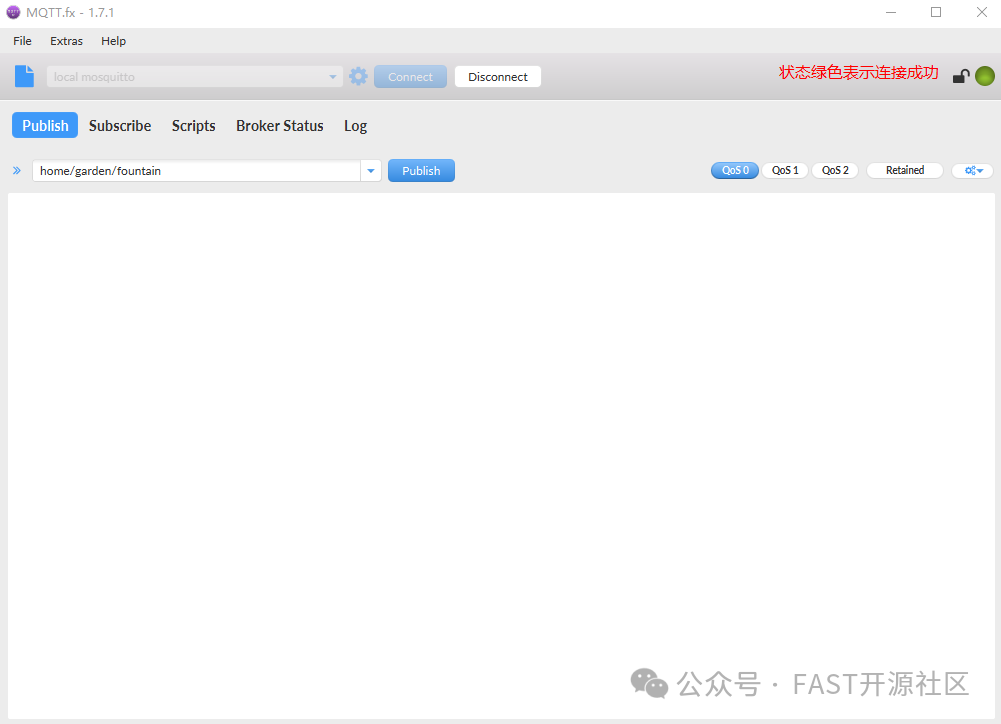
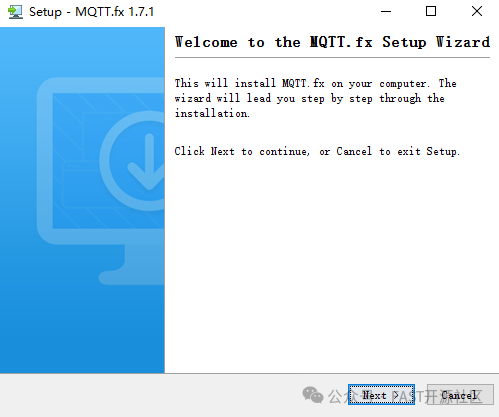
(8) Install the MQTT client program on the host, open the mqttfx-1.7.1-windows-x64.exe installation package
(9) The installation is simple with no configuration requirements, click next to install until successful.
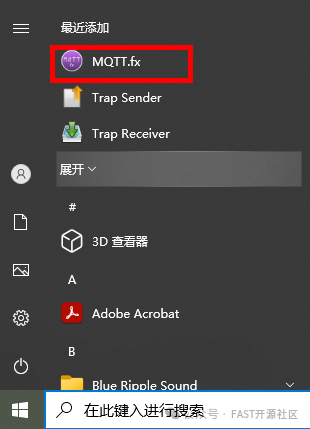
(10) Press the Windows key or find the MQTT.fx program on the desktop, open the MQTT.fx program
(11) Enter the MQTT.fx program interface
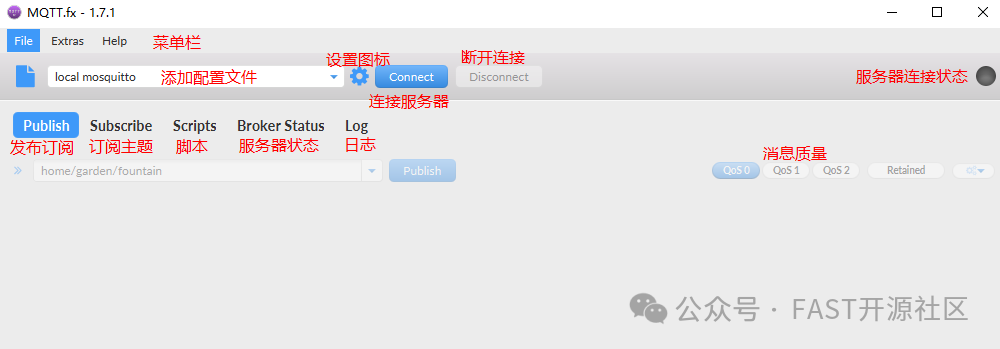
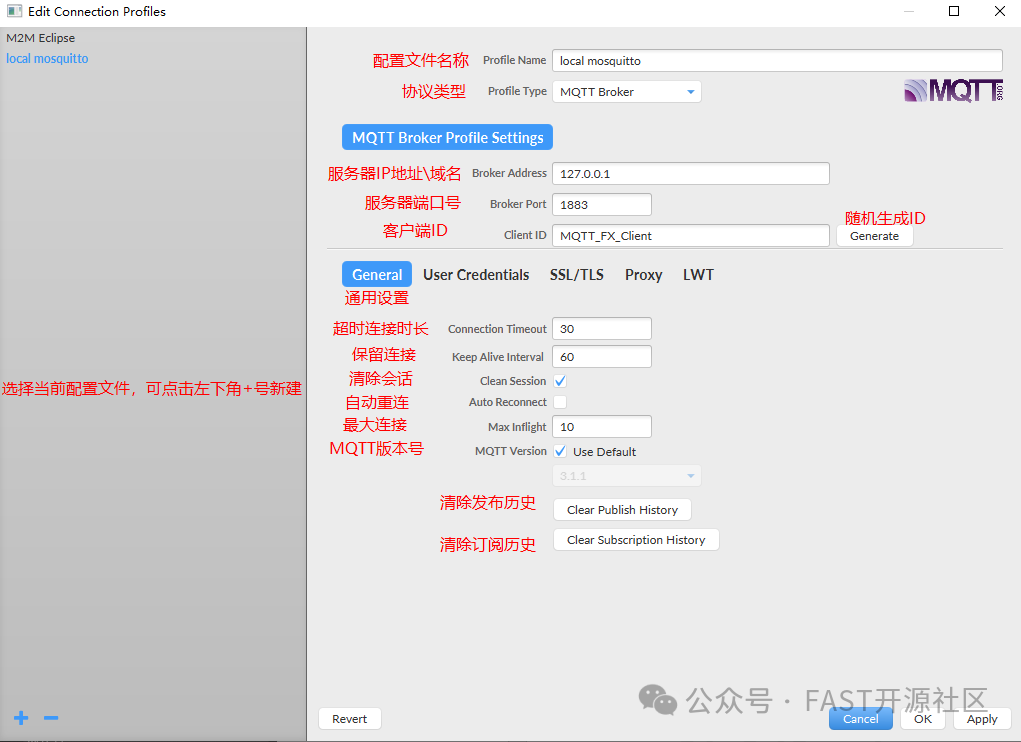
(12) Click the settings icon to enter the configuration file, modify the server IP address to the device IP address.
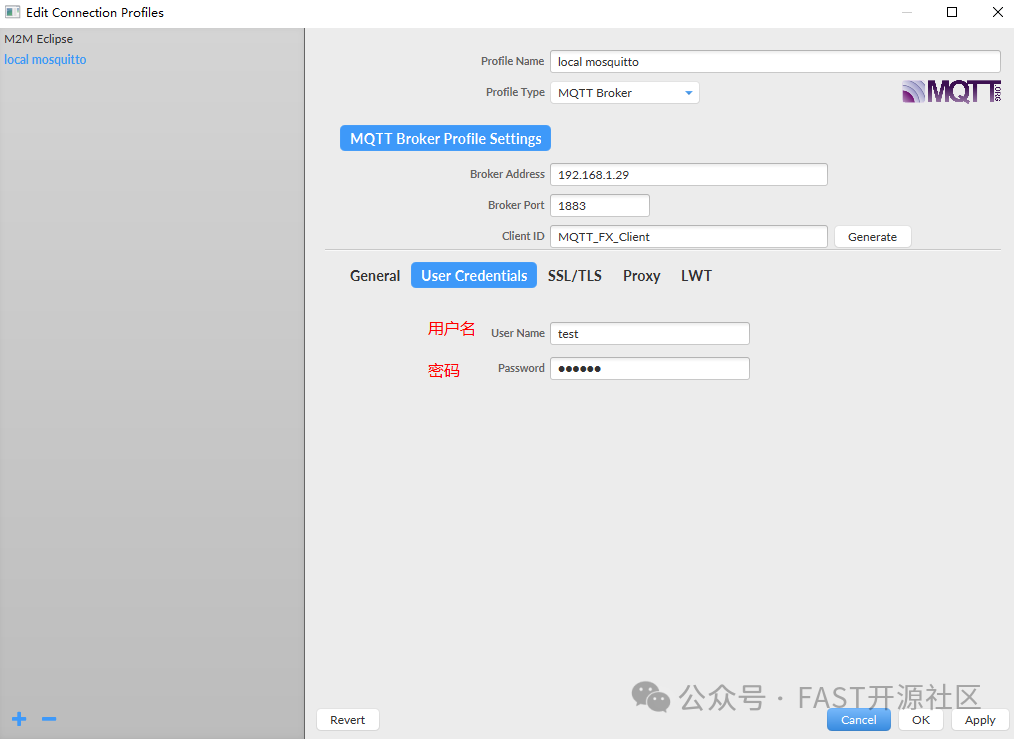
(13) Click on the “User Credentials” item, enter the username and password, note that this is not the device username and password, but the mosquitto user added in step 4.
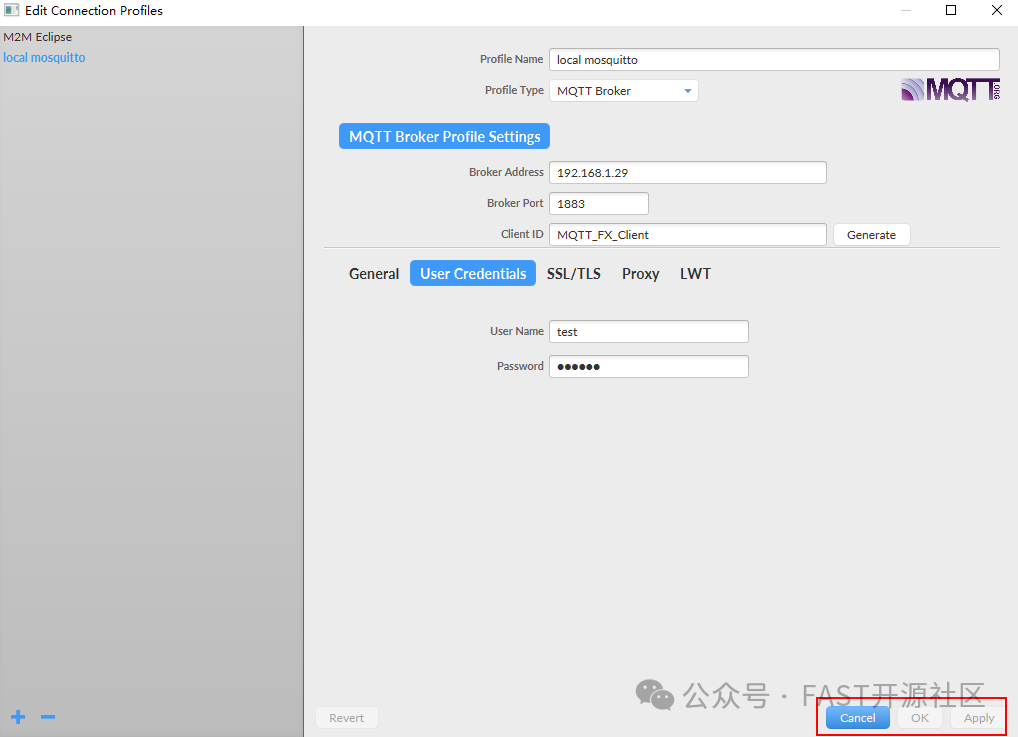
(14) Click the “Apply” button in the lower right corner to save the configuration, then click the “Cancel” button to close the configuration interface
(15) Click the “Connect” button to connect to the MQTT server
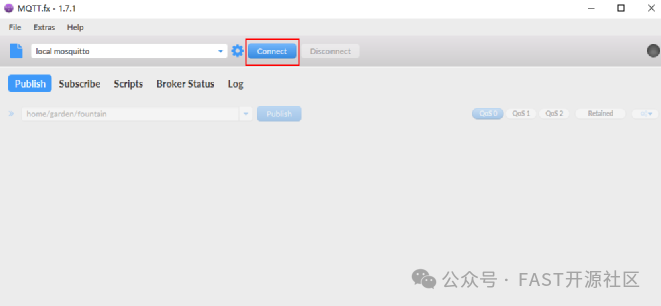
(16) If the connection is successful, the connection status will be green; if the connection fails, the connection status will be red. Check if the configuration file username and password are correct and if the MQTT server is started correctly.
(17) The MQTT.fx client subscribes to MQTT server messages, click on the “Subscribe” item, enter “test1” to subscribe to messages, and click the Subscribe button to start subscribing.
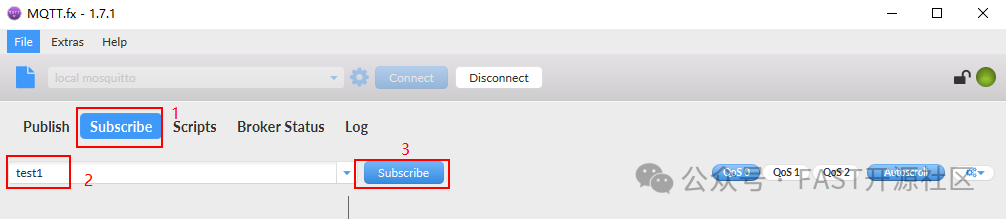
The MQTT server publishes subscription messages, -t indicates the subscription message, -m indicates the subscription content, -u indicates the username, and -P indicates the user password.
|
mosquitto_pub -t test1 -m “test111111122222222” -u test -P 123123 |

(19) The MQTT.fx client receives the subscription message content
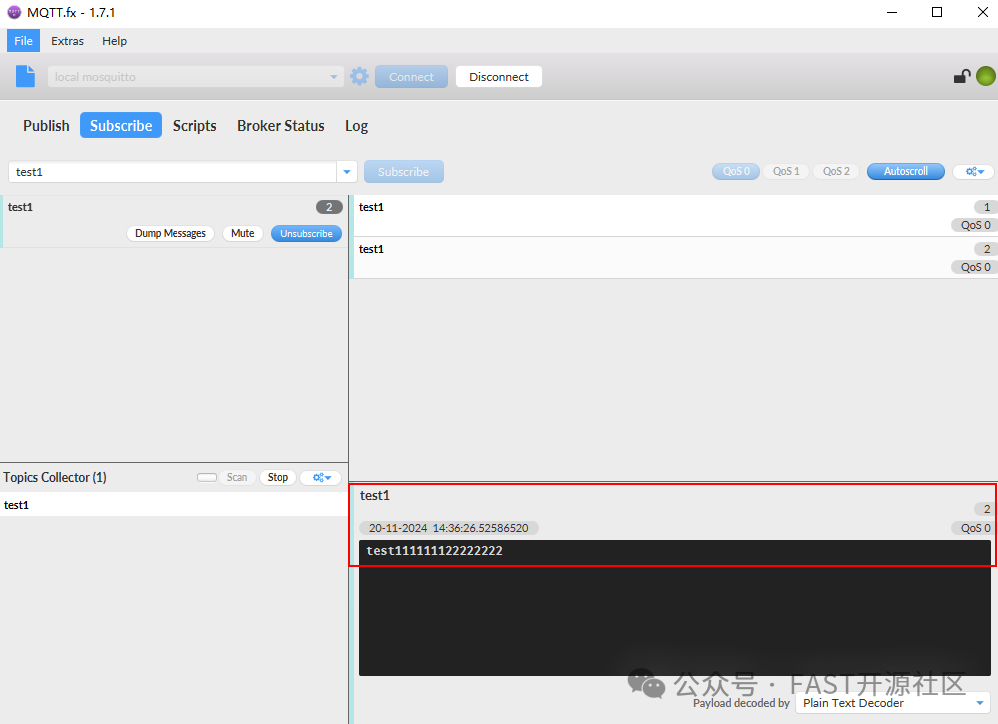
(20) The MQTT server starts subscription mode, -t indicates the subscription message, -u indicates the username, and -P indicates the user password.
|
mosquitto_sub -t test2 -u test -P 123123 |

(21) The MQTT.fx client publishes subscription messages, click on the “Publish” item, enter the subscription message, and click the “Publish” button to start publishing.
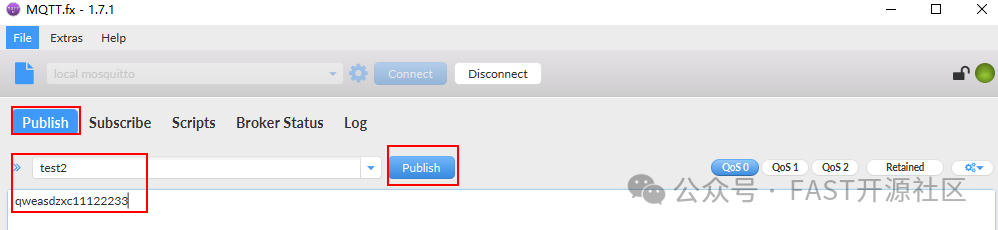
(22) The MQTT server receives the subscription message content

6. Experiment Reflections
(1) What security threats might the MQTT protocol face during transmission?
(2) In practical applications, how to choose the appropriate QoS level based on the importance of messages and reliability requirements?