In the previous article, “MATLAB vs. Python: Who is the Real King on the COMSOL Coupled Simulation Battlefield?”, we introduced the advantages and application scenarios of MATLAB and COMSOL coupled simulation. This article will enter the practical phase, guiding you step by step through software installation, connection establishment, and common workflows, and learning how to achieve coupled simulation through code examples.
1. Software Installation
First, ensure that COMSOL Multiphysics 6.3 and its version with MATLAB interface are correctly installed. As shown in the figure below:
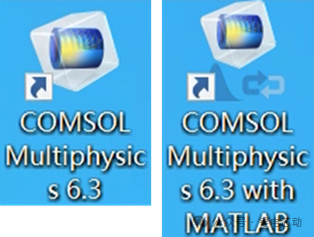
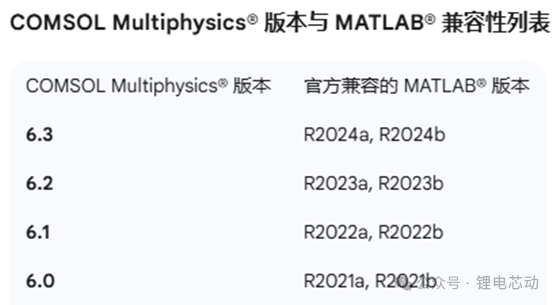
During the installation process, pay attention to the compatibility between MATLAB and COMSOL versions. It is recommended to refer to the official compatibility table to select the corresponding versions for installation:
2. Establishing Connection
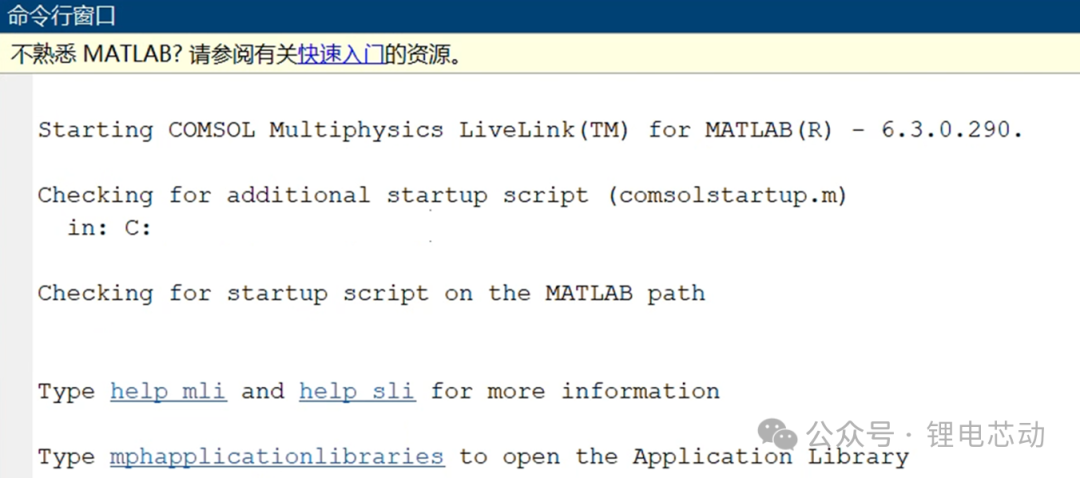
- Double-click to start to directly run COMSOL Multiphysics 6.3 with MATLAB, the system will automatically open MATLAB and prompt a successful connection in the command line.
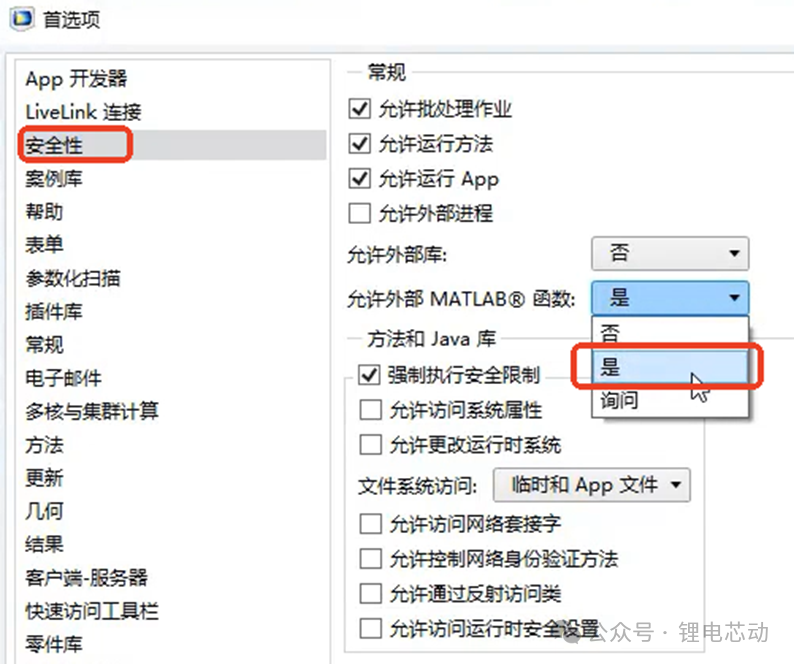
- Enable function call permissions If you wish to call MATLAB functions during the computation process in COMSOL, you need to make the following settings in the “Security” option on the main interface of COMSOL:
3. Common Coupled Simulation Workflows
In coupled simulations, there are typically three types of workflows:
- Load mph file
- Use the
<span>mphopen</span>command to load the model file created by COMSOL - Modify parameters, run calculations, and extract results in MATLAB

-
Convert mph file to M file
(suitable for learning how to call the COMSOL API)
- Complete modeling in COMSOL Desktop and save it as an M file
- Load the M file in MATLAB, modify it, and perform solving and result analysis
Write M file from scratch
- Directly complete modeling and calculations in MATLAB using the API
- Flexible but more challenging, not recommended for beginners

4. Basic Modeling Code Example
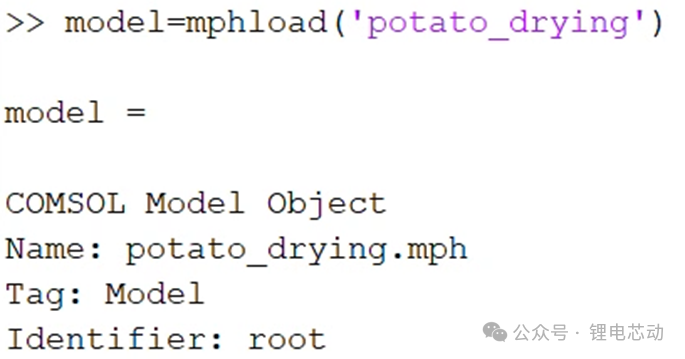
Below, we demonstrate how to call a COMSOL model in MATLAB using a practical case (the official COMSOL “Baked Potato” model). Before calling, ensure that the model’s mph file is placed in the current MATLAB folder.

- Load model file
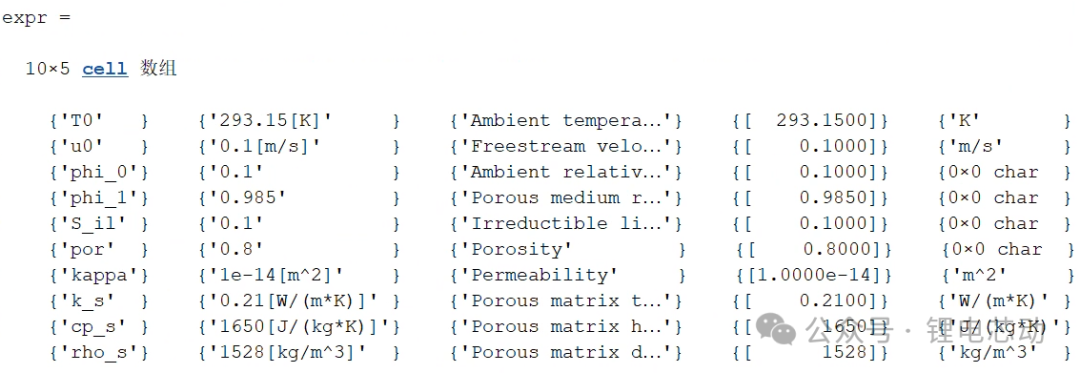
- View model parameters

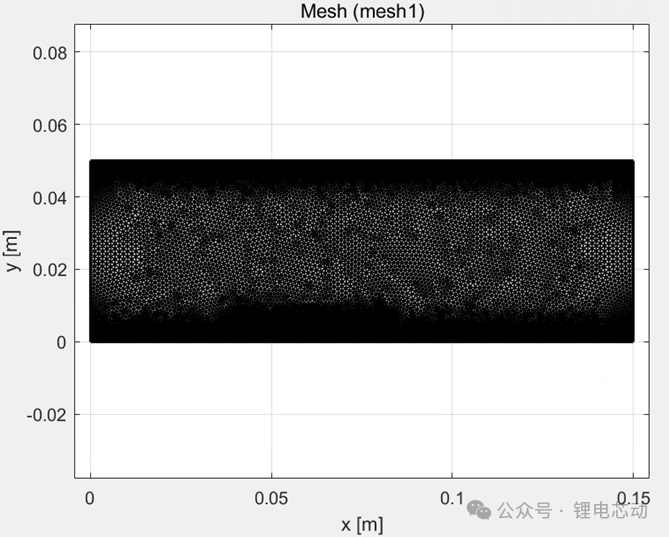
- View geometry and mesh


- Modify parameters and save
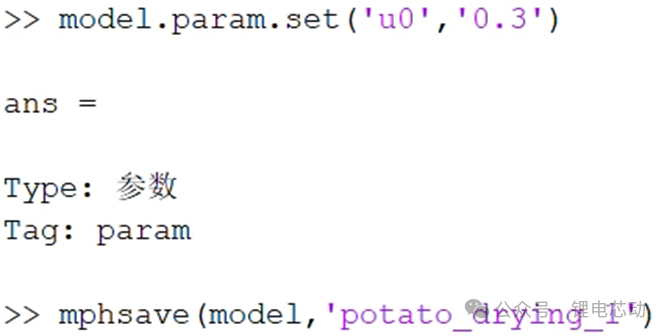
After running the above code, you can see that a new ‘potato_drying_1’ mph file has been added to the current MATLAB folder

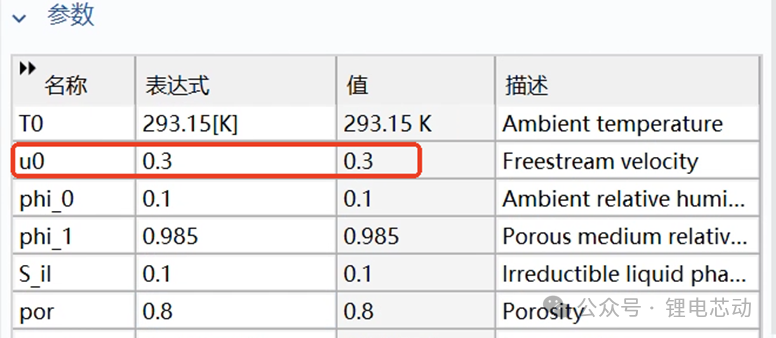
Opening the new model ‘potato_drying_1’, you can see that the value of the parameter ‘u0’ has changed:
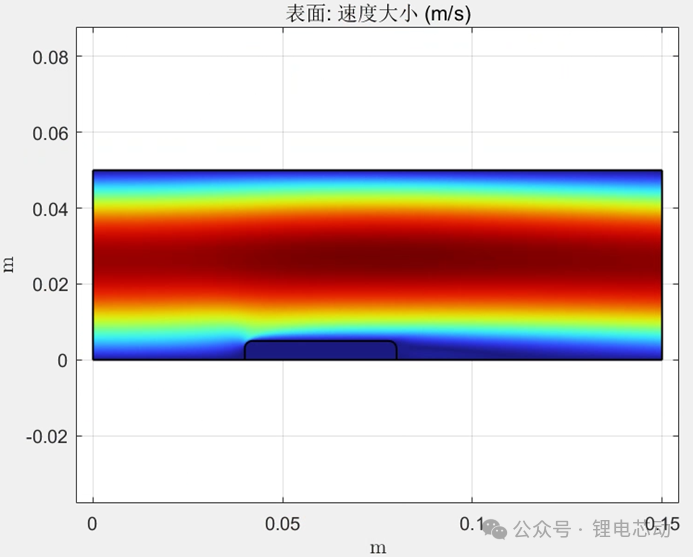
- Run calculations and view results


5. Recommended Learning Materials
If you wish to further your learning, you can refer to the following official documents:
- LiveLink™ for MATLAB User’s Guide
- Introduction to LiveLink™ for MATLAB
- COMSOL Multiphysics Programming Reference Manual

Conclusion
This article introduced the installation, connection, and basic operational workflows of MATLAB and COMSOL coupled simulation, and demonstrated how to call a COMSOL model in MATLAB through a case study. After mastering these contents, you can attempt more complex model interactions and custom calculations, laying a solid foundation for scientific research and engineering applications.
To provide a platform for my readers to communicate about lithium battery simulation technology, I have created a WeChat group, which has over 200 members and cannot be joined by scanning a code. Interested friends can leave a message in the public account comment area, and I will add you to the group after seeing it. After joining, I hope everyone communicates civilly, actively participates in discussions, shares their insights and experiences, and promotes the advancement of lithium battery simulation technology together.