This article continues to share some debugging techniques.
1. Use PS4 for Custom Debug Output
You can specify the output format of set -x using the PS4 variable:
#!/usr/bin/env bash
# ps4.sh

# Custom debug prompt
export PS4='+ ${BASH_SOURCE}:${LINENO}: ${FUNCNAME[0]:+${FUNCNAME[0]}(): }'

set -x
# Now the debug output will show the filename and line number

echo 'function start:'

function calc_area() {
    radius=2.5
    result=$(awk -v r=${radius} 'BEGIN {printf "%.3f", 3.14159 * r * r}')
    echo "area: $result"
}

calc_area

echo 'The end!'
Script output:
bash-5.3$ bash ps4.sh
+ ps4.sh:10: echo 'function start:'
function start:
+ ps4.sh:18: calc_area
+ ps4.sh:13: calc_area(): radius=2.5
++ ps4.sh:14: calc_area(): awk -v r=2.5 'BEGIN {printf "%.3f", 3.14159 * r * r}'
+ ps4.sh:14: calc_area(): result=19.635
+ ps4.sh:15: calc_area(): echo 'area: 19.635'
area: 19.635
+ ps4.sh:20: echo 'The end!'
The end!
Compared to before, the output is now clearer. You can directly locate the line number or function.
2. Record Debug Logs
You can redirect the debug output of set -x to a specified file by using BASH_XTRACEFD:
#!/usr/bin/env bash
# bash_xtracefd.sh

# Redirect debug output to a file
exec 5> debug.log
BASH_XTRACEFD="5"
set -x

# Script content...
echo "This command will be recorded in debug.log"

set +x

# Close
exec 5>&-
Script output:
bash-5.3$ bash bash_xtracefd.sh
This command will be recorded in debug.log
bash-5.3$ cat debug.log
+ echo 'This command will be recorded in debug.log'
+ set +x
As shown, the output of set -x can be seen from the file debug.log.
3. Conditional Debugging
Abstract a simple debug function to replace echo, and control the debug output through an environment variable.
#!/usr/bin/env bash
# conditional_debug.sh

# Control debugging through environment variable
DEBUG=${DEBUG:-0}

# Debug function
debug() {
    if [[ $DEBUG -eq 1 ]]; then
        echo "DEBUG: $@" >&2
    fi
}

# Conditionally enable detailed debugging
if [[ $DEBUG -eq 1 ]]; then
    set -x
    export PS4='+ [DEBUG][${BASH_SOURCE}:${LINENO}]: '
fi

debug "Script execution started"

name="Li Si"
debug "Setting variable name=$name"

for i in {1..2}; do
    debug "Loop iteration i=$i"
    echo "Count: $i"
done

debug "Script execution completed"
DEBUG=1 Script output:
bash-5.3$ export DEBUG=1; bash conditional_debug.sh
+ export 'PS4=+ [DEBUG][${BASH_SOURCE}:${LINENO}]: '
+ PS4='+ [DEBUG][${BASH_SOURCE}:${LINENO}]: '
+ [DEBUG][conditional_debug.sh:20]: debug Script execution started
+ [DEBUG][conditional_debug.sh:9]: [[ 1 -eq 1 ]]
+ [DEBUG][conditional_debug.sh:10]: echo 'DEBUG: Script execution started'
DEBUG: Script execution started
+ [DEBUG][conditional_debug.sh:22]: name=Li Si
+ [DEBUG][conditional_debug.sh:23]: debug 'Setting variable name=Li Si'
+ [DEBUG][conditional_debug.sh:9]: [[ 1 -eq 1 ]]
+ [DEBUG][conditional_debug.sh:10]: echo 'DEBUG: Setting variable name=Li Si'
DEBUG: Setting variable name=Li Si
+ [DEBUG][conditional_debug.sh:25]: for i in {1..2}
+ [DEBUG][conditional_debug.sh:26]: debug 'Loop iteration i=1'
+ [DEBUG][conditional_debug.sh:9]: [[ 1 -eq 1 ]]
+ [DEBUG][conditional_debug.sh:10]: echo 'DEBUG: Loop iteration i=1'
DEBUG: Loop iteration i=1
+ [DEBUG][conditional_debug.sh:27]: echo 'Count: 1'
Count: 1
+ [DEBUG][conditional_debug.sh:25]: for i in {1..2}
+ [DEBUG][conditional_debug.sh:26]: debug 'Loop iteration i=2'
+ [DEBUG][conditional_debug.sh:9]: [[ 1 -eq 1 ]]
+ [DEBUG][conditional_debug.sh:10]: echo 'DEBUG: Loop iteration i=2'
DEBUG: Loop iteration i=2
+ [DEBUG][conditional_debug.sh:27]: echo 'Count: 2'
Count: 2
+ [DEBUG][conditional_debug.sh:30]: debug Script execution completed
+ [DEBUG][conditional_debug.sh:9]: [[ 1 -eq 1 ]]
+ [DEBUG][conditional_debug.sh:10]: echo 'DEBUG: Script execution completed'
DEBUG: Script execution completed
Now let’s look at the DEBUG=0 Script output:
bash-5.3$ export DEBUG=0; bash conditional_debug.sh
Count: 1
Count: 2
4. Practical Script Template – Console Colors
Shell scripts, like other high-level languages, can also output colors to the console.
#!/usr/bin/env bash
# debug_library.sh

# Practical script template

# Color definitions
RED='\033[0;31m'
GREEN='\033[0;32m'
YELLOW='\033[1;33m'
BLUE='\033[0;34m'
NC='\033[0m'# No Color

# Log levels
LOG_LEVEL=${LOG_LEVEL:-"DEBUG"}# DEBUG, INFO, WARN, ERROR

log_debug() { [[ "$LOG_LEVEL" == "DEBUG" ]] && echo -e "${BLUE}[DEBUG]${NC} $@" >&2; }
log_info() { [[ "$LOG_LEVEL" =~ ^(DEBUG|INFO)$ ]] && echo -e "${GREEN}[INFO]${NC} $@" >&2; }
log_warn() { [[ "$LOG_LEVEL" =~ ^(DEBUG|INFO|WARN)$ ]] && echo -e "${YELLOW}[WARN]${NC} $@" >&2; }
log_error() { [[ "$LOG_LEVEL" =~ ^(DEBUG|INFO|WARN|ERROR)$ ]] && echo -e "${RED}[ERROR]${NC} $@" >&2; }

# Variable check function
check_variable() {
    local var_name=$1
    local var_value=${!var_name}

    if [[ -z "$var_value" ]]; then
        log_error "Variable $var_name is not set or is empty"
        return 1
    else
        log_debug "Variable $var_name = $var_value"
        return 0
    fi
}

# Function execution tracing
function_in() {
    log_debug "→ Entering function: $1, parameters: ${@:2}"
}

function_out() {
    log_debug "→ Exiting function: $1, parameters: ${@:2}"
}

# Example usage
main() {
    function_in ${FUNCNAME[0]}"$@"

    local app_name="MyApp"
    local config_path="/etc/app"

    check_variable "app_name"
    check_variable "config_path"

    log_info "Application $app_name starting"

    # Simulate business logic
    if [[ -d "$config_path" ]]; then
        log_debug "Configuration directory exists: $config_path"
    else
        log_warn "Configuration directory does not exist: $config_path"
    fi

    log_info "Application execution completed"
    function_out ${FUNCNAME[0]}"$@"
}

main "$@"
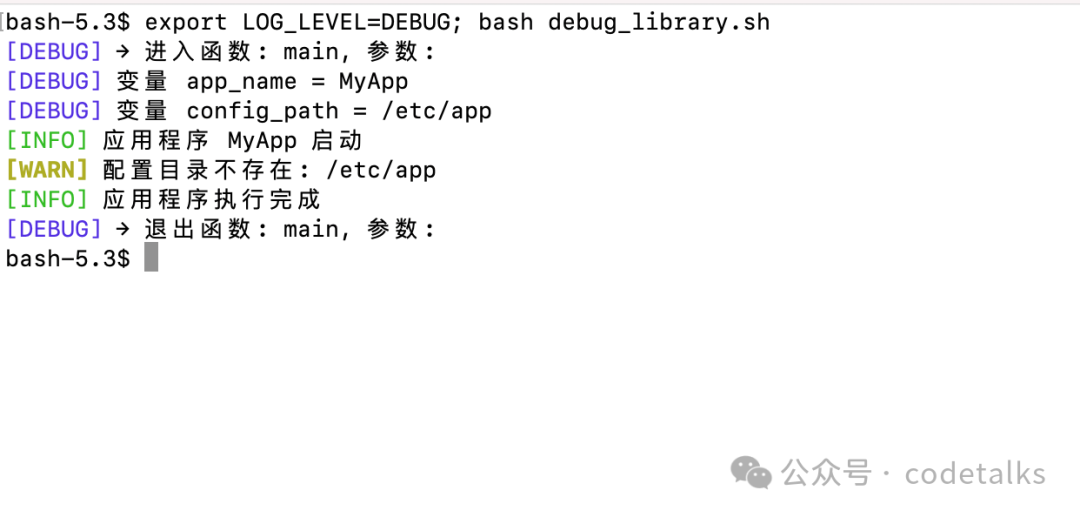
Script output:
bash-5.3$ export LOG_LEVEL=DEBUG; bash debug_library.sh
[DEBUG] → Entering function: main, parameters:
[DEBUG] Variable app_name = MyApp
[DEBUG] Variable config_path = /etc/app
[INFO] Application MyApp starting
[WARN] Configuration directory does not exist: /etc/app
[INFO] Application execution completed
[DEBUG] → Exiting function: main, parameters:
Actual effect:
Finally, I wish everyone a happy weekend!