The Dark Side of Linux Permissions: Why Root Abuse Can Lead to Disaster?
Click the "C Language and CPP Programming" above, select "Follow/Pin/Star the public account"

Useful benefits delivered first!
Recently, some friends said they did not receive the article push for the day. This is because WeChat has changed the push mechanism, causing those who have not starred the public account to miss the articles pushed on that day, and they cannot receive some practical knowledge and information. Therefore, it is recommended that everyone star ⭐️ the account, so you can receive the push immediately in the future.
Link: https://blog.csdn.net/GGDxianv/article/details/144171476?

☞ Liang Xu's course has completely exploded! ☜
Linux Permissions (A Detailed Understanding of Linux Permissions)
• 1. Two Types of Users in Linux
•
• Superuser (root) and Regular User
• su Command
• sudo Command
• 2. Linux Permission Management
•
• 2.1 File Accessors
•
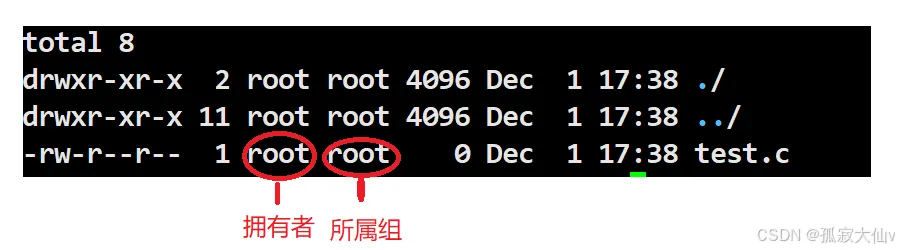
• Owner
• Group
• Others
• 2.2 File Types and Access Permissions
•
• File Types
• Representation of File Permission Values
• Methods for Setting File Access Permissions (chmod)
• Changing File Owner or Group (chown and chgrp)
• 2.3 Directory Permissions
• 2.4 Default Permissions
•
• umask Permission Mask
• 2.5 Sticky Bit
1. Two Types of Users in Linux
Superuser (root) and Regular User
There are two types of users in Linux: the superuser (root) and regular users.The superuser can do anything in Linux without restrictions.Regular users are limited in what they can do in Linux.
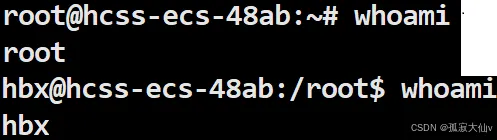
You can check whether you are a superuser or a regular user by using the whoami command.
You can see that the command prompt for the superuser is #, while the command prompt for regular users is $.
su Command
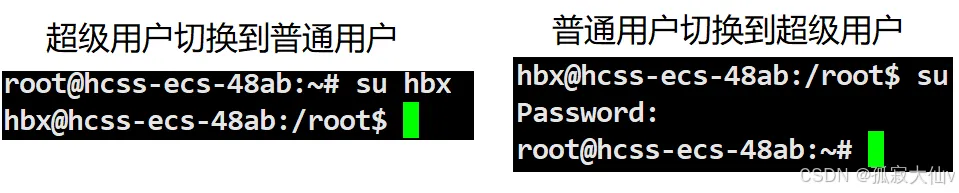
How do we switch users under different accounts?We can switch users using the su command. If switching from the superuser to a regular user, you can do so by using su + the username of the regular user. If switching from a regular user to the superuser, simply use the su command and enter the superuser’s password to complete the switch.
sudo Command
Temporarily elevate privileges for specific commands for regular users.When we use sudo to elevate privileges, we may encounter errors. This is because there is something similar to a whitelist; the current user does not have sudo privileges.To use sudo, your current user must be configured in the /etc/sudoers file. At this point, the administrator needs to add the current user to the user group allowed to use sudo (usually sudo or wheel). This is not a big issue, but if you want to know more, you can check this blog Detailed Explanation of the Linux Command sudo.
2. Linux Permission Management
2.1 File Accessors
In simple terms, the essence of permissions is what can and cannot be done. Permissions primarily restrict roles, and the target must have the corresponding attributes.Linux permissions consist of roles and target permission attributes.Permissions = Role + Target Permission AttributesRoles include Owner, Group, and Others.
Roles:
1. Owner 2. Group 3. Others
Owner (User, u): The owner of the file or directory.Group (Group, g): The user group to which the file or directory belongs.Others (Others, o): All users other than the file owner and user group.
Owner
The owner is the current user in Linux, whether superuser or regular user. The owner of the file or directory.
Group
The users in the group to which the file or directory owner belongs. More refined permission management requires more detailed identity roles.
Others
Other users. However, we find that Others are not recorded.Others do not need to be recorded due to log redundancy and excessive auditing issues, as Others include all users who are not the file owner or group, and operations are frequent and difficult to record accurately. The focus of auditing is different; administrators are more concerned about specific users, groups, and command executions, rather than every change in Others permissions. In terms of security and permission management, changes to Others permissions are usually infrequent and should not occur often, so they generally do not need to be specially recorded.
2.2 File Types and Access Permissions
Insert image description hereInsert image description here
File Types
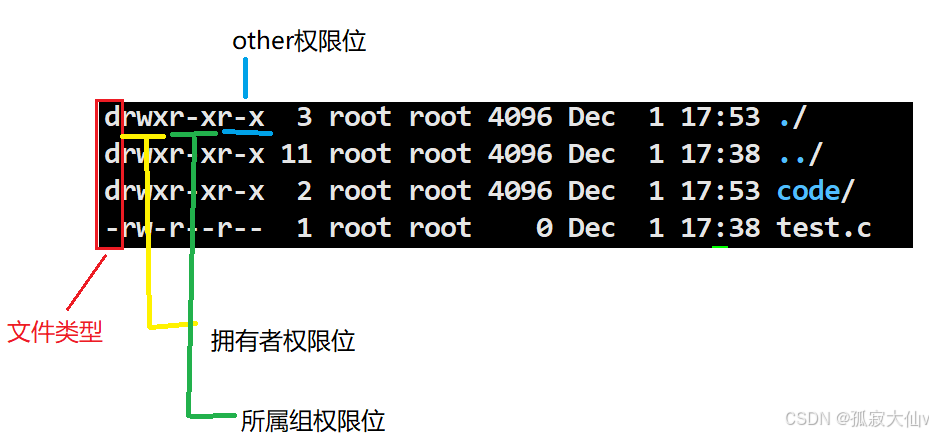
d indicates a directory, – indicates a file.
Representation of File Permission Values
r indicates read permission, w indicates write permission, x indicates executable permission.
drwxr-xr-x 2 root root 4096 Dec 1 17:53 code/
In the above example, the owner has read, write, and execute permissions, the group has read and execute permissions but not write, and others have read and execute permissions but not write.
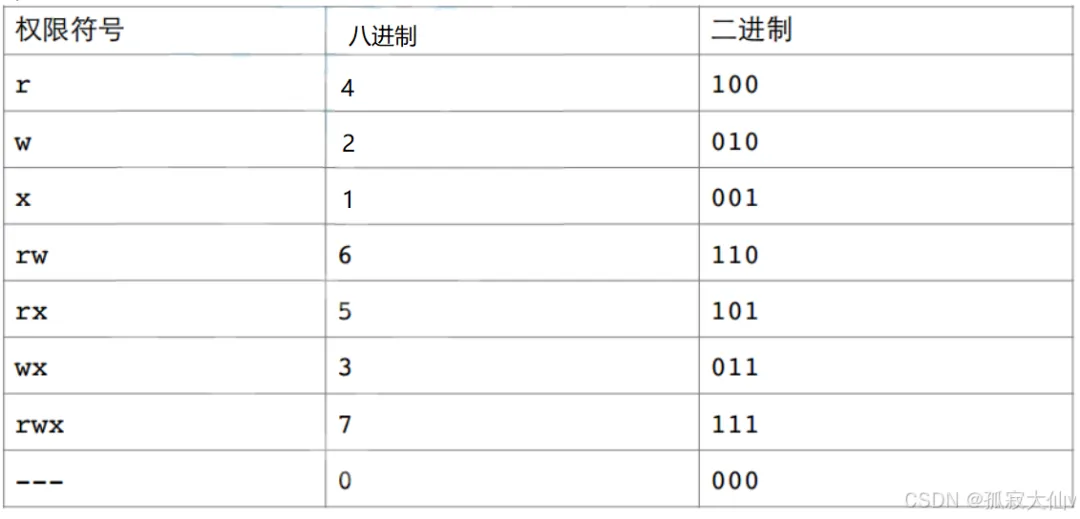
Numeric Expression
Insert image description here
These rwx are binary states, either allowed or not allowed. Therefore, if it is rw-rw-r–, the binary is 110 110 100, and the octal is 664.
Methods for Setting File Access Permissions (chmod)
Command chmod: sets the access permissions of a file.
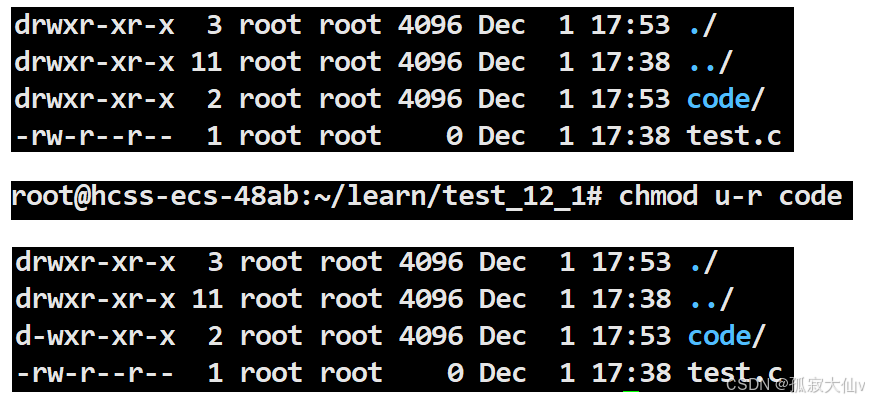
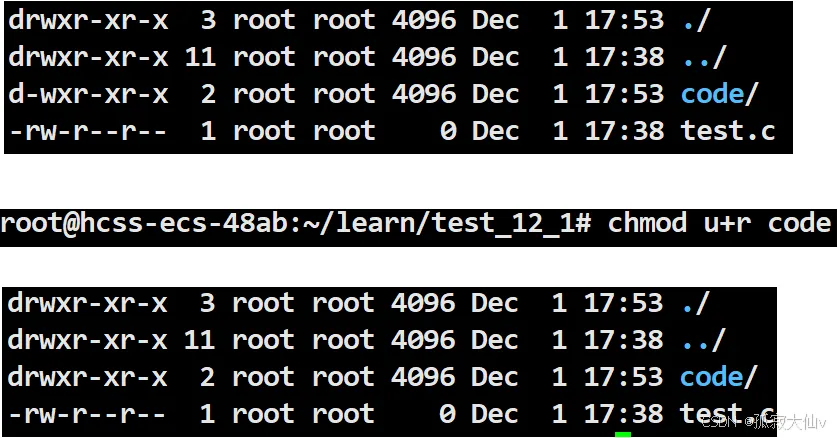
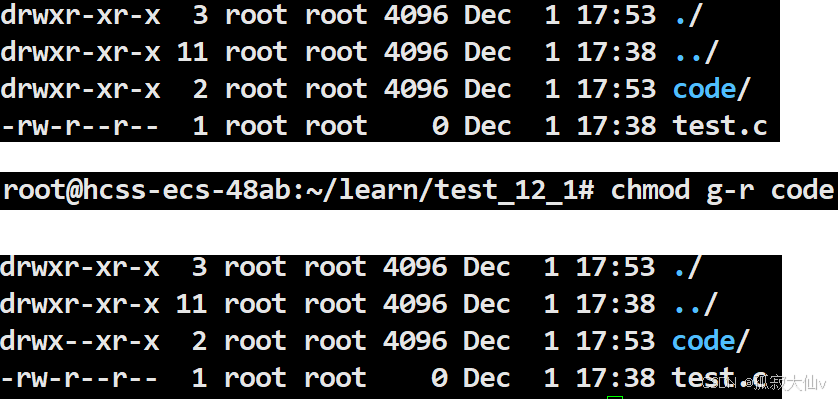
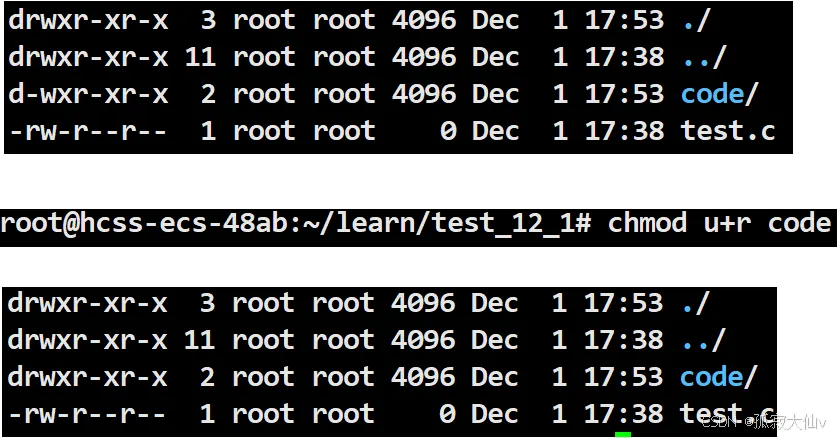
chmod u-r code
This modifies the read permission for the owner of the file code, changing it from allowed to not allowed.
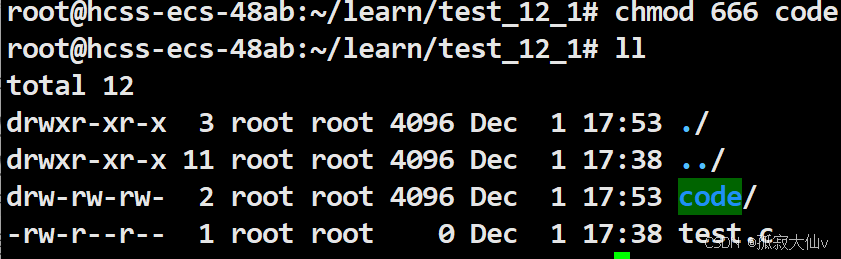
Earlier, we learned about numeric expressions and the conversion between binary and octal. When modifying file access permissions, you can also use octal notation.
Octal 666 corresponds to binary 110 110 110, which is rw- rw- rw-.
1. Users can only modify their own file permissions.
2. Without permission, the system will refuse access.
3. When determining permission information, the system will determine user roles, and this is only determined once. The determination is made in order from owner, group, to others.
4. The root user’s permissions are not restricted.
5. The above describes a series of executions; executable permission != file executable.
Changing File Owner or Group (chown and chgrp)
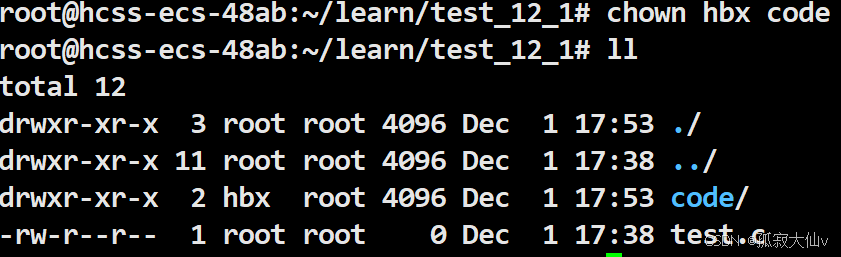
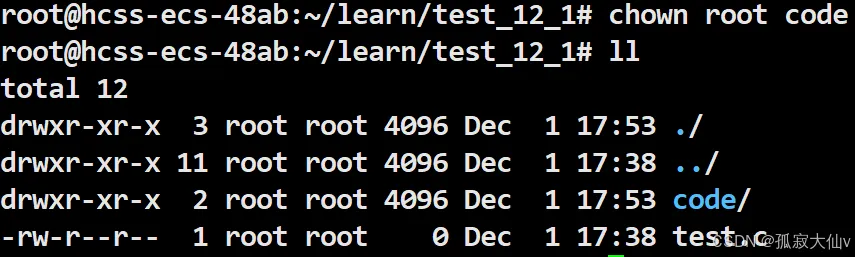
chown modifies the owner of a file/directory.chgrp modifies the group of a file/directory.
Change the owner of the code file from the root superuser to a regular user.
Insert image description here
Change the owner of the code file from a regular user to the superuser.
Insert image description here
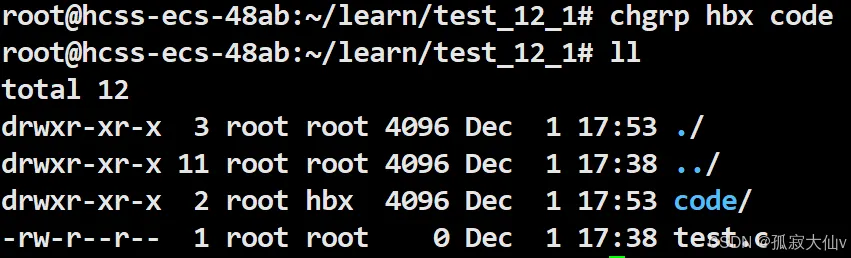
Change the group of the code file from the superuser to a regular user.
Insert image description here
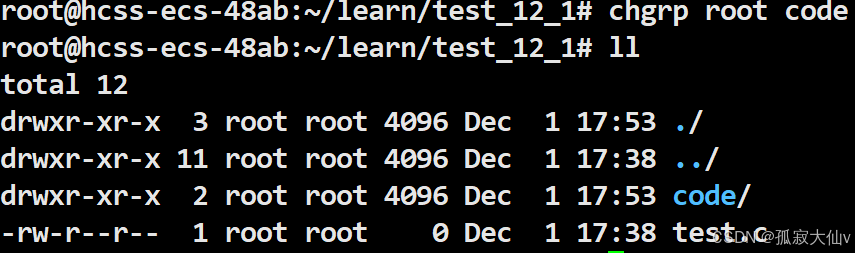
Change the group of the code file from a regular user to the superuser.
Insert image description here
Note:When we are regular users, the system defaults to not allowing us to pass files to others. If we want to give files to others, we must elevate permissions. When a user is a regular user, they are not allowed to pass files to others.
Insert image description here
2.3 Directory Permissions
We previously learned about directory types; those starting with d are directories, while those starting with – are files.
Note: This refers to regular users; superusers are not restricted.
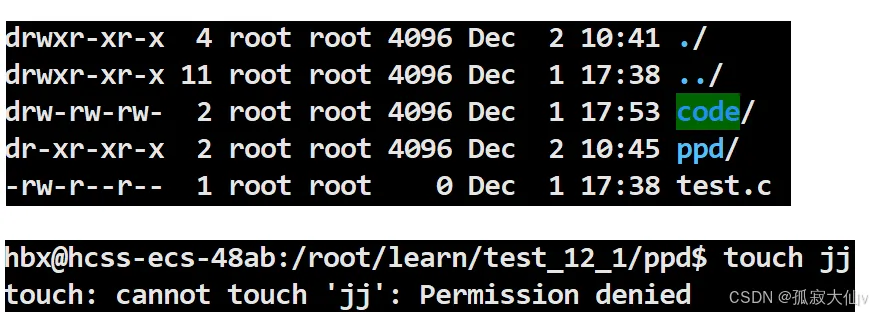
1. If a directory does not have r, you cannot view the files inside the directory.
2. If a directory does not have w, you cannot create files in the directory. Insert image description here
2.4 Default Permissions
For regular files, the initial permission is 666, which does not include executable by default.For directory files, the initial permission is 777, which includes executable by default.
umask Permission Mask
Final permissions = Initial permissions & (-umask)The purpose of umask is that any permissions appearing in umask should not appear in the final permissions.
The default permissions are determined by the operating system and cannot be modified before creation. By using umask, the system can be configured flexibly to meet the required situations. Configuring umask can control the default permissions of files, allowing our code to be manageable.
2.5 Sticky Bit
In a regular user’s directory, creating a regular user file and a superuser file. The access permissions of this regular user’s file relative to the superuser’s file are Others, and under the regular user, operations can be performed on the superuser’s file based on rwx. When the access permissions of the superuser’s file for Others are modified to not writable, not readable, and not executable, the regular user cannot perform any operations on the superuser’s file. However, the regular user can delete this file. This leads to the conclusion that whether a file can be deleted is not related to the file itself, but to the w permission of the directory in which it is located.
When two users need to share a file, the tmp directory is a public directory in a multi-user environment. A public directory is created under the tmp directory. At this point, both users can modify it, and of course, users other than the two can also modify this file. This is where the sticky bit comes into play.
Insert image description here
In Linux systems, the sticky bit is a special permission bit primarily used to control the deletion operations of files in specific directories. After setting the sticky bit,the current user can only delete their own shared files and cannot delete another user’s shared files. Only the file owner or root user can delete or move that file, while other users cannot delete or move these files even if they have write permissions.
Insert image description here
When a directory is set to “sticky bit” (using chmod +t)
chmod +t directory  # Set sticky bit for the directory
chmod -t directory  # Remove sticky bit from the directory
Delete shared files in the tmp directory, root deletes.
Recommended ReadingClick the title to jump
1. C++ Training Camp, here it comes!
2. HarmonyOS Learning Material Sharing (Free Sharing Without Tricks)
I have formed some communities for communication, where there are experts and beginners. If you are interested, you can join the group for discussion.

Feel free to add my WeChat, and I will add you to the technical exchange group. Additionally, I will often share some computer learning experiences and work insights on WeChat, as well as some internal referral opportunities.

Add WeChat to open another window.

Thank you for your sharing, likes, and triple clicks.