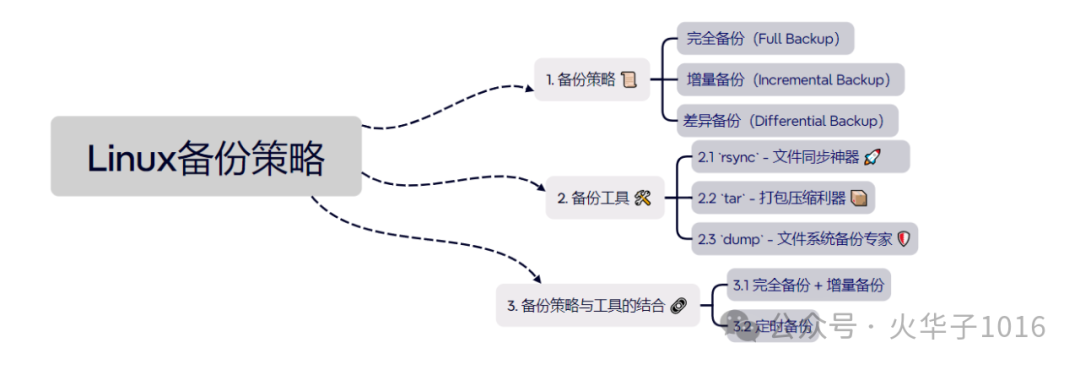
 In Linux systems, backing up data is an important step to ensure system security and data integrity. Whether you are a personal user or a system administrator, a reliable backup strategy and tools are needed to protect data. This article will introduce three commonly used Linux backup tools: rsync, tar, and dump, and provide practical examples to help you easily master backup techniques.
1. Backup Strategies 📜
Before using the tools, let’s understand some common backup strategies:
1.1 Full Backup
– Description: Backs up all data, regardless of whether it has changed.– Advantages: Fast recovery speed, simple operation.– Disadvantages: Takes up large storage space, long backup time.– Applicable Scenarios: Initial backup or periodic full backups.
1.2 Incremental Backup
– Description: Only backs up data that has changed since the last backup.– Advantages: Saves storage space, fast backup speed.– Disadvantages: Recovery requires sequentially restoring all incremental backups.– Applicable Scenarios: Frequent backups with minor data changes.
1.3 Differential Backup
– Description: Backs up data that has changed since the last full backup.– Advantages: Recovery requires only the full backup and the last differential backup.– Disadvantages: Takes up more storage space than incremental backups.– Applicable Scenarios: Significant data changes with high recovery time requirements.
2. Backup Tools 🛠️
2.1 rsync – File Synchronization Tool 🚀
rsync is a powerful file synchronization tool that supports incremental and remote backups. It compares the differences between the source and target files, transferring only the changed parts, saving bandwidth and time.
Common Options:
- `-a`: Archive mode, preserves file attributes.
- `-v`: Display detailed output.
- `-z`: Compress data during transfer.
- `--delete`: Delete files in the target that do not exist in the source.
Practical Examples:
# Local Backup
rsync -avz /home/user/ /backup/user_backup/
# Remote Backup
rsync -avz -e ssh /home/user/ user@remote:/backup/user_backup/
# Delete extra files in target
rsync -avz --delete /home/user/ /backup/user_backup/
Tips 💡:
– When using rsync, you can combine it with cron jobs for automated backups.– For remote backups, it is recommended to use SSH key authentication to avoid frequent password input.
2.2 tar – Archiving and Compression Tool 📦
tar is the most commonly used archiving tool in Linux, which can package multiple files or directories into one file and supports compression.
Common Options:
- `-c`: Create a new archive file.
- `-x`: Extract an archive file.
- `-v`: Display detailed output.
- `-z`: Use gzip compression.
- `-f`: Specify the archive file name.
Practical Examples:
# Package and compress
tar -czvf backup.tar.gz /home/user/
# Extract
tar -xzvf backup.tar.gz -C /restore/
# Incremental Backup (only back up changed files)
tar -czvf backup_incremental.tar.gz --newer-mtime="2023-10-01" /home/user/
Tips 💡:
– When using tar, you can combine it with the find command for incremental backups.– It is recommended to use .tar.gz or .tar.bz2 formats for packaging, as they have higher compression rates.
2.3 dump – File System Backup Expert 🛡️
dump is a tool specifically designed for backing up file systems, supporting full and incremental backups. It directly operates on the file system’s inode, making it suitable for backing up entire partitions or file systems.
Common Options:
- `-0`: Full backup.
- `-u`: Update the backup record file `/etc/dumpdates`.
- `-f`: Specify the backup file.
Practical Examples:
# Full Backup
dump -0uf /backup/root_backup.dump /dev/sda1
# Incremental Backup
dump -1uf /backup/root_incremental.dump /dev/sda1
# Restore Backup
restore -rf /backup/root_backup.dump
Tips 💡:
– dump is only suitable for ext2/ext3/ext4 file systems.– When restoring, use the restore command to ensure the backup file is complete.
3. Combining Backup Strategies and Tools 🔗
3.1 Full Backup + Incremental Backup
– Use dump for full backups and rsync for incremental backups.– Example:
# Full Backup
dump -0uf /backup/full_backup.dump /dev/sda1
# Incremental Backup
rsync -avz --delete /home/user/ /backup/user_incremental/
3.2 Scheduled Backups
– Use cron jobs in combination with rsync or tar for automated backups.– Example:
# Backup every day at 2 AM
0 2 * * * rsync -avz /home/user/ /backup/user_backup/
4. Conclusion 🎯
Backing up is an indispensable part of system management, and choosing the right backup strategy and tools can greatly enhance data security. rsync is suitable for file synchronization and remote backups, tar is suitable for packaging and compression, and dump is suitable for file system backups. By combining these tools, you can easily achieve efficient and reliable backup solutions.Remember, backing up is not just about using tools; it’s more important to regularly check and verify the integrity of backups. 💪
Friendly Reminder: When backing up data, ensure that the target storage device has enough space and regularly test the recovery process to avoid issues during critical moments! 😉
In-Depth Guide: Comprehensive Linux CPU Performance OptimizationBattle of File Systems: Detailed Analysis of EXT4 vs XFS vs BtrfsLinux Network Configuration Guide