Getting Started with Linux Commands
-
st@st-virtual-machine:~$:
-
st: The currently logged-in username, set during installation
-
@: Not significant, serves as a separator
-
st-virtual-machine: Hostname, set during installation
-
~: The current user’s home directory: (/home/st)
-
: Used to distinguish user roles, indicates a regular user, # indicates ROOT user
-
pwd: Used to view the absolute path of the current directory; Linux absolute paths start from /
-
cd: Change directory
-
cd/: Enter the root directory
-
cd~: Equivalent to cd/home/st. Enter the home directory
-
cd/mnt/hgfs: Switch to the /mnt/hgfs directory (switch to specified directory)
-
cd..: Go back to the upper directory
-
cd../..: Go back two levels
-
cd-: Go back to the previous directory
-
cd./xxx: Enter the specified xxx directory under the current path, equivalent to cd xxx
-
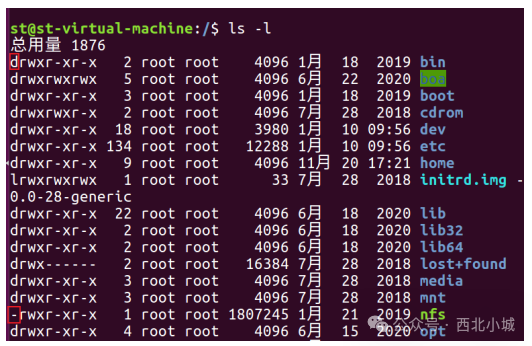
ls: View files or directories in a summarized format
-l: An option for ls to get detailed list information; d indicates a folder/directory, – indicates a regular file
-
-
Keyboard Shortcuts
-
ctrl+l: Clear the screen, keeping the history -
ctrl+alt+t: Open terminal -
ctrl+shift++: Increase terminal font size -
ctrl+-: Decrease terminal font size