
AnyLogic provides ways to interface with various algorithm platforms, allowing users to leverage AnyLogic’s powerful simulation capabilities in conjunction with external optimization algorithms, decision support systems, or other types of computational models. Currently, there are two tested methods for calling MATLAB from AnyLogic:
-
Write commands and code in AnyLogic, interfacing with MATLAB through the Engine API.
-
Write commands in MATLAB and export a JAR file, which is then called in AnyLogic.
Engine API Method
Step 1 Install MATLAB and Configure Environment
Tested on Windows 10 x64, MATLAB 2015b, AnyLogic 8, JRE 8.
1. Install MATLAB
2. Check the Java environment on your computer to ensure that JDK and JRE are installed.
(MATLAB needs to call javac to generate class files when packaging into a JAR file. If not installed, download the version that matches MATLAB’s Java version from the official website.)
Refer to the following steps:
http://www.360doc.com/content/15/1103/16/1180274_510463048.shtml
1) Press the keyboard shortcut win+R to enter cmd
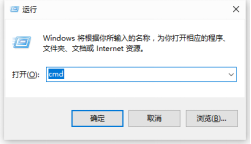
2) Enter java –version (note the space)
If Java is correctly installed, the following type of information will be returned:

If the following content is returned, it indicates that Java is not installed:

3) Enter javac –version
If javac is correctly installed, the following type of information will be returned:

3. Check MATLAB’s Java version; it should ideally match the computer’s Java version.
In the command line window, enter version –java, and the result will be as follows:

Step 2 Import engine.jar into the Model
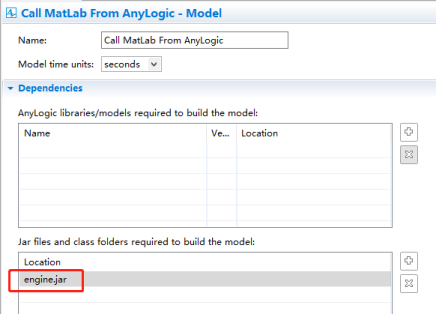
The model uses MATLAB’s Engine API, with EngineGUIDemo.java and EngineConsoleDemo.java located at
C:\ProgramFiles\MATLAB\R2018b\extern\examples\engines\java
The path for the engine.jar involved in this API is at
C:\Program Files\MATLAB\R2018b\extern\engines\java\jar
Step 3 Configure Environment Variables
1. Configure environment variables by right-clicking on This PC > Properties > Advanced system settings > Advanced > Add to the Path in Environment Variables
C:\Program Files\MATLAB\R2018b\bin\win64
Note: If AnyLogic is open while configuring environment variables, you need to restart AnyLogic after configuration.
2. Use win+R to open cmd on Windows, and enter java -XshowSettings:properties -version to confirm that java.library.path includes C:\Program Files\MATLAB\R2016b\bin\win64
Related Function Descriptions
1. MATLAB Engine API
Relevant links from the MATLAB official website:
MATLAB Engine API for Java:
https://ww2.mathworks.cn/help/Matlab/Matlab_external/get-started-with-Matlab-engine-api-for-java.html
Calling MATLAB from Java:
https://ww2.mathworks.cn/help/Matlab/Matlab-engine-api-for-java.html?s_tid=CRUX_lftnav
2. Java Future Pattern
The Future pattern is a multithreaded design pattern, focusing on making full use of the waiting time in the main function to handle other tasks, thereby maximizing computer resource utilization.
3. Usage of the eval(String) function: It allows executing a string as a command.
By calling the eval method in Java, MATLAB commands can be written in string form, allowing direct execution of MATLAB commands.
Video Demonstration of AnyLogic Calling MATLAB via API
JAR Package Method
Step 1 Install MATLAB and Configure Environment
Tested on Windows 10 x64, MATLAB 2015b, AnyLogic 8, JRE 8; refer to the previous section for steps.
1. Install MATLAB
2. Check the Java environment on your computer to ensure that JDK and JRE are installed.
3. Check MATLAB’s Java version; it should ideally match the computer’s Java version.
Step 2 Create .m File in MATLAB
1. Open MATLAB, click New > Script, or use the Ctrl+N shortcut to create a file named coordinateShift.m.
2. Enter the following code in the editor (calling MATLAB’s cart2pol function to convert Cartesian coordinates (x,y) to polar coordinates (THETA,RHO), where THETA represents the polar angle and RHO represents the radial distance):
function [THETA,RHO]=coordinateShift ( x, y)[THETA,RHO]= cart2pol(x,y);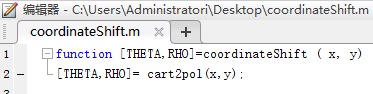
3. Save it in a folder that does not contain Chinese characters (folders with Chinese characters may cause errors when exporting the JAR file).
Step 3 Export the Created MATLAB File as a JAR Package
1. Click APP.

2. In the dropdown menu, select Library Compiler, scroll down to Application Deployment,
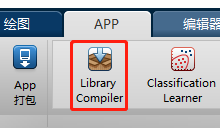
or enter deploytool in the command line and press Enter, as shown below, select Library Compiler.
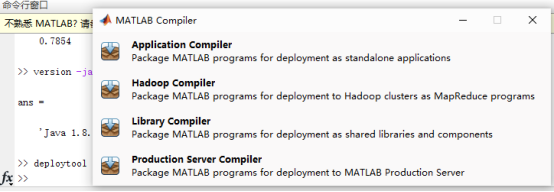
3. Select Java Package
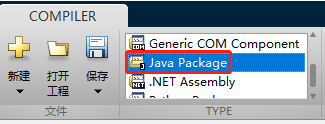
4. Add the .m file you just saved
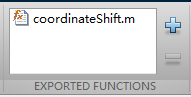
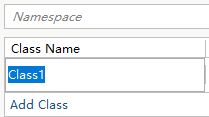
You can change the class name at this position
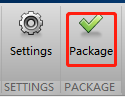
5. Click Package
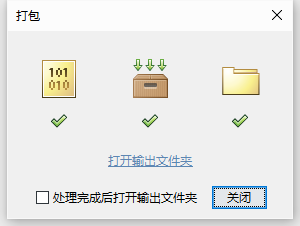
6. Package
Step 3 Call the JAR Package in AnyLogic
1. Open the AnyLogic model that requires the MATLAB function; in this example, we created a new model.
2. Click on model properties and import the JAR package just created.
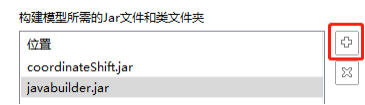
Click  , browse to the folder where the function JAR package is located, as shown in the example below, select the second folder.
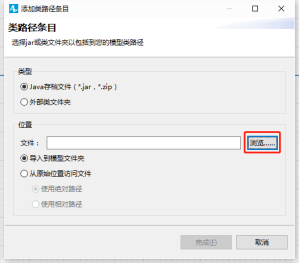

Select the corresponding .jar file
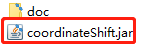
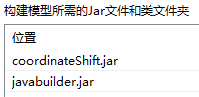
3. Additionally, import the JAR package from the javabuilder folder located in the MATLAB folder, following the same steps as above, with a path similar to:C:\Program Files\MATLAB\R2015b\toolbox\javabuilder\jar
Once imported, it will look as follows:
Step 4 Verification
1. Add code in the model
try{Class1 cs= new Class1();// Class1 is the modifiable class name when exporting the jar packagetraceln(cs.coordinateShift(2,1.0,1.0));}// The coordinateShift function format is output count, parameters. For example, 2 indicates two outputs, 1.0,1.0 are parameters, 1.0 must have a decimal point to become double type, int type will cause an error.catch(MWException e){}// Use try and catch to throw and catch exceptions, otherwise it will report an error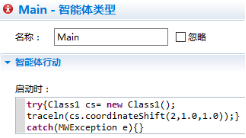
2. Run the AnyLogic model, and the output result is as follows:
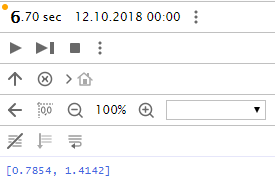
3. The coordinates of this point are (1,1), the polar angle is pi/4, i.e., 3.1415/4=0.7854, and the polar axis is the square root of 2, i.e., 1.4142, indicating that the function call was successful.
Error Examples
1. Error Prompt
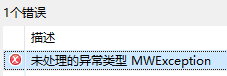
Use try and catch to throw and catch exceptions:
Add try{code}
catch(MWException e){}
2. traceln(cs.coordinateShift(2,1.0,1.0));Common error writing
1) 
In the coordinateShift function, the format is output count, parameters. In error writing 1 (2,1,1), the last two groups are parameters that need to have a decimal point to become double type; int type will cause the following error prompt:
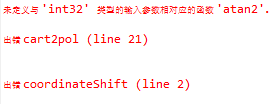
2) 
In the coordinateShift function, the format is output count, parameters. In error writing 2, the following error prompt will appear:

3) 
In the coordinateShift function, the format is output count, parameters. In error writing 3, the output count is 3, and the following error prompt will appear:
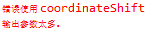
Introduction to the AnyLogic Calling MATLAB Case
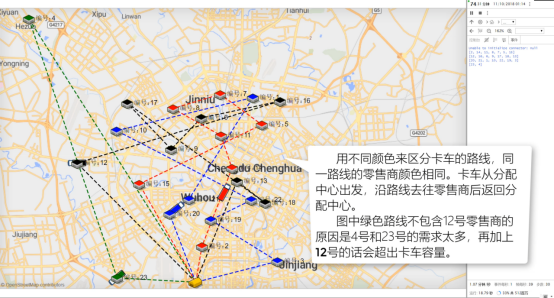
This case uses the method of writing algorithms in MATLAB and exporting JAR packages, then importing the JAR package into AnyLogic to build process logic, using genetic algorithms to solve routing problems in the supply chain.
The process involves four trucks departing from a distribution center to deliver goods to retailers and return to the distribution center, planning the most reasonable route for each truck based on the retailers’ demand and location.
1. Build the process logic in MATLAB and AnyLogic, as shown in the figure below:
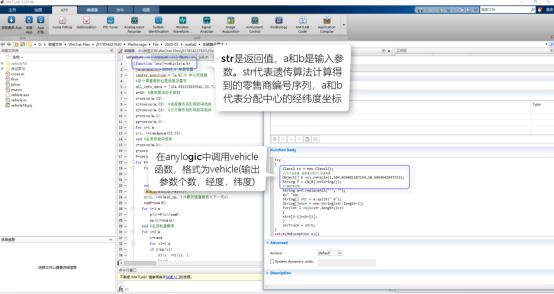
Using genetic algorithms, four routes were obtained, with four trucks in the model each following their respective routes to deliver goods to retailers.
2. Write code in AnyLogic to call relevant MATLAB function functions via the MATLAB API, achieving synchronous or asynchronous interaction with MATLAB. For example, using the MATLAB API to calculate the factorial of a number, create matrices, and use MATLAB’s Simulink tool.
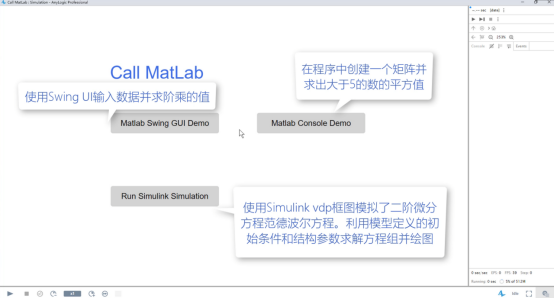
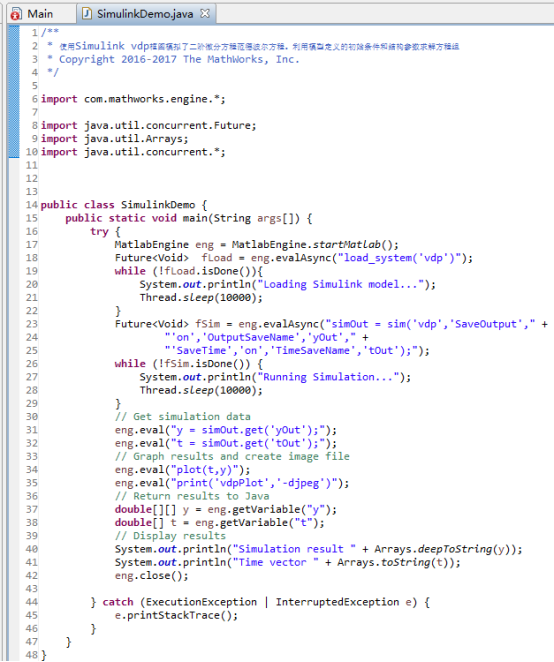
In this example, to simulate the second-order differential equation Van der Pol equation using the Simulink vdp block diagram, the initial conditions and structural parameters defined in the model are used to solve the system of equations. The code written in AnyLogic is as follows:
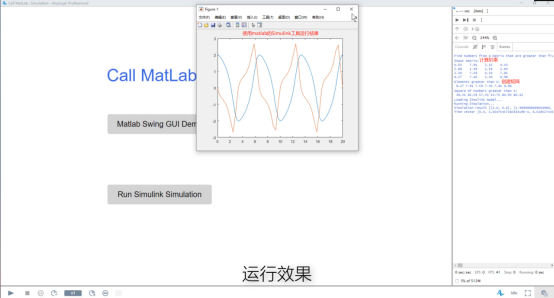
3. Run the model:
Video Demonstration of AnyLogic Calling MATLAB Genetic Algorithm via JAR Package

Follow the subscription account | AnyLogic
Simulation Changes the World