
Share interest, spread happiness,
increase knowledge, and leave beautiful memories!
Dear reader, welcome to LearningYard Academy.
Today, the editor brings you the article
“Introduction to MATLAB (Part 2)”
Welcome to our site!
1. Mind Mapping
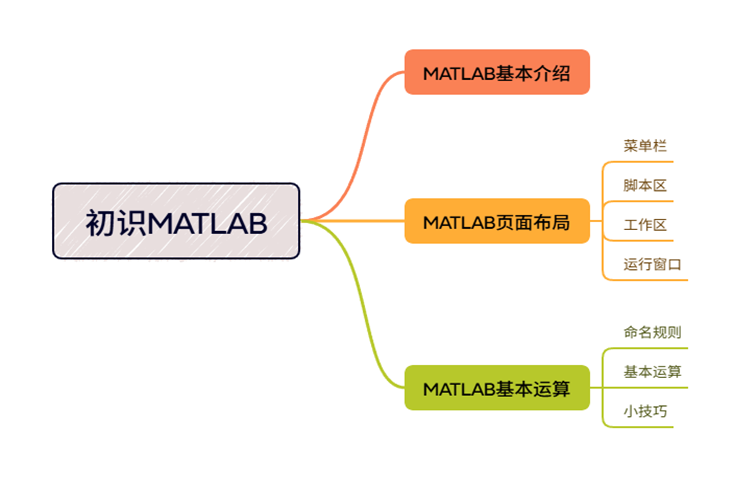
2. A Basic Introduction to MATLAB
Firstly, MATLAB, with its full name being Matrix Laboratory, is a high-level programming language and interactive environment that is extensively employed in the realms of engineering and scientific computing. Developed by MathWorks, MATLAB finds applications across a diverse array of fields, including but not limited to data analysis, wireless communications, image processing and computer vision, deep learning, signal processing, quantitative finance and risk management, robotics, and control systems. Its principal advantages encompass matrix operations, data visualization, and algorithm development, rendering it exceptionally well-suited for addressing intricate mathematical problems and conducting simulation modeling tasks.
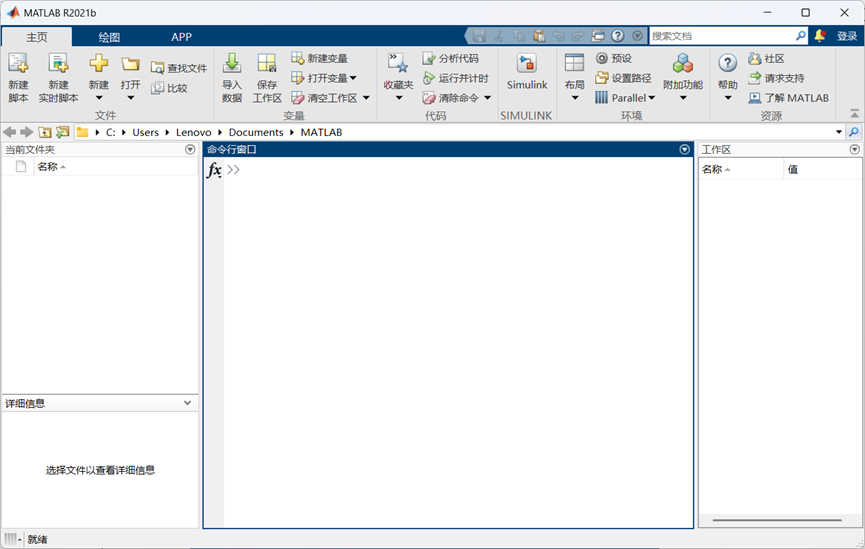
Upon the initial launch of MATLAB, the desktop interface presents the default layout. The accompanying image illustrates the interface configuration when I opened the MATLAB R2021b version.
One can observe that the words “Ready” are displayed in the lower-left corner of the interface, indicating that the software is operational and ready for use. Additionally, some users may see the message “Initializing,” which suggests that they need to wait for a brief moment before the software becomes available.
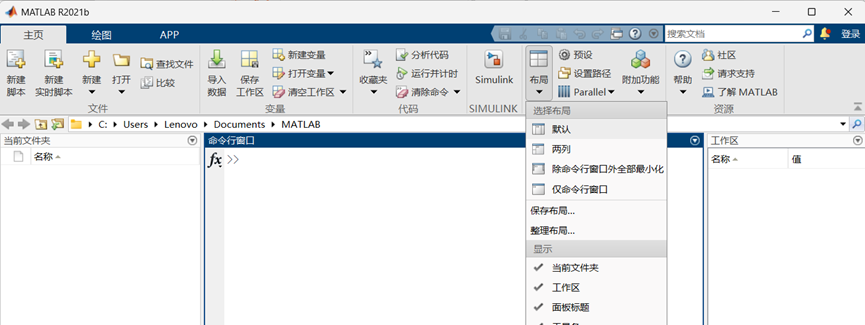
In the initial interface, we can clearly observe a row of menu bars at the topmost part. Based on one’s requirements, one can select functions from the Home, Plots, and APP tabs. For instance, if I need to restore the interface to its default state, I can simply navigate to Home > Layout > Default.
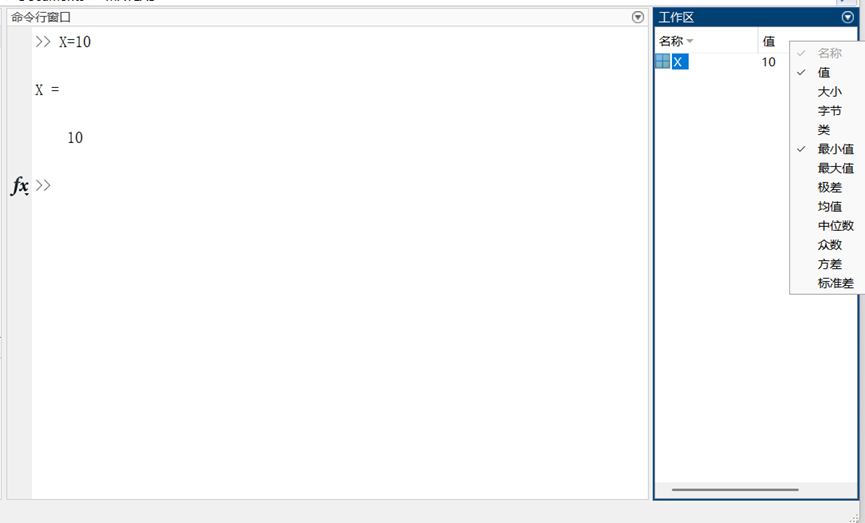
Subsequently, we can input an arbitrary piece of data into the command line window. Upon doing so, we will observe that the data we just entered appears in the workspace on the right-hand side. Within the workspace, by right-clicking on the data, we can select additional attributes for the data to meet our specific requirements.
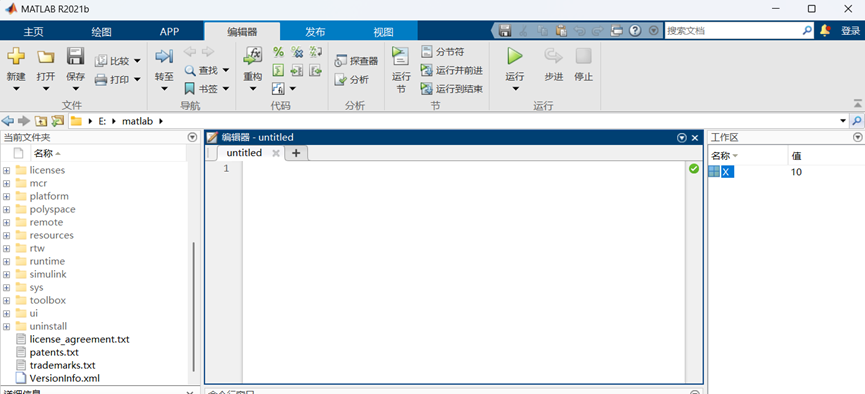
In practical applications, simply entering straightforward commands directly into the command line window may not fulfill all the users’ needs. Therefore, MATLAB offers an alternative working method, which involves programming using script files with the “.m” suffix. When a significant number of commands need to be inputted and are frequently reused or executed, the use of “.m” files becomes advantageous. To create such a file, one can click on the MATLAB menu bar and select: Home > New > Script, or alternatively, use the shortcut key Ctrl+N. Upon doing so, the editor interface, as illustrated in the following figure, will appear:
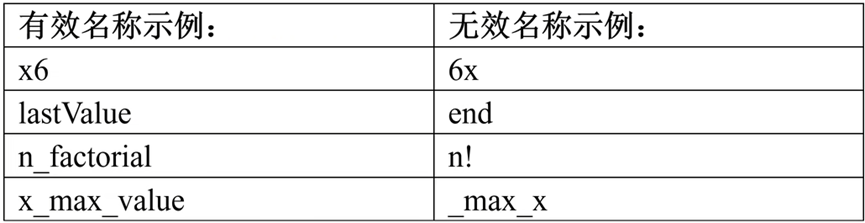
Next, let’s discuss the variable naming rules in MATLAB. When naming variables in MATLAB, the following rules should be adhered to:
1. The variable name must commence with a letter, and it may subsequently consist of any combination of letters, digits, or underscores.
2. Variable names are case-sensitive; for instance, ‘a’ and ‘A’ denote two distinct variables.
3. The variable name should not exceed 63 characters in length, as any characters beyond the 63rd will be disregarded. Below is an example:
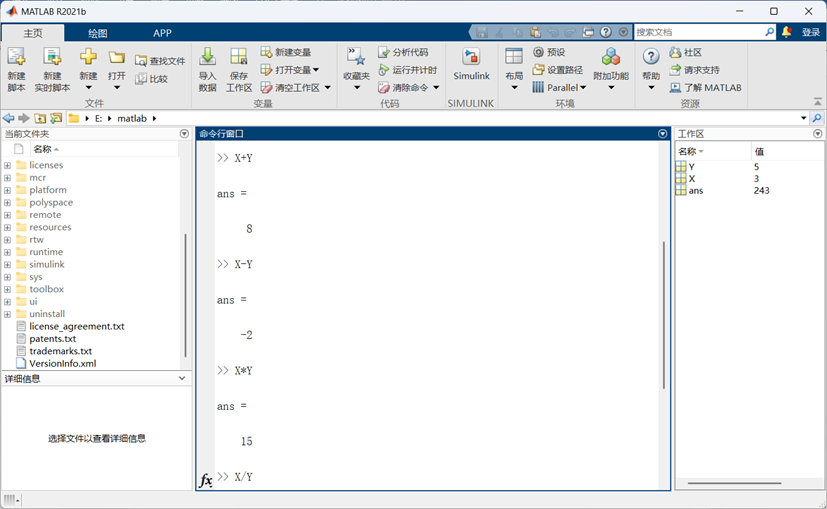
After familiarizing ourselves with the basic naming conventions in MATLAB, let us now delve into some of its fundamental arithmetic functions, namely addition, subtraction, multiplication, division, and exponentiation. One can perform these calculations by entering the corresponding arithmetic operators (i.e., +, -, *, /, and ^) in the command execution window.
Finally, I would like to share a few handy tips with you. After creating or opening an “.m” file in MATLAB, three new options will appear in the menu bar at the top. You can click on “View” and then check the options to highlight the current line, display line numbers, and show data tips. These features can be quite helpful for your learning. Additionally, by entering “clc” in the command execution window, you can clear the current window’s content. Lastly, entering “clear all” will clear the contents of the workspace.
That’s all for today’s sharing.
If you have a unique idea about the article, please leave us a message, and let us meet tomorrow.
I wish you a nice day!
Translation: Wenxin YiyanReferences: Baidu Encyclopedia, Bilibili, MATLAB Official WebsiteThis article is organized and published by LearningYard Academy. If there is any infringement, please leave a message in the background! Copywriter | AuroraLayout | AuroraReview | hzy