1. Installing Python
1️⃣ Visit the official Python website: https://www.python.org/ and download the Windows version of Python.
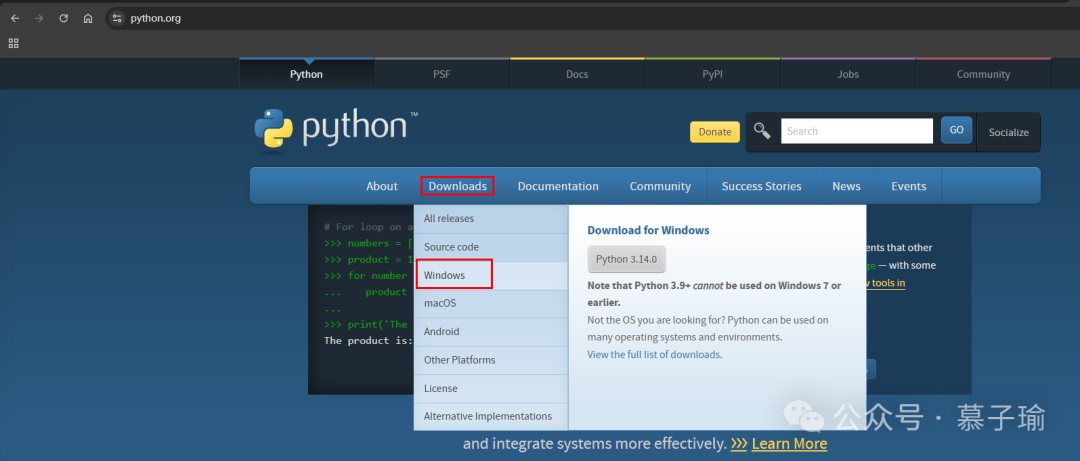
For the Windows installation, I downloaded Python 3.13.7. Click to download ⏬ and save the file to your desired path (I saved it to D:\py).
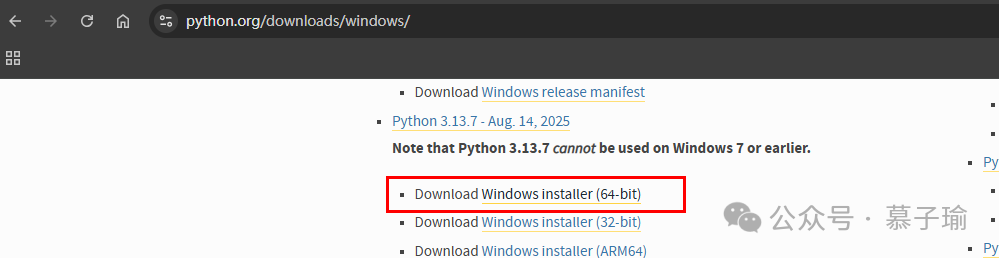
2️⃣ After the download is complete, double-click the python-3.13.7-amd64.exe file to start the installation.

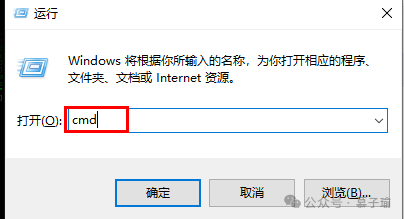
3️⃣ Check the box for “Add Python to PATH”. 4️⃣ Choose “Install Now” or a custom installation path. 5️⃣ After installation is complete, press Win+R, type cmd, and hit OK.
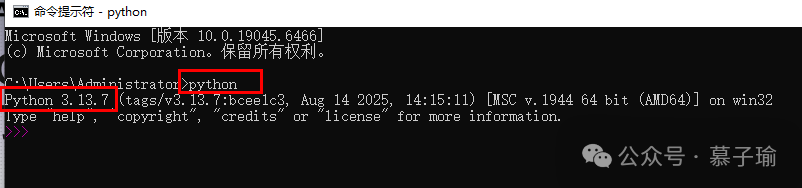
Type python in the command line, and if the following image appears, it indicates that Python has been successfully installed.
——————————- This is the dividing line ———————
2. Next, you need to install development tools 🛠️
1️⃣ To install the PyCharm tool, visit the official website: https://www.jetbrains.com/pycharm/download/
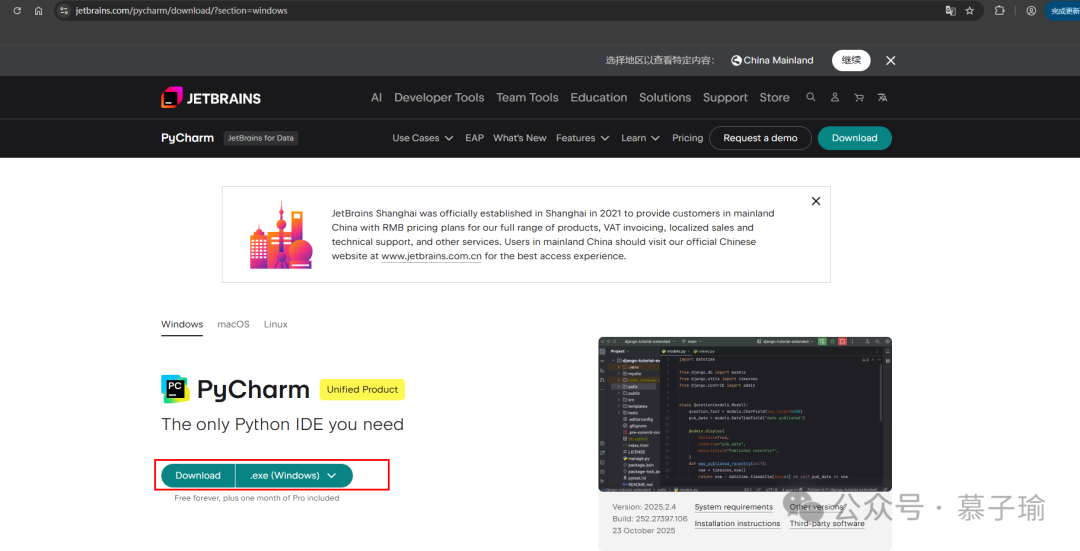
Download the corresponding .exe for Windows. After downloading, double-click the .exe file to install. Once installed, a PC icon will appear on the desktop.
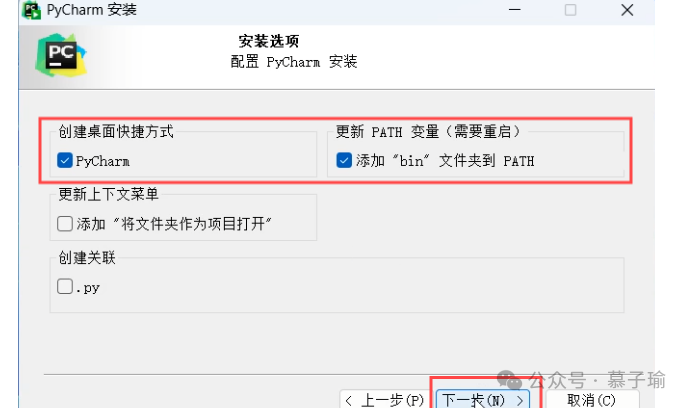
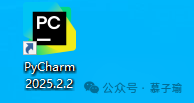
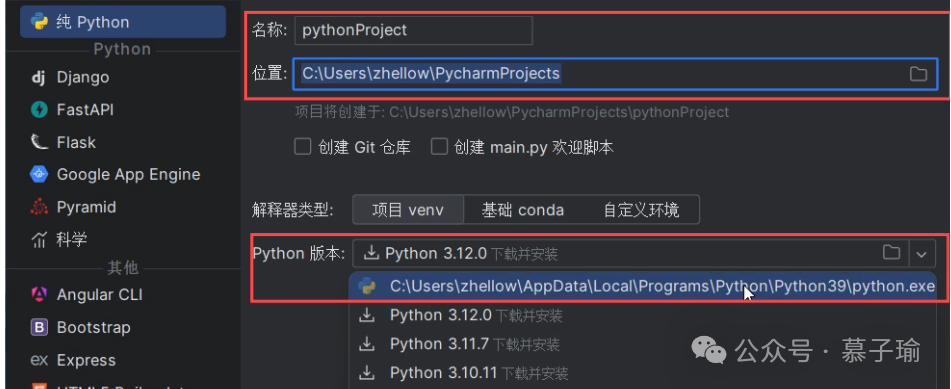
2️⃣ Open PyCharm and create a new project.
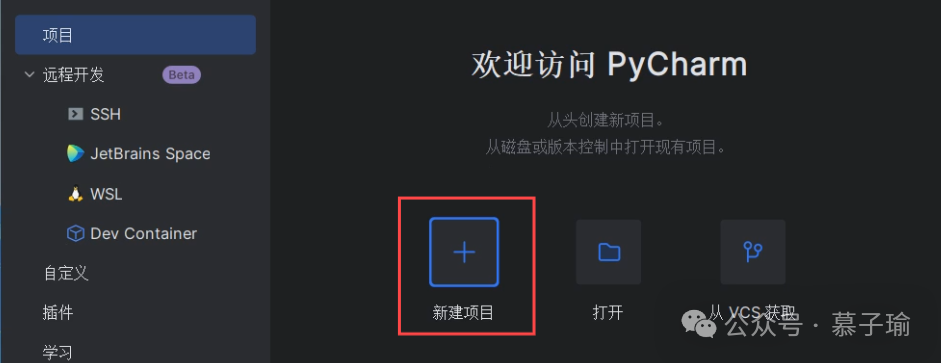
Create a folder for categorization.
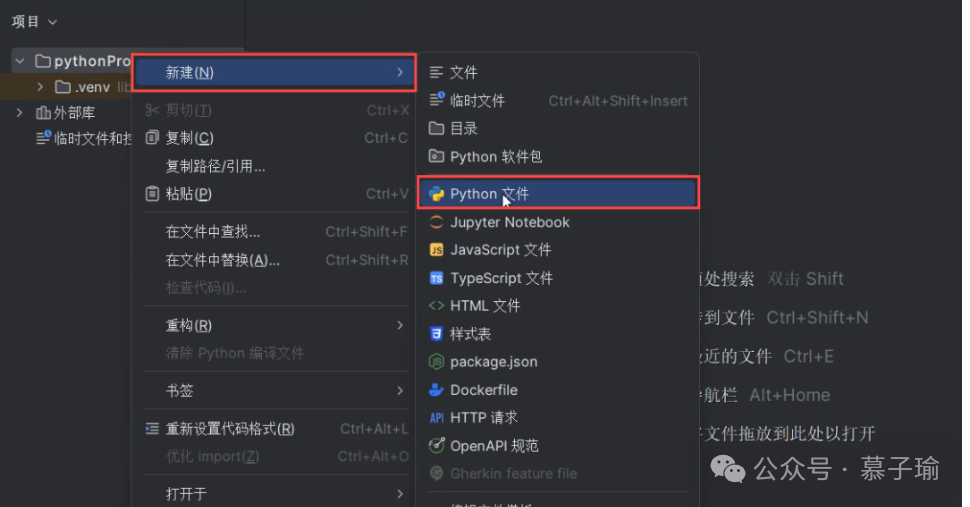
Right-click to create a new Python file.
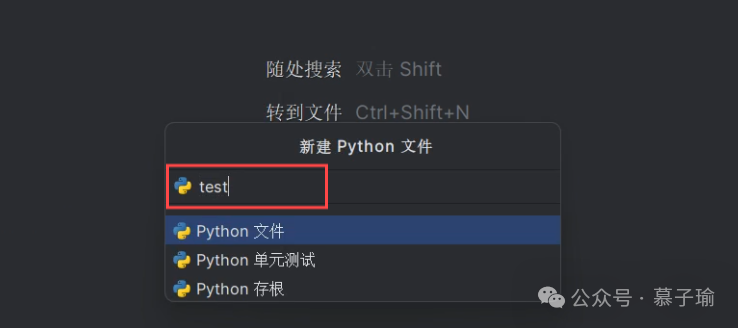
Name it test.
3️⃣ Write a simple Python statement: print('hello world'). Right-click to run test.
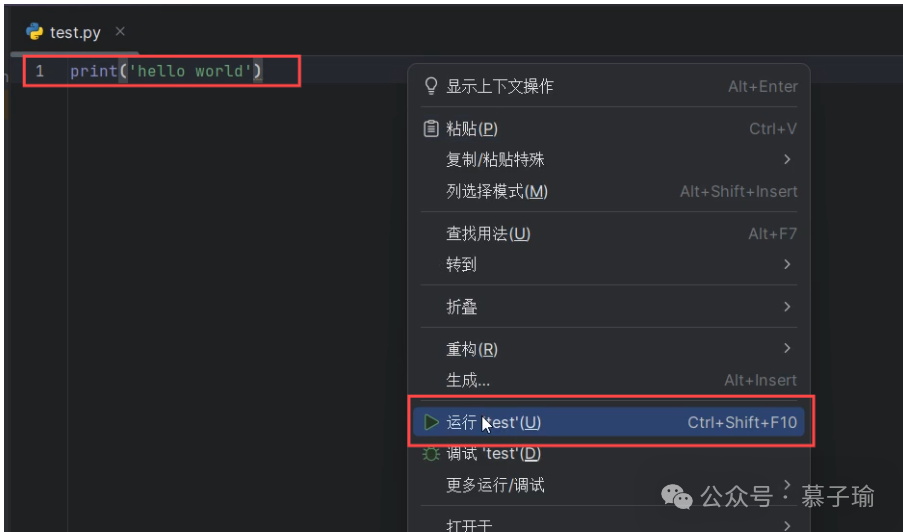
The output window will display hello world.
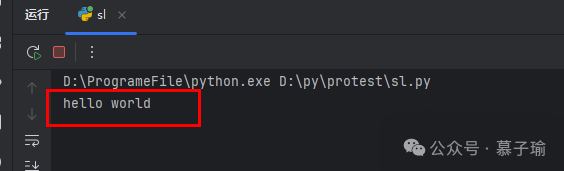
Congratulations! You have completed your first line of Python code!