
Ozone is a cross-platform code debugging software that supports J-Link and J-Trace debuggers. It can load Elf/Dwarf executable files generated by toolchains like SES, Keil, GCC, and clang/LLVM for debugging C/C++ source code and assembly instructions.
In the new version of Ozone, a debugging snapshot feature has been added, which can save the entire system state, including RAM, Flash, CPU registers, selected peripherals, timeline, code summary (execution counter), data graph, power graph, terminal logs, console logs, and more.
When loading a snapshot later, all debugging windows will display the information shown at the time of snapshot creation, including the call stack, symbols, tasks, memory, and register windows.
Advanced target system states, such as clock, IRQ, and peripheral configurations, can be accurately restored from the snapshot. This means even complex multitasking programs and programs with peripheral IO can be restored from the snapshot point.
Snapshots can be loaded and observed in offline mode. This means that no hardware is required when loading a snapshot, not even J-Link or J-Trace.
Saving Snapshots
Users can define which data to save in the snapshot through the snapshot dialog. This dialog provides two sub-dialogs that allow defining the system state of components, i.e., which memory areas, CPU, floating-point, and peripheral registers to save. This dialog can be accessed from the Debug menu or by executing the command Debug.SaveSnapshot.
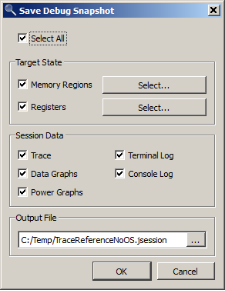
The default configuration of the register selection dialog, as well as the default target register set saved to the snapshot, includes all basic CPU registers and FP registers.
The default configuration of the memory selection dialog, as well as the default target memory areas saved to the snapshot, includes FLASH and RAM areas defined for the target in the J-Link API MCU database; ELF program data segments with allocatable flags (A) set.
You can restore these default configurations by clicking the Restore Defaults button. The Import button allows adding memory areas from SEGGER Embedded Studio memory mapping files. The Save to Project button saves the current configuration to the project’s user file (jdebug.user). Snapshots are compressed using SEGGER’s emCompress software library, and the disk format is an internal document.
Loading Snapshots
The load snapshot dialog can be accessed from the Debug menu or by executing the command Debug.LoadSnapshot.
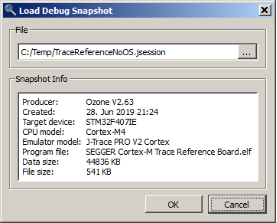
Before loading a snapshot, users must ensure:
🔹 Select a target device that matches the snapshot target device.
🔹 Load the program file that matches the program image saved with the snapshot.
🔹 Select a trace source that matches the snapshot tracking source.
🔹 The graphical expression list matches the expression list at the time of taking the snapshot.
If any of the above conditions are not met, a warning dialog will pop up:
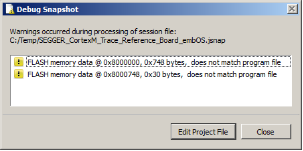
A simple way to ensure the above prerequisites is to load the snapshot after opening the project file used to create the snapshot.
System Recovery Order
When loading a snapshot, registers and memory areas will be restored in the order they appear in the snapshot. This order is the same as that displayed in the memory and register selection dialog. When loading a snapshot in target online mode, non-basic CPU registers will not be immediately written to the target. The user must program the specific way the system, peripherals, and memory-mapped registers apply to the target.
Snapshot Programming
To restore advanced system states from a snapshot, such as (clock) peripherals, users typically need to program the precise order of recovery operations. To support this, Ozone provides script functions OnSnapshotSave and OnSnapshotLoad and a command group Snapshot to customize the reading and writing of snapshot files.
/********************************************************************* * SNAPSHOT_Restore_System_Generic * Function description * Loads and applies generic system state from a snapshot* Return Value* 0: OK* -1: error* Notes* (1) User function***********************************************************************/ void OnSnapshotSave (void) { Util.Log("OnSnapshotSave: saving system state..."); // // Save Cortex-M specific system state // Snapshot.SaveReg("CPU.Peripherals.SCB.VTOR"); // Vector table offset register Snapshot.SaveReg("CPU.Peripherals.DWT.DWT_CTRL"); // DWT unit status & control register (SYSTEMVIEW) Snapshot.SaveReg("CPU.Peripherals.SYSTICK"); // System timer configuration (SYSTICK) Snapshot.SaveReg("CPU.Peripherals.SCB.SHPR3"); // Cortex-M IRQ priorties 12-15 (SYSTICK) Snapshot.SaveReg("CPU.Peripherals.SCB.CPACR"); // FPU and coprocessor control register // // Save system clock configuration // Snapshot.SaveReg("Peripherals.RCC.CR"); Snapshot.SaveReg("Peripherals.RCC.CFGR"); Snapshot.SaveReg("Peripherals.RCC.PLLCFGR"); // // Save FLASH configuration // Snapshot.SaveReg("Peripherals.FLASH.ACR"); // // Save LED configuration // Snapshot.SaveReg("Peripherals.RCC.AHB1RSTR"); // LED port reset register Snapshot.SaveReg("Peripherals.RCC.AHB1ENR"); // LED port clock enable register Snapshot.SaveReg("Peripherals.GPIO.GPIOA.MODER"); // LED port mode register Snapshot.SaveReg("Peripherals.GPIO.GPIOA.ODR"); // LED port output data register // // Power configuration // Snapshot.SaveReg("Peripherals.PWR.CR"); // // APB1 clock // Snapshot.SaveReg("Peripherals.RCC.APB1ENR"); Util.Log("OnSnapshotSave: system state saved."); } /********************************************************************** OnSnapshotLoad * Function description * Optional event handler, called upon loading a snapshot. * Additional information * This function is used to restore the target state in cases * where values cannot simply be written to the target. * Typical use: GPIO clock needs to be enabled, before * GPIO is configured. ***********************************************************************/ void OnSnapshotLoad (void) { Util.Log("OnSnapshotLoad: restoring system state..."); if (SNAPSHOT_Restore_System_Generic() != 0) { Util.Log("OnSnapshotLoad : failed to restore generic system state"); return 0; } if (SNAPSHOT_Restore_SysClock() != 0) { Util.Log("OnSnapshotLoad : failed to resore clock-specific system state"); return 0; } if (SNAPSHOT_Restore_OS() != 0) { Util.Log("OnSnapshotLoad : failed to restore OS-specific system state"); return 0; } if (SNAPSHOT_Restore_Board() != 0) { Util.Log("OnSnapshotLoad : failed to restore board-specific system state"); return 0; } Util.Log("OnSnapshotLoad: system state restored.");}Snapshot script functions currently only target system register states. When a snapshot is loaded in online mode, CPU registers and memory data are automatically written to the target, without relying on the script function OnSnapshotLoad. More debugging commands that can be used in the script functions OnSnapshotLoad and OnSnapshotSave can be referenced in the Ozone user manual.
Snapshot storage cannot easily and effectively store binary debugging session data in a user-readable format. Typical applications of snapshots are as follows:
🔹 Snapshots allow customers to detach from debugging sessions and be able to restore sessions at a later point in time.
🔹 Snapshots allow for easier reproduction and analysis of errors, which can be performed by multiple parties on different hosts.
🔹 Snapshots enhance Ozone’s teaching and demonstration capabilities for training courses and meetings.
🔹 Snapshots serve as archives.
The snapshot feature currently only supports Cortex-M architecture processors.
Feel free to follow our WeChat public account 【麦克泰技术】,
MacTech Company代理SEGGER全线产品,具有丰富的软件开发与调试工具使用方面的知识和经验,欢迎咨询[email protected]
Reply “Join Group” to join the technical exchange group as prompted.
Product inquiries:
Beijing: 010-62975900
Shanghai: 021-62127690
Shenzhen: 0755-82977971

Share, view, and like; at least I want to have one.