 Introduction:When I first started working, a leader from another department often forgot the root password for his Linux testing environment and would ask me for help to bypass it. I could easily enter single user mode, reset the password, and reboot in about a minute. After leaving that company, I hardly used single user mode again. Recently, I encountered a situation with the Kylin operating system where I forgot the root password and found that the method to enter single user mode differs significantly from Linux 5 and 6, but is quite similar to Linux 7. This article documents the methods for entering single user mode in Linux 6 and 7.
Single User Mode Introduction:
Single user mode in Linux is a powerful system maintenance and recovery environment. Its core function is to allow administrators to access a minimal system environment with the highest privileges (root) without providing a password. It is primarily used for resolving severe system failures, performing critical maintenance, or resetting passwords.
Single user mode profoundly reflects the design philosophy of Linux/Unix: individuals with physical access are considered trusted administrators. This is the source of its powerful recovery capabilities, but also a potential security risk.
Among them, entering single user mode in Linux 6 is very simple, while in Linux 7 it differs significantly.
Environment Description:
Linux 6: Red Hat Linux 6.5
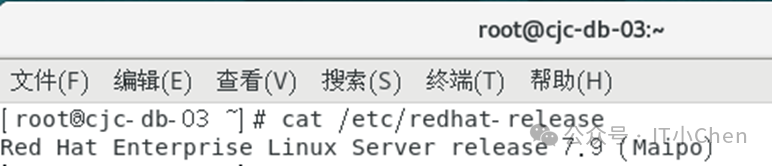
Linux 7: Oracle Linux 7.9
Entering Single User Mode in Linux 6:

During the boot process, you will see the boot menu. Use the up and down arrow keys to select the system for which you forgot the password, then press “e” to edit. The countdown is 5 seconds… Be quick!
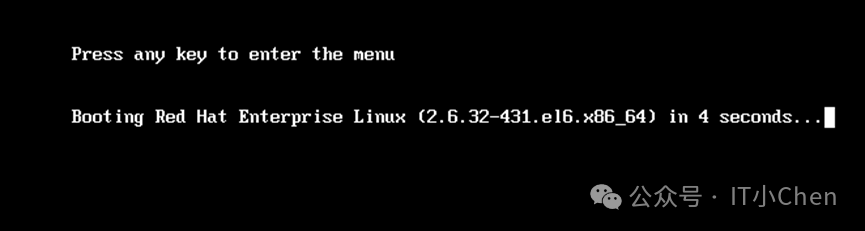
Press e
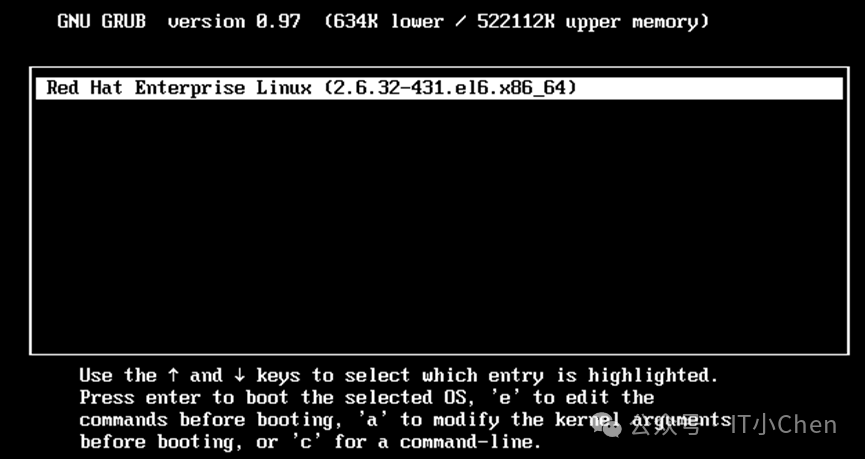
Then press e, use the up and down keys to navigate to the second line.
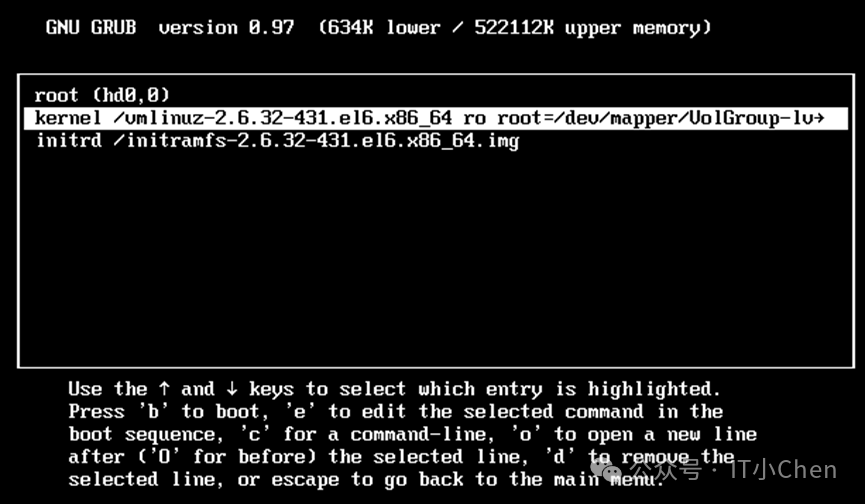
Then press e
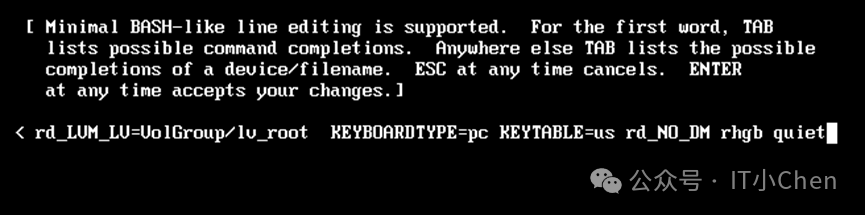
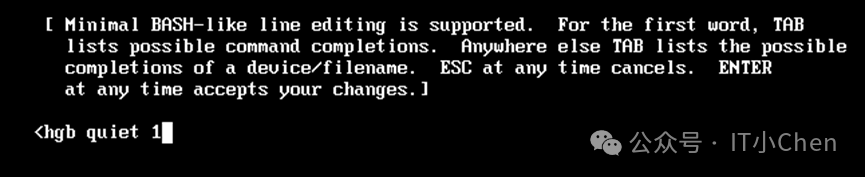
At the end of the line containing rhgb quiet, add a space and type “single“, or directly input the number “1“ and press Enter, as shown below:
After pressing Enter, return to this interface.
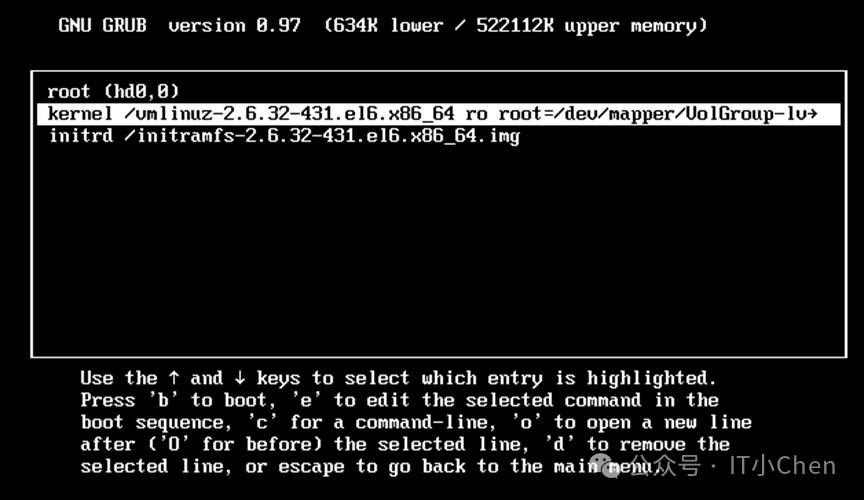
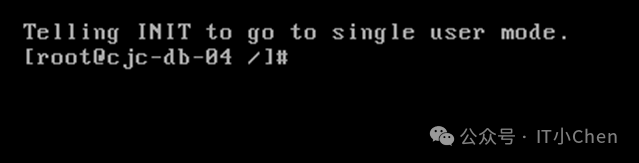
Press b to reboot the system, which will automatically enter single user mode.
You can perform some routine checks.
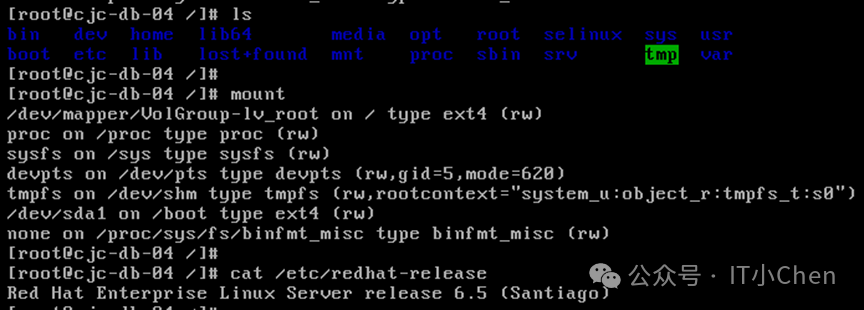
You can also reset the root password.
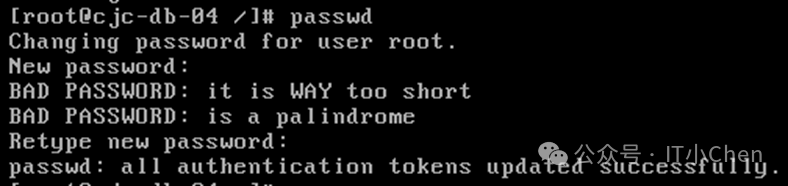
Reboot the system.

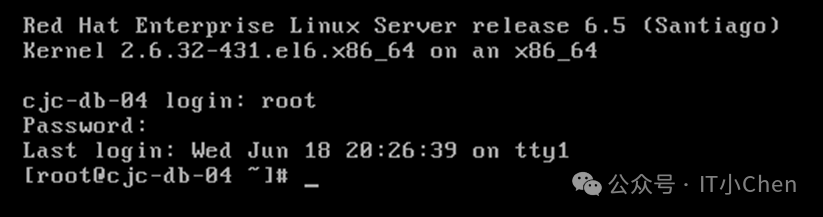
Use the new root password to log in successfully.

Entering Single User Mode in Linux 7:
 Reboot the system.
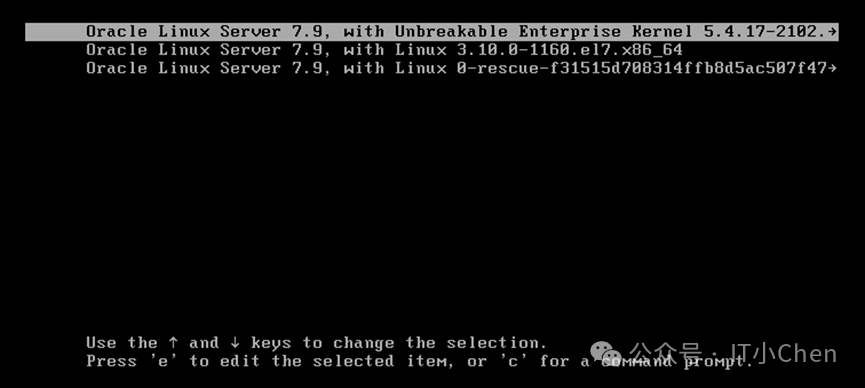 Press e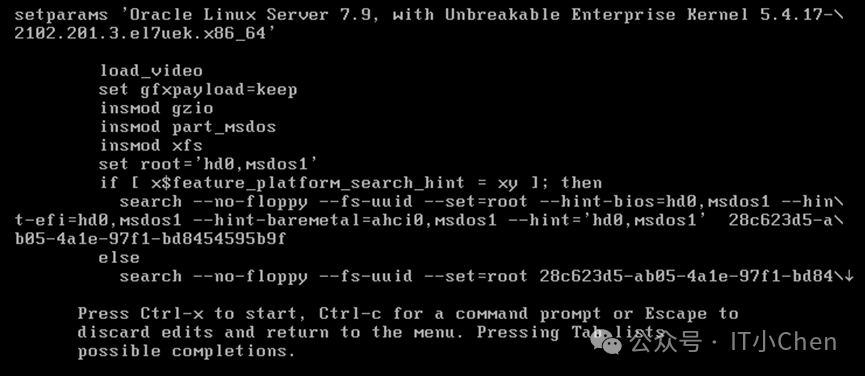
Use the down arrow key to scroll down and find the line starting with linux 16:
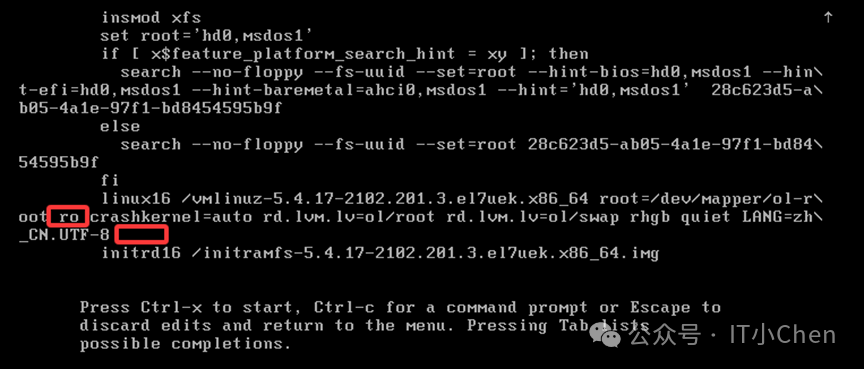
Change ro to rw, and add space and init=/sysroot/bin/sh
Before modification:
After modification:
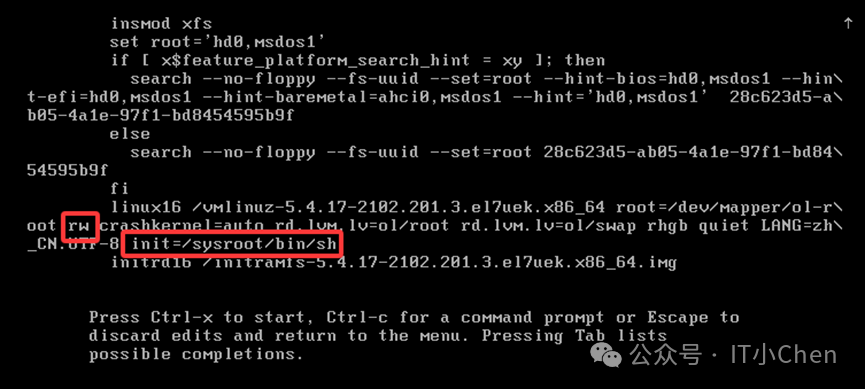
Press Ctrl+x
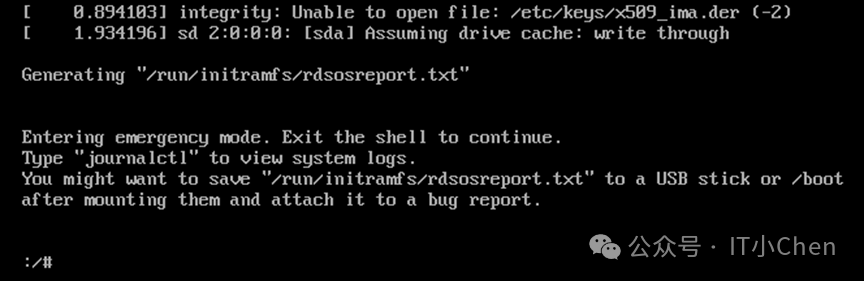 Input: chroot /sysroot/
Modify the root password: the Chinese characters are garbled, but it does not affect the password reset.
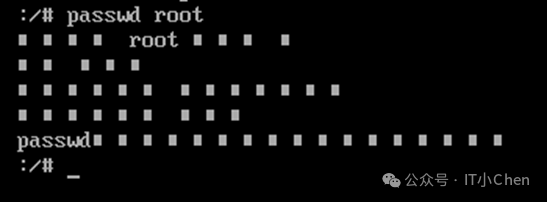
Create a file:
touch /.autorelabel

Exit and reboot the system:
exit
Reboot the system:
reboot

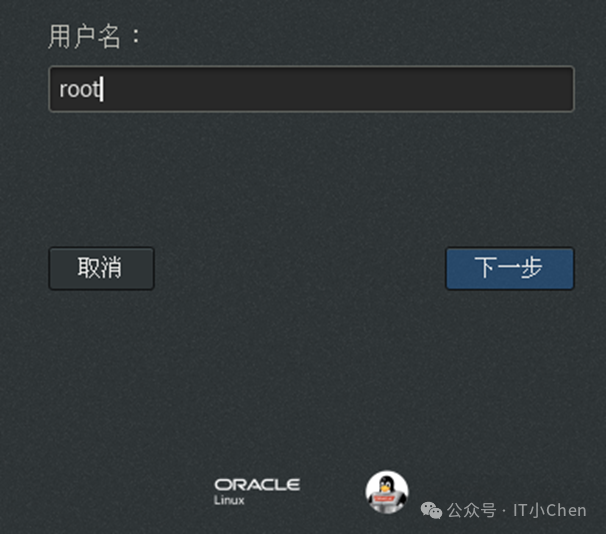
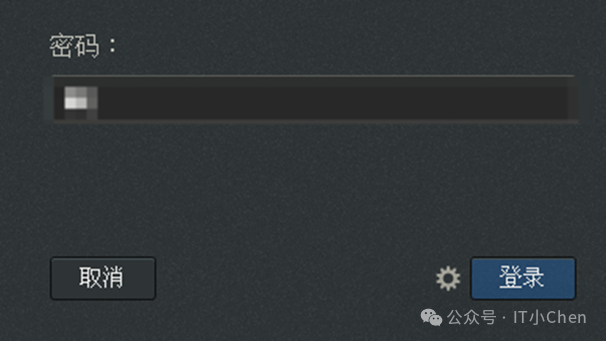 Log in with the new password successfully:
 —End—Thank you for following my public account “IT Xiao Chen”