1. Difference Between Commands and Command Lines
1. Command Line: The Linux terminal (Terminal), a command prompt page, operates the system in pure “character” form, allowing various character-based commands to issue operational instructions to the system.
2. Command: A Linux program, where a command is essentially a program. Commands do not have a graphical interface and provide character-based feedback in the command line (terminal).
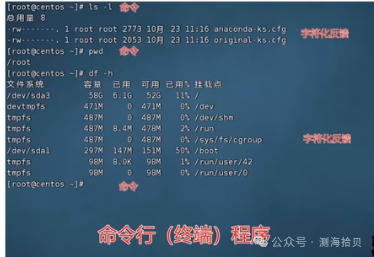
2. Basic Format of Commands
In Linux, the general format of a command is: command [-options][parameter]
① command: The command itself.
② -options: [Optional, not mandatory] Some options for the command that control the details of its behavior.
③ parameter: [Optional, not mandatory] The parameters for the command, mostly used to specify targets, etc.
The brackets [] in the syntax indicate that the items are optional.
④ Example:
·ls -l /home/itheima, where ls is the command itself, -l is the option, and /home/itheima is the parameter.
Meaning: Display the contents of the /home/itheima directory in a list format.
.cp -r test1 test2, where cp is the command itself, -r is the option, and test1 and test2 are parameters.
Meaning: Copy the folder test1 to become test2.
3. Common Linux Commands for Software Testing
1. ls command: List the contents of a directory
Syntax: ls [-a -1 -h] [Linux path]
① -a -1 -h are optional options.
-a option displays hidden contents; files or folders starting with a dot are hidden by default and need -a to be shown.
-l option displays contents in a list format and shows more details.
-h option needs to be used with -l to display file sizes in a more human-readable format.
② The Linux path is an optional parameter for this command.
③ If no options or parameters are used, simply using the ls command lists the contents of the current working directory in a tiled format.

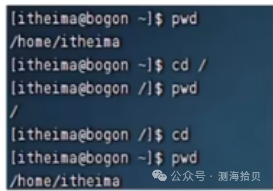
2. cd command: Change the working directory (change the current working directory)
Syntax: cd [Linux path]
① The cd command requires no options, only parameters, indicating which directory to switch to.
② If the cd command is executed without parameters, it returns to the user’s HOME directory.
3. pwd command: View the current working directory
Syntax: pwd
① The pwd command has no options or parameters; simply inputting pwd will suffice.
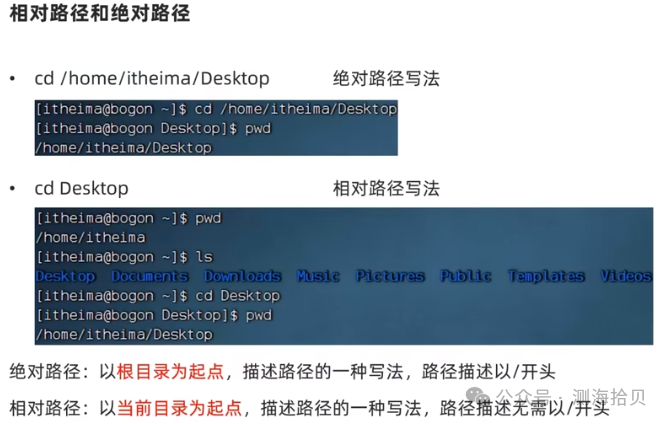
Special Path Symbols:
① . indicates the current directory, for example, cd ./Desktop means switching to the Desktop directory under the current directory,
which is equivalent to cd Desktop.
② .. indicates the parent directory, for example: cd .. switches to the parent directory, cd ../.. switches to the grandparent directory.
③ ~ indicates the HOME directory, for example: cd ~ switches to the HOME directory or cd ~/Desktop switches to the Desktop directory within HOME.
4. mkdir command: Create a new directory (folder)
Syntax: mkdir [-p] Linux path
① The parameter is mandatory, indicating the Linux path, i.e., the path of the folder to be created, which can be relative or absolute.
② -p option is optional, indicating that non-existent parent directories will be created automatically, suitable for creating multiple levels of directories.
③ Using the -p option allows the entire chain to be created at once.
5. touch command: Create a file
Syntax: touch Linux path
The touch command has no options; the parameter is mandatory, indicating the path of the file to be created, which can be relative, absolute, or special paths.
6. cat command: View the entire content of a file
Syntax: cat Linux path Example: cat test.txt
The cat command has no options; the parameter is mandatory, indicating the path to be viewed, which can be relative, absolute, or special paths.
7. more command: View file content, supports pagination, can display files page by page
Syntax: more Linux path Example: more /etc/services
Pagination: Space key Exit view: q
The more command has no options; the parameter is mandatory, indicating the path to be viewed, which can be relative, absolute, or special paths.
8. cp command: Copy files or folders
Syntax: cp [-r] parameter1 parameter2
Example: cp -r iuhg1 iuhg2 (copy folder) cp test.txt test.txt2 (copy file)
-r option is optional, used for copying folders, indicating recursive copying.
parameter1: Linux path, indicating the file or folder to be copied.
parameter2: Linux path, indicating where to copy to.
9. mv command: Move files or folders
Syntax: mv parameter1 parameter2 Example: mv test.txt Desktop/
parameter1: Linux path, indicating the file or folder to be moved.
parameter2: Linux path, indicating where to move to; if the target does not exist, it will rename.
10. rm command: Delete files or folders
Syntax: rm [-r -f] parameter1 parameter2 ….parameter n
Example: rm test1 (delete file) rm -r test2 (delete folder) rm -r test3 test4 test5 (delete multiple folders)
-r option is optional, used for deleting folders.
-f indicates forced deletion, applicable for administrators; ordinary users do not use it (Note: When deleting, ordinary users do not get a prompt, while administrators do; if an administrator uses -f, no prompt will appear).
parameter1 parameter2 ….parameter n: The paths of the files or folders to be deleted, separated by spaces.
11. rm fuzzy matching, wildcard *, matches any content
Example: rm -r test* (delete folders starting with test)
test*: indicates matching content starting with test.
* test: indicates matching content ending with test.
* test*: indicates matching any content containing test.
12. which command: Find the program file location of a command
Syntax: which command to find Example: which cd
13. find command: Find files by filename
Syntax: find starting path -name “filename to find”
Example: find / -name “test” (find file named test in the root directory)
14. find fuzzy query, wildcard *, matches any content
Example: find / -name “test*” (find folders starting with test in the root directory)
test*: indicates matching content starting with test.
* test: indicates matching content ending with test.
* test*: indicates matching any content containing test.
15. find command: Find files by size
Syntax: find starting path -size +/-[KMG]
Example: find / -size -10k (find files smaller than 10kb in the root directory)
find / -size +1G (find files larger than 1GB in the root directory)
+ indicates greater than – indicates less than
n indicates size number
KMG indicates size units, kb, MB, GB
16. grep command: Filter file lines by keyword
Syntax: grep [-n] keyword file path
Example: grep -n “test” test.txt
-n is optional, indicating that the matching line numbers will be displayed in the results.
Keyword is mandatory, indicating the filtering keyword; if it contains spaces or other special characters, it is recommended to surround the keyword with ” “.
File path is mandatory, indicating the file path to filter content, which can serve as an input port.
17. wc command: Count statistics, count the number of lines, words, etc. in a file
Syntax: wc [-c -m -l -w] file path
Example: wc -c test.txt
-c counts the number of bytes
-m counts the number of characters
-l counts the number of lines
-w counts the number of words
Parameter, file path, the file to be counted, can serve as an input port.
18. Pipe symbol: |, takes the result of the command on the left of the pipe as input for the command on the right
Example: cat test.txt | grep test1
The output of cat test.txt (file content) serves as input for the right grep command (filtered file).
19. echo command: Output specified content in the command line
Syntax: echo content to output
Example: echo Hello Linux
Only one parameter, indicating the content to output; if it contains spaces or special symbols like \ etc., complex content can be surrounded with ” “.
20. Redirection symbols: > >>
> redirects the result of the left command to overwrite the specified file on the right.
>> appends the result of the left command to the specified file on the right.
Example: echo “test” > test.txt overwrites with new content
echo “text” >> test.txt appends new content using >>
21. tail command: View the end of a file, track the latest changes to the file
Syntax: tail [-f -num] Linux path
Example: tail -5 test.txt
-f indicates continuous tracking
-num indicates how many lines to view from the end; if not specified, defaults to 10 lines.
Linux path indicates the file path to be tracked.
22. vi/vim: Text editor
1. Enter the editor command: vi file path vim file path (compatible with all vi functions)
2. If the file path does not exist, the command is used to edit a new file; if the file path exists, it edits an existing file.
3. Operation process:
① Use: vim hello.txt to edit a new file, executing enters command mode.
② In command mode, press the i key to enter input mode.
③ In input mode, type: ibhfevagjh and dguejbjg
④ After inputting, press esc to return to command mode.
⑤ In command mode, press the colon key to enter bottom line command mode.
⑥ In bottom line command mode, type: wq , to save the file and exit the editor.
23. su command: Switch user
Syntax: su [-] [username]
Example: su – root (switch to root account)
24. exit command: Return to the previous user
25. sudo command: Authorize ordinary commands to run temporarily as root.
Syntax: sudo other command
26. groupadd command: Create a user group
Syntax: groupadd group name
27. groupdel command: Delete a user group
Syntax: groupdel group name
28. useradd command: Create a user
Syntax: useradd [-g -d] username
-g: Specify user group; if -g is not specified, a group with the same name will be created and the user will be automatically added.
-d: Specify HOME path; if not specified, defaults to: /home/-username
29. userdel command: Delete a user
Syntax: userdel [-r] username
-r: Delete the user’s HOME directory; if not used, the HOME directory will be retained.
30. id command: View the groups a user belongs to
Syntax: id [username]
Modify user group membership
Syntax: usermod -aG group username
31. getent command: View the current users in the system
Syntax: getent passwd (all user information in the current system)
getent group (all group information in the current system)
32. chmod command: Modify file and folder permission information
Syntax: chmod [-R] permissions file or folder
Example: chmod u=rwx,g=rx,o=x hello.txt changes file permissions to: rwxr-x-x
chmod -R u=rwx,g=rx,o=x test changes folder permissions to: rwxr-x-x
-R: Apply the same operation to all contents of the folder.
33. chown command: Modify the owner and user group of a file or folder (root user)
Syntax: chown [-R] [user] [:] [user group] file or folder
Example: chown root:ihey hello.txt changes the owner of hello.txt to root and the user group to ihey.
-R: Apply the same operation to all contents of the folder.
User: Modify the owner.
User group: Modify the user group.
: separates user and user group.
34. Shortcuts
Force stop: ctrl+c
Exit or log out: ctrl+d
View command history: type history
Cursor jump to the beginning: ctrl+a
Cursor jump to the end: ctrl+e
Jump left by one word: ctrl+left arrow key
Jump right by one word: ctrl+right arrow key
Clear terminal content: ctrl+l or type command clear
35. yum command: RPM software manager, automates the installation and configuration of Linux software (root privileges, CentOS system)
Syntax: yum [-y] [install | remove | search] software name
Example: yum -y install wget automatically installs the wget program.
-y: Automatically confirm.
install Install remove Uninstall search Search
36. apt command: RPM software manager, automates the installation and configuration of Linux software (root privileges, Ubuntu system)
Syntax: apt [-y] [install | remove | search] software name
Example: apt -y install wget automatically installs the wget program.
-y: Automatically confirm.
install Install remove Uninstall search Search
37. systemctl command: Control the startup, shutdown, and auto-start of software (services)
Syntax: systemctl start |stop | status | enable | disable service name
Example: systemctl start firewalld starts the firewall service.
start Start stop Stop status Check status enable Enable auto-start disable Disable auto-start
Built-in system services include:
Main network service: NetworkManager
Secondary network service: network
Firewall service: firewalld
Shell remote login Linux services: sshd, ssh services
38. ln command: Create a soft link, linking files or folders to other locations
Syntax: ln -s parameter1 parameter2
Example: ln -s /etc/yum ~/yum
-s: Create a soft link.
parameter1: The file or folder being linked.
parameter2: The location to link to.
39. date command: View system time
Syntax: date [-d] [+format string]
Example: date “+%Y-%m-%d %H:%M:%S (displays date format: 2022-01-01 10:00:00)
date -d “+1 day” tomorrow
-d: Display date according to the given string, used for date calculations.
Format string: %Y year %M month %d day
40. Modify Linux timezone
rm -f /etc/localtime
sudo ln -s /usr/share/zoneinfo/Asia/Shanghai /etc/localtime
41. ntp program: Automatically calibrate system time
Install: yum -y install ntp
Start and set to auto-start on boot:
systemctl start ntpd
systemctl enable ntpd
Manual calibration (root): ntpdate -u ntp.aliyun.com
42. View local IP address
Command: ifconfig
If the command cannot be used, install: yum -y install net-tools
43. Hostname
View hostname: hostname
Modify hostname: hostnamectl set-hostname hostname (modify new hostname root)
44. ping command: Check if a specified network server is reachable
Syntax: ping [-c num] ip or hostname
Example: ping -c 3 39.156.66.10
-c: Number of checks
45. wget command: Non-interactive file downloader, can download network files in the command line
Syntax: wget [-b] url
-b: Background download, logs written to the current working directory wget-log file.
url: Download link
View download progress: tail -f wget-log
46. curl command: Send HTTP network requests, used for downloading files, obtaining information, etc.
Syntax: curl [-O] url
-O: Used for downloading files; when the url is a download link, it can be used to save the file.
url: The network address to send the request to.
47. nmap command: View port usage
Install: yum -y install nmap
Syntax: nmap ip address to check
Example: nmap 127.0.0.1
48. netstat command: View the usage of a specified port
Install: yum -y install net-tools
Syntax: netstat -anp | grep port number
Example: netstat -anp | grep 12345
49. ps command: View process information
Syntax: ps [-e -f]
Example: ps -ef lists all process information (fixed usage)
ps -ef | grep tail uses the pipe symbol with grep to find tail command information.
-e: Show all processes
-f: Display information in a fully formatted manner (show all information)
kill command: Close a process
Syntax: kill [-9] process ID
Example: kill -9 2339
-9: Indicates forced closure of the process
50. top command: View CPU and memory usage
Defaults to refreshing every 5 seconds
Syntax: top
Press q or ctrl+c to exit
51. df command: View disk usage
Syntax: df [-h]
-h: Display in a more human-readable unit
52. iostat command: View CPU and disk-related information
Syntax: iostat [-x] [num1] [num2]
-x: Display more information
num1: Refresh interval num2: Number of refreshes
53. sar command: View network-related statistics
Syntax: sar -n DEV num1 num2
-n: View network
DEV: View network interfaces
num1: Refresh interval (default view once) num2: Number of views (default infinite)
54. env command: View the environment variables recorded in the current system
Syntax: env
55. rz, sz commands: File transfer upload and download
Install: yum -y install lrzsz
Syntax: rz (file upload)
sz file to download (download file)
56. Common Linux compression formats: tar gzip zip
① tar command: Compress and decompress folders
Syntax: tar [-c -v -x -f -z -C] parameter1 parameter2…parameterN
Example: tar -cvf test.tar 1.txt 2.txt 3.txt (compress 1.txt 2.txt 3.txt into test.tar file)
tar -zcvf test.tar.gz 1.txt 2.txt 3.txt (compress 1.txt 2.txt 3.txt into test.tar.gz file)
tar -xvf test.tar (decompress test.tar)
-c: Create a compressed file, used in compression mode
-v: Show the compression and decompression process, used to view progress
-x: Decompression mode
-f: The file to create or decompress
-z: gzip mode; if not used, it is the ordinary tarball format
-C: Destination for decompression, used in decompression mode
② zip command: Compress files into a zip archive
Syntax: zip [-r] parameter1 parameter2 parameterN
Example: zip test.zip a.txt b.txt (compress a.txt b.txt into test.zip file)
zip -r test.zip test ifheg a.txt (compress the folders test ifheg and the file a.txt into test.zip file)
-r: Used when compressing includes folders
③ unzip command: Decompress zip archives
Syntax: unzip [-d] parameter
Example: unzip test.zip (decompress test.zip to the current directory)
-d: Specify the location to decompress to
parameter: The zip archive to decompress