In practical work, it is generally not recommended to operate servers directly as the root user. However, sometimes due to special requirements, such as installing certain software, root access is necessary. In this article, we will introduce several commonly used commands for switching users, which beginners need to understand in terms of their usage and differences.
1. Switching with the su Command (Requires Knowing the Root Password)
If you know the root user’s password, you can use the su command. Specifically, enter:
su -# or su - rootAfter entering, the system will prompt you to input the root user’s password.
Note that there is a small detail here: using “su -” or “su – root” not only switches to the root user but also loads the root user’s environment variables, just like logging in as root directly. However, if you only enter “su” (without the hyphen), you can still switch to root, but it will not load the root’s environment configuration, which may lead to strange phenomena (details will be supplemented later when encountered). Therefore, it is recommended to use su – root for stability.
2. Switching with the sudo Command (Requires Current User to Have sudo Privileges)
If your user is in the sudoers list (meaning you have sudo privileges), you can switch to root using the following command:
sudo -i# or sudo su -After entering, you will be prompted to input your current user’s password (note that this is not the root password). If entered correctly, you will switch to root and also load the root’s environment variables.
Additionally, there are two other ways to obtain a root shell:
sudo bash# or sudo -sThese two methods also allow you to gain root privileges to perform operations.
3. Important Notes
- Using the su command requires knowing the root password; whereas using the sudo command only requires the current user to have sudo privileges, without needing to know the root password.
- Operating directly as the root user carries significant risks, as root privileges are extensive. A mistake could lead to serious consequences. Therefore, it is recommended to use sudo to execute individual commands that require root privileges, such as using “sudo apt update” when updating software.
- Some systems (like the default Ubuntu) disable root login, in which case using “su -” may fail, and you will have to use sudo instead.
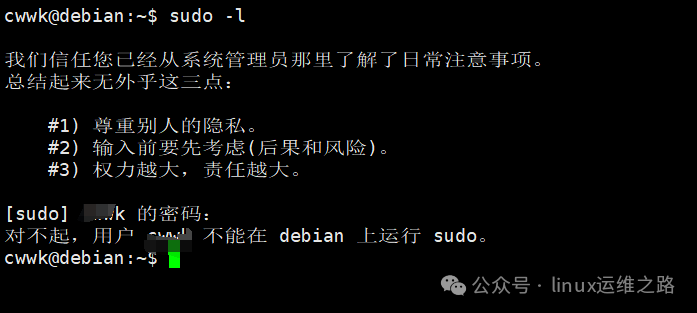
Supplementary Knowledge: How to Check if the Current User Has sudo Privileges?
sudo -lIf the command execution shows the commands that the current user can execute with sudo, it indicates that this user has sudo privileges; if it prompts that there is no permission, then the user does not have it.