The previous content introduced the basic commands for downloading the container version of DeepStream 6.1 from NVIDIA NGC to the local Jetson device. However, before officially using the container version of DeepStream 6.1, we still need to provide basic usage methods and some tips for beginners.
Jetson Orin Development Kit comes with 64GB of EMMC storage and can easily expand to 64GB or even larger NVME storage devices, providing ample space. In this case, using Docker container technology is highly recommended, as it effectively simplifies the installation and debugging of application software. It is very suitable for developing and deploying complex multifunctional intelligent applications. Additionally, NVIDIA NGC offers a rich variety of Docker version application images that users can easily download and use with a single command, which is a very important application technology in edge computing.
Docker is a relatively new “container” technology that NVIDIA has been promoting vigorously in recent years. More and more GPU development environments are provided in the form of Docker images (also known as “repositories”), which have the following advantages and characteristics:
1. Lightweight: Compared to virtual machines, containers do not require an independent operating system. They are based on the host’s operating system and use some mapping commands to point to resource paths. Most container images range in size from tens of MB to several GB.
2. Hardware Scheduling Capability: This is one of the key reasons why NVIDIA favors Docker container technology. Virtual machine environments do not support GPU well and require a pass-through method to call, which can easily affect system stability. Docker containers interact directly with the operating system. As long as the host’s operating system has the NVIDIA GPU driver installed, it is even possible to use GPU parallel computing capabilities in the Docker container without needing to install the CUDA development package.
3. Complete Encapsulation: Compared to environment virtualization technologies like conda or virtualenv, Docker containers offer more complete and independent encapsulation. This is especially evident when developing Python-related applications, as Python version upgrades are too frequent, and the version dependencies among related packages are complex. The encapsulation of Docker containers proves to be very effective and easy to port.
As an open-source application container engine, Docker allows developers to easily package applications and dependencies into portable containers and then publish them on any popular Linux device. Docker fully utilizes a sandbox mechanism, with containers operating independently of each other without any interfaces, thus allowing developers to run applications and services in different environments on the same machine, greatly simplifying the operation and maintenance of applications (or services) while also improving development and testing efficiency.
To call CUDA devices, NVIDIA’s own developed nvidia-docker2 command conversion plugin is required. On x86 devices, it is necessary to install the Docker management mechanism and the nvidia-docker2 interface by oneself. However, JetPack has already installed these two components for Jetson, so we just need to use them.
Now, let’s start teaching you how to use Docker containers and how to download images from the NVIDIA NGC center that can be used on Jetson devices.
1. Check Docker Environment and Modify Storage Path:
After installing the system with JetPack, simply enter the following command to check all status information about Docker in the current system:
sudo docker infoYou will see a long list of information about the Docker environment. Due to the large amount of information, we won’t list all of it here. If you just want to view the version number, you can execute the following command:
sudo docker versionNow you will see the following version information, including the client and server sides:
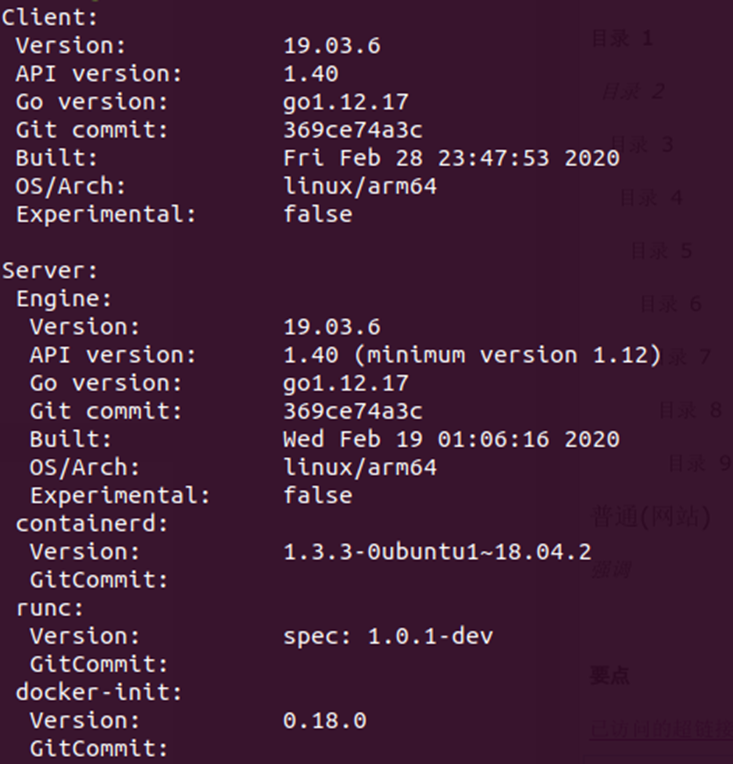
If you want to see the simplest version information, the following command is the most suitable:
sudo docker --versionTo check the current path where Docker stores image files, you can execute the following command:
sudo docker info | grep -i rootThe system’s default storage path is /var/lib/docker. If you have added additional NVME storage devices, you can add the following command in the /etc/docker/daemon.json file to adjust the storage path:
# File /etc/docker/daemon.json{"data-root": "<your specified path>", "runtimes": { "nvidia": { "path": "nvidia-container-runtime", "runtimeArgs": [] } }}After modification, execute the following commands to make the new settings take effect:
sudo systemctl daemon-reloadsudo systemctl restart docker.serviceNow you can check to see if the storage path has been updated.
2. Simplifying Docker Commands:
This application completely relies on command operations. When using the Ubuntu operating system, it is necessary to use “sudo” to obtain operational permissions. For example, executing the “docker info” command will result in the following information, indicating insufficient permissions.

We can perform the following steps to run Docker commands without needing to use “sudo”:
sudo groupadd dockersudo gpasswd -a ${USER} dockersudo service docker restartnewgrp - dockerOf course, this is just a simplification of permissions and serves as a reference.
3. Finding Suitable Image Files from NGC:
Visit http://ngc.nvidia.com/ and the following screen will appear. In the upper left corner, enter the keyword “l4t” in the “search bar (funnel icon)”, and a list of images that can run on Jetson will be displayed.
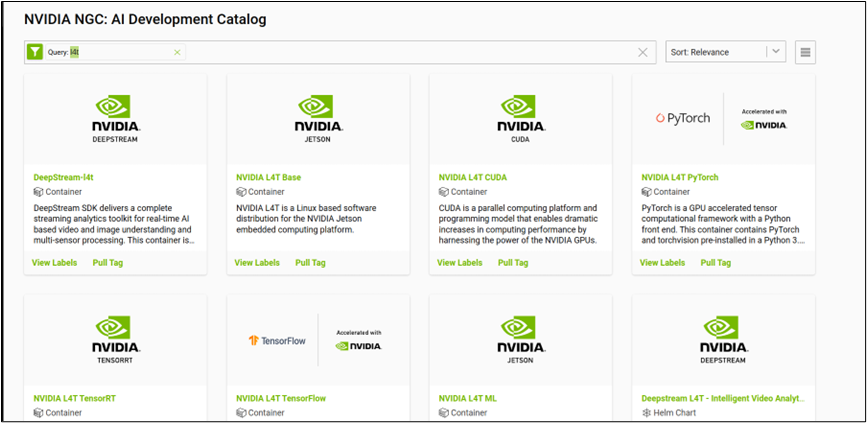
Currently, nearly 20 container images are provided, categorized into the following 6 categories:
(1) Base Class:
-
NVIDIA L4T Base:
https://catalog.ngc.nvidia.com/orgs/nvidia/containers/l4t-base
-
NVIDIA L4T CUDA:
https://catalog.ngc.nvidia.com/orgs/nvidia/containers/l4t-cuda
-
NVIDIA Container Toolkit:
https://catalog.ngc.nvidia.com/orgs/nvidia/teams/k8s/containers/container-toolkit
(2) Deep Learning Class:
-
NVIDIA L4T ML: Comprehensive Development Environment for Deep Learning
https://catalog.ngc.nvidia.com/orgs/nvidia/containers/l4t-ml
-
NVIDIA L4T PyTorch:
https://catalog.ngc.nvidia.com/orgs/nvidia/containers/l4t-pytorch
-
NVIDIA L4T TensorFlow:
https://catalog.ngc.nvidia.com/orgs/nvidia/containers/l4t-tensorflow
-
NVIDIA L4T TensorRT:
https://catalog.ngc.nvidia.com/orgs/nvidia/containers/l4t-tensorrt
(3) Vision Class:
-
DeepStream-l4t
https://catalog.ngc.nvidia.com/orgs/nvidia/containers/deepstream-l4t
-
DeepStream L4T – Intelligent Video Analytics Demo
https://catalog.ngc.nvidia.com/orgs/nvidia/helm-charts/video-analytics-demo-l4t
-
DeepStream People Detection Demo on Jetson
https://catalog.ngc.nvidia.com/orgs/nvidia/containers/deepstream-peopledetection
-
Gaze Demo for Jetson/L4T
https://catalog.ngc.nvidia.com/orgs/nvidia/containers/jetson-gaze
-
Pose Demo for Jetson/L4T
https://catalog.ngc.nvidia.com/orgs/nvidia/containers/jetson-pose
(4) Dialogue Class:
-
Voice Demo for Jetson/L4T
https://catalog.ngc.nvidia.com/orgs/nvidia/containers/jetson-voice
-
Riva Speech Skills
https://catalog.ngc.nvidia.com/orgs/nvidia/teams/riva/containers/riva-speech
(5) Educational Class:
-
DLI Getting Started with AI on Jetson Nano
https://catalog.ngc.nvidia.com/orgs/nvidia/teams/dli/containers/dli-nano-ai
-
DLI Building Video AI Applications at the Edge on Jetson Nano
https://catalog.ngc.nvidia.com/orgs/nvidia/teams/dli/containers/dli-nano-deepstream
(6) Medical Class: Application container images specifically for Clara AGX.
4. Downloading NVIDIA L4T ML Image and Creating Containers
This is the most complete machine learning (Machine Learning) software stack image that can be executed on Jetson devices. After visiting https://catalog.ngc.nvidia.com/orgs/nvidia/containers/l4t-ml, you can see the contents included in the container. Using the l4t-ml:r32.6.1-py3 version as an example, the packaged tools and libraries are as follows:
-
TensorFlow 1.15.5
-
PyTorch v1.9.0
-
torchvision v0.10.0
-
torchaudio v0.9.0
-
onnx 1.8.0
-
CuPy 9.2.0
-
numpy 1.19.5
-
numba 0.53.1
-
OpenCV 4.5.0 (with CUDA)
-
pandas 1.1.5
-
scipy 1.5.4
-
scikit-learn 0.23.2
-
JupyterLab 2.2.9
This already covers the vast majority of what we need. Once the image is downloaded and the executable container is created, we can directly use the development environment inside, saving a significant amount of installation and debugging time.
Click the “Pull Tag” button in the upper right corner, and it will list the currently downloadable version of the image files. It is best to choose an image that matches the current JetPack version. For example, if the Jetson Orin development kit is installed with JetPack 5.0 DP, its L4T version is 34.1.1. You can use the following command to download the r34.1.1-py3 image:
docker pull nvcr.io/nvidia/l4t-ml:r34.1.1-py3After the download is complete, you can check with the following command:
docker imagesIf the following information appears, it indicates that the download is complete.
REPOSITORY TAG IMAGE ID CREATED SIZEnvcr.io/nvidia/l4t-ml r34.1.1-py3 93c715e8751b 6 weeks ago 16.2GBThis method can be applied to any L4T version image files.
In the next article, we will further guide you on how to create containers with this image file and start executing demonstrations or development content.
Recommended Reading
NVIDIA Jetson Nano 2GB Series Article (1): Unboxing Introduction
NVIDIA Jetson Nano 2GB Series Article (2): Installing the System
NVIDIA Jetson Nano 2GB Series Article (3): Network Settings and Adding SWAPFile Virtual Memory
NVIDIA Jetson Nano 2GB Series Article (4): Experiencing Parallel Computing Performance
NVIDIA Jetson Nano 2GB Series Article (5): Experiencing Visual Function Libraries
NVIDIA Jetson Nano 2GB Series Article (6): Installing and Calling Cameras
NVIDIA Jetson Nano 2GB Series Article (7): Calling CSI/USB Cameras via OpenCV
NVIDIA Jetson Nano 2GB Series Article (8): Executing Common Machine Vision Applications
NVIDIA Jetson Nano 2GB Series Article (9): Adjusting CSI Image Quality
NVIDIA Jetson Nano 2GB Series Article (10): Dynamic Adjustment Techniques for Color Space
NVIDIA Jetson Nano 2GB Series Article (11): What You Should Know About OpenCV
NVIDIA Jetson Nano 2GB Series Article (12): Face Localization
NVIDIA Jetson Nano 2GB Series Article (13): Identity Recognition
NVIDIA Jetson Nano 2GB Series Article (14): Hello AI World
NVIDIA Jetson Nano 2GB Series Article (15): Hello AI World Environment Installation
NVIDIA Jetson Nano 2GB Series Article (16): The Power of 10 Lines of Code
NVIDIA Jetson Nano 2GB Series Article (17): Changing Models for Different Effects
NVIDIA Jetson Nano 2GB Series Article (18): Utils’ videoSource Tool
NVIDIA Jetson Nano 2GB Series Article (19): Utils’ videoOutput Tool
NVIDIA Jetson Nano 2GB Series Article (20): “Hello AI World” Parameter Parsing Function
NVIDIA Jetson Nano 2GB Series Article (21): Identity Recognition
NVIDIA Jetson Nano 2GB Series Article (22): “Hello AI World” Image Classification Code
NVIDIA Jetson Nano 2GB Series Article (23): “Hello AI World” Object Recognition Application
NVIDIA Jetson Nano 2GB Series Article (24): “Hello AI World” Object Recognition Application
NVIDIA Jetson Nano 2GB Series Article (25): “Hello AI World” Image Classification Model Training
NVIDIA Jetson Nano 2GB Series Article (26): “Hello AI World” Object Detection Model Training
NVIDIA Jetson Nano 2GB Series Article (27): Introduction to DeepStream and Activation
NVIDIA Jetson Nano 2GB Series Article (28): First Experience with DeepStream
NVIDIA Jetson Nano 2GB Series Article (29): DeepStream Object Tracking Function
NVIDIA Jetson Nano 2GB Series Article (30): DeepStream Camera “Real-Time Performance”
NVIDIA Jetson Nano 2GB Series Article (31): DeepStream Multi-Model Combination Detection-1
NVIDIA Jetson Nano 2GB Series Article (32): Architecture Explanation and deepstream-test Example
NVIDIA Jetson Nano 2GB Series Article (33): DeepStream License Plate Recognition and Privacy Information Masking
NVIDIA Jetson Nano 2GB Series Article (34): Installing Python Development Environment for DeepStream
NVIDIA Jetson Nano 2GB Series Article (35): Practical Explanation of Python Version test1
NVIDIA Jetson Nano 2GB Series Article (36): Adding USB Input and RTSP Output
NVIDIA Jetson Nano 2GB Series Article (37): Multi-Network Model Combination Function
NVIDIA Jetson Nano 2GB Series Article (38): nvdsanalytics Video Analysis Plugin
NVIDIA Jetson Nano 2GB Series Article (39): Combining IoT Information Transmission
NVIDIA Jetson Nano 2GB Series Article (40): Introduction to Jetbot System
NVIDIA Jetson Nano 2GB Series Article (41): Software Environment Installation
NVIDIA Jetson Nano 2GB Series Article (42): Installation and Debugging of Wireless WIFI
NVIDIA Jetson Nano 2GB Series Article (43): Installation and Testing of CSI Cameras
NVIDIA Jetson Nano 2GB Series Article (44): The 40-Pin Header of Jetson
NVIDIA Jetson Nano 2GB Series Article (45): I2C Bus and PiOLED
NVIDIA Jetson Nano 2GB Series Article (46): Installation of Electromechanical Control Devices
NVIDIA Jetson Nano 2GB Series Article (47): Important Details in the Assembly Process
NVIDIA Jetson Nano 2GB Series Article (48): Control Actions with Keyboard and Joystick
NVIDIA Jetson Nano 2GB Series Article (49): Live Demonstration of Intelligent Collision Avoidance
NVIDIA Jetson Nano 2GB Series Article (50): Model Training for Intelligent Obstacle Avoidance
NVIDIA Jetson Nano 2GB Series Article (51): Implementing Pathfinding Function with Image Classification Method
NVIDIA Jetson Nano 2GB Series Article (52): Implementing Pathfinding Function with Image Classification Method
NVIDIA Jetson Nano 2GB Series Article (53): TAO Toolkit for Simplifying Model Training Process
NVIDIA Jetson Nano 2GB Series Article (54): Overview of NGC Content and Registration Key
NVIDIA Jetson Nano 2GB Series Article (55): Installing TAO Model Training Tools
NVIDIA Jetson Nano 2GB Series Article (56): Launcher CLI Command Set and Configuration File
NVIDIA Jetson Nano 2GB Series Article (57): Environment Configuration and Mapping for Vision Scripts
NVIDIA Jetson Nano 2GB Series Article (58): Data Format for Vision
NVIDIA Jetson Nano 2GB Series Article (59): Data Augmentation for Vision
NVIDIA Jetson Nano 2GB Series Article (60): Model Training and Pruning for Image Classification
NVIDIA Jetson Nano 2GB Series Article (61): Model Training and Optimization for Object Detection
NVIDIA Jetson Nano 2GB Series Article (62): Model Training and Optimization for Object Detection-2
NVIDIA Jetson Nano 2GB Series Article (63): Model Training and Optimization for Object Detection-3
NVIDIA Jetson Nano 2GB Series Article (64): Deploying Models to Jetson Devices
NVIDIA Jetson Nano 2GB Series Article (65): Executing the Deployed TensorRT Accelerated Engine