 In data management within the e-commerce industry, it is often necessary to convert inventory data into a table with single entries. As shown in the figure below, if the quantity of “Huawei S5328C” is 6, it should be converted into 6 rows of identical data. Using basic Excel functions, this data conversion has become increasingly time-consuming and labor-intensive. Today, I will introduce a solution using Python.
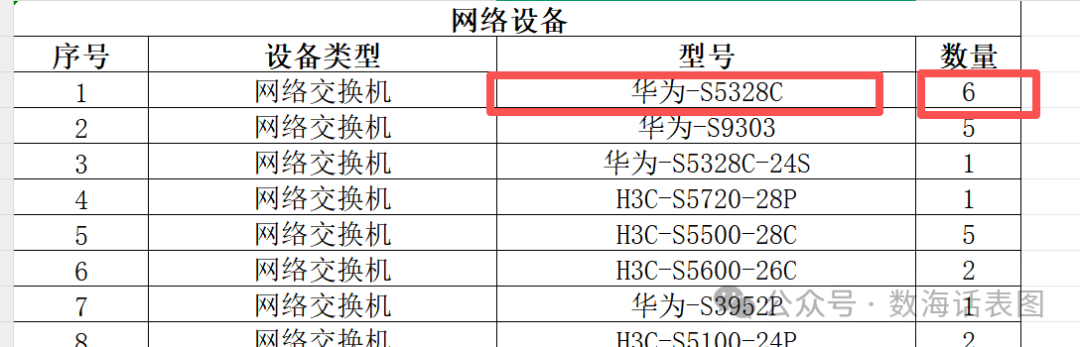 This is a question raised by a netizen. There is a workbook named “Workbook1.xlsx” that contains the names, models, and quantities of several devices. The requirement is to expand the rows based on the quantity of the same device, for example, if there are 5 units, it should expand to 5 rows. This process can be done manually by copying, inserting, and pasting when the data is small, but as the quantity increases to dozens of rows or more, copying and pasting can easily lead to missing rows, incorrect rows, or even mixed rows, making the final result verification a test of patience.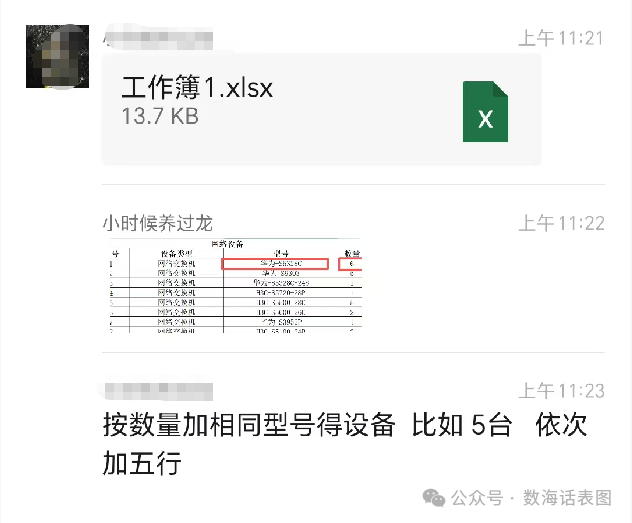
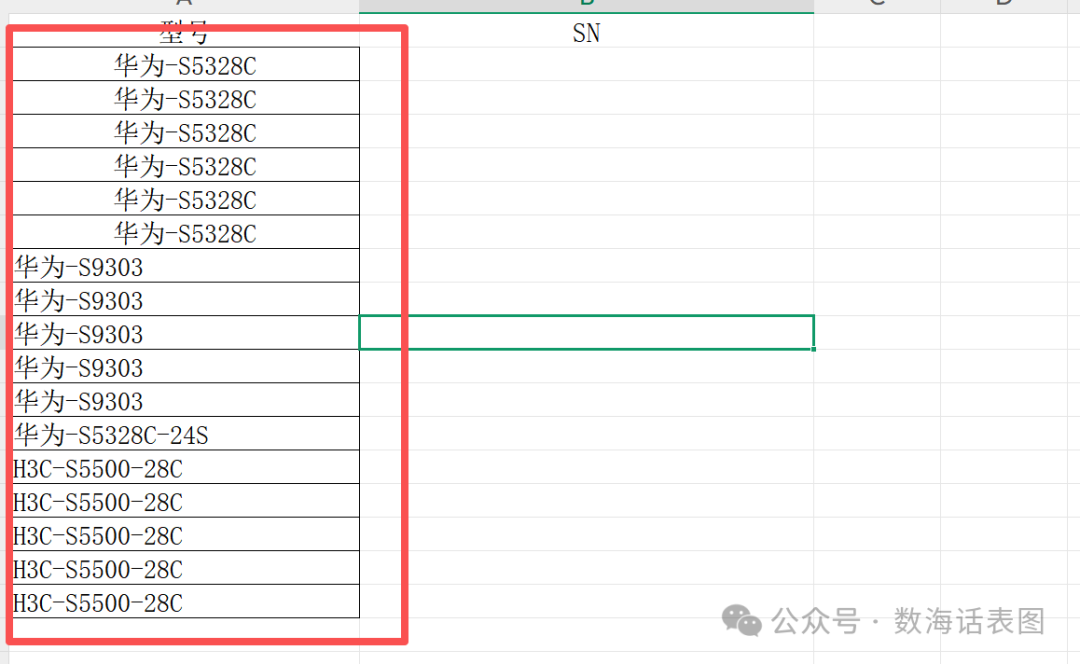 However, using Python, this problem can be easily solved with just a few lines of code, and the code can be reused. The charm of efficient office work lies in this.The complete code is as follows:
from openpyxl import load_workbook
path = "Workbook1.xlsx"
save_path = "Workbook1_Split_Rows.xlsx"
wb = load_workbook(path)
ws = wb.active
ws_new = wb.create_sheet("Split")
n = 0    # Serial number
for row in ws.iter_rows(min_row=2,min_col=2):
    cell_list = [cell.value for cell in row]
    if cell_list[0] == "Device Type":
        ws_new.append(["Serial Number"] + cell_list)
    if isinstance(cell_list[-1], int):
        x = cell_list[-1]
        for i in range(x):
            n += 1
            cell_list[-1] = 1
            ws_new.append([n] + cell_list)
wb.save(save_path)
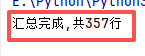
print(f"Summary complete, total {n} rows")
After running the code, the row splitting of the worksheet is completed instantly.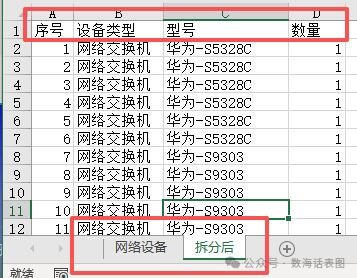
 Code Explanation:1. Import the required module
from openpyxl import load_workbook- load_workbook is used to load the saved .xlsx workbook. If you do not have openpyxl installed on your computer, you can open the command prompt (win+r then type cmd) and enter the following command to install:
pip install openpyxl2. Specify the file path
path = "Workbook1.xlsx"
save_path = "Workbook1_Split_Rows.xlsx"- path is the file path to be processed
- save_path is the file path to save the processed file.
3. Load the file
wb = load_workbook(path)
ws = wb.active
ws_new = wb.create_sheet("Split")- load_workbook(path): loads the workbook.
- wb.active: the current worksheet.
- wb.create_sheet(“Split”): creates a new worksheet named “Split”.
4. Iterate through specified rows
for row in ws.iter_rows(min_row=2,min_col=2):
cell_list = [cell.value for cell in row]- Starting from row 2 (min_row=2) and column 2 (min_col=2), iterate through the rows of the specified worksheet. Convert the values of all cells in the current row into a list and assign it to cell_list.
5. Add table header
    if cell_list[0] == "Device Type":
ws_new.append(["Serial Number"] + cell_list)- If the value of the first cell in the current row is “Device Type”, copy “Serial Number” and cell_list to the new table as the header.
6. Add data
    if isinstance(cell_list[-1], int):
        x = cell_list[-1]
        for i in range(x):
            n += 1
            cell_list[-1] = 1
ws_new.append([n] + cell_list)- isinstance(cell_list[-1], int): checks if the last element of the list is an integer, excluding headers, empty values, and non-data.
- x = cell_list[-1]: retrieves the last value of the list to determine the number of iterations for the next step.
- for i in range(x): loops based on the last value of the list to generate x rows of data.
- n += 1: increments the serial number by 1 each time.
- cell_list[-1] = 1: modifies the quantity to 1.
- ws_new.append([n] + cell_list): adds the serial number and processed data to the new table.
7. Save the result
wb.save(save_path)
print(f"Summary complete, total {n} rows")- Saves the result to the specified path and displays the processing result.
There are many methods to solve this type of problem, including using VBA, Power Query, and Python. Using Python is just one of the options.If you often encounter office problems or want to improve work efficiency, feel free to follow my public account. If you find this article useful, don’t forget to like and share – your support is my motivation to continue sharing!