【Click the above「Blue Text」 to follow DF Maker Community and become a tech aesthetician together】
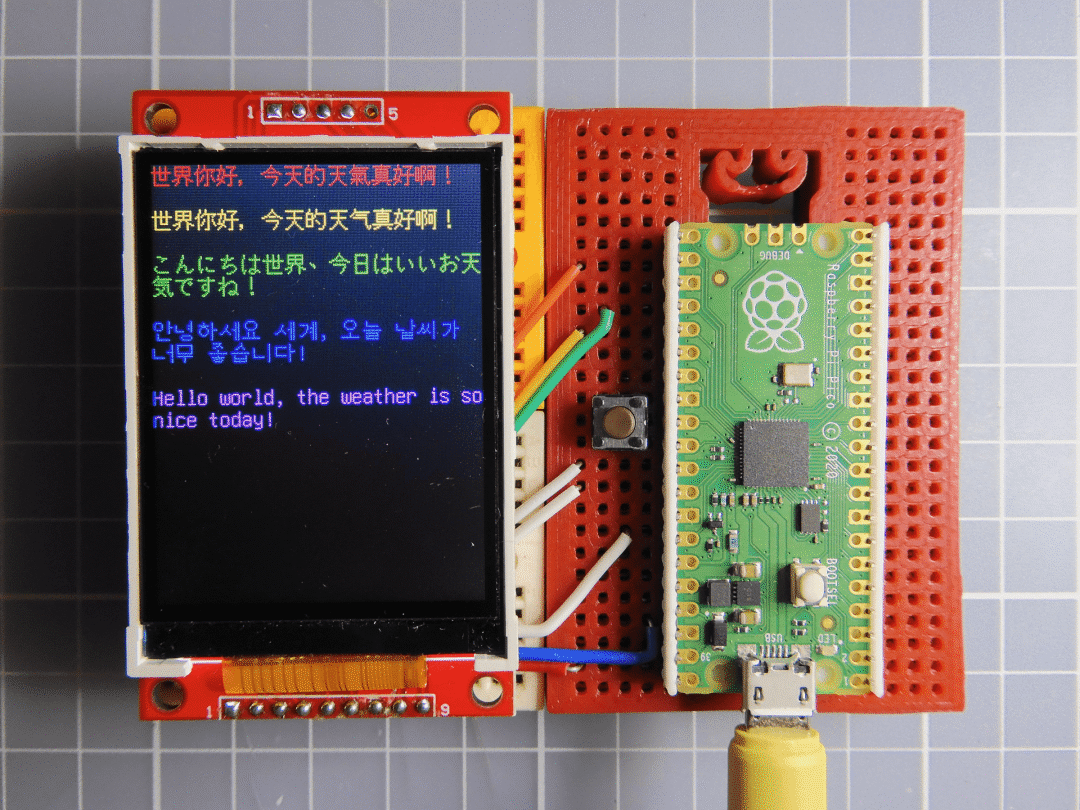
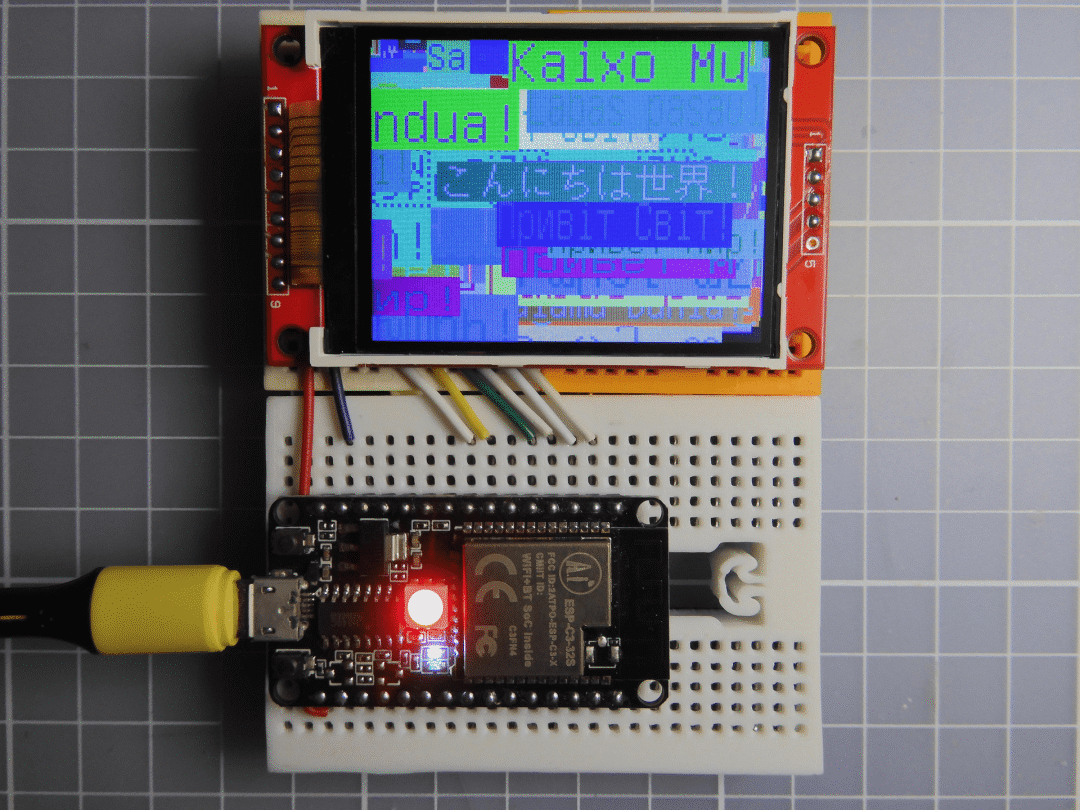
This week’s project is about how to use Arduino to display Unicode text.(Video demonstration at the end)
Development Board
Any Arduino development board that supports Arduino_GFX.
Reference: https://github.com/moononournation/Arduino_GFX
Step 1: Unicode and UTF-8
Unicode defines over 144k characters, covering 159 modern and historical scripts, as well as symbols, emojis, and non-visual control and formatting codes.
Unicode can be implemented through different character encodings.
The Unicode standard defines Unicode Transformation Formats (UTF). UTF-8, UTF-16, and UTF-32, along with several other encodings.
For better backward compatibility, Arduino IDE, the latest operating systems, and web pages use UTF-8 encoding.
UTF-8 is designed to be backward compatible with ASCII: the first 128 characters of Unicode correspond one-to-one with ASCII, using single-byte binary values identical to ASCII.
References:
https://en.wikipedia.org/wiki/Unicode
https://en.wikipedia.org/wiki/UTF-8
https://en.wikipedia.org/wiki/ASCII
Step 2: Why UTF-8?
Some projects can actually present well using only ASCII characters without needing Unicode.
However, some projects require Unicode to support multiple languages, such as:
-
• Bluetooth devices that display your phone notifications
-
• RSS readers that display the latest news
-
• Domestic weather forecast display panels
-
• E-books
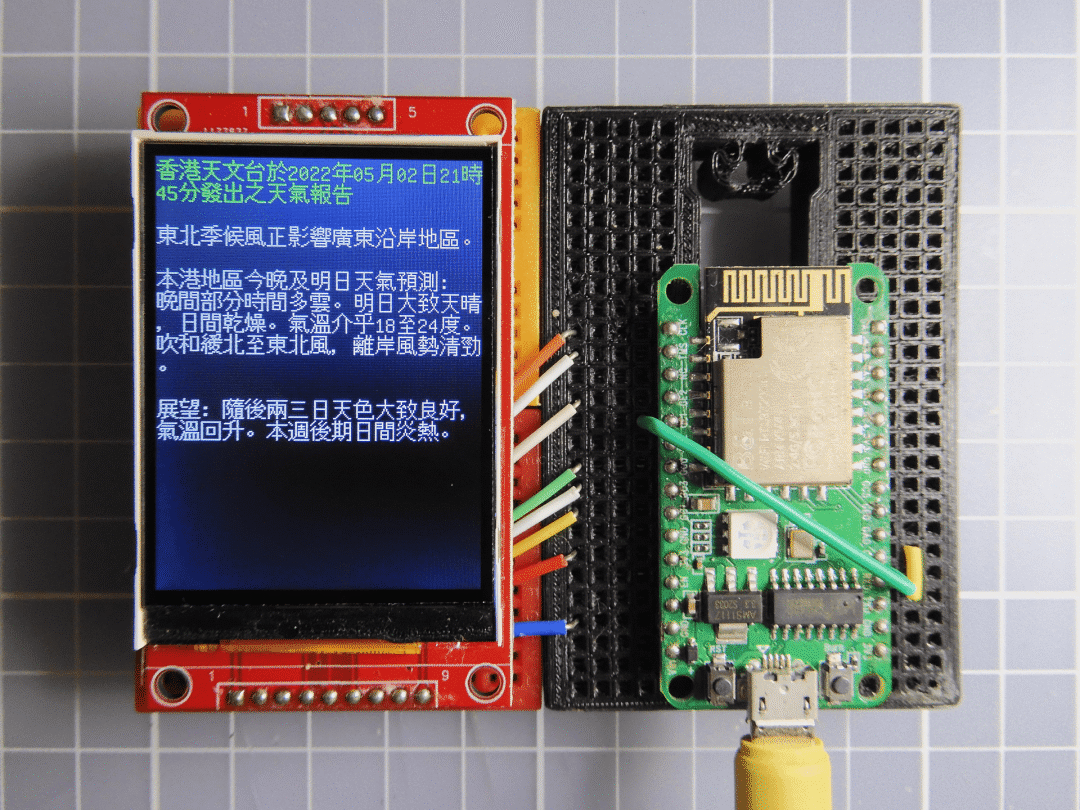
There are many more projects that require text display.
Step 3: Extended ASCII
Arduino_GFX inherits from Adafruit_GFX, which has used the classic fixed-space bitmap font by default since version 1.0. This font is called glcdfont, sized at 5×7 pixels, containing 128 ASCII characters and 128 extended ASCII characters. We can view all characters in the AsciiTable example.
Before enabling UTF-8 encoding, Arduino_GFX can switch to UTF-8 encoding through a function.
gfx->setUTF8Print(true);Once UTF-8 encoding is enabled, extended ASCII characters cannot be used. However, we can use the corresponding UTF-8 encoded characters instead.
For example, printing the degree Celsius symbol using extended ASCII is:
gfx->print("\xF8""C");Since the Arduino IDE can directly use UTF-8 encoded strings, printing the same symbol in UTF-8 is:
gfx->print("°C");Or:
gfx->print("℃");Depending on the character glyphs included in the selected UTF-8 font file.
Step 4: Font Data Size
As mentioned earlier, Unicode contains over 144k characters, and packing all of them into an Arduino program is not easy.
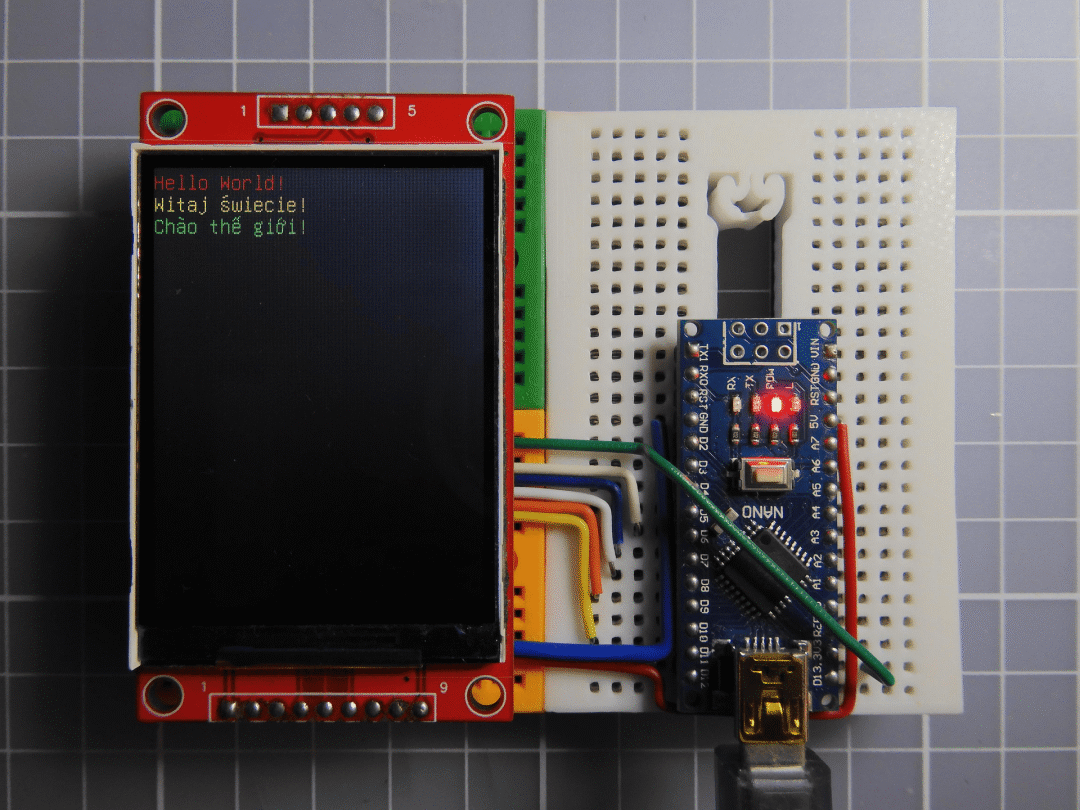
Unifont is one of the font types that contains the most common UTF-8 characters. In the latest unifont_jp-14.0.02 version, it contains 57,389 glyphs, and the font file size in BCF format is 9.4MB.
Common AVR series development boards only have 32KB of flash memory to store programs; ESP8266 has 4MB of flash memory but still limits programs to around 1MB; RTL8720DN can store 2MB of programs; ESP32 Huge APP mode can store 3MB of programs; Raspberry Pi Pico can store 2MB of programs (some variations can store 16MB).
References:
https://en.wikipedia.org/wiki/GNU_Unifont
http://unifoundry.com/pub/unifont/unifont-14.0.02/font-builds/
Step 5: U8g2 Fonts
Arduino_GFX adopts the U8g2 font format as a UTF-8 solution. U8g2 fonts support UTF-8 encoding, and U8g2 provides some tools to convert font files into Arduino source files.
bdfconv is one of the tools provided by U8g2 that can convert unifont bdf font files into Arduino source files.
The output binary file is in compressed format, and bdfconv can choose the encoding range to output, both of which can reduce data size.
References:
https://github.com/olikraus/u8g2/wiki/u8g2fontformat
https://github.com/olikraus/u8g2/tree/master/tools/font/bdfconv
Step 6: Choosing a Font Subset
Since we cannot simply squeeze the entire Unifont font into limited program space, we need to select a font subset for specific projects.
U8g2 has prepared many unifont subsets for various languages, such as:
-
• u8g2_font_unifont_t_polish
-
• u8g2_font_unifont_t_vietnamese1
-
• u8g2_font_unifont_t_chinese2
-
• u8g2_font_unifont_t_japanese1
-
• u8g2_font_unifont_t_korean1
Even so, some languages still cannot accommodate all the fonts in Arduino, so there are different sizes of subsets to meet different requirements, for example, Chinese fonts have three subsets.
-
• u8g2_font_unifont_t_chinese1 – size 14,178 bytes
-
• u8g2_font_unifont_t_chinese2 – size 20,225 bytes
-
• u8g2_font_unifont_t_chinese3 – size 37,502 bytes
You can refer to the U8g2 Github Wiki for more details:
https://github.com/olikraus/u8g2/wiki/fntgrpunifont
Step 7: Font Files Prepared by Arduino_GFX
As mentioned in previous steps, some MCUs can store program sizes up to 1-3MB.
Therefore, we can customize a font file to display as many glyphs as possible. Below are some additional font files prepared in Arduino_GFX.
-
• u8g2_font_unifont_h_utf8
-
• u8g2_font_unifont_t_chinese
-
• u8g2_font_unifont_t_chinese4
-
• u8g2_font_unifont_t_cjk
BDF font bitmaps use unifont_jp-14.0.02, and the conversion tool is bdfconv provided by U8g2.
Step 8: Custom Font U8g2_font_unifont_h_utf8
This font included all glyphs in unifont_jp-14.0.02.
Number of Glyph: 57,389
Data size: 2,250,360 bytes
Converting script:
bdfconv -v -f 1 -b 1 -m "0-1114111" unifont_jp-14.0.02.bdf -o u8g2_font_unifont_h_utf8.h -n u8g2_font_unifont_h_utf8
Note: Since the font data itself exceeds 2MB, only the
Huge appmode of the ESP32 family can store this program. Some specific versions of Raspberry Pi Pico have more than 2MB of flash memory, but I haven’t tested it yet.
Step 9: Custom Font U8g2_font_unifont_t_chinese
This font includes all glyphs in the Chinese character range.
-
• Number of glyphs: 22,145
-
• Data size: 979,557 bytes
Conversion script:
bdfconv -v -f 1 -m "32-127,11904-12351,19968-40959,63744-64255,65280-65376" unifont_jp-14.0.02.bdf -o u8g2_font_unifont_t_chinese.h -n u8g2_font_unifont_t_chineseStep 10: Custom Font U8g2_font_unifont_t_chinese4
Since the ESP8266 has a 1MB program size limit, all Chinese characters still cannot fit in. This requires another subset that narrows down to commonly used characters.
The list of common characters comes from the standard character list in the common national character standard font table and GlyphWiki‘s character list: Common Chinese Characters.
Number of glyphs: 7,199
Data size: 298,564 bytes
Conversion script:
bdfconv -v -f 1 -M common.txt unifont_jp-14.0.02.bdf -o u8g2_font_unifont_t_chinese4.h -n u8g2_font_unifont_t_chinese4Step 11: Custom Font U8g2_font_unifont_t_cjk
This font includes all Chinese, Japanese, and Korean characters. These three languages share 92,865 CJK Unified Ideographs, so one font file can display three different languages, which is very convenient.
Number of glyphs: 41,364
Data size: 1,704,862 bytes
Conversion script:
bdfconv -v -f 1 -m "32-127,4352-4607,11904-12255,12288-19903,19968-40943,43360-43391,44032-55203,55216-55295,63744-64255,65072-65103,65280-65519" unifont_jp-14.0.02.bdf -o u8g2_font_unifont_t_cjk.h -n u8g2_font_unifont_t_cjkReferences:
https://en.wikipedia.org/wiki/CJK_Unified_Ideographs
https://stackoverflow.com/questions/56310609/what-the-chinese-japanese-and-korean-characters-are-in-unicode
Step 12: Software Preparation
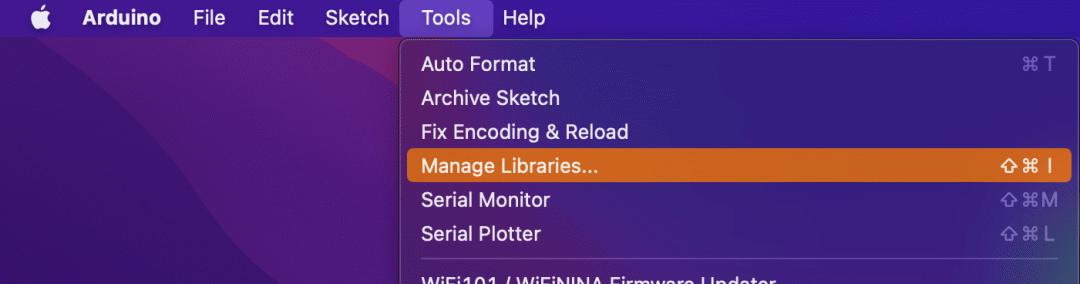
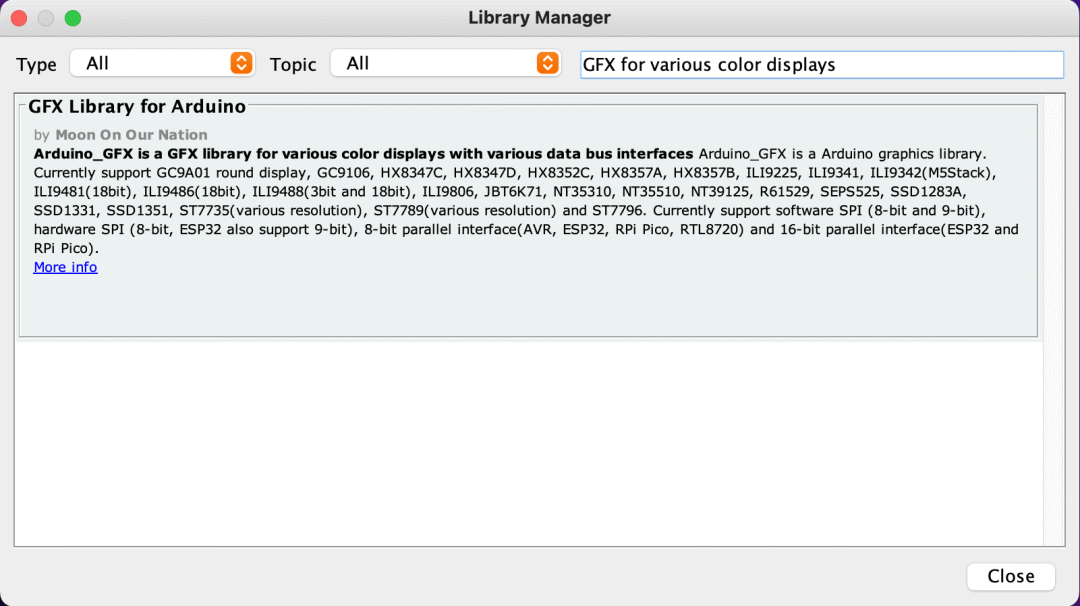
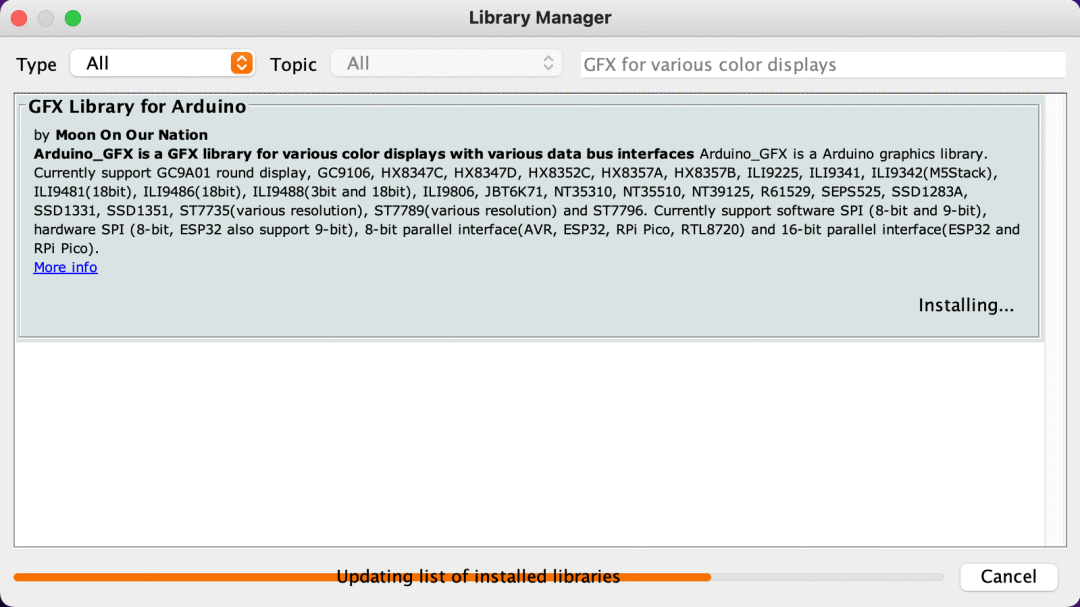
Arduino IDE
Download and install the Arduino IDE if you haven’t done so:
https://www.arduino.cc/en/main/software
Arduino_GFX Library
Select the “Tools” menu -> “Manage Libraries…”, search for “GFX for various displays” and click the “install” button to install.
Step 13: Unicode Examples
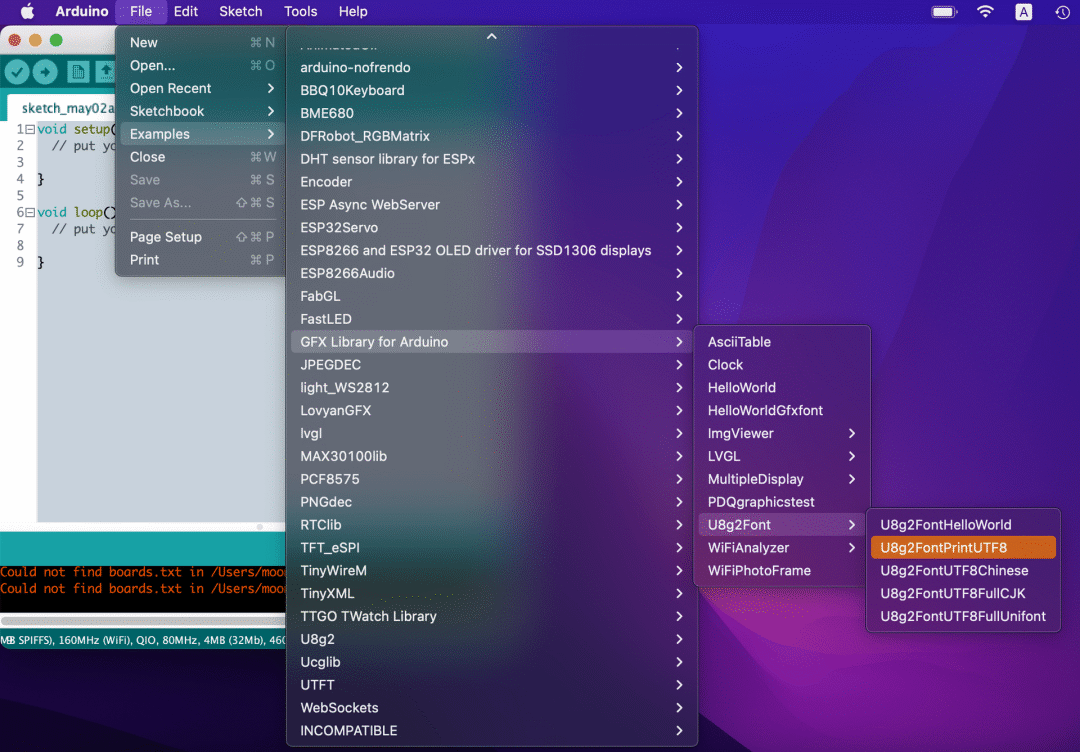
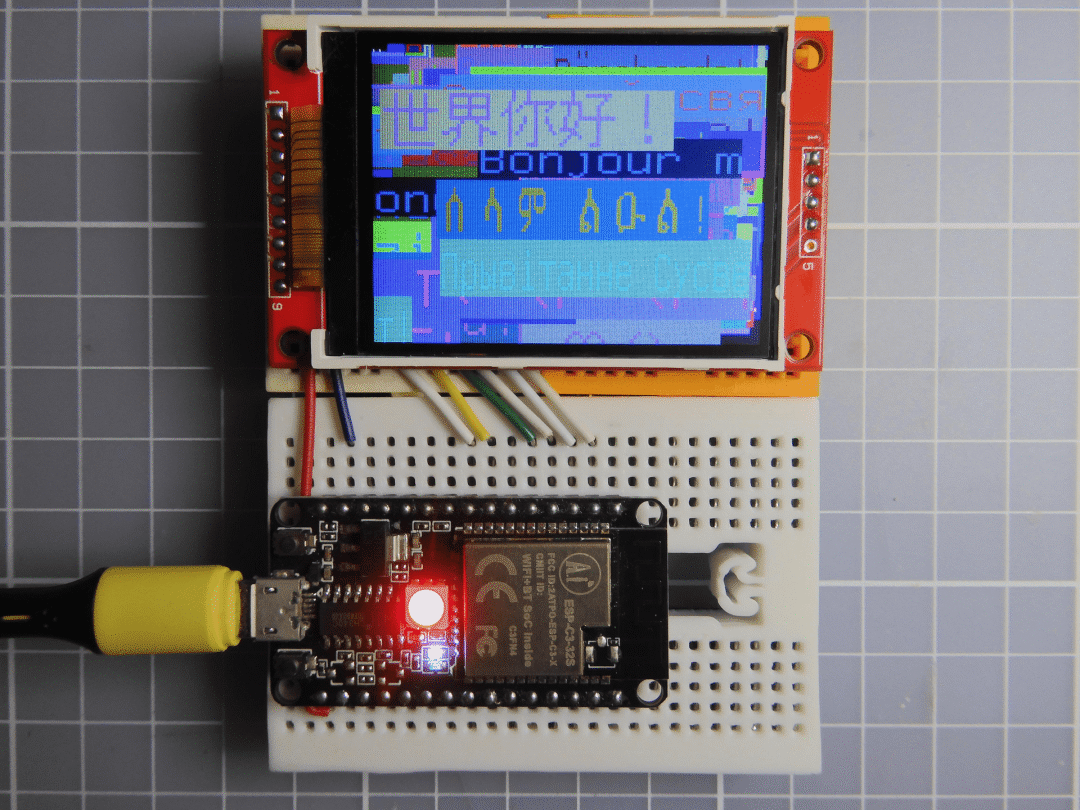
Arduino_GFX provides various Unicode examples in the U8g2Font subfolder.
In the Arduino IDE, select the “File” menu -> “Examples” -> “GFX Library for Arduino” -> “U8g2Font”. Four out of the five examples are Unicode examples.
-
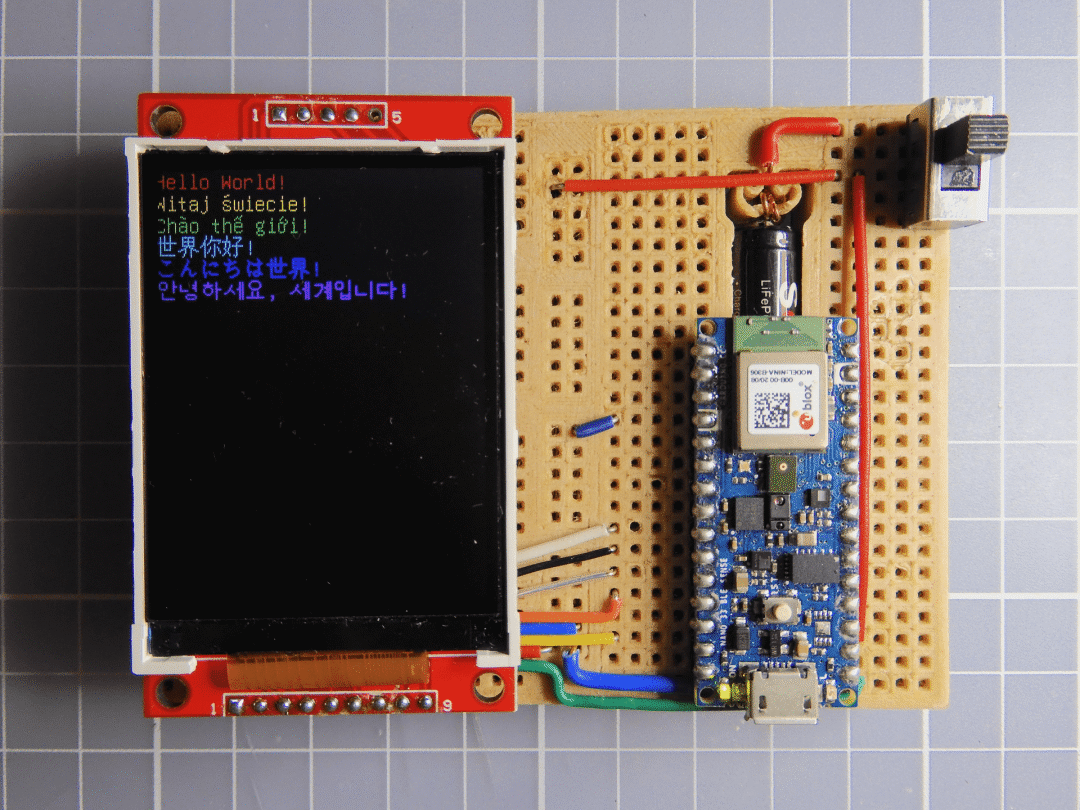
• U8g2FontPrintUTF8 – Print Hello World in various languages using U8g2 built-in fonts
-
• U8g2FontUTF8Chinese – Print a sample Chinese article using the font file u8g2_font_unifont_t_chinese
-
• U8g2FontUTF8FullCJK – Print a simple greeting message in Chinese, Japanese, and Korean using the font file u8g2_font_unifont_t_cjk.
-
• U8g2FontUTF8FullUnifont – Print Hello World in 74 languages using the font file u8g2_font_unifont_h_utf8.
-
• U8g2RssReader – Print online RSS information using the font file u8g2_font_unifont_t_chinese4.
Step 14: Start Trying!
Now, our Arduino project can break through the limitations of ASCII text! There are projects to utilize!
▲ Video demonstration
Translation first published: DF Maker Community
Hardware Arsenal
DF Hardware Arsenal
Click to learn more👆
If anyone has any thoughts, feel free to leave a comment below!
Previous Project Review
Raspberry Pi Basics Series Tutorial
What is Raspberry Pi? Can you eat it?
Open Source! Teach you to make the most exquisite Pi!
Make a Fishy Gadget for Work!
Create a Magical Floating Lamp with Arduino!
Build a Retro Game Console Based on Raspberry Pi Zero
Make a Stylish RGB Clock with ESP8266!
Make a Beautiful E-Ink Clock (with two versions)
Make a Long-Distance Remote-Controlled Tracked Vehicle with APC220 Module and Arduino
Click to read👆