Preview
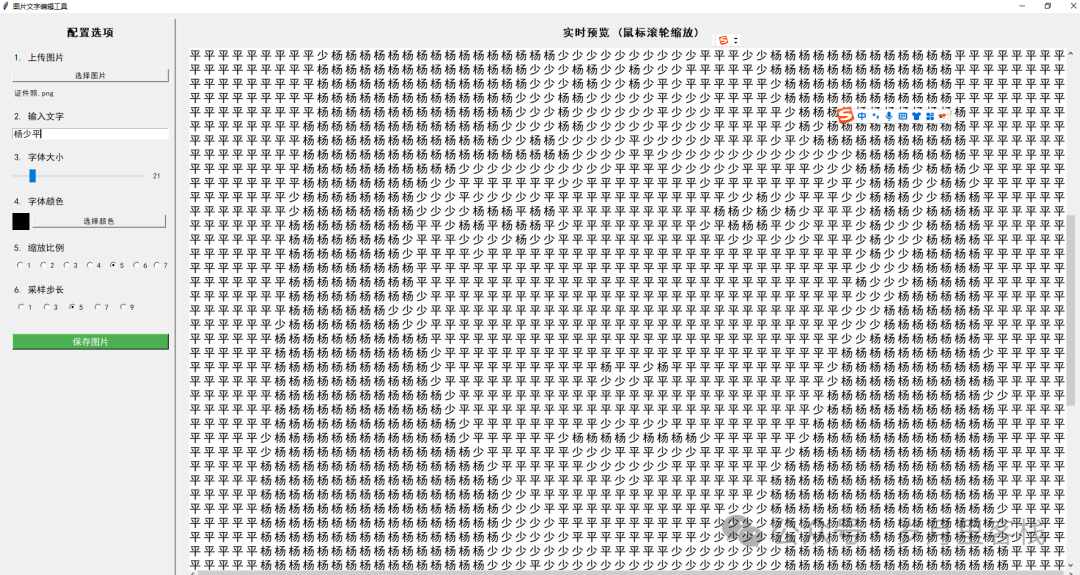
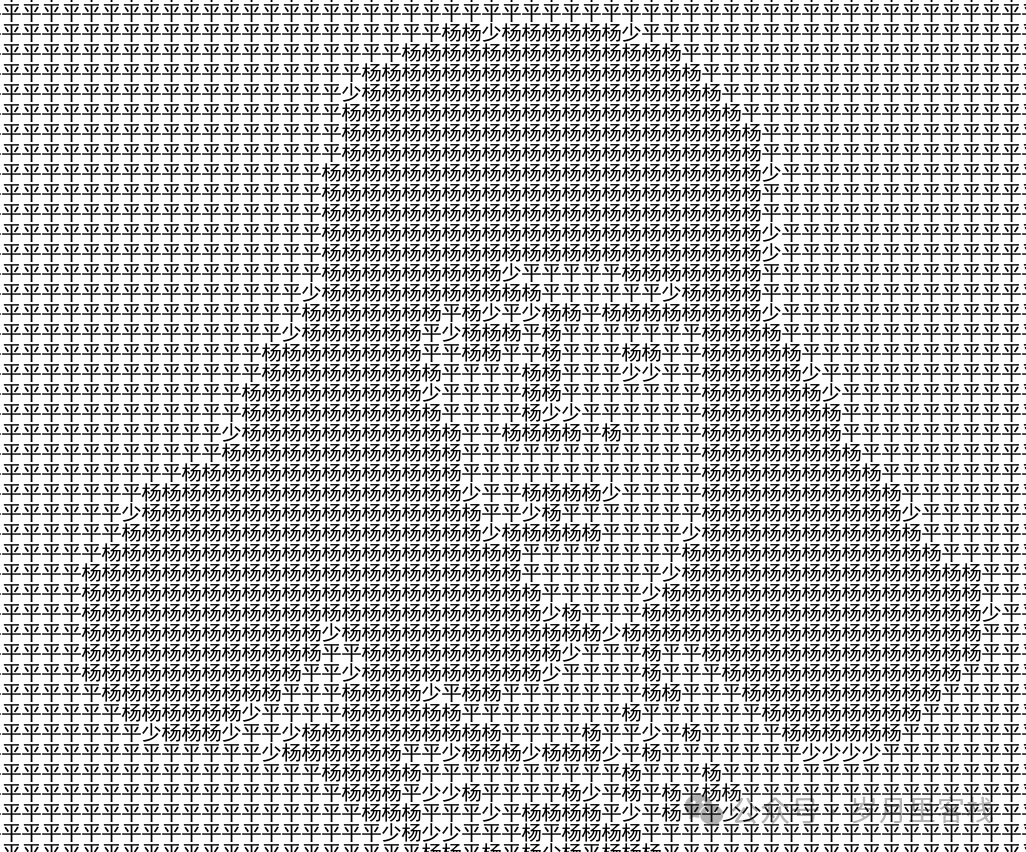
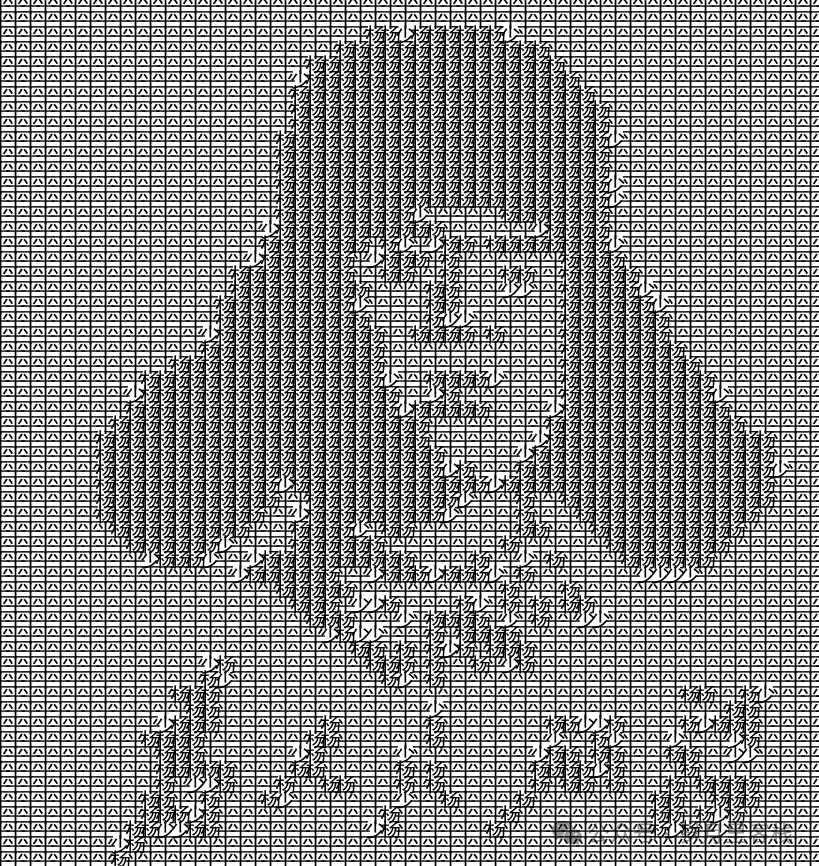
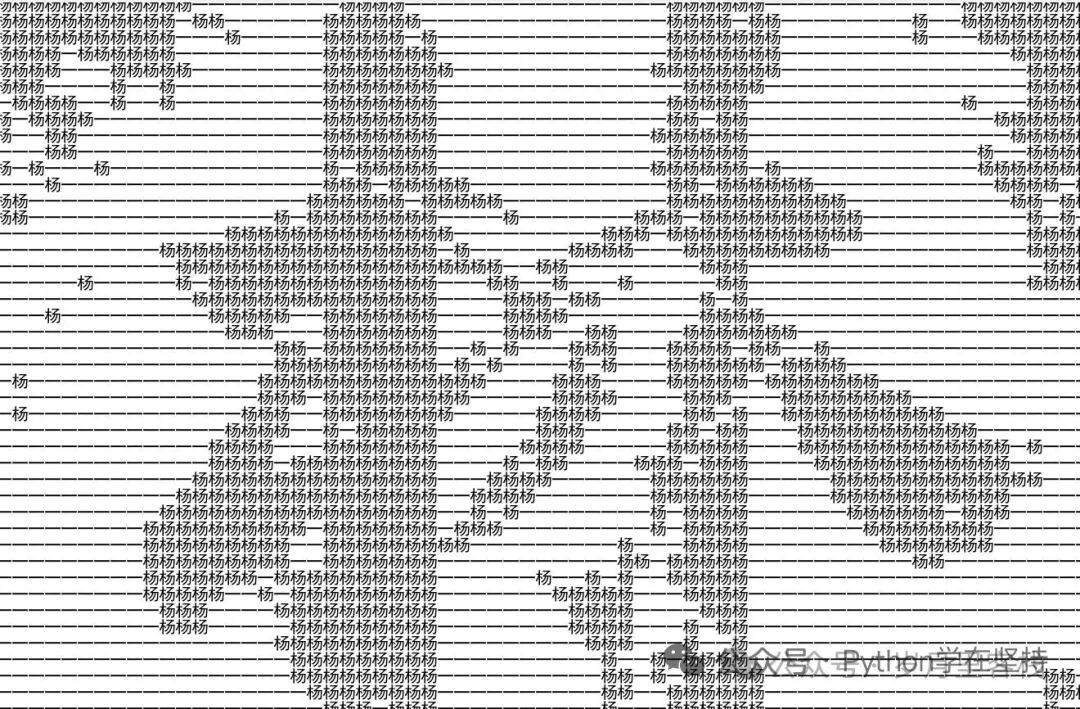
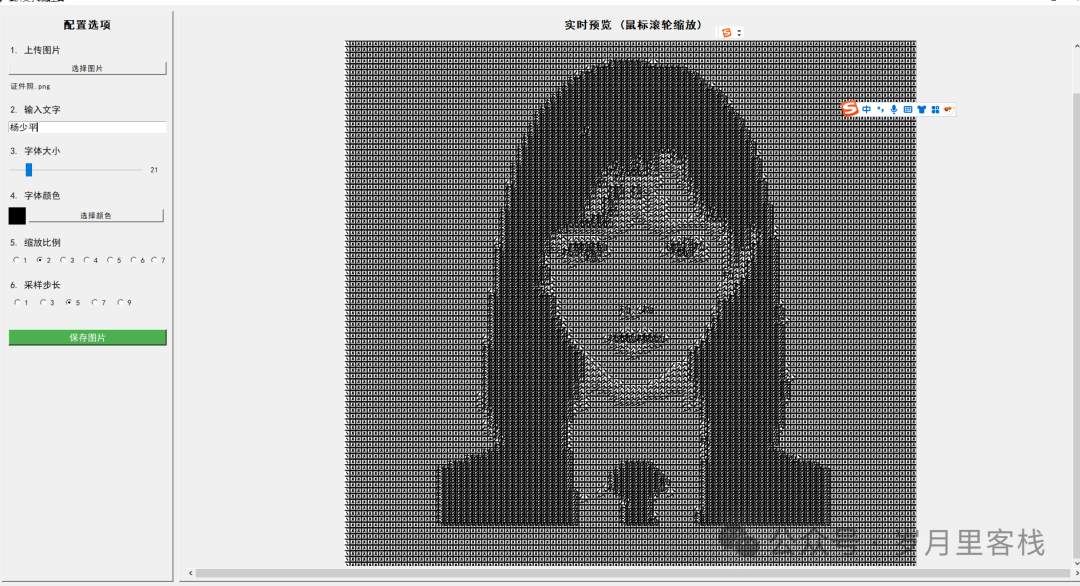
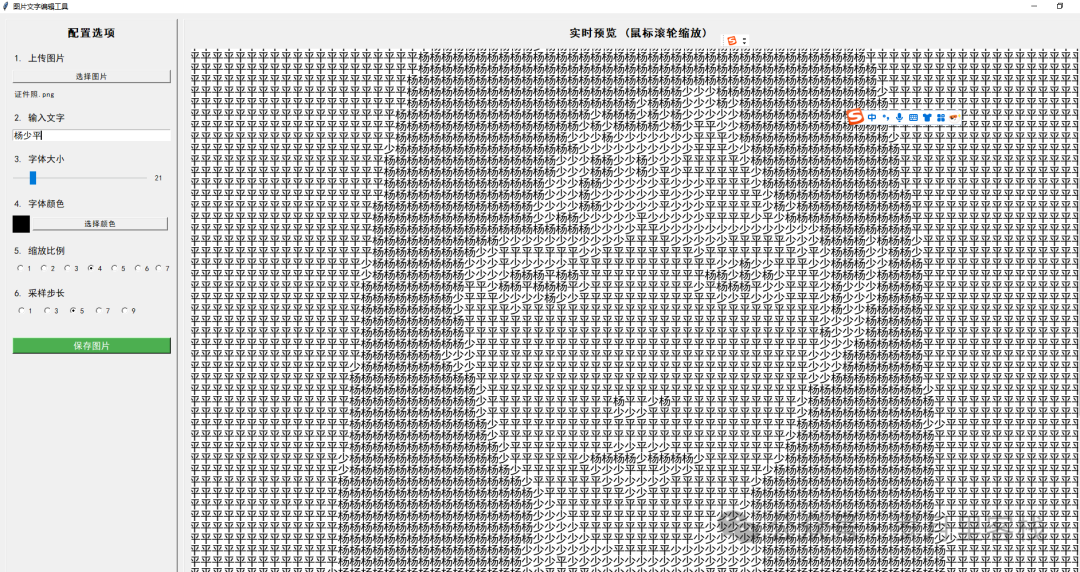
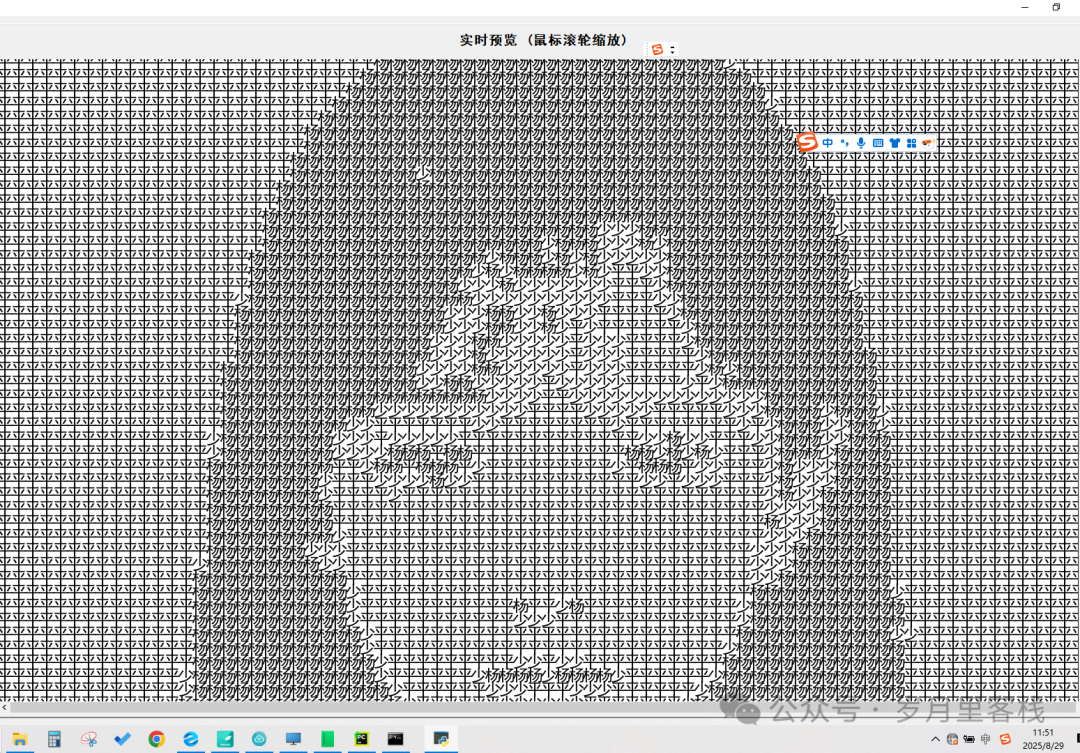
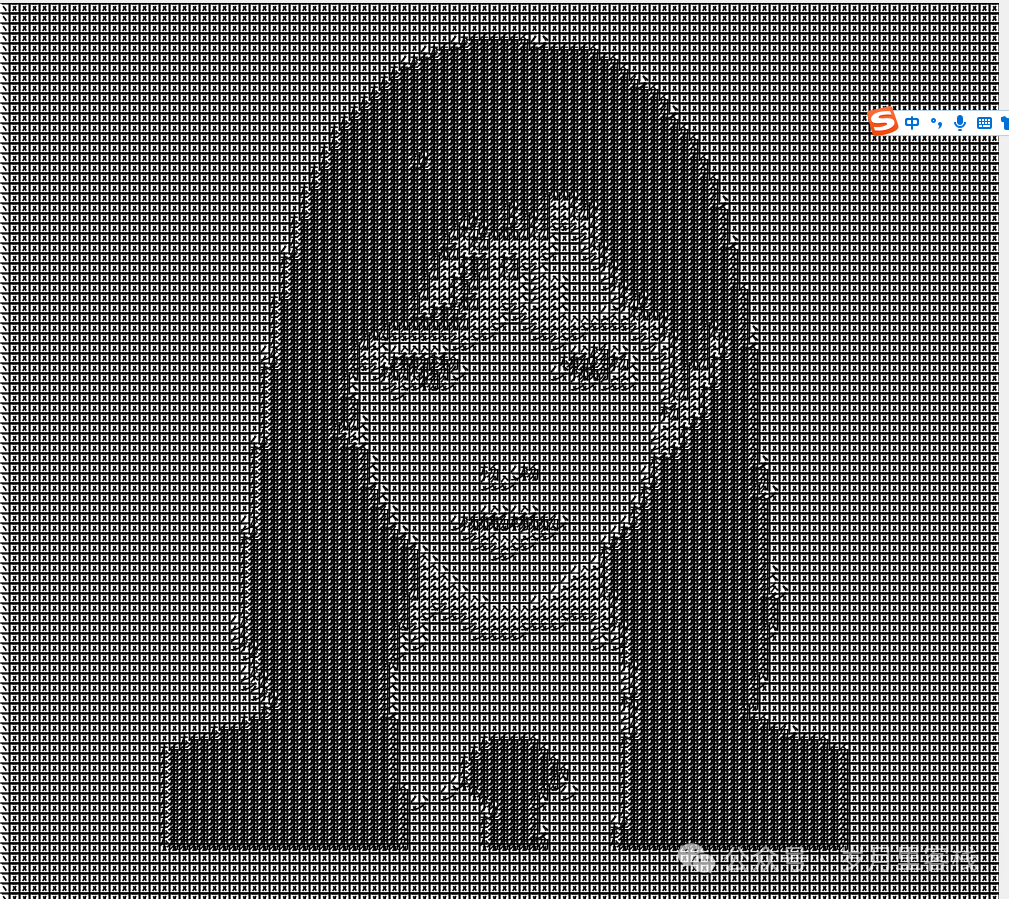
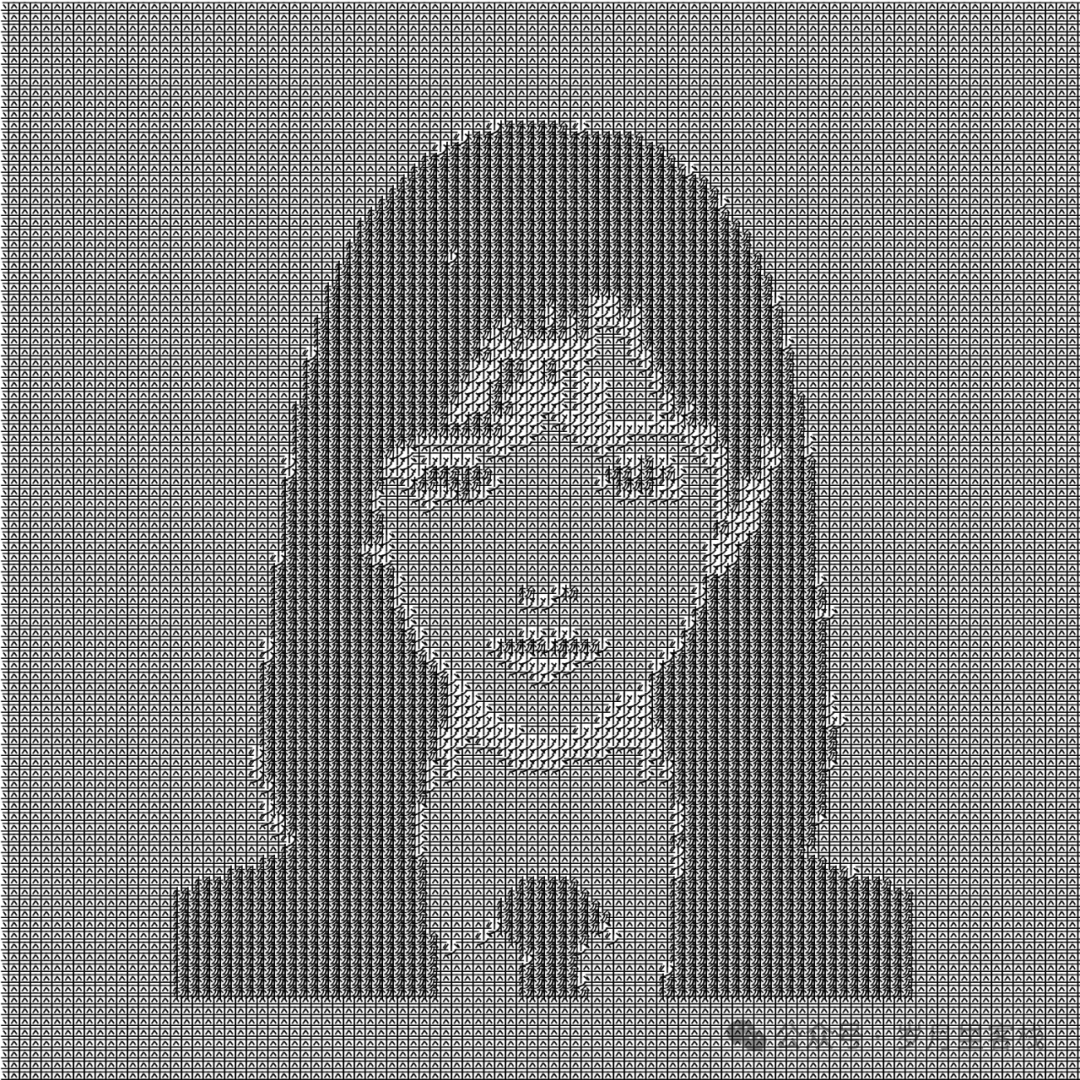
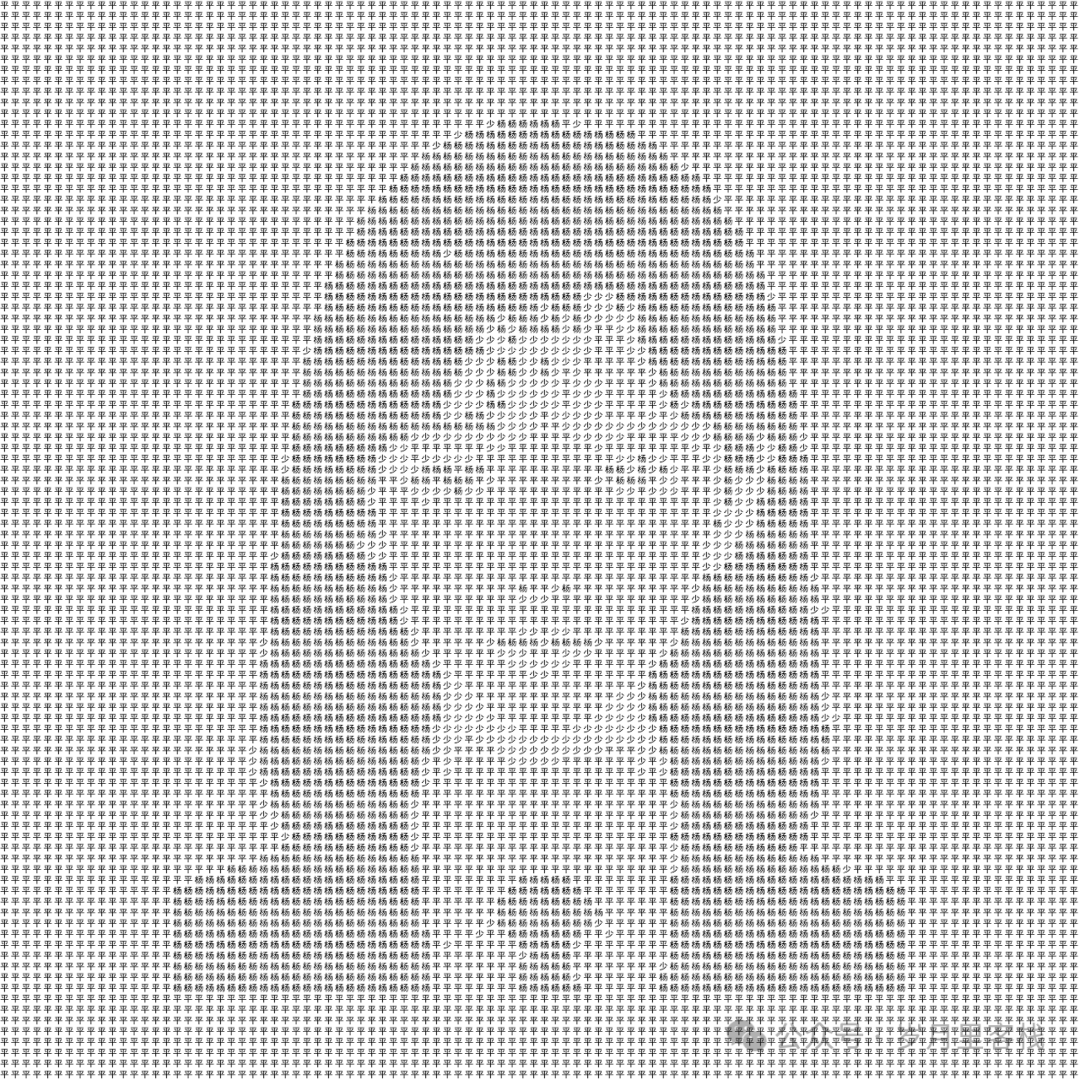
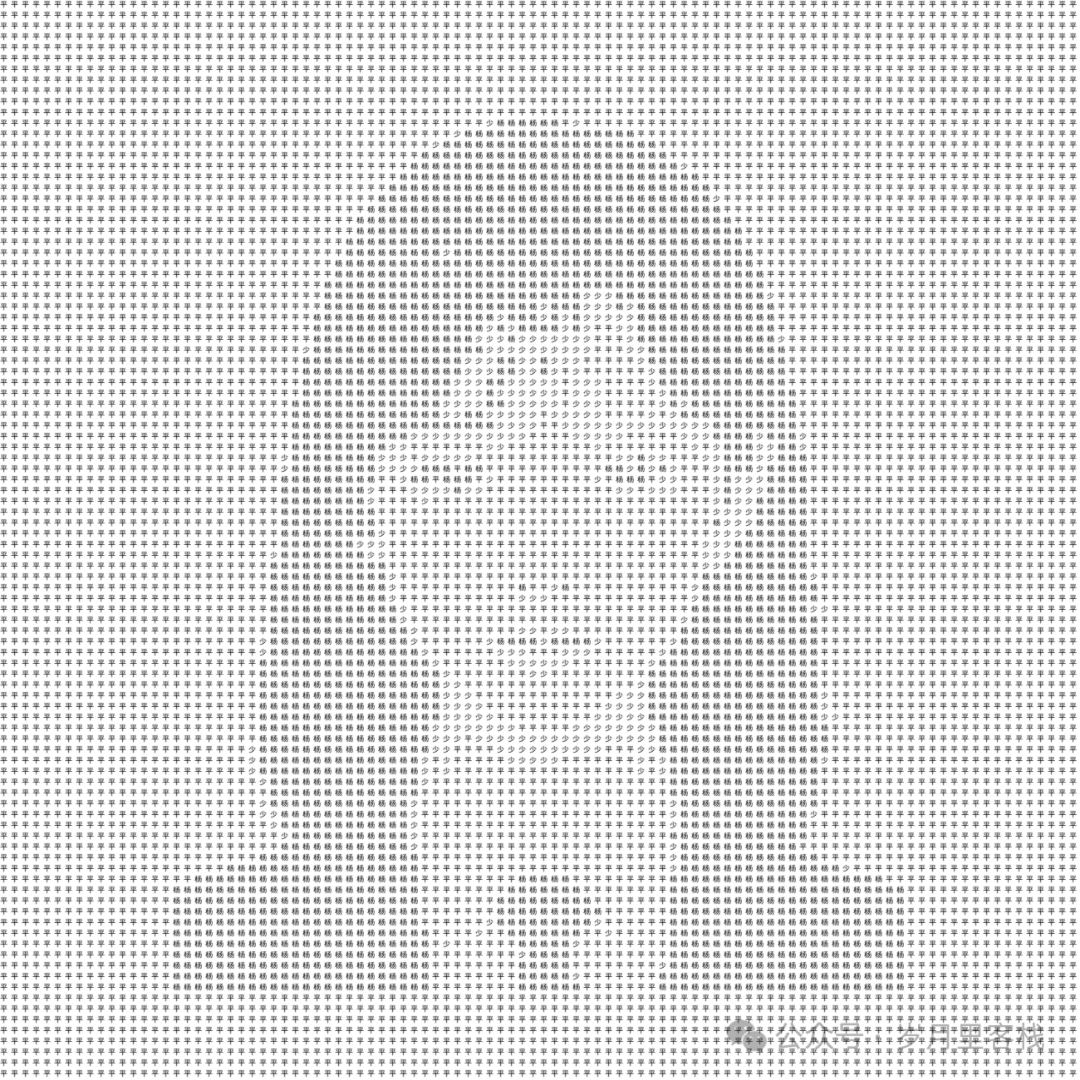
“Python Text Portrait Generator” — The Magic Manual to Turn Pixels into “Keep Going”
Friends! Are you still struggling with what to write when sharing pictures on social media? Today, the code we are going to work on is a “blessing for the lazy and a savior for the socially anxious” — it can instantly transform a photo you casually took into pixel art composed of the words “Keep Going” (or any text you want)! Imagine, when your boss asks you to create a poster, you quickly send over a “text version of the Mona Lisa”, and after three seconds of silence, your boss says: “Bro, promotion and raise!” — just thinking about it is exciting, right? Without further ado, fasten your seatbelt, let’s get started!
Table of Contents (Organized and Clear)
- Project Overview: Overall Architecture & Technology Stack
- Environment Setup: Dependencies, Fonts, Notes
- Main Class Overview: The Life of
<span>ImageTextEditor</span> - Deep Dive into Six Core Modules4.1 Interface Layout: Left-Right Split + Draggable + Scroll Zoom4.2 Image Upload: File Dialog + Exception Handling4.3 Font Control: Size Slider + Color Picker4.4 Sampling Strategy: Step Size & Scaling Ratio4.5 Character Mapping: Algorithm from Pixels to Text4.6 Save and Interaction: Timestamp Naming + Success/Failure Popups
- Detail Easter Eggs: Dragging, Mouse Wheel Zoom, Min/Max Zoom Limits
- Knowledge Points & Summary of Goals: Complete Learning Path from Tkinter to Pillow
1. Project Overview
| Level | Function | Technology |
|---|---|---|
| GUI | User Interaction | <span>tkinter</span> + <span>ttk</span> |
| Image Processing | Read, Draw, Save | <span>Pillow</span> |
| Logic | Pixel to Character Algorithm | Native Python Loops |
| Extensions | Dragging, Zooming, Exception Handling | Event Binding |
2. Environment Setup
pip install pillow
Font Note: Windows comes with
<span>simhei.ttf</span>, while Linux/Mac will gracefully downgrade to the default font if it’s not available.
3. Main Class Overview
class ImageTextEditor:
    def __init__(self, root):
        # 1. Create window
        # 2. Initialize variables
        # 3. Call create_widgets() to draw the interface
Lifecycle:
- User starts →
<span>__init__</span>initialization - Click “Select Image” →
<span>upload_image()</span> - Any parameter change →
<span>update_preview()</span>re-render - Click “Save Image” →
<span>save_image()</span>save to disk
4. Deep Dive into Six Core Modules
4.1 Interface Layout: Left-Right Split + Draggable + Scroll Zoom
Code Snippet (>5 lines):
main_frame = tk.Frame(self.root)
main_frame.pack(fill=tk.BOTH, expand=True, padx=10, pady=10)

left_frame = tk.Frame(main_frame, width=300, relief=tk.RAISED, bd=2)
left_frame.pack(side=tk.LEFT, fill=tk.Y, padx=(0, 10))
left_frame.pack_propagate(False)

right_frame = tk.Frame(main_frame, relief=tk.RAISED, bd=2)
right_frame.pack(side=tk.RIGHT, fill=tk.BOTH, expand=True)
Line-by-Line Explanation (Organized):
<span>main_frame</span>: The only major manager in the root window, filling all available space.<span>left_frame</span>: Fixed width of 300px, containing all configuration controls.<span>pack_propagate(False)</span>prevents it from growing with child controls.<span>right_frame</span>: Flexible area for previewing the final effect, can stretch with the window.
Easter Egg: Draggable Translation
self.preview_canvas.bind("<ButtonPress-1>", self.on_drag_start)
self.preview_canvas.bind("<B1-Motion>", self.on_drag_motion)
<span>on_drag_start</span>: Records the coordinates when the mouse is first pressed.<span>on_drag_motion</span>: Calculates displacement →<span>xview_scroll / yview_scroll</span>to achieve translation.
4.2 Image Upload: File Dialog + Exception Handling
Code Snippet:
file_path = filedialog.askopenfilename(
    filetypes=[("Image Files", "*.png;*.jpg;*.jpeg;*.bmp;*.gif")]
)
if file_path:
    try:
        self.original_image = Image.open(file_path)
        ...
    except Exception as e:
        messagebox.showerror("Error", f"Cannot open image: {str(e)}")
Explanation:
<span>filedialog.askopenfilename</span>: Pops up a system-level file selector, returning the absolute path.<span>Image.open</span>: Reads with Pillow, shows a popup on failure to avoid crashing the program.- After success, reset
<span>zoom_factor=1.0</span>to prevent old zoom residue.
4.3 Font Control: Size Slider + Color Picker
Font Size Slider:
self.size_scale = ttk.Scale(size_frame, from_=10, to=100,
                            variable=self.font_size_var,
                            command=self.update_font_size)
<span>ttk.Scale</span>: Native style, slider movement triggers<span>update_font_size()</span>in real-time.<span>update_font_size()</span>: Converts the slider’s float value to int → updates<span>self.font_size</span>→ immediately redraws.
Color Picker:
color_result = colorchooser.askcolor(title="Select Font Color")
if color_result[1]:
    self.font_color = tuple(map(int, color_result[0]))
<span>colorchooser.askcolor</span>: Returns<span>((r,g,b), '#RRGGBB')</span><code><span>, taking the former to convert to a tuple for later use in </span><code><span>fill=</span>.- Synchronously update the left color block, what you see is what you get.
4.4 Sampling Strategy: Step Size & Scaling Ratio
| Variable | Meaning | Value Range |
|---|---|---|
<span>scale</span> |
Magnification | 1~8 |
<span>sample_step</span> |
Pixel Sampling Step | 1,3,5,7,9 |
Code:
for y in range(height):
    for x in range(width):
        if x % self.sample_step == 0 and y % self.sample_step == 0:
            ...
- The larger the step size, the fewer sampling points → characters become sparser, speed increases.
- The smaller the step size, the denser the sampling → more details, but increased time consumption.
4.5 Character Mapping: Algorithm from Pixels to Text
Core Function:
def tran_char(self, pix):
    char_list = self.text_entry.get() or "Yang Shaoping"
    gray = 0.2126 * pix[0] + 0.7152 * pix[1] + 0.0722 * pix[2]
    index = int(gray / 256 * len(char_list))
    return char_list[min(index, len(char_list) - 1)]
Level Breakdown:
- Input: Pixel triplet
<span>(r,g,b)</span> - Grayscale: Uses ITU-R BT.709 standard weights to ensure consistent visual brightness.
- Mapping: Maps grayscale 0~255 to 0~
<span>len(char_list)-1</span>. - Boundary Handling:
<span>min(index, len-1)</span>prevents out-of-bounds.
For example:
- Pure white pixel →
<span>gray=255</span>→ takes the last character.- Pure black pixel →
<span>gray=0</span>→ takes the first character.
4.6 Save and Interaction: Timestamp Naming + Success/Failure Popups
Save Process:
current_time = datetime.now().strftime("%Y%m%d%H%M%S")
default_filename = f"{current_time}.png"
save_path = filedialog.asksaveasfilename(
    defaultextension=".png",
    filetypes=[("PNG Images", "*.png")],
    initialfile=default_filename
)
<span>datetime.now().strftime(...)</span>: Generates a filename like<span>20250829153045.png</span>, unique to the second.<span>asksaveasfilename</span>: Allows users to change the path and name,<span>.png</span>auto-completes.<span>Image.save(save_path)</span>: Saves with Pillow, shows a friendly prompt on failure.
5. Detail Easter Eggs
| Easter Egg | Trigger Method | Technical Points |
|---|---|---|
| Mouse Wheel Zoom | <span><MouseWheel></span> / <span><Button-4/5></span> |
<span>self.zoom_factor *= 1.1</span> or <span>/= 1.1</span> |
| Min/Max Zoom Limits | <span>max/min</span> functions |
Prevents zooming to ant size or overflowing memory |
| Draggable Translation | <span><B1-Motion></span> |
<span>xview_scroll(-delta, "units")</span> |
| Canvas Auto-Adjustment | <span><Configure></span> event |
Dynamically updates <span>scrollregion</span> |
6. Knowledge Points & Summary of Goals
6.1 Skills Learned
- GUI Programming: Layout management with
<span>tkinter</span>(<span>pack</span>,<span>grid</span>,<span>place</span>),<span>ttk</span>beautification. - Event-Driven: Binding mouse, keyboard, and window size change events.
- Image Processing: Reading, drawing, saving with Pillow; using
<span>ImageFont</span>,<span>ImageDraw</span>. - Algorithmic Thinking: Pixel sampling, grayscale mapping, character art.
- Engineering Practices: Exception handling, user prompts, timestamp naming, cross-platform font compatibility.
6.2 Expandable Directions
- Support batch folder processing → multi-threading for acceleration.
- Character set expansion → Unicode emojis, custom artistic fonts.
- Real-time filters → grayscale, emboss, invert before mapping.
- Web version →
<span>gradio</span>+<span>fastapi</span>can be online in three minutes.
Final Easter Egg: Run the program, upload your best selfie, change the text to “The Boss is the Best”, then save with one click, and wait for your salary increase tomorrow!
20-Day Python Learning Plan
7-Day Python Learning Plan
Top 10 Basic Libraries in Python
Developing a Ping Pong Game with Pygame Module
Python Tic-Tac-Toe Mini Game
Open Local Files Like a Browser with Python
Transform ID Photos into “Sakura” with Python
Image Color Extractor with Python
Text-to-Speech Assistant with Python
Multi-functional 2D Generator with Python
Foolproof GIF Meme Generator with Python
Local Camera Viewer with Python
Simple Implementation of DeepSeek Q&A Chat with Python
Video Player with Python
Simple Notepad with Python
Multi-functional Application with Python
Idiom Matching Game with Python
Process Killing System with Python
Multi-functional Desktop Application with Python
Automatic Text Generation with Volcano API Call in Python
Text Story Generation with Doubao AI in Python
Simple Notepad with Python
Image Browser Tool Code with Python
Simple Drawing Tool Code with Python
To-Do Reminder Tool with Python
Local Camera Viewer with Python
Markdown to HTML Tool Code with Python
163 Email Push with Python
[Follow for More Updates]
A Very Interesting Game in Python – Source Code for 2048
A Very Interesting Mini Game in Python – Snake
A Super Useful Tool in Python – Word Frequency Statistics Tool
A Useful Tool in Python – Simple Weather Scraper Tool
A Super Useful Tool in Python – Scheduled Task Reminder Tool
Python “Guess the Number Game Code Analysis”
Python “Password Generator Code Analysis”
Python “Batch File Renaming Tool Code Analysis”
Python “Student Grade Management System Code Analysis”
Python “Stock Data Analysis Tool Code Analysis”
Python + AI to Implement Intelligent Voice Assistant
Python “Simple Calculator Code Analysis”
Python + AI to Implement Online Document Generation Assistant
A Useful Tool in Python – Simple Weather Scraper Tool
Process Killing System with Python
Implementing a Link Game Code with Python
Implementing an AI Sentiment Analysis Tool with Python
Local Camera Viewer with Python
Implementing a Simple Real-World Scenario (like a simple intelligent Q&A system, text summary generation, etc.) with Python