Operating System: Windows / Linux / macOS
Required Tools: STM32CubeMX, GNU ARM Toolchain
Project Format: CMake
Compatible Configuration: OpenOCD Run and Debug / Embedded GDB Server
For embedded projects targeting STM32 boards, CLion integrates with STM32CubeMX.
You can open the .ioc file generated by CubeMX as a project, and CLion will automatically create the CMake project structure. Alternatively, you can create a new project from scratch—the wizard will help you configure it in CubeMX.

STM32CubeMX support in CLion is part of the bundled OpenOCD + STM32CubeMX plugin. Therefore, some steps in the project setup and creation process are related to OpenOCD. However, STM32CubeMX projects are not limited to using OpenOCD: you can also set up more general Embedded GDB server run/debug configurations. In the latter case, ignore the settings and steps related to OpenOCD in the project setup.
Note that the following board configurations are currently not supported: STM32MP1, dual-core STM32H7 series, and STM32L5 with TrustZone(R) enabled.

👇 Click to Claim 👇
👉 C Language Knowledge Resource Collection

Required Tools-
STM32CubeMX
CubeMX is a graphical tool that helps configure STM32 microcontrollers and generate the corresponding C code. In CubeMX, you can set the CPU and peripherals, and adjust frequencies and pin modes. It generates a stub project, which CLion then converts into a CMake project.
-
GNU ARM Toolchain
The GNU ARM toolchain is a set of cross-platform tools that can be launched on the desktop, while the build results can only run in the target ARM MCU environment.
For CLion to detect the toolchain, it should appear in the system PATH. You can check it by running arm-none-eabi-gcc in the command line—your system should recognize this command.
Note
-
On Linux and macOS, ensure that the toolchain path is in ~/.profile (not in shell-specific configurations like ~/.bash_profile or ~/.zprofile).
-
On Windows, switch to the System Toolchain (recommended). Alternatively, you can use a MinGW / MinGW-w64 environment.
In Settings | Build, Execution, Deployment | Embedded Development, you can check if the location of CubeMX is correctly detected and manually set the path if needed. If you do not plan to use OpenOCD, leave the OpenOCD location field empty.
Open Project from .ioc File
If you already have a project containing a .ioc file, go to File | Open, select the .ioc file, and choose to open it as a project. CLion will automatically generate the CMake project structure.
Note
Check that the .ioc filename does not contain spaces, non-Latin symbols, or other special characters.
Create New Project
Note
There is a known issue with CLion’s STM32CubeMX project wizard on Apple Silicon (M1, M2) machines. As a workaround, consider creating the project in the STM32CubeMX application and then opening it in CLion as described above.
For new projects, you have two options: a) configure your MCU in CubeMX and generate code, then open the .ioc file in CLion, or b) create a project from scratch as described below.
-
Go to File | New Project and select STM32CubeMX as your project type. CLion will create a .ioc file for the default STM32F030F4 MCU:
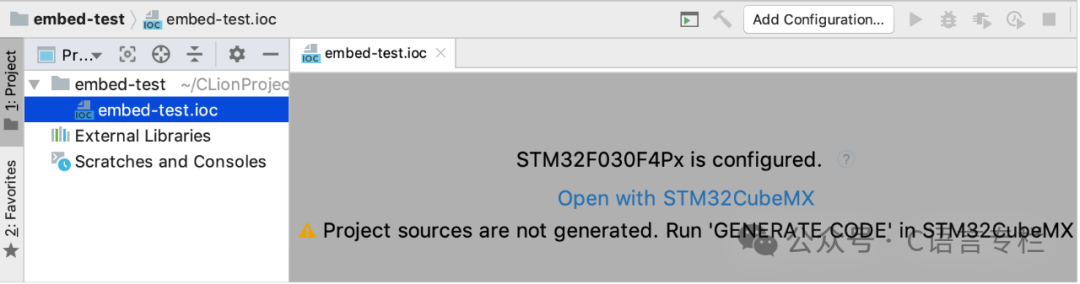
The .ioc file is a CubeMX raw project file containing static initialization settings. In CLion, this file is read-only, and in this step, it serves as a placeholder for the configuration that will be set in CubeMX.
-
Now you need to switch to CubeMX to generate the project source code and fill the .ioc file. Click the Open with STM32CubeMX link to open CubeMX from CLion.
-
In CubeMX, the configuration for the newly created project is set. Click STM32F030F4Px to call the MCU/Board Selector and change the default MCU:
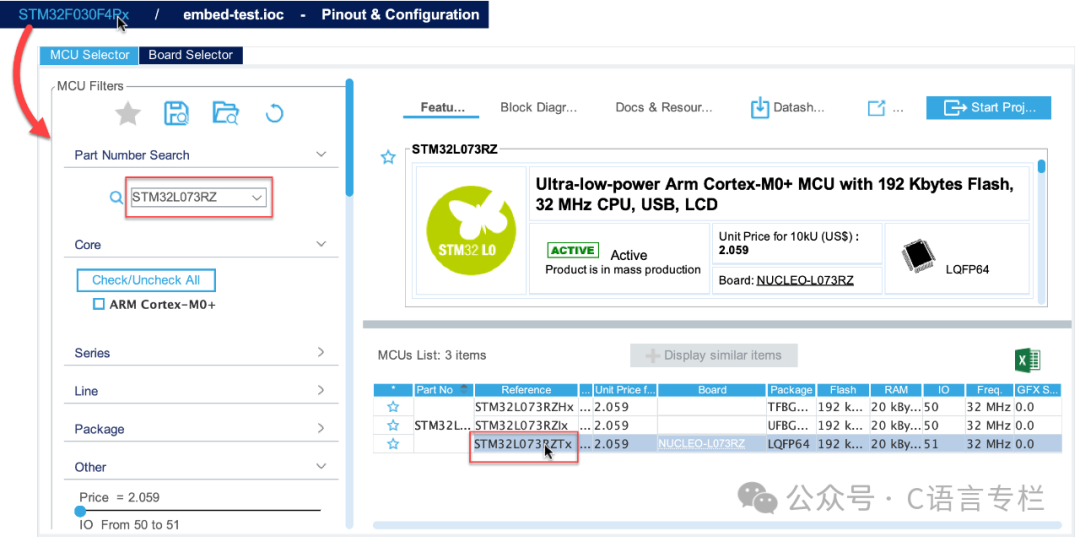
Note
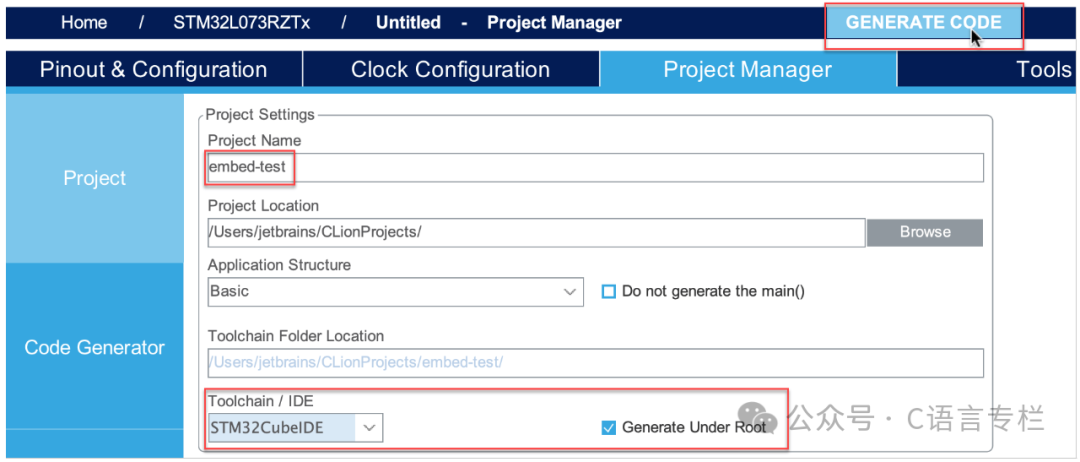
When changing the MCU, CubeMX will reset the project name. Manually provide a name in the project manager and accept the suggestion to overwrite the project.
Once the hardware configuration is ready, check that the Toolchain / IDE field is set to STM32CubeIDE and select to generate in the root directory, then click Generate Code:
Note
If you do not plan to use OpenOCD, skip this step (click Cancel).
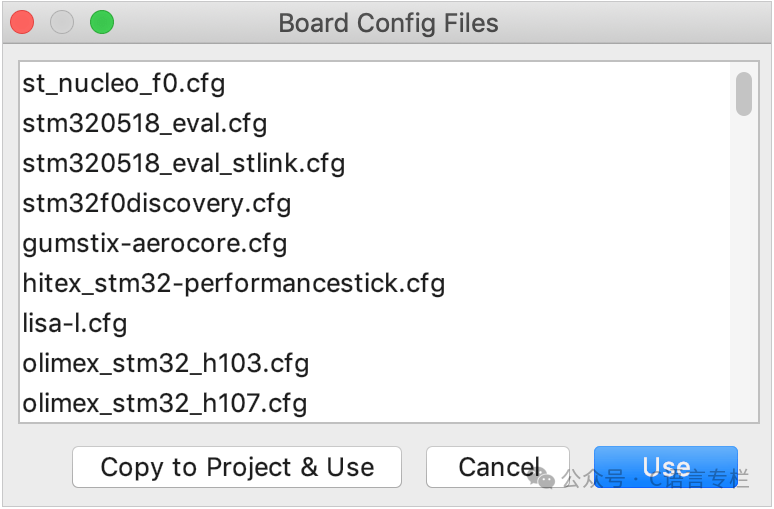
Back in CLion, once the CMake project loads, the system will prompt you to select a board configuration file. The recommended list consists of board configuration files that come with OpenOCD located in Openocd-Installation/share/openocd/scripts/board:
Note
You will also be able to select board configuration files, including custom configuration files, in the OpenOCD run/debug configuration settings.
Click Copy to Project and Use, the selected board configuration file will be added to your project tree. You will be able to open and adjust it in the editor.
Edit Source Code
-
When you change the MCU configuration in CubeMX and click Generate Code, your CLion project will automatically update:
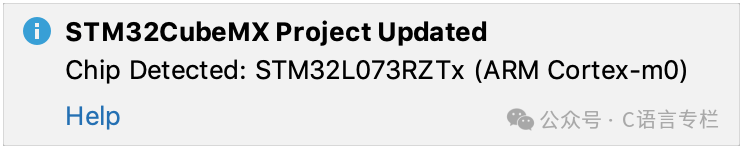
You can also manually update the project: right-click on the .ioc file in the project view and select Update CMake Project with STM32CubeMX.
-
When editing files generated by CubeMX, always include your code within the /* USER CODE BEGIN … */ and /* USER CODE END … */ pseudo-comments. This will protect your code from being overwritten by CubeMX during code regeneration. Additionally, consider extracting code snippets into separate .c or .h files (see the next point).
-
If adding source files or header files, place them in the Src and Inc directories.
-
Every time the project is updated, CLion will regenerate CMakeLists.txt from the template. If you need to make changes in the CMake script (e.g., add external libraries or FPU support), do so in CMakeLists_template.txt, then call Update CMake Project with STM32CubeMX.
Build Project
To build your project, use one of the following options:
-
Run or debug OpenOCD or Embedded GDB server configurations. These configurations include building as a pre-launch step:
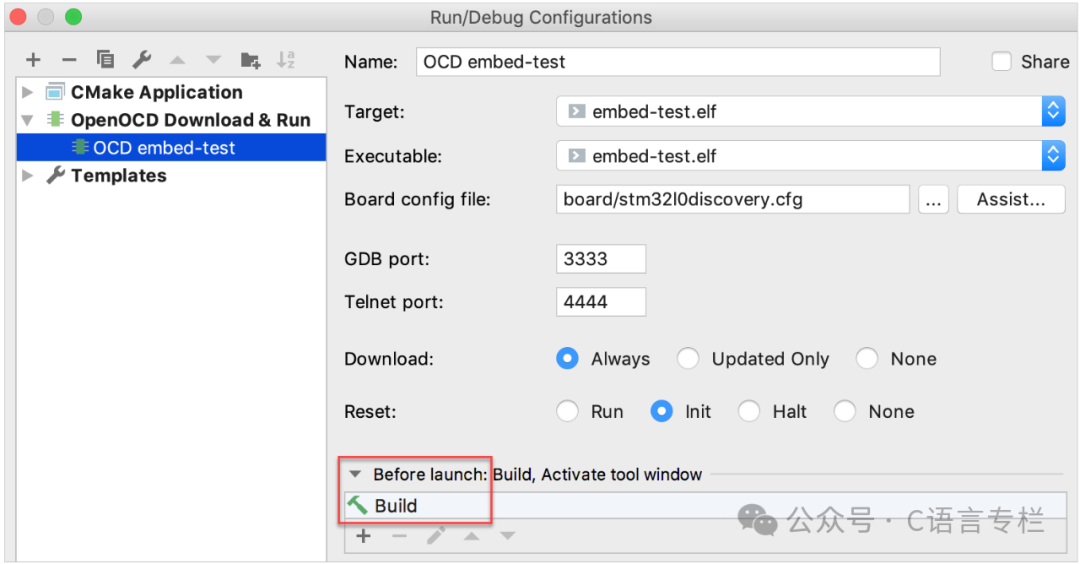
-
Manually build the project using build operations.
Popular Recommendations
-
Humiliated by the interviewer…
-
A screenshot showing what the frontend looks like now…
-
What level is it to go from a formal position in Alibaba to outsourcing?