Check the SystemConfirm the version of CentOS. Generally, CentOS 7 and above are well compatible with MySQL. Use the command<span><span>cat /etc/centos-release</span></span>to check the system version.Update the SystemRun the command<span><span>yum -y update</span></span>to update the system packages, ensuring the system is up to date and reducing compatibility issues.Add MySQL Yum Repository
wget https://dev.mysql.com/get/mysql80-community-release-el7-3.noarch.rpmThen run<span><span>rpm -ivh mysql80-community-release-el7-3.noarch.rpm</span></span>to install the RPM package.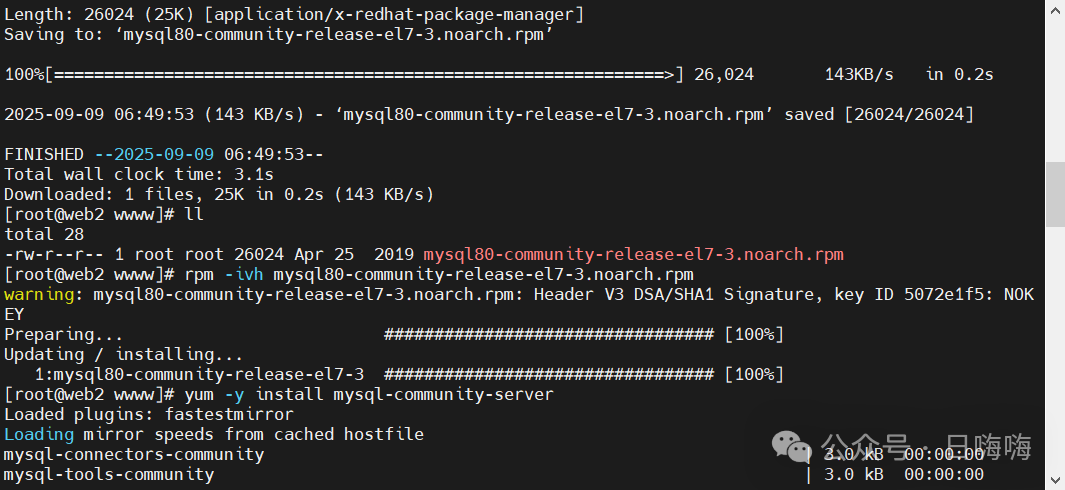 Install MySQLRun the command
<span><span>yum -y install mysql-community-server</span></span>to start the installation of MySQL.If you encounter the following error, follow these steps:
Downloading packages:warning: /var/cache/yum/x86_64/7/mysql80-community/packages/mysql-community-client-8.0.43-1.el7.x86_64.rpm: Header V4 RSA/SHA256 Signature, key ID a8d3785c: NOKEYRetrieving key from file:///etc/pki/rpm-gpg/RPM-GPG-KEY-mysql-2022Retrieving key from file:///etc/pki/rpm-gpg/RPM-GPG-KEY-mysqlThe GPG keys listed for the "MySQL 8.0 Community Server" repository are already installed but they are not correct for this package.Check that the correct key URLs are configured for this repository. Failing package is: mysql-community-client-8.0.43-1.el7.x86_64 GPG Keys are configured as: file:///etc/pki/rpm-gpg/RPM-GPG-KEY-mysql-2022, file:///etc/pki/rpm-gpg/RPM-GPG-KEY-mysqlWhen you encounter a GPG key error while installing MySQL 8.0 on CentOS, it usually indicates that the GPG key on the system does not match the key required for the MySQL package.
rpm --import https://repo.mysql.com/RPM-GPG-KEY-mysql-2022yum install mysql-community-serverIf it still doesn't work, execute the following commandyum install mysql-community-server --nogpgcheckStart MySQL ServiceAfter installation, use the command<span><span>systemctl start mysqld</span></span>to start the MySQL service. You can check the service status with<span><span>systemctl status mysqld</span></span>.Set to Start on BootRun the command<span><span>systemctl enable mysqld</span></span>to ensure MySQL starts automatically after system reboot.Retrieve Initial PasswordAfter MySQL installation, the initial password is stored in the<span><span>/var/log/mysqld.log</span></span>file, which can be viewed using<span><span>grep 'temporary password' /var/log/mysqld.log</span></span>.Log in to MySQL and Change Initial PasswordLog in to MySQL using the initial password with the command<span><span>mysql -u root -p</span></span>, and after logging in, use<span><span>ALTER USER 'root'@'localhost' IDENTIFIED BY 'new_password';</span></span>to change the password.
Previous Recommendations
[Linux Learning] How to Resize the / Root Partition in Linux – Practical[Linux Learning] View Server Hardware Information (2)[Linux Learning] View Server Hardware Information (1)[Linux Learning] CentOS 7 Samba Server Setup Tutorial[Linux Learning] CentOS 7 FTP Server Setup Tutorial[Linux Learning] In-Depth Explanation of the find Command[Linux Learning] Scheduled Backup of MySQL Database[Linux Learning] Detailed Explanation of the iotop Command: Efficient Monitoring of Linux System I/O