Installing GParted on a Linux system cannot adjust partitions while the computer is running because the / and /home partitions are read-only during boot. An alternative method is to create a GParted USB bootable drive, boot the computer from the USB, perform the partition adjustments, and then restart the computer to enter the Linux system.
To create a GParted USB bootable drive, it is recommended to use Rufus, which is simple and user-friendly. There are many tutorials available online, or you can refer to a previously published article:
www.88531.cn/43249.html
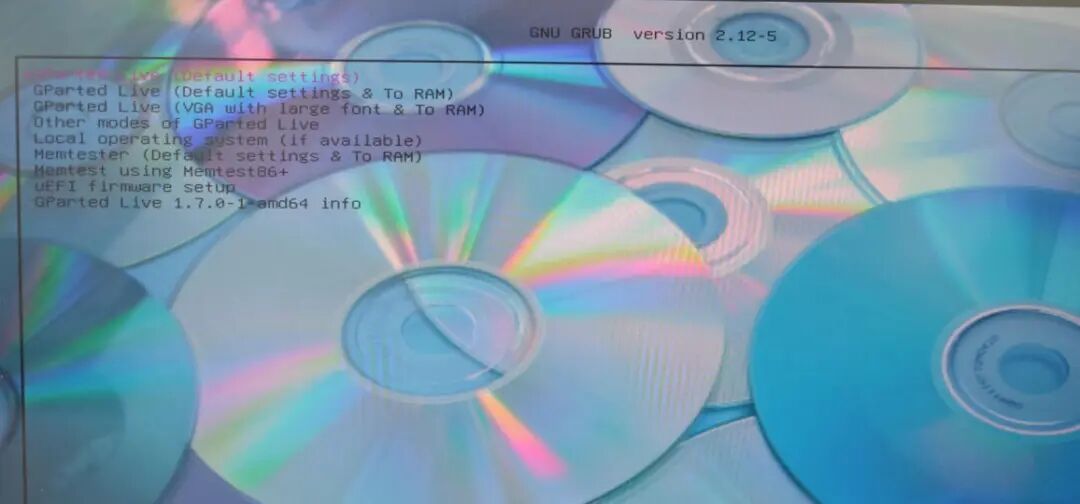
After successfully creating the USB, insert it and restart the computer, selecting the USB as the boot device in the BIOS:
Select the first default setting
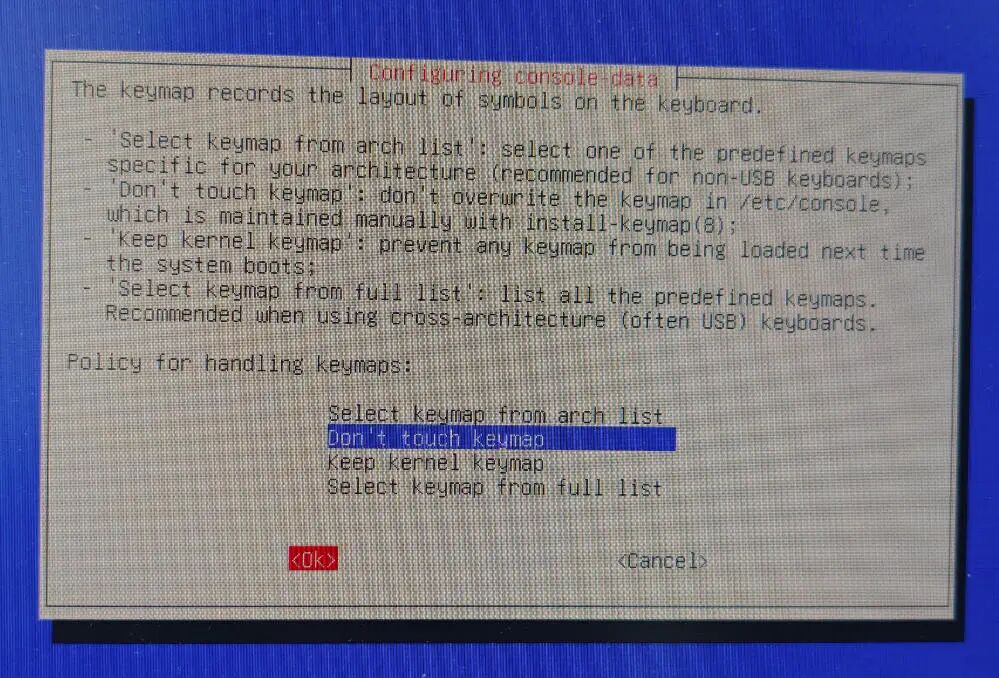
Default Don’t touch keycap, select <OK>:
Then enter 26 to select Chinese;
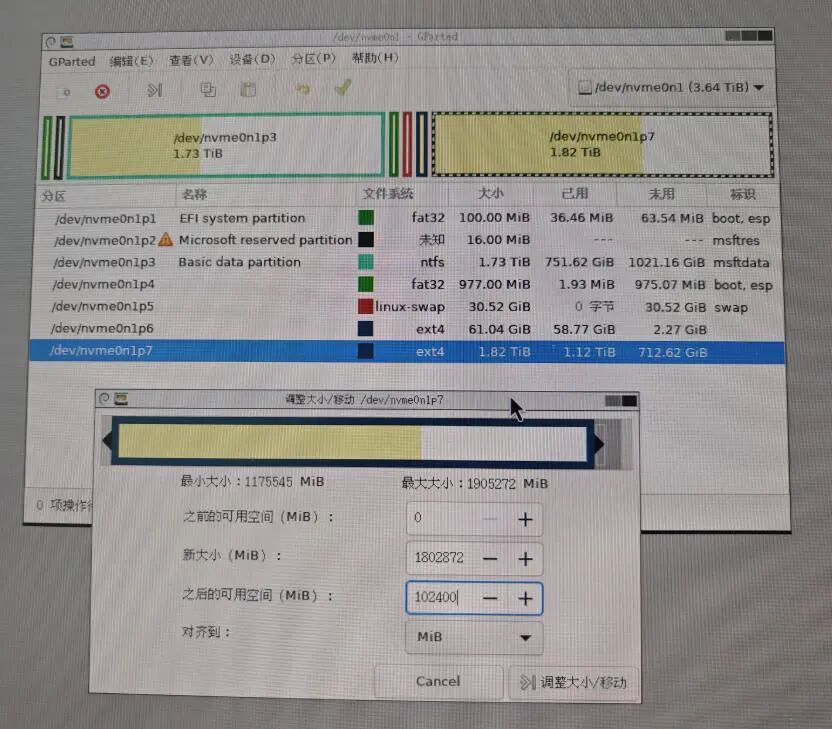
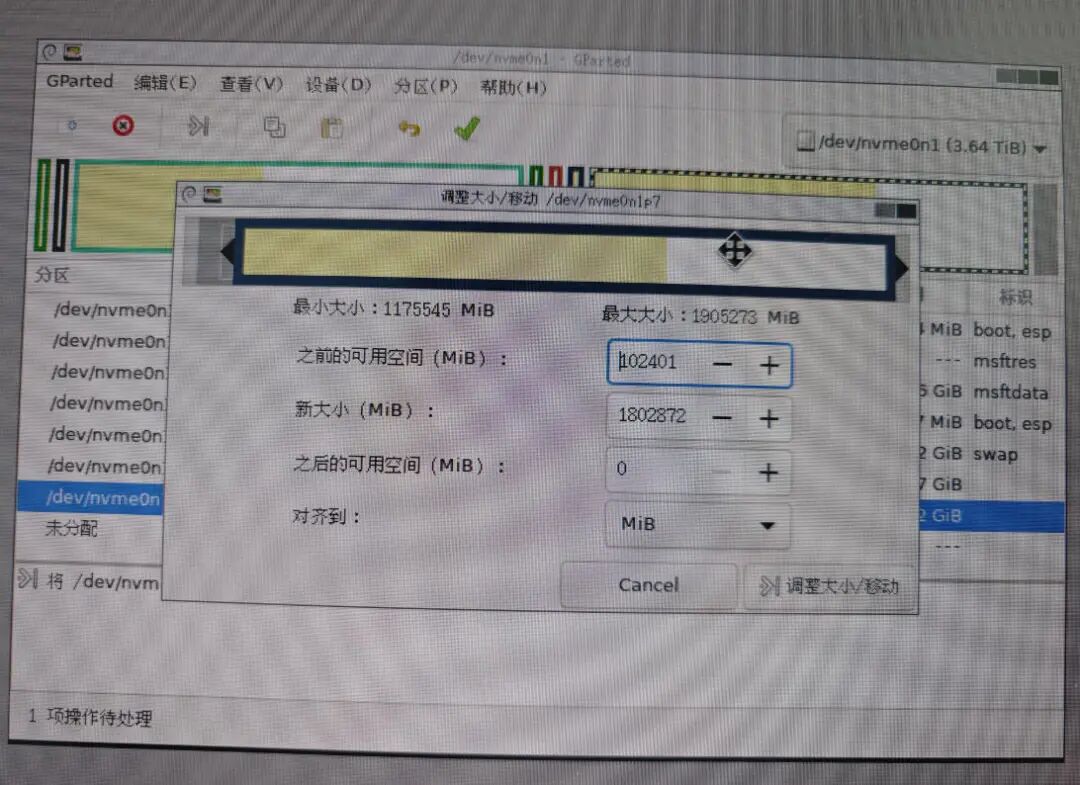
[Tip]: After clicking Resize/Move, the action will not execute immediately; you need to click the green ✅ at the top to execute it.
To reduce the size of a large partition, right-click and select resize, then click Resize/Move to create a blank partition:
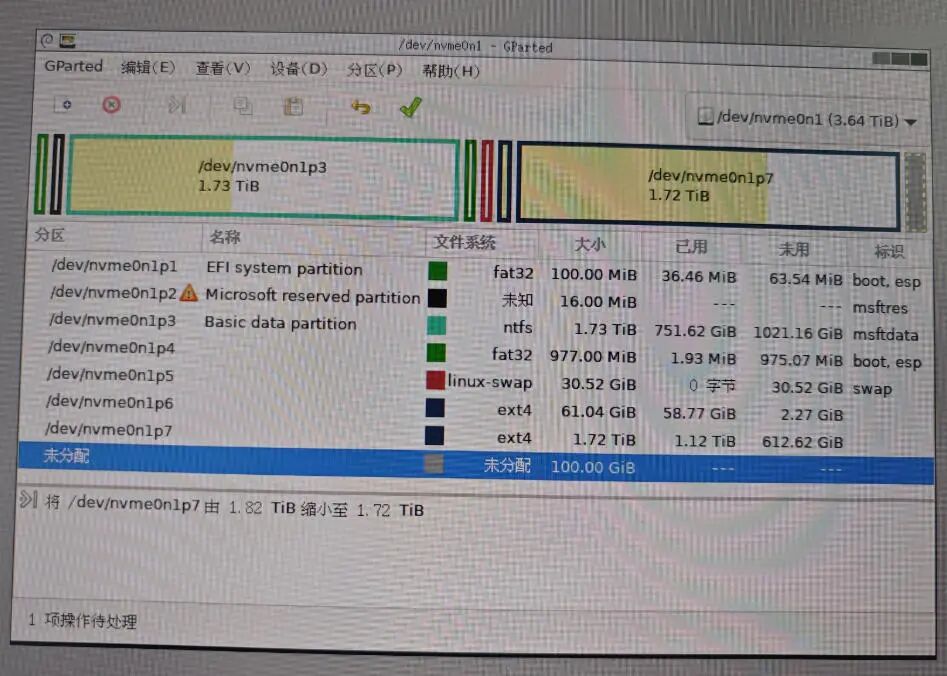
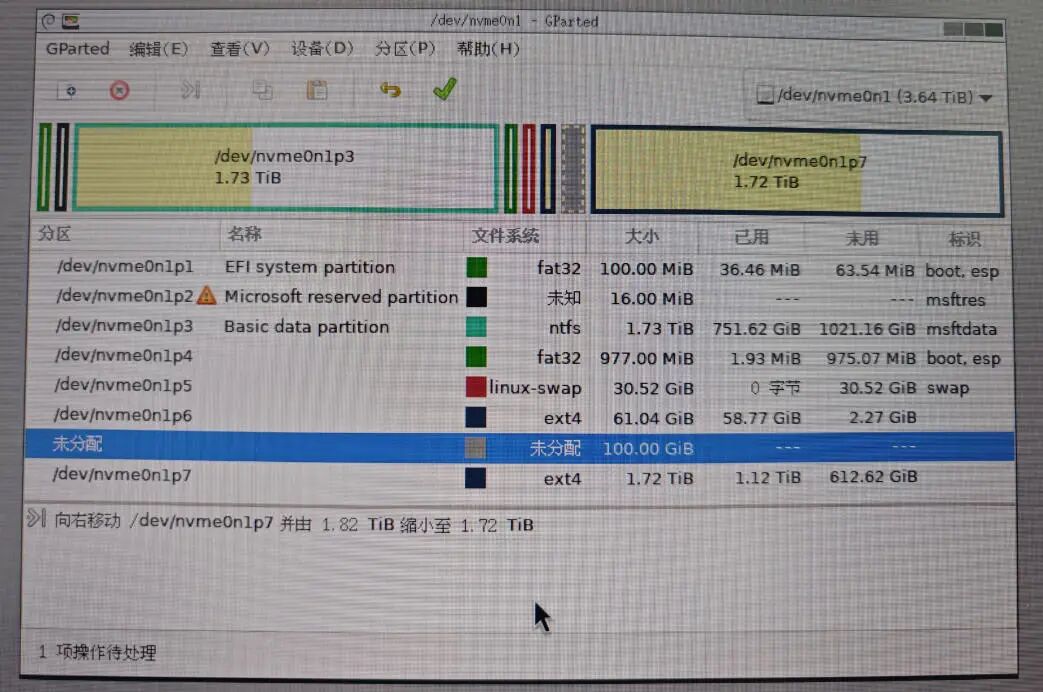
As shown in the figure, the blank partition has been created:
Move the partition by dragging the blank partition to the desired location:
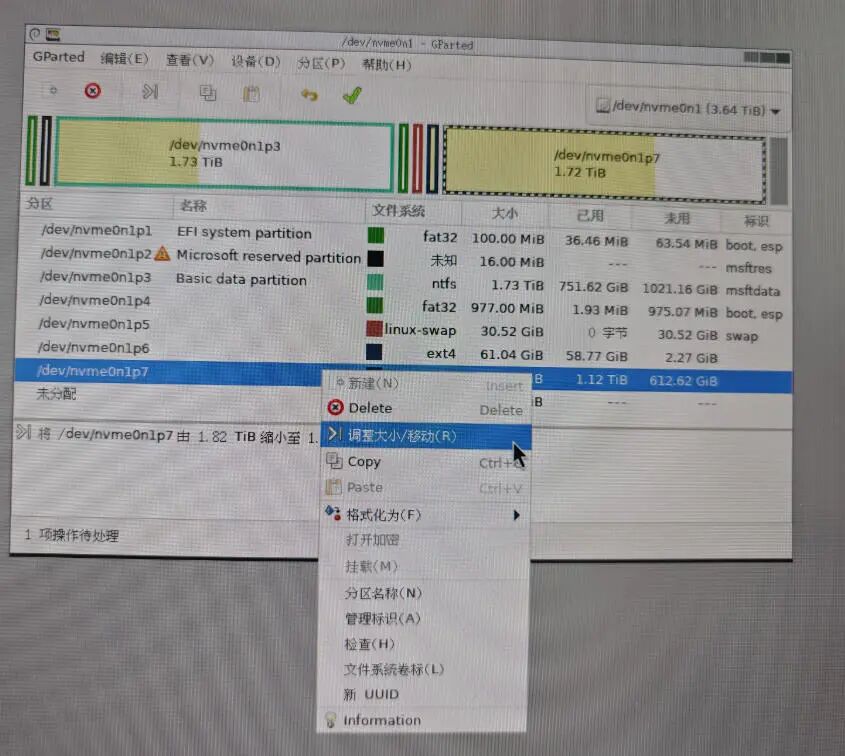
Use the mouse to drag the blank partition’s position:
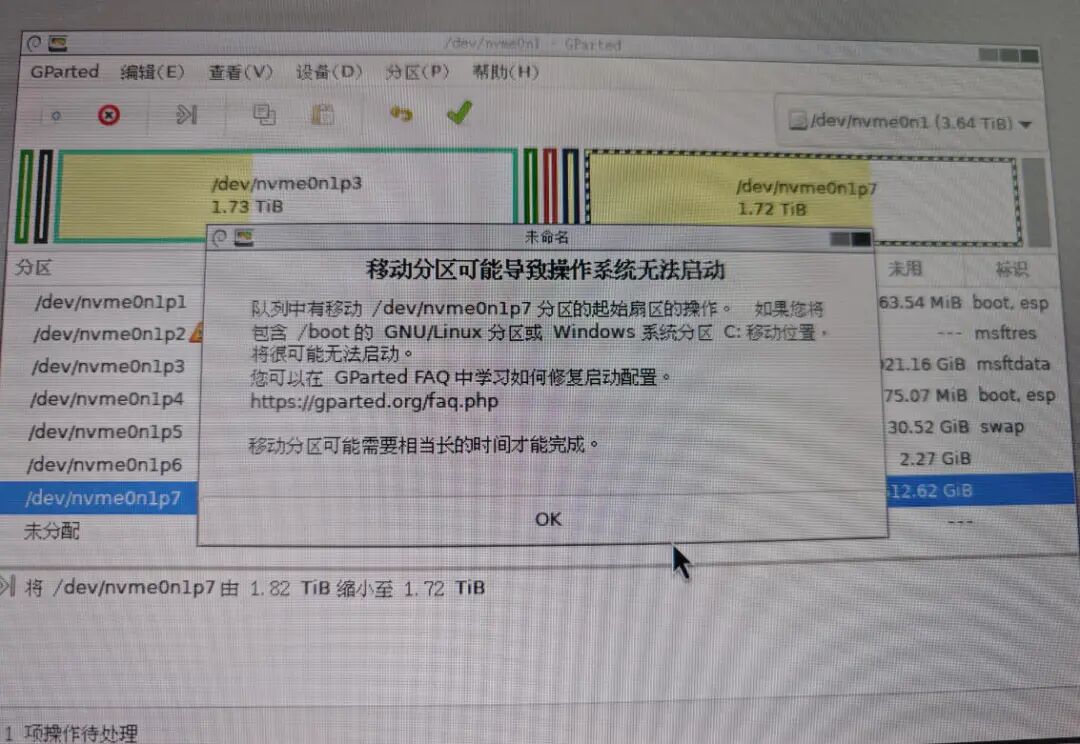
A warning ⚠️ will appear, but since we are not operating on the /boot partition, it is safe to move:
As shown in the figure, the blank partition has been moved to the desired location, and we can proceed to merge:
For the partition to be expanded, select resize and use the mouse to move the slider on the right to expand:
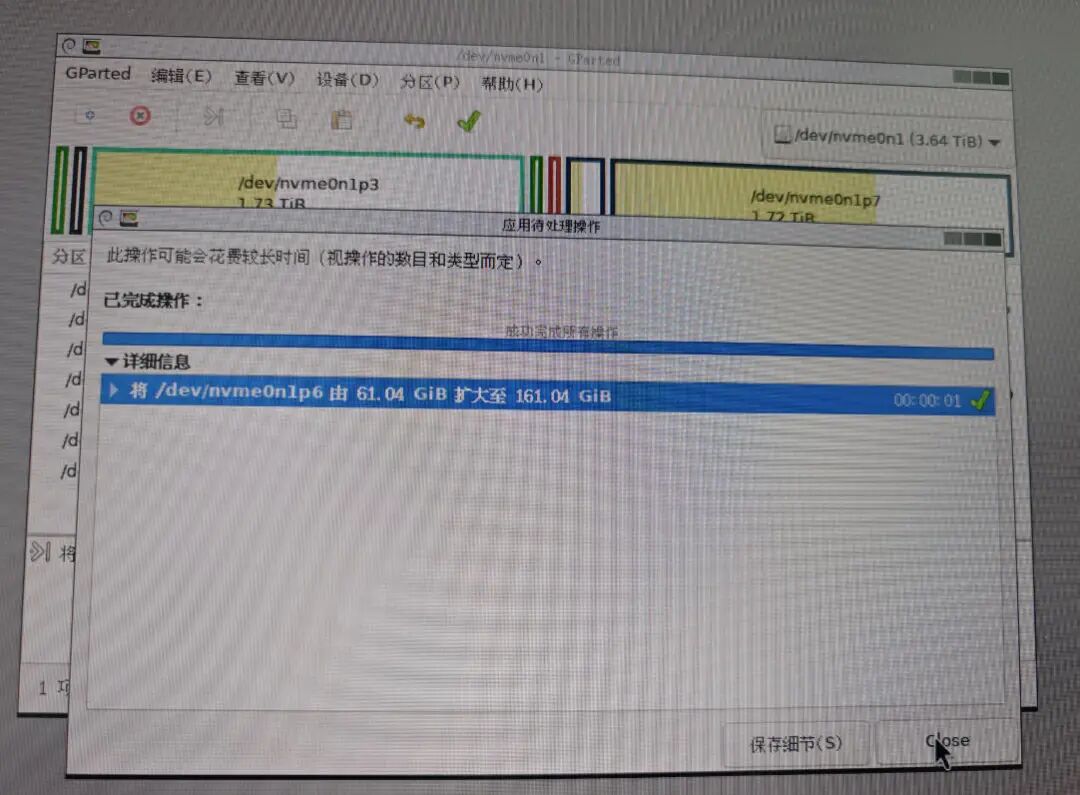
At this point, the partition adjustment is complete, expanding the / partition from 61G to 161G.
Restart the computer to enter Linux normally!
Since GParted is foreign software, the official website download is slow; using a cloud drive is faster!
GParted cloud download link:
https://pan.quark.cn/s/d3d8f90f6051