Creating a Multimedia Multilingual Terminology Database: Based on SDL MultiTerm Desktop 20191. Tool IntroductionSDL MultiTerm Desktop 2019 is a professional desktop terminology management tool that helps create, manage, and display terminology. As a centralized repository, users can create all terminology in various languages. This software ensures consistency in terminology across all content types and languages, and is widely accepted by content owners, project managers, proofreaders, and translators worldwide. It is a standalone desktop tool that can be used to create terminology databases and glossaries, and can also be used in conjunction with SDL Trados Studio to enhance overall translation quality and efficiency.2. Illustrated TutorialPart One: Creating a Multimedia Terminology DatabaseStep 1: Open SDL MultiTerm Desktop 2019 and enter the “Home” interface. Click “Create Terminology Database” in the upper left corner, choose the storage path, set the name of the terminology database file (Figure 1), and click “Save” to enter the “Terminology Database Wizard” (Figure 2).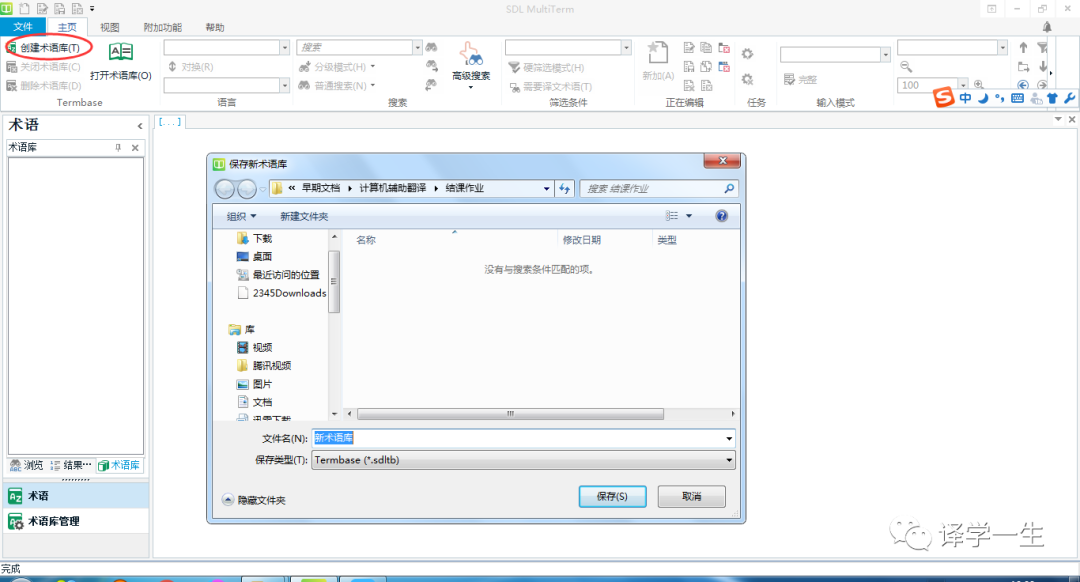 Figure 1
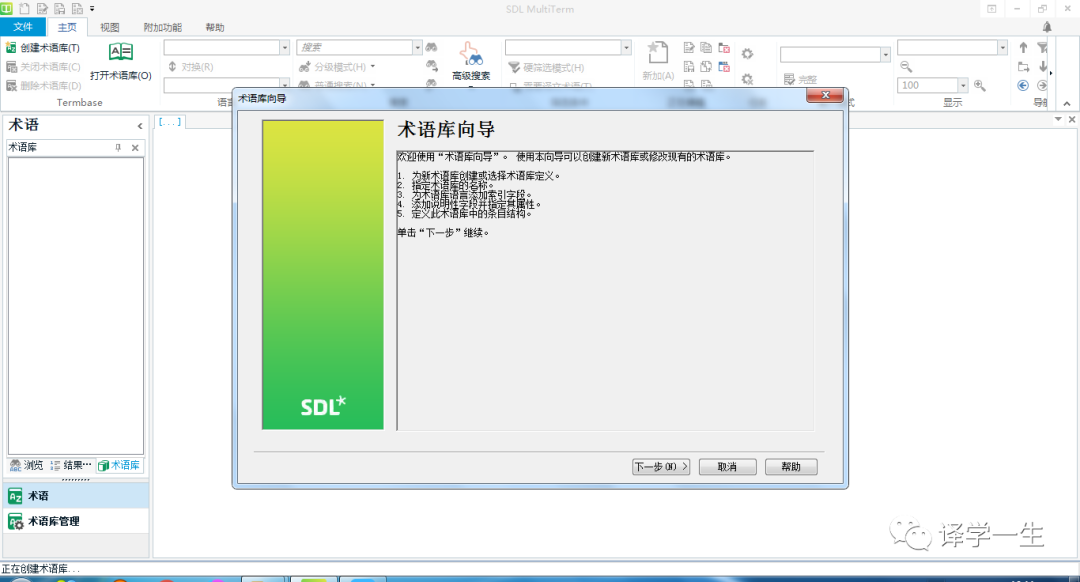 Figure 2Step 2: Click “Next” in Figure 2 to go to Figure 3, select “Use Predefined Terminology Database Template”, and from the dropdown, choose either “Bilingual Glossary” or “Multilingual Terminology Database” based on actual needs (this example selects “Multilingual Terminology Database”), then click “Next”.
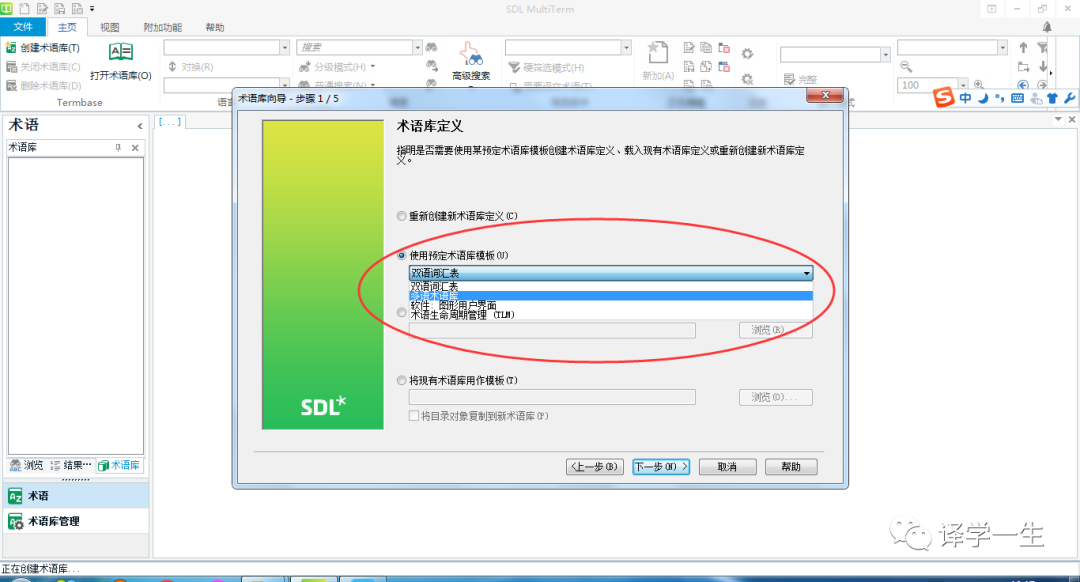 Figure 3Step 3: Add a user-friendly name (Figure 4), then click “Next”.
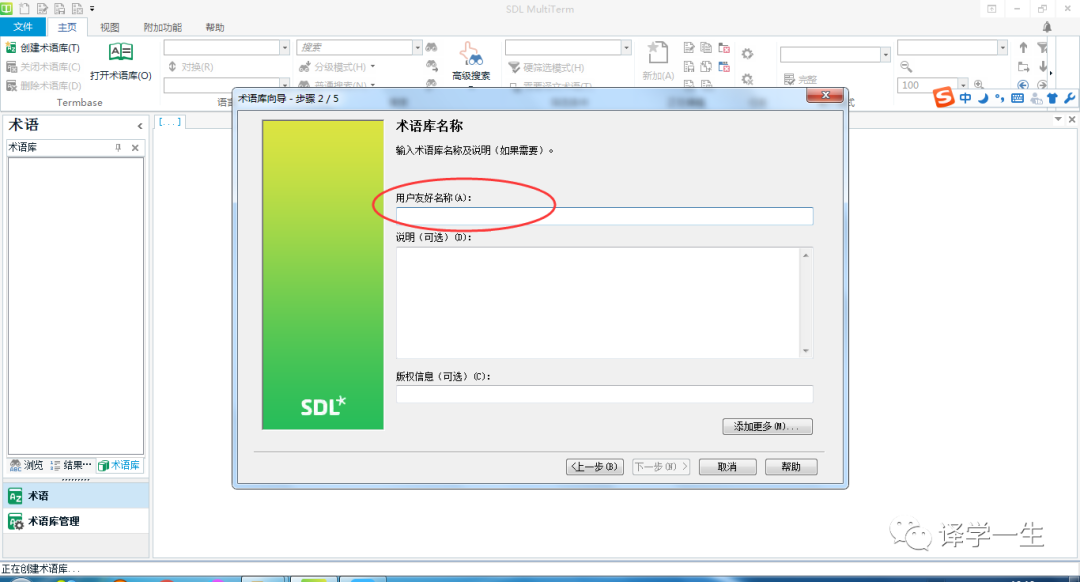 Figure 4Step 4: Choose the required languages based on actual needs (Figure 5). You can first delete the default languages from the right index field box, then select languages from the left side. Once the languages are set, proceed to “Next”.
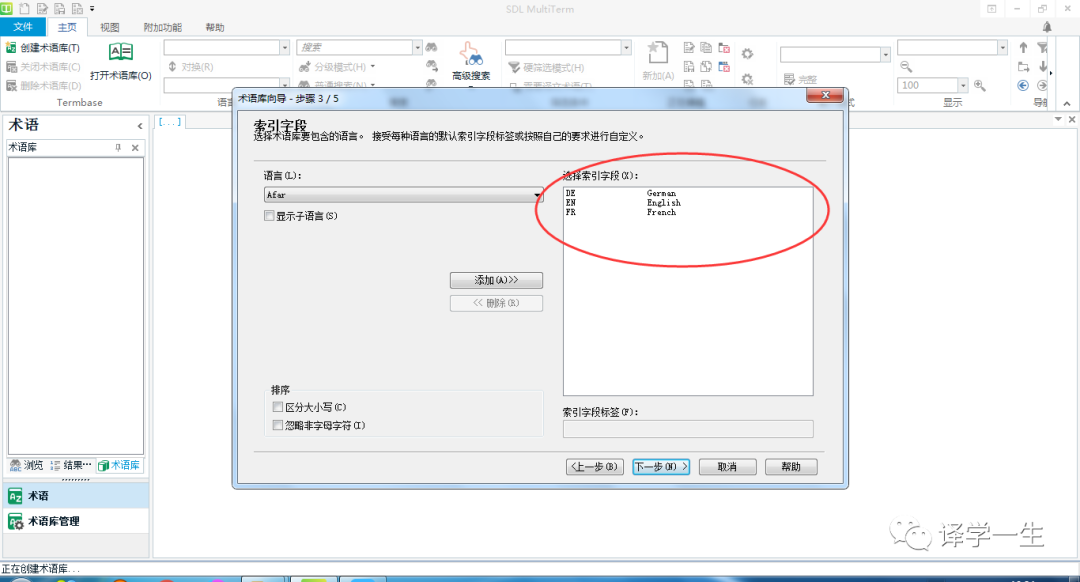 Figure 5Step 5: Set descriptive fields. As shown in Figure 6, the descriptive fields on the right are system defaults, and the content displayed will vary based on the characteristics of the languages selected in Step 4 (this example uses Chinese, English, and French). You can modify or set attributes based on actual needs. If not needed, click “Next” directly.
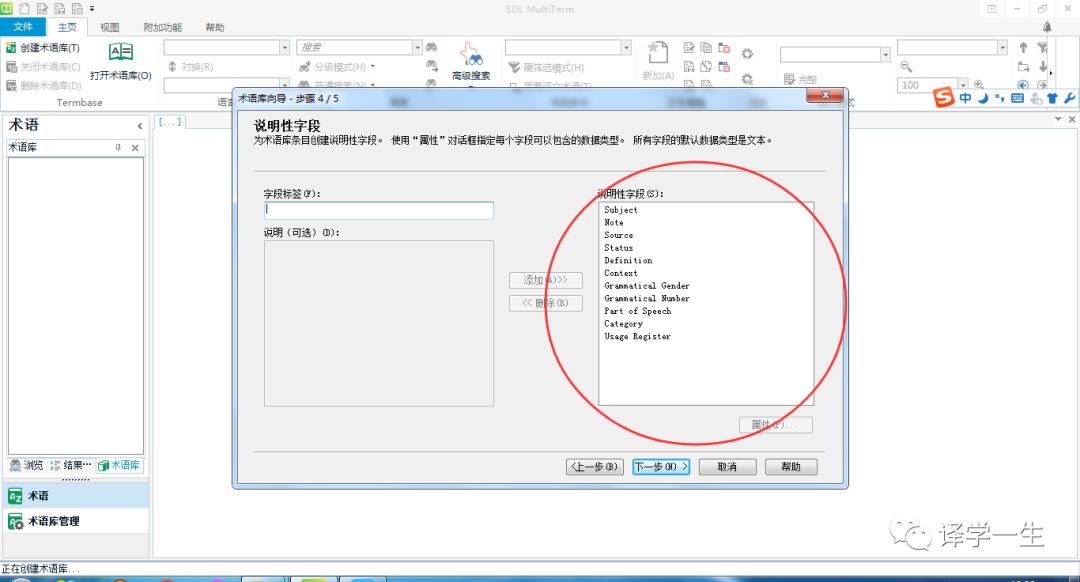 Figure 6If you want to create a terminology database with multimedia file descriptions, you need to input “multimedia” in the left “Field Label” column as shown in Figure 7 (the title can be set by yourself), and click add. Then, as shown in Figure 8, select “multimedia” that appears on the right, click “Properties”, choose “Multimedia File”, confirm, and then click “Next”.
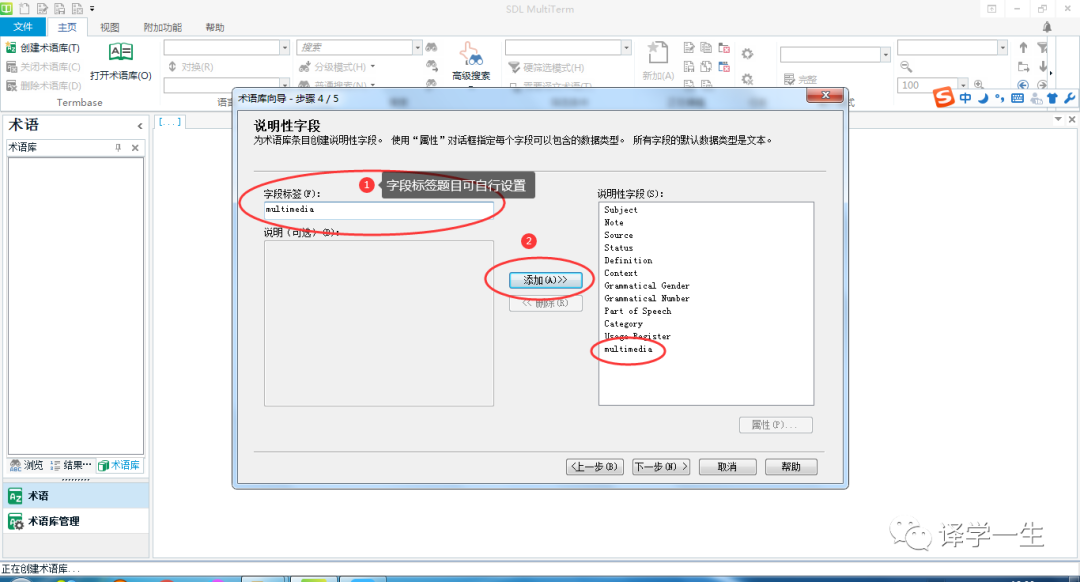 Figure 7
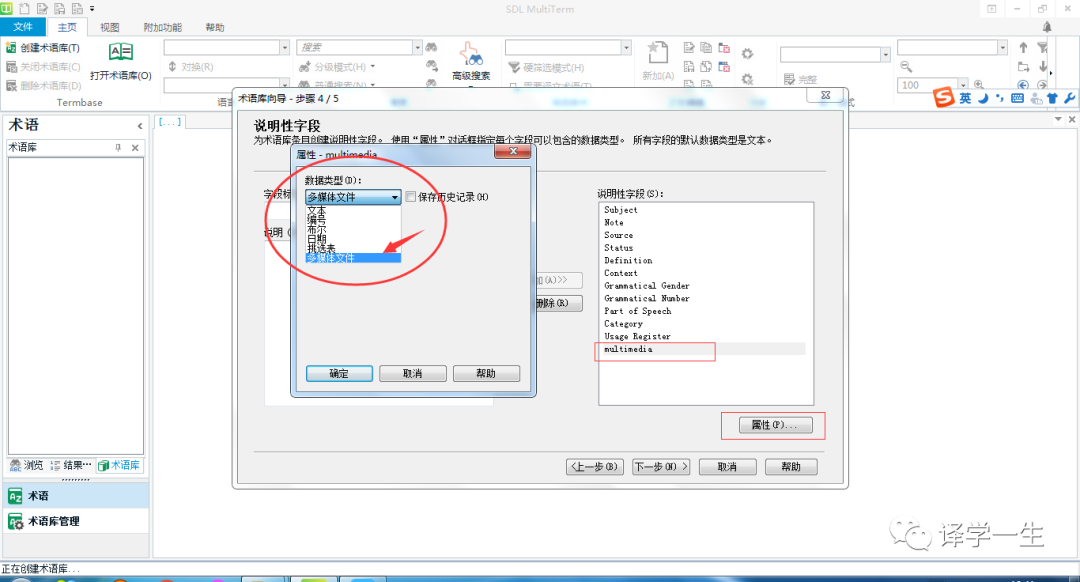 Figure 8Step 6: If no other descriptive fields were added in Step 5, you can proceed directly to “Next”. If new descriptive fields were added, you need to follow the example in Figure 9, select “Term level” on the left side and “multimedia” on the right side, and finally click “Add”. After completing the addition, proceed to “Next”, which will indicate that the wizard has been completed (Figure 10).
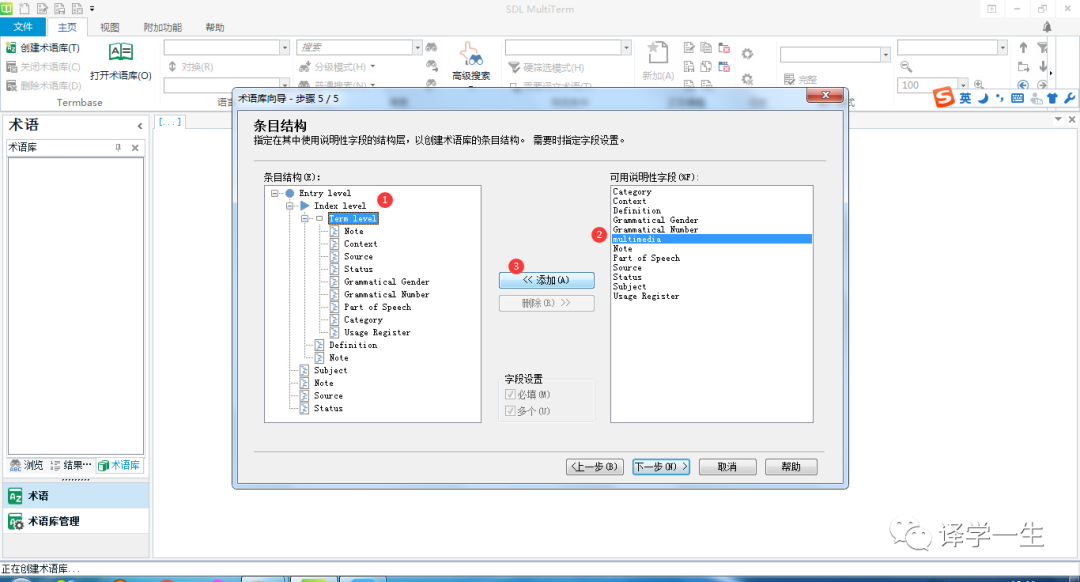 Figure 9
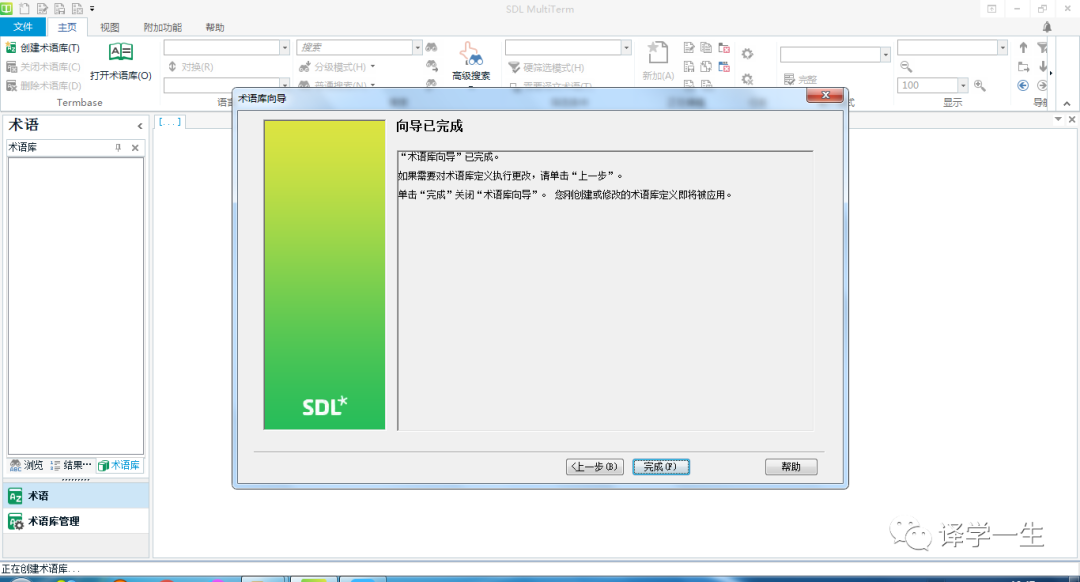 Figure 10At this point, a blank Chinese-English-French multilingual multimedia terminology database has been created. Click “Finish”, and you will automatically enter the created terminology database interface.Part Two: Adding Entries to the Created Terminology DatabaseStep 1: In the terminology database interface that you just entered automatically, click “Add New (A)” to add a new entry. At this time, the system defaults to only showing English and French languages; you can click the green text “+ Add Language +” on the right side to add Chinese.
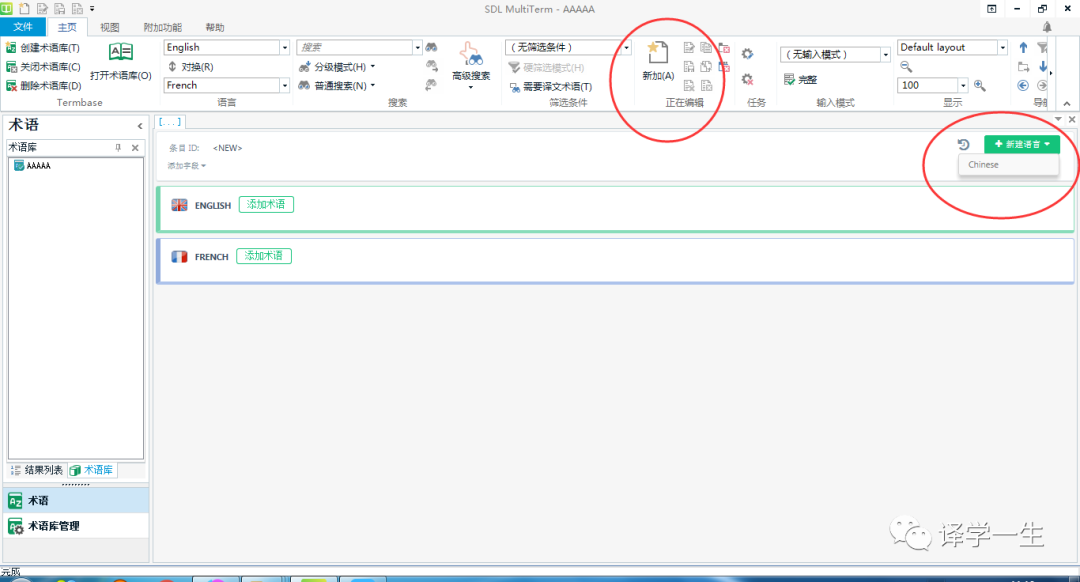 Figure 11Step 2: Click the green text “Add Term” after the three languages to add the corresponding terms (Figure 12). (Tip: You can first input the Chinese term that you manually added in the previous step; otherwise, the blank Chinese term column may disappear automatically.)
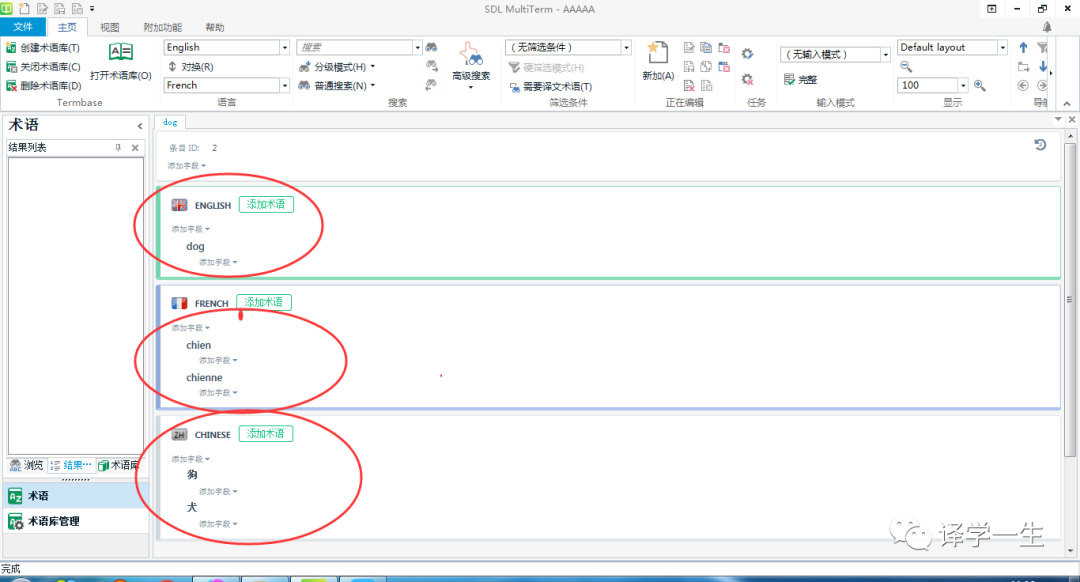 Figure 12Step 3: Based on your situation, “Add Fields” description, such as note, definition, context, source, status, etc.Example 1: Add gender description. Words in French have grammatical gender, so as shown in Figure 13, click “Add Field” under the two terms “chien” and “chienne” in FRENCH, select “Grammatical Gender”, and then choose the corresponding gender.
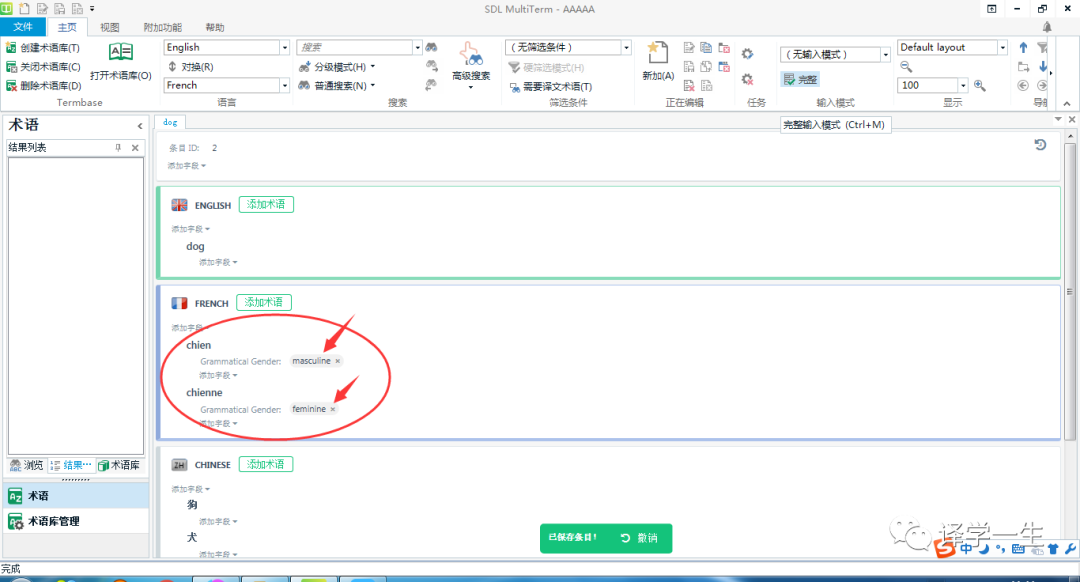 Figure 13Example 2: Add multimedia fields. As shown in Figure 14, click “Add Field” under the term to which you want to add multimedia fields (this example uses Chinese), and select the previously added “multimedia”. After that, a file path box will appear (Figure 15), where you can choose the multimedia files to upload according to your needs (Note: The formats of multimedia files supported by this version include mp3; oga; wav; mp4; ogv; ogg; gif; png; pcx; ico; wmf; tif; jpg; bmp, etc.). Figure 16 shows the interface after uploading multimedia files.
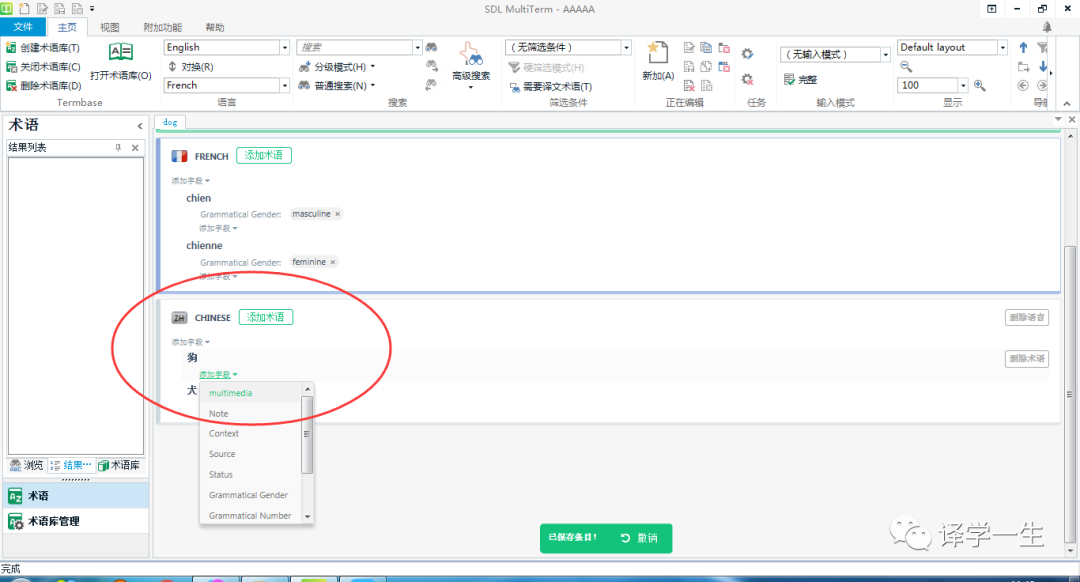 Figure 14
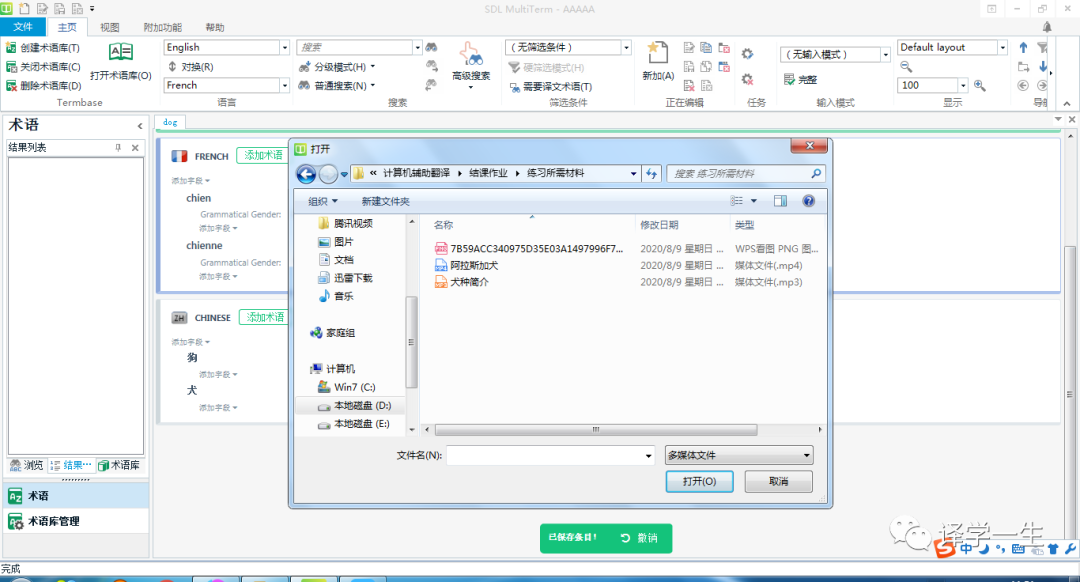 Figure 15
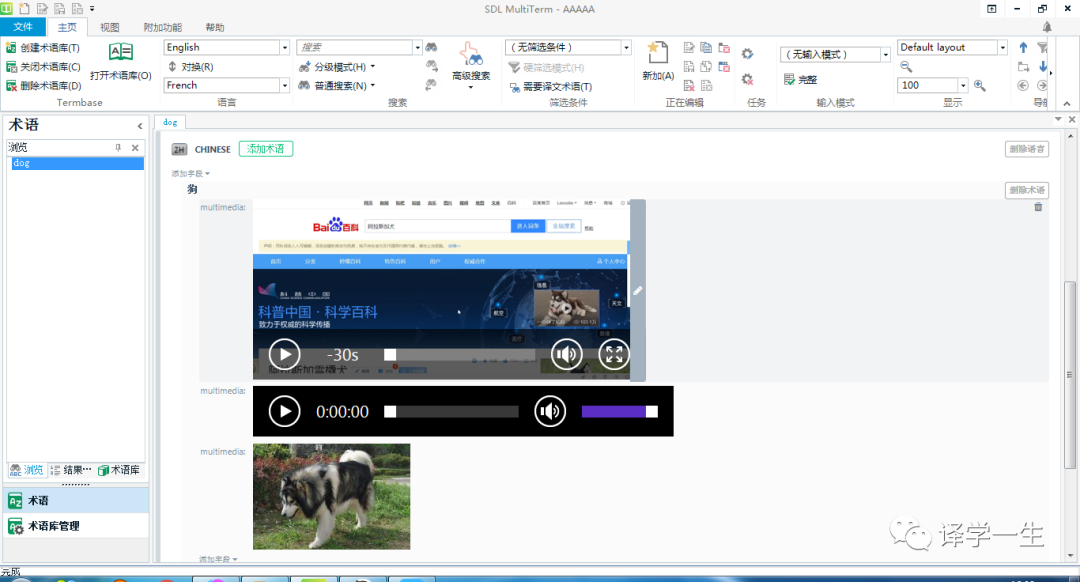 Figure 16To add new entries, you can repeat the above three steps. In addition, if you want to view or re-edit all entries added to this terminology database, you can click “View” in the upper left corner of the interface – “Browse”, and all entries will be displayed in the blank area on the left (Figure 16).
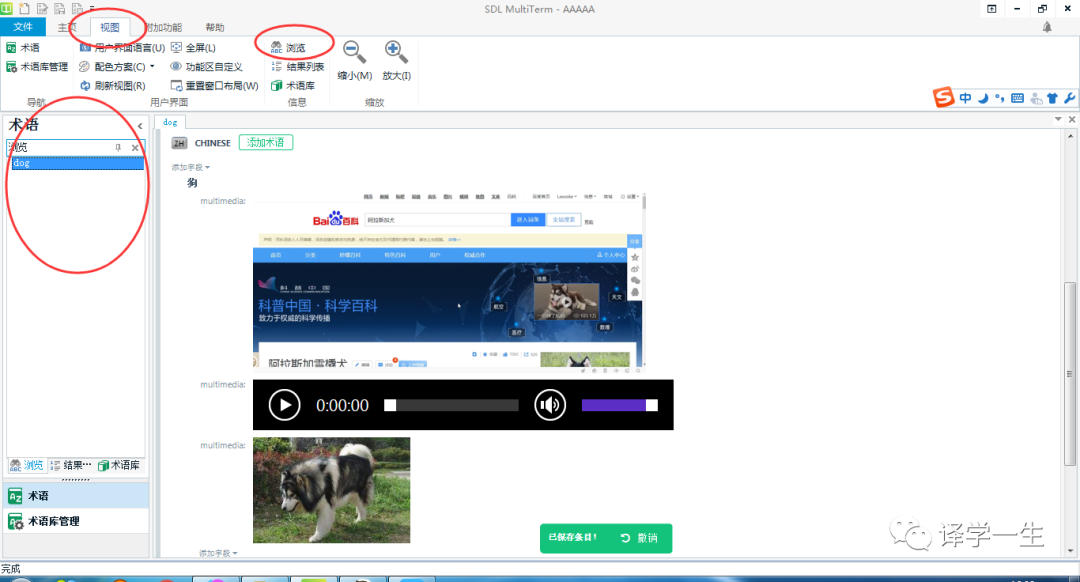 Figure 17At this point, the entry addition is complete. During the process of adding entries, the system will automatically save each step of the operation, so users do not need to save manually.3. Learning InsightsMultiTerm is a relatively important tool in SDL Trados, used for terminology database format conversion, processing, pre-translation terminology extraction, editing, and terminology during the translation process. MultiTerm Desktop is a core branch under MultiTerm that helps create, import, and edit terminology. The skills discussed in this article are the most basic, without the need for additional tools to create terminology databases. Although the operation of MultiTerm is relatively simple compared to SDL Trados Studio, various issues will still arise during practical use, revealing previously overlooked details. Therefore, practical exercises are crucial for learning the software, and through practical exercises, one can continuously improve and discover new features of the software. With rapid technological advancements, various software is emerging and evolving; mastering the specific operations of a particular software is not the ultimate goal of course learning. Having an independent mindset, being proactive, and being good at discovering and learning are the core ideas that the computer-assisted translation course itself and the instructors aim to convey.4. Accompanying VideoAuthor: Niu Yuan, Master’s Student in French Language and Literature, Dalian University of Foreign LanguagesReviewed by: Zhang Zihan, Master’s Student in Translation, Dalian University of Foreign LanguagesThis issue was edited by: Wang Xiaofan
Previous Recommendations
Translation Technology | Terminology Extraction: Introduction to Transmate Standalone Version Terminology Extraction Function
Translation Technology | Terminology Management: Operation Method of Yufan Terminology Treasure Platform
Translation Technology | Mastering PDF: Operation Method of LightPDF Platform
Translation Technology | Search Artifact: Wox + Everything Usage Tutorial

 Translation Learning CommunityLearning Together, Growing Together